
Back to Blog googleworkspace
 kubernetes
 ai
ai typescript
 showdev
 ai
ai agents
Google Workspace Studio Tutorial: Turn Google Forms into a Full CRM - Auto Lead Capture, Personalized Emails & Team Notifications
Aryan Irani April 7, 2026
0 views
As a consultant, I've learned one universal truth, The speed of your response determines the quality...
As a consultant, I've learned one universal truth, **The speed of your response determines the quality of your client relationships.**
When a potential lead fills out a Get in Touch form on your website, they are at their peak level of interest. If you wait 24 hours to email them back, that interest cools down. If you don't log their details in a CRM immediately, they become a lost lead in your inbox.
In this tutorial, we are going to build a **Lead Capture CRM Workflow** in Google Workspace Studio. This agent doesn't just collect data - it manages the relationship, logs the lead, drafts the perfect welcome email, and alerts your team, all while you're doing something else.
## The Workflow Logic: The Lead-to-Call Pipeline
Using **Google Workspace Studio**, the agent that we will build will do the following:
- Automatically adds every new form submission to a professional Google Sheet
- Uses Gemini to write a warm, personalized welcome email
- Draft a personalized welcome email
- Send you an instant alert in Google Chat.
If you missed the previous [AI Email Labeller tutorial](https://dev.to/gde/google-workspace-studio-tutorial-auto-organize-your-inbox-with-smart-labels-priority-3493), start there for the basics. Prefer video? Click [here](https://youtu.be/YLFYu_9dkw4?si=D2rzi_jmbO0NTn61).
Prefer to watch instead of read? Check out the video version of the guide here.
{% embed https://youtu.be/CzqVP3Bj0UI?si=DBolapCznyPRZCUS %}
### Prerequisites
- Google Workspace Business, Enterprise, or Education plan with Gemini enabled
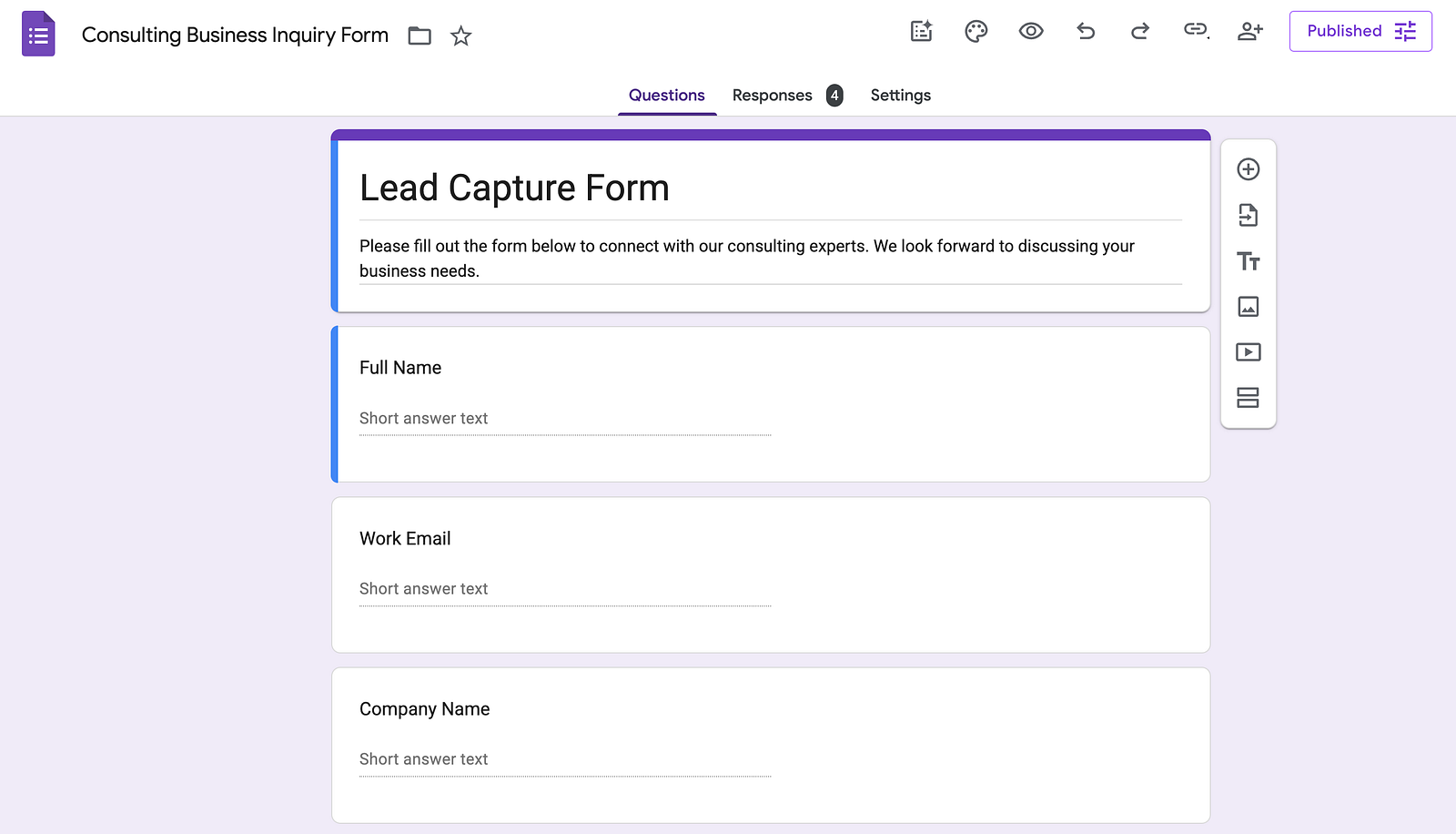
- A Google Form ready (I used Consulting Business Inquiry Form)
- A Google Sheet set up as your CRM (we'll map it live)
## Step 1: Create the Flow & Add the Starter
- Go to [studio.workspace.google.com](https://studio.workspace.google.com/)
- Click + New flow and name it Lead Capture Agent: Forms to CRM, Email, and Chat
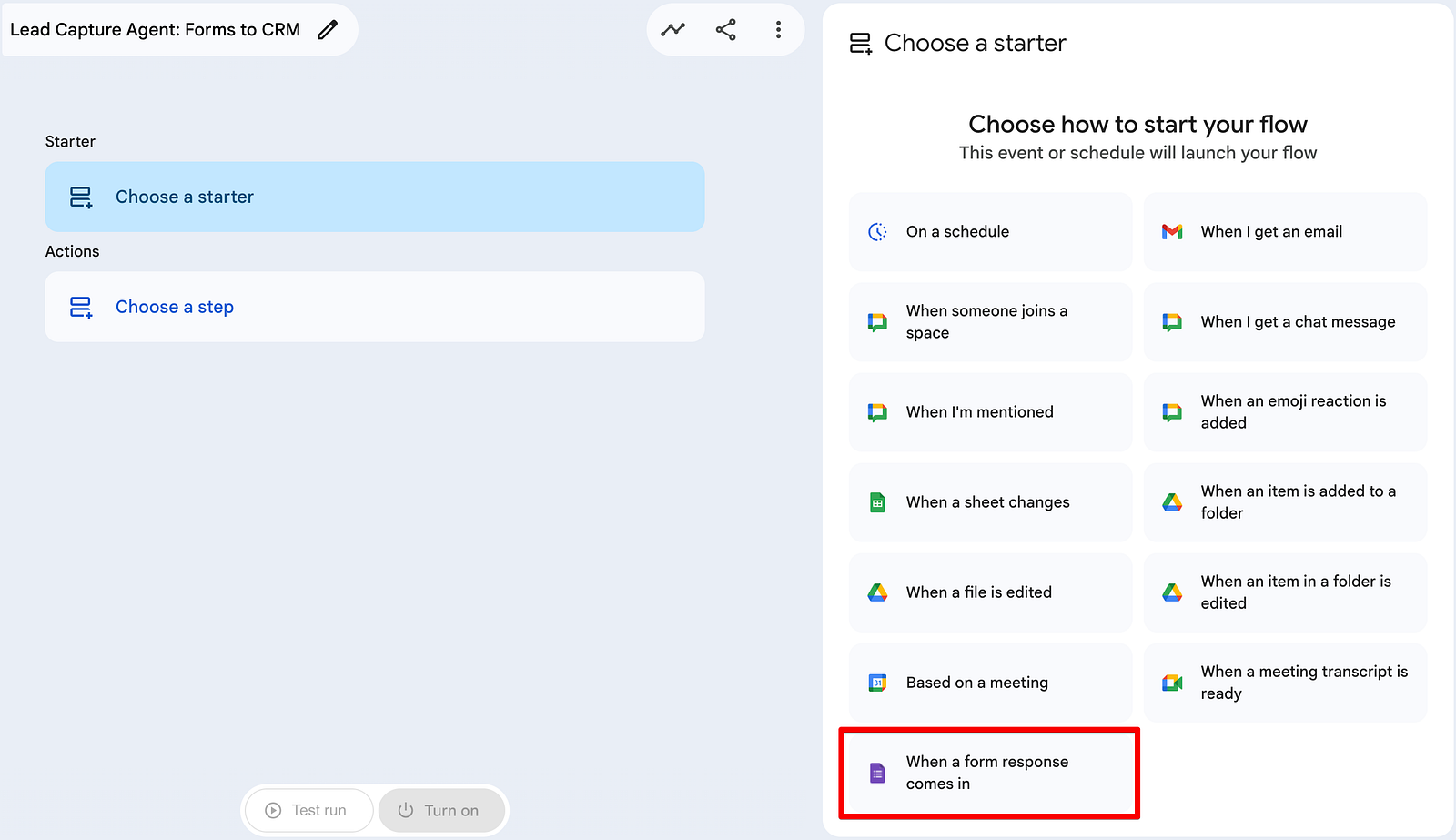
- Click Choose a starter → Select When a form response comes in
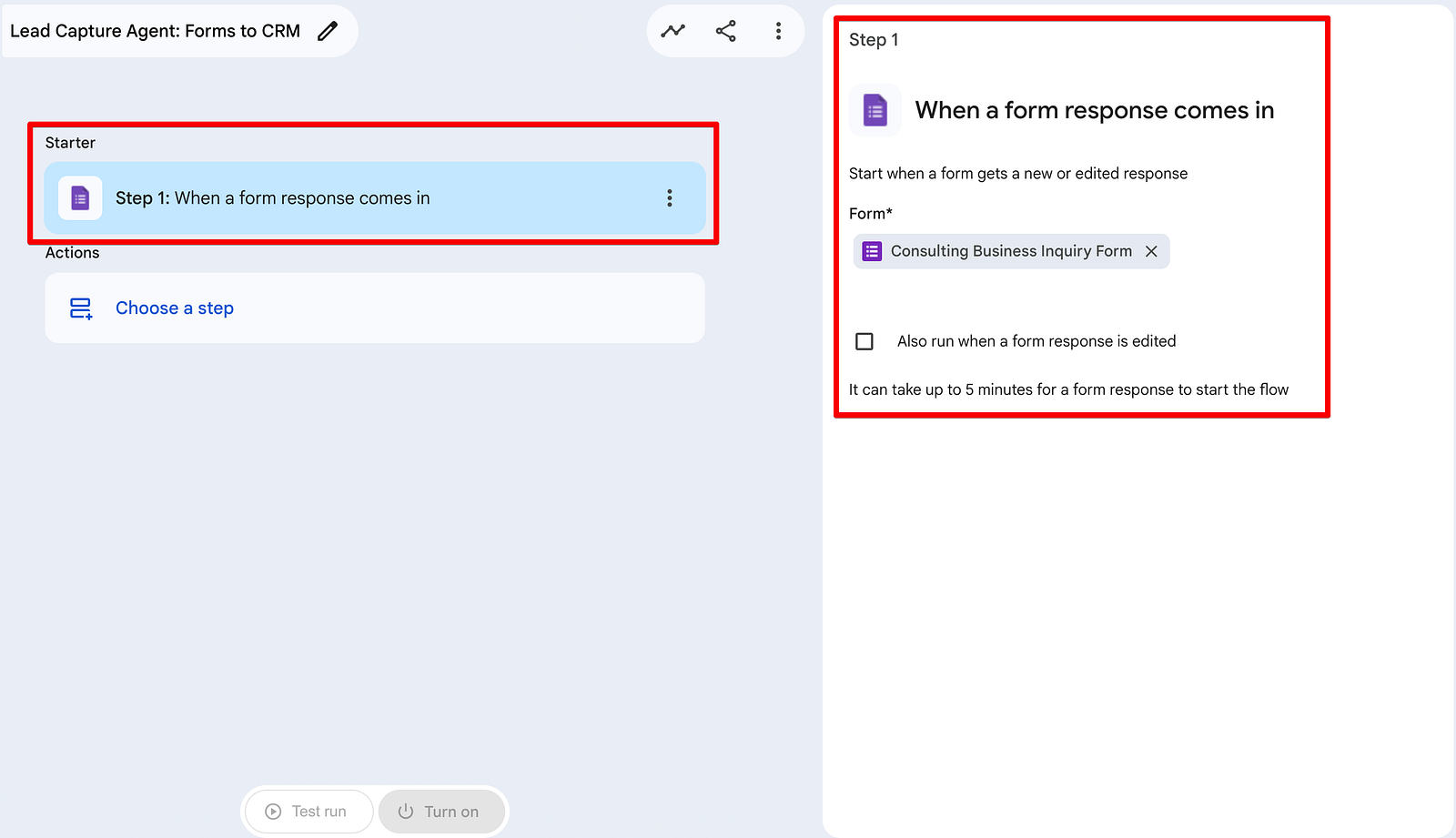
- Choose your form (in my case: Consulting Business Inquiry Form)
## Step 2: Building the Ledger (Add a Row)
We need a single source of truth for our leads. Use the Add a row action to point to your Lead CRM Google Sheet.
Set Add row to After last data row. This instantly turns every submission into a clean, searchable CRM row. Map every form field to the correct column:
- Timestamp → Step 1: Response time
- Full Name → Step 1: Full Name
- Work Email → Step 1: Work Email
- Company → Step 1: Company (and so on for all fields)
## Step 3: Ask Gemini to Write the Personalized Welcome Email
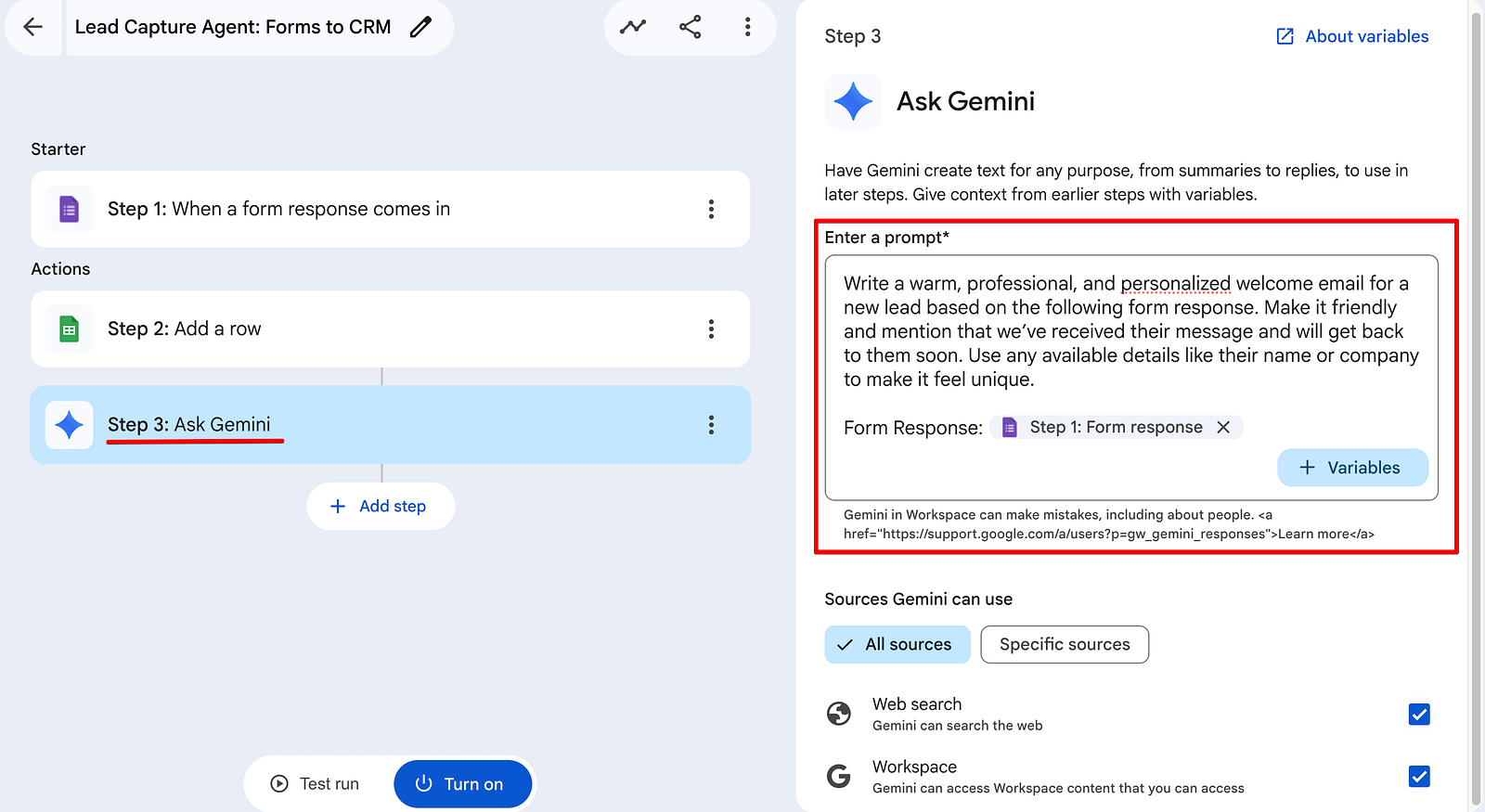
- Click + Add step → Ask Gemini
- Use this prompt:
> Write a warm, professional, and personalized welcome email for a new lead based on the following form response. Make it friendly and mention that we've received their message and will get back to them soon. Use any available details like their name or company to make it feel unique.
> Form Response: {{Step 1: Form response}}
- Use the **+ Variables** button to insert the specific Form response chip into your prompt. This is what grounds Gemini in your lead's actual data. This is where we go beyond simple data entry. Gemini turns raw form data into a human-sounding email.
## Step 4: The Handoff (Gmail & Google Chat)
Finally, we put the agent to work:
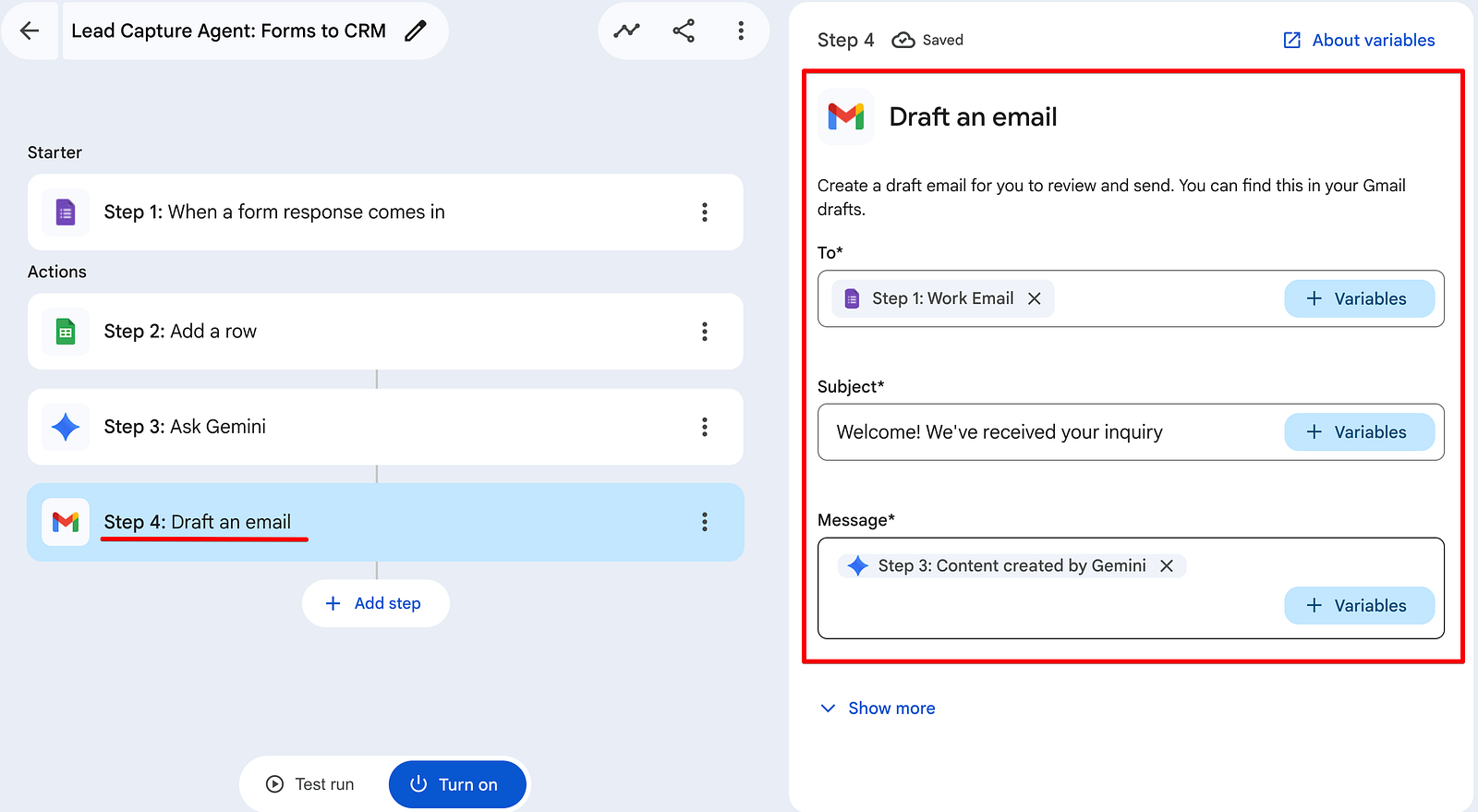
- **Draft an Email:** Use the Draft an email action to create a Gmail draft using the content Gemini just generated in Step 3.
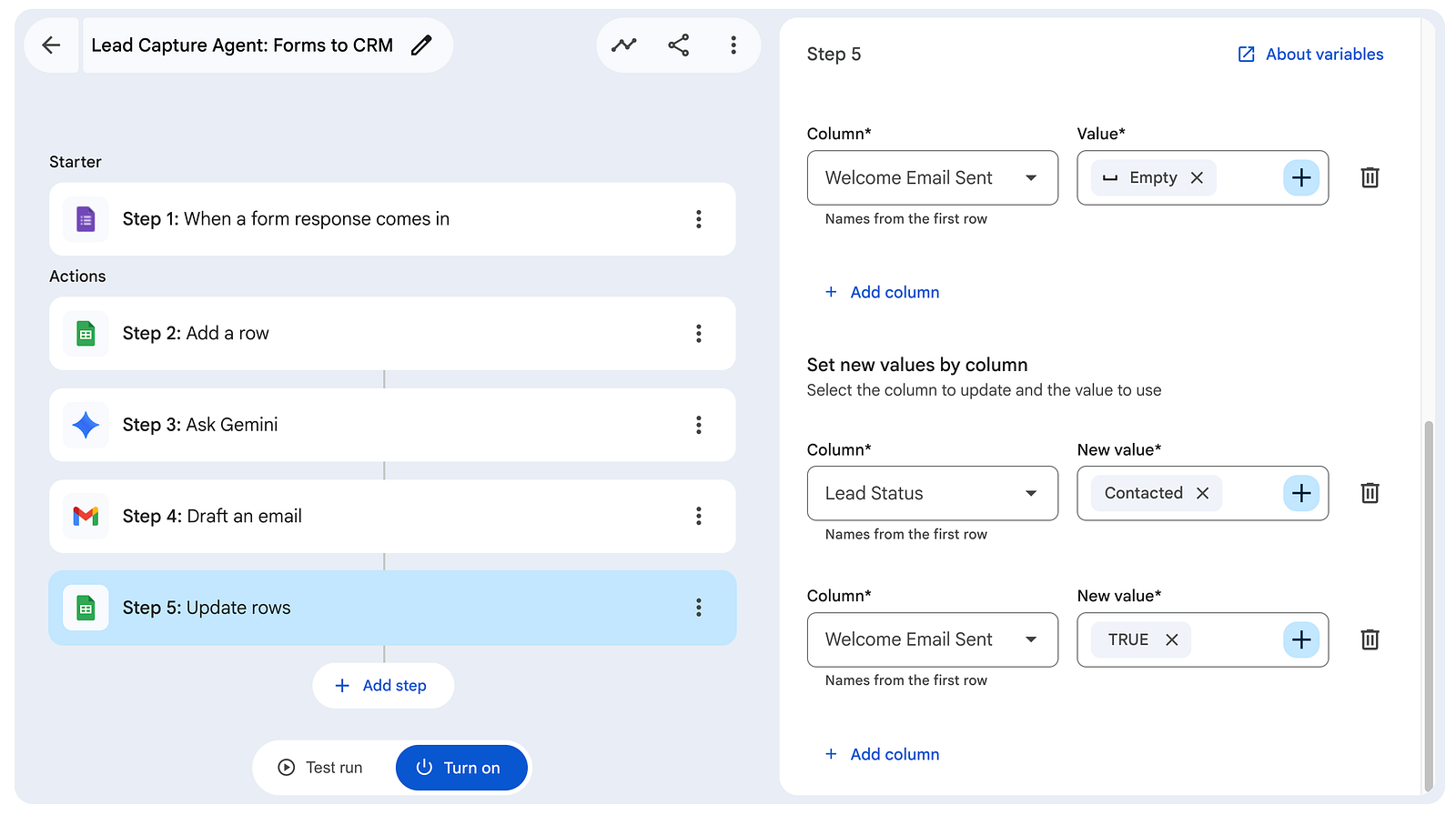
- **Update Rows:** Use the Update rows action to change the Lead Status to Draft Created and Welcome Email Sent to Yes. This gives you a bird's-eye view of your sales pipeline right inside your Sheet.
> Pro-Tip: Ensure these columns exist in your Sheet first
- **Notify in Chat:** Use the **Notify me in Chat** action to send an instant alert:
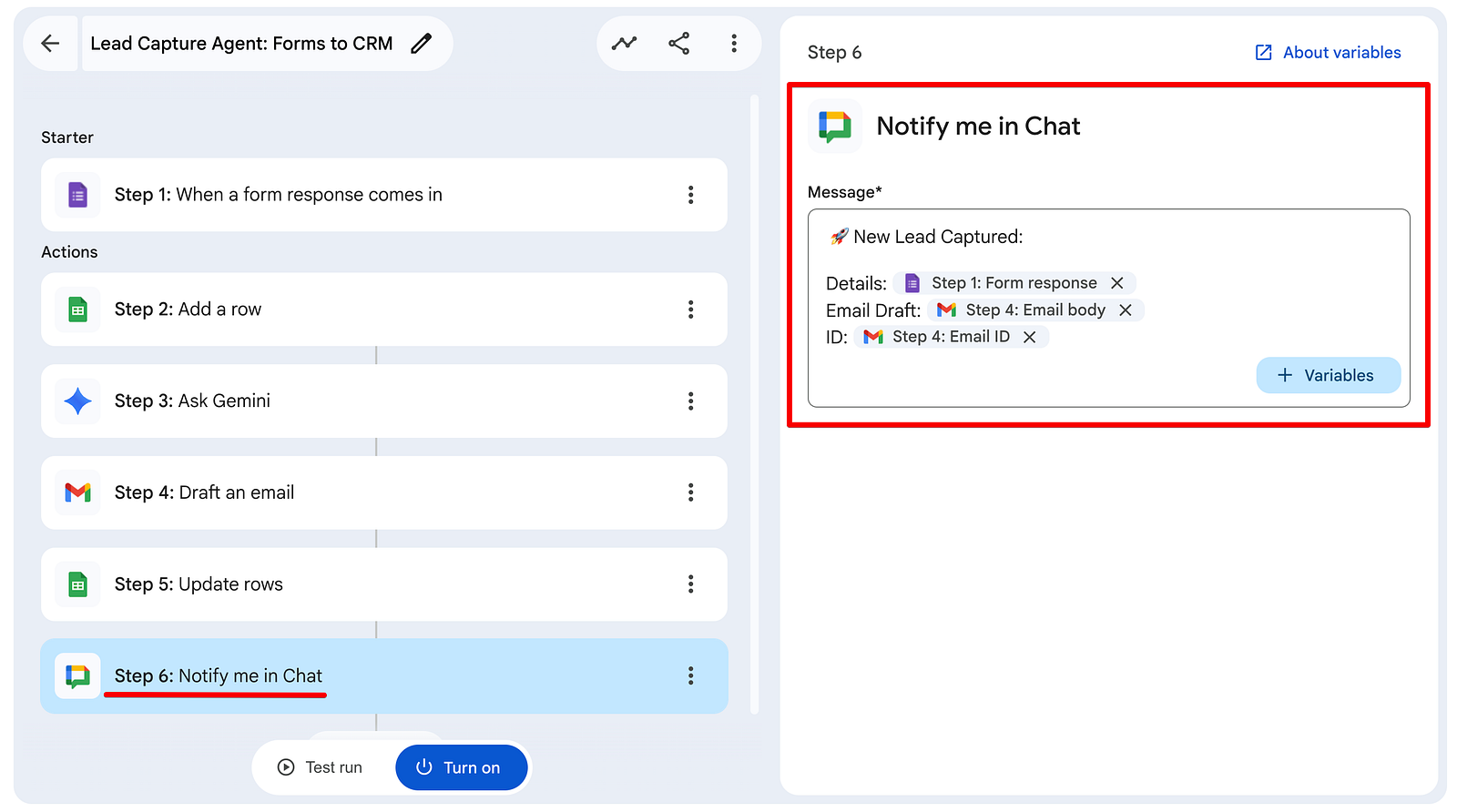
> 🚀 New Lead Captured:
> Details: [Step 1: Form Response]
> Email Draft: [Step 4: Email Body]
> ID: [Step 4: Email ID]
## Testing & Activation
Before you hand the keys of your lead intake over to an AI agent, you need to verify that it's connecting all the dots. Workspace Studio's **Test Run** feature is your best friend here. I tested with real leads (including the **Project Quantum** style inquiry and a general business inquiry). Once selected, go ahead and click on **Start**.
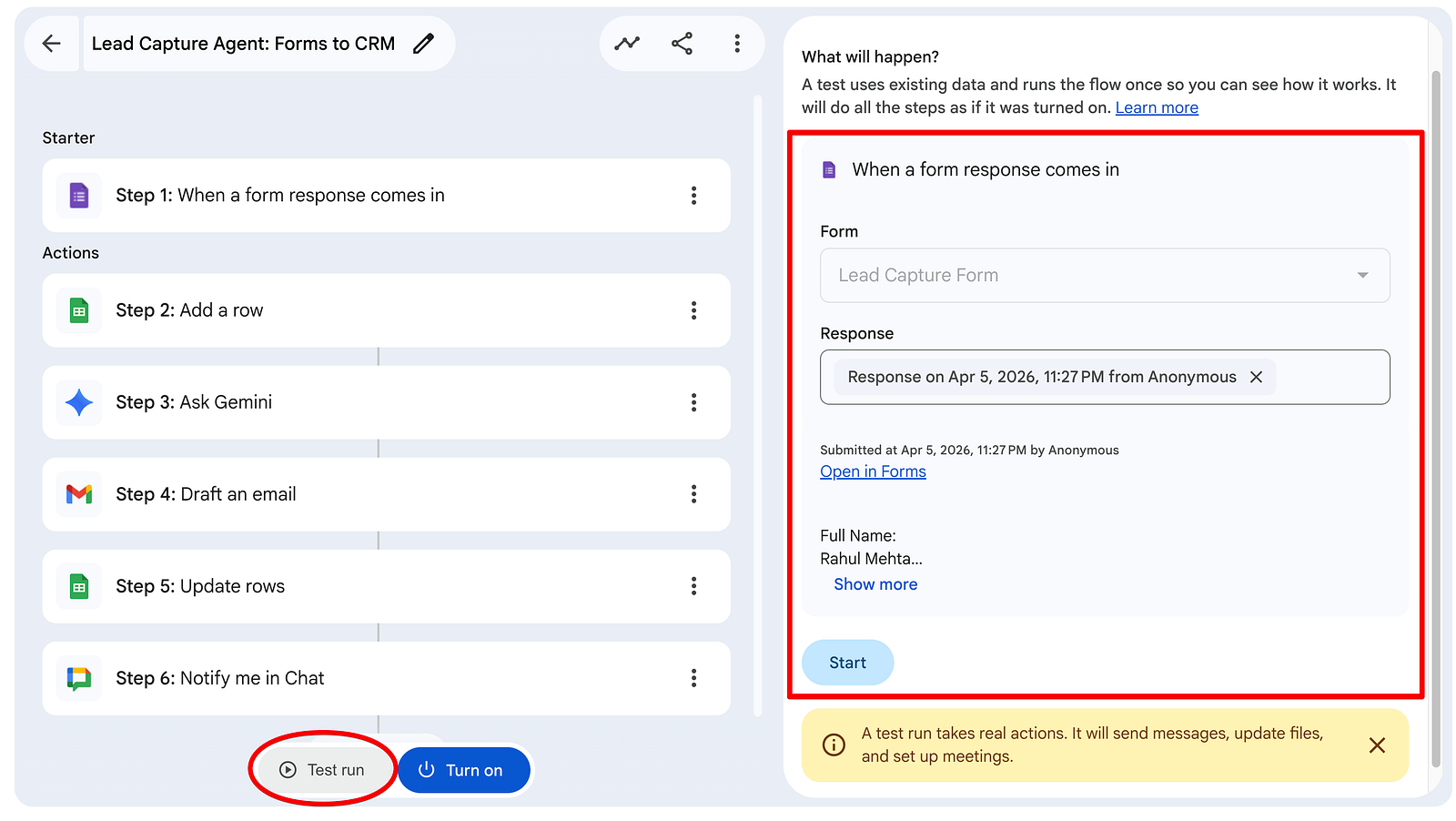
The agent:
- Added the row instantly to the Sheet
- Drafted a natural, personalized welcome email
- Sent the email
- Updated the status
- Posted a clean notification in Chat
Once your test confirms that every step is green and the data is flowing correctly, it's time to go live. Go ahead and click the blue **Turn on** button. The agent is now live and will run on every new form submission.
### Why this changes everything
By the time you open your laptop, your new lead is already in your CRM, a personalized email is drafted and waiting for your review, and your team is already celebrating the new opportunity in Google Chat.
You haven't just saved time - you've created a scalable sales process.
## Conclusion
By the time you open your laptop, your new lead is already logged in your CRM, a personalized welcome email is drafted and waiting in Gmail, and your team has been notified in Chat.
You haven't just saved time - you've created a scalable, professional first-impression system that makes every potential client feel valued from the very first second.
This is the true power of Google Workspace Studio: turning simple forms into intelligent business processes that run 24/7 while you focus on what you do best.
### What's Next?
This is the fourth tutorial of the Google Workspace Studio tutorial series. We've built Meeting Assistants, Inbox Gatekeepers, and now CRM Agents. But the possibilities are endless.
📺 **Watch the full build:** If you want to see exactly how I configured the logic gates for the CRM updates, check out the video in my **[Google Workspace Studio YouTube Playlist](https://youtube.com/playlist?list=PL_MCVBMm-9spp6kmOPkrJEgDVSyhmPWm7&si=VJ26877rRN11dy5v)**.
🚀 Join the Journey: Subscribe to my [**channel**](https://www.youtube.com/@AryanIrani123) to see how we build more agents to solve real-world business problems.
💼 Consultation: Looking to deploy these AI agents across your entire team? Reach out via my **[website](https://www.aryanirani123.com/)** for a custom consultation.
Feel free to reach out if you have any issues/feedback at aryanirani123@gmail.com.
Comments
More Blog
View allkubernetesMinimalist EKS: The Easy Way
Amazon EKS manages the Kubernetes control plane, but you remain responsible for provisioning the...
J
Joaquin MenchacaaiNever forget to enter the Stern Grove lottery again!
Browser automation with Playwright, Python, GitHub Actions, and Entire to auto-enter San Francisco Stern Grove concert lotteries each week!
L
Lizzie SiegletypescriptA Free Screenshot Editor That Never Uploads Your Image
A free screenshot and image editor that runs entirely in your browser. Keeping every edit reversible and handling big phone photos, in plain TypeScript and Canvas2D.
M
Martin StarkshowdevI built a CLI to break my highlights out of Apple Books
A macOS CLI + MCP server that exports Apple Books highlights to Markdown and gives AI assistants direct access to your reading notes.
A
Andrey KorchakaiA Developer's Guide to Agent Hooks in Antigravity CLI
Motivation To be quite honest, "Hooks"—the shell commands we trigger at specific points...
T
TanaikeagentsTactical vs. Strategic Agentic AI Development — A Playbook for Developers
The Strategic Engineer: Why Writing Code Is No Longer Your Most Valuable Skill ...
A
Adewumi Saheed Adewale