
Back to Blog firebase
 kubernetes
 ai
ai typescript
 showdev
 ai
ai agents
Get Started with Firebase AI Logic + Flutter: Build A Simple Caption Generator
Samuel Adekunle April 15, 2026
0 views
This will be a continuation from the last article on Genkit Dart for Flutter Developers; you can...
This will be a continuation from the last article on Genkit Dart for Flutter Developers; you can check it out [here](https://dev.to/techwithsam/genkit-dart-for-flutter-developers-build-full-stack-ai-apps-in-2026-getting-started-31pf).
## WHAT IS FIREBASE AI LOGIC?
Firebase AI Logic (previously known as Vertex AI in Firebase) is Google’s official way to give your Flutter (iOS, Android, and web) apps direct, secure access to the latest Gemini models.
Today, we will build a simple app with Firebase AI Logic. We will learn how to use Firebase AI Logic with Gemini models in real Flutter apps.
To get started, create a new [Firebase project](https://console.firebase.google.com/) or use an existing one. Once you have your Firebase project set up, you also need to connect it to your Flutter project. Under project categories on Firebase → AI services → AI Logic → Get started (Gemini Developer API — Vertex AI Gemini API), we’ll continue with the Gemini Developer API
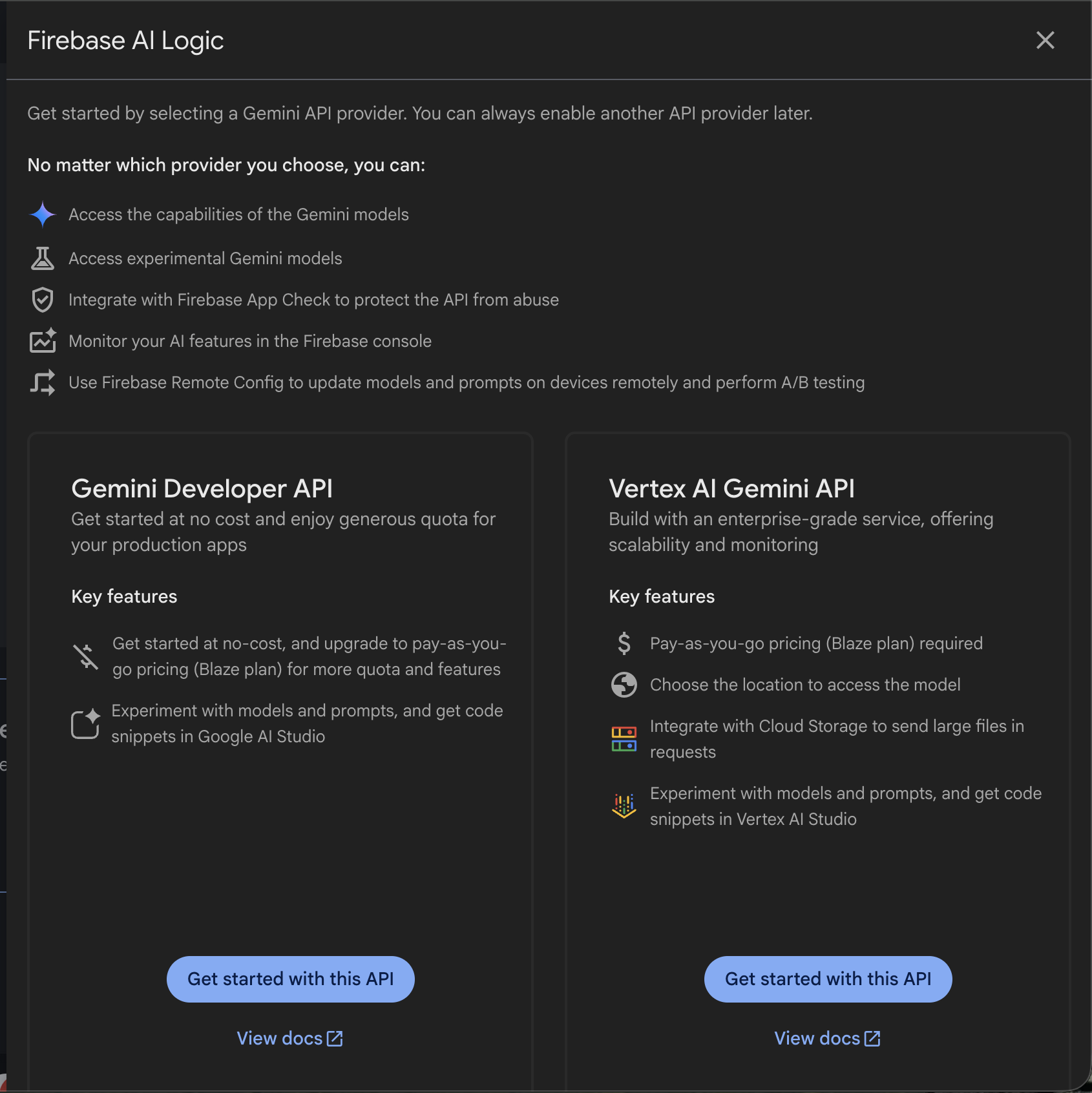
That’s all for the setup.
## QUICK SETUP IN FLUTTER
```bash
flutter pub add firebase_ai
```
You must added `firebase_core` package
In `main.dart`
```dart
void main() async {
await Firebase.initializeApp(options: DefaultFirebaseOptions.currentPlatform);
runApp(const MyApp());
}
```
Then we can create a new file `caption_generator.dart`
```dart
void _generateCaption() async {
if (_captionController.text.isEmpty) {
ScaffoldMessenger.of(context).showSnackBar(
const SnackBar(
content: Text('Please enter a description to generate a caption.'),
),
);
return;
}
try {
setState(() => _isGenerating = true);
final model = FirebaseAI.googleAI().generativeModel(
model: 'gemini-3.1-flash-lite-preview',
generationConfig: GenerationConfig(
maxOutputTokens: 50,
temperature: 0.7,
),
systemInstruction: Content.system(
'You generate concise captions that are catchy and engaging, suitable for social media posts or advertisements.'
'Do not use markdown, bullet points, headings, code blocks, or JSON.',
),
);
final response = await model.generateContent([
Content.text(_captionController.text),
]);
setState(() => _generatedCaption = response.text!);
} catch (e) {
print('Error generating caption: $e');
ScaffoldMessenger.of(
context,
).showSnackBar(SnackBar(content: Text('Error generating caption: $e')));
} finally {
setState(() => _isGenerating = false);
}
}
```
{% github techwithsam/ai_content_generator %}
## BEST PRACTICES FOR PRODUCTION
- Always use App Check + Firebase Auth — never trust the client blindly
- Start with Flash models for speed and cost, upgrade to Pro only when you need heavy reasoning
- Keep prompts in Remote Config so you can iterate without redeploying the app
- Cache frequent responses in Firestore to save cost and latency
Monitor usage in Firebase console — set budgets early
- For complex multi-step workflows or heavy tool use, consider moving logic to Genkit on the backend instead of doing everything client-side
There you have it — Firebase AI Logic lets Flutter developers finally build real full-stack AI apps without leaving the Dart ecosystem.
If this article helped you even a little, smash that clap button and subscribe so you don’t miss the next deep-dive.
Lastly, if you’re serious about mastering AI tools like this, join my free Flutter + AI newsletter. Every week, I share the exact prompts, workflows, and early access to new agent skills that I test before they hit YouTube. Completely free, no spam. https://techwithsam.dev/newsletter — I’d love to see you there!
Thanks for reading, Flutter fam.
See you in the next one — peace! ✌️
Samuel Adekunle
Tech With Sam
https://youtube.com/@techwithsam
Comments
More Blog
View allkubernetesMinimalist EKS: The Easy Way
Amazon EKS manages the Kubernetes control plane, but you remain responsible for provisioning the...
J
Joaquin MenchacaaiNever forget to enter the Stern Grove lottery again!
Browser automation with Playwright, Python, GitHub Actions, and Entire to auto-enter San Francisco Stern Grove concert lotteries each week!
L
Lizzie SiegletypescriptA Free Screenshot Editor That Never Uploads Your Image
A free screenshot and image editor that runs entirely in your browser. Keeping every edit reversible and handling big phone photos, in plain TypeScript and Canvas2D.
M
Martin StarkshowdevI built a CLI to break my highlights out of Apple Books
A macOS CLI + MCP server that exports Apple Books highlights to Markdown and gives AI assistants direct access to your reading notes.
A
Andrey KorchakaiA Developer's Guide to Agent Hooks in Antigravity CLI
Motivation To be quite honest, "Hooks"—the shell commands we trigger at specific points...
T
TanaikeagentsTactical vs. Strategic Agentic AI Development — A Playbook for Developers
The Strategic Engineer: Why Writing Code Is No Longer Your Most Valuable Skill ...
A
Adewumi Saheed Adewale