
Back to Blog ui
ui kubernetes
 ai
ai typescript
 showdev
 ai
ai agents
A Stitch at a time
Gbemisola Esho April 24, 2026
0 views
Every UI idea starts the same way. A sentence. A sketch. A screenshot of something you saw and...
Every UI idea starts the same way. A sentence. A sketch. A screenshot of something you saw and liked.
Then the process starts and the idea starts dying.
Wireframes go to designers. Designs go to developers. Somewhere in that handoff, the original intent gets trimmed, approximated, and eventually shipped as something slightly less than what you imagined.
Google Stitch is built to kill that gap.
Launched at Google I/O 2025 under Google Labs, Stitch takes a plain English prompt or a rough sketch, or a URL and returns a high-fidelity UI design with exportable frontend code. The whole thing takes under two minutes. No Figma file. No design-to-developer handoff. No lost intent.
This is what that workflow looks like, what it gets right, and where it still has limits.
"Stitch does one thing exceptionally well: it gets you out of the blank canvas problem fast."
## What Stitch actually generates
Most AI design tools give you a starting point. A rough layout. Something to react to.
Stitch gives you more than that but less than you might expect. Understanding exactly what comes out of it is the difference between using it well and being disappointed by it.
Here is what a single Stitch prompt produces.
Before you open Stitch
## Write a better prompt
Stitch is only as good as what you give it. A weak prompt returns a generic layout. A specific one returns something you can actually build on. Spend three minutes here before you spend ninety seconds waiting for a generation.
**A strong Stitch prompt answers four questions**:
What kind of product is this? Name the category dashboard, mobile app, landing page, onboarding flow, news article template. Stitch needs to know what structural pattern to reach for.
Who is it for? An internal tool looks different from a consumer product. A newsroom CMS looks different from a public-facing news app. Say it explicitly.
What are the key screens or sections? Do not make Stitch guess. List the components you need — sidebar, data table, search bar, article card, navigation menu.
What is the visual tone? Minimal, bold, dark mode, data-heavy, editorial, clean. One or two words is enough.
Here is the difference in practice.
**Weak prompt**:
"Design a news app."
Strong prompt:
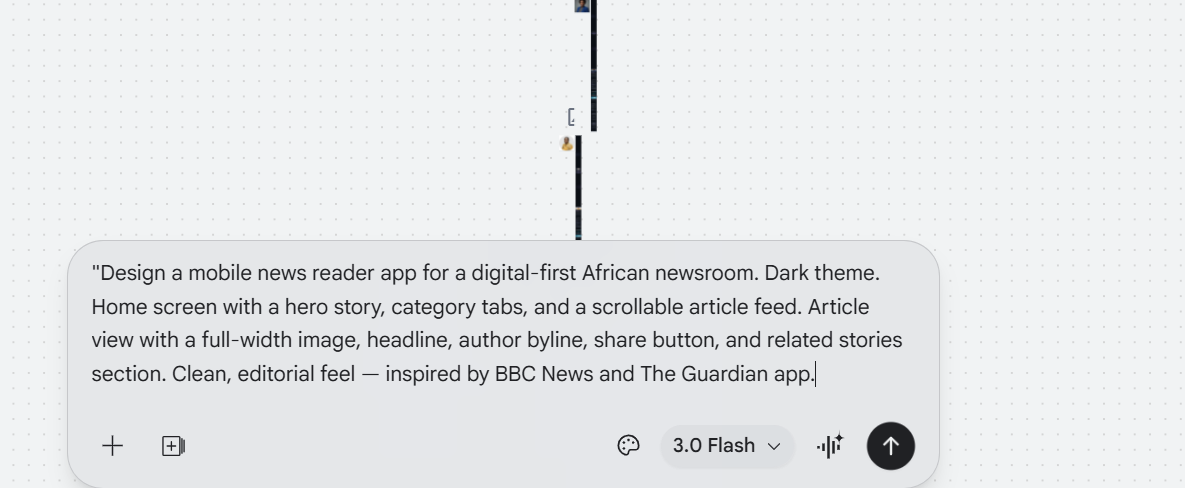
"Design a mobile news reader app for a digital-first African newsroom. Dark theme. Home screen with a hero story, category tabs, and a scrollable article feed. Article view with a full-width image, headline, author byline, share button, and related stories section. Clean, editorial feel — inspired by BBC News and The Guardian app."
**Same tool. Same model. Completely different output**.
Write your prompt before you open the browser tab. Treat it like a brief, not a search query.
Now you are ready. Here is exactly what to do.
Step 1: Go to stitch.withgoogle.com
You need a Google account. No waitlist, no setup. Sign in and you land directly on the prompt canvas.
Step 2: Choose your mode
You will see two options before you type anything.
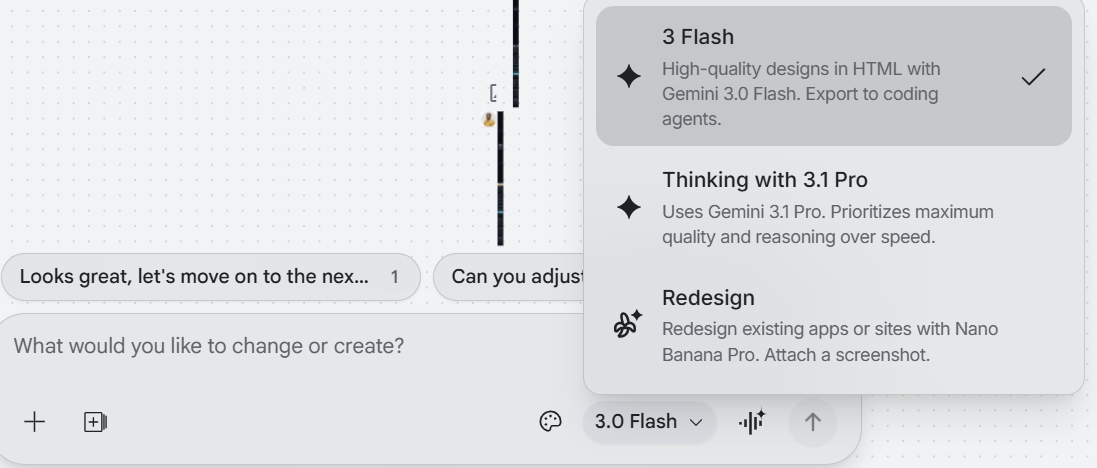
Standard mode uses Gemini 2.5 Flash. Use this for exploration — testing ideas, comparing layouts, moving fast. You get 350 generations per month.
Experimental mode uses Gemini 2.5 Pro. Use this when you have found your direction and want a higher-quality result worth exporting. You get 50 generations per month.
Start with Standard. Switch to Experimental only when you have a prompt you are confident in.
Step 3: Paste your prompt and generate
Stitch will show you a generation time estimate usually around 90 seconds for Standard mode. It is accurate. Do not refresh.
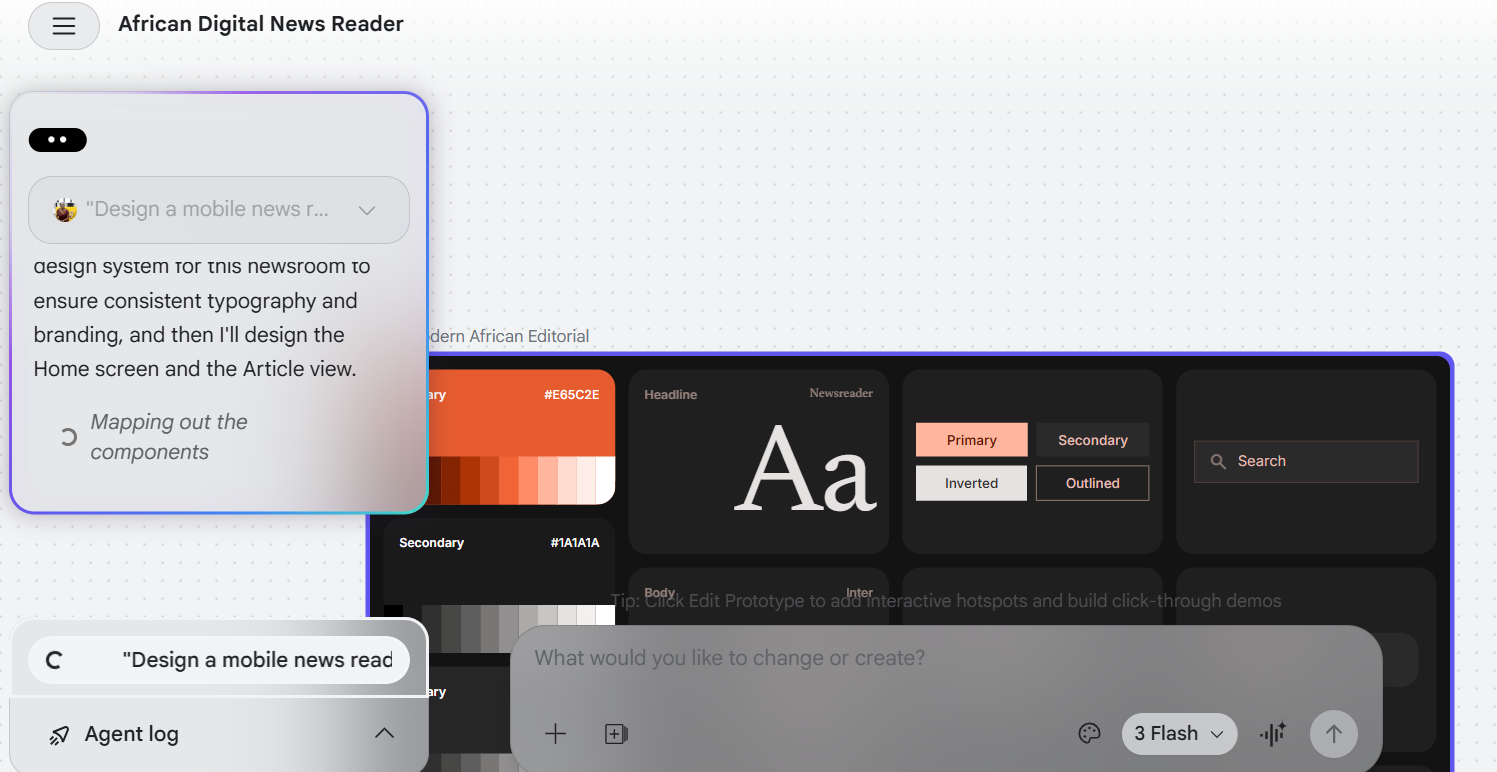
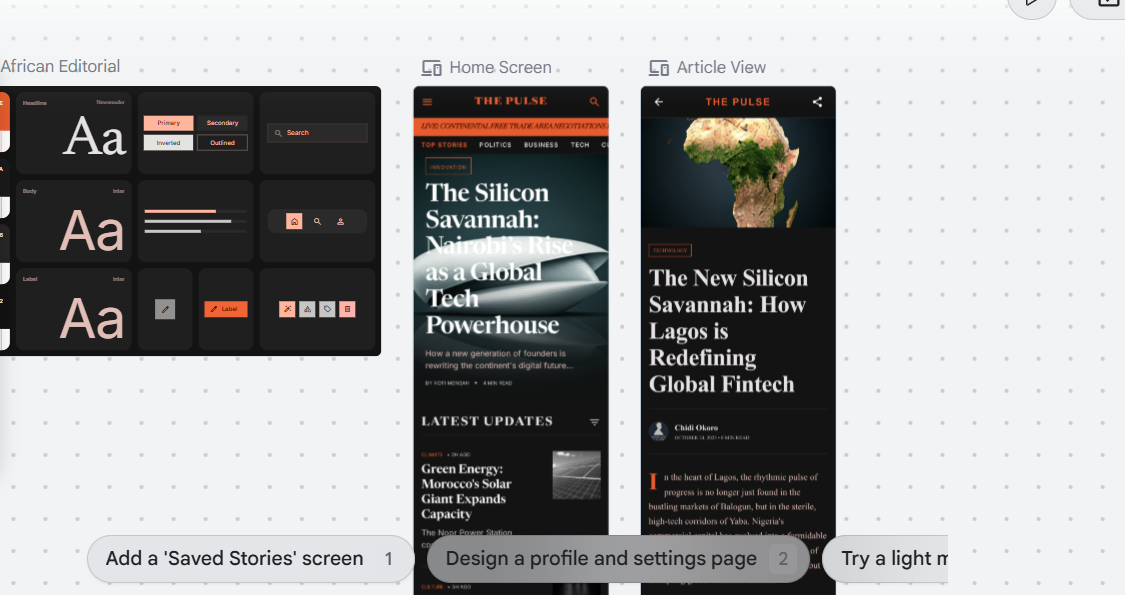
When it comes back, you will see two or three layout variants side by side.
Step 4: Compare variants do not skip this
Resist the urge to click the first one that looks good. Spend 60 seconds comparing structural decisions. Does one use a bottom nav bar while another uses a sidebar? Does one prioritise the hero image while another leads with text? These are architectural choices that matter later.
Pick the variant whose structure fits your product logic not just the one with the nicest colours.
Step 5: Refine with follow-up prompts
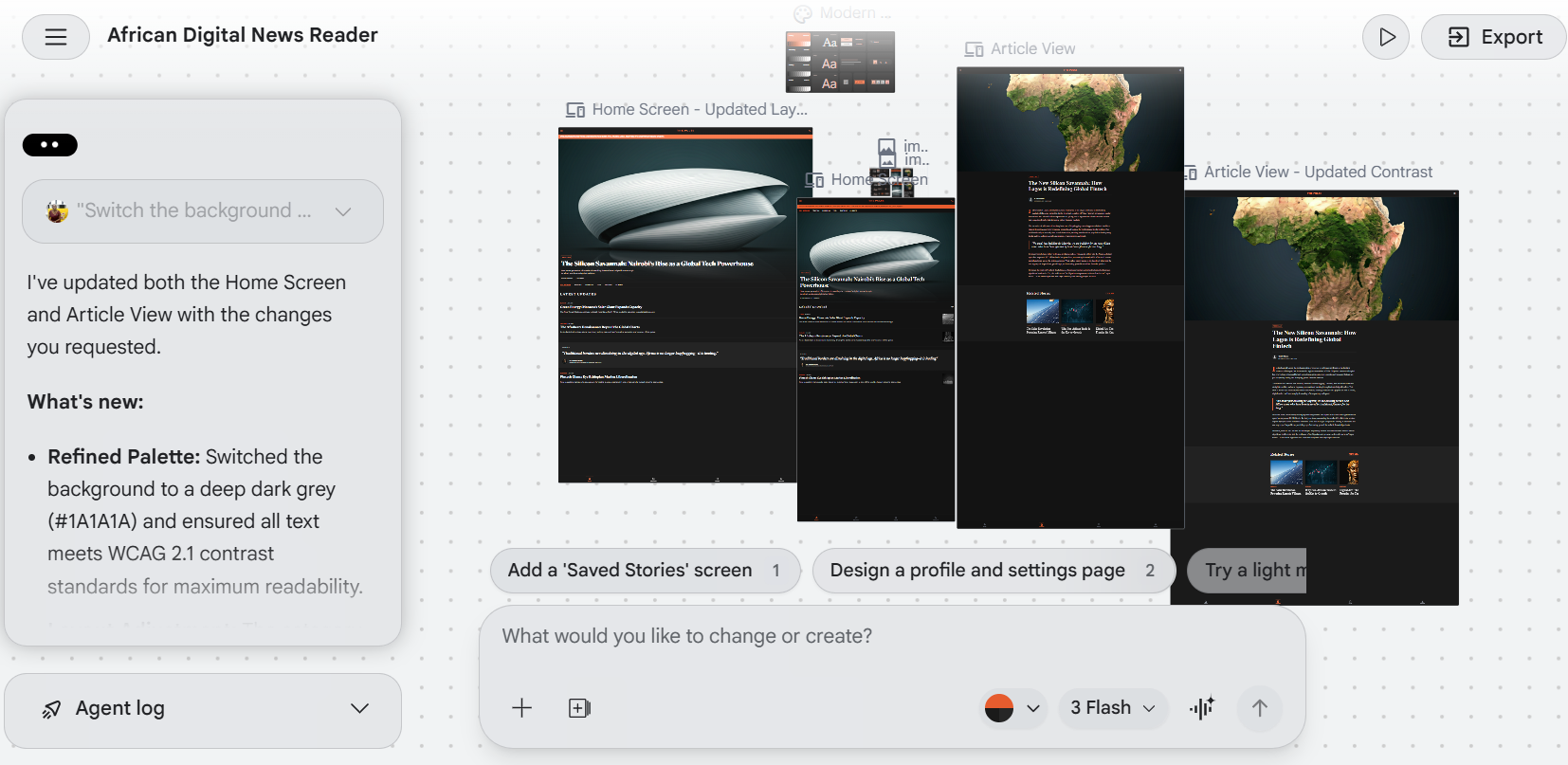
Your first generation is a starting point. The chat panel on the right accepts follow-up instructions. Be specific.
Instead of: "Make it look better"
Write: "Switch the background to dark grey. Move the category tabs below the hero image. Make the headline font larger and bolder. Apply WCAG 2.1 contrast standards throughout."
Each follow-up takes another 60–90 seconds. Give it two or three rounds before moving to export.
Section 4: Exporting your design which path to take
When your design is ready, you have three exits. Pick the one that matches your next step.
Export to Figma if you have a design team
Click "Copy to Figma" and paste directly into an open Figma file. Your design arrives as editable components. From there your team can apply your real design system, adjust spacing, and hand off through the normal design workflow.
Use this path when: you are handing the design to someone else, you have an existing component library, or the project needs collaborative review before development.
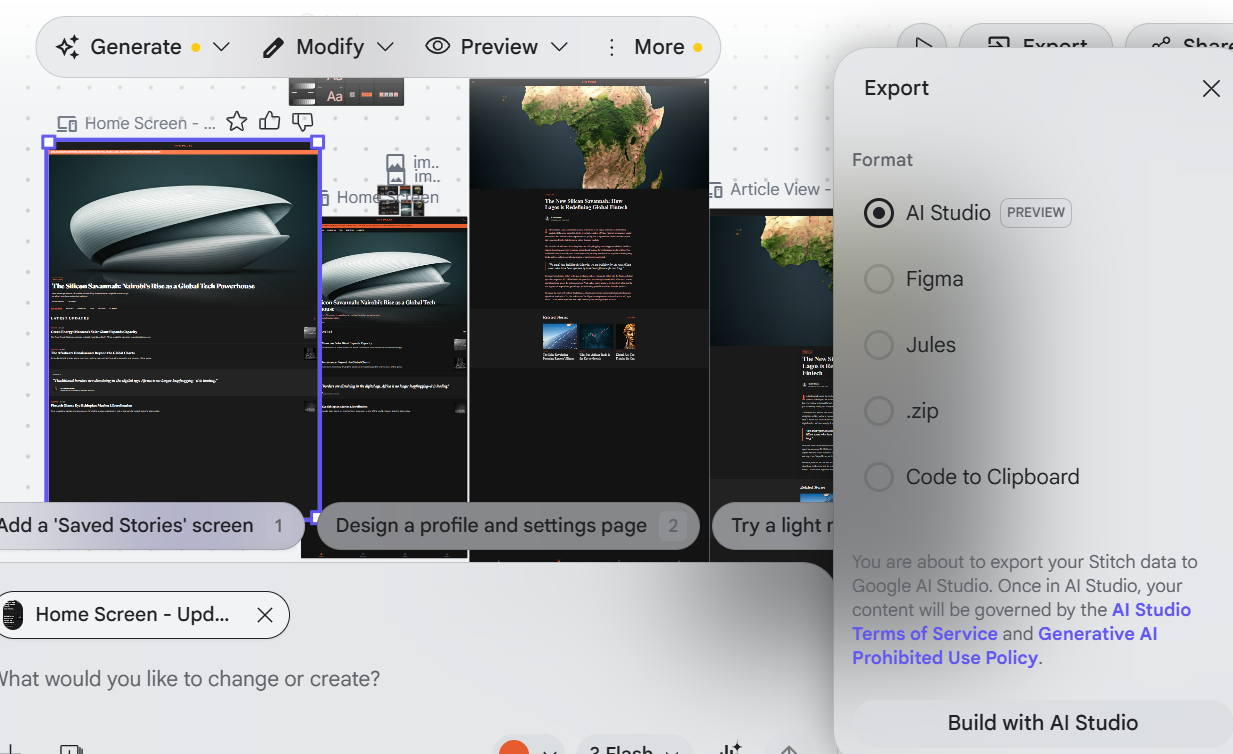
Export to Google AI Studio : if you want working code fast
This is the most powerful path for solo builders. Send your design to AI Studio and Gemini converts it into a functional web application — with routing, interactivity, and logic — without you writing a line of code.
Exporting to Google AI Studio
Use this path when: you are a founder, developer, or journalist building a prototype you want to test quickly.
Export as HTML and Tailwind CSS — if you are building it yourself
Click "View Code" and download the frontend code directly. It is clean, readable, and structured logically. Drop it into your repository and build from it.
The one limitation: you cannot change the output stack. Stitch always exports HTML and Tailwind CSS. If your project runs on React, SwiftUI, or a custom component library, treat this code as a visual blueprint rather than production-ready output.
Use this path when: you are a web developer who wants a head start on a project and can translate or adapt the code.
Section 5: Where Stitch fits and where it does not
Stitch is not a Figma replacement. It does not have Figma's precision, collaboration features, or component library depth. If your team runs a mature design system, Stitch is an upstream ideation tool not a replacement for your existing workflow.
What Stitch is genuinely good at is getting from zero to something real, fast. The blank canvas problem that paralysing moment at the start of any design project largely disappears. You have a structured layout, a colour system, and exportable code in under two minutes. For journalists, founders, and solo developers who need to move fast without a design team, that is a meaningful shift.
The honest limitations are three. Layout consistency drifts across screens components that look identical visually are not always built identically under the hood. Complex flows with more than two or three screens require significant follow-up prompting. And the generation caps are real 50 Experimental mode generations per month sounds generous until you are deep in a prototype and burning through revisions.
Use Stitch for: early-stage ideation, rapid prototyping, client presentations, fellowship projects, hackathons, and any situation where speed matters more than perfection.
Do not use Stitch for: production-ready design systems, large multi-screen applications, or any project where design consistency across dozens of components is non-negotiable.
The tools that change how you work are rarely the ones that replace everything you know. They are the ones that remove the friction at the point where most ideas die.
For UI design, that point has always been the start the blank canvas, the first decision, the gap between what you can imagine and what you can actually put on a screen.
Stitch does not build your product for you. It just makes sure the idea survives long enough to become one.
Comments
More Blog
View allkubernetesMinimalist EKS: The Easy Way
Amazon EKS manages the Kubernetes control plane, but you remain responsible for provisioning the...
J
Joaquin MenchacaaiNever forget to enter the Stern Grove lottery again!
Browser automation with Playwright, Python, GitHub Actions, and Entire to auto-enter San Francisco Stern Grove concert lotteries each week!
L
Lizzie SiegletypescriptA Free Screenshot Editor That Never Uploads Your Image
A free screenshot and image editor that runs entirely in your browser. Keeping every edit reversible and handling big phone photos, in plain TypeScript and Canvas2D.
M
Martin StarkshowdevI built a CLI to break my highlights out of Apple Books
A macOS CLI + MCP server that exports Apple Books highlights to Markdown and gives AI assistants direct access to your reading notes.
A
Andrey KorchakaiA Developer's Guide to Agent Hooks in Antigravity CLI
Motivation To be quite honest, "Hooks"—the shell commands we trigger at specific points...
T
TanaikeagentsTactical vs. Strategic Agentic AI Development — A Playbook for Developers
The Strategic Engineer: Why Writing Code Is No Longer Your Most Valuable Skill ...
A
Adewumi Saheed Adewale