
Back to Blog android
 kubernetes
 ai
ai typescript
 showdev
 ai
ai agents
More Accessible Focus Indicators with Compose
Eevis April 30, 2026
0 views
Last summer, I wrote a blog post about focus management with Compose. Ever since, I’ve had drafts of...
Last summer, I wrote a blog post about focus management with Compose. Ever since, I’ve had drafts of this post, but I didn’t get to finalize it until now. The blog post is available in: [It's All About (Accessibility) Focus And Compose][4].
So, in this blog post, we’re talking about focus indicators and how to make them more accessible with Compose. But let’s first talk about focus indicators in general.
## Focus Indicators
Focus indicators are, as the name suggests, indicators that show where keyboard focus currently is in the UI. They need to be visible so that keyboard and keyboard-emulating device users can navigate around the app effortlessly.
An important thing to note is that the focus indicator I’m talking about here is not for the screen reader (e.g., TalkBack) focus. That is handled on the system level.
Web Content Accessibility Guidelines (the standard behind accessibility legislation and used with apps as well, despite the name) has some requirements for accessible focus indicators. Per [SC 2.4.13 Focus Appearance][1], the focus indicator needs to be either
- User agent’s (Android system) default styles
- At least 2 pixels thick and has a contrast ratio of at least 3:1 between the same pixels of focused and unfocused states.
Android’s default focus indicator is the ripple, which isn't very visible. Technically, it would pass, but if you want to make the application accessible, you’ll need to improve the visibility of the focus indicator. Let’s next discuss one way to build more visible (and thus, more accessible) focus indicators with Compose.
## Building More Accessible Focus Indicators with Compose
There are several ways of creating the focus indicators. You can, for example, add a border based on the focused state, as Appt.org suggests in their code snippets: [Accessibility focus indicator in Jetpack Compose][2], but if you want anything more complex, you’ll want to turn to Indication API.
[Indication API][3] with a `DrawModifierNode` can be used to draw complex focus indicators. In this blog post, we’re drawing a simple line under the currently focused item, first a button:
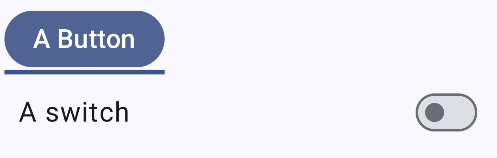
And then a switch-row:
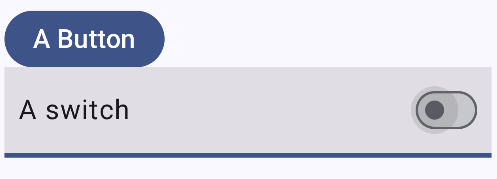
### The Focus Indicator
What we’re essentially creating is a modifier that can be used in any interactive component. We want to wrap as much of the logic within the modifier and the other components so that usage in the Compose code is as easy as possible.
For this, we will need three things:
- The modifier (let’s call it `focusIndication`)
- `IndicationNodeFactory` to create the indication (`FocusIndication`)
- And finally, `DrawModifierNode` to actually draw the focus indicator (`FocusNode`)
### Building the Modifier
Let’s start from the bottom of the list.
To create the actual indication, we want to define a class that takes an interaction source and a color as parameters. It extends `Modifier.Node()` and `DrawModifierNode`, and overrides two methods: `onAttach` and `ContentDrawScope.draw()`.
```kotlin
class FocusNode(
val interactionSource: InteractionSource,
val color: Color
) : Modifier.Node(), DrawModifierNode {
override fun onAttach() {
…
}
override fun ContentDrawScope.draw() {
…
}
}
```
The `onAttach` function handles the interactions. Let’s add an internal variable to store the focus state of the component, and store it within the `onAttach`:
```kotlin
private var isFocused by mutableStateOf(false)
override fun onAttach() {
coroutineScope.launch {
interactionSource.interactions.collect { interaction ->
when (interaction) {
is FocusInteraction.Focus -> isFocused = true
is FocusInteraction.Unfocus -> isFocused = false
}
}
}
}
```
Here, we use the `interactionSource` passed in in the constructor to collect the interactions with the component using this indication. We’re now interested only in the Focus-interactions, but the `interactionSource.interactions` also contains, for example, pressed-interactions, so this would be the place to handle them, too, if you wanted to create, for example, a custom pressed-styles.
Then, in the `ContentDrawScope.draw`, let’s draw the focus indicator:
```kotlin
override fun ContentDrawScope.draw() {
drawContent()
if (isFocused) {
drawRect(
color = color,
topLeft = Offset(
x = 0f,
y = size.height - 8f
),
size = Size(
width = size.width,
height = 12f
)
)
}
}
```
We first draw the content with `drawContent`, and then, if `isFocused` is true, we draw a rect 12 pixels high under the component. We want to offset it slightly to position it correctly. For the color, we use the `color` that’s passed in in the constructor.
The next step is to use this `FocusNode`. We’ll create a data class that extends the `IndicationNodeFactory`:
```kotlin
private data class FocusIndication(
val color: Color
) : IndicationNodeFactory {
override fun create(
interactionSource: InteractionSource
): Modifier.Node {
return FocusNode(interactionSource, color)
}
}
```
In the example, we override the `create` function and return an instance of the `FocusNode` we created. Finally, we define the modifier that takes in an `interactionSource`, and call it `focusIndication`:
```kotlin
@Composable
fun Modifier.focusIndication(
interactionSource: MutableInteractionSource
): Modifier {
val focusColor = MaterialTheme.colorScheme.surfaceTint
val focusIndication = remember {
FocusIndication(
color = focusColor
)
}
return indication(interactionSource, focusIndication)
}
```
First, we have the `focusColor` variable, which, in this example, is the `surfaceTint` from the theme colors. As mentioned at the beginning of the post, it should have a color contrast ratio of at least 3:1 with the same pixels in the non-focused state. This means it’s good to have dedicated light- and dark-theme colors, because it’s hard to find a single color that meets the requirements for both modes.
After that, we remember the `FocusIndication` we created, passing `focusColor` as the `color` parameter. Finally, we return an `indication` modifier with the `interactionSource` and `focusIndication`.
### Hiding the Indicator on Touch Mode
Sometimes, we want to hide the focus indicator in touch mode, because it becomes visible too often when the user interacts with interactive components, or there is some manual focus management for a reason or another. It’s possible with `InputModeManager`’s help.
First, for the `FocusNode`, let’s add one more interface it extends, `CompositionLocalConsumerModifierNode`:
```kotlin
class FocusNode(
…
) : Modifier.Node(),
DrawModifierNode,
CompositionLocalConsumerModifierNode {
…
}
```
This way, we can use the value of the `LocalInputModeManager`, and read its input mode:
```kotlin
override fun ContentDrawScope.draw() {
drawContent()
val inputMode = currentValueOf(LocalInputModeManager).inputMode
if (isFocused && inputMode == InputMode.Keyboard) {
…
}
}
```
We read the value with `currentValueOf(LocalInputModeManager).inputMode`, check that the mode is `InputMode.Keyboard`, and draw the focus indication only then.
Alright, now we have the focus indicator ready. How do we use it?
## Using the Focus Indication Modifier
The exact usage depends on the component. For components that have built-in interaction, such as buttons or text fields, it’s straightforward. We define an interaction source, pass it to the component’s `interactionSource` parameter, and then call the `focusIndication` modifier with the same `interactionSource`:
```kotlin
val buttonInteractionSource = remember { MutableInteractionSource() }
Button(
modifier = Modifier.focusIndication(buttonInteractionSource),
interactionSource = buttonInteractionSource,
onClick = {}
) {
Text("A Button")
}
```
For a custom component that uses modifiers such as `clickable`, `toggleable`, or `selectable` for interactivity, adding a custom focus indicator requires a little bit more.
In the following example of a Switch row, I’ve omitted the parts that are strictly out of the focus indication-scope for clarity:
```kotlin
val switchInteractionSource = remember { MutableInteractionSource() }
Row(
modifier = Modifier
.focusIndication(switchInteractionSource)
.toggleable(
…
indication = ripple(),
interactionSource = switchInteractionSource
),
) {
Text(
"A switch"
)
Switch(
…
interactionSource = switchInteractionSource,
)
}
```
We define an interaction source and call it `switchInteractionSource`. Then, we pass that interaction source to a `toggleable` modifier we’re using to make the whole row toggleable. We also pass in the indication as `ripple()` - otherwise, there wouldn’t be the ripple effect on touch.
Finally, we also pass the interaction source to `Switch`, so that if the user clicks the switch component, the ripple would be visible across the whole row.
## Wrapping Up
In this blog post, we’ve discussed adding custom focus indicators to interactive Compose components. We’ve looked into the `Indication` API and how to use it, as well as creating a custom modifier to wrap the logic for easier use. You can find the [complete code in this Github gist][5].
I have a follow-up post idea: building different kinds of focus indicators to show that you can actually get a little creative with them.
## Links in the Blog Post
- [It's All About (Accessibility) Focus And Compose][4]
- [SC 2.4.13 Focus Appearance][1]
- [Accessibility focus indicator in Jetpack Compose][2]
- [Indication API][3]
- [complete code in this Github gist][5]
[1]: https://www.w3.org/WAI/WCAG22/Understanding/focus-appearance
[2]: https://appt.org/en/docs/jetpack-compose/samples/accessibility-focus-indicator
[3]: https://developer.android.com/reference/kotlin/androidx/compose/foundation/Indication
[4]: https://dev.to/eevajonnapanula/its-all-about-accessibility-focus-and-compose-48ki
[5]: https://gist.github.com/eevajonnapanula/338dda22fdff6cd372bb627edaaa5c87
Comments
More Blog
View allkubernetesMinimalist EKS: The Easy Way
Amazon EKS manages the Kubernetes control plane, but you remain responsible for provisioning the...
J
Joaquin MenchacaaiNever forget to enter the Stern Grove lottery again!
Browser automation with Playwright, Python, GitHub Actions, and Entire to auto-enter San Francisco Stern Grove concert lotteries each week!
L
Lizzie SiegletypescriptA Free Screenshot Editor That Never Uploads Your Image
A free screenshot and image editor that runs entirely in your browser. Keeping every edit reversible and handling big phone photos, in plain TypeScript and Canvas2D.
M
Martin StarkshowdevI built a CLI to break my highlights out of Apple Books
A macOS CLI + MCP server that exports Apple Books highlights to Markdown and gives AI assistants direct access to your reading notes.
A
Andrey KorchakaiA Developer's Guide to Agent Hooks in Antigravity CLI
Motivation To be quite honest, "Hooks"—the shell commands we trigger at specific points...
T
TanaikeagentsTactical vs. Strategic Agentic AI Development — A Playbook for Developers
The Strategic Engineer: Why Writing Code Is No Longer Your Most Valuable Skill ...
A
Adewumi Saheed Adewale