
Back to Blog git
git kubernetes
 ai
ai typescript
 showdev
 ai
ai agents
You’re Already Using Git Worktrees. You Should Understand Them.
Vivek Maskara May 18, 2026
0 views
If you’ve ever run git clone and then started editing files in the resulting folder, you’ve been...
If you’ve ever run [`git clone`](https://git-scm.com/docs/git-clone) and then started editing files in the resulting folder, you’ve been using a Git worktree all along. Git just doesn’t call it that in day-to-day conversation.
`git worktree` is the feature that lets you add *more* checkouts (more folders with files on disk) that all share the same underlying repository history. Done well, it replaces the “stash/switch/stash-back” dance with something simpler: keep your in-progress work open in one directory, and do the urgent/clean/experimental thing in another.
This is a mental-model article: what a worktree *is*, why Git enforces “one branch per worktree,” and the few lifecycle commands that keep worktrees from turning into confusing “already checked out” / stale-metadata problems.
## The Mental Model: Shared History, Separate Working State
Git’s own [`git worktree` docs](https://git-scm.com/docs/git-worktree) describe the feature as managing “multiple working trees attached to the same repository.” The twist is that you always start with one: the directory you land in after a normal (non-bare) clone is the **main worktree**.
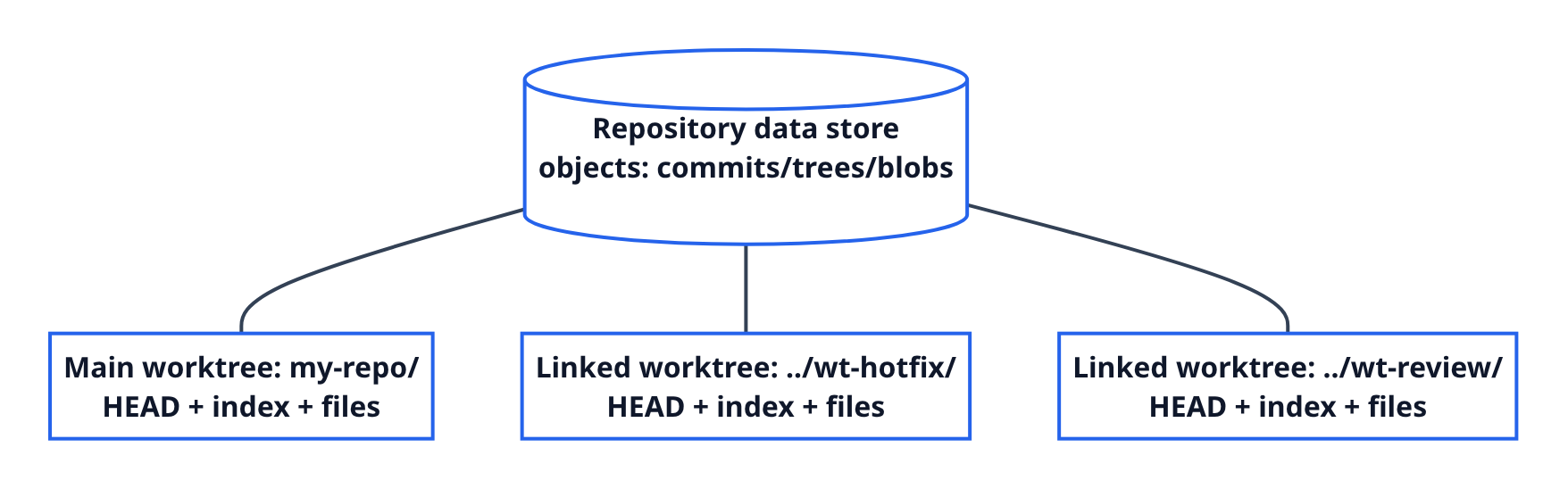
Linked worktrees are additional working directories attached to the same repo. They **share** the object database (commits/trees/blobs), but each worktree has its own working state: checked-out files, its own [`HEAD`](https://git-scm.com/docs/gitglossary#def_HEAD), and its own index (staging area).
That’s the whole trick:
* **Shared:** history and objects (you don’t redownload Git data like a second clone).
* **Per worktree:** files-on-disk + `HEAD` + index (you don’t stomp on your other checkout).
One nuance that matters: a worktree isn’t its own independent “repo.” Most refs and remote configuration are shared. When you `git fetch`, you’re updating the shared repository data that all worktrees see. That’s what makes worktrees lighter than multiple clones—but it’s also why Git has to be careful about how a branch name maps to a checkout.
If you want a deeper explanation of why “objects live once” makes this efficient, the Git book’s “Git Objects” chapter is a good reference: [Git Internals: Git Objects](https://git-scm.com/book/en/v2/Git-Internals-Git-Objects).
### What Actually Changes on Disk when You Add a Worktree
Git keeps the shared repository database in one place, then tracks per-worktree state separately. That’s why it can add a second checkout without cloning.
If you’ve ever noticed that `.git` sometimes looks like a *file* (not a folder), that’s often Git pointing your working tree at the real “gitdir.” Worktrees lean on this idea heavily: each worktree has its own admin area, but the objects are shared.
## The Rule that Surprises People: One Branch per Worktree
If you try to attach the *same* branch to two worktrees, Git will usually refuse with “branch is already checked out.” That refusal is protection.
The core reason is that a branch name is just a movable pointer. If two working directories could both “be” `feature`, the branch pointer could move in one directory while the other directory still has older files on disk. Now you have a branch name that no longer uniquely identifies a single working state.
Said differently: Git is fine with multiple *worktrees* having different `HEAD`s (each checkout is independent), but a branch ref like `refs/heads/feature` is shared at the repository level. Letting two worktrees both “own” the same branch would create a footgun where “what commit is `feature`?” depends on which folder last advanced it.

When you want “two directories, same starting point,” Git’s safer options are:
* **Create a new branch name** for the second worktree:
```bash
git worktree add ../wt-fix -b fix-branch
```
* **Use a detached `HEAD`** when you don’t intend to keep the work long-term:
```bash
git worktree add -d ../wt-scratch
```
Detached `HEAD` is the “I want another directory at this commit, but I’m not claiming a branch name” mode. That’s why it’s safe: you can still make commits, but you’re not advancing a shared branch ref unless you later create one.
`--force` exists for edge cases, but it’s opting out of a guardrail. If you don’t already know *why* you need it, you probably don’t.
## Where Worktrees Shine (in Practice)
Worktrees are a productivity primitive whenever parallelism beats context switching. Three common patterns:
### 1) Hotfix without Touching Your In-Progress Directory
When a production issue lands mid-feature, create a new worktree on a hotfix branch:
```bash
git worktree add ../wt-hotfix -b hotfix
```
You get a clean checkout in a new folder, and your original directory stays exactly as it was. When you’re done, remove it cleanly:
```bash
git worktree remove ../wt-hotfix
```
[Tower’s Git worktree FAQ](https://www.git-tower.com/learn/git/faq/git-worktree) describes this as one of the “default” worktree use cases, and it’s the one most people feel immediately.
### 2) PR Reviews and Repros in a Clean Sandbox
You can attach a worktree directly to a remote-tracking branch and keep it around for as long as the review takes:
```bash
git worktree add ../wt-review origin/some-pr-branch
```
### 3) Scratch Experiments You Don’t Want to Keep
Detached worktrees are great for “let me try something” work without committing to a branch name yet:
```bash
git worktree add -d ../wt-scratch
```
If you end up making commits you want to keep, create a branch before you delete the folder so you don’t lose track of them.
### A Quick Note on “Why Not Just Clone Twice?”
Separate clones can absolutely solve the same “two directories” problem. The difference is mainly cost and coupling:
* Clones duplicate setup (another fetch/clone, another `.git` object store).
* Worktrees share Git objects, but still behave like separate checkouts.
If you need complete isolation (different remotes, radically different Git config, or you want to move one copy around freely), a second clone can still be the simplest answer.
## Keeping Your Directories Sane
The simplest convention (and the one that avoids the “oops, I edited the wrong checkout” mistake) is: keep linked worktrees *outside* the main project folder.
```text
repo/ # main worktree
repo-hotfix/ # linked worktree
repo-review/ # linked worktree
```
If you do this often, encode intent in the directory name so it’s searchable later (`wt-hotfix-1234`, `wt-pr-998`, `wt-bisect-crash`) instead of generic `tmp/`.
If you want all worktrees contained under one parent folder, a popular layout is “bare repo + many worktrees” (see [Nick Nisi](https://nicknisi.com/posts/git-worktrees/) and [Ahmed El Gabri](https://gabri.me/blog/git-worktrees-done-right)). For background on bare repositories themselves, the Git book chapter is a good reference: [Git Basics: Getting a Git Repository](https://git-scm.com/book/en/v2/Git-Basics-Getting-a-Git-Repository).
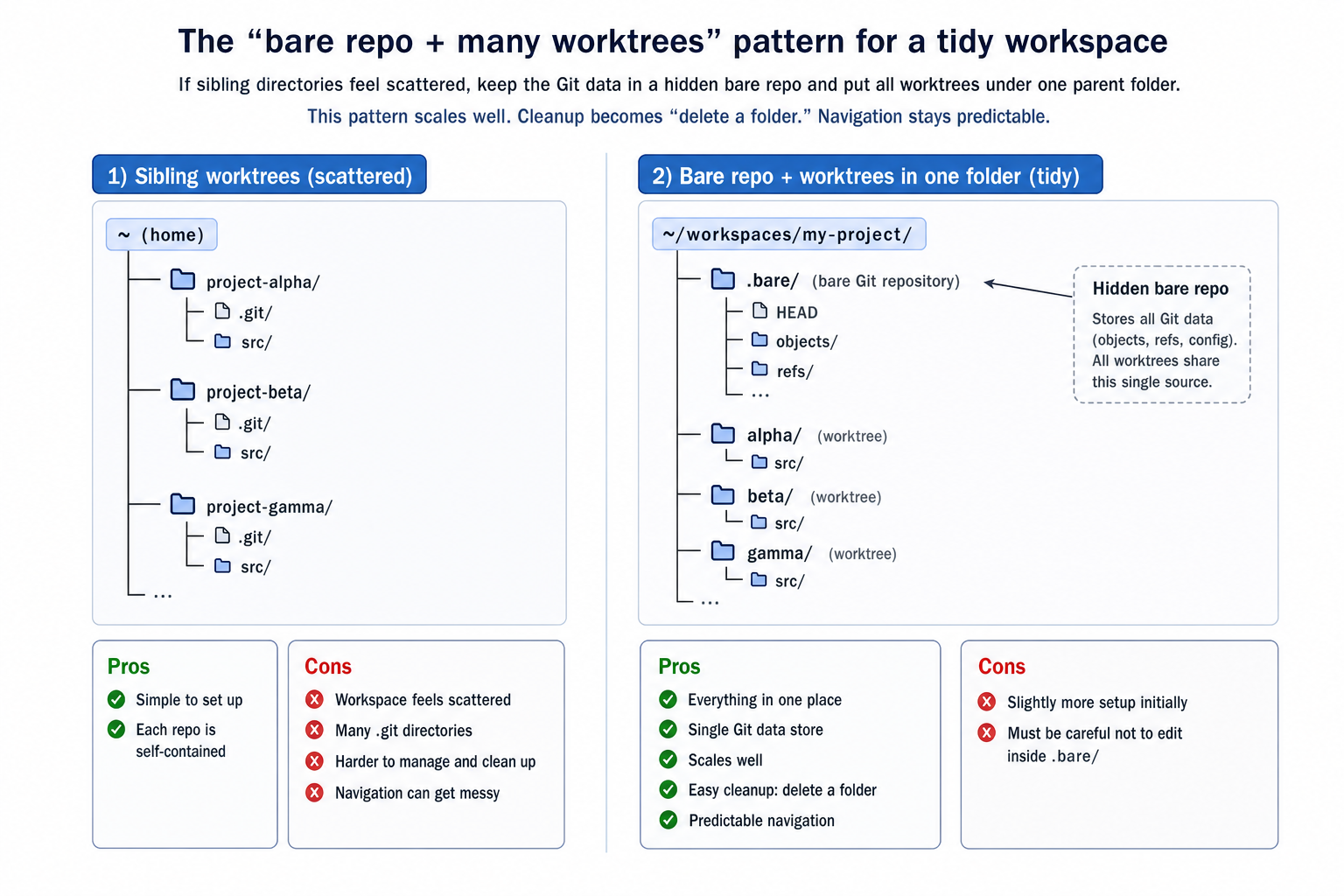
If you try the “bare repo + worktrees” approach, keep the tradeoff in mind: you’re saving Git object duplication, not environment duplication. Two worktrees can still mean two `node_modules/` folders, two build outputs, and two IDE indexes. If setup dominates your workflow, keep only the worktrees you’re actively using.
## The Lifecycle Gotchas (and the 5 Commands that Prevent Them)
### Removing vs Deleting (Stale Metadata)
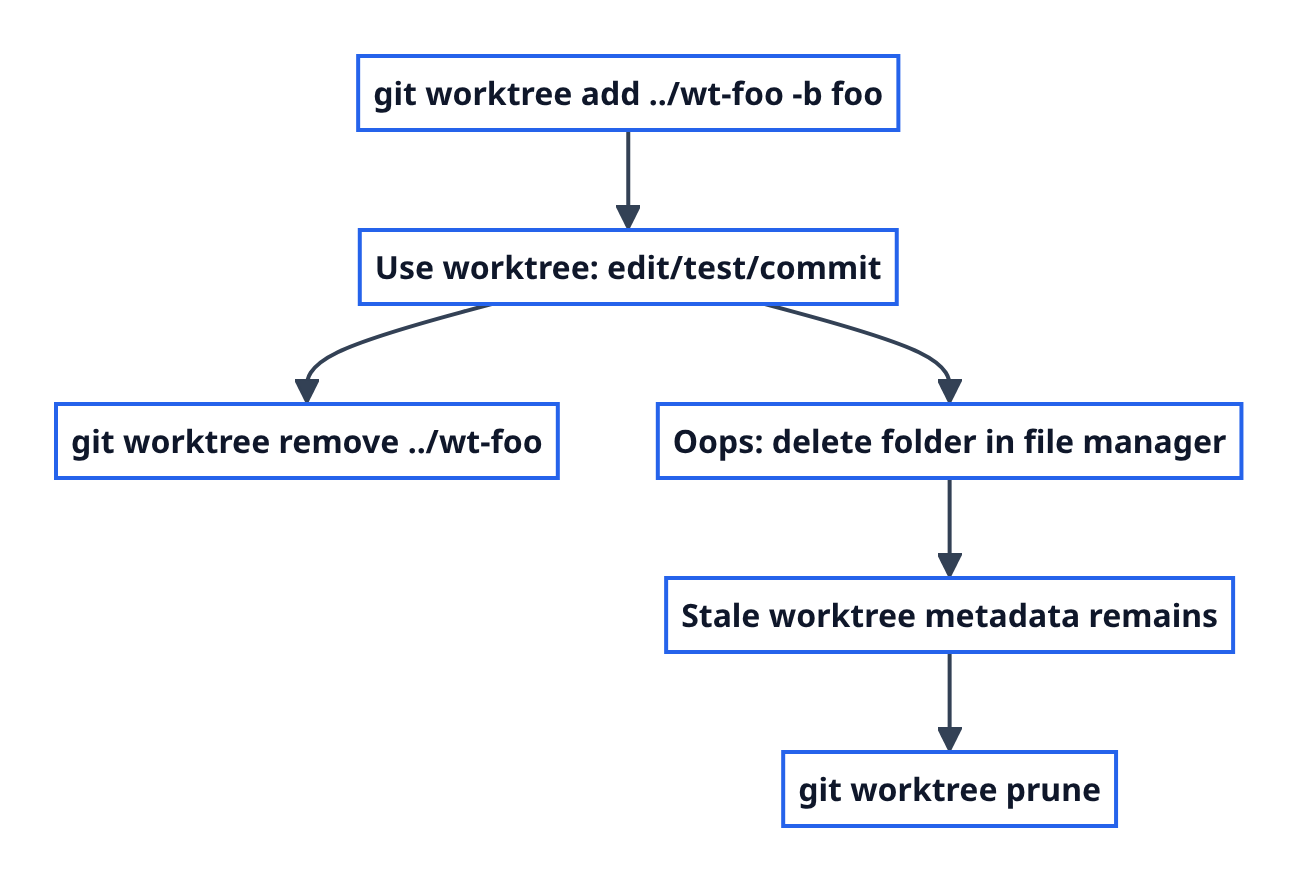
Deleting a worktree folder in Finder isn’t the same as telling Git it’s gone. Prefer:
```bash
git worktree remove ../wt-review
```
If you already deleted the folder, clean up the leftover admin state:
```bash
git worktree prune
```
Git can also garbage-collect stale worktree metadata automatically over time (controlled by `gc.worktreePruneExpire`). That’s helpful, but it’s not a substitute for removing worktrees intentionally when you’re done.
### “This Branch Is Already Checked Out”
This is Git enforcing “one branch per worktree.” Your usual fixes are:
* make a new branch name (`-b`)
* use detached `HEAD` (`-d`)
If you’re debugging “why won’t Git let me…”, list the current attachments:
```bash
git worktree list
```
### Moving Worktrees (and Repairing when Paths Change)
If you need to reorganize, prefer Git’s commands over dragging folders around in your file manager.
* `git worktree move <worktree> <new-path>` relocates a linked worktree (you can’t move the main worktree).
* If you moved things manually and links broke, `git worktree repair` can reestablish the connection in supported cases.
### Intermittent Drives: Lock Before Git Prunes
If a worktree lives on an external drive or network mount, Git may treat it as “missing” when the volume isn’t mounted. Use [`git worktree lock`](https://git-scm.com/docs/git-worktree) to prevent surprises:
```bash
git worktree lock --reason "On external drive" /Volumes/SSD/wt-release
```
### Cheat Sheet
```bash
git worktree add ../wt-name -b my-branch # new worktree + new branch
git worktree add ../wt-name origin/branch # worktree from remote-tracking branch
git worktree add -d ../wt-scratch # detached-HEAD scratch worktree
git worktree list # see what's attached
git worktree remove ../wt-name # remove cleanly
git worktree prune # cleanup after manual deletion
```
## The Takeaway
Worktrees aren’t a niche add-on. They’re the name for the checkout you already use, plus a way to add more checkouts without cloning again. Keep the mental model in your head—shared history, separate working state—and Git’s guardrails (like one branch per worktree) stop feeling arbitrary and start feeling helpful.
If you learned something from this post, give me a follow and checkout the AI powered [markdown editor](https://mdedit.ai/) that i am building on the side.
Tags
Comments
More Blog
View allkubernetesMinimalist EKS: The Easy Way
Amazon EKS manages the Kubernetes control plane, but you remain responsible for provisioning the...
J
Joaquin MenchacaaiNever forget to enter the Stern Grove lottery again!
Browser automation with Playwright, Python, GitHub Actions, and Entire to auto-enter San Francisco Stern Grove concert lotteries each week!
L
Lizzie SiegletypescriptA Free Screenshot Editor That Never Uploads Your Image
A free screenshot and image editor that runs entirely in your browser. Keeping every edit reversible and handling big phone photos, in plain TypeScript and Canvas2D.
M
Martin StarkshowdevI built a CLI to break my highlights out of Apple Books
A macOS CLI + MCP server that exports Apple Books highlights to Markdown and gives AI assistants direct access to your reading notes.
A
Andrey KorchakaiA Developer's Guide to Agent Hooks in Antigravity CLI
Motivation To be quite honest, "Hooks"—the shell commands we trigger at specific points...
T
TanaikeagentsTactical vs. Strategic Agentic AI Development — A Playbook for Developers
The Strategic Engineer: Why Writing Code Is No Longer Your Most Valuable Skill ...
A
Adewumi Saheed Adewale