
Back to Blog security
 kubernetes
 ai
ai typescript
 showdev
 ai
ai agents
Securely Exposing Internal GCP VMs using Cloudflare Tunnels
Alexander Tyutin June 16, 2026
0 views
Exposing a web service to the public internet typically involves assigning a public IP address to the...
Exposing a web service to the public internet typically involves assigning a public IP address to the Virtual Machine, opening firewall ports (e.g., 80/443), and configuring TLS certificates. However, this traditional approach leaves the infrastructure vulnerable to port scanning, DDoS attacks, and zero-day exploits.
A more modern, secure, and elegant approach is to use a **Cloudflare Tunnel (`cloudflared`)** combined with a GCP VM that has **no external IP address**.
This article explains the architecture, security benefits, step-by-step implementation, and troubleshooting for this approach.
---
## 1. The Architecture
Instead of accepting incoming connections (Ingress), the `cloudflared` daemon runs on the VM and establishes an outbound-only, encrypted, long-lived QUIC connection to the Cloudflare Edge network.
When a client visits the configured domain, Cloudflare proxies the request through this established tunnel directly to the internal service.
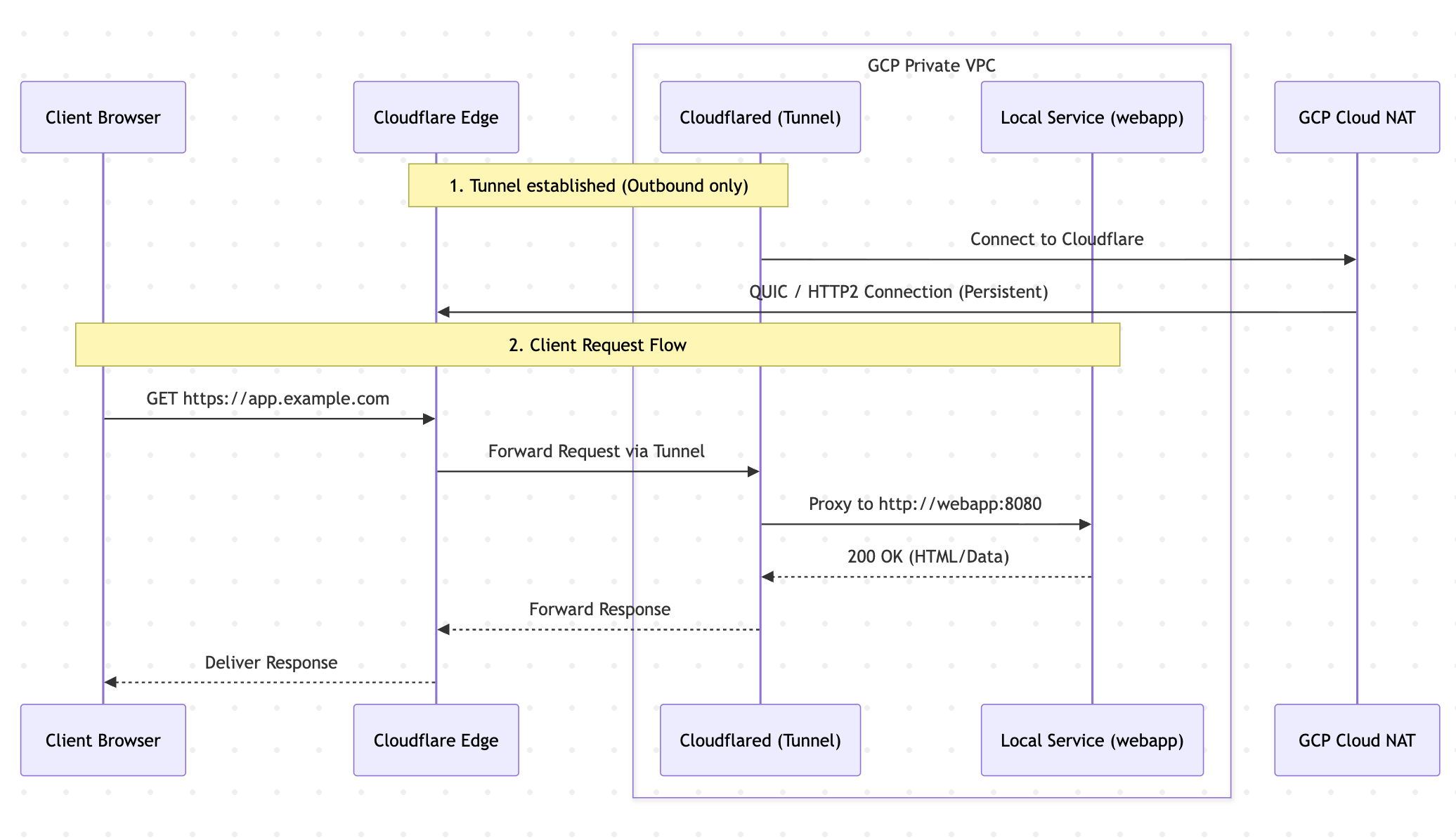
### Benefits of this architecture
1. **No Ingress Firewall Rules**: There is no need to open port 80 or 443 in the GCP VPC firewall.
2. **No Public IP**: The VM is invisible to the public internet. It cannot be pinged or port-scanned.
3. **Automatic SSL/TLS at the Edge**: While end-to-end encryption (HTTPS everywhere) is advocated as a best practice, this guide configures the internal traffic between `cloudflared` and the target service as plain HTTP for simplicity. Cloudflare handles the public-facing HTTPS certificates automatically, simplifying the initial setup.
4. **Out-of-the-box DDoS Protection**: Cloudflare absorbs volumetric attacks before they ever reach the GCP infrastructure.
---
## 2. GCP VM Security Measures
When designing a secure VM without an external IP, the following GCP-specific security measures should be implemented:
### A. Networking (Cloud NAT)
Since the VM has no public IP, it cannot access the internet directly. However, `cloudflared` needs internet access to connect to Cloudflare, and the VM needs internet to pull updates or Docker images.
- **Solution**: Set up a **Cloud Router** and **Cloud NAT** in the VPC. This allows outbound internet access for internal VMs while blocking all inbound internet connections.
### B. Shielded VM Features
Enable Shielded VM options to protect the boot process and kernel integrity:
- **Secure Boot**: Ensures the system only boots authentic, digitally signed software.
- **vTPM (Virtual Trusted Platform Module)**: Validates the VM's identity and provides secure key generation.
- **Integrity Monitoring**: Generates alerts if the boot sequence is tampered with.
### C. Identity and API Access
- **Dedicated Service Account**: Avoid using the default Compute Engine service account. Create a custom service account with the absolute minimum permissions required.
- **Metadata Security**: Ensure `disable-legacy-endpoints = true` in the instance metadata to prevent Server-Side Request Forgery (SSRF) attacks from extracting GCP credentials from the metadata server.
### D. Secure SSH Access (IAP)
Since there is no public IP, standard SSH over the internet is impossible.
- **Solution**: Use **Identity-Aware Proxy (IAP) TCP Forwarding**. IAP validates Google Identity and IAM permissions before tunneling the SSH connection through GCP's internal backbone to the VM.
---
## 3. Step-by-Step Implementation
### Step 1: Provisioning the Cloudflare Tunnel
1. Navigate to the **Cloudflare Zero Trust Dashboard** -> Networks -> Tunnels.
2. Create a new tunnel and select **Cloudflared**.
3. Add a Public Hostname (e.g., `app.example.com`) and point it to the internal service (`http://webapp:8080`).
4. Copy the generated **Tunnel Token**.
### Step 2: Infrastructure Configuration (Docker Compose)
Docker Compose can be used to run both the service and the `cloudflared` daemon in the same isolated bridge network.
```yaml
version: '3.8'
services:
webapp:
image: your-company/webapp:latest
restart: always
environment:
- APP_ENV=production
# Listen on all interfaces inside the container, but expose NO ports to the host
- LISTEN_ADDRESS=0.0.0.0
cloudflared:
image: cloudflare/cloudflared:latest
restart: always
# CRITICAL: Prevent zombie processes by running tini as PID 1
init: true
command: tunnel --no-autoupdate run
environment:
- TUNNEL_TOKEN=your_secret_token_here
depends_on:
- webapp
```
*Note: Notice there is no `ports: ["8080:8080"]` mapped to the host. The `cloudflared` container reaches the web app entirely within the internal Docker network via `http://webapp:8080`.*
### Step 3: Run the stack
```bash
docker-compose up -d
```
Within seconds, `cloudflared` will connect to the Cloudflare Edge, and the site will be securely accessible.
---
## 4. Diagnostics & Troubleshooting
When diagnosing connectivity issues, the non-standard traffic flow requires a systematic approach.
### A. Diagnosing the Edge (Cloudflare)
A **502 Bad Gateway** error indicates that Cloudflare Edge cannot reach the `cloudflared` tunnel, OR `cloudflared` cannot reach the target container.
```bash
# Check the HTTP response from the outside
curl -I https://app.example.com
```
### B. Diagnosing the Host & Services
Before diving into logs, verify the overall health and resource consumption of the host and Docker containers.
```bash
# Check container uptime, status, and IDs
sudo docker ps -a
# Check memory and CPU usage (crucial for diagnosing OOM freezes)
sudo docker stats --no-stream
# Look for stray processes outside of Docker
sudo ps aux | grep cloudflared
sudo systemctl status webapp.service
```
### C. Diagnosing the Tunnel (Cloudflared)
Verify that `cloudflared` is running and successfully connected to the Edge:
```bash
sudo docker logs --tail 50 <cloudflared_container_id>
```
*Look for: `INF Registered tunnel connection` or `ERR Unable to reach the origin service`.*
### D. Verifying Internal Docker Connectivity
Verify that the service is actually alive and responding to the tunnel's requests. Simulate the tunnel's behavior by running a temporary curl container inside the same Docker network:
```bash
# Replace 'app_default' with the actual docker network name
sudo docker run --rm --network app_default curlimages/curl -s -I -m 5 http://webapp:8080
```
*If this returns `200 OK`, the service is healthy, and the issue lies in the Tunnel or Cloudflare configuration.*
---
## 5. Common Failures & Edge Cases
> [!WARNING]
> **The Zombie Process (Duplicate Connectors)**
> When updating or restarting containers (`docker-compose down && docker-compose up`), Docker sends a `SIGTERM` to `cloudflared`. Occasionally, the process ignores the signal, and Docker forcefully orphans it. The process remains alive in the host OS's memory, continuing to send keep-alives to Cloudflare.
>
> **Symptom:** Cloudflare load-balances traffic between the new healthy container and the old "zombie" process. 50% of incoming requests will randomly return a 502 Bad Gateway.
> **Fix:**
> 1. Find the zombie: `sudo ps aux | grep cloudflared`
> 2. Kill the duplicate PIDs: `sudo kill -9 <PID>`
> 3. **Prevention:** Always add `init: true` to the `cloudflared` service in `docker-compose.yml`. This forces Docker to use a proper init system (Tini) as PID 1, which reliably reaps and kills child processes.
> [!CAUTION]
> **OOM (Out of Memory) Hangs**
> If the VM lacks sufficient memory (e.g., using an `e2-micro` with 1GB RAM for a heavy Node.js app), the application may freeze without the container crashing. The status will show `Up X minutes`, but the application's event loop is blocked.
>
> **Symptom:** `cloudflared` cannot proxy requests, Cloudflare times out after 15 seconds, and returns a 502. Running the diagnostic internal `curl` command will hang indefinitely.
> **Fix:** Increase the VM machine type (e.g., to `e2-medium` 4GB) or configure swap space.
> [!NOTE]
> **Protocol Mismatch (HTTP vs HTTPS)**
> While end-to-end HTTPS is the recommended best practice, this guide uses plain HTTP internally for simplicity. If a protocol mismatch occurs, connectivity will fail.
> - If the internal service expects HTTPS, but `cloudflared` sends HTTP, the connection will be dropped immediately.
> - If `cloudflared` is configured to send HTTPS, it will fail if the internal service presents an untrusted/self-signed certificate (unless configured to skip TLS verification).
>
> Ensure the protocol configured in the Cloudflare Zero Trust Dashboard perfectly matches what the internal container expects.
Comments
More Blog
View allkubernetesMinimalist EKS: The Easy Way
Amazon EKS manages the Kubernetes control plane, but you remain responsible for provisioning the...
J
Joaquin MenchacaaiNever forget to enter the Stern Grove lottery again!
Browser automation with Playwright, Python, GitHub Actions, and Entire to auto-enter San Francisco Stern Grove concert lotteries each week!
L
Lizzie SiegletypescriptA Free Screenshot Editor That Never Uploads Your Image
A free screenshot and image editor that runs entirely in your browser. Keeping every edit reversible and handling big phone photos, in plain TypeScript and Canvas2D.
M
Martin StarkshowdevI built a CLI to break my highlights out of Apple Books
A macOS CLI + MCP server that exports Apple Books highlights to Markdown and gives AI assistants direct access to your reading notes.
A
Andrey KorchakaiA Developer's Guide to Agent Hooks in Antigravity CLI
Motivation To be quite honest, "Hooks"—the shell commands we trigger at specific points...
T
TanaikeagentsTactical vs. Strategic Agentic AI Development — A Playbook for Developers
The Strategic Engineer: Why Writing Code Is No Longer Your Most Valuable Skill ...
A
Adewumi Saheed Adewale