
Back to Blog html
html kubernetes
 ai
ai typescript
 showdev
 ai
ai agents
Coding an Extension that Summarises Web Pages with HTML, CSS, and JS
Helitha Rupasinghe June 22, 2026
0 views
In this post, I will show you how you can create a Google Chrome extension that instantly summarises...
In this post, I will show you how you can create a Google Chrome extension that instantly summarises the current web page. We are going to build **TLDR Master**, a minimal, privacy-friendly extension that runs entirely in your browser.
The best part? **No API keys or external services are required.** We will write a lightweight TF-IDF algorithm in pure JavaScript to extract the most important sentences from any article.
## Creating the project
First, let's set up our project structure. Create a new folder named **TLDR-Master** and add the following files:
```bash
TLDR-Master
|- assets
|- css
|- popup.css
|- images
|- logo16.png
|- logo48.png
|- logo128.png
|- manifest.json
|- popup.html
|- popup.js
```
## Part 1: modifying our HTML file.
Our extension will use a popup UI that appears when the user clicks the extension icon. Open `popup.html` and set up the basic structure.
We need a header with our logo and a theme toggle button. We'll also add a section to display the word count and reading time, a control group to let users choose how many bullet points they want (3, 5, or 7), and a main button to trigger the summarisation.
```html
<!DOCTYPE html>
<html lang="en">
<head>
<meta charset="UTF-8">
<link rel="stylesheet" href="assets/css/popup.css">
</head>
<body>
<div class="container">
<div class="header">
<img src="assets/images/logo128.png" alt="Logo" class="logo">
<div class="header-text">
<h2>TL;DR</h2>
<span class="subtitle">Page Summary</span>
</div>
<button id="theme-btn" title="Toggle dark / light mode">
<!-- SVG Icons for Sun/Moon -->
</button>
</div>
<div id="page-meta" class="page-meta hidden">
<span id="word-count"></span>
<span class="dot">·</span>
<span id="read-time"></span>
</div>
<div class="controls">
<span class="control-label">Bullets</span>
<div class="pill-group" id="bullet-count">
<button class="pill" data-value="3">3</button>
<button class="pill active" data-value="5">5</button>
<button class="pill" data-value="7">7</button>
</div>
</div>
<div id="loading" class="loading hidden">
<div class="spinner"></div>
<span>Analysing page…</span>
</div>
<div id="output" class="hidden">
<div class="summary-header">
<span class="summary-label">Summary</span>
<button id="copy-btn" class="icon-btn" title="Copy to clipboard">
<!-- Copy Icon -->
</button>
</div>
<ul id="summary-list"></ul>
</div>
<button id="summarize-btn" class="primary-btn">Summarise Page</button>
</div>
<script src="popup.js"></script>
</body>
</html>
```
## Part 2: modifying our CSS file.
Let's make our popup look clean and modern. Open `assets/css/popup.css`.
We will use CSS variables to easily implement a light and dark mode. We can toggle this by adding a `data-theme="dark"` attribute to the HTML. We also style the "pill" buttons for the bullet count and a nice spinner for when the extension is analysing the page.
```css
/* ── Design tokens — light mode ── */
:root {
--bg: #ffffff;
--surface: #f4f4f8;
--text: #1a1a2e;
--accent: #0076ff;
--accent-hover:#0062d6;
}
/* ── Dark mode tokens ── */
html[data-theme="dark"] {
--bg: #141420;
--surface: #1e1e30;
--text: #e2e2f0;
--accent: #3385ff;
--accent-hover:#1a6fe8;
}
body {
font-family: -apple-system, BlinkMacSystemFont, "Segoe UI", Roboto, sans-serif;
width: 360px;
margin: 0;
background: var(--bg);
color: var(--text);
transition: background 0.2s, color 0.2s;
}
.primary-btn {
background: var(--accent);
color: #fff;
border: none;
border-radius: 8px;
padding: 11px 16px;
font-size: 14px;
font-weight: 600;
cursor: pointer;
width: 100%;
transition: background 0.15s;
}
.primary-btn:hover {
background: var(--accent-hover);
}
```
## Part 3: modifying our JS file.
This is where the magic happens! Open `popup.js`.
Because we want to keep everything local and private, we aren't sending the page text to an external AI. Instead, we inject a script directly into the active tab to extract the text and score it.
First, let's handle the UI logic, like the theme toggle and the bullet count selection:
```javascript
// ── Theme toggle ───────────────────────────────────────────────────────────
document.getElementById('theme-btn').addEventListener('click', () => {
const isDark = document.documentElement.getAttribute('data-theme') === 'dark';
const next = isDark ? 'light' : 'dark';
if (next === 'dark') {
document.documentElement.setAttribute('data-theme', 'dark');
} else {
document.documentElement.removeAttribute('data-theme');
}
chrome.storage.local.set({ theme: next });
});
// ── Bullet-count pill toggle ───────────────────────────────────────────────
let bulletCount = 5;
document.querySelectorAll('.pill').forEach(btn => {
btn.addEventListener('click', () => {
document.querySelectorAll('.pill').forEach(b => b.classList.remove('active'));
btn.classList.add('active');
bulletCount = parseInt(btn.dataset.value, 10);
});
});
```
Finally, we return the top N sentences to the popup, sorted by their original order in the document, and display them as a bulleted list!
## Part 4: modifying our Manifest.Json file.
Finally, we need to tell Chrome about our extension. Open `manifest.json`. We are using Manifest V3 and we need a few specific permissions:
- `activeTab`: To access the currently open tab.
- `scripting`: To inject our extraction script into the page.
- `clipboardWrite`: So users can copy the summary.
- `storage`: To save their preferred theme (light or dark).
```json
{
"manifest_version": 3,
"name": "TLDR Web Summariser",
"version": "1.2",
"description": "Summarises the current web page instantly without API keys or external dependencies.",
"permissions": [
"activeTab",
"scripting",
"clipboardWrite",
"storage"
],
"action": {
"default_popup": "popup.html",
"default_icon": {
"16": "assets/images/logo16.png",
"48": "assets/images/logo48.png",
"128": "assets/images/logo128.png"
}
},
"icons": {
"16": "assets/images/logo16.png",
"48": "assets/images/logo48.png",
"128": "assets/images/logo128.png"
}
}
```
## Deployment
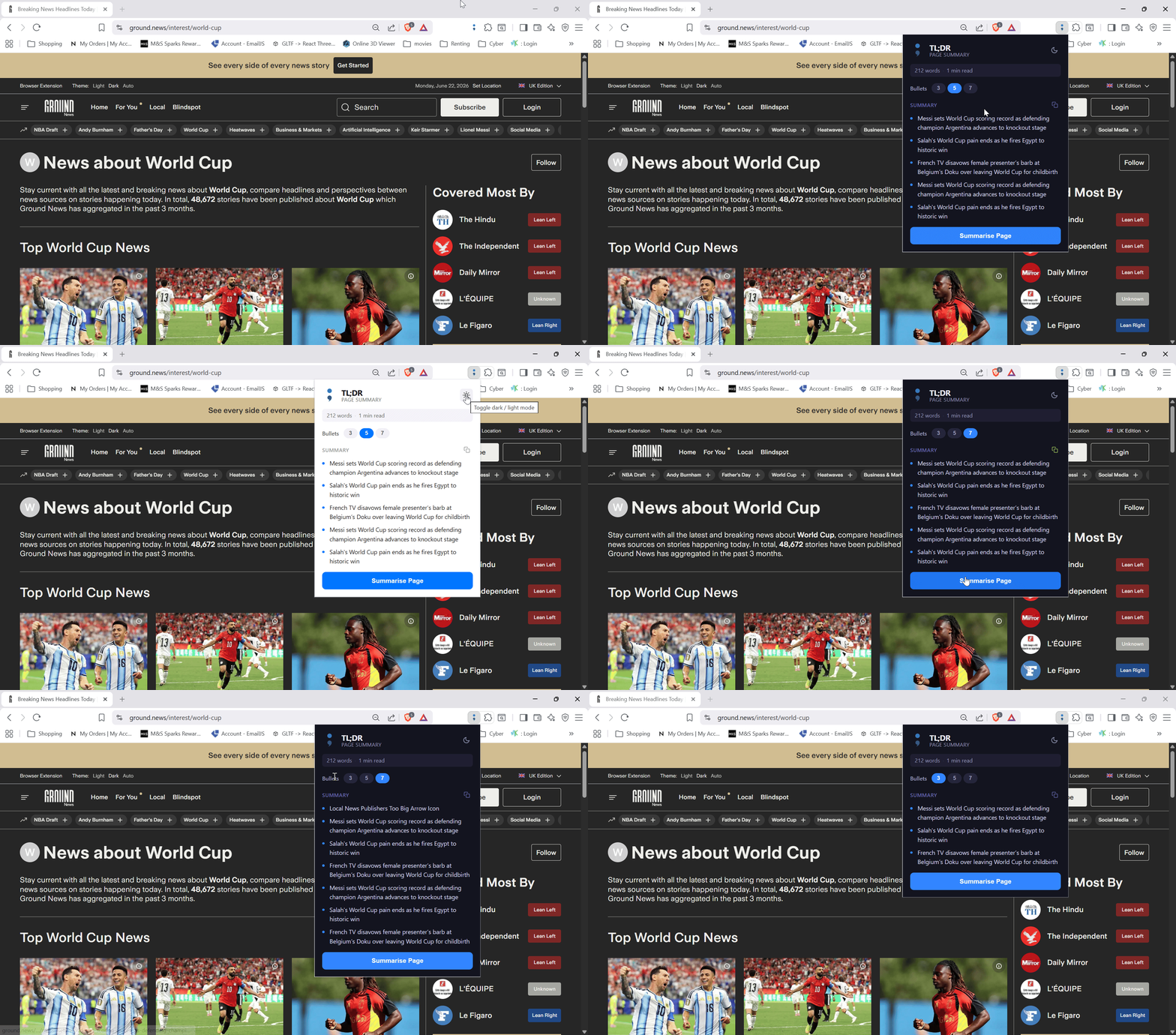
To test your new extension:
1. Open Chrome and navigate to `chrome://extensions/`.
2. Enable "Developer mode" in the top right corner.
3. Click "Load unpacked" and select your `TLDR-Master` folder.
4. Click the extension icon in your browser toolbar while on any article, and hit "Summarise Page"!
## Conclusion
You've just built a fully functional, offline web summariser using only HTML, CSS, and vanilla JavaScript! By leveraging the `chrome.scripting` API and a classic NLP algorithm, you can provide immense value without relying on paid APIs or compromising user privacy.
Check out the full source code and contribute on GitHub: [TLDR Master](https://github.com/JavascriptDon/TLDR-Master).
Comments
More Blog
View allkubernetesMinimalist EKS: The Easy Way
Amazon EKS manages the Kubernetes control plane, but you remain responsible for provisioning the...
J
Joaquin MenchacaaiNever forget to enter the Stern Grove lottery again!
Browser automation with Playwright, Python, GitHub Actions, and Entire to auto-enter San Francisco Stern Grove concert lotteries each week!
L
Lizzie SiegletypescriptA Free Screenshot Editor That Never Uploads Your Image
A free screenshot and image editor that runs entirely in your browser. Keeping every edit reversible and handling big phone photos, in plain TypeScript and Canvas2D.
M
Martin StarkshowdevI built a CLI to break my highlights out of Apple Books
A macOS CLI + MCP server that exports Apple Books highlights to Markdown and gives AI assistants direct access to your reading notes.
A
Andrey KorchakaiA Developer's Guide to Agent Hooks in Antigravity CLI
Motivation To be quite honest, "Hooks"—the shell commands we trigger at specific points...
T
TanaikeagentsTactical vs. Strategic Agentic AI Development — A Playbook for Developers
The Strategic Engineer: Why Writing Code Is No Longer Your Most Valuable Skill ...
A
Adewumi Saheed Adewale