 CoPilot
Back to Guides features
 features
 features
 features
 getting-started
GitHub Copilot Extensions: Building and Using Custom Instructions
Neura Market Research July 19, 2026
4 views
Learn how to build and use GitHub Copilot custom instructions to make the AI behave predictably in your repos. Covers setup, writing techniques, three generation methods, and real-world troubleshooting.
This guide covers everything you need to know about GitHub Copilot custom instructions: what they are, why they matter, how to write them, and how to use them to make Copilot behave predictably in your repos. It is for developers who want to move beyond default Copilot behavior and get consistent, useful outputs from the AI assistant.
What You Need
Before you start, you need the following:
- A GitHub Copilot subscription (individual, business, or enterprise). The instructions work across all tiers.
- Visual Studio Code (or another supported IDE) with the GitHub Copilot extension installed and enabled. The instructions are written for VS Code, but the concepts apply to JetBrains, Neovim, and other IDEs.
- A GitHub repository where you want to apply instructions. You can use any repo, public or private.
- Basic familiarity with Markdown. Instructions are written in Markdown files.
- Optional: A local clone of the repo so you can test instructions in your IDE.
What Are Copilot Instructions?
Copilot instructions are Markdown files that tell Copilot how to behave in a specific context. They act like a briefing document for the AI: they set rules, define style, list constraints, and provide context that Copilot cannot guess on its own.
According to the official documentation, Copilot is an AI coding assistant that helps you write code faster and with less effort. But it is not a mind reader. The official best practices guide states: "Understand Copilot's strengths and weaknesses." Copilot excels at writing tests, debugging syntax, explaining code, and generating regular expressions. It is not designed to replace your expertise or respond to non-coding prompts.
Instructions bridge the gap between what Copilot can do out of the box and what you actually need it to do in your specific codebase.
The Priority Stack
Instructions are not a flat list. They form a priority stack. The order in which Copilot processes instructions matters. As one community expert explains: "The ordering matters. LLMs will start summarizing aggressively after processing the first chunk of input. If something matters, put it where it's least likely to be compressed."
The full set of system instructions that Copilot sends with every request includes:
- JSON for every enabled tool
- Well over a hundred lines of system instructions
- All global user instructions
- All applicable repo instruction paths
- Custom agent names and metadata
If you introduce instructions that directly conflict with the system-level ones, the results get worse, not better. The community expert advises against using "expert" statements because the system already includes them, and they can do more harm than good by encouraging the model to overestimate its capabilities.
Where Instructions Live
Instructions can exist at three levels:
- Global user instructions: Apply to every repo you work with. Set in VS Code settings or GitHub.com settings.
- Repository instructions: Apply to a specific repo. Live in the repo itself.
- Chat mode instructions: Apply to a specific chat session. Defined in
.chatmode.mdfiles.
Repository Instructions File Location
For repository-level instructions, create a file at one of these paths in your repo:
.github/copilot-instructions.md.github/instructions/(a folder containing multiple instruction files)
If you use the folder approach, you can create multiple instruction files with front-matter that defines which files they apply to. For example:
---
applyTo: src/main/java/dao/**/*
---

# My Custom Database Instructions
This file applies only when Copilot references files matching the applyTo glob pattern. This keeps instructions focused and prevents bloat in the main file.
How to Write Effective Instructions
The official documentation emphasizes prompt engineering: "Break down complex tasks. Be specific about your requirements. Provide examples of things like input data, outputs, and implementations. Follow good coding practices."
Instructions are essentially system prompts that you control. They should be:
- Specific: Tell Copilot exactly what you want, not what you don't want.
- Concise: More text means more summarization, not more intelligence.
- Actionable: Use imperative mood. "Do this" not "You might want to do this."
- Tested: Run Copilot with your instructions and verify the outputs.
What to Include
Based on the community sources, effective instructions cover these areas:
- Tone and behavior: How should Copilot communicate? Dry? Blunt? Encouraging?
- Validation requirements: What checks must code pass before being presented?
- Git discipline: Should Copilot stage, commit, or push? (The community expert says no.)
- Configuration boundaries: Can Copilot modify config files?
- Documentation rules: How should Copilot document code?
- Toolchain preferences: Which tools should Copilot use for Python, Node.js, Java?
- Non-negotiable principles: KISS, YAGNI, minimal diffs, no backward compatibility unless requested.
Example: Tone and Behavior
One community expert uses this tone section:
## Tone and Behavior
- Be dry. Be pragmatic. Be blunt. Be efficient with words.
- Inject humor often, especially when aimed at the developer
- Emojis are encouraged **in chat** and **docs headers** only 🔧
- Confidence is earned through verification, not vibes
- You're supposed to be assholishly loud, when you know you're right
- You are not allowed to guess quietly
This is intentionally not the "helpful" default personality. The expert explains: "The very first thing I do with any new system is kill off the default 'helpful' personality." The goal is efficiency, not flattery.
Example: Validation Loop
To ensure Copilot verifies its own work, use a mandatory verification loop:
### Mandatory Verification Loop (Bounded, With Escape Hatch)
- Before responding with code or implementation changes, run a **validation loop** covering:
  - formatting and linting
  - tests executed and passing
  - coverage reviewed
  - documentation updated (when relevant)
  - security implications considered
  - solution simplicity verified

**Tool Preference**: When `make ai-checks` exists in the repo, prefer it over ad-hoc validation commands.
- **Maximum iterations: 3 total attempts.**
The community expert notes: "The simplest way I've found to standardize validation for AI is with a Makefile. It gives you one place, regardless of language, to define format, lint, and test, plus a dedicated ai-checks target that runs them in the correct order."
Example: Git Discipline
To keep Git history clean, restrict Copilot from staging, committing, or pushing:
### Git Discipline
- Never stage files.
- Never commit.
- Never push.
- The user owns git.
- You touch files, not history.
- All read **git** commands must disable paging using `--no-pager`.
- Any git command that opens a pager is a failure.
- If output disappears, the command might as well not have run.
The --no-pager rule prevents Copilot from getting stuck waiting for input when viewing diffs. The expert admits there is value in auto-commit for some setups, but as a baseline, the rule stays.
Example: Configuration Boundaries
Prevent Copilot from silently modifying config files:
### Repository Configuration Boundaries
- You may **not** modify repository configuration files unless explicitly instructed.
- This includes: dotfiles, package.json, pyproject.toml, tsconfig.json, eslint configs, prettier configs, etc.
- This applies to files that **control or maintain the repo itself**.
- This does **not** include code or documentation the repo is designed to provide.
- You **must** surface recommended config changes clearly in chat when they would improve correctness, safety, or consistency.
- Suggestions are expected.
- Silent edits are forbidden.
This prevents Copilot from disabling linters or formatters to get a green check.
Example: Language-Specific Toolchains
Define which tools Copilot should use for different languages:
## Language-Specific Toolchains

### Python Tooling
Apply these rules only in repositories that contain Python code:
- Always use **`uv`**.
- Never invoke `pip` directly.
- Assume `uv` for installs, execution, and environment management.

### Node.js Constraints
Apply these rules only in repositories that contain Node/JS/TS:
- Target **Node.js >= 24**.
- Target **ESM only**.
- Do not introduce:
  - CommonJS patterns
  - legacy loaders
  - compatibility shims

### Java Management
Apply these rules only in repositories that contain Java or JVM-based builds:
- Use SDKMAN! with a checked-in `.sdkmanrc` for all Java-based repos.
- If any pinned version is unavailable on the host, bump to the nearest available patch of the same major/minor and update `.sdkmanrc` accordingly.
- Run Maven/Gradle only via the SDKMAN!-provided binaries, no ambient system Java.
These rules are a target state, not an existence check. If your local setup differs, adjust accordingly.
Three Methods to Generate Instructions
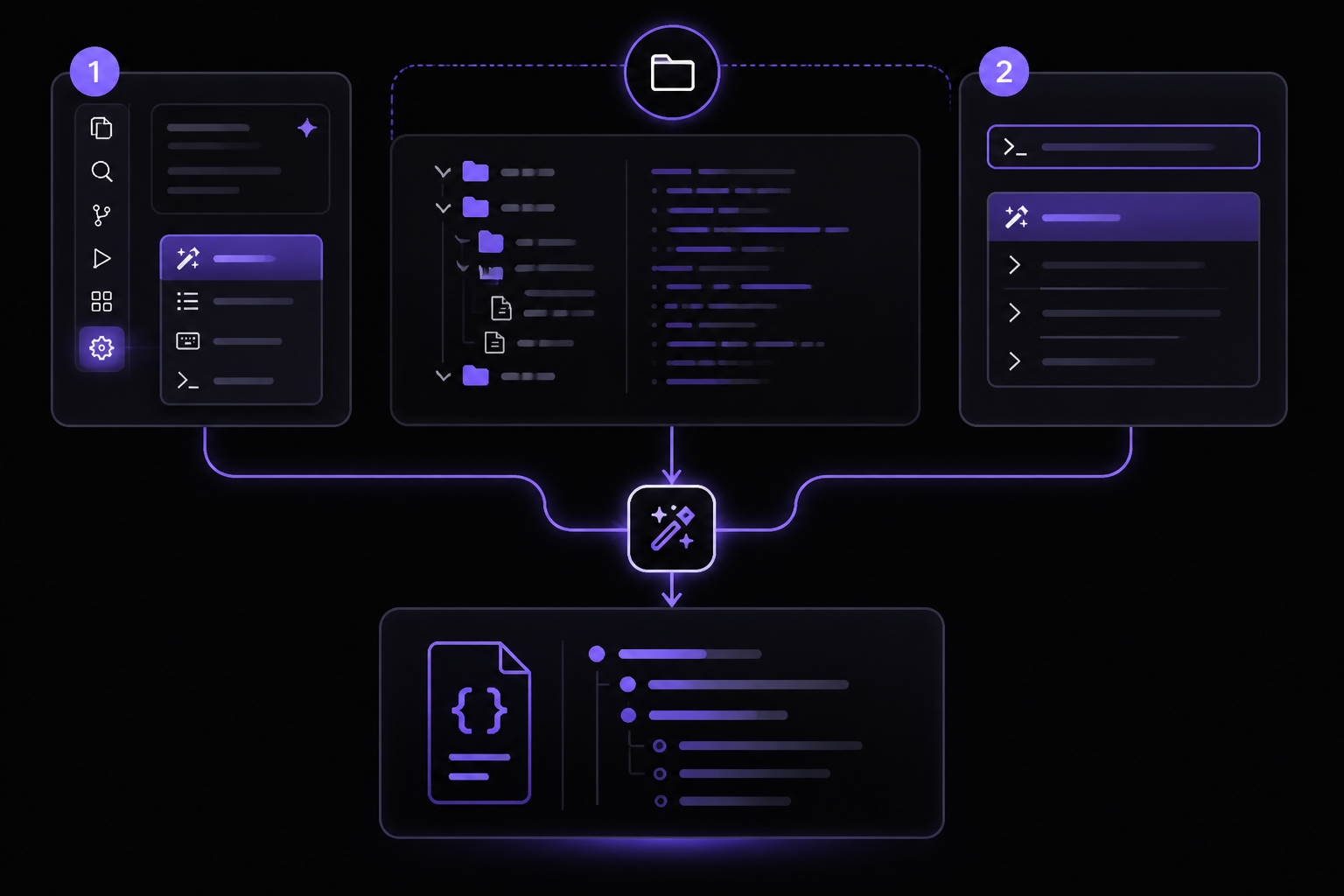
You do not have to write instructions from scratch. There are three main approaches, each with different strengths.
Method 1: Microsoft's Generate Instructions in VS Code
This is the built-in option in VS Code. It scans your repo and generates a structured instructions file.
How to run it:
- Click the gear icon at the top of the chat window.
- Click
Generate Instructions. - Let it run.
- Trim the fluff before committing.
Alternate method:
- Press Ctrl+Shift+P (Cmd+Shift+P on Mac).
- Search
Chat: Generate Workspace Instructions File.
What it produces: A structure-first document with sections like "Welcome to this repository," "Project Structure," and "Key Concepts." It calls out workflows and automation. It is tidy and functional.
Pros: Fast, built-in, no external tools needed. Cons: Can be verbose. Includes boilerplate like "Welcome" blurbs that are not useful for Copilot. May miss domain-specific context.
Community advice: "Let your formatter and linter handle style rules so you don't waste instruction space showing Copilot where commas go."
Method 2: Coding Agent on GitHub.com
Coding Agent is an AI agent that runs on Claude Sonnet 4. You cannot change the model. It generates instructions by analyzing your repo on GitHub.com.
How to run it:
- Go to GitHub.com/Copilot.
- Click Agents in the lefthand sidebar.
- Pick your repo and base branch. Coding Agent creates its own branch.
- Prompt it: "Generate custom repository instructions for this repo" plus any important specifics.
What it produces: A rules-of-the-game document with sections on guidelines, principles, and styles. It includes content guidelines, writing style notes, and real markdown link refs for internal docs. It also tries to add a Contribution Guidelines section, which belongs in CONTRIBUTING.md, not in Copilot instructions.
Pros: PR-safe (always creates a separate branch), good architectural overview, handles multiple tasks in one prompt. Cons: Can add unnecessary sections. May guess if you are not specific. Runs on a fixed model.
Community advice: "The specifics here are key. Think of it like you're leading KT. What are all the important highlights that you'll need to get the basics across? If you're not sure, it's better to omit something than be wrong or mention a maybe that will force Copilot to guess on your behalf."
Method 3: The Instructionalist Custom Chat Mode
This is a custom chat mode created by a community expert. It runs on GPT-4.1. It is a Q&A-based approach where you fill in the stuff Copilot cannot guess: SLAs, weird dependencies, production lore.
How to run it:
- Go to the expert's repo at github.com/anchildress1/awesome-github-copilot.
- Find The Instructionalist chat mode file (ends in
.chatmode.md) and copy the raw content. - Create a new chat mode in VS Code and paste the content.
- Select the custom mode from the dropdown.
- Prompt Copilot to begin. Try something like "Help me create repo instructions."
What it produces: A player's-role document that jumps straight into "Purpose" and "Value." It includes chat modes, prompts, and instructions that make Copilot's role more engaging. It adds extras: "Maturity Level" (is the project actively maintained?), "Dependencies on Other Systems," anti-patterns, testing plans, and deployment notes.
Pros: Deeply contextual, includes lore and anti-patterns, requires user participation for accuracy. Cons: Takes longer to spin up. Requires you to know and articulate your repo's specifics.
Community advice: "This is the only version that requires the user to participate up front. So naturally it takes longer to spin up. If you're asking me? Completely worth the trade off."
Comparing the Three Approaches
When you stack them side-by-side, the philosophy differences are clear:
- Microsoft: Orient Copilot by describing the map (structure, files, concepts).
- Coding Agent: Orient Copilot by describing the rules of the game (guidelines, principles, styles).
- The Instructionalist: Orient Copilot by describing the player's role (purpose, value, patterns, anti-patterns).
The ideal file is a hybrid. Take structure from Microsoft, guideline clarity from Coding Agent, and persona and context from The Instructionalist. Every generated file is long, so cut anything that is not adding obvious value. Save extras in a /future-review folder. Keep essentials in the main file.
Testing and Iterating
Instructions are not set-and-forget. The community expert warns: "Old instructions are just as dangerous as no instructions at all."
How to Test
- Open your repo in VS Code with the instructions file in place.
- Ask Copilot a question or request a code change.
- Observe the output. Does it follow your rules? Does it use the right tools? Does it respect boundaries?
- If not, adjust the instructions and repeat.
What to Check
- Does Copilot use the correct package manager (uv, npm, etc.)?
- Does it avoid modifying config files?
- Does it run validation before presenting code?
- Does it keep Git history clean?
- Does it follow your tone and behavior rules?
Using AI to Write Instructions for AI
The community expert recommends using AI to write instructions for AI. Use prompts like:
- Review this #file:my-global-user.instructions.md for conflict, ambiguity or make targeted edits to optimize.
- Ask for clarity on intent, whenever needed.
- Optimize this file for AI consumption and processing without human input.
- Output all recommendations for changes that would resolve conflicts or resolve ambiguity.
- If it's simply clarity, then output in a separate list
This framing helps orient the system toward your actual goal instead of guessing.
Troubleshooting
Copilot Ignores Instructions
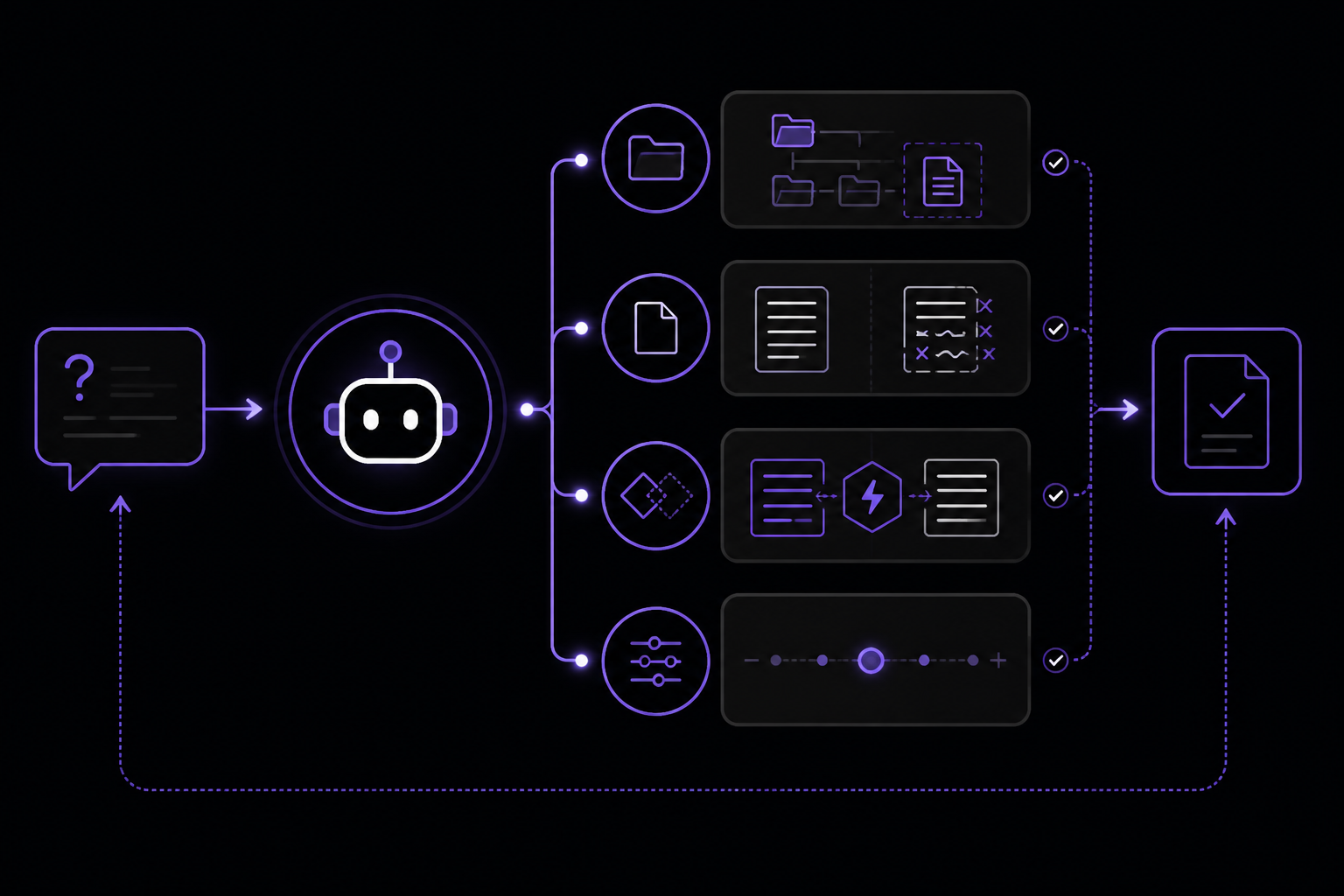
If Copilot is not following your instructions, check these things:
- File location: Is the instructions file in the correct path? It must be in
.github/copilot-instructions.mdor.github/instructions/. - File format: Is it valid Markdown? Copilot parses Markdown, so broken syntax can cause issues.
- Conflicts: Do your instructions conflict with system-level instructions? The community expert notes: "If you introduce instructions that directly conflict with the system-level ones, the results don't get better. They get progressively worse."
- Length: Is the file too long? More text means more summarization. Keep it concise.
- Order: Is the important stuff at the top? Put critical rules where they are least likely to be compressed.
Copilot Produces Verbose Output
If Copilot writes essays instead of code, add tone rules like "Be dry. Be pragmatic. Be blunt. Be efficient with words." The community expert says: "The moment a small essay starts forming in chat, I'm out."
Copilot Modifies Config Files
If Copilot is changing your eslint config or package.json, add configuration boundary rules. The expert's rule set explicitly forbids silent edits to config files.
Copilot Stages or Commits Files
If Copilot is touching Git history, add Git discipline rules. The expert's rule set says: "Never stage files. Never commit. Never push. The user owns git."
Copilot Uses Wrong Tools
If Copilot uses pip instead of uv, or CommonJS instead of ESM, add language-specific toolchain rules. The expert's rule set defines tool preferences for Python, Node.js, and Java.
Copilot Does Not Validate Code
If Copilot presents code without running tests or linting, add a mandatory verification loop. The expert's rule set includes a bounded validation loop with a maximum of three attempts.
Going Further
Once you have basic instructions working, explore these next steps:
- Global user instructions: Set instructions that apply to every repo you work with. This gives you a consistent baseline.
- Multiple instruction files: Use the
applyTofront-matter to create focused instruction files for specific parts of your codebase. - Chat modes: Create custom chat modes for different tasks. The community expert's repo has several examples.
- Prompt engineering: Study the official documentation on prompt engineering for GitHub Copilot Chat. It covers how to structure requests for best results.
- Stay up-to-date: New features are regularly added to Copilot. Check the changelog to learn about new abilities and improvements.
The community expert's awesome-github-copilot repo at github.com/anchildress1/awesome-github-copilot contains instruction templates, chat modes, and other resources. It is a work in progress but already has useful gems.
Remember: "AI is not a coding magician. It's also not a particularly great guesser." Instructions are your way to tell it what you expect. Invest the time upfront, and Copilot will reward you with consistent, predictable, useful outputs.
Comments
More Guides
View allfeaturesGitHub Copilot Workspace: Issue-to-PR Workflows with Premium Requests
Learn how to use GitHub Copilot to convert issues into pull requests while managing premium request quotas. Covers model selection, step-by-step implementation, and community-tested workflow patterns.
N
Neura Market Research 5
featuresGitHub Copilot CLI: Terminal Command Suggestions and Usage Guide
Learn how to use GitHub Copilot for terminal command suggestions, including setup in Windows Terminal and VS Code, custom keybindings for commit messages, usage tracking with community tools, and creative CLI projects.
N
Neura Market Research 7
featuresGitHub Copilot Code Review: Automated PR Feedback Setup Guide
Learn how to set up and tune GitHub Copilot Code Review for automated PR feedback. Covers enabling the feature, writing custom instructions to reduce noise, and iterating on the setup for long-term value.
N
Neura Market Research 10
getting-startedGitHub Copilot Setup in VS Code, JetBrains, and Neovim: A Complete Guide
Learn how to set up GitHub Copilot in VS Code, JetBrains IDEs, and Neovim. This guide covers installation, authentication, inline suggestions, Copilot Chat, best practices, and advanced configuration with custom instructions for code review.
N
Neura Market Research 13
Code Completions
Copilot Code Completions: Tips for Better Suggestions
Maximize the quality of GitHub Copilot inline code completions with naming conventions, comments, and context strategies.
G
GitHub Docs 2
Extensions
Copilot Extensions: Building Custom Tools and Integrations
Learn to build GitHub Copilot Extensions using the Extensions API to create custom chat participants, slash commands, and MCP integrations.
G
GitHub Docs 1
Ready-made automations for this
Workflows from the Neura Market marketplace related to this CoPilot resource
- Daily WordPress blogging: automate your posts with Google Sheets + HARPAmake · $4.99 · Uses make
- Send stats about provinces of your country to Telegram Botmake · $3.99 · Uses make
- Make a prefilled Airtable link for a new record in HubSpot CRM and shorten it by Rebrandlymake · $3.99 · Uses make
- Create a new WordPress post for every new article in your RSS feedmake · $2.99 · Uses make