
Back to Blog zed
zed
Parallel Development: Separate Windows, No
 cursor
 ai
ai amazonbedrock
 ai
ai ai
ai mcp
mcp
Cursor to Zed: Disabling Built-in AI for a CLI-First Setup
Shimo February 22, 2026
0 views
From Cursor to Zed: A Record of Detours and Discovery On February 11, 2026, I dropped...
From Cursor to Zed: A Record of Detours and Discovery
On February 11, 2026, I dropped Cursor and switched to Zed.
More precisely, "I tried to switch, went on a wild detour, and ended up at an optimal solution I never expected." This article is the full record of that struggle and the setup I finally settled on.
Context: I'm a Developer Who Doesn't Write Code
Let me share some context first. I'm a solo developer, but I don't write any code at all. I delegate everything to Claude Code (Anthropic's CLI agent).
My development flow looks like this:
- Read code in the editor (review)
- Give instructions to Claude Code in the terminal
- Verify the generated code
In other words, all I need from an editor is "display things fast." I don't need code completion or snippets.
This premise caused today's detour — and simultaneously became the key to finding the optimal solution.
Motivation: "A Heavy Container for Light Contents"
Everything Claude Code (ECC) — the configuration collection for Claude Code that I use daily. I noticed its creator uses Zed, which had been on my radar for a while.
Cursor is feature-rich, but heavy. It takes time to start up and constantly builds indexes in the background, eating memory. On top of that, I wasn't using any of Cursor's proprietary AI features (Tab completion, Composer) — I was only running the Claude Code extension.
In other words, "a heavy container for light contents." Pure waste.
To resolve this discomfort, I consulted Gemini, which delivered a blunt observation:
You're using Cursor — a heavy container — just to run a VS Code extension for Claude inside it. If you're not using Cursor's AI features, it's just dead weight.
That hit where it hurts. Gemini continued:
Zed has an "Assistant Panel" built into the editor from the start. Just enter your API key and you can use Claude natively, no extensions needed.
I see. Zed has native cloud-based AI support and runs light. "I'll have Claude Code set up the environment later" — the moment I decided that, the struggle began.
What Is Zed (30-Second Overview)
Before getting into specifics, let me briefly describe Zed.
Zed is a Rust-based, GPU-accelerated, high-speed editor. Built by the former Atom/Tree-sitter team, it's targeting a 1.0 release in spring 2026.
| Metric | Zed | VSCode | Difference |
|---|---|---|---|
| Startup time | 0.12s | 1.2s | 10x faster |
| Large project startup | 0.25s | 3.8s | 15x faster |
| Memory usage | 142MB | 730MB | 80% reduction |
These numbers alone justify the switch, but the real difference is how it feels. Opening files, switching tabs, searching — everything is instant.
Wall #1: Installed It, but Now What?
I had Claude Code write a settings.json and the Zed installation was done in seconds. The problem was what came next.
I opened Zed, but had no idea what to do.
In Cursor, there's a Chat panel in the left sidebar — just talk to it. Zed had nothing equivalent in sight.
I asked Gemini and learned that Cmd + ? opens the Assistant Panel. It reveals a chat interface on the right side. Select Claude Code there, authenticate with /login — it's a different world from Cursor's click-through GUI setup, but the steps themselves were straightforward.
Wall #2: The Agent Panel Black Box Problem
When you select Claude Code (Agent) in the Assistant Panel, you can give AI instructions through a chat interface, just like Cursor. It autonomously creates files and runs commands.
But there's no way to see context consumption.
In Cursor, context usage is visualized with a progress bar. Zed has nothing like that. I confirmed with Gemini that this is a Zed limitation by design:
Token consumption for Claude Code (via ACP connection) is not displayed in Zed's Agent Panel. This feature is not supported for external agent integrations.
Working without knowing your remaining context is like driving a car with no fuel gauge.
"Cursor shows it, and maybe I should go back... But Zed is so fast..."
This tension became the turning point of the day.
Turning Point: "Don't Retreat to Standard Mode"
"Then should I use Standard Mode (direct API mode) instead?"
The thought crossed my mind briefly, but Gemini stopped me:
In Standard Mode, Claude just displays text like "here's how to fix it." It doesn't automatically create files or run commands.
| Feature | Agent Panel (Claude Code) | Standard Mode |
|---|---|---|
| Code fixes | Automatically rewrites files | Shows code only (manual copy-paste) |
| Command execution | Runs tests/installs automatically | Not possible |
| File creation | Automatic | Not possible |
| Token display | Not shown | Shown |
For someone who "doesn't write code," Standard Mode is a dealbreaker. AI just suggests things and I have to copy-paste myself — that's exactly what I want to avoid.
Discovering the Optimal Solution: Let CLI Live Inside Zed
What broke the deadlock was one line from Gemini:
Instead of using Zed's Agent Panel, you could just run
claudein Zed's terminal.
It was a revelation.
Run the Claude Code CLI inside Zed's terminal. This gives you:
- CLI shows context consumption — visible
- Full Claude Code capabilities (file operations, command execution) — available
- Zed's blazing-fast display — utilized
There was no need to fixate on the Agent Panel (GUI) at all.
The "Hacker's Cockpit" Is Complete
Terminal on the left, editor on the right. The moment this layout came together, everything clicked.
┌──────────────────┬──────────────────┬─────────────┐
│                  │                  │             │
│ Claude Code CLI  │   Zed Editor     │ File Tree   │
│ (Terminal)       │   (File Display) │ (Right)     │
│                  │                  │             │
│ Give commands    │   Review results │ See structure│
│ ↓               │   ↑              │             │
│ Context % shown  │   Instant update │             │
│                  │                  │             │
└──────────────────┴──────────────────┴─────────────┘
Left is the "brain," center is the "body," right is the "map."
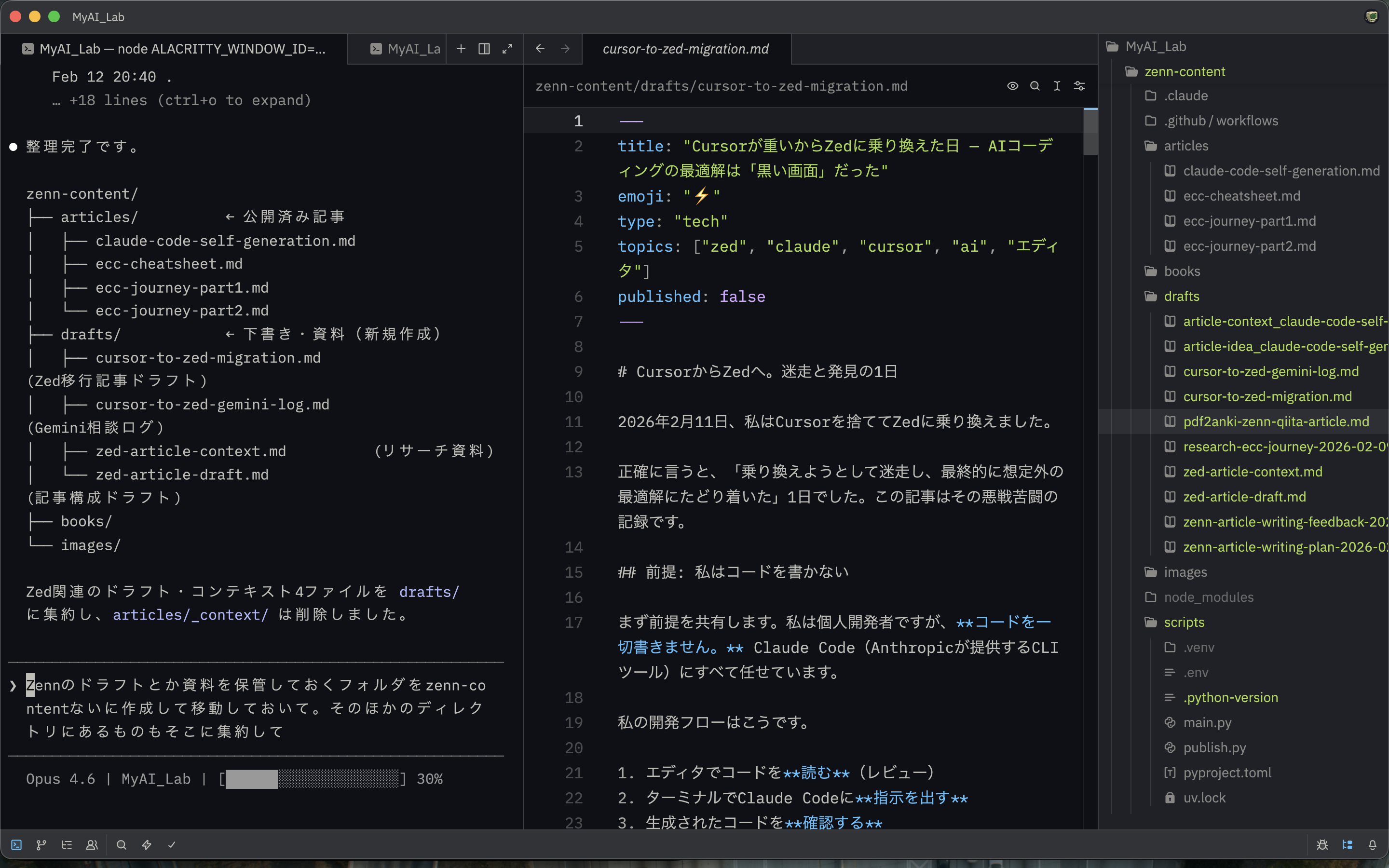
Give instructions in the left CLI, Claude Code modifies files, changes appear instantly in Zed at the center, and the file tree on the right gives you a bird's-eye view of the project structure. Context consumption is displayed right there at the bottom-left of the CLI.
You can do the same thing in Cursor. But Cursor is "the heavy container." Zed displays files instantly, with no unnecessary background processing.
The editor just needs to be a "display." For someone who doesn't write code, all I need from an editor is lightness and speed. Zed meets those requirements perfectly.
settings.json: Final Version (Full Disclosure)
After all the trial and error, ~/.config/zed/settings.json ended up like this:
{
    // === AI: Intentionally all disabled ===
    "edit_predictions": {
        "provider": "none"          // No code completion needed. I don't write code.
    },
    "agent": {
        "enabled": false,           // Agent Panel (GUI) not used. CLI is enough.
        "dock": "left"
    },

    // === Layout: CLI on left, file tree on right ===
    "terminal": {
        "dock": "left",             // Terminal on the left = main workspace
        "font_family": "SF Mono",
        "font_size": 15,
        "line_height": "comfortable",
        "working_directory": "current_project_directory"  // No need for cd
    },
    "project_panel": {
        "auto_reveal_entries": true,
        "dock": "right"             // File list on the right, out of the terminal's way
    },

    // === Editor basics ===
    "theme": "Ayu Dark",
    "vim_mode": false,
    "soft_wrap": "editor_width",
    "ui_font_size": 16,
    "buffer_font_size": 16,
    "buffer_font_family": "SF Mono",
    "autosave": "on_focus_change",  // Never think about saving
    "format_on_save": "on",         // Auto-format code on save (fix indentation, whitespace)
    "tab_size": 4,
    "show_whitespaces": "none",

    // === Readability ===
    "indent_guides": {
        "enabled": true,
        "coloring": "indent_aware"
    },
    "inlay_hints": { "enabled": true },
    "git": {
        "inline_blame": { "enabled": true }
    },

    // === Language-specific settings ===
    "languages": {
        "Swift":  { "tab_size": 4, "format_on_save": "on" },
        "Python": { "tab_size": 4, "format_on_save": "on" },
        "JSON":   { "tab_size": 2, "soft_wrap": "editor_width" }
    }
}
Explaining the Intent Behind Each Setting
Why edit_predictions is set to none: I don't write code. Completion popups only break my concentration while reviewing. If the goal is to read what Claude Code wrote, zero completion noise is best.
Why agent is set to false: Zed has built-in AI features (Agent Panel). But I use the Claude Code CLI directly from the terminal. The Agent Panel doesn't support token consumption display, and the CLI offers more information and control.
Layout intent (terminal left, file tree right): Most editors put the file tree on the left, but my main workspace is the terminal (Claude Code CLI). I put the thing I use most in the most accessible position — the left side.
What format_on_save does: When you save a file, it automatically formats code indentation, whitespace, and line breaks. If you have a language-specific formatter configured (ruff for Python, SwiftFormat for Swift, etc.), saving is all it takes to clean up the code. This is convenient since code generated by Claude Code also gets auto-formatted on save.
Installed Extensions (Minimal Set of 7)
| Extension | Type | Purpose |
|---|---|---|
| swift | Language | Swift/SwiftUI development (sourcekit-lsp integration) |
| html | Language | HTML support |
| toml | Language | Editing pyproject.toml, etc. |
| dracula / tokyo-night / one-dark-pro / material-dark | Theme | Tried all 4, settled on Ayu Dark (built-in) |
Compared to VSCode's 60,000+ extensions, Zed's ecosystem has only a few hundred. But for a Claude Code CLI-centric setup, language support and themes are all you need.
Practical Use Across a Multi-Language Workspace
I manage 4 projects in a single workspace (project names are pseudonyms):
| Project | Stack | Zed Support |
|---|---|---|
| ogre-training-ios | Swift 6.0 / SwiftUI | Swift extension + sourcekit-lsp |
| hanma-dojo-ios | Swift 6.0 / SwiftUI | Swift extension + sourcekit-lsp |
| maximum-tournament-web | TypeScript / Next.js 16 | Built-in TS/JS support |
| grappler-tools | Python / uv | Built-in Python support |
Swift (iOS Development)
Code completion and go-to-definition work via sourcekit-lsp. However, Xcode is still required alongside Zed. Building and running on simulators happens in Xcode; code browsing and giving instructions to Claude Code happens in Zed.
Python
Built-in Python support is solid. format_on_save works without issues. Compatibility with uv + pyproject.toml setups is good.
TypeScript / Next.js
Built-in TypeScript/JavaScript support provides a decent development experience. ESLint and Prettier integration isn't as rich as VSCode's plugin ecosystem, but since Claude Code CLI handles formatting and linting too, I haven't felt any practical issues.
Parallel Development: Separate Windows, No cd Needed
In Zed, Cmd + Shift + N opens a new window. Open a separate window per project and the terminal automatically starts at that project's root. No need to type cd at all.
[Zed Window 1: ogre-training-ios]      [Zed Window 2: maximum-tournament-web]
┌──────────┬──────────┐          ┌──────────┬──────────┐
│ Claude   │ Swift    │          │ Claude   │ TypeScript│
│ Code CLI │ Code     │          │ Code CLI │ Code     │
└──────────┴──────────┘          └──────────┴──────────┘
Run two Claude Code instances simultaneously — fix an iOS app in one while modifying a web app in the other. This is the ideal workflow for a developer who doesn't write code.
Claude Code ACP vs CLI: How I Use Each
Let me organize the distinction between Zed's Agent Panel (via ACP) and terminal CLI.
| Aspect | Agent Panel (ACP) | Terminal CLI |
|---|---|---|
| Context display | Not shown | Shown |
| Reviewing file changes | Multi-buffer view, easy to read | Diff display in terminal |
| Accept/Reject | Intuitive GUI | y/n keystrokes |
| CLAUDE.md integration | Supported | Supported |
| Slash commands | Supported | Supported |
| Checkpoints | Not supported | Supported |
| Resume past threads | Not possible | Possible (--resume) |
| Multiple concurrent sessions | Not possible (one thread at a time) | Possible (as many as your processes allow) |
My conclusion: CLI as the primary tool, with ACP as a supplement when needed.
The decisive factor is concurrent execution. The CLI runs as an independent terminal process, so you can launch as many claude instances as you have windows. Each one operates in a separate project, separate context, separate thread, fully in parallel. The Agent Panel can only run one active thread.
For a "developer who doesn't write code," the biggest bottleneck is waiting for AI responses. Running CLIs in parallel is the only way to overlap that wait time, and the Agent Panel forces everything back into serial execution. This is a more fundamental difference than context display or checkpoints.
On top of that, context visibility and checkpoint support are CLI strengths. The Agent Panel's multi-buffer change review is helpful when you want to survey large changes, so I use it selectively for that purpose.
Things That Tripped Me Up During Migration
Let me be honest about the rough edges.
Limited extensions: If you're used to VSCode's rich extension ecosystem, you'll feel uneasy at first. But once I realized "Claude Code CLI compensates for what the editor lacks," it stopped bothering me.
Japanese input: Zed's Japanese input support is still maturing. There's occasional lag when writing comments in code or editing CLAUDE.md. However, since my main input target is the terminal (Claude Code CLI), the practical impact is limited. (Note for English readers: this is relevant for CJK input method editor support in general.)
Quirky settings files: Zed settings use JSON but with comment support (JSONC), which is unusual. Key structures can change between versions (e.g., features.edit_prediction_provider became edit_predictions.provider). I recommend backing up your settings.
An Honest Question: Does It Have to Be Zed?
Having written all this, I'll admit: with my current usage pattern, Zed isn't strictly necessary.
If the setup is "editor = display, core = CLI," then in theory Sublime Text or terminal + vim would also work. I've intentionally turned off Zed's selling point — the AI integration (Agent Panel) — so I'm not even using its flagship feature.
Still, I chose Zed for three reasons:
1. The "reading" experience is noticeably better. Startup and file switching are instant. Go-to-definition via sourcekit-lsp, Git inline blame, indent guides — all the support for reading code runs snappily. Cursor has the same features, but only Zed delivers them in 142MB of memory.
2. The Agent Panel is an investment in the future. Token display and checkpoints aren't supported yet. But if Zed 1.0 delivers multi-agent collaboration, there will be use cases that CLI can't easily replicate. Getting familiar with the editor now has value.
3. "No waste" is a value in itself. Going from Cursor's "unused AI features eating memory" to Zed's "things you don't use simply aren't running" — that difference in mental comfort matters. It's a non-functional requirement, but for a tool you use every day, it's not one you can ignore.
In short: today's Zed has enough value as "the fastest display," and tomorrow's Zed has the potential to be more — that's my current assessment.
What I Learned Today
Editor AI Features Are Becoming "Less Than CLI"
Zed's Agent Panel and Cursor's Composer are certainly convenient. But the Claude Code CLI surpasses them in information density. Context consumption, thinking process, execution logs — everything is visible and controllable.
GUI offers "ease of use," but CLI offers "transparency." When you're delegating work to AI, seeing what's happening matters more.
"Heavy Editors" Are Relics of the Past
Cursor and VSCode are designed around the assumption that humans write code. Code completion, refactoring assistance, debugger integration — all of these are features built for "humans writing code."
In an era where AI writes the code, all an editor needs to do is "display things fast." Zed's "lightness from not doing unnecessary things" is optimal for this new paradigm.
Knowing How to Choose AI Tools Is Also a Skill
The thing that helped me most during today's detour was actually Gemini. Confirming Zed's specifications, suggesting layouts, the "don't retreat to Standard Mode" judgment — all of these came from dialogue with Gemini.
Claude Code is the strongest "executor," but strategic decisions about "which tool to use and how" require a different perspective. I realized that knowing how to choose between AI tools is also an important skill in solo development.
Future Expectations
Looking toward Zed 1.0 (planned for spring 2026), the official roadmap lists these features:
- Multi-agent collaboration: Run multiple models simultaneously, review results, and merge the best output
- Interactive notebooks: Native data visualization and manipulation
- Large repository optimization: Performance improvements for particularly large repos
On the Claude Code side, Hooks and Plan mode support via ACP are planned additions (noted as "Plan mode coming soon" in the limitation notes). If these materialize, the Agent Panel's usability could approach that of the CLI, though no official timeline has been published.
Summary
| Item | Cursor (Before) | Zed + CLI (After) |
|---|---|---|
| Startup speed | Slow | Blazing fast |
| Memory usage | Heavy (proprietary AI always running) | Light |
| Claude Code integration | Via extension | Direct CLI execution |
| Context display | Shown | Shown via CLI |
| Parallel development | Possible but heavy | Lightweight via window splitting |
| AI features | Not using them (waste) | Not included by design (no waste) |
Conclusion: The editor just needs to be a "display." The real engine is the CLI.
Switching from Cursor to Zed wasn't just changing editors. It was a shift in development style itself — from "GUI AI chat" to "CLI autonomous agent."
Now, before 1.0, is the perfect time to try Zed. Especially if you're already using Claude Code — try disabling all built-in AI and going all-in on the "black screen." I highly recommend it.
<details><summary>Summary of settings.json key points.</summary>Timeline (2026-02-11)
- Morning — Decided to migrate to Zed after a conversation with Gemini
- Afternoon — Installed Zed, had Claude Code build the initial configuration
- Afternoon — Hit the token display problem with Agent Panel (GUI)
- Afternoon — Discovered the optimal solution: running CLI in Zed's terminal
- Evening — Finished adjusting theme, fonts, and layout
- Night — Established the "Hacker's Cockpit" layout
edit_predictions.provider: "none"— AI completion OFF. Let Claude Code CLI handle it.agent.enabled: false— Agent Panel (GUI) not used.terminal.dock: "left"— Terminal as the main workspace.terminal.working_directory: "current_project_directory"— No cd needed.project_panel.dock: "right"— File list moved to the right side.autosave: "on_focus_change"— Never think about saving.format_on_save: "on"— Auto-format code on save.
Comments
More Blog
View allcursorCursor Automations in 2026: wire event-triggered coding agents to Slack, CI, and timers
Cursor Automations in 2026: wire event-triggered coding agents to Slack, CI, and...
M
Manu ShuklaaiIndex Everything, or Read Everything? The Dilemma of Feeding Specs to AI in Multi-Repo Development
The specs exist. The AI just can't see them. I've always been the type who builds hobby...
S
Shunya ShidaamazonbedrockConnect Claude Code, Cursor and Codex to Amazon Bedrock's new console (2026)
Connect Claude Code, Cursor and Codex to Amazon Bedrock's new console (2026) Summary. On 5...
M
Manu ShuklaaiSpotting AI UI is too easy
There is a weird uncanny valley with LLM-generated UI right now. The code functions perfectly, but if...
H
Harish .saiSeven ranking frameworks, one search page, zero translation tables
I went down a rabbit hole this morning reading the late-2025 Juejin AI roundups side by side, and the...
N
ninghonggangmcpZendesk MCP: Let Claude Handle Your Support Tickets
Install guide and config at curatedmcp.com Zendesk MCP: Let Claude Handle Your Support...
C
curatedmcpReady-made automations for this
Workflows from the Neura Market marketplace related to this Cursor resource
- Automate Job Discovery & AI Proposals Across Upwork, Freelancer, Guru & PPH with OpenRoutern8n · $14.99 · Related topic
- Automated LinkedIn Profile Discovery with Airtable and Google Searchn8n · $4.99 · Related topic
- Multi-Platform Source Discovery with SerpAPI, DuckDuckGo, GitHub, Reddit, & Blueskyn8n · $24.99 · Related topic
- Automate LinkedIn Profile Discovery and Cold Email Outreachn8n · $14.99 · Related topic