 Cursor
Back to Blog litellm
 csharp
 cursor
 aicoding
 ai
ai ai
ai cursor
How to set up Cursor with LiteLLM
Misbah Syed September 10, 2026
0 views
This guide connects Cursor to a LiteLLM proxy, one you run yourself or one your team already hosts....
title: How to set up Cursor with LiteLLM published: true date: 2026-09-10 18:36:50 UTC tags: litellm,cursor cover_image: https://dev-to-uploads.s3.us-east-2.amazonaws.com/uploads/articles/ueyx47h3skvja7d7epkf.png canonical_url: https://misbahsy.hashnode.dev/how-to-set-up-cursor-with-litellm
This guide connects Cursor to a LiteLLM proxy, one you run yourself or one your team already hosts. Cursor takes one base URL and one API key in its settings.
The tldr version
-
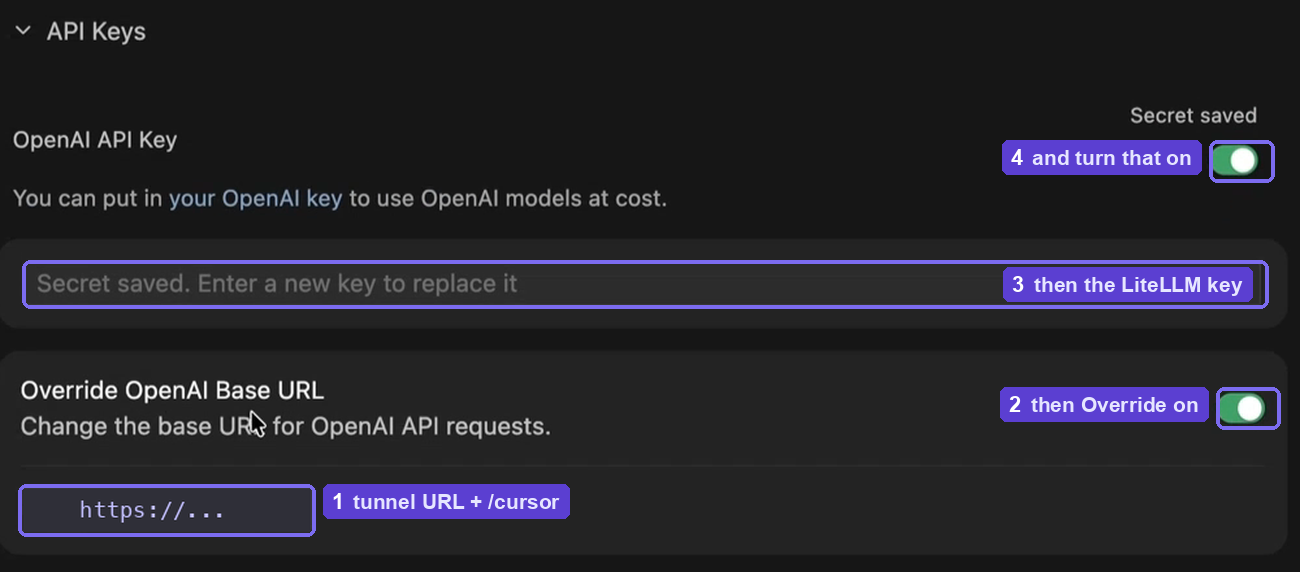
Cursor Settings, then Models, then expand API Keys
-
Turn on Override OpenAI Base URL and set it to
https://your-gateway.example.com/cursor -
Turn on OpenAI API Key, paste a LiteLLM key, confirm the prompt
-
Add Custom Model, and type the
model_namefrom yourconfig.yaml -
Pick that model in the model picker and send a message
If you prefer to watch the tutorial instead:
The steps below are the ones in the video, so you can move between the two.
Requirements
You need Cursor recent enough to have a Models page under Cursor Settings, and a LiteLLM gateway. Docker builds that gateway in section 6 if you do not have one; skip Docker entirely if your team already hosts one.
The one that catches people out. The gateway has to be reachable from the public internet. Cursor does not call your model from your laptop, its own backend makes the request, so
http://localhost:4000is not reachable. Section 7 provides tips on how to make a publicly available URL.
Versions used: LiteLLM main-stable, UI v1.99.0, DB Postgres 16-alpine.
Let's get started!
If a gateway is already running somewhere your Cursor can reach, sections 1 to 5 are enough. If you don't have a gateway running, jump to section 6, build the gateway, then come back to section 1.
1. Open the Models page in Cursor
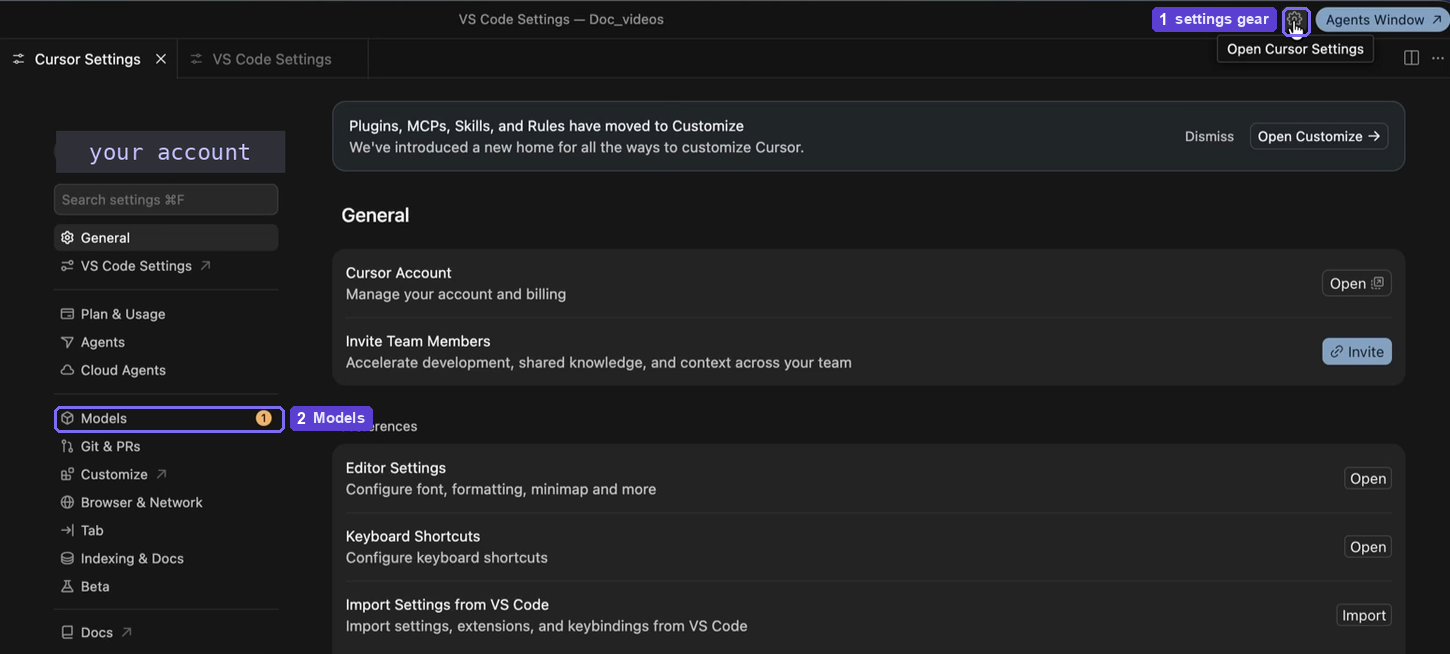
The gear icon in the top right opens Cursor Settings. Everything in this guide lives under Models.
2. Point Cursor at the gateway
Scroll down to API Keys and expand it. Then put your gateway URL in the base URL field with /cursor on the end, and the per-user API key from the LiteLLM gateway(more on it below). Turn on: OpenAI API Key , and Override OpenAI Base URL toggles.
https://your-gateway.example.com/cursor
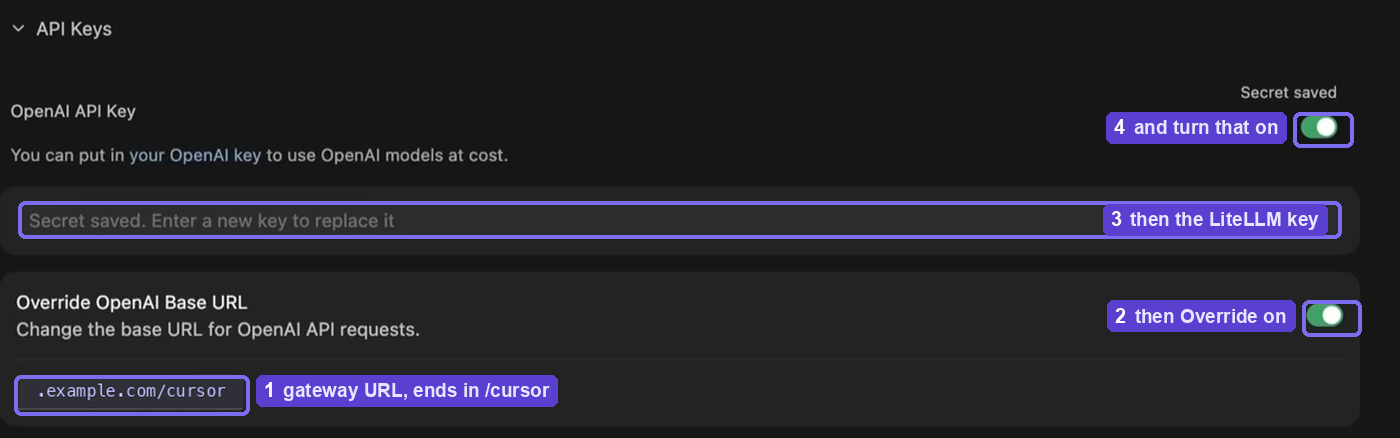
/cursor . Is the route LiteLLM exposes for Cursor specifically.
3. Add your key and enable it
Paste a LiteLLM key into the OpenAI API Key field and save it. Use a virtual key from the gateway's Virtual Keys page if you have one.
Cursor then asks you to confirm. Say yes.
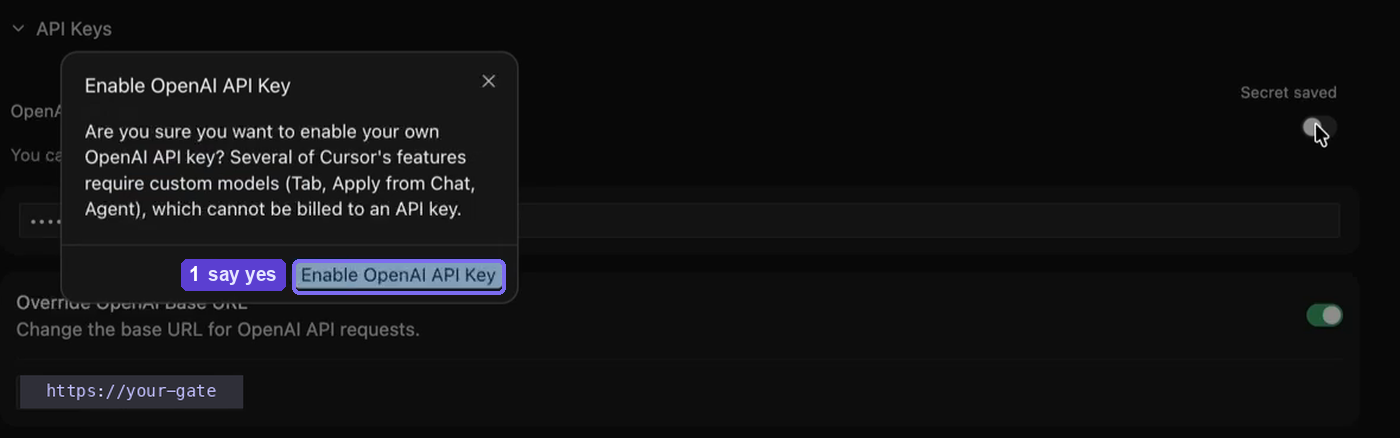
The dialog warns that Tab, Apply from Chat and Agent run on Cursor's own models and cannot be billed to your key. Whereas, Chat and the model picker route through your gateway.
4. Add the model names your gateway serves
Cursor's model list is its own. If a model_name from your config happens to match something Cursor already lists, it shows up on its own. In some case, it might not allow to use the same model names as the built-in model names in Cursor. In that case, you will have to add a custom model name.
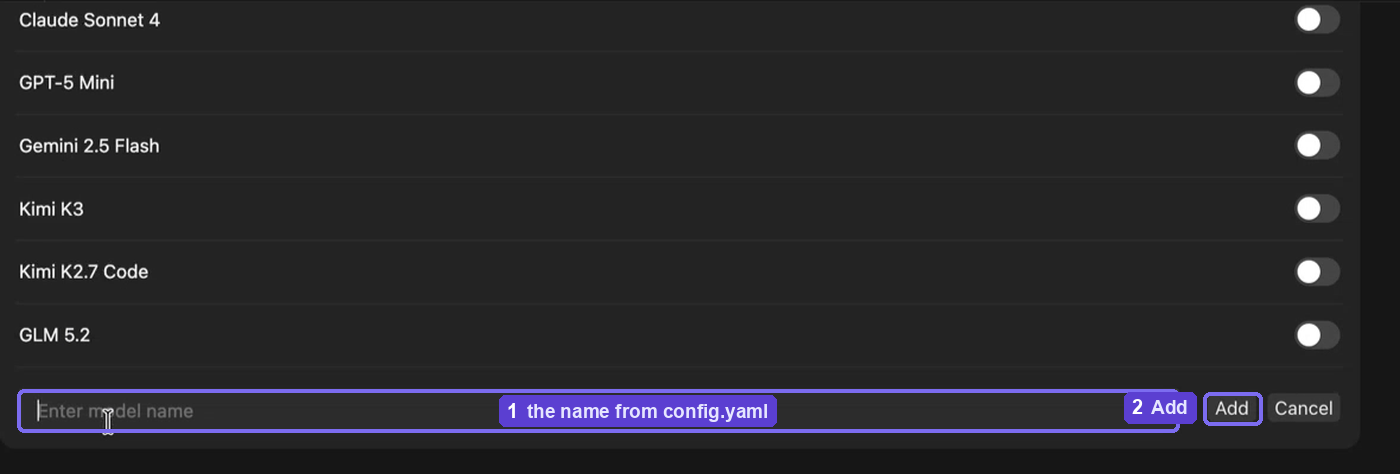
Scroll to the bottom of the model list, click Add Custom Model , and type the name exactly as it appears in config.yaml or public model names from the created models in the gateway.
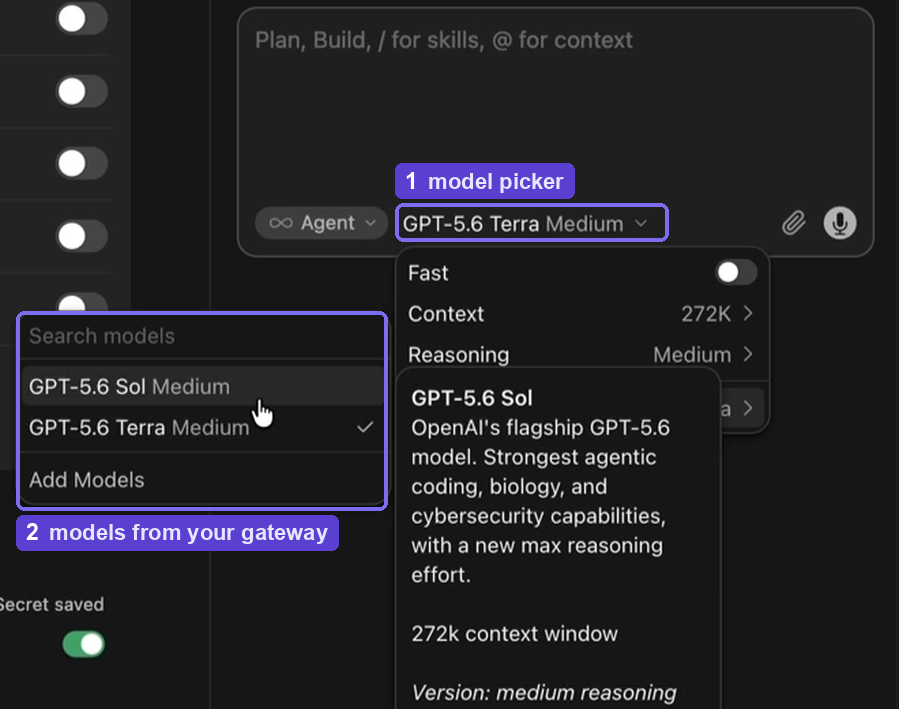
5. Send a message and check the logs
Open a chat, click the model picker, and pick one of your models.
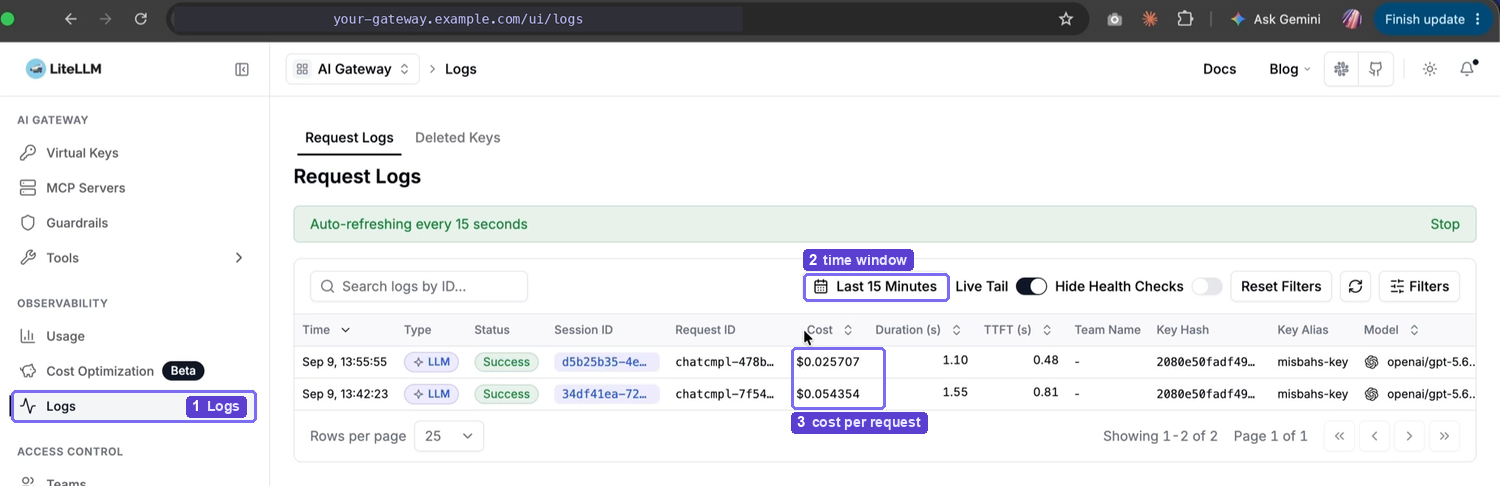
Now go to the gateway UI, open Logs under Observability, and narrow the time filter to the last fifteen minutes. Your request is there with a cost against it.
Click a row for the detail and now you can see which key sent it, how many tokens went out and came back, what it cost, how long it took, and how much of the prompt was served from cache.
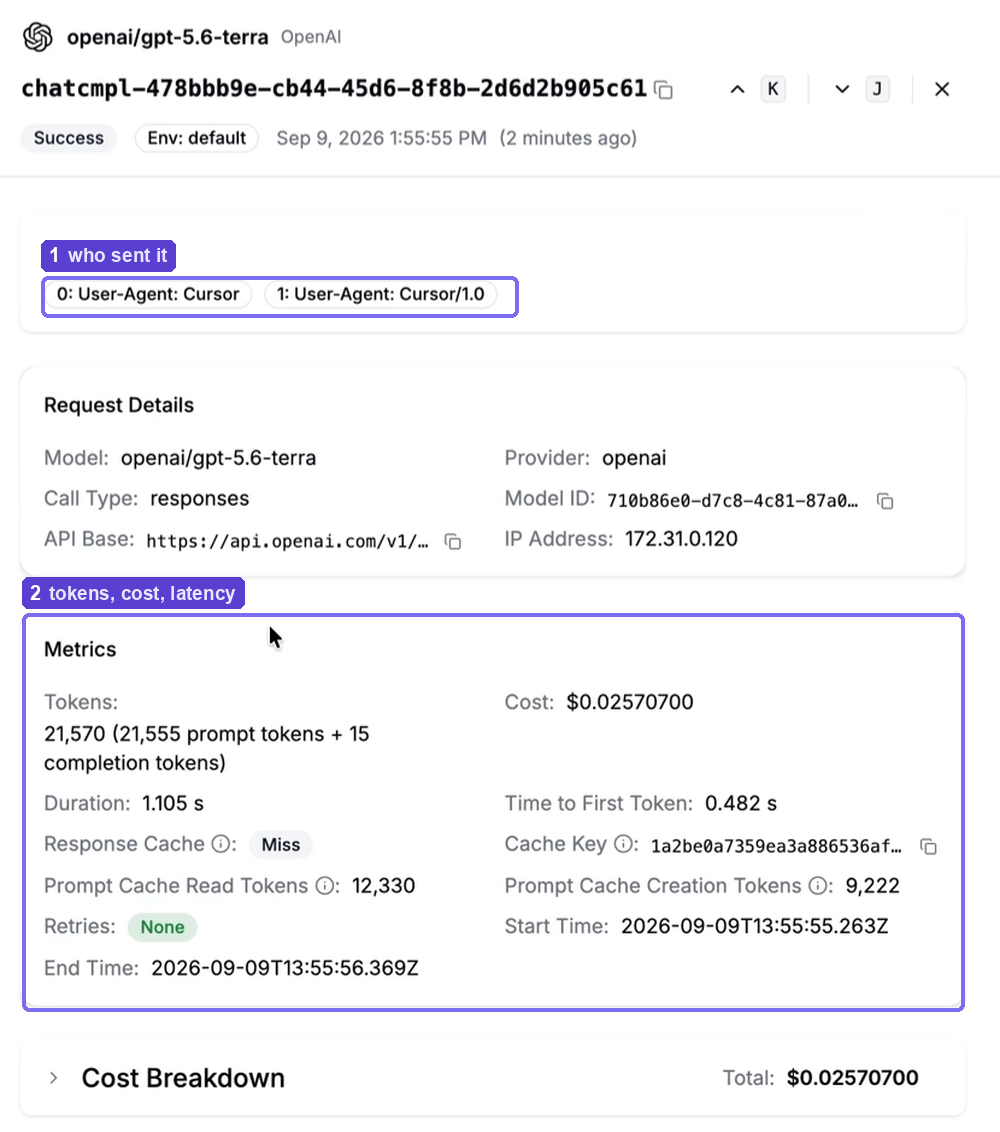
The Tags row shows User-Agent: Cursor, which indicates that it was Cursor traffic.
6. No gateway yet? Let's run one
Start a new project directory, or create these three files in your existing project directory.
config.yaml
model_list:
  - model_name: litellm-gpt-5.6-terra
    litellm_params:
      model: openai/gpt-5.6-terra
      api_key: os.environ/OPENAI_API_KEY
  - model_name: litellm-claude-sonnet-5
    litellm_params:
      model: anthropic/claude-sonnet-5
      api_key: os.environ/ANTHROPIC_API_KEY

litellm_settings:
  drop_params: true

general_settings:
  master_key: os.environ/LITELLM_MASTER_KEY

  # Coding turns stream for a long time. Do not cut them off.
  request_timeout: 600

router_settings:
  num_retries: 3
  cooldown_time: 30
model_name . This is the name Cursor sends and the name you type into Add Custom Model. Prefixing them with litellm- keeps your model names from colliding with Cursor's built-in list, and when you see one in a log you know where it came from.
model . The provider's own name for the model, with the provider in front. LiteLLM uses this to decide which API to call and how to shape the request. You can find the full list of models supported here.
drop_params: true . Coding agents send parameters that not every provider accepts. This line drops them instead of failing the request.
request_timeout: 600 . An agentic turn can stream for minutes. The default cuts it off well before that.
.env
LITELLM_MASTER_KEY=sk-your-own-long-random-string
OPENAI_API_KEY=sk-...
ANTHROPIC_API_KEY=sk-ant-...
The master key is the only required variable, along with any provider api key needed for the models listed in the config.yaml.
docker-compose.yml
name: litellm-coding-agents

services:
  litellm:
    image: ghcr.io/berriai/litellm:main-stable
    restart: unless-stopped
    command: ["--config", "/app/config.yaml", "--port", "4000"]
    ports:
      - "4000:4000"
    volumes:
      - ./config.yaml:/app/config.yaml:ro
    env_file:
      - .env
    environment:
      DATABASE_URL: postgresql://litellm:litellm@postgres:5432/litellm
      STORE_MODEL_IN_DB: "True"
    depends_on:
      postgres:
        condition: service_healthy
    healthcheck:
      test: ["CMD-SHELL", "python -c \"import urllib.request,sys; sys.exit(0 if urllib.request.urlopen('http://localhost:4000/health/liveliness').status==200 else 1)\""]
      interval: 10s
      timeout: 5s
      retries: 12
      start_period: 30s

  postgres:
    image: postgres:16-alpine
    restart: unless-stopped
    # Deliberately not published to the host. Nothing outside this network
    # needs it, and a 5432 collision is an annoying afternoon.
    environment:
      POSTGRES_USER: litellm
      POSTGRES_PASSWORD: litellm
      POSTGRES_DB: litellm
    volumes:
      - litellm-pgdata:/var/lib/postgresql/data
    healthcheck:
      test: ["CMD-SHELL", "pg_isready -U litellm -d litellm"]
      interval: 5s
      timeout: 5s
      retries: 20

volumes:
  litellm-pgdata:
Postgres DB allows UI access to make virtual keys, budgets and the logs we saw in section 5.
STORE_MODEL_IN_DB: "True" . Lets you add models from the UI. Models added that way live in the database.
Bring it up:
docker compose up -d
Then check it is actually serving:
curl -s http://localhost:4000/health/liveliness
You want "I'm alive!" back.
A quick tip: if something else already holds port 4000, find it with lsof -nP -iTCP:4000 -sTCP:LISTEN and either stop it or change the published port in docker-compose.yml.
7. Give the local gateway a public URL
Cursor's backend has to reach the gateway, so a local port needs a tunnel in front of it. You can assign a public URL to your locally deployed gateway using either ngrok or cloudflared.
ngrok:
ngrok http 4000 --log=stdout

cloudflared:
cloudflared tunnel --url http://localhost:4000
Either one prints an HTTPS URL. That URL, plus /cursor goes into the base URL field from section 2.
A free tunnel URL changes every time you restart the tunnel, and Cursor will need the new one. For anything beyond trying this out, put the gateway on a host with a real domain.
8. Adding a model from the LiteLLM UI
With STORE_MODEL_IN_DB on in docker-compose.yml, Models + Endpoints has an Add Model tab that writes to the database instead.
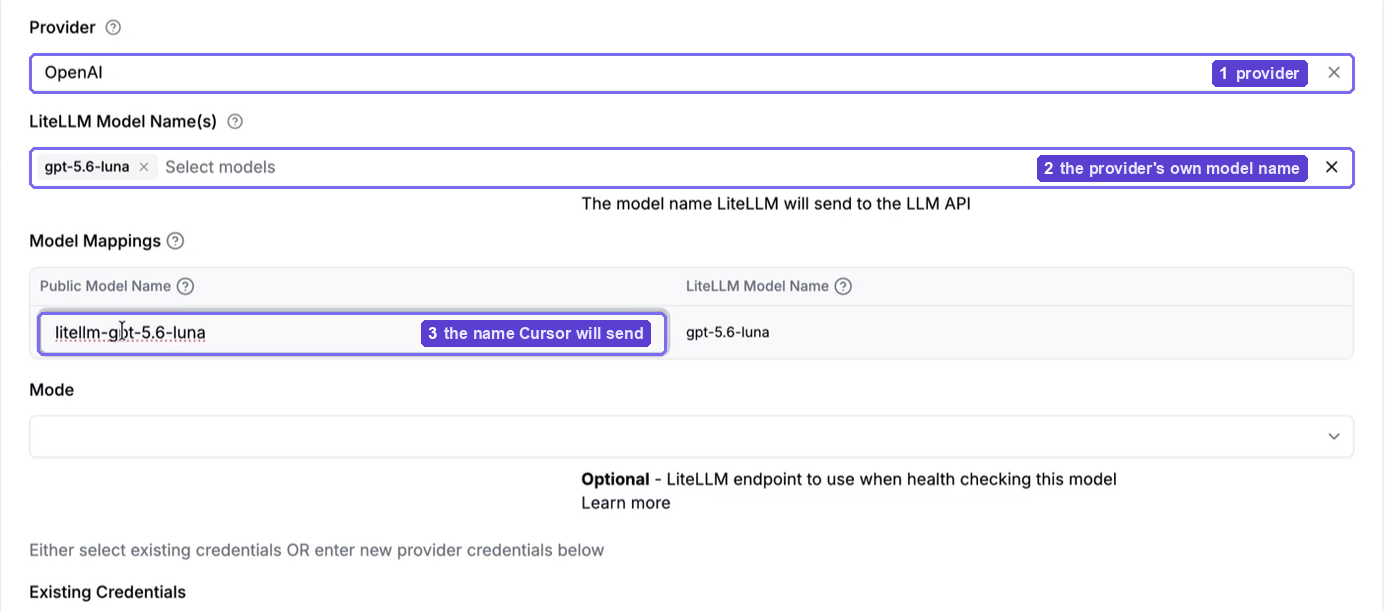
LiteLLM Model Name is the provider's name for the model, the string LiteLLM will send upstream. Public Model Name is what we can assing and what Cursor sends. Mapping litellm-gpt-5.6-luna to gpt-5.6-luna is the UI equivalent of the model_name / model pair in config.yaml.
Scroll down for the credentials.
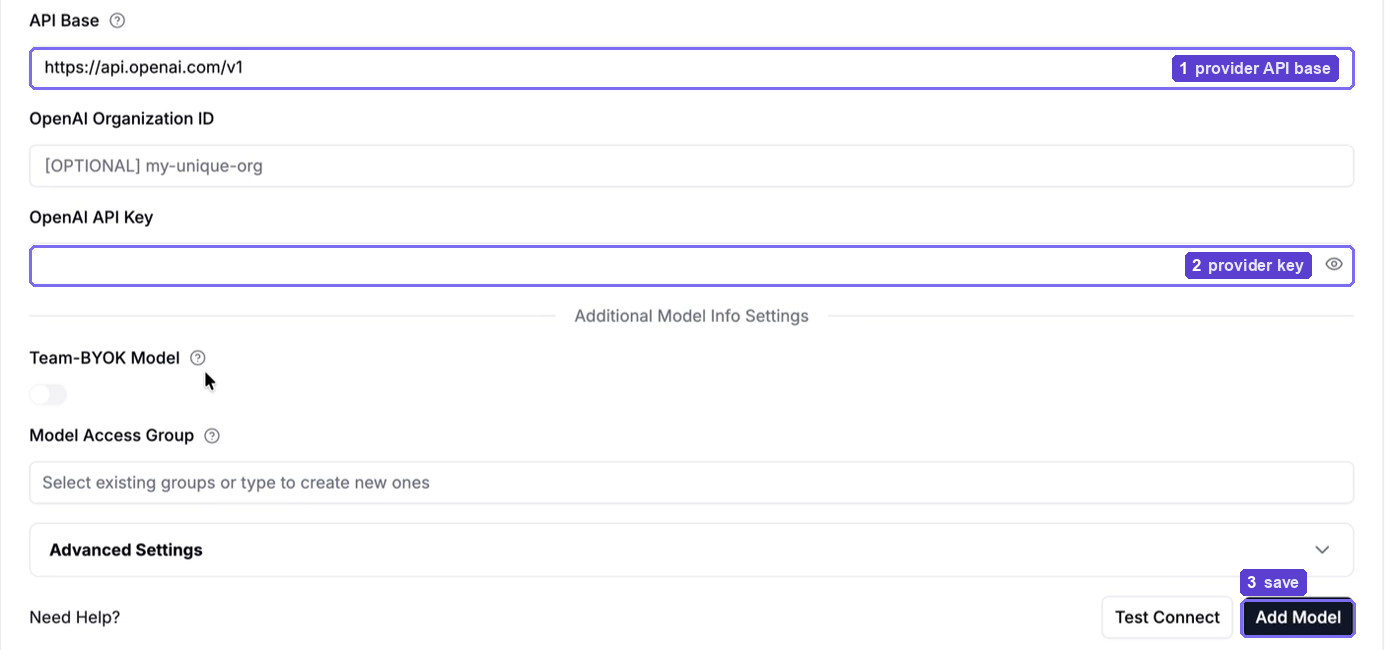
Save it, add the public model name to Cursor with Add Custom Model the way you did in section 4. Test a short prompt in the chat and the model sends the response.

Advanced options
Manage usage with virtual keys
Create a key per developer under Virtual Keys , give each one a budget and a list of models it is allowed to use, and hand that to your teammates. The Key Alias column in the logs gives you details of the usage.
Using different models
Anything LiteLLM supports works here, not just OpenAI. Add a block to model_list, give it a model_name that starts with litellm-, restart, and add that name to Cursor. Cursor is talking to an OpenAI-shaped endpoint, and it could Claude or Gemini or a local model.
No base URL field? Use the Azure OpenAI panel
Some Cursor builds do not show Override OpenAI Base URL. The Azure OpenAI panel underneath it takes the same three pieces of information and gets you to the same place.
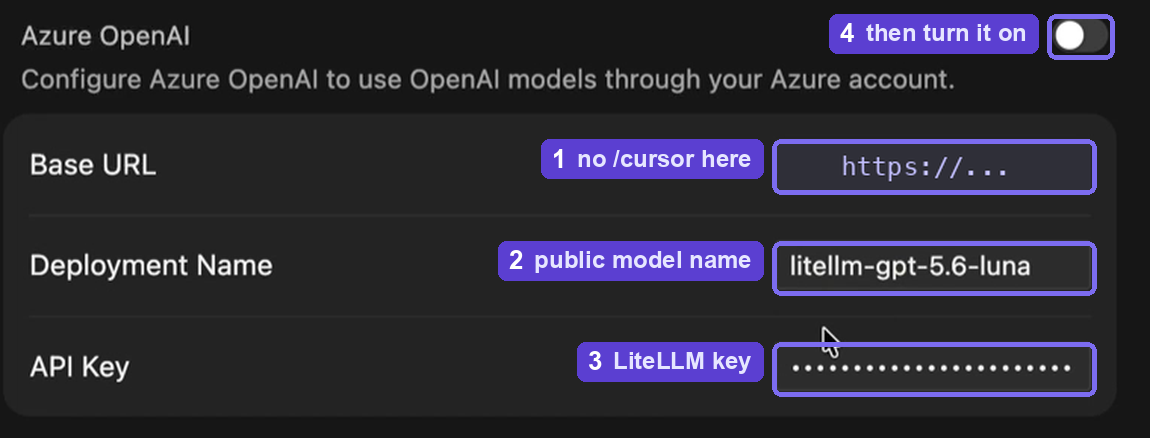
One difference, and it is easy to miss: do not append /cursor here. Base URL is the bare gateway URL. Deployment Name is your public model name, and API Key is the LiteLLM key.
Additional resources
-
LiteLLM docs: https://docs.litellm.ai
-
Cursor tutorial page: https://docs.litellm.ai/docs/tutorials/cursor_integration
-
Gateway quick start: https://docs.litellm.ai/docs/proxy/quick_start
-
Docker quick start: https://docs.litellm.ai/docs/proxy/docker_quick_start
-
LiteLLM on GitHub: https://github.com/BerriAI/litellm
-
Video walkthrough: Watch it on YouTube
Comments
More Blog
View allcsharpThis week in Cursor + .NET — 7 rules (week ending September 13, 2026)
A weekly digest from the Agentic Architect persistence kit: 7 senior C#/.NET rules for engineers keeping Cursor honest across sessions.
A
Agentic ArchitectcursorHow to Stop Cursor from Hallucinating: 5 Production Rules Every AI Engineer Needs
How to Stop Cursor from Hallucinating: 5 Production Rules Every AI Engineer Needs If you use Cursor,...
A
AymaneWebDEVaicodingOpenAI Pulls the Plug on Cursor After SpaceX's $60 Billion Buyout
OpenAI plans to end Cursor’s native access to its AI models following SpaceX's $60 billion acquisition of the coding startup. With a proposed November 12 transition date, the split highlights growing tensions across the AI industry.
S
Sanjay SinghaiHow to Give Cursor and Claude Code Persistent Memory Across Sessions via MCP
How to Give Cursor and Claude Code Long-Term Memory Across Sessions via MCP By MemorySync...
M
Mohammed RafayaiHow to Give Cursor Long-Term Memory Across Sessions
Every Cursor session starts the same way: a blank slate. You explain your stack, your conventions,...
A
Abdeljabbar ElassalicursorCursor Project: My Journey into the Future of Software Development
Have you ever felt like you're drowning in a sea of context switches, managing an army of tiny tasks,...
I
Ishank ChoudharyReady-made automations for this
Workflows from the Neura Market marketplace related to this Cursor resource
- Start a timer in Timely when your Android device connects to WiFimake · $3.99 · Related topic
- Extract Text from Images & PDFs via Telegram with Mistral OCR to Markdownn8n · $24.99 · Related topic
- Auto-Publish Content to 9 Social Platforms with Blotato & Airtablen8n · $24.99 · Related topic
- Build Comprehensive Entity Profiles with GPT-4, Wikipedia & Vector DB for Contentn8n · $24.99 · Related topic