
Back to Blog googleappsscript
 gemma
gemma community
 ai
ai ai
ai githubactions
 ai
ai
Monitoring Sheet Changes with SHEET and SHEETS Functions on Google Sheets
Tanaike April 8, 2026
0 views
Abstract Google Sheets recently introduced the SHEET and SHEETS functions. Because they...
Abstract
Google Sheets recently introduced the SHEET and SHEETS functions. Because they automatically recalculate upon structural changes, developers can utilize them as custom triggers. This article demonstrates how to leverage these functions to detect sheet insertions, deletions, renames, and movements without requiring cumbersome installable triggers in Google Apps Script.
Introduction
On February 23, 2026, Google introduced two pivotal built-in functions to Google Sheets: SHEET and SHEETS Ref. The SHEET function returns the index (sheet number) of a specified sheet or reference Ref. Meanwhile, the SHEETS function provides the total count of sheets within a spreadsheet Ref.
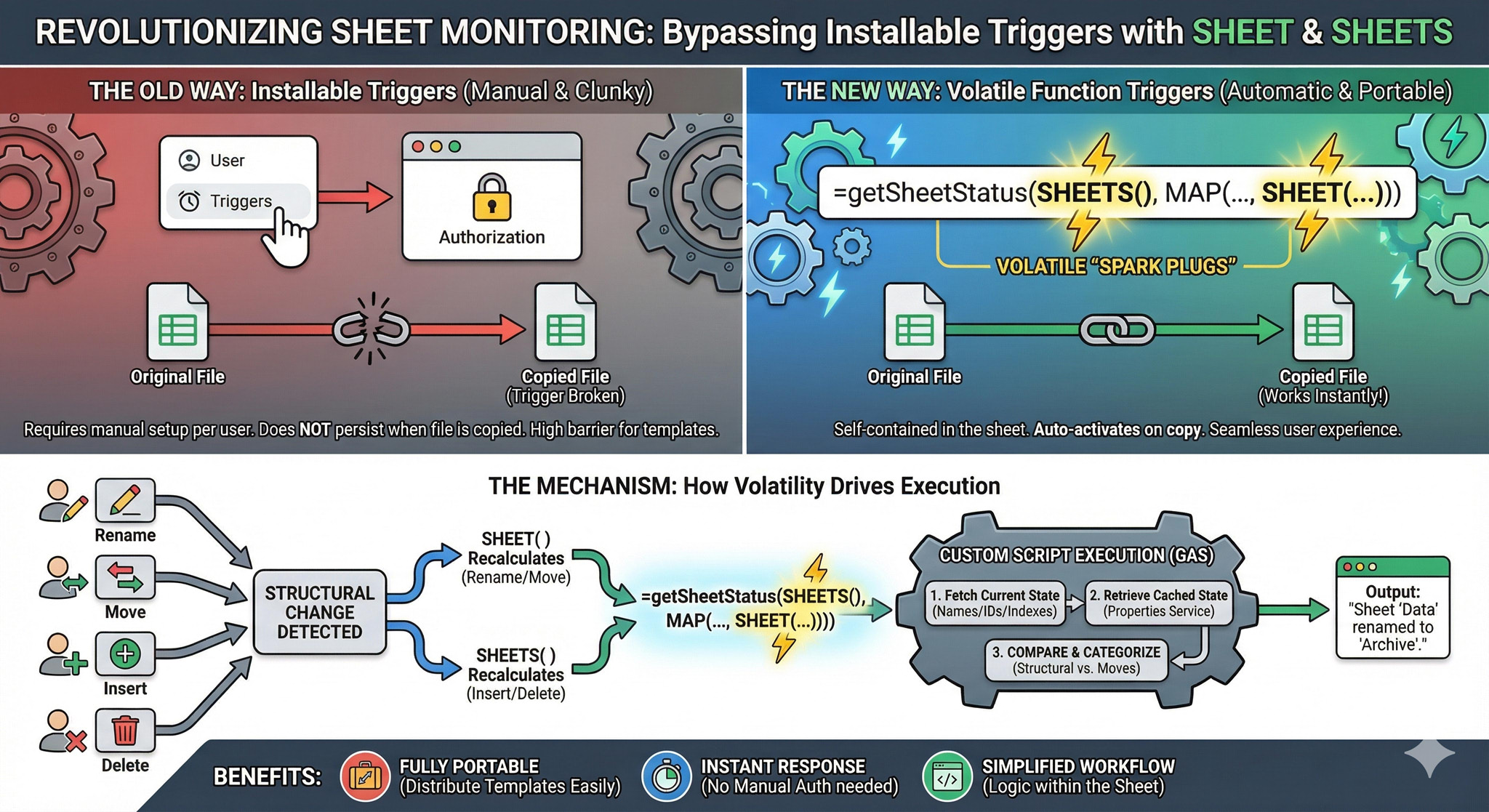
A critical technical characteristic of these functions is their volatility and automatic recalculation based on the spreadsheet's structural metadata. Specifically:
SHEETtriggers a recalculation when a sheet is renamed or its position is changed via drag-and-drop.SHEETStriggers a recalculation whenever a sheet is inserted, duplicated, or removed.
Historically, detecting such structural changes necessitated the use of an installable OnChange trigger in Google Apps Script (GAS). This posed a significant barrier for template distribution, as installable triggers require manual authorization by each user and do not persist through simple file copies.
By leveraging these new functions as "custom triggers," we can effectively bypass the need for installable triggers. When a custom function or formula containing SHEET or SHEETS recalculates, it serves as a catalyst for GAS execution. This enables the creation of self-contained spreadsheets where advanced sheet monitoring logic is activated immediately upon copying the file, significantly improving the user experience and portability of GAS-based solutions.
Implementation Guide
1. Spreadsheet Initialization
Create a new Google Sheets file to serve as your testing environment.
2. Google Apps Script Configuration
Open the Google Apps Script editor bound to your new spreadsheet. Copy and paste the following script, replacing any default code, and save your project.
/**
 * Global constant defining the Script Properties storage key.
 */
const STORAGE_KEY = "SHEET_STATUS_CACHE";

/**
 * Simple trigger to initialize the cached sheet metadata upon opening the spreadsheet.
 */
function onOpen() {
  updateStoredSheetData_();
}

/**
 * Custom function wrapper to retrieve an array of all current sheet names.
 */
function getAllSheetNames() {
  return SpreadsheetApp.getActiveSpreadsheet()
    .getSheets()
    .map((s) => s.getName());
}

/**
 * Core custom function for detecting structural alterations.
 * Priority: If any structural change (Add/Remove/Rename) occurs,
 * subsequent "move" reports are suppressed to avoid noise from index shifting.
 */
function getSheetStatus(_trigger1, _trigger2, returnRawObject = false) {
  const propService = PropertiesService.getScriptProperties();
  const oldDataJson = propService.getProperty(STORAGE_KEY);

  const ss = SpreadsheetApp.getActiveSpreadsheet();
  const currentSheets = ss.getSheets();
  const newData = currentSheets.map((s, i) => ({
    name: s.getName(),
    id: s.getSheetId(),
    index: i + 1,
  }));

  if (!oldDataJson) {
    updateStoredSheetData_();
    return "Initial state recorded.";
  }

  const oldData = JSON.parse(oldDataJson).map((s, i) => ({
    ...s,
    index: i + 1,
  }));

  // Categorize detected modifications into structural changes or simple index moves.
  const { structural, moves } = detectCategorizedChanges_(oldData, newData);

  // Persist the newly fetched metadata to Script Properties.
  propService.setProperty(
    STORAGE_KEY,
    JSON.stringify(newData.map(({ name, id }) => ({ name, id }))),
  );

  // Evaluate which results to return based on change priority.
  // Ignore index movement noise if a primary structural change (addition, removal, rename) occurred.
  const finalDiffs = structural.length > 0 ? structural : moves;

  if (finalDiffs.length === 0) return "No change";
  if (returnRawObject) return JSON.stringify(finalDiffs);

  return finalDiffs.map((d) => d.message).join("\n");
}

/**
 * Retrieves current spreadsheet metadata and persists it to the properties cache.
 */
function updateStoredSheetData_() {
  const ss = SpreadsheetApp.getActiveSpreadsheet();
  const sheetData = ss.getSheets().map((s) => ({
    name: s.getName(),
    id: s.getSheetId(),
  }));
  PropertiesService.getScriptProperties().setProperty(
    STORAGE_KEY,
    JSON.stringify(sheetData),
  );
  return sheetData;
}

/**
 * Differentiates between core structural changes and simple index shifts.
 */
function detectCategorizedChanges_(oldData, newData) {
  const structural = [];
  const moves = [];

  const oldMap = new Map(oldData.map((s) => [s.id, s]));
  const newMap = new Map(newData.map((s) => [s.id, s]));

  // 1. Identify removed sheets (Structural change).
  oldData.forEach((oldSheet) => {
    if (!newMap.has(oldSheet.id)) {
      structural.push({
        type: "removed",
        message: `"${oldSheet.name}" was removed.`,
      });
    }
  });

  // 2. Identify added, renamed, or repositioned sheets.
  newData.forEach((newSheet) => {
    const oldSheet = oldMap.get(newSheet.id);

    if (!oldSheet) {
      // Handle added sheets (Structural change).
      structural.push({
        type: "added",
        message: `"${newSheet.name}" was inserted at tab ${newSheet.index}.`,
      });
    } else {
      const isRenamed = oldSheet.name !== newSheet.name;
      const isMoved = oldSheet.index !== newSheet.index;

      if (isRenamed) {
        // Handle renamed sheets (Structural change).
        structural.push({
          type: "renamed",
          message: `"${oldSheet.name}" was renamed to "${newSheet.name}".`,
        });
      } else if (isMoved) {
        // Handle pure index movements (Non-structural change).
        moves.push({
          type: "moved",
          message: `"${newSheet.name}" was moved from tab ${oldSheet.index} to ${newSheet.index}.`,
        });
      }
    }
  });

  return { structural, moves };
}

/**
 * Optional callback for installable OnChange triggers.
 * If utilized, do not use the custom formula in the sheet.
 */
function onChange(e = {}) {
  const { changeType } = e;
  if (["OTHER", "INSERT_GRID", "REMOVE_GRID"].includes(changeType)) {
    const res = getSheetStatus();
    Browser.msgBox(res);
  }
}
3. Applying the Custom Formula
Return to your Google Sheets interface. In the first sheet, copy and paste the following formula into cell A1:
=getSheetStatus(SHEETS(),MAP(getAllSheetNames(),lambda(sheetname,SHEET(sheetname))))
4. Testing the Workflow
Once the formula is in place, the cell will actively monitor the document's structure. The demonstration below illustrates the expected behavior:
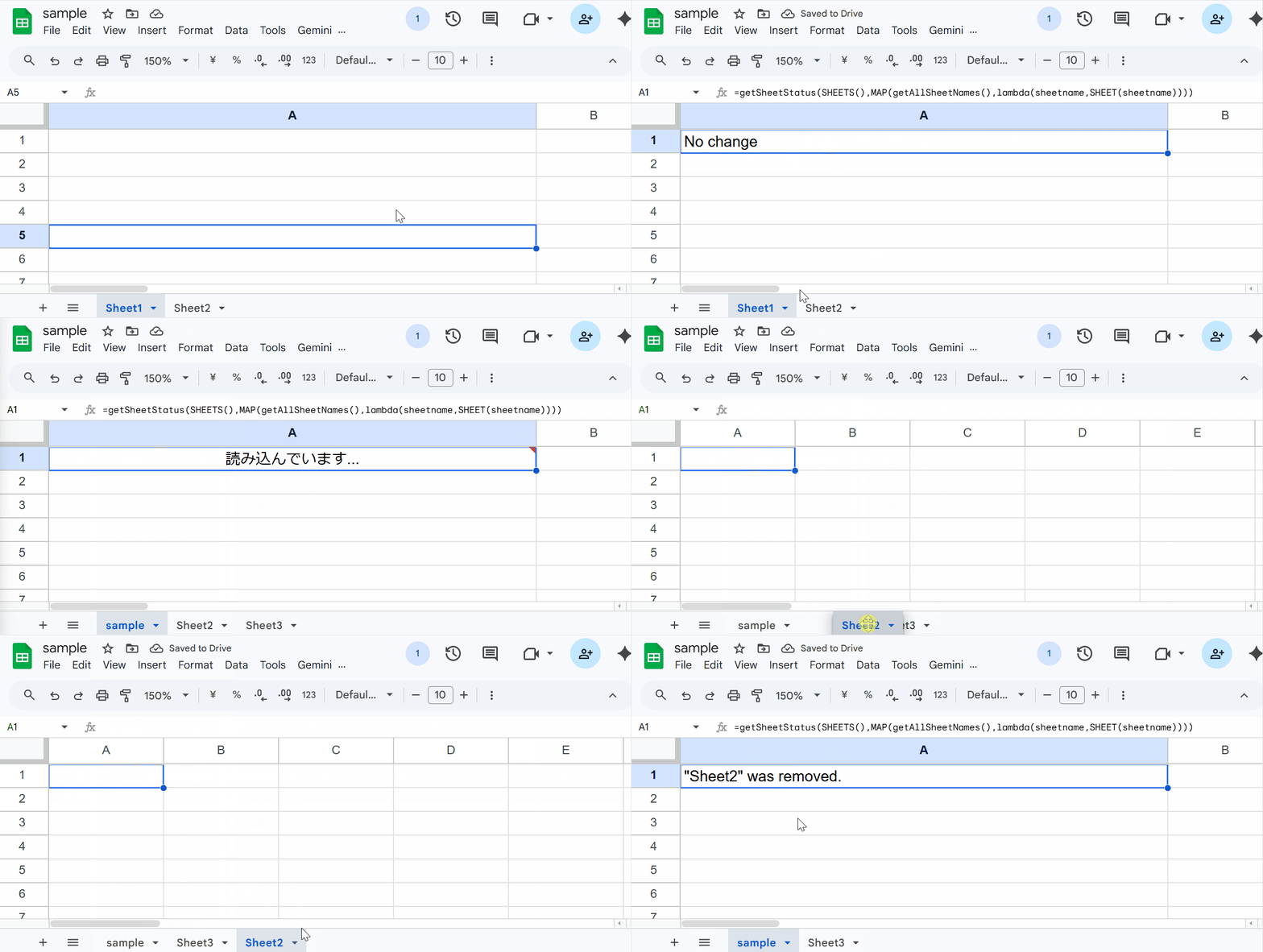
During the demonstration, the following actions trigger a status update in the cell:
- Renaming an existing sheet.
- Adding a new sheet to the workbook.
- Changing the order (moving) of a sheet.
- Deleting a sheet.
Appendix: Using Traditional Triggers
If you prefer to use the traditional installable onChange trigger method, you can utilize the onChange function provided at the bottom of the script. In this scenario, you must manually bind the trigger to the onChange function via the Apps Script dashboard and remove the custom formula (=getSheetStatus(...)) from cell A1. The underlying logic handles the detection identically, routing the output to a browser message box instead of a cell.
Summary
- The introduction of
SHEETandSHEETSfunctions enables automatic formula recalculation based on structural metadata changes. - These built-in functions can be passed into custom Google Apps Script functions to act as volatile execution triggers.
- This methodology eliminates the traditional dependency on installable
onChangetriggers for monitoring tab modifications. - Removing installable triggers drastically improves script portability and the user experience when distributing spreadsheet templates.
- The provided script successfully categorizes and logs structural alterations versus simple index shifts for comprehensive monitoring.
Comments
More Blog
View allgemmaFive Gemma-4 models, one accelerator: what porting E2B 31B to AWS Inferentia2 taught me
I ported the whole Gemma-4 family — E2B, E4B, 12B, 31B, and the 26B-A4B MoE — to run on...
X
xbillcommunityHey DEV, I'm Tobore. Let's actually connect.
Hey DEV, I'm Tobore. Let's actually connect. I've been on here for a while now, mostly writing and...
L
Laurina AyarahaiI burned through thousands of AI tokens. Then a friend did it for free
(yep, kinda clickbait, just for the funsies 😊) At the beginning of the year, I relaunched my...
P
Paulo HenriqueaiClaude might be saturating your machine
My laptop was sitting idle with the fan at full tilt. Nothing was running that I knew of. The culprit...
S
Sidhant PandagithubactionsAutomated GitHub Code Reviews Using Google Gemini
I Built a Thing! TL;DR — Google Gemini-based Pull Request reviews and Issue Triaging for...
D
Darren "Dazbo" LesteraiWhat is an "agentic harness," actually?
I've been hearing the word "harness" thrown around a lot lately. I assumed it just meant "the IDE" or...
T
Tilde A. ThuriumReady-made automations for this
Workflows from the Neura Market marketplace related to this DeepSeek resource
- AI-Powered Information Monitoring with OpenAI, Google Sheets, Jina AI, and Slackn8n · $24.99 · Related topic
- Competitor Price Monitoring with Web Scraping, Google Sheets & Telegramn8n · $14.99 · Related topic
- Automate LinkedIn Profile Monitoring with Google Sheets and Slack Alertsn8n · $24.99 · Related topic
- Automate Amazon Price Monitoring with Bright Data and Google Sheetsn8n · $9.99 · Related topic