
Back to Blog api
api
 ai
ai aie
aie gemini
 ai
ai aie
aie aie
aie
Multimodal RAG with the Gemini API File Search Tool: A Developer Guide
Patrick Loeber May 5, 2026
0 views
The File Search tool in the Gemini API now supports multimodal retrieval by adding support for Gemini...
The File Search tool in the Gemini API now supports multimodal retrieval by adding support for Gemini Embedding 2. This update allows images, such as charts, product photos, and diagrams, to be natively indexed and searched in the same store as your text-based documents.
This post covers how to use the File Search tool end-to-end: creating a store, uploading documents and images, querying with grounded generation, and retrieving image citations.
What is File Search?
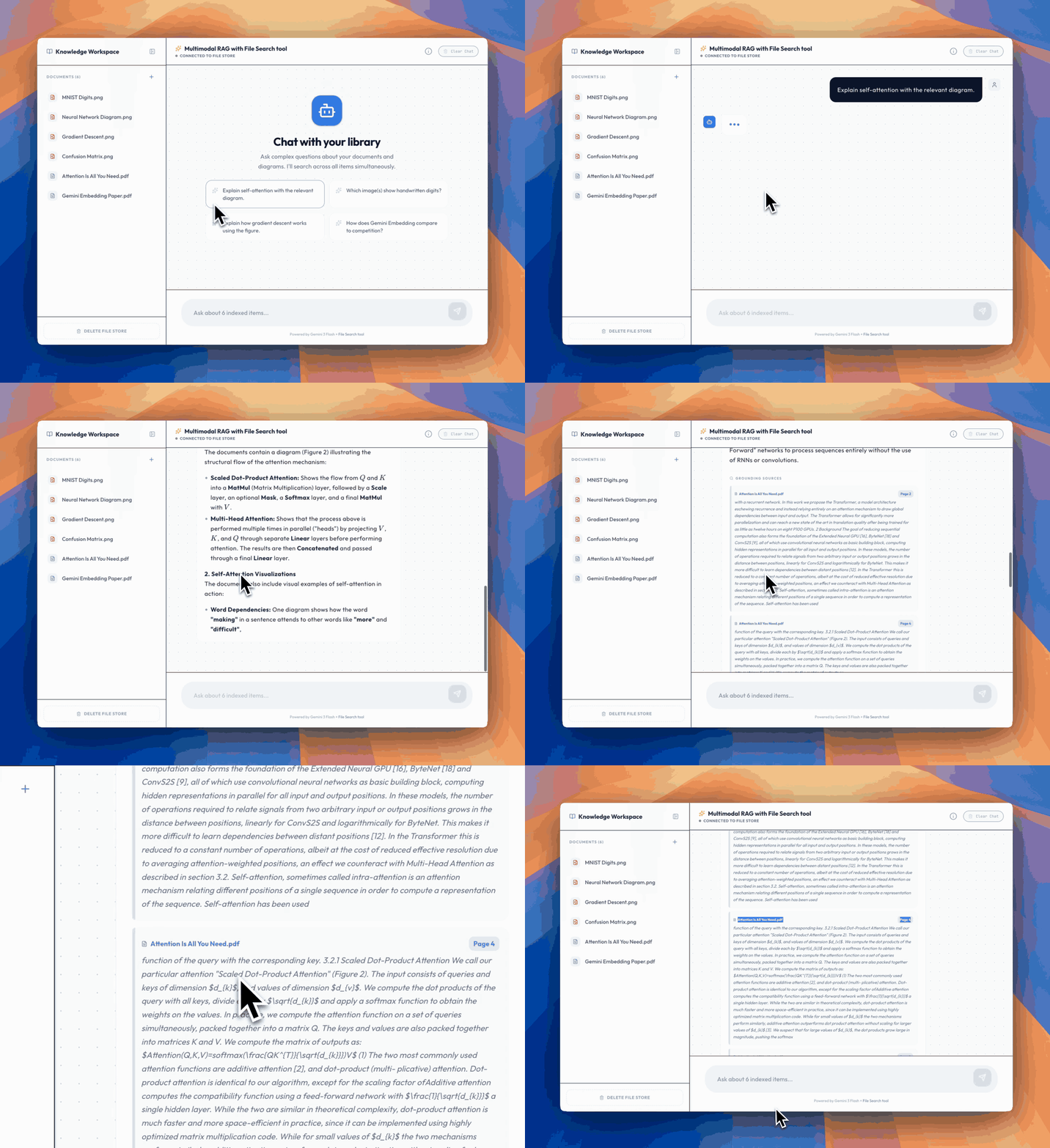
Here's an example app you can try in AI Studio that lets you chat with your documents and image library
File Search is the Gemini API's built-in RAG tool. When you upload your documents, the API takes care of the heavy lifting: chunking, embedding, indexing, and retrieval. At query time, pass a file_search tool alongside your prompt, and the model automatically retrieves relevant chunks from your data to generate a grounded response.
Compared to rolling your own RAG pipeline, File Search offers:
- Fully managed: No vector databases to provision or embedding pipeline to maintain.
- Cost-effective: Storage and query-time embeddings are free. You only pay for the initial indexing embeddings and the standard Gemini input/output tokens.
- Built-in citations: Every response includes grounding metadata that links the answer to specific documents and pages. For multimodal stores, citations also include downloadable image references.
- Native image search: With the
gemini-embedding-2model, images are embedded directly rather than relying on OCR, enabling true visual retrieval.
Try It in AI Studio
Want to see multimodal File Search in action before writing any code? We built an example app in AI Studio that lets you chat with your documents and image library. Upload PDFs and images, then ask questions. The app retrieves relevant text and visuals in real time, complete with citations and page numbers so you can trace every answer back to its source.
Getting Started
Step 1: Create a File Search Store
A File Search Store is a persistent container for your document embeddings. Think of it as a managed vector database scoped to a project.
To enable multimodal search over images, specify gemini-embedding-2 as the embedding model. This parameter is optional; if omitted, the store defaults to gemini-embedding-001, which is cost-optimized for text-only workloads, and cannot be changed later.
To use the new features, make sure to install the latest Python SDK: pip install -U google-genai.
from google import genai
from google.genai import types

client = genai.Client()

# Create a multimodal store with gemini-embedding-2
# Omit embedding_model to use the default text-only model (gemini-embedding-001)
file_search_store = client.file_search_stores.create(
    config={
        "display_name": "product-catalog",
        "embedding_model": "models/gemini-embedding-2"
    }
)
print(f"Created store: {file_search_store.name}")
| Embedding Model | Best For |
|---|---|
gemini-embedding-001 (default) | Text-heavy workloads, cost-optimized |
gemini-embedding-2 | Multimodal retrieval (documents and images) |
Step 2: Upload Documents and Images
The simplest path is the upload_to_file_search_store method, which uploads and indexes a file in one step. With gemini-embedding-2, this works for both documents and images:
Note: Audio and video formats are currently not supported.
import time

# Upload a PDF document
operation = client.file_search_stores.upload_to_file_search_store(
    file_search_store_name=file_search_store.name,
    file="product_catalog.pdf",
    config={"display_name": "Product Catalog"}
)

# Wait for ingestion to complete
while not operation.done:
    time.sleep(5)
    operation = client.operations.get(operation)

# Upload product images directly
for image_file in ["sneaker_red.png", "sneaker_blue.jpeg", "sneaker_white.png"]:
    op = client.file_search_stores.upload_to_file_search_store(
        file_search_store_name=file_search_store.name,
        file=image_file,
        config={"display_name": image_file}
    )
    while not op.done:
        time.sleep(5)
        op = client.operations.get(op)

print("All files indexed!")
Behind the scenes, the API chunks documents, generates embeddings, and indexes the content. When using gemini-embedding-2, images within PDFs are also natively embedded alongside the text.
You can also import existing files from the Files API into a store.
Step 3: Query with File Search
Query your data by passing the file_search tool to generate_content:
response = client.models.generate_content(
    model="gemini-3-flash-preview",
    contents="Which sneakers come in red?",
    config={
        "tools": [{
            "file_search": {
                "file_search_store_names": [file_search_store.name]
            }
        }]
    }
)

print(response.text)
The system performs a file search to find the most similar and relevant chunks from the File Search store , and uses them to generate a grounded response.
Step 4: Inspect Citations and Retrieve Images
Every File Search response includes grounding metadata — essentially, a bibliography for the model's answer. It captures page numbers for the indexed information, allowing applications to point users directly to the right spot in a document. This is especially useful for rigorous fact-checking over large PDFs.
With multimodal stores, citations can include a media_id for referenced images, which can be downloaded directly:
grounding = response.candidates[0].grounding_metadata

for chunk in grounding.grounding_chunks:
    ctx = chunk.retrieved_context
    if ctx.media_id:
        # This is an image citation — download it
        print(f"Cited image: {ctx.title}")
        print(f"   Media ID: {ctx.media_id}")

        blob = client.file_search_stores.download_media(
            media_id=ctx.media_id
        )
        with open(f"cited_{ctx.title}.png", "wb") as f:
            f.write(blob)
    else:
        # Text citation with exact page number
        print(f"Cited text: {ctx.title}")
        if ctx.page_number:
            print(f"   Page: {ctx.page_number}")
        print(f"   {ctx.text[:200]}...")

# See which parts of the response are grounded in which sources
for support in grounding.grounding_supports:
    print(f"Claim: '{support.segment.text}'")
    print(f"  Grounded in chunks: {support.grounding_chunk_indices}")
This is powerful for building user-facing applications. It's now possible to show users the actual images the model used in its reasoning, not just a text description.
Managing Stores
Here's a quick reference for managing stores and documents:
# List all stores
for store in client.file_search_stores.list():
    print(f"{store.name} — {store.display_name}")

# List documents in a store
for doc in client.file_search_stores.documents.list(parent=file_search_store.name):
    print(f"  {doc.name}")

# Delete a specific document
client.file_search_stores.documents.delete(
    name="fileSearchStores/my-store/documents/old_doc"
)

# Delete an entire store (force=True also deletes all contained documents)
client.file_search_stores.delete(
    name=file_search_store.name,
    config={"force": True}
)
Power Features
Custom Metadata and Filtering
You can attach metadata to documents at upload time and use it to filter at query time. This is essential when a store contains diverse documents and searches need to be scoped:
# Upload with metadata
op = client.file_search_stores.upload_to_file_search_store(
    file_search_store_name=file_search_store.name,
    file="shoes_collection.pdf",
    config={
        "display_name": "Spring 2026 Shoes",
        "custom_metadata": [
            {"key": "category", "string_value": "footwear"},
            {"key": "season", "string_value": "spring-2026"},
            {"key": "price_tier", "numeric_value": 2}
        ]
    }
)

# Query with a metadata filter
response = client.models.generate_content(
    model="gemini-3-flash-preview",
    contents="Do you have blue spring shoes?",
    config={
        "tools": [{
            "file_search": {
                "file_search_store_names": [file_search_store.name],
                "metadata_filter": 'category="footwear" AND season="spring-2026"',
            }
        }]
    }
)
Structured Output
Starting with Gemini 3 models, File Search can be combined with structured output. This is perfect for extracting structured data from grounded responses:
from pydantic import BaseModel, Field

class ProductMatch(BaseModel):
    name: str = Field(description="Product name")
    description: str = Field(description="Brief product description")
    confidence: str = Field(description="How confident the match is")

response = client.models.generate_content(
    model="gemini-3-flash-preview",
    contents="Find products similar to a red running shoe",
    config={
        "tools": [{
            "file_search": {
                "file_search_store_names": [file_search_store.name]
            }
        }],
        "response_mime_type": "application/json",
        "response_schema": ProductMatch.model_json_schema()
    }
)
Chunking Configuration
For more control over how documents are split, the chunking strategy can be configured:
operation = client.file_search_stores.upload_to_file_search_store(
    file_search_store_name=file_search_store.name,
    file="long_document.pdf",
    config={
        "display_name": "Technical Manual",
        "chunking_config": {
            "white_space_config": {
                "max_tokens_per_chunk": 200,
                "max_overlap_tokens": 20
            }
        }
    }
)
Use Cases
With multimodal retrieval, File Search opens up scenarios that text-only RAG can't handle:
- Visual product search: Index catalogs with images and spec sheets, then search by visual similarity or natural language descriptions.
- Research and technical documentation: Retrieve specific charts, architecture diagrams, or data visualizations from papers and reports.
- Insurance and claims processing: Combine structured forms with damage photos for unified document and visual assessment.
- Design systems: Make component libraries searchable by visual appearance, not just naming conventions.
- Real estate and property listings: Match properties based on floor plans, interior photos, and visual preferences.
Pricing
File Search is designed to be cost-effective:
- Indexing: You pay for embeddings at indexing time (embeddings pricing).
- Storage: Free.
- Query-time embeddings: Free.
- Retrieved tokens: Charged as regular context tokens.
Get Started
Here's everything needed to get started:
- File Search documentation
- File Search quickstart notebook
- The latest Python SDK: Install it with
pip install -U google-genai - Get an API key
Create your store with gemini-embedding-2, upload some images, and start building multimodal RAG applications.
Comments
More Blog
View allaiStop Your LLMs from Forgetting: How a 2016 String Algorithm Solves AI's Biggest Memory Loss Problem
Have you ever tried to read a massive pile of reports and summarize them in under 50 words? It’s...
T
TanaikeaieGoogle VP of Technology says he’s given up on coding
In his keynote on Wednesday, Benoit Schillings, vice president of Technology at Google DeepMind and...
I
Iain ThomsongeminiOmni Flash Preview with Kiro
This article covers the MCP setup and configuration for using Google Omni Preview and underlying...
X
xbillaiHow to Count Gemini Tokens Locally
✨ Overview This article explores how Gemini tokenizes data and demonstrates how to count...
L
Laurent PicardaiePlay today’s game from Issue #2 of The Daily Context!
Yesterday, we kicked off our physical newspaper, The Daily Context, at the AI Engineer World’s Fair...
J
Jess LeeaieNeed a break? Play today's game from The Daily Context.
We (at DEV and MLH) are covering AI Engineer's World Fair by printing a physical newspaper called...
J
Jess LeeReady-made automations for this
Workflows from the Neura Market marketplace related to this Gemini resource
- Streamlined Citation Generation with OpenAI for File Retrievaln8n · $19.99 · Related topic
- Automate Multimodal File Analysis with Google Gemini and Qwen LLMn8n · Free · Related topic
- Adaptive RAG Strategy with Query Classification & Retrieval (Gemini & Qdrant)n8n · Free · Related topic
- Enhance AI Document Retrieval with OpenAI and Supabase Vector Searchn8n · Free · Related topic