
Back to Blog android
 ai
ai aie
aie gemini
 ai
ai aie
aie aie
aie
Configuring Firebase AI Logic for Android to Use Gemini Models
Héctor Romero May 25, 2026
0 views
What device do we use almost all the time? Our mobile phone, almost certainly. If we wanted to...
What device do we use almost all the time? Our mobile phone, almost certainly. If we wanted to develop mobile apps, we would have wondered how to integrate Artificial Intelligence (AI) into our projects in some way, given its increasing boom.
Some advances have been made with Gemini Nano and Gemma 4 as on-device AI. However, Gemma 4 is a recent release that doesn’t yet have enough maturity in most of cases, due to hardware limitations and model’s own capabilities. These are cases where using models like Gemini shines, which offer higher quality responses, can generate multimodal content and can extend their functions through third-party integrations.
I want to address this topic in two different posts: this first one will explain how you can configure Firebase AI Logic with an Android app; and I will later publish another post with two demos that I showcased at Build With AI 2026, hosted by the GDG Cali chapter.
What is Firebase AI Logic?
Firebase presents Firebase AI Logic as a service focused on offering Gemini API calls to client-side applications, including Android, iOs, web and even experiences developed with Unity.
Firebase is a platform that accelerates the app development for developers that don’t want to build a backend server to build their MVPs or proof of concept, offering a wide range of services like Realtime database, Cloud Storage, Authentication and so on.
With regard to pricing, Firebase AI Logic can be used both in Spark plan and Blaze plan, distinguished by the access of more advanced models and charges for consumption in this last one. If you want to start to experiment with AI in your apps, the Spark plan offers a free tier for the majority of Firebase services.
How I can start to use Firebase AI Logic?
The first step is to access the Firebase console and create a new project using a personal Google account — this is the recommended approach. During the setup, Firebase will ask whether you want to enable AI assistance within the platform and whether you want to activate Google Analytics — both options are optional and do not affect how AI Logic works.
After pressing the “Continue” button, you will land on the Firebase home screen, where a side navigation menu appears on the bottom-left. From here, you can access and manage all platform services. To navigate to AI Logic, find the “AI Services” section, expand it, and select the “AI Logic” option.
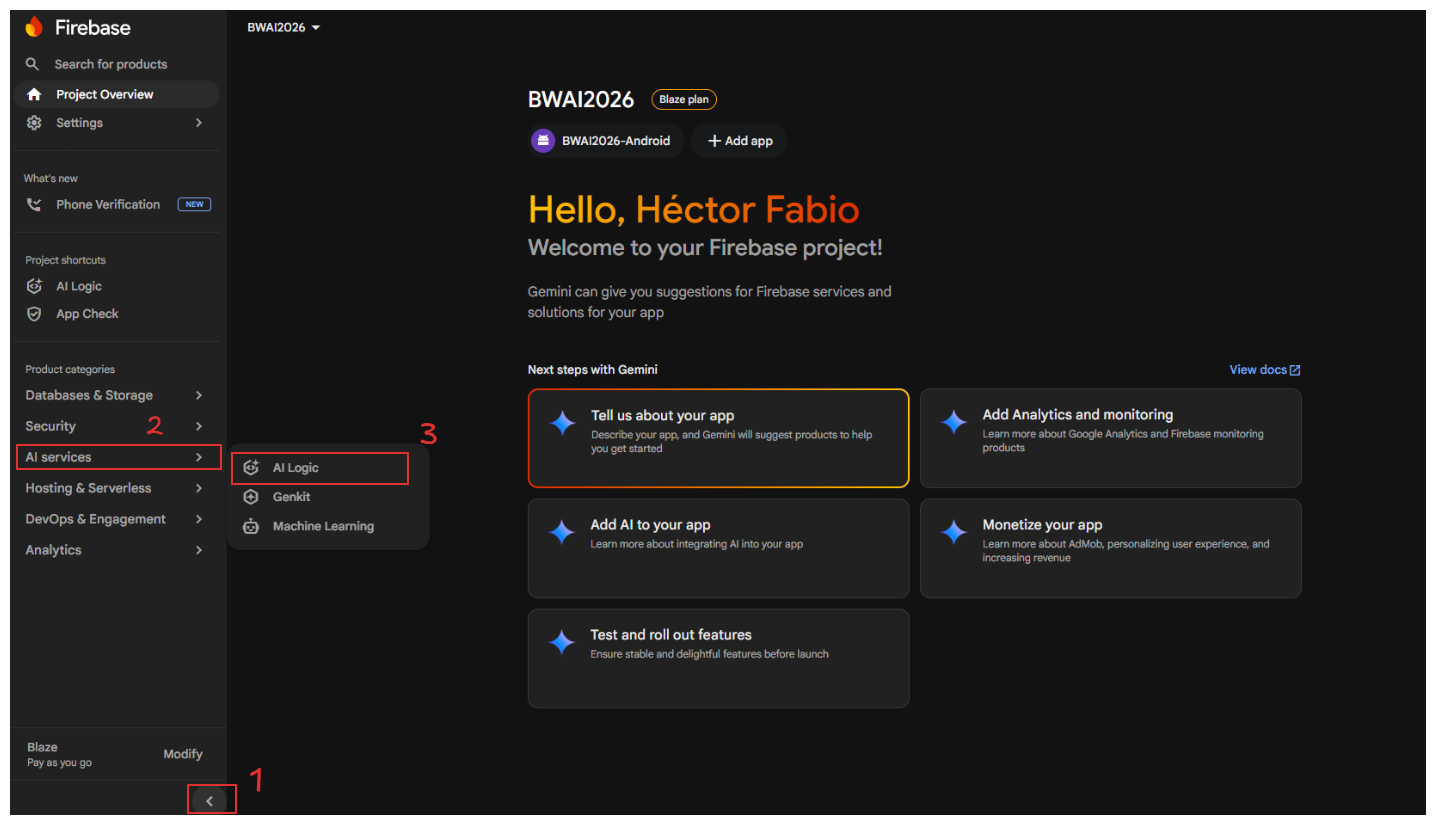
You will see a welcome screen for the Firebase AI Logic section along with a “Get started” button. Once you press it, a modal will appear asking you to select the Gemini API provider for your project: Gemini Developer API or Vertex AI Gemini API.
Gemini API providers
- Gemini Developer API: available starting from the Spark plan, it offers a generous quota at no cost and lets you experiment without needing to link a billing account — perfect for getting started with this service. Note that image generation models are not available as of this post’s publication date.
- Vertex AI Gemini API: designed for production and enterprise-scale use, it gives you access to the most advanced Gemini models (including image, video and audio generation). It requires the Blaze plan to be activated, and you will be charged for the input and output tokens you use.
Note: For more information on pricing and which Gemini models are available on each plan, check out this link.
Depending on the provider that you choose, you will need to follow a series of steps to activate it. Follow the instructions on the platform according to your case.
Firebase AI Logic SDK configuration in Android
Once you reach the “Add Firebase SDK” option after configuring the selected provider, we need to navigate to our Android Studio project. Firebase displays a form with two fields — the android package name (required) and the app nickname (optional). The package name corresponds to applicationId value in the app-level build.gradle.kts file. You can verify this by opening that file — you will find that namespace and applicationId share the same value, which will be the identifier that you need to enter.
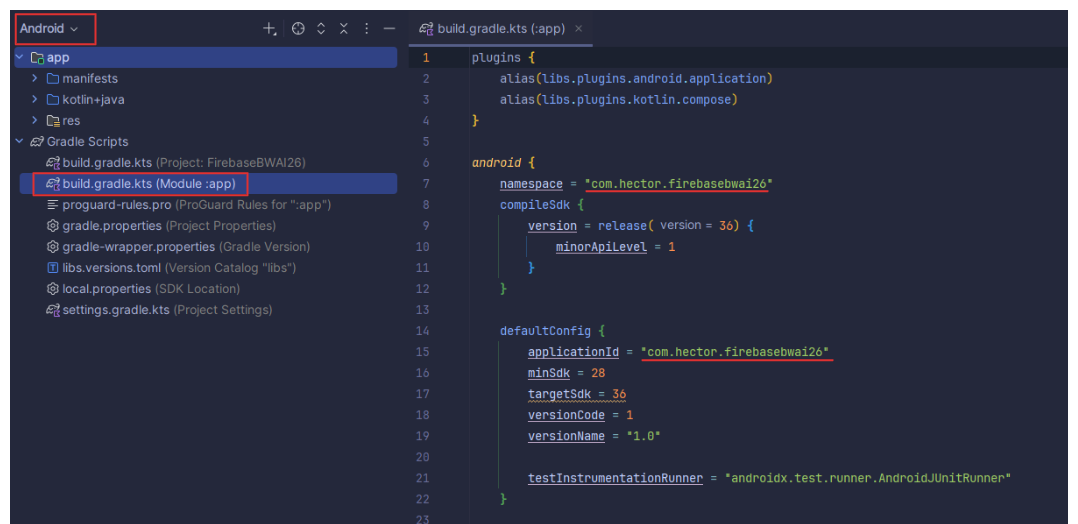
When you press “Register app”, you will be given the option to download google-services.json file, which must be moved to the root directory of the app module in your project. To place it correctly in Android Studio, switch the file explorer view to Project (instead of Android), navigate to the /app folder, and place the file there, at the same level as the module’s build.gradle.kts.
After that, we need to go to gradle/libs.versions.toml file and add the following lines of code related to the Firebase and Google Services dependencies, as shown below:
// libs.versions.toml

[versions]
google-services = “4.4.4”
firebase-bom = "34.11.0"

[libraries]
firebase-bom = { module = "com.google.firebase:firebase-bom", version.ref = "firebase-bom" }
firebase-ai = { module = "com.google.firebase:firebase-ai" }

[plugins]
google-services = { id = "com.google.gms.google-services", version.ref = "google-services" }
We will then open the project-level build.gradle.kts file and add the line alias(libs.plugins.google.services) apply false inside the plugins block.
In the app/build.gradle.kts file, we will add alias(libs.plugins.google.services) to its plugins block, and add the following Firebase libraries inside the dependencies block:
// Google Services - Firebase AI Logic

implementation(platform(libs.firebase.bom))
implementation(libs.firebase.ai)
By using platform(libs.firebase.bom), we don’t need to worry about version compatibility across all Firebase packages, since this implementation handles compatibility for all of them automatically.
As we approach the final step, we need to go to the configuration tab of our Firebase AI Logic project and enable the required Gemini Developer APIs if we are using the Spark plan, or the Vertex AI Gemini API if we are using the Blaze plan. In both cases, I recommend enabling the AI monitoring option, as it will allow you to see — directly within Firebase — how many tokens each request consumes, what content it contains, and other relevant data.
After all this groundwork, we are finally ready to start integrating generative AI into our Android apps. Since this configuration process turned out to be quite extensive, I decided to split my original post into two parts — this being the first one, covering the full step-by-step exploration of the tool, and a follow-up post where I will showcase demos using both provider APIs, sending images and text to the Gemini model and even getting it to generate images based on the prompt we provide. In the meantime, you can check out my code from the Build With AI 2026 workshop that I will explain coming soon here.
If you want to learn more about this topic, check out the official Firebase AI Logic guide . I will be back with more Android and AI content :)
Comments
More Blog
View allaiStop Your LLMs from Forgetting: How a 2016 String Algorithm Solves AI's Biggest Memory Loss Problem
Have you ever tried to read a massive pile of reports and summarize them in under 50 words? It’s...
T
TanaikeaieGoogle VP of Technology says he’s given up on coding
In his keynote on Wednesday, Benoit Schillings, vice president of Technology at Google DeepMind and...
I
Iain ThomsongeminiOmni Flash Preview with Kiro
This article covers the MCP setup and configuration for using Google Omni Preview and underlying...
X
xbillaiHow to Count Gemini Tokens Locally
✨ Overview This article explores how Gemini tokenizes data and demonstrates how to count...
L
Laurent PicardaiePlay today’s game from Issue #2 of The Daily Context!
Yesterday, we kicked off our physical newspaper, The Daily Context, at the AI Engineer World’s Fair...
J
Jess LeeaieNeed a break? Play today's game from The Daily Context.
We (at DEV and MLH) are covering AI Engineer's World Fair by printing a physical newspaper called...
J
Jess LeeReady-made automations for this
Workflows from the Neura Market marketplace related to this Gemini resource
- Real-Time ISS Position Updates via Google Firebase Webhookn8n · $8.33 · Related topic
- Receive ISS Position Updates and Push to Firebasen8n · $9.99 · Related topic
- RSS Feed retrieval triggered by button in Android devicemake · Free · Related topic
- Automate Daily Weather Alerts to Your Android Devicemake · Free · Related topic