 Claude
Back to Guides mcp
mcp claude-code
 agents
 productivity
 api
api claude-code
 prompting
Connecting Claude to Your Database with MCP: A Complete Guide
Neura Market Research July 21, 2026
6 views
Learn how to connect Claude Code to your database using the Model Context Protocol (MCP). This guide covers setup, configuration, querying, and advanced usage with real-world examples.
This guide covers how to connect Claude Code to your database using the Model Context Protocol (MCP), an open standard for linking AI tools to external data sources. It is written for developers who have a working database and want Claude to query it, read schema, or run migrations, all from natural language prompts.
What You Need
Before starting, ensure you have the following, drawn from the official documentation:
-
Claude Code installed. You can install it via the native installer, Homebrew, or WinGet. The quickstart guide covers all methods. For macOS, Linux, or WSL, run:
curl -fsSL https://claude.ai/install.sh | bashFor Windows PowerShell:
irm https://claude.ai/install.ps1 | iexFor Windows CMD:
curl -fsSL https://claude.ai/install.cmd -o install.cmd && install.cmd && del install.cmdIf you see
The token '&&' is not a valid statement separator, you are in PowerShell, not CMD. If you see'irm' is not recognized as an internal or external command, you are in CMD, not PowerShell. Your prompt showsPS C:\when in PowerShell andC:\withoutPSwhen in CMD. Git for Windows is recommended on native Windows so Claude Code can use the Bash tool. If Git for Windows is not installed, Claude Code uses PowerShell as the shell tool instead. WSL setups do not need Git for Windows. -
A Claude subscription (Pro, Max, Team, or Enterprise), a Claude Console account, or access through a supported cloud provider (Amazon Bedrock, Google Cloud's Agent Platform, Microsoft Foundry).
-
A database (PostgreSQL, MySQL, SQLite, or any database with a compatible MCP server). The examples in this guide use a generic SQL database.
-
Node.js and npm installed, as many MCP servers are distributed as npm packages. Check with
node --versionandnpm --version.
What is MCP?
The Model Context Protocol (MCP) is an open standard for connecting AI tools to external data sources. According to the official documentation, with MCP, Claude Code can read your design docs in Google Drive, update tickets in Jira, pull data from Slack, or use your own custom tooling. For databases, MCP allows Claude to run SQL queries, inspect schema, and even perform migrations, all through a standardized interface.
MCP works by defining a server that exposes tools (functions) and resources (data) that Claude can call. The server runs locally or remotely and communicates with Claude via a protocol. When you ask Claude to "show me the users table schema," it calls the appropriate tool on the MCP server, which then executes the SQL and returns the result.
Setting Up an MCP Server for Your Database
Step 1: Choose an MCP Server
Several community-built MCP servers exist for databases. The official documentation does not prescribe a specific server, but the most common approach is to use a generic SQL MCP server or one tailored to your database type (e.g., @anthropic/mcp-sqlite for SQLite, mcp-postgres for PostgreSQL). For this guide, we will use a hypothetical mcp-db-server that works with any SQL database via a connection string.
Step 2: Install the MCP Server
Install the server as a global npm package or in your project directory. For example:
npm install -g mcp-db-server
Step 3: Configure the Server
Create a configuration file (e.g., mcp-config.json) in your project root. The server needs your database connection details. Here is a sample configuration for a PostgreSQL database:
{
  "mcpServers": {
    "database": {
      "command": "mcp-db-server",
      "args": ["--connection-string", "postgresql://user:password@localhost:5432/mydb"],
      "env": {}
    }
  }
}
The command field specifies the executable name. The args array contains command-line flags. The --connection-string flag passes the database URL. The env object allows setting environment variables, which is useful for secrets like passwords. According to the official documentation, MCP servers work across all Claude Code surfaces (terminal, VS Code, desktop app, web), so this configuration applies everywhere.
For SQLite, the configuration might look like:
{
  "mcpServers": {
    "database": {
      "command": "npx",
      "args": ["-y", "@anthropic/mcp-sqlite", "--db-path", "./data/mydb.sqlite"],
      "env": {}
    }
  }
}
Step 4: Start Claude Code with the MCP Server
Open your terminal in the project directory where the configuration file lives. Start Claude Code:
cd /path/to/your/project
claude
On first launch, Claude Code reads the configuration and connects to the MCP server. You should see a message indicating that the database tools are available. If not, check the server logs by running Claude Code with the --verbose flag:
claude --verbose
Using MCP to Query Your Database
Once the MCP server is connected, you can ask Claude to interact with your database using natural language. Here are examples from the official quickstart adapted for database use:
Ask About Schema
what tables are in my database?
Claude calls the MCP server's list_tables tool and returns the result.
show me the schema of the users table
Claude calls a describe_table tool, which runs DESCRIBE users or \d users depending on the database.
Run Queries
how many users signed up last week?
Claude translates this into SQL, runs it via the MCP server, and returns the count.
find all orders with a total over $100
Claude generates the appropriate SELECT query and executes it.
Modify Data
add a new column called 'phone_number' to the users table
Claude runs an ALTER TABLE statement. Depending on your permission mode, Claude may ask for approval before executing the change. Press Shift+Tab to cycle through modes: acceptEdits auto-approves file edits, and plan lets Claude propose changes without editing. Some accounts also have an auto mode that runs a background safety check and blocks risky actions, returning to prompts only after repeated blocks.
Debug with Database Context
You can combine database queries with code analysis. For example:
check the database schema and then fix the user registration form to match it
Claude will first query the schema, then read your code, and make the necessary edits.
Advanced MCP Configuration
Multiple MCP Servers
You can connect multiple MCP servers simultaneously. For example, one for your database and one for Jira. The configuration file supports an array of servers:
{
  "mcpServers": {
    "database": {
      "command": "mcp-db-server",
      "args": ["--connection-string", "postgresql://..."]
    },
    "jira": {
      "command": "mcp-jira-server",
      "args": ["--api-token", "..."]
    }
  }
}
Environment Variables
For security, avoid hardcoding credentials in the configuration file. Use environment variables instead:
{
  "mcpServers": {
    "database": {
      "command": "mcp-db-server",
      "args": ["--connection-string", "${DATABASE_URL}"],
      "env": {
        "DATABASE_URL": "postgresql://user:password@localhost:5432/mydb"
      }
    }
  }
}
The env object sets variables that the server process can read. Alternatively, you can set them in your shell before starting Claude Code:
export DATABASE_URL="postgresql://user:password@localhost:5432/mydb"
claude
Custom MCP Servers
If no existing MCP server fits your database, you can build your own. The official documentation describes MCP as an open standard, and the MCP quickstart connects your first server end to end. A custom server exposes tools like query, execute, and list_tables. The server communicates with Claude via stdin/stdout using JSON-RPC. The official documentation provides a reference for building servers.
Troubleshooting
MCP Server Not Found
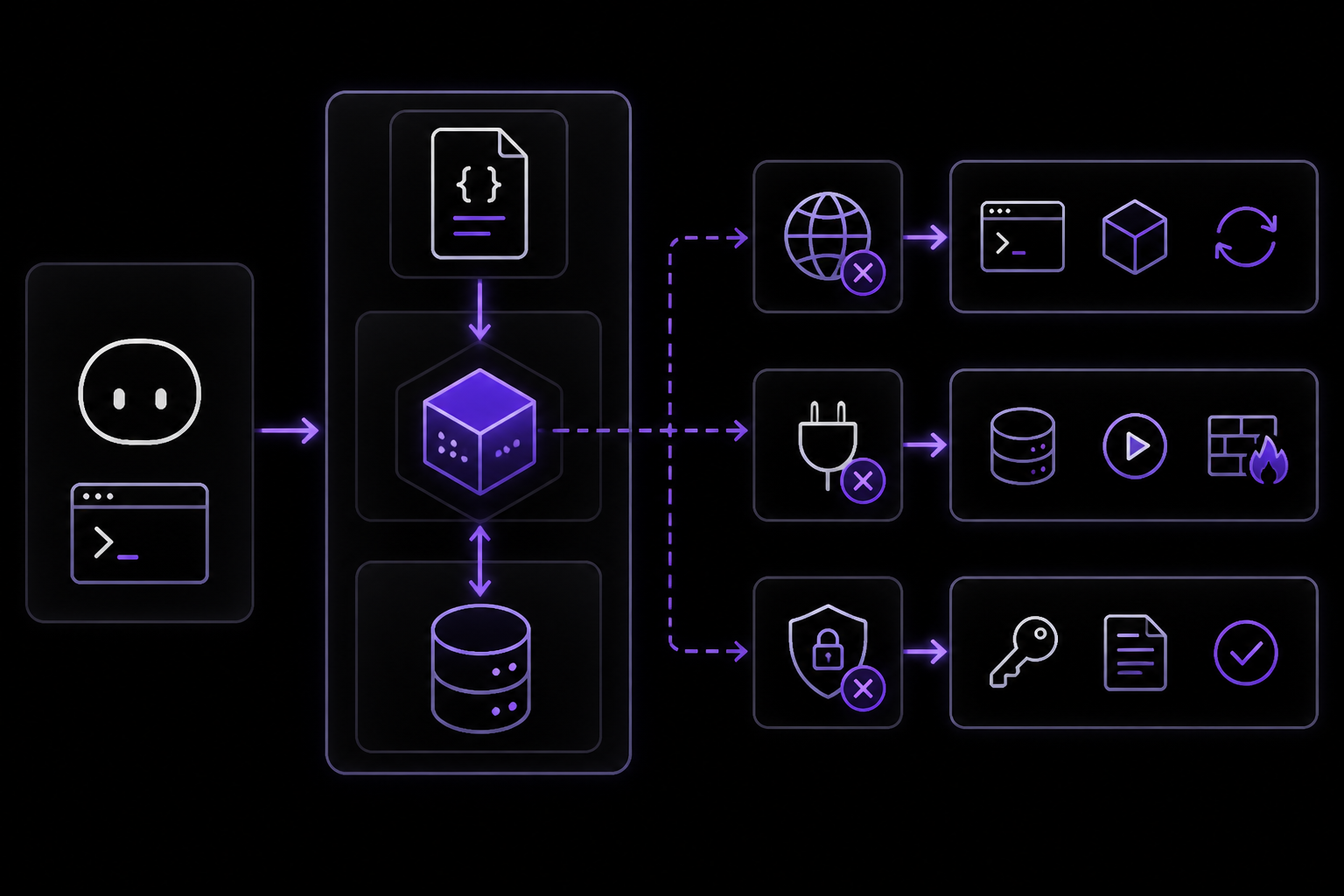
If Claude Code cannot find the MCP server, check that the command in the configuration file is correct and that the server is installed globally or in your PATH. Run which mcp-db-server to verify. If using npx, ensure npm is up to date.
Connection Refused
If the database connection fails, verify the connection string. Test it outside Claude Code using a database client. Check that the database is running and accessible from your machine. Firewalls or VPNs may block the connection.
Permission Denied
Claude Code may ask for approval before running SQL that modifies data. If you want to auto-approve such operations, switch to acceptEdits mode by pressing Shift+Tab. Be cautious: this allows Claude to run any SQL without confirmation.
Slow Queries
Large result sets can slow down Claude Code. The official documentation does not specify limits, but community experience suggests that queries returning thousands of rows may cause timeouts. Use LIMIT clauses in your prompts:
show me the first 10 users
Authentication Errors
If you see authentication errors when starting Claude Code, you may need to log in again. Run /login inside the session. For Claude subscription or Console accounts, follow the prompts to complete authentication in your browser. To switch accounts later or re-authenticate, type /login inside the running session. You can log in using any of these account types: Claude Pro, Max, Team, or Enterprise (recommended); Claude Console (API access with pre-paid credits). On first login, a "Claude Code" workspace is automatically created in the Console for centralized cost tracking; Amazon Bedrock, Google Cloud's Agent Platform, or Microsoft Foundry (enterprise cloud providers); a self-hosted Claude apps gateway, if your organization runs one: your admin pre-configures the gateway URL, and /login opens directly on the Cloud gateway screen for you to sign in with corporate SSO.
Version Mismatch
If you installed Claude Code via Homebrew, you have two cask options. claude-code tracks the stable release channel, which is typically about a week behind and skips releases with major regressions. claude-code@latest tracks the latest channel and receives new versions as soon as they ship. Homebrew installations do not auto-update. Run brew upgrade claude-code or brew upgrade claude-code@latest, depending on which cask you installed, to get the latest features and security fixes. For WinGet installations, run winget upgrade Anthropic.ClaudeCode periodically. Native installations automatically update in the background.
Going Further
Now that you have connected Claude to your database, explore these advanced topics from the official documentation:
-
Customize with instructions, skills, and hooks:
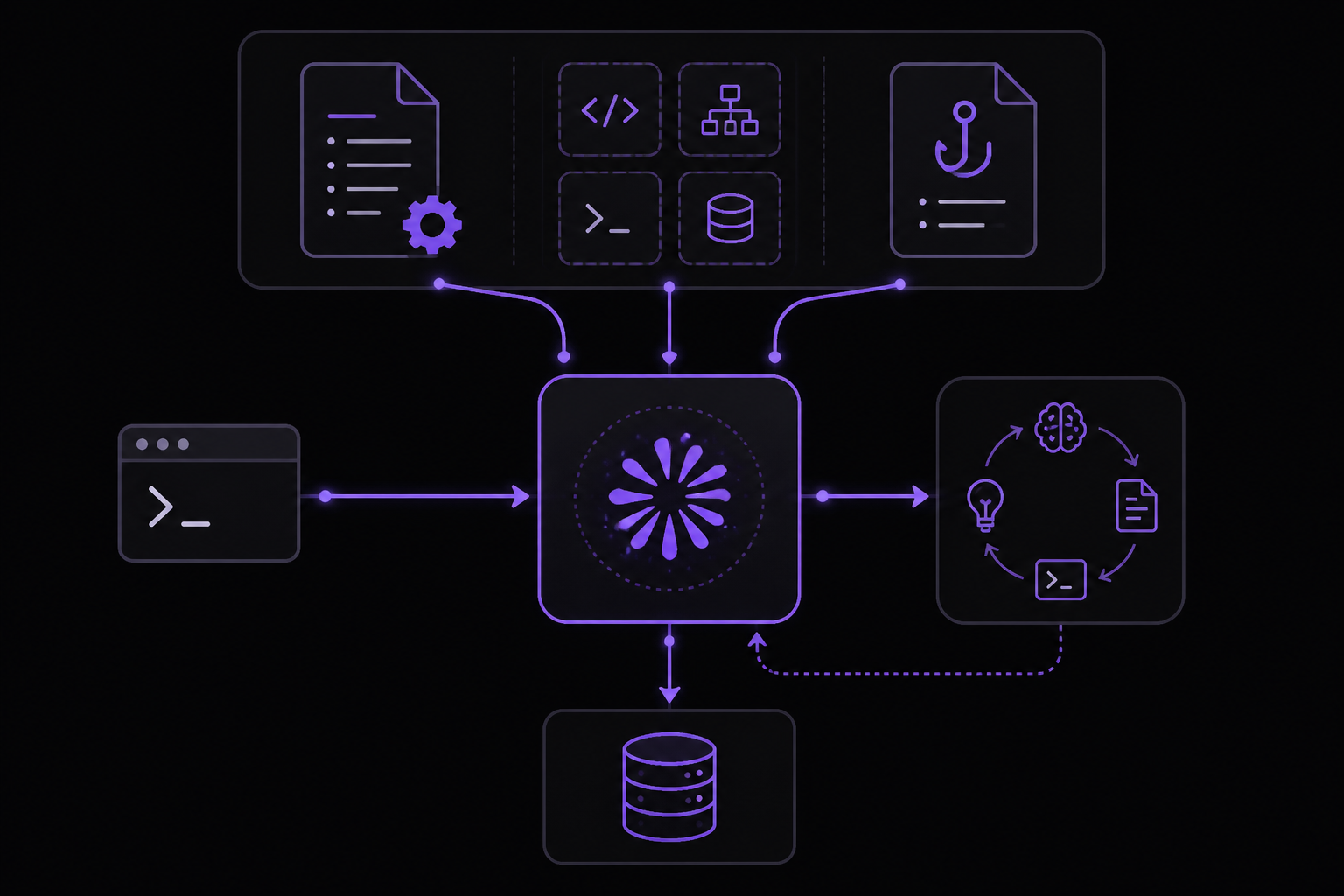
CLAUDE.mdis a markdown file you add to your project root that Claude Code reads at the start of every session. Use it to set coding standards, architecture decisions, preferred libraries, and review checklists. Claude also builds auto memory as it works, saving learnings like build commands and debugging insights across sessions without you writing anything. Create skills to package repeatable workflows your team can share, like/review-pror/deploy-staging. Hooks let you run shell commands before or after Claude Code actions, like auto-formatting after every file edit or running lint before a commit. -
Run agent teams and build custom agents: Spawn multiple Claude Code agents that work on different parts of a task simultaneously. A lead agent coordinates the work, assigns subtasks, and merges results. To run several full sessions in parallel and watch them from one screen, use background agents. For fully custom workflows, the Agent SDK lets you build your own agents powered by Claude Code's tools and capabilities, with full control over orchestration, tool access, and permissions.
-
Pipe, script, and automate with the CLI: Claude Code is composable and follows the Unix philosophy. Pipe logs into it, run it in CI, or chain it with other tools. For example:
# Analyze recent log output
tail -200 app.log | claude -p "Slack me if you see any anomalies"

# Automate translations in CI
claude -p "translate new strings into French and raise a PR for review"

# Bulk operations across files
git diff main --name-only | claude -p "review these changed files for security issues"
See the CLI reference for the full set of commands and flags.
-
Schedule recurring tasks: Run Claude on a schedule to automate work that repeats: morning PR reviews, overnight CI failure analysis, weekly dependency audits, or syncing docs after PRs merge. Routines run on Anthropic-managed infrastructure, so they keep running even when your computer is off. They can also trigger on API calls or GitHub events. Create them from the web, the Desktop app, or by running
/schedulein the CLI. Desktop scheduled tasks run on your machine, with direct access to your local files and tools./looprepeats a prompt within a CLI session for quick polling. -
Work from anywhere: Sessions are not tied to a single surface. Move work between them as your context changes. Step away from your desk and keep working from your phone or any browser with Remote Control. Message Dispatch a task from your phone and open the Desktop session it creates. Kick off a long-running task on the web or the Claude mobile app, then pull it into your terminal with
claude --teleport. Teleport requires a claude.ai subscription. Run/desktopto continue your current terminal session in the Desktop app, where you can review diffs visually. Available on macOS and x64 Windows. Route tasks from team chat: mention@Claudein Slack with a bug report and get a pull request back. -
Integrate with CI/CD: Automate code review and issue triage with GitHub Actions or GitLab CI/CD. The official documentation shows how to set this up.
For more help, type /help inside Claude Code or ask "how do I..." questions. Join the community Discord for tips and support.
Comments
More Guides
View allclaude-codeRunning Claude Code in CI Pipelines Without Interactive Prompts
Learn how to run Claude Code in CI/CD pipelines without interactive prompts. Covers authentication, permission configuration, GitHub Actions and GitLab CI integration, and troubleshooting common issues.
N
Neura Market Research 2
agentsClaude Code Quickstart: Install, Setup, and Automate Desktop Tasks
Learn how to install, configure, and start using Claude Code to automate desktop tasks, fix bugs, manage Git workflows, and build features directly from your terminal, IDE, or desktop app.
N
Neura Market Research 1
productivityClaude Code: Complete Guide to Settings, Permissions, and Configuration
Complete guide to Claude Code settings, permissions, and configuration scopes. Learn how to manage user, project, local, and managed settings, use the /config command, and handle invalid entries.
N
Neura Market Research 4
apiBatch Processing with the Claude Message Batches API
Learn to use the Claude Message Batches API for cost-effective, high-throughput processing of multiple prompts. Covers setup, batch creation, monitoring, result retrieval, and troubleshooting with practical examples.
N
Neura Market Researchclaude-codeClaude Code with GitHub Actions: Automated Code Review Setup Guide
Learn how to set up Claude Code with GitHub Actions for automated code review, issue triage, and CI/CD workflows. Covers workflow configuration, authentication, CLI flags, and best practices.
N
Neura Market ResearchpromptingClaude system prompts: patterns that actually improve output
Learn how to write Claude system prompts that produce measurably better results using hooks, settings, CLAUDE.md files, and permission rules. Covers official Anthropic patterns and community-proven techniques.
N
Neura Market Research 1
Ready-made automations for this
Workflows from the Neura Market marketplace related to this Claude resource
- Master Data Transformation with the Complete Node Set Guiden8n · $14.99 · Related topic
- Complete Lyft API Integration for AI Agents with 16 Operations Using MCPn8n · $14.99 · Related topic
- Convert Revit Projects to Database with Drawings & Specifications Using DDCn8n · $9.99 · Related topic
- Query PostgreSQL Database with Natural Language using GPT-4-minin8n · $9.99 · Related topic