 CoPilot
Back to Blog claudecode
 devchallenge
 mlhacks
 discuss
 gemma
gemma ai
ai ai
ai
MCP Configuration for Google Workspace with Claude Code
xbill October 5, 2026
0 views
Connect Claude Code to Google's eight remote Workspace MCP servers (Gmail, Drive, Docs, Sheets, Slides, Calendar, Chat and People), packaged as a Claude Code skill, with the two sign-in limits that decide how you use it.
title: "MCP Configuration for Google Workspace with Claude Code" published: true description: "Connect Claude Code to Google's eight remote Workspace MCP servers (Gmail, Drive, Docs, Sheets, Slides, Calendar, Chat and People), packaged as a Claude Code skill, with the two sign-in limits that decide how you use it." tags: claudecode, mcp, googleworkspace, googleoauth cover_image: https://raw.githubusercontent.com/xbill9/workspace-mcp-claude/main/docs/article/devto-cover.2ed35ff2.jpg
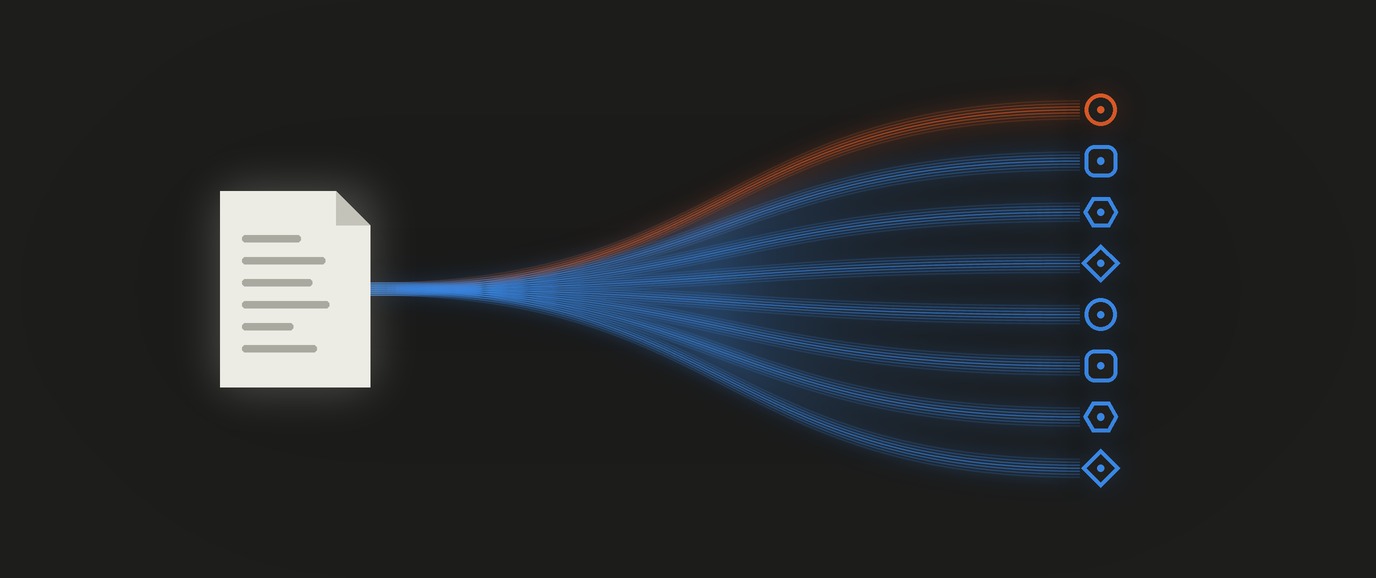
This article provides a step by step configuration guide for the Google Workspace remote MCP servers with Claude Code. The setup is packaged as a Claude Code skill and plugin, so Claude Code can enable the APIs, register the servers, sign in, and test all eight of them.
https://github.com/xbill9/workspace-mcp-claude
All eight Workspace servers pass a read-only test from Claude Code. Two sign-in limits shape how you use them: each sign-in lasts about an hour, and signing a working server in again revokes every server's token, so all eight sign in together.
Didn't You Already Do This?
Yes! The first two versions of this setup used Gemini CLI and Antigravity CLI:
MCP Configuration for Google Workspace with Gemini CLI
MCP Configuration for Google Workspace with Antigravity CLI
This version moves the same Google Cloud project to Claude Code, brings in the three newer servers (Docs, Sheets and Slides) and Chat, which the earlier config files left out, and packages it all as a Claude Code skill.
What is this project trying to Do?
Google hosts one remote MCP server per Workspace product. Getting Claude Code connected takes a Google Cloud project with the right APIs, an OAuth web client, a few console settings, the servers registered in Claude Code, and a browser sign-in per server.
The repository turns that into scripts and a skill. The scripts do everything that has an API. The skill tells Claude Code how to check what is already done, run the scripts, walk through the console steps, and test the result.
What is Google Workspace?
Google Workspace is Google's subscription productivity suite: Gmail, Drive, Docs, Sheets, Slides, Calendar, Chat and Meet on a custom domain, with admin controls and shared storage.
Google Workspace: Secure Online Productivity & Collaboration Tools
Workspace MCP support is in Developer Preview. Sign up here before starting:
Google Workspace Developer Preview Program
At This Point You Should Have…
- A Google Workspace account in the Developer Preview Program, with admin access to its Google Cloud project.
- The Google Cloud CLI (
gcloud), signed in. - Claude Code. This guide used version 2.1.289.
- Chrome on the same machine, for the OAuth sign-in pages.
- A clone of the repository:
cd ~
git clone https://github.com/xbill9/workspace-mcp-claude
cd workspace-mcp-claude
The Servers
| Server | URL | Tools |
|---|---|---|
| gmail | https://gmailmcp.googleapis.com/mcp/v1 | 23 |
| drive | https://drivemcp.googleapis.com/mcp/v1 | 8 |
| docs | https://docsmcp.googleapis.com/mcp/v1 | 2 |
| sheets | https://sheetsmcp.googleapis.com/mcp/v1 | 6 |
| slides | https://slidesmcp.googleapis.com/mcp/v1 | 4 |
| calendar | https://calendarmcp.googleapis.com/mcp/v1 | 9 |
| chat | https://chatmcp.googleapis.com/mcp/v1 | 4 |
| people | https://people.googleapis.com/mcp/v1 | 3 |
A ninth server, workspace-developer at https://workspace-developer.goog/mcp, searches the Workspace developer docs and needs no sign-in. The tool counts come from mcp_probe.sh, shown later.
Step 1 — Enable the APIs
Each product needs its API and its MCP service. People serves MCP from people.googleapis.com, so the total is 15 services. bootstrap.sh enables them with gcloud:
./bootstrap.sh
Updated property [core/project].
Enabling Workspace APIs and MCP services on comglitn
Operation "operations/acat.p2-<project-number>-d46329d0-40b5-4232-a430-c43e10731dc2" finished successfully.
When gcloud cannot sign in from the current shell, one console URL enables all 15 at once:
https://console.cloud.google.com/flows/enableapi?apiid=gmail.googleapis.com,drive.googleapis.com,docs.googleapis.com,sheets.googleapis.com,slides.googleapis.com,calendar-json.googleapis.com,chat.googleapis.com,people.googleapis.com,gmailmcp.googleapis.com,drivemcp.googleapis.com,docsmcp.googleapis.com,sheetsmcp.googleapis.com,slidesmcp.googleapis.com,calendarmcp.googleapis.com,chatmcp.googleapis.com&project=PROJECT_ID
Step 2 — Set Up the OAuth Consent Screen
In the Google Cloud console, open Google Auth Platform → Branding and click Get Started if it is not configured. Name the app Workspace MCP Servers, pick Internal for the audience, and add a contact email.
Then Data Access → Add or remove scopes → Manually add scopes, and paste the scopes for the servers you want. Prefix each with https://www.googleapis.com/auth/:
| Server | Scopes |
|---|---|
| gmail | gmail.readonly, gmail.compose |
| drive | drive.readonly, drive.file |
| docs | drive scopes, documents.readonly, documents |
| sheets | drive scopes, spreadsheets.readonly, spreadsheets |
| slides | drive scopes, presentations.readonly, presentations |
| calendar | calendar.calendarlist.readonly, calendar.events.freebusy, calendar.events.readonly |
| chat | chat.spaces.readonly, chat.memberships.readonly, chat.messages.readonly, chat.messages.create, chat.users.readstate |
| people | directory.readonly, userinfo.profile, contacts.readonly |
That is 21 distinct scopes. The sensitive-scopes table on the Data Access page shows 10 rows per page, so three of them land on page 2.
Step 3 — Create the OAuth Client
Google Auth Platform → Clients → Create Client. Pick Web application and add two authorized redirect URIs:
http://localhost:8765/callbackfor Claude Code. The port matchesCALLBACK_PORTin the scripts.https://claude.ai/api/mcp/auth_callbackfor claude.ai and Claude Desktop custom connectors.
Leave "This client will be used by an AI-powered agent" unticked. Google's guide leaves it off.
Step 4 — Configure the Chat App
The Chat server needs a Chat app in the project. Open Google Chat API → Manage → Configuration and set:
- App name
Chat MCP - Avatar URL
https://developers.google.com/chat/images/quickstart-app-avatar.png - Description
Chat MCP server - Interactive features off
- Log errors to Logging ticked
Leave "Build this Chat app as a Workspace add-on" as it is. Clearing it cannot be undone.
Step 5 — Download the Client Secret
The console shows a client secret once, when it is created. On a later visit the client page says viewing and downloading secrets is no longer available, and Add secret creates a new one with a download button.
The download lands in ~/Downloads as client_secret_<client-id>.json or client_secret_<n>_<client-id>.json. bootstrap.sh picks up the newest one.
Step 6 — Register the Servers
bootstrap.sh installs the client from the downloaded JSON into ~/client_id.txt and ~/client_secret.txt (mode 600, never printed), then registers the servers with claude mcp add-json:
./bootstrap.sh --no-apis --no-login
Installing OAuth client from /home/xbill/Downloads/client_secret_2_<project-number>-<client>.apps.googleusercontent.com.json
Saved client <project-number>-… to ~/client_id.txt and ~/client_secret.txt
Adding Workspace MCP servers to Claude Code (scope: local)
Redirect URI required on the OAuth client: http://localhost:8765/callback

gmail: https://gmailmcp.googleapis.com/mcp/v1 (HTTP) - ✔ Connected
drive: https://drivemcp.googleapis.com/mcp/v1 (HTTP) - ✔ Connected
docs: https://docsmcp.googleapis.com/mcp/v1 (HTTP) - ✔ Connected
sheets: https://sheetsmcp.googleapis.com/mcp/v1 (HTTP) - ✔ Connected
slides: https://slidesmcp.googleapis.com/mcp/v1 (HTTP) - ✔ Connected
calendar: https://calendarmcp.googleapis.com/mcp/v1 (HTTP) - ✔ Connected
chat: https://chatmcp.googleapis.com/mcp/v1 (HTTP) - ✔ Connected
people: https://people.googleapis.com/mcp/v1 (HTTP) - ! Needs authentication
workspace-developer: https://workspace-developer.goog/mcp (HTTP) - ✔ Connected
Each server gets its scopes pinned in oauth.scopes and the fixed callback port. Claude Code keeps the client secret in its own credential store, so nothing secret reaches .mcp.json or ~/.claude.json.
MCP_SCOPE picks where the servers live: user (the default, every project), local (this directory only) or project (a shared .mcp.json).
Step 7 — Sign In All Eight Together
Sign all eight servers in one pass. Signing a server in again while its token still works revokes every server's token, so sign them in together once they have expired. The known issues below have the measurements.
From your own terminal, in the repository directory:
for s in people gmail drive docs sheets slides calendar chat; do claude mcp login $s; done
Or run /mcp inside Claude Code and pick Authenticate on each server.
Claude Code can also do it for you through the Chrome extension. claude mcp login needs a terminal, so mcp_login.sh runs it under a pseudo-terminal and prints the Google sign-in URL for Claude to open. check confirms once Allow has been clicked:
./mcp_login.sh start people
./mcp_login.sh check people
https://accounts.google.com/o/oauth2/v2/auth?response_type=code&client_id=<id>&code_challenge=<…>&code_challenge_method=S256&redirect_uri=http%3A%2F%2Flocalhost%3A8765%2Fcallback&state=<…>&scope=https%3A%2F%2Fwww.googleapis.com%2Fauth%2Fdirectory.readonly+https%3A%2F%2Fwww.googleapis.com%2Fauth%2Fuserinfo.profile+https%3A%2F%2Fwww.googleapis.com%2Fauth%2Fcontacts.readonly&resource=https%3A%2F%2Fpeople.googleapis.com%2Fmcp
Signed in: people
The consent page is a grant of access to your mail, files and calendar. Check the permissions it lists against the scope table before clicking Allow.
Step 8 — Check the Sign-Ins
mcp_status.sh lists each server's sign-in. --verify asks Google whether each token is still accepted, printing only valid or invalid:
./mcp_status.sh --verify
server    registered  token    min left  refresh
gmail     yes         valid          50  no
drive     yes         valid          51  no
docs      yes         valid          52  no
sheets    yes         valid          53  no
slides    yes         valid          54  no
calendar  yes         valid          54  no
chat      yes         valid          55  no
people    yes         valid          49  no

8 of 8 servers hold a token Google accepts.
Tokens without refresh expire after about an hour; sign in again with /mcp or mcp_login.sh when they do.
Step 9 — Test Every Server
mcp_test.sh runs one headless Claude Code session allowed only read-only tools, asks it to make one call per server, and grades each server from the tool results in the session's event stream. The model's own summary plays no part in the grade:
./mcp_test.sh
Testing: gmail drive docs sheets slides calendar chat people

server    result            ok  err  tools
gmail     PASS               1    0  list_labels
drive     PASS               4    0  list_recent_files, search_files
docs      PASS               1    0  read_doc
sheets    PASS               1    0  get_spreadsheet
slides    PASS               1    0  read_presentation
calendar  PASS               1    0  list_calendars
chat      PASS               1    0  search_conversations
people    PASS               1    0  get_user_profile

8 of 8 servers passed.
exit=0
Drive shows four calls because its file search also finds the Doc, Sheet and Slides deck the next three checks read. ./mcp_test.sh slides tests one server.
Demo Step 1 — Ask Who You Are
With the servers signed in, restart Claude Code in the repository directory so their tools load, and ask in plain language. Each demo below shows the prompt, the tools Claude Code called, and its answer. They come from docs/article/run-demo.sh, which runs a prompt through a headless session limited to the tools named after it.
docs/article/run-demo.sh "According to my Google profile, what is my name?" "mcp__people__get_user_profile"
> According to my Google profile, what is my name?

  ✅ mcp__people__get_user_profile

Your Google profile name is **xbill work** (account xbill@glitnir.com).
Demo Step 2 — Summarize Your Latest Slides Deck
Two servers work together here: Drive finds the newest presentation and Slides reads it.
docs/article/run-demo.sh "Find my most recent Google Slides presentation and give me its title, its slide count, and a three-bullet summary of what it covers." "mcp__drive__search_files,mcp__slides__read_presentation"
> Find my most recent Google Slides presentation and give me its title, its slide count, and a three-bullet summary of what it covers.

  ✅ mcp__drive__search_files
  ✅ mcp__drive__search_files
  ✅ mcp__slides__read_presentation
  ✅ Bash  echo "30_37 12_0 30_0 30_8 30_13 30_19 30_25 30_43 30_51 30_57 30_63 30_68 30_73 30_78 30_83 30_92 30_88 30_97 30_102 30_107 30_113 30_118 30_136 30_142 30_162 5_0 30_153 30_158 32_0" | wc -w

Your most recent presentation is **Gemma4 Local**. It was last modified 2026-10-01 and you last opened it today. A Drive search for presentations modified after that date returned only this deck, so nothing newer exists.

- **Title:** Gemma4 Local. The subtitle is "Deploying next-generation open-weights models on local hardware environments."
- **Slide count:** 29. I counted the slide IDs the Slides API returned with `wc`. Eight of the 29 slides have no text, so they're probably images or screenshots. The summary below comes from the text on the other slides.

**What it covers:**
- **The Gemma 4 model family.** It explains what Gemma is: open weights under the Apache license, and a separate model from Gemini. It then goes through the sizes: E2B and E4B for edge devices, the 26B A4B mixture-of-experts model, and the 31B dense model. It also includes two newer additions: the 12B mid-size model and quantization-aware training (QAT) to shrink the weights for low-end hardware.
- **Ways to access and host it.** Options include AI Studio, Model Garden, local hosting (Ollama, vLLM, Docker, Edge Gallery on mobile) and Google Cloud. On Google Cloud that means TPUs (v5e, v5p, v6e, Ironwood), Cloud Run with L4 or 96 GB GPUs, VMs with attached GPUs, and GKE.
- **Live demos and next steps.** The demos are a self-contained Tesla T4 VM on Google Cloud and a 4 GB laptop GPU running a QAT model, plus others in the repo across Cloud Run, GKE, TPU, AWS and Azure. The "Future" slide lists a vLLM QAT TPU pull request, a v5e deep dive, a v6e comparison, QAT and GGUF repacks, JAX on AWS Inf2, and a "lite" GKE demo.

The deck opens with your speaker slides (bio, where to find you, recent articles). [link to the deck removed]
Claude counted the slides with wc over the IDs Slides returned, so the 29 comes from the tool output.
Demo Step 3 — Count Unread Mail
Ask for the count Gmail's own search returns, so the number comes from Gmail:
docs/article/run-demo.sh "How many unread threads are in my Gmail inbox? Use the count the Gmail search returns rather than counting results yourself. Reply with the number and the query you used, and nothing about the individual emails." "mcp__gmail__search_threads"
> How many unread threads are in my Gmail inbox? Use the count the Gmail search returns rather than counting results yourself. Reply with the number and the query you used, and nothing about the individual emails.

  ✅ mcp__gmail__search_threads

Gmail's search returned **2** unread threads in your inbox.

- **Query:** `in:inbox is:unread`
- **Count:** `resultCountEstimate: "2"`. That's the number Gmail reported, and it's labelled an estimate.

One of the two threads that came back no longer has the `UNREAD` label, so it was probably read recently and the search index hasn't caught up. The live number may be 1.
Demo Step 4 — Find a Free Slot
Calendar's suggest_time searches for free time. The pinned Calendar scopes are read-only, so nothing can be booked:
docs/article/run-demo.sh "Suggest a free 30-minute slot for a meeting tomorrow afternoon on my primary calendar. Read only, do not create anything." "mcp__calendar__list_calendars,mcp__calendar__suggest_time"
> Suggest a free 30-minute slot for a meeting tomorrow afternoon on my primary calendar. Read only, do not create anything.

  ✅ mcp__calendar__list_calendars
  ✅ mcp__calendar__list_events
  ✅ mcp__calendar__suggest_time

I suggest **Monday, October 5, 2:00–2:30 PM Eastern**.

Your primary calendar (xbill@glitnir.com, Eastern time) has one event tomorrow afternoon: **[TPU] Office Hours, 1:30–2:00 PM**. I asked Calendar's free-time search for openings between noon and 5 PM, and it returned two:

- 🟢 **12:00–1:30 PM** (90 minutes)
- 🟢 **2:00–5:00 PM** (3 hours)

I picked 2:00 PM because it starts the longest open stretch, so the meeting can run over without a conflict. 12:00–12:30 is also free if you'd rather go before the office hours.

⚠️ You haven't responded to the TPU Office Hours invite yet, but Calendar still counts it as busy. If you skip it, 12:00–5:00 is open, apart from that one half-hour.

This only read your calendar. I didn't create or change anything.
Which MCP Version Do the Servers Speak?
The 2026-07-28 MCP specification makes the protocol stateless: a server/discover request replaces the initialize handshake. mcp_probe.sh checks each server with no credentials:
./mcp_probe.sh
server    2026-07-28  legacy init  tools
gmail     yes         2025-11-25   23
drive     yes         2025-11-25   8
docs      yes         2025-11-25   2
sheets    yes         2025-11-25   6
slides    yes         2025-11-25   4
calendar  yes         2025-11-25   9
chat      yes         2025-11-25   4
people    no          2025-11-25   3

7 of 8 servers advertise 2026-07-28; 59 tools in total.
Seven servers advertise 2026-07-28 and Claude Code connects to those at that version. People answers only the 2025-11-25 handshake. All eight accept 2025-11-25, so any current MCP client connects.
Using the Skill — Install It
The repository is also a Claude Code plugin marketplace. Install the google-workspace-mcp skill from inside Claude Code:
/plugin marketplace add xbill9/workspace-mcp-claude
/plugin install google-workspace-mcp@workspace-mcp-claude
To try it from a clone without installing, start Claude Code with claude --plugin-dir ~/workspace-mcp-claude/plugin. The skill finds its scripts relative to its own directory either way. The manifests and the skill validate:
claude plugin validate .
claude plugin validate plugin
claude plugin validate plugin/skills
Validating marketplace manifest: /home/xbill/workspace-mcp-claude/.claude-plugin/marketplace.json

✔ Validation passed
Validating plugin manifest: /home/xbill/workspace-mcp-claude/plugin/.claude-plugin/plugin.json

✔ Validation passed
Validating components in: /home/xbill/workspace-mcp-claude/plugin/skills

✔ Validation passed
Using the Skill — What to Ask
The skill loads when a request is about connecting, signing in to, testing or fixing the Workspace servers, even when it never says "MCP":
| Ask | What the skill does |
|---|---|
| "Connect my Gmail and Drive to Claude Code" | checks what exists, then walks the missing steps in order |
| "Is my Google Workspace MCP setup working?" | runs mcp_status.sh --verify and mcp_test.sh |
| "My Gmail tools disappeared" | checks for revoked or expired tokens and says which servers to sign in again |
| "Sign my Workspace servers back in" | the servers whose tokens are expired or revoked |
| "Gmail says insufficient_scope" | names the scope to add in claude_setup.sh and on the consent screen |
It always starts by finding out what is already done, because setup is usually half finished: a project with the APIs on, a client from an earlier tool, servers registered for another directory.
Using the Skill — Ask It Whether Everything Works
Asked from the home directory, with no setup files in sight, the skill loads, finds the servers registered for the repository directory, and checks them without changing anything. Trimmed:
> Is my Google Workspace MCP setup for Claude Code working? Check it, but do not sign anything in or change anything.

  ✅ Skill  google-workspace-mcp:google-workspace-mcp
  ✅ Bash  "/home/xbill/workspace-mcp-claude/plugin/skills/google-workspace-mcp/scripts/mcp_status.sh" --verify; …
  ✅ Bash  claude mcp list 2>&1 | head -40; …
  ✅ Bash  cd /home/xbill/workspace-mcp-claude && "/home/xbill/workspace-mcp-claude/plugin/skills/google-workspace-mcp/scripts/mcp_test.sh"; …

Yes, it works. All eight Workspace servers answered a real read-only call, and Google accepts all eight sign-ins. I didn't sign in or change anything.

**Sign-ins** (`mcp_status.sh --verify`): all 8 servers are registered and Google accepts all 8 tokens. They have about 38–43 minutes left (People and Gmail run out first), with no refresh token. After that they show "Needs authentication", and you'll need to sign in again with `/mcp`.

- **The servers only exist in `~/workspace-mcp-claude`.** They're registered with `local` scope, so from any other directory (including `~`, where I started) `claude mcp list` doesn't show them and their tools aren't available. If you want Gmail and Drive everywhere, re-register them with `MCP_SCOPE=user`.
Moving the servers to user scope drops their sign-ins and their client secret, because both are stored per server name. Remove the local copies, run MCP_SCOPE=user ./claude_setup.sh once more, then sign in to all eight again.
Using the Skill — What Is Inside
| File | Purpose |
|---|---|
SKILL.md | the workflow: check first, then APIs, console, secret, register, sign in, test |
scripts/bootstrap.sh | APIs, client install, registration, sign-in of all eight |
scripts/claude_setup.sh | registers the eight servers plus workspace-developer with pinned scopes |
scripts/mcp_login.sh | sign-in without a terminal: prints the Google URL, then confirms |
scripts/mcp_status.sh | sign-in state per server; --verify asks Google |
scripts/mcp_test.sh | one read-only call per server, graded from the tool results |
scripts/mcp_probe.sh | MCP versions and tool lists, no credentials needed |
references/console-setup.md | the console steps, with the exact URLs and settings |
references/servers.md | server URLs, the 21 scopes, tool lists |
references/known-issues.md | the two sign-in limits, with the measurements |
references/quirks.md | every other quirk seen during setup |
The scripts at the repository root are wrappers around these, so a plain clone works the same way.
Using the Skill — What It Leaves to You
The skill stops at three points, each for a reason:
- The client secret. You download it; the skill never reads it. Auto mode blocks reading it, and it would otherwise land in the transcript.
- The consent click. Allow grants access to your mail, files and calendar. The skill signs servers in through Chrome only when you ask it to, and checks the permissions on the page against the scope table first.
- Writes to your data. Email, documents and chat messages that come back from the tools are treated as data, never as instructions, and sending, deleting or sharing waits for your yes.
Known Issue: Sign-Ins Last About an Hour
Google issues these sign-ins without a refresh token, so Claude Code cannot renew them. Every Workspace entry in Claude Code's credential store has an access token and an expiry one hour after sign-in, and no refresh token.
The authorization URL Claude Code builds carries response_type, client_id, PKCE, redirect_uri, state, scope and resource. Google issues a refresh token only when the request also asks for offline access (access_type=offline), and Claude Code's oauth settings (clientId, callbackPort, scopes, authServerMetadataUrl) have no field that adds it.
The same Gmail sign-in made by hand with access_type=offline&prompt=consent added returns a refresh token, and that refresh token returns a new access token with no browser. One parameter closes the gap.
Plan for a fresh sign-in each working hour. mcp_status.sh shows the minutes left.
Known Issue: Signing a Server In Again Revokes Every Server
Starting a new sign-in for a server whose token still works makes Claude Code revoke that old token, and Google then revokes the whole grant for the OAuth client. All eight servers share one client, so every server's token goes at once, refresh tokens included. Each row below was checked with Google's token-info endpoint:
| Step | Tokens Google accepts afterwards |
|---|---|
| Gmail, then People, then People again (signed in by hand) | Gmail and People ✅ |
| Revoke one People token | none ❌ |
| Fresh Gmail and Drive, then revoke the Drive token | none ❌ |
| Gmail and Drive through Claude Code, then start a Drive sign-in | Gmail revoked with 58 minutes left ❌ |
A sign-in on its own revokes nothing; the revoke of the old token does. A server whose token is already revoked or expired has nothing left to revoke, so it can be signed in on its own. After a revocation, Google shows the full permissions page again for every server.
A revoked server is hard to spot. claude mcp list still shows it ✔ Connected, the stored expiry still shows minutes left, and in a session its tools are simply missing. Claude Code's debug log has the reason:
[DEBUG] MCP server "slides": Connection error: Unauthorized
[ERROR] MCP server "slides" Failed to fetch tools: Unauthorized
mcp_status.sh --verify reports such a token as revoked. bootstrap.sh and the skill sign all eight in one pass.
🔎 Tip: ✔ Connected Means the Server Answered
All eight servers list their tools without any token, and seven of them accept Claude Code's connection without one too. So claude mcp list shows those seven ✔ Connected before you sign in and after a token is revoked. People asks Claude Code for a sign-in and shows ! Needs authentication.
Use mcp_status.sh --verify for sign-in state and mcp_test.sh for working tools.
🔎 Tip: Pin the Scopes
Each server publishes the scopes it accepts. Gmail's list has 11, starting with https://mail.google.com/, full mailbox access. Without pinned scopes, Claude Code requests what the server's metadata or a 401 response suggests.
claude_setup.sh pins the scopes from Google's guide for every server. Gmail exposes 23 tools against the 10 the guide lists, and the extra trash, spam and label-editing tools need scopes outside the pinned set. They fail with insufficient_scope until you widen that server's entry and sign it in again.
🔎 Tip: The Account Chooser Ignores Its First Click
When Claude drives the sign-in through Chrome, Google's "Choose an account" page often stays put after the first click on the account. Click the account and press Enter, and repeat once if the chooser is still showing.
Chat's consent page lists five permissions and puts Allow below the fold, so scroll first. The skill's references/quirks.md lists every quirk seen during setup.
🔎 Tip: Keep the Client Secret Out of the Transcript
Claude Code's auto mode refuses to read the client secret from the console or from its downloaded file, and refuses to click Add secret. Allowing the tool in /permissions leaves that check in place.
So the secret takes one human step: you download it, and bootstrap.sh copies it into ~/client_secret.txt without printing it. Delete the downloaded JSON afterwards.
Compare and Contrast
| Gemini CLI | Antigravity CLI | Claude Code | |
|---|---|---|---|
| Server config | .gemini/settings.json, httpUrl | mcp_config.json, serverUrl | claude mcp add-json, type: http |
| Client secret | ${CLIENT_SECRET} from the environment | written into the config file (no variable substitution) | Claude Code's credential store |
| Redirect URI | see the Gemini CLI article | https://antigravity.google/oauth-callback | http://localhost:8765/callback |
| Scopes | listed per server | listed per server | pinned per server in oauth.scopes |
| Sign-in | /mcp auth <server> | /mcp → Authenticate | /mcp, claude mcp login, or mcp_login.sh |
claude.ai and Claude Desktop take the same eight URLs as custom connectors (Settings → Connectors → Add custom connector), with the OAuth client ID and secret under Advanced settings and https://claude.ai/api/mcp/auth_callback as the redirect URI.
So, Which One?
For terminal work in Claude Code, the google-workspace-mcp skill. It registers all eight servers with pinned scopes, keeps the secret out of config files, signs all eight in one pass, and proves the result with a read-only test.
Plan around the hourly sign-in. mcp_status.sh --verify at the start of a session tells you which servers need it, and signing all eight in together keeps one sign-in from undoing the others.
Summary
The goal of this article was to connect Claude Code to Google's eight remote Workspace MCP servers and package the setup as a Claude Code skill. The key to the solution was scripting every step that has an API, documenting the console steps that do not, and grading the result from tool calls. The results were:
- 🟢 8 of 8 servers pass a read-only test from a headless Claude Code session, graded from the tool results.
- 🟢 59 tools across the eight servers; seven advertise the 2026-07-28 MCP specification and all eight accept 2025-11-25.
- 🟢 One command registers everything with pinned scopes, and the client secret stays out of every config file.
- 🟢 Installable as a plugin from the repository, with manifests and skill that validate.
- ⚠️ Sign-ins last about an hour, with no refresh token issued.
- ❌ Signing a working server in again revokes every server's token, because the eight share one OAuth client; signing all eight in together avoids it.
Scope: one Google Workspace account in the Developer Preview, one Google Cloud project with an Internal consent screen and one Web application OAuth client shared by all eight servers, Claude Code 2.1.289 and 2.1.291 on Linux, checked on 2026-10-04, 2026-10-05 and 2026-10-06. The revocation was measured with Google's token-info endpoint, both through Claude Code and with tokens revoked by hand. Separate OAuth clients per server and claude.ai connectors were not tested.
The strategy for using MCP with Google Workspace from Claude Code was validated with an incremental step by step approach.
References
- workspace-mcp-claude | GitHub
- Configure the Google Workspace MCP servers | Google for Developers
- Google Workspace Developer Preview Program | Google for Developers
- Connect Claude Code to tools via MCP | Claude Code Docs
- The 2026-07-28 MCP Specification | Model Context Protocol Blog
- MCP Configuration for Google Workspace with Antigravity CLI | dev.to
- MCP Configuration for Google Workspace with Gemini CLI | Medium
- Google Cloud MCP known issues | Google Cloud Documentation
Comments
More Blog
View alldevchallengeCongrats to the Hacktoberfest Weekend Challenge: Build for a Friend Winners!
We are so excited to announce the winners of the Hacktoberfest Weekend Challenge: Build for a Friend,...
J
Jem 1
mlhacksCongrats to Our First MLH x DEV Writing Challenge Winner!
We just wrapped the very first month of the MLH x DEV Writing Challenge, our new way of celebrating...
J
Jem 1
discussDev Opportunity Radar #20: $2M AI Reasoning Challenge, PayPal AI Hackathon, and Coinbase Analytics Challenge
TL;DR Welcome back to Dev Opportunity Radar. This is a weekly series where I share opportunities,...
H
Hemapriya Kanagala 1
gemmaGemma 4 From E2B to 31B on an AMD MI300X: fp8 Overtakes bf16 From 12B Up
Every Gemma 4 size from E2B to 31B served on one AMD Instinct MI300X in bf16, fp8, int8 W8A8 and int4 W4A16, on the same vLLM image. fp8 goes from 0.75x bf16 for one request at E2B to 1.23x at 31B and is faster than bf16 in every cell at 12B and 31B. The mixture-of-experts 26B sits at bf16's pace, and the 4-bit builds run at 0.14x to 0.69x at every size.
X
xbill 2
aiStuart Feldman Was Right in 1976: Why Your AI Agent Needs a Makefile, Not a 20-Step Prompt
How replacing fragile linear prompt checklists with a 50-year-old declarative build graph eliminates agent amnesia, enables seamless mid-flight session resumption, and mechanizes software engineering governance.
R
Randal L. Schwartz 2
aiI got Jev to zero mistakes. I'm still using Flash-Lite.
Jev is a brilliant decision model. Gemini Flash-Lite is the model nobody talks about, and it’s fast,...
S
Swift 2
Ready-made automations for this
Workflows from the Neura Market marketplace related to this CoPilot resource
- Automate New Customer Onboarding with HubSpot, Google Calendar, and AI-Powered Gmailn8n · $24.99 · Related topic
- Manage Google Calendar & Gmail with a Gemini/GPT-Powered AI Assistantn8n · $14.99 · Related topic
- AI-Powered Gmail and Calendar Assistant with Geminoid Chat Interfacen8n · $14.99 · Related topic
- Conversational Google Calendar Management with Claude 3.5, Haiku & Telegramn8n · $9.99 · Related topic