YouTube Comment Sentiment Analysis with Google Gemini AI and Google Sheets
This workflow automatically **collects all comments from a specified YouTube video and analyzes the sentiment of each comment using an AI model** (e.g., GPT, Claude, or Gemini). The sentiment (**Positive, Neutral, or Negative**), its strength, and confidence score are extracted and saved into a connected **Google Sheet** for easy access, reporting, and visualization. --- ### **Advantages:** **AI-Powered Sentiment Analysis** * Uses modern language models (LLMs) to categorize comments with high accuracy. **Ideal for YouTube Creators & Marketers** * Provides insights into audience perception of videos, campaigns, or products. **Real-Time Feedback Monitoring** * Quickly identify trends in viewer sentiment across large comment volumes. **Automatic Reporting** * Saves results in Google Sheets for easy sharing or dashboard integration. **Handles Pagination** * Automatically fetches all comments, even from multi-page videos. **No-Code Customization** * Easily adaptable to other platforms (e.g., TikTok, Instagram) or data sources. **Simple Setup** * Requires just a YouTube video ID and API key - no coding needed. **Loop and Update Logic** * Continuously updates sheet with new results, avoiding duplicate processing. **Modular Design** * Easy to expand (e.g., reply classification, toxic comment detection, translation). **Multi-Language Compatibility** * AI can be configured to analyze comments in different languages with minimal setup. 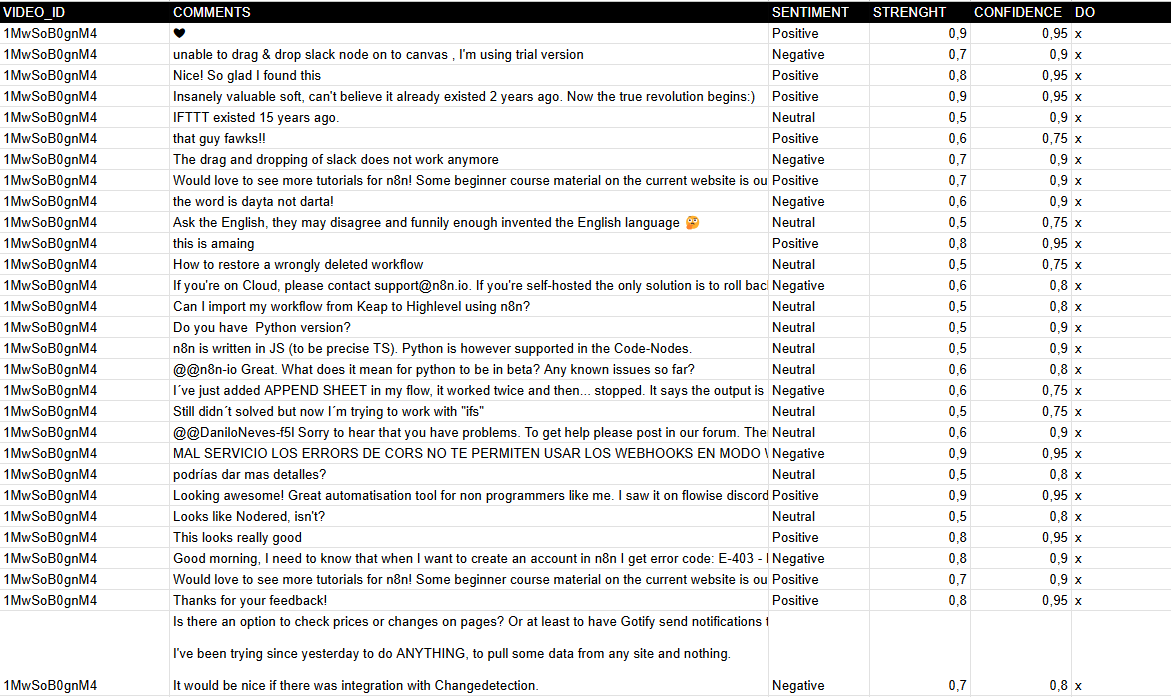 --- ### **How It Works** 1. **Trigger**: The workflow starts manually (When clicking "Test workflow") or can be scheduled. 2. **Fetch Comments**: The Get API Comments node retrieves comments from a YouTube video using the YouTube API. 3. **Process Comments**: - Extracts comments and replies via the Comments node. - Splits them into individual entries (Split comments). - Saves raw comments to Google Sheets (Save comments). 4. **Sentiment Analysis**: - Uses **Google Gemini AI** (or another model) to classify each comment as **Positive, Neutral, or Negative**. - Captures **strength** and **confidence** metrics for deeper insights. 5. **Update Results**: The Update sentiment node writes the analysis back to Google Sheets, marking processed rows. 6. **Pagination Handling**: Checks for multiple pages of comments (Multipage?) and loops until all are processed. --- ### **Set Up Steps** 1. **Prepare Google Sheet**: - Clone the template: [YouTube Comments Sheet](https://docs.google.com/spreadsheets/d/14lAY5CjoYHqqFODiLGg636Gqw4JwWqb2CX10E8ZS6Uo/edit). - Ensure columns exist: `VIDEO_ID`, `COMMENTS`, `SENTIMENT`, `STRENGTH`, `CONFIDENCE`, and `DONE` (tracking column). 2. **Configure YouTube API**: - Obtain a **YouTube API key** from [Google Developers Console](https://developers.google.com/youtube/registering_an_application). - Add it to the Get API Comments node under **Youtube Query Auth** (parameter: `key`). 3. **Set Video ID**: - Replace the default `xxxxxxxx` in the ID Video node with your target YouTube video ID. 4. **AI Integration**: - Ensure **Google Gemini API** credentials are configured in the Google Gemini node. 5. **Run the Workflow**: - Test manually or automate execution (e.g., hourly/daily) to analyze new comments. **Output**: A Google Sheet with categorized sentiments, enabling **trend analysis and audience engagement tracking**. --- ### **Need help customizing?** [Contact me](mailto:info@n3w.it) for consulting and support or add me on [Linkedin](https://www.linkedin.com/in/davideboizza/).
This workflow automatically collects all comments from a specified YouTube video and analyzes the sentiment of each comment using an AI model (e.g., GPT, Claude, or Gemini). The sentiment (Positive, Neutral, or Negative), its strength, and confidence score are extracted and saved into a connected Google Sheet for easy access, reporting, and visualization.
Advantages:
AI-Powered Sentiment Analysis
- Uses modern language models (LLMs) to categorize comments with high accuracy.
Ideal for YouTube Creators & Marketers
- Provides insights into audience perception of videos, campaigns, or products.
Real-Time Feedback Monitoring
- Quickly identify trends in viewer sentiment across large comment volumes.
Automatic Reporting
- Saves results in Google Sheets for easy sharing or dashboard integration.
Handles Pagination
- Automatically fetches all comments, even from multi-page videos.
No-Code Customization
- Easily adaptable to other platforms (e.g., TikTok, Instagram) or data sources.
Simple Setup
- Requires just a YouTube video ID and API key - no coding needed.
Loop and Update Logic
- Continuously updates sheet with new results, avoiding duplicate processing.
Modular Design
- Easy to expand (e.g., reply classification, toxic comment detection, translation).
Multi-Language Compatibility
- AI can be configured to analyze comments in different languages with minimal setup.

How It Works
- Trigger: The workflow starts manually (When clicking "Test workflow") or can be scheduled.
- Fetch Comments: The Get API Comments node retrieves comments from a YouTube video using the YouTube API.
- Process Comments:
- Extracts comments and replies via the Comments node.
- Splits them into individual entries (Split comments).
- Saves raw comments to Google Sheets (Save comments).
- Sentiment Analysis:
- Uses Google Gemini AI (or another model) to classify each comment as Positive, Neutral, or Negative.
- Captures strength and confidence metrics for deeper insights.
- Update Results: The Update sentiment node writes the analysis back to Google Sheets, marking processed rows.
- Pagination Handling: Checks for multiple pages of comments (Multipage?) and loops until all are processed.
Set Up Steps
- Prepare Google Sheet:
- Clone the template: YouTube Comments Sheet.
- Ensure columns exist:
VIDEO_ID,COMMENTS,SENTIMENT,STRENGTH,CONFIDENCE, andDONE(tracking column).
- Configure YouTube API:
- Obtain a YouTube API key from Google Developers Console.
- Add it to the Get API Comments node under Youtube Query Auth (parameter:
key).
- Set Video ID:
- Replace the default
xxxxxxxxin the ID Video node with your target YouTube video ID.
- Replace the default
- AI Integration:
- Ensure Google Gemini API credentials are configured in the Google Gemini node.
- Run the Workflow:
- Test manually or automate execution (e.g., hourly/daily) to analyze new comments.
Output: A Google Sheet with categorized sentiments, enabling trend analysis and audience engagement tracking.
Need help customizing?
Contact me for consulting and support or add me on Linkedin.
New buyers can create an account from the cart to unlock a controlled $10 first-purchase credit on eligible orders of $25+.
Related bundle
Content Repurposing Engine
8 hand-picked workflows for $29.00.
That is $3.63 each, vs $9.99 for this one alone.
View bundleSecure checkout powered by Stripe
Support
How to import this workflow into n8n
- 1Purchase or download the workflow to get the n8n workflow JSON file.
- 2In your n8n instance, open Workflows and choose "Import from File" (or paste the JSON with Ctrl+V on the canvas).
- 3Open each node marked with a credential warning and connect your own accounts and API keys.
- 4Run the workflow once manually to verify the data flow, then toggle it to Active.
Related AI workflows
- Launch Your First AI-Powered Chatbot with Actionable Tools$9.99
- Build a WhatsApp Assistant with Memory, Google Suite, Multi-AI, Research, and Imaging$24.99
- Automate AI Video Creation and YouTube Upload with Google Sheets$14.99
- Automate Blog Post Creation and Publishing with GPT, Leonardo AI, and WordPress$14.99
- Automate SEO Keyword Generation with ChatGPT from Google Sheets$3.99
- Email Agent$500.99
More from Davide
Need this deployed? We'll set it up for you.
Our automation experts deploy this workflow in your stack, connect your accounts, and verify it works — or build a custom solution from scratch.