 ChatGPT
Back to Guides api
api
 api
api prompting
 api
api api
api api
api api
api
Handling OpenAI API Rate Limits and Quota Errors: A Complete Guide
Neura Market Research July 21, 2026
21 views
Learn how to handle OpenAI API rate limits (429) and quota errors. Covers error types, exponential backoff, Python library exceptions, and troubleshooting steps for production applications.
This guide covers everything you need to know about OpenAI API rate limits and quota errors. It is for developers who use the OpenAI API and want to understand, prevent, and handle the most common HTTP 429 errors and related issues. You will learn the difference between rate limits and quota limits, how to interpret error messages, and how to implement robust retry logic with exponential backoff.
What You Need
Before you begin, make sure you have the following:
- An OpenAI account with an active API key. You can find your API key in your account settings under "API keys."
- The OpenAI Python library installed (version 1.0 or later). Install it with
pip install openai. - Basic familiarity with Python and making HTTP requests.
- (Optional) Access to your organization's billing and limits page to check your current usage and quota. You can find this at https://platform.openai.com/account/limits.
Understanding Rate Limits vs. Quota Limits
The OpenAI API uses two distinct types of limits that both produce a 429 HTTP status code, but they mean different things and require different solutions.
Rate Limits (429 - Rate limit reached for requests)
A rate limit error means you are sending requests too quickly. The API has a maximum number of requests or tokens it will accept from you within a given time window (usually per minute). According to the official documentation, this can happen if:
- You are using a loop or script that makes frequent or concurrent requests.
- You are sharing your API key with other users or applications, and the combined usage exceeds the limit.
- You are on a free plan that has a low rate limit.
- You have reached the defined limit on your project.
The solution is to pace your requests. The official documentation recommends implementing a backoff mechanism or retry logic that respects the rate limit and the response headers. You can read more in the Rate limit guide.
Quota Limits (429 - You exceeded your current quota)
A quota error means you have run out of credits or hit your maximum monthly spend. The official documentation states this can happen if:
- You are using a high-volume or complex service that consumes a lot of credits or tokens.
- Your monthly budget is set too low for your organization's usage.
- Your monthly budget is set too low for your project's usage.
The solution is to buy more credits or increase your limits. You can view your maximum usage limit on the limits page. If you are on a free plan, consider upgrading to a paid plan to get higher limits. Reach out to your organization owner to increase the budgets for your project.
Common 429 Error Messages and Their Meanings
The OpenAI API returns specific error messages that tell you exactly which limit you have hit. Here is how to interpret them, based on the official documentation.
"Rate limit reached for requests"
This is the standard rate limit error. The official documentation says: "You are sending requests too quickly." The solution is to pace your requests and read the Rate limit guide.
"You exceeded your current quota, please check your plan and billing details"
This is the quota error. The official documentation says: "You have run out of credits or hit your maximum monthly spend." The solution is to buy more credits or learn how to increase your limits.
"The engine is currently overloaded, please try again later" (503)
This is a server-side error, not a rate limit error, but it is often confused with one. The official documentation says: "Our servers are experiencing high traffic." The solution is to retry your request after a brief wait, using an exponential backoff strategy. Check the status page for any ongoing incidents.
"Slow Down" (503)
This error can occur with Pay-As-You-Go models, which are shared across all OpenAI users. The official documentation explains that it indicates your traffic has significantly increased, overloading the model and triggering temporary throttling to maintain service stability. The solution is to reduce your request rate to its original level, keep it stable for at least 15 minutes, and then gradually ramp it up. Maintain a consistent traffic pattern to minimize the likelihood of throttling. Consider upgrading to the Scale Tier for guaranteed capacity and performance.
How to Handle Rate Limit Errors Programmatically
The official documentation provides a code snippet for handling errors programmatically using the OpenAI Python library. This is the recommended approach for production applications.
Basic Error Handling with try/except
The following code shows how to catch different types of errors and handle them appropriately. The official documentation advises using exponential backoff for rate limit errors.
import openai
from openai import OpenAI

client = OpenAI()

try:
    # Make your OpenAI API request here
    response = client.responses.create(
        model="gpt-5.6",
        input="Hello world"
    )
except openai.APIError as e:
    # Handle API error here, e.g. retry or log
    print(f"OpenAI API returned an API Error: {e}")
    pass
except openai.APIConnectionError as e:
    # Handle connection error here
    print(f"Failed to connect to OpenAI API: {e}")
    pass
except openai.RateLimitError as e:
    # Handle rate limit error (we recommend using exponential backoff)
    print(f"OpenAI API request exceeded rate limit: {e}")
    pass
Explanation of the code:
openai.APIError: This is the base class for all API errors. Catching it first is a good fallback for any unexpected API error.openai.APIConnectionError: This indicates a network issue, such as a DNS resolution failure or a refused connection. The official documentation suggests checking your network settings, proxy configuration, SSL certificates, or firewall rules.openai.RateLimitError: This is the specific error for hitting a rate limit. The official documentation explicitly recommends using exponential backoff for this error.
Implementing Exponential Backoff
Exponential backoff is a standard error-handling strategy where you wait an increasing amount of time between retries. The official documentation recommends this approach for rate limit errors and server overload errors (503).
Here is a more complete example that implements exponential backoff with a maximum number of retries:
import openai
from openai import OpenAI
import time
import random

client = OpenAI()

def make_request_with_retry(max_retries=5, base_delay=1):
    for attempt in range(max_retries):
        try:
            response = client.responses.create(
                model="gpt-5.6",
                input="Hello world"
            )
            return response
        except openai.RateLimitError as e:
            if attempt == max_retries - 1:
                raise  # Re-raise the last error
            # Calculate delay with exponential backoff and jitter
            delay = base_delay * (2 ** attempt) + random.uniform(0, 1)
            print(f"Rate limit hit. Retrying in {delay:.2f} seconds...")
            time.sleep(delay)
        except openai.APIConnectionError as e:
            if attempt == max_retries - 1:
                raise
            delay = base_delay * (2 ** attempt) + random.uniform(0, 1)
            print(f"Connection error. Retrying in {delay:.2f} seconds...")
            time.sleep(delay)
        except openai.APIError as e:
            # For other API errors, do not retry automatically
            raise

response = make_request_with_retry()
print(response)
Why exponential backoff works:
- It gives the server time to recover from overload.
- It reduces the load on the server by spreading out retries.
- Adding random jitter (a small random number) prevents multiple clients from retrying at the same time, which is known as the "thundering herd" problem.
How to Handle Quota Errors
Quota errors are different from rate limit errors. They indicate that you have exhausted your monthly usage limit or your prepaid credits. The official documentation provides the following steps to resolve quota errors:
- Check your current usage on the limits page.
- If you are on a free plan, upgrade to a paid plan to get higher limits.
- Reach out to your organization owner to increase the budgets for your project.
Quota errors cannot be resolved by retrying. You must either increase your quota or wait until your quota resets (usually at the beginning of your billing cycle).
Other HTTP Errors That Look Like Rate Limits
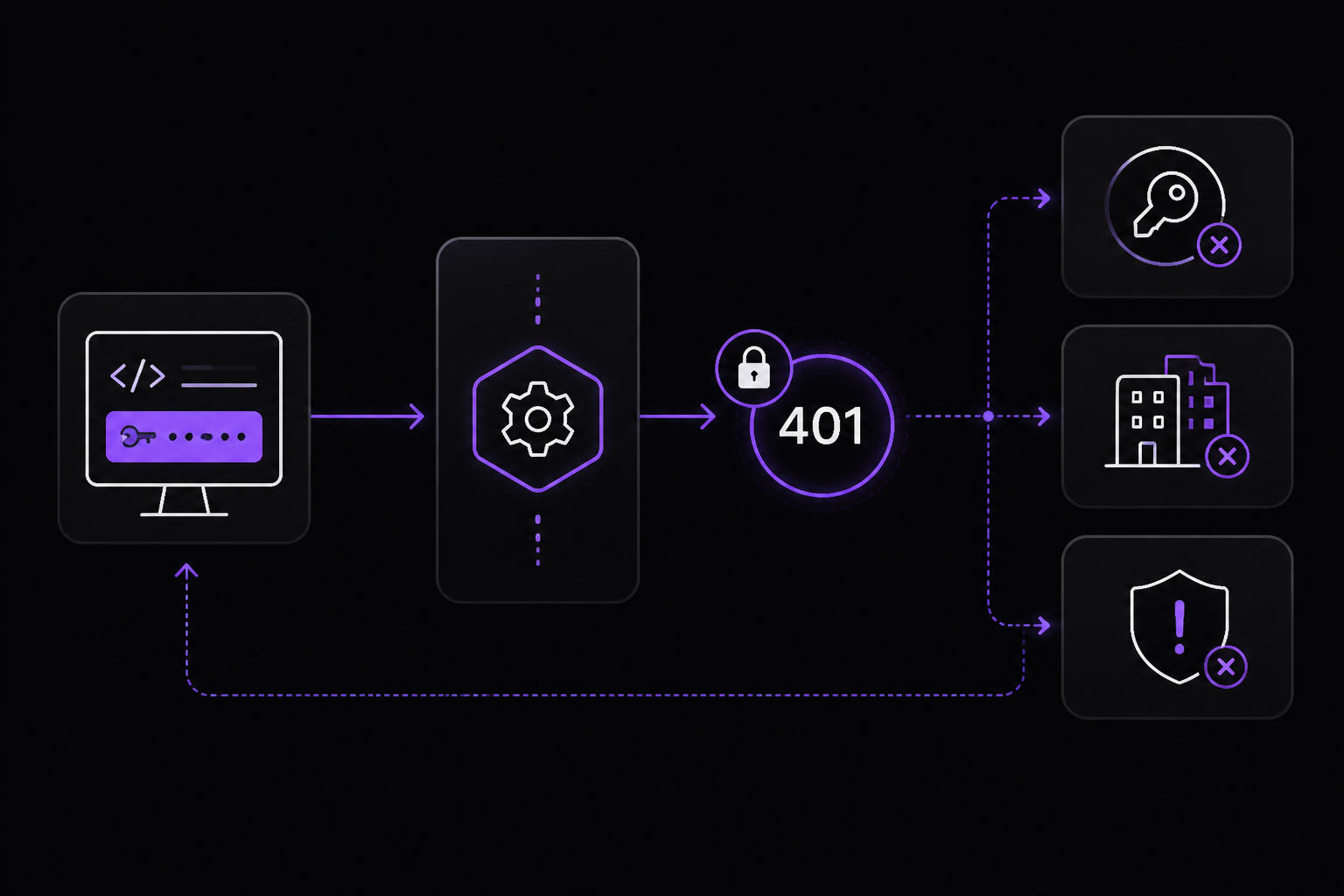
The official documentation lists several other HTTP errors that can occur and are sometimes mistaken for rate limit issues. Here is a quick reference.
401 - Invalid Authentication
This error means your authentication credentials are invalid. The official documentation lists these possible causes:
- You are using a revoked API key.
- You are using a different API key than the one assigned to the requesting organization or project.
- You are using an API key that does not have the required permissions for the endpoint you are calling.
To resolve this, check that you are using the correct API key and organization ID in your request header. You can find your API key and organization ID in your account settings. If you are unsure, generate a new API key.
401 - Incorrect API key provided
This error means the API key you are using is not correct. The official documentation lists these possible causes:
- There is a typo or an extra space in your API key.
- You are using an API key that belongs to a different organization or project.
- You are using an API key that has been deleted or deactivated.
- An old, revoked API key might be cached locally.
To resolve this, try clearing your browser's cache and cookies, then try again. Check that you are using the correct API key in your request header. If you are unsure, generate a new API key.
401 - You must be a member of an organization to use the API
This error means your account is not part of an organization. The official documentation lists these possible causes:
- You have left or been removed from your previous organization.
- You have left or been removed from your previous project.
- Your organization has been deleted.
To resolve this, you can either request a new organization or get invited to an existing one. To request a new organization, reach out to OpenAI via help.openai.com. Existing organization owners can invite you to join their organization via the Team page.
401 - IP not authorized
This error means your request IP does not match the configured IP allowlist for your project or organization. The solution is to send the request from the correct IP, or update your IP allowlist settings.
403 - Country, region, or territory not supported
This error means you are accessing the API from an unsupported country, region, or territory. Please see the supported countries page for more information.
500 - The server had an error while processing your request
This is a server-side error. The official documentation says: "Issue on our servers." The solution is to retry your request after a brief wait and contact OpenAI if the issue persists. Check the status page.
503 - The engine is currently overloaded, please try again later
This is a server-side error indicating high traffic. The official documentation says: "Our servers are experiencing high traffic." The solution is to retry your requests after a brief wait, using an exponential backoff strategy. Check the status page for updates.
Python Library Error Types
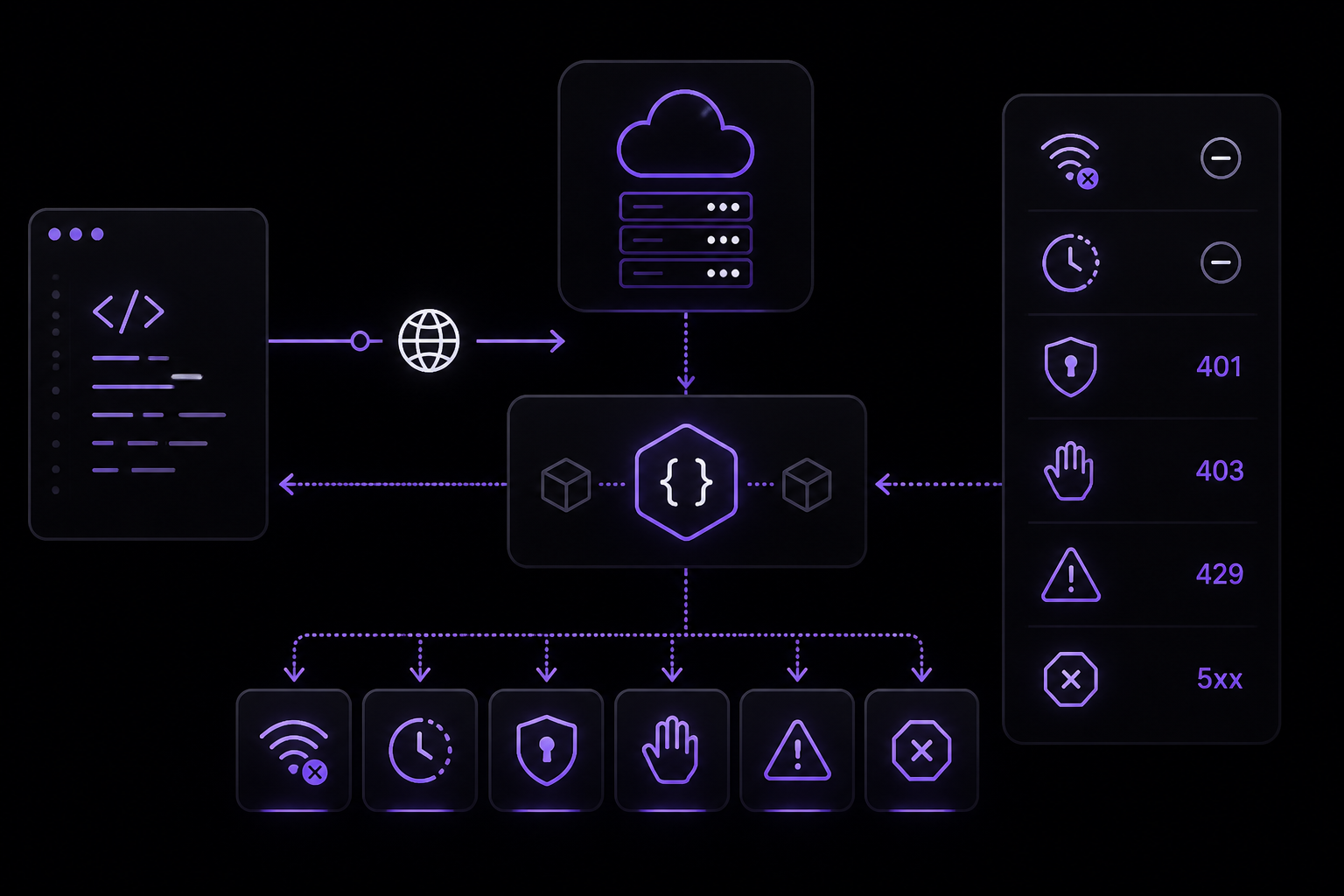
The official OpenAI Python library defines specific exception classes that map to HTTP errors. Understanding these helps you write more precise error handling.
| Error Type | HTTP Status | Cause | Solution |
|---|---|---|---|
APIConnectionError | N/A | Issue connecting to our services. | Check your network settings, proxy configuration, SSL certificates, or firewall rules. |
APITimeoutError | N/A | Request timed out. | Retry your request after a brief wait and contact us if the issue persists. |
AuthenticationError | 401 | Your API key or token was invalid, expired, or revoked. | Check your API key or token and make sure it is correct and active. You may need to generate a new one. |
BadRequestError | 400 | Your request was malformed or missing some required parameters. | Read the error message carefully. Check the API reference for the specific method you are calling. |
ConflictError | 409 | The resource was updated by another request. | Try to update the resource again and ensure no other requests are trying to update it. |
InternalServerError | 500 | Issue on our side. | Retry your request after a brief wait and contact us if the issue persists. |
NotFoundError | 404 | Requested resource does not exist. | Ensure you are using the correct resource identifier. |
PermissionDeniedError | 403 | You don't have access to the requested resource. | Ensure you are using the correct API key, organization ID, and resource ID. |
RateLimitError | 429 | You have hit your assigned rate limit. | Pace your requests. Read more in the Rate limit guide. |
UnprocessableEntityError | 422 | Unable to process the request despite the format being correct. | Please try the request again. |
Detailed Explanations of Python Library Errors
The official documentation provides detailed guidance for each error type. Here are the key points for the most common ones.
APIConnectionError
An APIConnectionError indicates that your request could not reach OpenAI's servers or establish a secure connection. The official documentation suggests checking:
- Your network settings and internet connection stability.
- Your proxy configuration.
- Your SSL certificates.
- Your firewall rules.
- Container permissions to send and receive traffic.
APITimeoutError
An APITimeoutError indicates that your request took too long to complete. The official documentation suggests:
- Waiting a few seconds and retrying your request.
- Checking your network settings and internet connection.
AuthenticationError
An AuthenticationError indicates that your API key or token was invalid, expired, or revoked. The official documentation suggests:
- Checking your API key or token and making sure it is correct and active.
- Generating a new key from the API Key dashboard.
- Ensuring you have followed the correct formatting.
BadRequestError
A BadRequestError (formerly InvalidRequestError) indicates that your request was malformed or missing required parameters. The official documentation suggests:
- Reading the error message carefully to identify the specific error.
- Checking the API Reference for the specific API method you were calling.
- Checking the encoding, format, or size of your request data.
- Testing your request using a tool like Postman or curl.
InternalServerError
An InternalServerError indicates something went wrong on OpenAI's side. The official documentation suggests:
- Waiting a few seconds and retrying your request.
- Checking the status page for ongoing incidents.
RateLimitError
A RateLimitError indicates you have hit your assigned rate limit. The official documentation suggests:
- Sending fewer tokens or requests or slowing down.
- Waiting until your rate limit resets (one minute) and retrying your request.
- Checking your API usage statistics from your account dashboard.
Troubleshooting
This section covers common failure modes and how to diagnose them, based on the official documentation and community best practices.
I keep getting 429 errors even though I am not sending many requests.
This can happen if you are sharing your API key with other users or applications. The official documentation notes that "limits are applied per organization and not per user." Check the usage of the rest of your team, as this will contribute to the limit. Consider creating separate API keys for different applications or users.
My requests are failing with 503 "Slow Down" errors.
This error is specific to Pay-As-You-Go models. The official documentation says to reduce your request rate to its original level, keep it stable for at least 15 minutes, and then gradually ramp it up. If you need guaranteed capacity, consider upgrading to the Scale Tier.
I am getting 401 errors even though my API key is correct.
This can happen if your API key has been revoked or if you are using an API key that belongs to a different organization or project. The official documentation suggests generating a new API key and ensuring you are using the correct organization ID in your request header.
My application is timing out.
This can be due to network issues or heavy load on OpenAI's servers. The official documentation suggests waiting a few seconds and retrying. If the issue persists, check your network settings and the status page.
How do I check my current usage and limits?
You can check your API usage statistics from your account dashboard. The official documentation also points to the limits page where you can view your maximum usage limit.
What information should I provide to OpenAI support?
If you encounter persistent errors, the official documentation recommends providing the following information to OpenAI support via chat:
- The model you were using.
- The error message and code you received.
- The request data and headers you sent.
- The timestamp and timezone of your request.
- Any other relevant details that may help diagnose the issue.
Going Further
Once you have mastered basic error handling, consider exploring these advanced topics mentioned in the official documentation:
- Rate limit guide: Read the full Rate limit guide for a deeper understanding of how rate limits work and how to optimize your usage.
- Best practices guide: Follow the best practices guide for API key security and usage.
- Function calling: If you are using function calling, be aware that function definitions count against your context limit and are billed as input tokens. The official documentation suggests limiting the number of functions loaded up front, shortening descriptions where possible, or using tool search to defer loading.
- Scale Tier: For guaranteed capacity and performance, consider upgrading to the Scale Tier. This is especially relevant if you frequently encounter "Slow Down" errors.
- Fine-tuning: For advanced use cases with many functions, fine-tuning can increase function calling accuracy and reduce token usage.
- Status page: Bookmark the status page to monitor for ongoing incidents and maintenance.
Comments
More Guides
View allapiOpenAI Batch API: Cut Costs for Bulk Processing
Learn how to use the OpenAI Batch API to cut costs by 50% for bulk processing tasks. Covers setup, request formatting, job creation, monitoring, error handling, and troubleshooting.
N
Neura Market Research 14
promptingChatGPT for Coding: Prompt Patterns That Produce Working Code
Learn how to write prompts for ChatGPT that reliably generate working code. Covers core concepts, setup, and specific patterns for different coding tasks.
N
Neura Market Research 4
apiOpenAI Vision API: Processing Images with GPT Models
Learn how to use the OpenAI Vision API to analyze images with GPT models. Covers setup, sending images via URL, Base64, or file ID, controlling detail levels, cost calculation, and troubleshooting.
N
Neura Market Research 13
apiStreaming ChatGPT Responses in Web Applications: A Complete Guide
Learn how to stream ChatGPT responses in web applications using the OpenAI API. This guide covers setup, implementation in JavaScript and Python, event handling, and troubleshooting for real-time text generation.
N
Neura Market Research 6
apiOpenAI Embeddings for Semantic Search: A Practical Guide
Learn how to use OpenAI's text embedding models for semantic search, clustering, recommendations, and classification. This guide covers concepts, setup, API usage, dimension reduction, and practical tips from official documentation and community experience.
N
Neura Market Research 6
apiOpenAI Structured Outputs: Guaranteed JSON Schemas with Function Calling
Learn how to use OpenAI Structured Outputs to guarantee JSON schema conformance from GPT models. Covers function tool definitions, strict mode, tool call handling, and best practices for both Chat Completions and Responses APIs.
N
Neura Market Research 2
Ready-made automations for this
Workflows from the Neura Market marketplace related to this ChatGPT resource
- Implement Exponential Backoff for Google API Requestsn8n · $4.99 · Related topic
- Log n8n Workflow Errors to Monday.com for Enhanced Troubleshootingn8n · $4.99 · Related topic
- Exponential Backoff for Google APIs Workflown8n · $6.99 · Related topic
- Create Secure Interactive Applications with WhatsApp Flows and End-to-End Encryptionn8n · $9.99 · Related topic