 ChatGPT
Back to Guides api
api prompting
 api
api api
api api
api api
api api
api
OpenAI Batch API: Cut Costs for Bulk Processing
Neura Market Research July 21, 2026
14 views
Learn how to use the OpenAI Batch API to cut costs by 50% for bulk processing tasks. Covers setup, request formatting, job creation, monitoring, error handling, and troubleshooting.
This guide covers how to use the OpenAI Batch API to reduce costs for large-scale, asynchronous processing tasks. It is intended for developers who need to send many requests (e.g., classification, summarization, data extraction) without the latency or expense of real-time API calls. You will learn the concepts, setup, request formatting, cost savings, and error handling needed to run batch jobs reliably.
What You Need
Before you start, make sure you have the following:
- An OpenAI API account with billing enabled. Batch API usage is billed separately from real-time usage, and you need a payment method on file.
- An API key with permissions to use the Batch API. You can create a key in the API keys dashboard.
- The OpenAI Python library (version 1.0.0 or later) or the ability to make HTTP requests (e.g., curl).
- A basic understanding of JSON and REST APIs.
- Familiarity with the Chat Completions API or Responses API, as batch jobs use the same underlying models.
Understanding the Batch API
The OpenAI Batch API allows you to submit a large number of requests as a single file. The API processes these requests asynchronously, typically within 24 hours. The primary benefit is a 50% cost reduction compared to real-time API calls. This makes it ideal for workloads where immediate responses are not required, such as:
- Bulk data classification
- Large-scale text summarization
- Content moderation
- Data extraction from documents
- Backfilling data for machine learning models
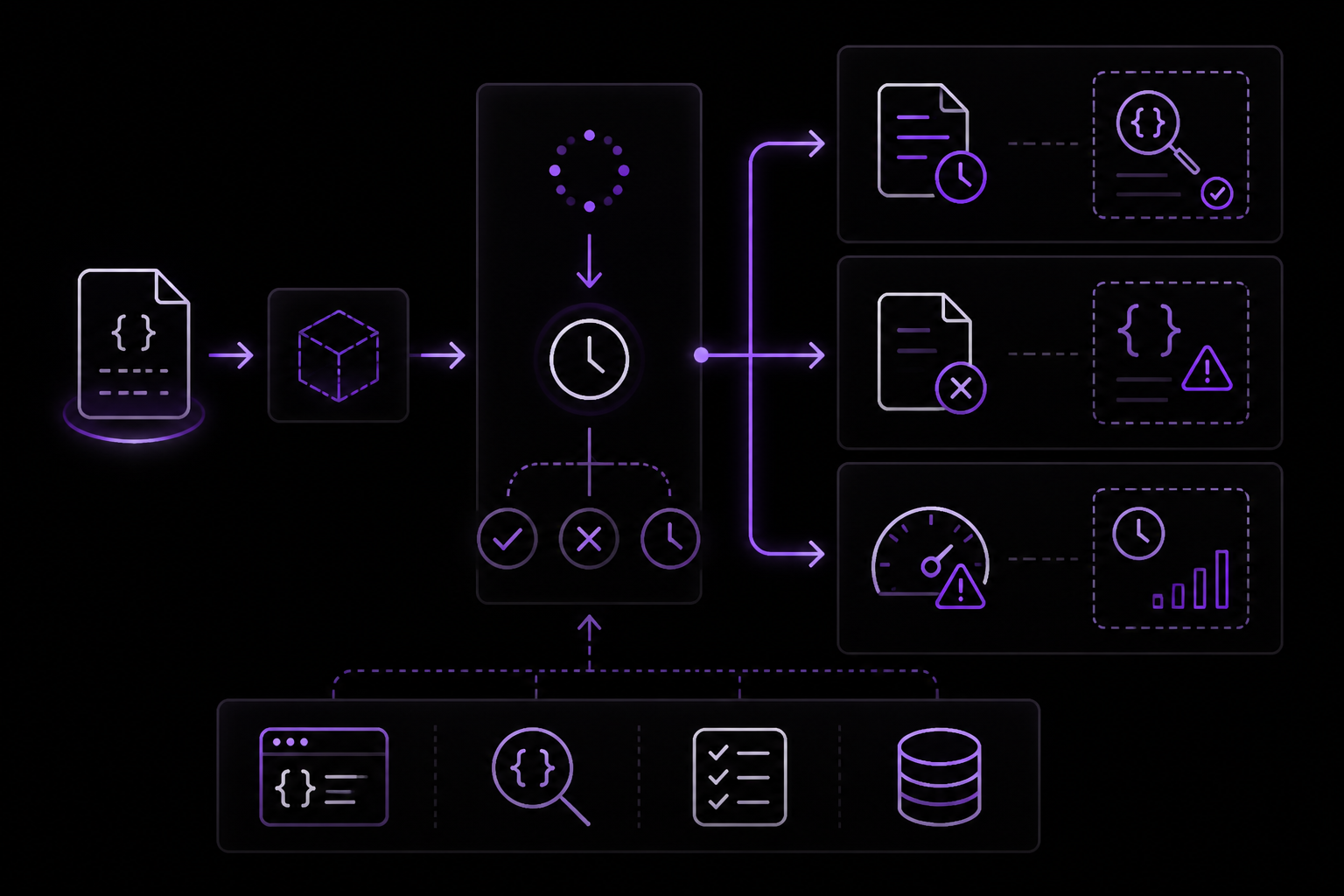
How It Works
- You prepare a JSONL file where each line is a separate request. Each request must include a unique
custom_id, the API endpoint (e.g.,/v1/chat/completions), the HTTP method (POST), and the request body. - You upload this file using the Files API with the purpose set to
batch. - You create a batch job by referencing the file ID.
- The API processes the file asynchronously. You can poll the batch status or set up a webhook to be notified when it completes.
- Once complete, you download the output file containing the results for each request.
Cost Savings
According to the official documentation, the Batch API offers a 50% discount on token usage compared to the standard API. This discount applies to both input and output tokens. For example, if a real-time request costs $0.01, the same request via the batch API costs $0.005. This can lead to significant savings for high-volume workloads.
Setting Up Your Environment
Install the OpenAI Python Library
If you haven't already, install the official OpenAI Python library:
pip install openai
Set Your API Key
Set your API key as an environment variable. This is more secure than hardcoding it in your scripts.
export OPENAI_API_KEY="your-api-key-here"
Alternatively, you can pass the key directly when initializing the client, but this is not recommended for production.
Preparing Your Batch Request File
The batch request file must be in JSONL format. Each line is a JSON object representing a single request. The structure is as follows:
{"custom_id": "request-1", "method": "POST", "url": "/v1/chat/completions", "body": {"model": "gpt-4o", "messages": [{"role": "user", "content": "Hello, world!"}]}}
{"custom_id": "request-2", "method": "POST", "url": "/v1/chat/completions", "body": {"model": "gpt-4o", "messages": [{"role": "user", "content": "What is the capital of France?"}]}}
Field Breakdown
custom_id: A string that you define to identify each request. This ID is returned in the output file so you can match results to requests. It must be unique within the file.method: The HTTP method. For the Chat Completions API, this is alwaysPOST.url: The API endpoint. For chat completions, use/v1/chat/completions. For the Responses API, use/v1/responses.body: The request body as a JSON object. This is the same payload you would send in a real-time request, includingmodel,messages,max_tokens,temperature, etc.
Example: Multiple Requests with Different Parameters
You can include different models or parameters for each request. For example:
{"custom_id": "request-1", "method": "POST", "url": "/v1/chat/completions", "body": {"model": "gpt-4o", "messages": [{"role": "user", "content": "Summarize this article."}], "max_tokens": 100}}
{"custom_id": "request-2", "method": "POST", "url": "/v1/chat/completions", "body": {"model": "gpt-4o-mini", "messages": [{"role": "user", "content": "Translate to French: Hello."}], "temperature": 0.3}}
Important Notes
- Each line must be a valid JSON object. No trailing commas.
- The file must be saved with a
.jsonlextension. - The maximum file size is 100 MB. For larger workloads, you can split the data into multiple batch jobs.
- The
custom_idmust be unique across all requests in the file. Duplicate IDs will cause the batch to fail.
Uploading the Batch File
Once your JSONL file is ready, upload it using the Files API. The purpose must be set to batch.
Python Example
from openai import OpenAI

client = OpenAI()

batch_file = client.files.create(
    file=open("batch_requests.jsonl", "rb"),
    purpose="batch"
)

print(batch_file.id)  # e.g., "file-abc123"
cURL Example
curl https://api.openai.com/v1/files \
  -H "Authorization: Bearer $OPENAI_API_KEY" \
  -F purpose="batch" \
  -F file="@batch_requests.jsonl"
This returns a file object with an id field. Save this ID; you will need it to create the batch job.
Creating the Batch Job
With the file ID, you can now create a batch job.
Python Example
batch_job = client.batches.create(
    input_file_id=batch_file.id,
    endpoint="/v1/chat/completions",
    completion_window="24h"
)

print(batch_job.id)  # e.g., "batch-xyz789"
Parameters
input_file_id: The ID of the uploaded file.endpoint: The API endpoint to use. Must match theurlfield in your JSONL file. Options are/v1/chat/completionsand/v1/responses.completion_window: The maximum time to wait for completion. Currently, only"24h"is supported.
cURL Example
curl https://api.openai.com/v1/batches \
  -H "Authorization: Bearer $OPENAI_API_KEY" \
  -H "Content-Type: application/json" \
  -d '{
    "input_file_id": "file-abc123",
    "endpoint": "/v1/chat/completions",
    "completion_window": "24h"
  }'
Monitoring Batch Status
You can poll the batch status to see when it completes.
Python Example
batch_status = client.batches.retrieve(batch_job.id)
print(batch_status.status)
Possible Statuses
validating: The input file is being validated.in_progress: The batch is being processed.completed: The batch has finished successfully.failed: The batch failed. Check theerrorsfield for details.expired: The batch took longer than thecompletion_window.cancelling: A cancellation request is in progress.cancelled: The batch was cancelled.
Using Webhooks for Notifications
You can set up a webhook to be notified when the batch completes. This is more efficient than polling. To do this, you need to configure a webhook endpoint in your OpenAI dashboard and specify it when creating the batch. The official documentation does not provide a direct parameter for this in the batch creation call, but you can use the Webhooks API to listen for batch completion events.
Downloading Results
Once the batch status is completed, you can download the output file.
Python Example
# Get the output file ID
batch = client.batches.retrieve(batch_job.id)
output_file_id = batch.output_file_id

# Download the file content
file_content = client.files.content(output_file_id).read()

# Save to a file
with open("batch_output.jsonl", "wb") as f:
    f.write(file_content)
Output File Format
The output file is also in JSONL format. Each line corresponds to a request and includes the custom_id, the HTTP status code, and the response body.
{"id": "batch_req_abc123", "custom_id": "request-1", "response": {"status_code": 200, "request_id": "req_xyz789", "body": {"id": "chatcmpl-123", "object": "chat.completion", "created": 1712345678, "model": "gpt-4o-2024-05-13", "choices": [{"index": 0, "message": {"role": "assistant", "content": "Hello! How can I help you?"}, "finish_reason": "stop"}], "usage": {"prompt_tokens": 10, "completion_tokens": 7, "total_tokens": 17}}}, "error": null}
{"id": "batch_req_def456", "custom_id": "request-2", "response": {"status_code": 200, "request_id": "req_abc123", "body": {"id": "chatcmpl-456", "object": "chat.completion", "created": 1712345679, "model": "gpt-4o-2024-05-13", "choices": [{"index": 0, "message": {"role": "assistant", "content": "The capital of France is Paris."}, "finish_reason": "stop"}], "usage": {"prompt_tokens": 12, "completion_tokens": 6, "total_tokens": 18}}}, "error": null}
If a request failed, the error field will contain details instead of being null.
Error Handling
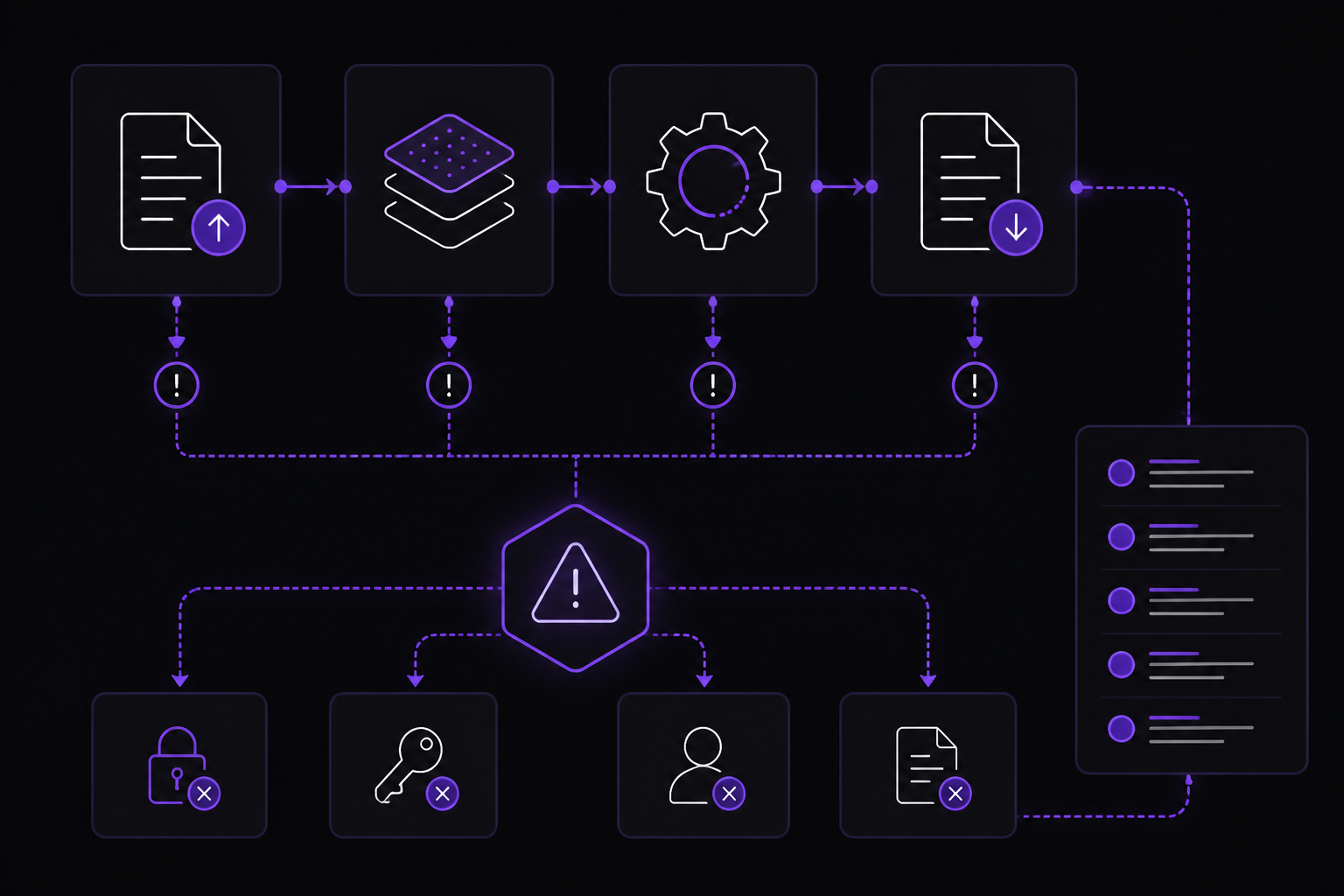
Errors can occur at multiple stages: file upload, batch creation, processing, or result download. The official error codes guide provides a comprehensive list of possible errors. Here are the most relevant ones for batch processing:
File Upload Errors
401 - Invalid Authentication: Your API key is invalid or revoked. Check your key and generate a new one if necessary.401 - Incorrect API key provided: There is a typo or extra space in your API key. Clear your browser cache or generate a new key.401 - You must be a member of an organization to use the API: Your account is not part of an organization. Contact support or ask your organization manager to invite you.401 - IP not authorized: Your request IP does not match the configured IP allowlist. Update your allowlist or send from the correct IP.403 - Country, region, or territory not supported: You are accessing the API from an unsupported location. See the supported countries page for more information.429 - Rate limit reached for requests: You are sending requests too quickly. Pace your requests and implement exponential backoff.429 - You exceeded your current quota, please check your plan and billing details: You have run out of credits or hit your maximum monthly spend. Buy more credits or increase your limits.500 - The server had an error while processing your request: Issue on OpenAI's servers. Retry after a brief wait and check the status page.503 - The engine is currently overloaded, please try again later: Servers are experiencing high traffic. Retry after a brief wait.503 - Slow Down: A sudden increase in your request rate is impacting service reliability. Reduce your request rate to its original level, maintain it for at least 15 minutes, then gradually increase.
Python Library Errors
When using the Python library, you may encounter these exceptions:
APIConnectionError: Issue connecting to OpenAI services. Check your network settings, proxy configuration, SSL certificates, or firewall rules.APITimeoutError: Request timed out. Retry after a brief wait.AuthenticationError: Your API key or token was invalid, expired, or revoked. Check your key and generate a new one if needed.BadRequestError: Your request was malformed or missing required parameters. Check the error message for specifics and review the API documentation.ConflictError: The resource was updated by another request. Retry the update.InternalServerError: Issue on OpenAI's side. Retry after a brief wait and contact support if it persists.NotFoundError: Requested resource does not exist. Ensure you are using the correct resource identifier.PermissionDeniedError: You don't have access to the requested resource. Check your API key, organization ID, and resource ID.RateLimitError: You have hit your assigned rate limit. Pace your requests and implement exponential backoff.UnprocessableEntityError: Unable to process the request despite the format being correct. Try the request again.
Handling Errors Programmatically
The official documentation recommends handling errors programmatically. Here is a Python example:
import openai
from openai import OpenAI

client = OpenAI()

try:
    # Make your OpenAI API request here
    response = client.responses.create(
        model="gpt-4o",
        input="Hello world"
    )
except openai.APIError as e:
    # Handle API error here, e.g. retry or log
    print(f"OpenAI API returned an API Error: {e}")
    pass
except openai.APIConnectionError as e:
    # Handle connection error here
    print(f"Failed to connect to OpenAI API: {e}")
    pass
except openai.RateLimitError as e:
    # Handle rate limit error (we recommend using exponential backoff)
    print(f"OpenAI API request exceeded rate limit: {e}")
    pass
Batch-Specific Errors
If a batch job fails, you can check the errors field on the batch object. This field contains an array of error objects, each with a code and message. Common batch errors include:
invalid_json: The input file contains malformed JSON.invalid_custom_id: Acustom_idis missing or duplicated.invalid_endpoint: The endpoint in the batch creation does not match theurlfield in the JSONL file.rate_limit_exceeded: The batch exceeded the rate limit for the endpoint.timeout: The batch took longer than thecompletion_window.
Advanced Details
Batch Size and Limits
- The maximum file size for a single batch is 100 MB.
- There is no limit on the number of requests per file, as long as the file size is under 100 MB.
- The maximum number of tokens per batch is 2 billion.
- You can have up to 100 active batches per organization.
Cost Calculation
Batch API costs are 50% less than real-time API costs. For example, if the real-time price for gpt-4o is $5.00 per 1M input tokens, the batch price is $2.50 per 1M input tokens. Output tokens are similarly discounted. You can find the exact pricing for each model on the pricing page.
Retry Logic
For failed requests within a batch, you cannot retry individual requests. Instead, you must create a new batch with only the failed requests. To do this, parse the output file, identify requests where the error field is not null, extract their custom_id and original body, and create a new JSONL file with those requests. Then upload and create a new batch.
Using the Responses API
You can also use the Batch API with the Responses API endpoint (/v1/responses). The process is identical, except the url field in your JSONL file should be /v1/responses, and the body should follow the Responses API format.
Troubleshooting
Batch Job Stays in "validating" Status
If your batch job stays in the validating status for more than a few minutes, it may indicate an issue with the input file. Check the file for malformed JSON or duplicate custom_id values. You can also try uploading a smaller file to test.
Batch Job Fails with "invalid_json" Error
This means one or more lines in your JSONL file are not valid JSON. Use a JSON validator to check each line. Common issues include trailing commas, unescaped quotes, or missing brackets.
Batch Job Fails with "rate_limit_exceeded" Error
Your batch job exceeded the rate limit for the endpoint. This is rare because batch jobs have their own rate limits, but it can happen if you have many concurrent batches. Wait for some batches to complete before submitting new ones.
Output File Contains Errors for Some Requests
If only some requests failed, check the error field in the output file. Common errors include:
invalid_model: The model specified in the request body is not available or does not exist.invalid_messages: The messages array is malformed or missing required fields.context_length_exceeded: The request exceeded the model's context window.
To handle these, you can modify the request body and resubmit the failed requests in a new batch.
API Key Issues
If you encounter 401 or AuthenticationError, follow these steps:
- Check that you are using the correct API key and organization ID.
- If unsure, generate a new API key from the dashboard.
- Ensure the key has not been revoked or expired.
- Clear your browser cache if using a web-based tool.
- Check that your IP address is allowed in your project's IP allowlist.
Network Issues
If you encounter APIConnectionError or APITimeoutError:
- Check your internet connection.
- Verify your proxy settings are compatible with OpenAI's services.
- Ensure your SSL certificates are valid.
- Check your firewall rules are not blocking OpenAI's endpoints.
- If using a container, ensure it has the correct permissions to send and receive traffic.
Persistent Errors
If an error persists, contact OpenAI support via chat with the following information:
- The model you were using
- The error message and code you received
- The request data and headers you sent
- The timestamp and timezone of your request
- Any other relevant details
You can also post in the OpenAI Community Forum, but be sure to omit any sensitive information.
Going Further
Now that you understand the basics of the Batch API, you can explore more advanced topics:
- Webhooks: Set up webhooks to receive real-time notifications when batch jobs complete, instead of polling.
- Error Handling: Implement robust retry logic with exponential backoff for transient errors.
- Cost Optimization: Experiment with different models (e.g.,
gpt-4o-minivs.gpt-4o) to balance cost and quality for your specific use case. - Large-Scale Processing: For workloads exceeding 100 MB, split your data into multiple batch files and process them concurrently.
- Monitoring: Use the OpenAI dashboard to monitor your batch usage and costs.
- Responses API: If you are using the Responses API, adapt the batch request format to use the
/v1/responsesendpoint. - Community Resources: Check the OpenAI Community Forum for tips and scripts shared by other developers.
Comments
More Guides
View allpromptingChatGPT for Coding: Prompt Patterns That Produce Working Code
Learn how to write prompts for ChatGPT that reliably generate working code. Covers core concepts, setup, and specific patterns for different coding tasks.
N
Neura Market Research 4
apiOpenAI Vision API: Processing Images with GPT Models
Learn how to use the OpenAI Vision API to analyze images with GPT models. Covers setup, sending images via URL, Base64, or file ID, controlling detail levels, cost calculation, and troubleshooting.
N
Neura Market Research 13
apiStreaming ChatGPT Responses in Web Applications: A Complete Guide
Learn how to stream ChatGPT responses in web applications using the OpenAI API. This guide covers setup, implementation in JavaScript and Python, event handling, and troubleshooting for real-time text generation.
N
Neura Market Research 6
apiOpenAI Embeddings for Semantic Search: A Practical Guide
Learn how to use OpenAI's text embedding models for semantic search, clustering, recommendations, and classification. This guide covers concepts, setup, API usage, dimension reduction, and practical tips from official documentation and community experience.
N
Neura Market Research 6
apiHandling OpenAI API Rate Limits and Quota Errors: A Complete Guide
Learn how to handle OpenAI API rate limits (429) and quota errors. Covers error types, exponential backoff, Python library exceptions, and troubleshooting steps for production applications.
N
Neura Market Research 21
apiOpenAI Structured Outputs: Guaranteed JSON Schemas with Function Calling
Learn how to use OpenAI Structured Outputs to guarantee JSON schema conformance from GPT models. Covers function tool definitions, strict mode, tool call handling, and best practices for both Chat Completions and Responses APIs.
N
Neura Market Research 2
Ready-made automations for this
Workflows from the Neura Market marketplace related to this ChatGPT resource
- AI-Powered RAG Document Processing & Chatbot with Google Drive, Supabase, OpenAIn8n · $24.99 · Related topic
- AI-Powered Information Monitoring with OpenAI, Google Sheets, Jina AI, and Slackn8n · $24.99 · Related topic
- Learn JavaScript Data Processing with CodeNode: Filtering, Analysis, & Export Examplesn8n · $9.99 · Related topic
- Centralized Error Monitoring & Alerts via Telegram, Slack & Other Messengersn8n · $9.99 · Related topic