 Perplexity
Back to Guides api
apiThe
The
The
The
The
The
The
 productivity
Perplexity Sonar Models: Choosing Between Online and Chat Models
Neura Market Research July 23, 2026
8 views
Learn how to choose between Perplexity's online (web-grounded) and chat (non-search) models when using the Agent API. Covers setup, prompt design, tool configuration, and cost optimization.
This guide covers how to choose between Perplexity's online (web-grounded) and chat (non-search) models when using the Agent API. It is for developers who want to understand when to use each model type, how to configure them, and how to write effective prompts that work with the agent loop.
What You Need
Before you start, you need the following:
- A Perplexity API key. Generate one from the API Keys tab in the API Portal. See the API Groups page to learn more about API groups.
- The Perplexity SDK installed. For Python:
pip install perplexityai. For TypeScript:npm install @perplexity-ai/perplexity_ai. - Your API key set as an environment variable. On macOS/Linux:
export PERPLEXITY_API_KEY="your_api_key_here". On Windows:setx PERPLEXITY_API_KEY "your_api_key_here". - Familiarity with making basic API calls. The Quickstart guide covers the first call.
Understanding the Agent API and the Two Model Modes
The Perplexity Agent API is not a simple single-turn LLM call. It runs a bounded multi-turn loop. On each turn, the model can call a tool (such as web_search), read the result, and decide whether to continue or answer. This loop is the core difference between an "online" model and a "chat" model.
Online Models (Web-Grounded)
Online models use the web_search tool to retrieve current information from the internet before generating a response. This is the default behavior when you use a preset (like low, medium, or fast) or when you explicitly include the web_search tool in your request. The model is grounded in real-time data, which makes it ideal for questions that require up-to-date facts, recent events, or information that changes frequently.
Chat Models (Non-Search)
Chat models do not use the web_search tool. They rely entirely on the model's internal knowledge (its training data) to generate responses. This mode is faster and cheaper because it avoids the cost and latency of web searches. It is suitable for tasks that do not require external grounding, such as creative writing, code generation, or answering questions about well-established facts that are within the model's training cutoff.
How to Choose
The official documentation provides clear guidance. Use the Agent API when:
- You want web-grounded answers with built-in citations. Send a message and get a researched, cited response, with conversation context when you need it.
- You prefer simplicity: pick a preset and get a researched answer in one call, or take granular control over model, reasoning, token budgets, and tools.
- You need multi-provider access to OpenAI, Anthropic, Google, xAI, and Perplexity's own Sonar model through one API.
This is best for AI assistants, research and Q&A tools, agentic workflows, and custom AI applications.
If you need raw search results without LLM processing, use the Search API instead. If you need embeddings, use the Embeddings API.
Setting Up the Agent API Call
Using Presets (Simplest Path)
The easiest way to use the Agent API is with a preset. Presets are pre-configured system prompts that cover tool-call discipline, query construction, citation, and formatting. The available presets are fast, low, and medium. The official documentation shows an example using the low preset:
from perplexity import Perplexity

client = Perplexity()

response = client.responses.create(
    preset = "low",
    input = "Summarize the core findings of the original 'Attention Is All You Need' transformer paper and explain why it changed NLP.",
)

print(response.output_text)
import Perplexity from '@perplexity-ai/perplexity_ai';

const client = new Perplexity();

const response = await client.responses.create({
    preset: "low",
    input: "Summarize the core findings of the original 'Attention Is All You Need' transformer paper and explain why it changed NLP.",
});

console.log(response.output_text);
curl https://api.perplexity.ai/v1/agent \
  -H "Authorization: Bearer $PERPLEXITY_API_KEY" \
  -H "Content-Type: application/json" \
  -d '{
    "preset": "low",
    "input": "Summarize the core findings of the original 'Attention Is All You Need' transformer paper and explain why it changed NLP."
  }' | jq
What happens here: The preset parameter tells the API to use a specific system prompt. The input parameter is the user's question. The model will automatically use the web_search tool to find relevant information and then generate a cited response. The response includes structured output with tool usage and citations, as shown in the example response in the documentation.
Without Presets (Granular Control)
If you do not use a preset, you have full control over the system prompt via the instructions parameter. You also control which tools are available. To create a chat model (no web search), you simply omit the web_search tool from the tools array. To create an online model, you include it.
Example: Chat Model (No Search)
from perplexity import Perplexity

client = Perplexity()

response = client.responses.create(
    instructions = "You are a helpful assistant that answers questions based on your internal knowledge. Do not search the web.",
    input = "Explain the concept of recursion in programming.",
    tools = []  # No tools means no web search
)

print(response.output_text)
Example: Online Model (With Search)
from perplexity import Perplexity

client = Perplexity()

response = client.responses.create(
    instructions = "You are a helpful assistant that always searches the web for the most current information.",
    input = "What is the latest news about SpaceX Starship?",
    tools = [{"type": "web_search"}]
)

print(response.output_text)
Key difference: In the first example, tools is an empty list, so the model cannot call any external tools. It will answer from its internal knowledge. In the second example, tools includes {"type": "web_search"}, so the model can search the web. The model will decide whether to call the tool based on the query.
The Prompt Guide: Instructions vs. Input
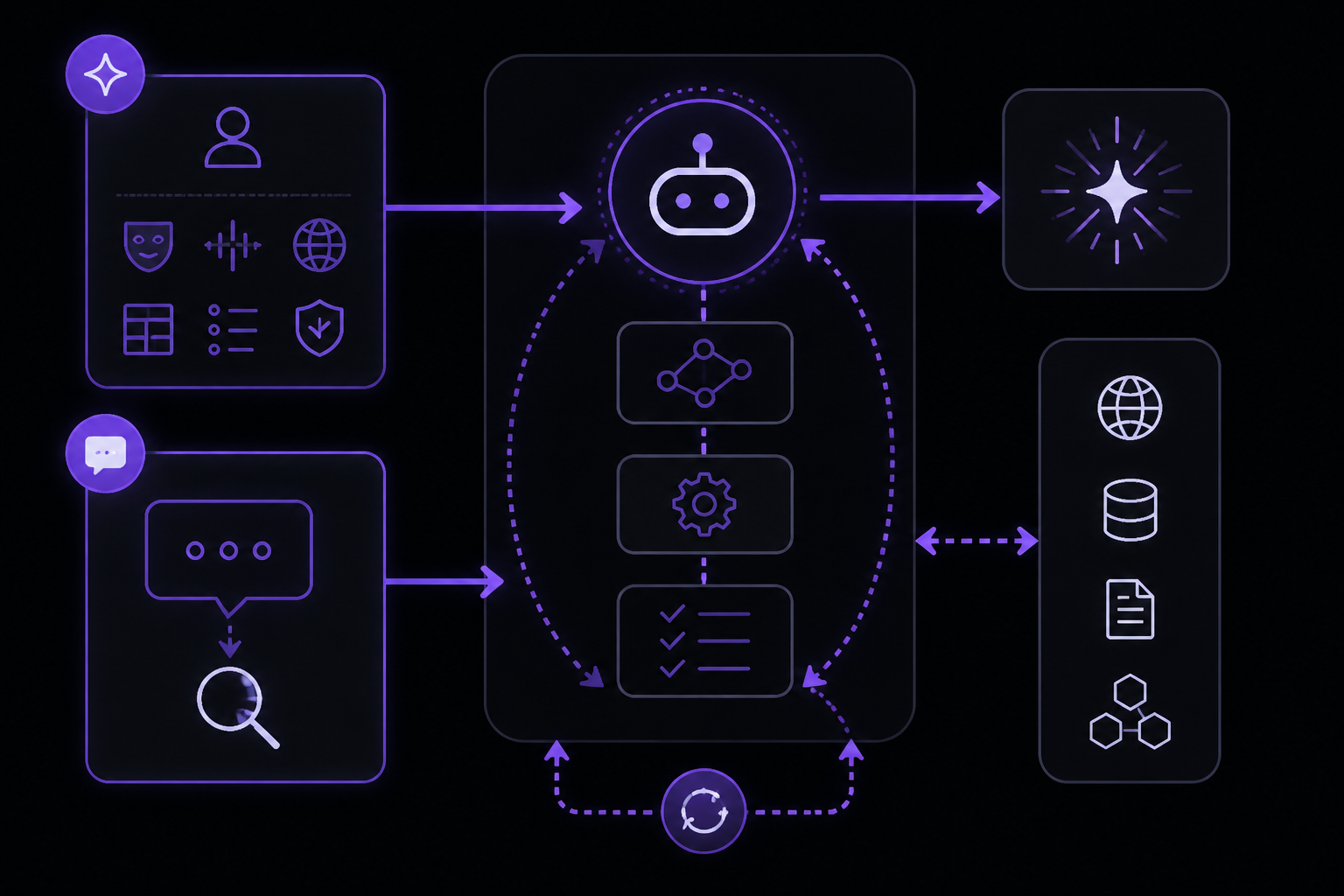
The official Prompt Guide explains that two parameters drive most of the prompt design for the Agent API:
instructions: Sets the role, tone, formatting, and grounding rules that apply regardless of the user's question.input: Holds the actual question. It also seeds the first search query, so specificity here directly improves retrieval.
Instructions Parameter
Use the instructions parameter for role, tone, language, formatting, and grounding rules. Instructions apply on every turn of the agent loop, so put things here that hold regardless of the user's question.
Important: Setting instructions with a preset replaces the preset's system prompt. It does not append. Each preset (fast, low, medium) already covers tool-call discipline, query construction, citation, and formatting, so the preset's prompt should be overridden only when app-specific behavior is needed. Without a preset, instructions is the only system prompt the model sees.
Example instructions block from the documentation:
You are a financial analyst writing for retail investors.
Rules:
- Aim for brief sentences and paragraphs.
- Define jargon the first time you use it.
- Prefer concrete numbers over vague qualifiers ("up 12% YoY" not "growing strongly").
Grounding rules:
- Cite sources inline by domain, e.g. (reuters.com). Do not write full URLs.
- If searches return no relevant results after trying alternative phrasings, or if the only matches are off-topic (different company, different fiscal year, etc.), say so explicitly rather than substituting related results.
Best practices for instructions:
- Keep
instructionsfocused. They are re-read on every turn of the agent loop, so bloat compounds across tool calls. - If your block is growing long, check whether parts of it would be better expressed as request parameters. Use
response_formatwith a JSON schema for machine-readable output,web_searchfilters for retrieval constraints, or move query-specific framing intoinput. - Built-in tools like
web_searchandfetch_urlare tuned to work well without prompt-side guidance. You do not need to describe what they do, when to call them, or how to construct queries. Adjust tool-call count with themax_stepsparameter and search constraints withweb_searchfilters. - If you are using custom
instructionsand want to nudge how the model uses built-in tools, you can reference them there as well. - For custom function tools you define yourself, the model relies on the
descriptionand parameter schema you provide, so make those as clear as you can. You can reinforce the tool's role ininstructionsif the description alone is not enough to steer behavior.
Input Parameter
Use the input parameter for the actual query you want answered. Input strongly shapes search behavior, so descriptive and specific phrasing directly improves retrieval. Vague inputs lead to vague searches.
Example user prompt from the documentation:
What are the best sushi restaurants in the world currently?
Why specificity matters: The input parameter seeds the first search query. If you ask "Tell me about AI," the model might search for a broad, generic term. If you ask "Explain how hosted LLM API pricing is typically structured: input vs output tokens, context window limits, and the implication for long-document workloads," the model will generate much more targeted search queries, leading to better results.
API Example with Both Parameters
The documentation provides a complete example using both instructions and input:
from perplexity import Perplexity

client = Perplexity()

response = client.responses.create(
    preset = "low",
    input = "Explain how hosted LLM API pricing is typically structured: input vs output tokens, context window limits, and the implication for long-document workloads.",
    instructions = "You are a concise, well-researched assistant. If searches still return no relevant results after trying alternative phrasings, say so explicitly rather than guessing."
)

print(response.output_text)
import Perplexity from '@perplexity-ai/perplexity_ai';

const client = new Perplexity();

const response = await client.responses.create({
    preset: "low",
    input: "Explain how hosted LLM API pricing is typically structured: input vs output tokens, context window limits, and the implication for long-document workloads.",
    instructions: "You are a concise, well-researched assistant. If searches still return no relevant results after trying alternative phrasings, say so explicitly rather than guessing."
});

console.log(response.output_text);
curl https://api.perplexity.ai/v1/agent \
  -H "Authorization: Bearer $PERPLEXITY_API_KEY" \
  -H "Content-Type: application/json" \
  -d '{
    "preset": "low",
    "input": "Explain how hosted LLM API pricing is typically structured: input vs output tokens, context window limits, and the implication for long-document workloads.",
    "instructions": "You are a concise, well-researched assistant. If searches still return no relevant results after trying alternative phrasings, say so explicitly rather than guessing."
  }' | jq
What happens in this call:
- The
presetislow, which provides a base system prompt for tool usage and citation. - The
instructionsparameter overrides the preset's system prompt with the custom instructions. The model will now be a "concise, well-researched assistant." - The
inputparameter is a detailed, specific question about LLM API pricing. - The model will use the
web_searchtool to find relevant information, then generate a cited response.
Advanced Configuration: Tools and Parameters
The tools Array
The tools parameter is an array of tool objects that the model can call. The default tools (when using a preset) are web_search and fetch_url. You can see this in the example response from the Quickstart:
"tools": [
    { "type": "web_search" },
    { "type": "fetch_url" }
]
To create a chat model, you set tools to an empty array []. To create an online model, you include {"type": "web_search"}. You can also include {"type": "fetch_url"} to allow the model to fetch the full content of a specific URL.
The max_steps Parameter
The max_steps parameter controls how many tool-calling iterations the model can make before it must generate a final answer. The default is 3 (as stated in the preset's system prompt: "Make at most three tool calls before concluding"). If you want the model to do more extensive research, you can increase this value. If you want faster responses, you can decrease it.
The web_search Filters
You can pass filters to the web_search tool to constrain retrieval. The documentation mentions that for hard constraints on retrieval (allowed domains, date ranges, region), you should use request parameters rather than prose. The exact filter parameters are not detailed in the provided sources, but the concept is that you can restrict searches to specific domains (e.g., reuters.com), date ranges (e.g., past week), or geographic regions.
The response_format Parameter
Use response_format with a JSON schema for machine-readable output. This is useful when you want the model to return structured data (like a JSON object) instead of free-form text.
The max_output_tokens Parameter
This parameter limits the length of the model's response. It is useful for controlling costs and ensuring responses stay within a desired length.
The temperature and top_p Parameters
These are standard LLM parameters that control the randomness of the output. temperature (default 1) controls the "creativity" of the response. Lower values (e.g., 0.2) make the output more deterministic and focused. Higher values (e.g., 0.8) make it more random and creative. top_p (default 1) is an alternative to temperature that controls nucleus sampling.
The frequency_penalty and presence_penalty Parameters
These parameters control the likelihood of the model repeating itself. frequency_penalty (default 0) penalizes tokens that have already appeared in the text. presence_penalty (default 0) penalizes tokens that have already appeared at all. Higher values make the model less likely to repeat itself.
Understanding the Response Object
The response from the Agent API is a rich object. Here is a breakdown of the key fields from the example response in the Quickstart:
{
  "id": "resp_1234567890",
  "created_at": 1756485272,
  "model": "openai/gpt-5.1",
  "object": "response",
  "output": [
    {
      "type": "message",
      "id": "msg_abc123",
      "role": "assistant",
      "status": "completed",
      "content": [
        {
          "type": "output_text",
          "text": "Recent developments in AI include...",
          "annotations": [
            {
              "type": "citation",
              "url": "https://example.com/article1"
            }
          ],
          "logprobs": []
        }
      ]
    }
  ],
  "usage": {
    "cost": {
      "currency": "USD",
      "input_cost": 0.0046,
      "output_cost": 0.0078,
      "tool_calls_cost": 0.0025,
      "total_cost": 0.0149
    },
    "input_tokens": 3681,
    "input_tokens_details": {
      "cached_tokens": 0
    },
    "output_tokens": 780,
    "output_tokens_details": {
      "reasoning_tokens": 0
    },
    "tool_calls_details": {
      "search_web": {
        "invocation": 1
      }
    },
    "total_tokens": 4461
  },
  "status": "completed",
  "error": null,
  "instructions": "...",
  "tools": [
    { "type": "web_search" },
    { "type": "fetch_url" }
  ]
}
Key fields to understand:
id: The unique identifier for the response.model: The model that was used (e.g.,openai/gpt-5.1). This shows the multi-provider access.output: An array of output items. In this case, it is a single message withtype: "message". Thecontentarray contains the actual response text and any annotations (citations).usage: Detailed token and cost breakdown.input_cost,output_cost, andtool_calls_costare separate.tool_calls_detailsshows how many times each tool was invoked.status: The status of the response."completed"means the model finished successfully.error: Any error that occurred.nullmeans no error.instructions: The system prompt that was used.tools: The tools that were available to the model.
Troubleshooting
The Model is Not Searching the Web
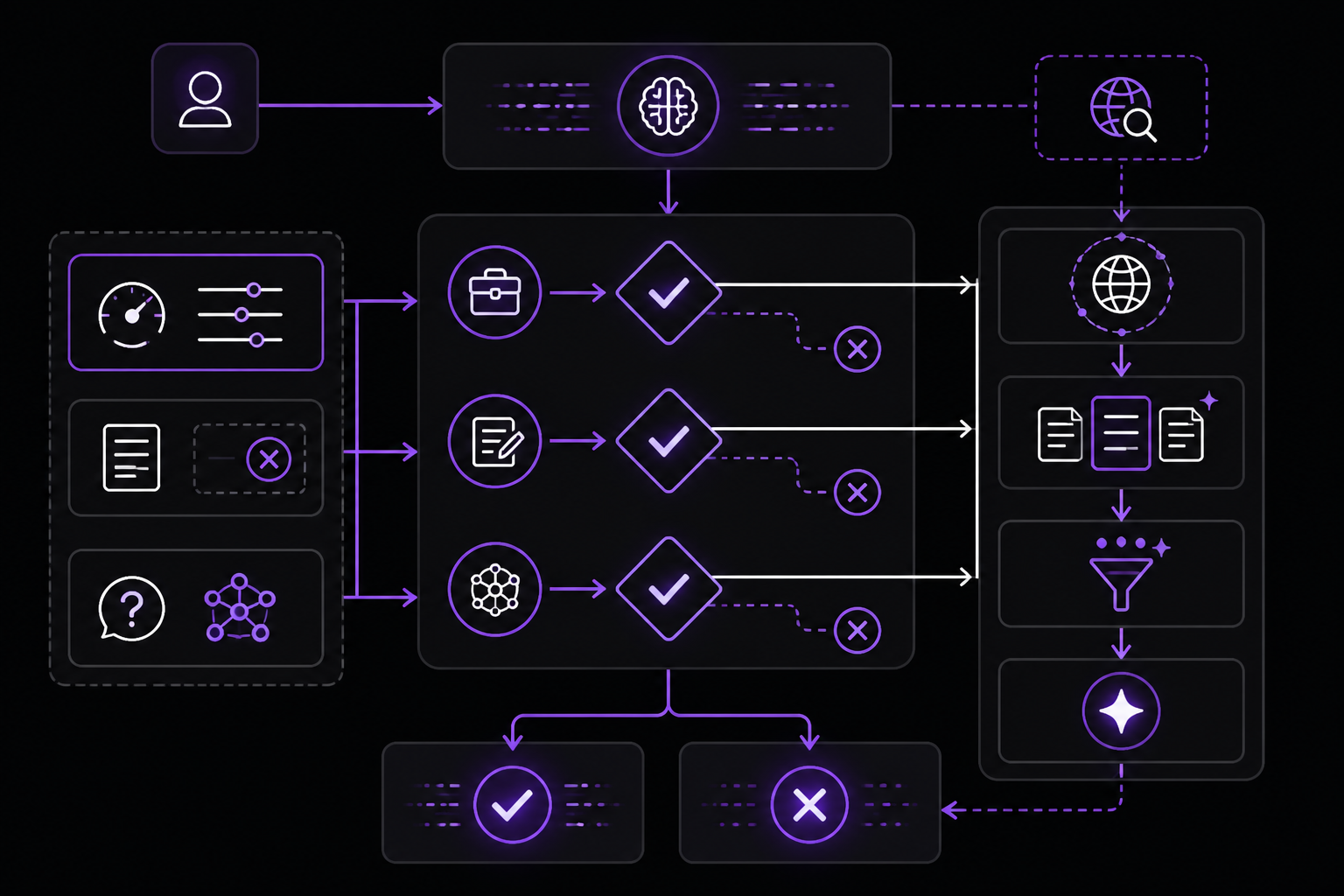
If you expect the model to search the web but it is not doing so, check the following:
- Are you using a preset? Presets like
low,medium, andfastinclude theweb_searchtool by default. If you are not using a preset, you must explicitly include{"type": "web_search"}in thetoolsarray. - Is your
instructionsparameter overriding the preset? If you setinstructions, it replaces the preset's system prompt. If your custom instructions tell the model not to search, it will not search. - Is the query something the model can answer from internal knowledge? The model may decide it does not need to search if it thinks it already knows the answer. To force a search, you can add a phrase like "Search the web for the most current information" to your
inputorinstructions.
The Model is Searching When It Should Not
If you want a chat model (no search) but the model is still searching, ensure that:
- You are not using a preset. Presets always include the
web_searchtool. - Your
toolsarray is empty:"tools": []. - Your
instructionsparameter explicitly tells the model not to search.
The Response is Too Short or Too Long
Use the max_output_tokens parameter to control the length of the response. If the response is being truncated, increase this value. If it is too long and costing too much, decrease it.
The Model is Making Too Many Tool Calls
Use the max_steps parameter to limit the number of tool-calling iterations. The default is 3. If you want faster responses, set it to 1 or 2. If you want more thorough research, increase it.
The Cost is Higher Than Expected
Review the usage object in the response. The main cost drivers are:
input_tokens: The size of your prompt, includinginstructionsandinput.output_tokens: The length of the model's response.tool_calls_cost: The cost of each tool invocation.
To reduce costs:
- Keep your
instructionsandinputconcise. - Limit
max_output_tokens. - Limit
max_stepsto reduce the number of tool calls. - Use a cheaper preset or model if available.
The Model is Not Citing Sources
If you are using a preset, citations are built into the system prompt. If you are not using a preset, you must include citation instructions in your instructions parameter. The documentation's example instructions include: "Cite sources inline by domain, e.g. (reuters.com). Do not write full URLs."
Going Further
- Explore the Search API: If you need raw search results without LLM processing, use the Search API. It returns ranked web search results with titles, URLs, and snippets.
- Explore the Embeddings API: If you need to generate text embeddings for semantic search or RAG, use the Embeddings API.
- Learn about OpenAI Compatibility: Perplexity's API supports the OpenAI Chat Completions format. You can use OpenAI client libraries by pointing to the Perplexity endpoint. See the OpenAI Compatibility Guide for examples.
- Review the API Groups page: This page explains how API keys are organized and what permissions they have.
- Check the pricing page: Pay-as-you-go pricing for all APIs. No subscription required. See the pricing page for current rates.
Comments
More Guides
View allproductivityPerplexity Pro Search: Advanced Research Workflows with the Agent API
Learn how to use the Perplexity Agent API for advanced research workflows. Covers setup, prompt engineering, tool control, cost management, and troubleshooting for multi-step web-grounded research.
N
Neura Market Research 2
Getting Started
Complete Guide to Perplexity AI Search
Everything you need to know about using Perplexity AI for research and information retrieval
S
SearchCraft 2,495
API & Integration
Perplexity API Getting Started Guide
Step-by-step guide to integrating the Perplexity API into your applications
D
DataMinds 2,148
Academic Use
Academic Research with Perplexity
How to use Perplexity AI for rigorous academic research with proper citations
R
ResearchBot 3,698
Getting Started
Perplexity Chrome Extension Guide
Install, configure, and master the Perplexity Chrome extension for instant AI-powered search
D
DeepSearch 4,135
Academic Use
Citation Management in Perplexity
Manage and export citations from Perplexity research for academic papers and reports
P
Perplexity Team 2,246
Ready-made automations for this
Workflows from the Neura Market marketplace related to this Perplexity resource
- Integrate Perplexity Sonar Models for Dynamic AI Responsesn8n · $4.99 · Related topic
- Daily Auto-Generated Tweets from Trending Topics using Perplexity & GPT-4n8n · $4.99 · Related topic
- Automate Job Search and Resume Optimization with AI and Airtablen8n · $14.99 · Related topic
- Integrate Multi-Source AI Agent with OpenAI, Perplexity, and Google Sheetsn8n · $9.99 · Related topic