
Back to Blog android
 ai
ai googlecloud
 discuss
 agents
 agenticarchitect
 ai
ai
Android desktop mode: features, device support, and the OLED screen burn-in problem
Massimo Moffa April 16, 2026
0 views
A true "PC in your pocket" closer to reality
title: Android desktop mode: features, device support, and the OLED screen burn-in problem published: true description: A true "PC in your pocket" closer to reality tags: cover_image: https://dev-to-uploads.s3.amazonaws.com/uploads/articles/ppda3myswpp8gomikuil.png
Use a ratio of 100:42 for best results.
published_at: 2026-04-15 14:35 +0000
The evolution of Android has brought the dream of a true "PC in your pocket" closer to reality, especially with the advent of desktop modes on smartphones. As someone who has actively used and tested these features—most recently on my Pixel 10—I’ve seen both the productivity upside and the rough edges.
My typical setup is intentionally simple: a generic Samsung 1080p monitor, a basic Baseus USB‑C hub, and a wireless keyboard + mouse connected to the hub via a USB dongle. I usually stay in desktop mode for 2–4 hours at a time with auto brightness enabled.
The biggest issue is that the phone display stays on the whole time, often showing static UI. On an OLED panel, that’s a recipe for burn‑in risk. It also adds unnecessary heat, on top of whatever heat the desktop session itself generates.
On top of the burn‑in angle, I’ve also run into reliability bugs. Apps sometimes open on the external desktop, but if you open the same app on the phone, it can "steal" focus and effectively collapse the desktop session back into the mobile experience.
In this article, I’ll break down Android desktop mode, what devices support it, why Pixel currently has a unique OLED risk, and a temporary workaround I built: BlackTop.
TL;DR
- Android desktop mode turns your phone into a multi-window desktop on an external display.
- On some OLED phones (notably Pixel), the phone screen can stay on with static UI during desktop sessions, increasing burn-in risk.
- BlackTop is a temporary workaround that blanks the phone display to reduce that risk while you keep working.
What is android desktop mode?
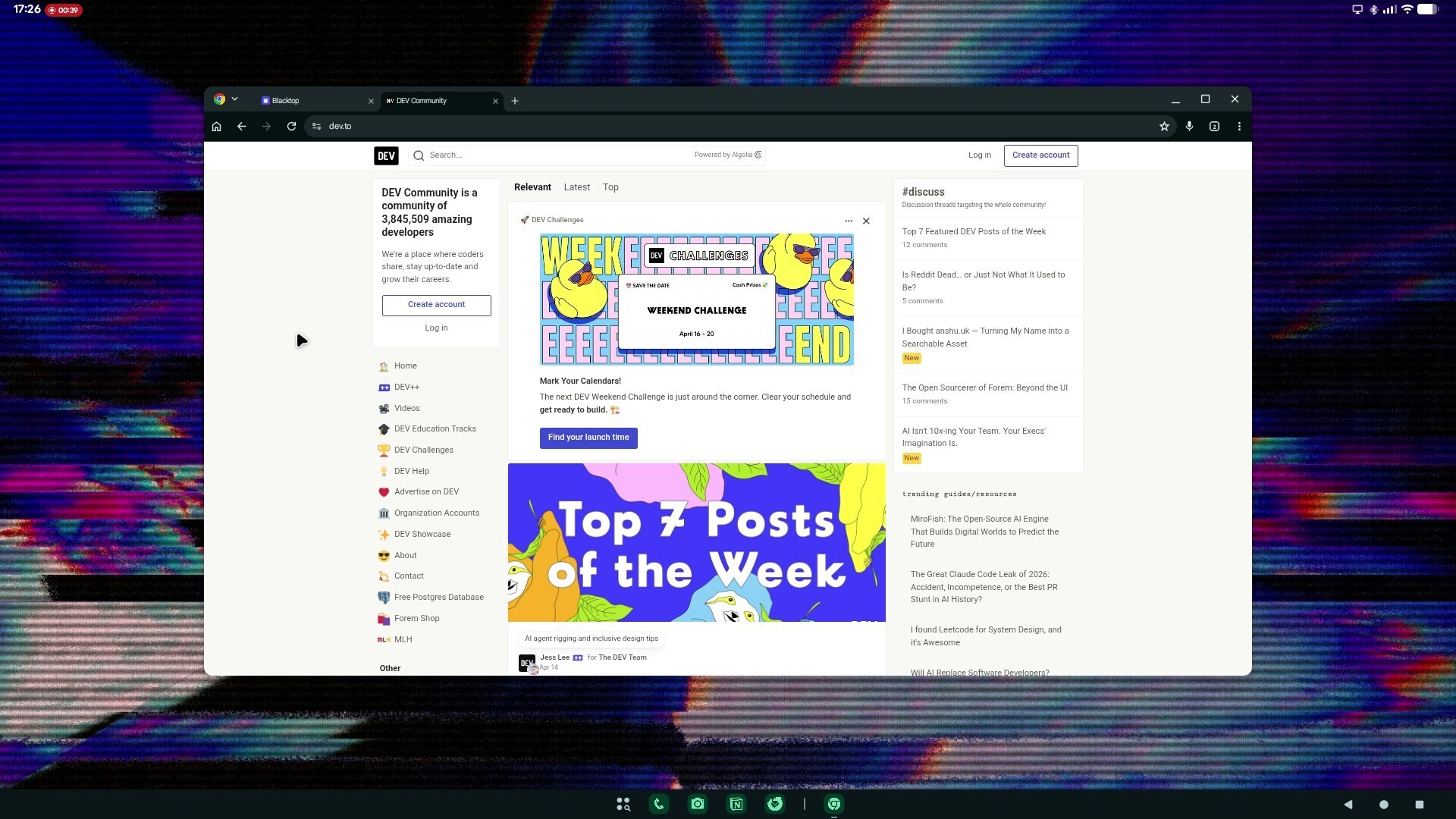
Android desktop mode is a feature that allows a compatible smartphone to project a PC-like interface onto an external display. This transforms the mobile device into a productivity workstation, supporting multiple windows, keyboard and mouse input, and advanced multitasking. The desktop environment is not just a mirrored phone screen, but a separate interface optimized for large displays, similar to what you would expect from a traditional computer.
How does it work?
The core requirement for desktop mode is support for DisplayPort Alt Mode over USB-C, which enables video output to external monitors. Not every USB-C port supports video output: some devices and cheaper hubs/cables carry data and power only.
When a compatible device is connected to a monitor (often via a USB-C hub or adapter), it launches a desktop-style UI. This interface allows users to open multiple resizable windows, use keyboard shortcuts, and interact with apps in a more desktop-like manner. Peripheral support (mouse, keyboard, Ethernet, storage) further enhances the experience.
Which devices support desktop mode?
Samsung DeX
Samsung has been the pioneer in this space with its DeX platform, available since 2017. DeX is supported on a wide range of Galaxy devices, including the latest Galaxy S25 series, Z Fold 6, and many previous flagships like the S8 through S25, Note series, and all generations of the Fold. DeX can be launched via a wired connection or wirelessly on supported TVs and monitors. It offers a mature, feature-rich desktop experience, including multi-window support, drag-and-drop, keyboard shortcuts, and the ability to use the phone as a touchpad.
Google Pixel desktop mode
With Android 16, Google introduced an official desktop mode for Pixel devices, starting with the Pixel 8, 9, and 10. When connected via USB-C to a compatible display, these Pixels can now project a desktop interface. While promising, Google’s implementation is still in its early stages, lacking some of the polish and features of Samsung DeX.
Motorola Ready For
Motorola’s “Ready For” mode provides a similar desktop experience on devices like the Moto G100, G200, and Edge+ series. Ready For can be launched via HDMI, on Windows PCs via an app, or wirelessly to compatible displays. Users praise its clean Android interface and robust performance, sometimes even preferring it to Samsung DeX.
Huawei Easy Projection
Huawei’s Easy Projection is available on many Mate and P series devices. It allows users to cast their phone’s desktop environment to an external display, with features like multi-window multitasking, file management, and quick search from a start menu-like interface. Like DeX and Ready For, it leverages DisplayPort Alt Mode over USB-C.
Other brands
Other manufacturers such as HTC (U series), Asus (ROG and Razer gaming phones), and select LG models (after 2018 updates) also support desktop mode or video output via DisplayPort Alt Mode over USB-C. Some devices offer basic screen mirroring rather than a true desktop environment, and third-party solutions like Maru OS or DisplayLink adapters fill the gaps for unsupported phones, though with limitations.
{% card %}
Pro tip: If your desktop mode lets you turn off the phone screen or switch it into a touchpad mode (like DeX typically does), enable that setting. It reduces static UI on the OLED panel and often lowers heat and battery drain too.
{% endcard %}
The OLED burn-in problem in desktop mode
The issue on pixel devices
While desktop mode is a powerful feature, it comes with a significant risk for devices with OLED displays: screen burn-in.
This is especially problematic on Google Pixel devices running Android 16’s desktop mode. When the phone is connected to an external display, the internal screen can remain fully on and show static UI for the entire desktop session. If you do 2–4 hour sessions regularly, that’s a lot of time with the same elements on screen.
In my case, the two most obvious consequences were:
- OLED risk: the display is effectively "always on" during desktop mode, increasing burn‑in risk.
- Heat: the phone runs noticeably hotter with the display permanently lit, on top of whatever load the desktop session adds.
Unlike Samsung DeX, which typically allows the phone screen to be turned off or repurposed as a touchpad, Google’s desktop mode currently lacks any first‑party option to blank or dim the device’s own display during desktop sessions. This design oversight makes desktop mode much riskier on OLED Pixels than it needs to be.
Is this issue present on other devices?
The problem is not unique to Pixel devices, but its severity and the available mitigations vary by manufacturer. Samsung DeX, Motorola Ready For, and Huawei Easy Projection all provide options to turn off or repurpose the phone’s screen when in desktop mode, greatly reducing the risk of burn-in. On these platforms, the phone’s display can usually be set to sleep, act as a touchpad, or display a screensaver.
In contrast, Google’s implementation currently keeps the phone screen always on during desktop mode, with no built-in way to blank it.
And there’s a second class of issues: stability glitches when exiting desktop mode. In my experience:
- Some home screen widgets render incorrectly after you unplug, and only recover after a reboot.
- In some cases, the Android status bar can freeze the phone after disconnecting. Pulling down the shade triggers a freeze, and the only way to keep using the phone is to lock and unlock it again. A full reboot fixes it more permanently.
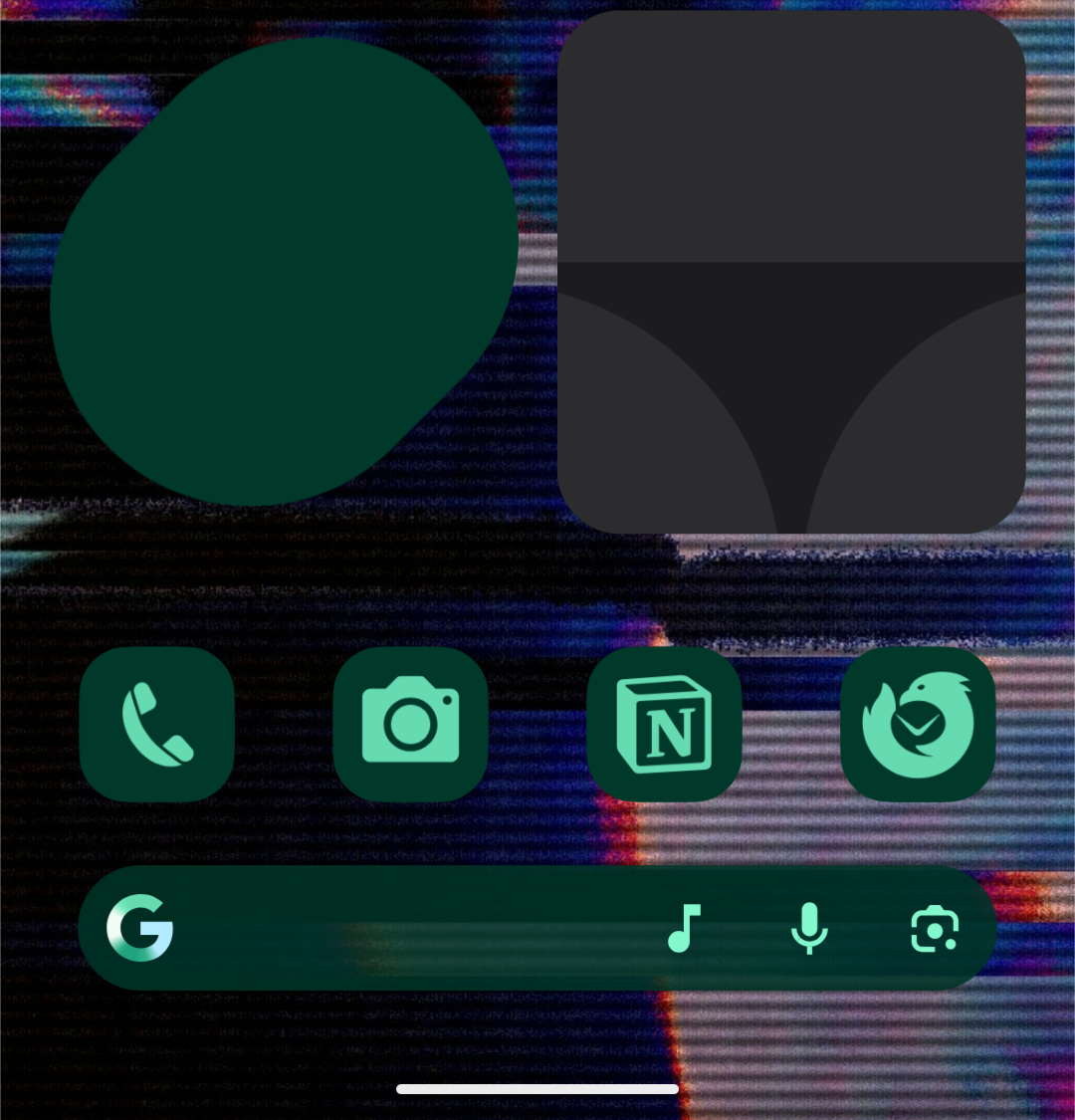
Screenshot: widgets rendering incorrectly after exiting desktop mode (only fixed after reboot).
A workaround that reduced the odds of the status-bar freeze for me was:
- Close all desktop windows.
- Lock the phone screen.
- Then unplug the USB‑C hub.
General screen timeout and OLED burn-in concerns
Disabling screen timeout (intentionally or because of desktop mode) increases the risk of burn-in, battery drain, and overheating on any OLED device. Best practices to avoid burn-in include lowering brightness, using dark mode, enabling dynamic screen savers, and ensuring the screen does not display static content for extended periods.
A temporary solution: Blacktop
Until Google addresses this critical flaw, I have developed a workaround called BlackTop.
{% embed https://github.com/MaxMoffa/blacktop %}
Blacktop is a lightweight, web-based stopgap that blanks the phone’s display while you keep using desktop mode. It requires no special permissions and can work across devices.
What Blacktop does
- Blanks the phone display during desktop-mode sessions to minimize static content on the OLED panel.
What Blacktop does not do
- It does not fix the root cause in Android’s desktop mode.
- It cannot fix desktop-mode bugs (app focus, widgets, status bar behavior).
- It cannot change the behavior of your external monitor.
I urge Google and other Android manufacturers to prioritize a built-in solution that allows users to turn off or blank the phone screen during desktop sessions.
{% cta https://github.com/MaxMoffa/blacktop %}
Check out Blacktop on GitHub
{% endcta %}
Call to action: If you try Blacktop, please share your phone model, Android version, and your typical desktop-mode session length. That feedback helps validate whether the approach generalizes beyond my setup.
Conclusion
Android desktop mode is a transformative feature that turns smartphones into powerful productivity tools. Support is now widespread among flagship devices from Samsung, Google, Motorola, and Huawei, each offering their own take on the desktop experience. However, as my experience with the Pixel 10 shows, there are still critical issues to resolve—most notably, the risk of OLED screen burn-in caused by the phone screen staying on during desktop mode. Until official fixes arrive, solutions like BlackTop are necessary to safeguard your device. I hope this article helps raise awareness and encourages manufacturers to deliver a robust, user-friendly desktop mode that doesn’t compromise device health.
Discussion prompt (good "first comment")
I’m curious to hear from other Pixel owners: have you noticed ghosting, heat issues, or battery drain when using desktop mode for long periods? If you reply, include your Pixel model, Android version, brightness level, and session length.
And for DeX users: what’s the one feature you think Google is missing the most right now?
References
- https://kb.plugable.com/how-to-use-android-16-desktop-mode-with-a-pixel-phone-and-usb-c-display-or-hub
- https://lifehacker.com/tech/android-16-desktop-mode-pixel
- https://nexdock.com/compatible-smartphones/
- https://developer.samsung.com/samsung-dex/how-it-works.html
- https://insights.samsung.com/2024/08/26/the-beginners-guide-to-samsung-dex-13/
- https://www.androidpolice.com/why-dex-still-wins/
- https://consumer.huawei.com/en/community/details/topicId-59693/
- https://consumer.huawei.com/en/support/content/en-us15928155/
- https://www.youtube.com/watch?v=30BFM5AZOsw
- https://www.youtube.com/watch?v=ksDK8Id14og
- https://www.reddit.com/r/Android/comments/1phdyix/is_it_just_me_or_we_really_dont_have_an_actual/
- https://www.viewsonic.com/library/gaming/oled-burn-in-what-it-is-why-it-happens-and-how-to-stop-it/
- https://www.androidcentral.com/how-change-your-screen-timeout-length-android-phone
- https://www.geeksforgeeks.org/techtips/how-to-fix-screen-burn-on-any-screen/
Comments
More Blog
View allaiContext bankruptcy: The case for strategic forgetting for AI Agents
Most of us have seen a coding agent fail to complete a task we know it can do. We just don't...
J
James O'ReillygooglecloudParallel Compliance Engine: Drive-to-Sheets Multi-Agent Orchestration
When building Generative AI applications, developers often encounter a massive bottleneck: sequential...
A
Aryan IranidiscussIs It Ethical to Post and Ask About Circuits on Dev.to?
I’ve been thinking about sharing some electronic circuit posts on Dev.to — small circuits, DIY...
C
codebunny20agentsThe One-Click Exporter: AI Studio Antigravity, Probed to Its Limits
What nobody tells you about exporting your multi-agent prototype to a local workspace. Every...
L
leslysandraagenticarchitectGuarding the till while autonomous data agents do the digging
Autonomous agents are genuinely good at answering messy business questions. Give one an LLM and a set...
S
Sireesha PulipatiaiReturn on Attention: Why AI Code Reviews Are Wearing Us Out
PR volume went up, ticket quality didn't, and the gap got filled with LLMs on both sides of the review: bots reviewing, bots replying, bots occasionally arguing with bots about priorities that only existed in a teammate's head. Our CEO named the actual problem, and it's bigger than code review.
C
christineReady-made automations for this
Workflows from the Neura Market marketplace related to this Stable Diffusion resource
- Automate Google Sheets Updates from ArcGIS Field Maps Featuresmake · $16.99 · Related topic
- Seamless Sync of ArcGIS Field Maps Features with Google Sheetsmake · $12.99 · Related topic
- Automate Daily Weather Alerts to Your Android Devicemake · Free · Related topic
- Receive a Google Chrome notification with the callers details retrieved from Pipedrive before you answer a call on your Android devicemake · Free · Related topic