
Back to Blog git
git ai
ai googlecloud
 discuss
 agents
 agenticarchitect
 ai
ai
You’re Already Using Git Worktrees. You Should Understand Them.
Vivek Maskara May 18, 2026
0 views
If you’ve ever run git clone and then started editing files in the resulting folder, you’ve been...
If you’ve ever run git clone and then started editing files in the resulting folder, you’ve been using a Git worktree all along. Git just doesn’t call it that in day-to-day conversation.
git worktree is the feature that lets you add more checkouts (more folders with files on disk) that all share the same underlying repository history. Done well, it replaces the “stash/switch/stash-back” dance with something simpler: keep your in-progress work open in one directory, and do the urgent/clean/experimental thing in another.
This is a mental-model article: what a worktree is, why Git enforces “one branch per worktree,” and the few lifecycle commands that keep worktrees from turning into confusing “already checked out” / stale-metadata problems.
The Mental Model: Shared History, Separate Working State
Git’s own git worktree docs describe the feature as managing “multiple working trees attached to the same repository.” The twist is that you always start with one: the directory you land in after a normal (non-bare) clone is the main worktree.
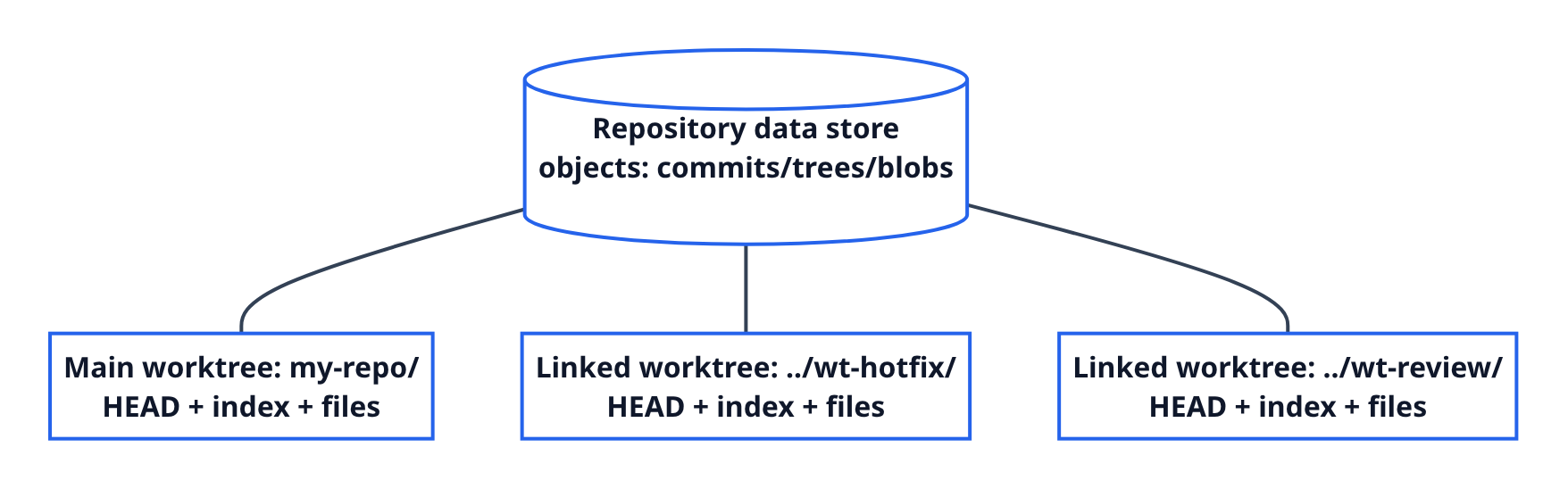
Linked worktrees are additional working directories attached to the same repo. They share the object database (commits/trees/blobs), but each worktree has its own working state: checked-out files, its own HEAD, and its own index (staging area).
That’s the whole trick:
- Shared: history and objects (you don’t redownload Git data like a second clone).
- Per worktree: files-on-disk +
HEAD+ index (you don’t stomp on your other checkout).
One nuance that matters: a worktree isn’t its own independent “repo.” Most refs and remote configuration are shared. When you git fetch, you’re updating the shared repository data that all worktrees see. That’s what makes worktrees lighter than multiple clones—but it’s also why Git has to be careful about how a branch name maps to a checkout.
If you want a deeper explanation of why “objects live once” makes this efficient, the Git book’s “Git Objects” chapter is a good reference: Git Internals: Git Objects.
What Actually Changes on Disk when You Add a Worktree
Git keeps the shared repository database in one place, then tracks per-worktree state separately. That’s why it can add a second checkout without cloning.
If you’ve ever noticed that .git sometimes looks like a file (not a folder), that’s often Git pointing your working tree at the real “gitdir.” Worktrees lean on this idea heavily: each worktree has its own admin area, but the objects are shared.
The Rule that Surprises People: One Branch per Worktree
If you try to attach the same branch to two worktrees, Git will usually refuse with “branch is already checked out.” That refusal is protection.
The core reason is that a branch name is just a movable pointer. If two working directories could both “be” feature, the branch pointer could move in one directory while the other directory still has older files on disk. Now you have a branch name that no longer uniquely identifies a single working state.
Said differently: Git is fine with multiple worktrees having different HEADs (each checkout is independent), but a branch ref like refs/heads/feature is shared at the repository level. Letting two worktrees both “own” the same branch would create a footgun where “what commit is feature?” depends on which folder last advanced it.

When you want “two directories, same starting point,” Git’s safer options are:
- Create a new branch name for the second worktree:
git worktree add ../wt-fix -b fix-branch
- Use a detached
HEADwhen you don’t intend to keep the work long-term:
git worktree add -d ../wt-scratch
Detached HEAD is the “I want another directory at this commit, but I’m not claiming a branch name” mode. That’s why it’s safe: you can still make commits, but you’re not advancing a shared branch ref unless you later create one.
--force exists for edge cases, but it’s opting out of a guardrail. If you don’t already know why you need it, you probably don’t.
Where Worktrees Shine (in Practice)
Worktrees are a productivity primitive whenever parallelism beats context switching. Three common patterns:
1) Hotfix without Touching Your In-Progress Directory
When a production issue lands mid-feature, create a new worktree on a hotfix branch:
git worktree add ../wt-hotfix -b hotfix
You get a clean checkout in a new folder, and your original directory stays exactly as it was. When you’re done, remove it cleanly:
git worktree remove ../wt-hotfix
Tower’s Git worktree FAQ describes this as one of the “default” worktree use cases, and it’s the one most people feel immediately.
2) PR Reviews and Repros in a Clean Sandbox
You can attach a worktree directly to a remote-tracking branch and keep it around for as long as the review takes:
git worktree add ../wt-review origin/some-pr-branch
3) Scratch Experiments You Don’t Want to Keep
Detached worktrees are great for “let me try something” work without committing to a branch name yet:
git worktree add -d ../wt-scratch
If you end up making commits you want to keep, create a branch before you delete the folder so you don’t lose track of them.
A Quick Note on “Why Not Just Clone Twice?”
Separate clones can absolutely solve the same “two directories” problem. The difference is mainly cost and coupling:
- Clones duplicate setup (another fetch/clone, another
.gitobject store). - Worktrees share Git objects, but still behave like separate checkouts.
If you need complete isolation (different remotes, radically different Git config, or you want to move one copy around freely), a second clone can still be the simplest answer.
Keeping Your Directories Sane
The simplest convention (and the one that avoids the “oops, I edited the wrong checkout” mistake) is: keep linked worktrees outside the main project folder.
repo/            # main worktree
repo-hotfix/     # linked worktree
repo-review/     # linked worktree
If you do this often, encode intent in the directory name so it’s searchable later (wt-hotfix-1234, wt-pr-998, wt-bisect-crash) instead of generic tmp/.
If you want all worktrees contained under one parent folder, a popular layout is “bare repo + many worktrees” (see Nick Nisi and Ahmed El Gabri). For background on bare repositories themselves, the Git book chapter is a good reference: Git Basics: Getting a Git Repository.
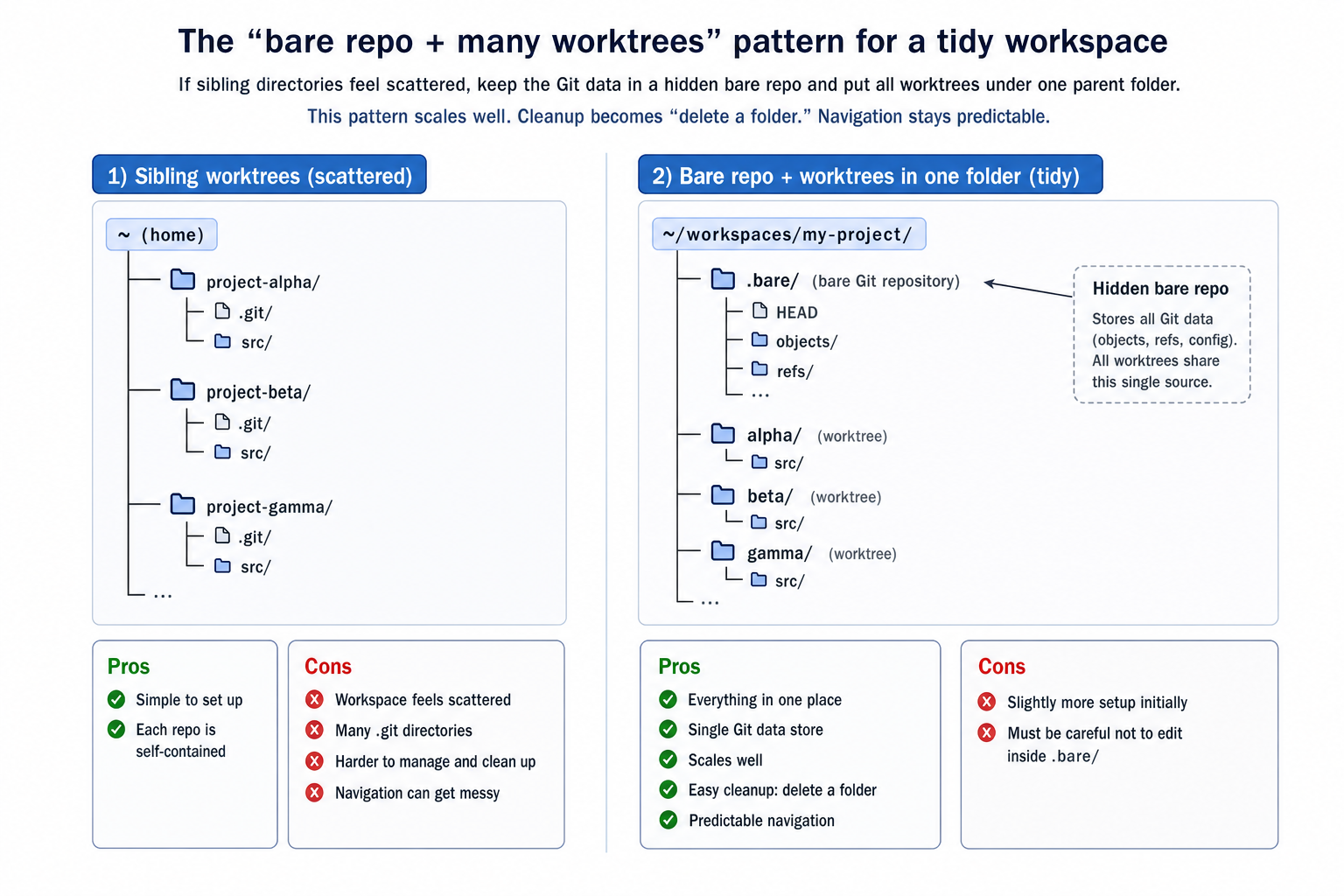
If you try the “bare repo + worktrees” approach, keep the tradeoff in mind: you’re saving Git object duplication, not environment duplication. Two worktrees can still mean two node_modules/ folders, two build outputs, and two IDE indexes. If setup dominates your workflow, keep only the worktrees you’re actively using.
The Lifecycle Gotchas (and the 5 Commands that Prevent Them)
Removing vs Deleting (Stale Metadata)
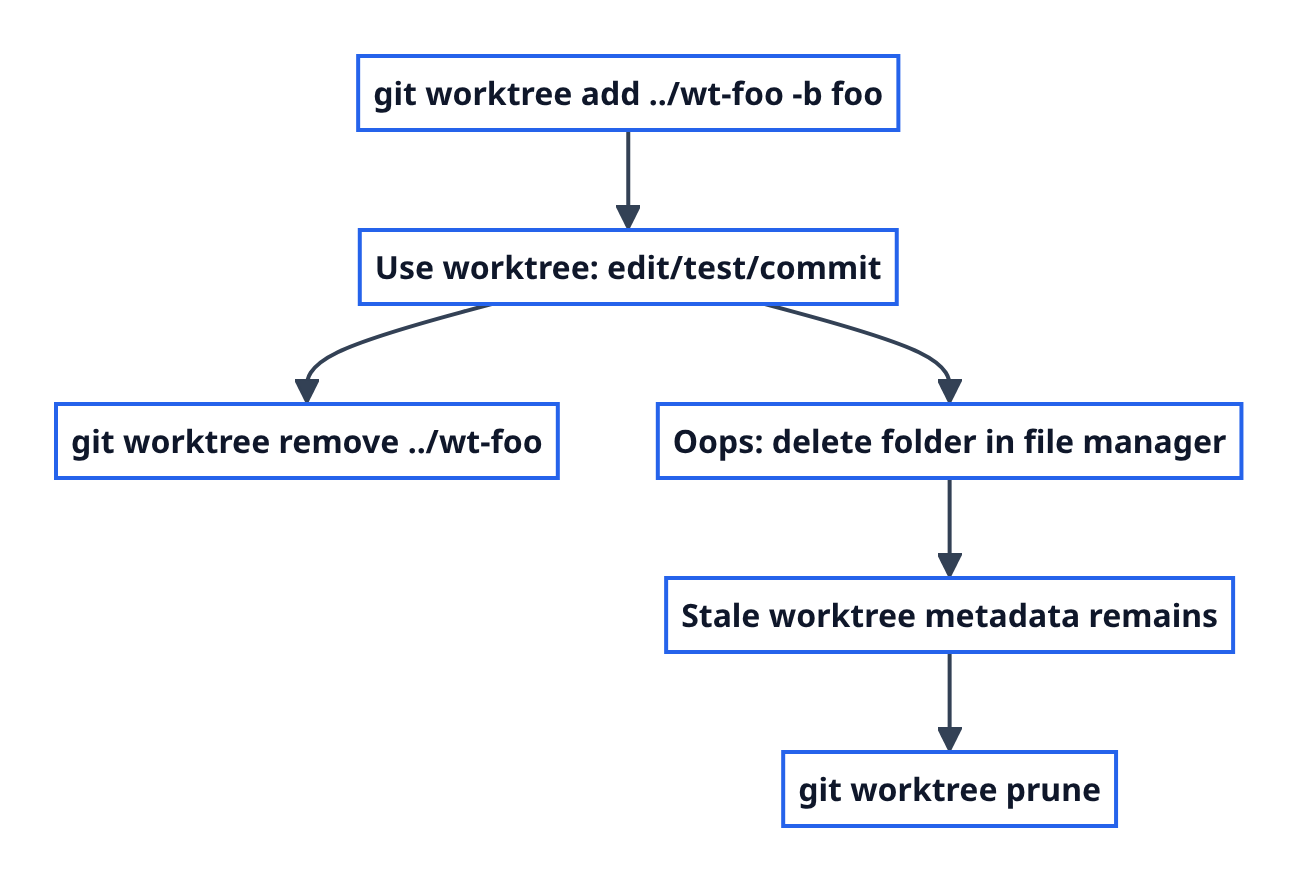
Deleting a worktree folder in Finder isn’t the same as telling Git it’s gone. Prefer:
git worktree remove ../wt-review
If you already deleted the folder, clean up the leftover admin state:
git worktree prune
Git can also garbage-collect stale worktree metadata automatically over time (controlled by gc.worktreePruneExpire). That’s helpful, but it’s not a substitute for removing worktrees intentionally when you’re done.
“This Branch Is Already Checked Out”
This is Git enforcing “one branch per worktree.” Your usual fixes are:
- make a new branch name (
-b) - use detached
HEAD(-d)
If you’re debugging “why won’t Git let me…”, list the current attachments:
git worktree list
Moving Worktrees (and Repairing when Paths Change)
If you need to reorganize, prefer Git’s commands over dragging folders around in your file manager.
git worktree move <worktree> <new-path>relocates a linked worktree (you can’t move the main worktree).- If you moved things manually and links broke,
git worktree repaircan reestablish the connection in supported cases.
Intermittent Drives: Lock Before Git Prunes
If a worktree lives on an external drive or network mount, Git may treat it as “missing” when the volume isn’t mounted. Use git worktree lock to prevent surprises:
git worktree lock --reason "On external drive" /Volumes/SSD/wt-release
Cheat Sheet
git worktree add ../wt-name -b my-branch   # new worktree + new branch
git worktree add ../wt-name origin/branch  # worktree from remote-tracking branch
git worktree add -d ../wt-scratch          # detached-HEAD scratch worktree
git worktree list                          # see what's attached
git worktree remove ../wt-name             # remove cleanly
git worktree prune                         # cleanup after manual deletion
The Takeaway
Worktrees aren’t a niche add-on. They’re the name for the checkout you already use, plus a way to add more checkouts without cloning again. Keep the mental model in your head—shared history, separate working state—and Git’s guardrails (like one branch per worktree) stop feeling arbitrary and start feeling helpful.
If you learned something from this post, give me a follow and checkout the AI powered markdown editor that i am building on the side.
Tags
Comments
More Blog
View allaiContext bankruptcy: The case for strategic forgetting for AI Agents
Most of us have seen a coding agent fail to complete a task we know it can do. We just don't...
J
James O'ReillygooglecloudParallel Compliance Engine: Drive-to-Sheets Multi-Agent Orchestration
When building Generative AI applications, developers often encounter a massive bottleneck: sequential...
A
Aryan IranidiscussIs It Ethical to Post and Ask About Circuits on Dev.to?
I’ve been thinking about sharing some electronic circuit posts on Dev.to — small circuits, DIY...
C
codebunny20agentsThe One-Click Exporter: AI Studio Antigravity, Probed to Its Limits
What nobody tells you about exporting your multi-agent prototype to a local workspace. Every...
L
leslysandraagenticarchitectGuarding the till while autonomous data agents do the digging
Autonomous agents are genuinely good at answering messy business questions. Give one an LLM and a set...
S
Sireesha PulipatiaiReturn on Attention: Why AI Code Reviews Are Wearing Us Out
PR volume went up, ticket quality didn't, and the gap got filled with LLMs on both sides of the review: bots reviewing, bots replying, bots occasionally arguing with bots about priorities that only existed in a teammate's head. Our CEO named the actual problem, and it's bigger than code review.
C
christineReady-made automations for this
Workflows from the Neura Market marketplace related to this Stable Diffusion resource
- Parse Incoming Invoices from Outlook Using AI Document Understandingn8n · Free · Related topic
- Build AI Agents with Think-Plan-Act Architecture Using Llama-4 Reasoningn8n · Free · Related topic
- Extract and Structure Hair Documents to Google Sheets using Typhoon OCR and Llama 3.1n8n · Free · Related topic
- Import Google Keep Notes to Google Sheets Using OpenAI and Google Driven8n · Free · Related topic