
Back to Blog antigravitycli
 ai
ai googlecloud
 discuss
 agents
 agenticarchitect
 ai
ai
26B Gemma 4 Deployment with NVIDIA L4, MCP, Cloud Run, and Antigravity CLI
xbill June 2, 2026
0 views
This article provides a step by step deployment guide for Gemma 4 to a Google Cloud Run hosted GPU...
title: 26B Gemma 4 Deployment with NVIDIA L4, MCP, Cloud Run, and Antigravity CLI published: true series: Gemma4 date: 2026-06-01 19:42:06 UTC tags: antigravitycli,mcps,nvidial4,gemma4 canonical_url: https://xbill999.medium.com/26b-gemma-4-deployment-with-nvidia-l4-mcp-cloud-run-and-antigravity-cli-7d43347eee0b
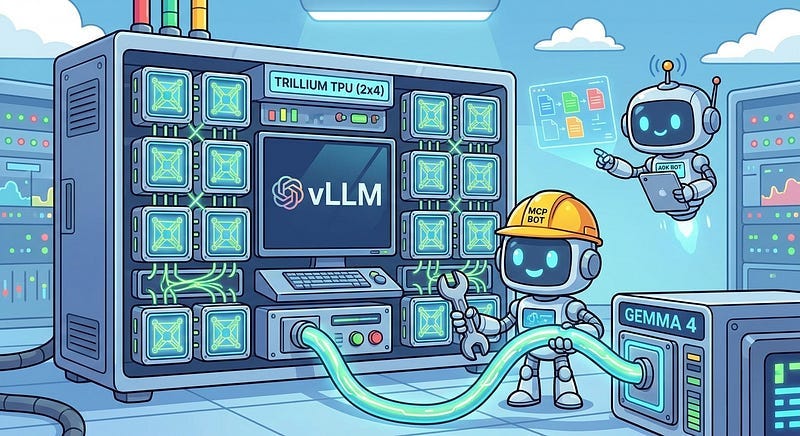
This article provides a step by step deployment guide for Gemma 4 to a Google Cloud Run hosted GPU enabled system,. A suite of Python MCP tools is built to simplify management of the vLLM hosted Gemma 4 deployment with Antigravity CLI.
What is this project trying to Do?
This project is a DevOps/SRE assistant that uses a Gemma 4 model hosted on Cloud Run with GPU. It provides tools to provision the Docker container and deploy the model, as well as for observability and performance testing.
This project is similar to a previous project that targeted GPU hosted Gemma4 instances on GCP:
Gemma-SRE: Self-Hosted vLLM Infrastructure Agent
Antigravity CLI
Antigravity CLI is the follow-on successor to Gemini CLI- the terminal driven, agent assisted coding tool.
Full details on installing Antigravity CLI are here:
Getting Started with Antigravity CLI
Testing the Antigravity CLI Environment
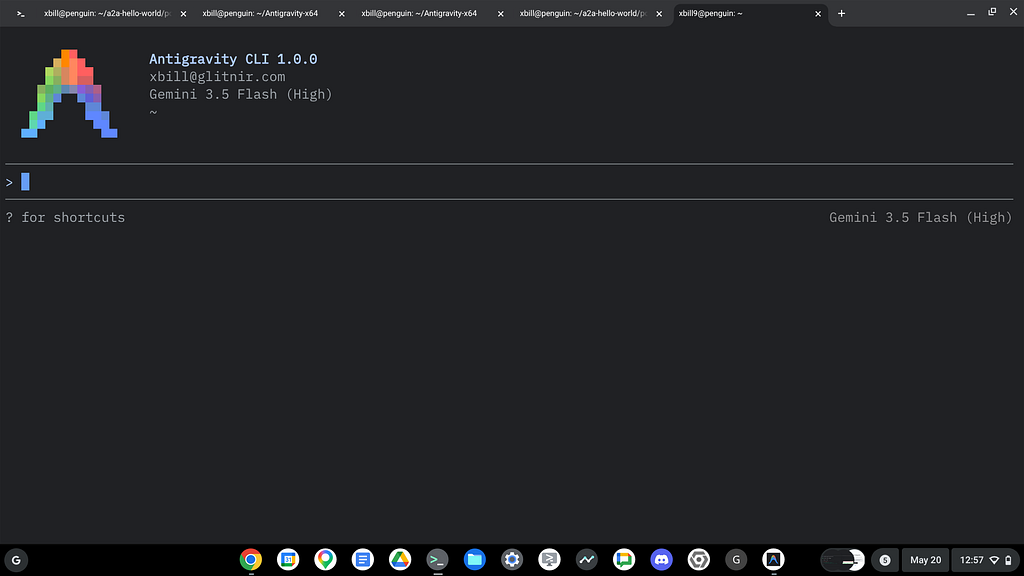
Once you have all the tools in place- you can test the startup of Antigravity CLI.
You will need to authenticate with a Google Cloud Project or your Google Account:
agy
This will start the interface:
Full Installation Instructions
The detailed installation instructions for Antigravity CLI are here:
Getting Started with Antigravity CLI
Python MCP Documentation
The official GitHub Repo provides samples and documentation for getting started:
Where do I start?
The strategy for starting MCP development for model management is a incremental step by step approach.
First, the basic development environment is setup with the required system variables, and a working Antigravity CLI configuration.
Then, a minimal Python MCP Server is built with stdio transport. This server is validated with Antigravity CLI in the local environment.
This setup validates the connection from Antigravity CLI to the local server via MCP. The MCP client (Antigravity CLI) and the Python MCP server both run in the same local environment.
Setup the Basic Environment
At this point you should have a working Python environment and a working Antigravity CLI installation. The next step is to clone the GitHub samples repository with support scripts:
cd ~
git clone https://github.com/xbill9/gemma4-tips
Then run init.sh from the cloned directory.
The script will attempt to determine your shell environment and set the correct variables:
gpu-26B-L4-devops-agent
source init.sh
If your session times out or you need to re-authenticate- you can run the set_env.sh script to reset your environment variables:
gpu-26B-L4-devops-agent
source set_env.sh
Variables like PROJECT_ID need to be setup for use in the various build scripts- so the set_env script can be used to reset the environment if you time-out.
Model Management Tool with MCP Stdio Transport
One of the key features that the standard MCP libraries provide is abstracting various transport methods.
The high level MCP tool implementation is the same no matter what low level transport channel/method that the MCP Client uses to connect to a MCP Server.
The simplest transport that the SDK supports is the stdio (stdio/stdout) transport — which connects a locally running process. Both the MCP client and MCP Server must be running in the same environment.
The connection over stdio will look similar to this:
# Initialize FastMCP server
mcp = FastMCP("Self-Hosted vLLM DevOps Agent")
Running the Python Code
First- switch the directory with the Python version of the MCP sample code:
~/gemma4-tips/gpu-26B-L4-devops-agent
Run the release version on the local system:
make install
Processing ./.
The project can also be linted:
xbill@penguin:~/gemma4-tips/gpu-26B-L4-devops-agent$ make lint
ruff check .
All checks passed!
ruff format --check .
6 files already formatted
mypy .
Success: no issues found in 6 source files
And a test run:
xbill@penguin:~/gemma4-tips/gpu-26B-L4-devops-agent$ make test
python test_agent.py
2026-05-29 19:07:48,275 - vllm-devops-agent - INFO - Initializing DevOps Agent MCP Server...
.........2026-05-29 19:07:48,318 - vllm-devops-agent - INFO - Querying Cloud Run model with prompt: 'Hello...'
2026-05-29 19:07:48,318 - vllm-devops-agent - INFO - Model response: 'Response from Gemma...'
.2026-05-29 19:07:48,319 - vllm-devops-agent - INFO - Querying model with stats with prompt: 'Hello...'
2026-05-29 19:07:48,320 - vllm-devops-agent - INFO - Model response with stats: TTFT=0.000s, TotalTime=0.000s
.......
----------------------------------------------------------------------
Ran 17 tests in 0.024s

OK
MCP stdio Transport
One of the key features that the MCP protocol provides is abstracting various transport methods.
The high level tool MCP implementation is the same no matter what low level transport channel/method that the MCP Client uses to connect to a MCP Server.
The simplest transport that the SDK supports is the stdio (stdio/stdout) transport — which connects a locally running process. Both the MCP client and MCP Server must be running in the same environment.
In this project Antigravity CLI is used as the MCP client to interact with the Python MCP server code.
Antigravity CLI mcp_config.json
A sample MCP server file is provided in the .agents directory:
{
  "mcpServers": {
    "gpu-devops-agent": {
      "command": "python3",
      "args": [
        "/home/xbill/gemma4-tips/gpu-26B-L4-devops-agent/server.py"
      ],
      "env": {
        "GOOGLE_CLOUD_PROJECT": "aisprint-491218",
        "GOOGLE_CLOUD_LOCATION": "us-east4",
        "VLLM_BASE_URL": "https://gpu-26b-l4-devops-agent-289270257791.us-east4.run.app",
        "MODEL_NAME": "/mnt/models/gemma-4-26B-A4B-it"
      }
    }
  }
}
Validation with Antigravity CLI
The final connection test uses Antigravity CLI as a MCP client with the Python code providing the MCP server:
MCP Servers

Plugins (~/.gemini/antigravity-cli/plugins)
> ✓ google-dev-knowledge Tools: search_documents, answer_query, get_documents
   ✓ gpu-devops-agent Tools: save_hf_token, get_vllm_endpoint, list_vertex_models, list_bucket_models,
                       analyze_cloud_logging, +21 more
Getting Started with Gemma 4 on GPU
The Official vLLM repo also has Gemma4 specific information:
Model Lifecycle Management via MCP
The MCP tools provide a complete suite of agent-oriented operations for managing vLLM deployment on Cloud Run or a TPU.
Overview of MCP tools :
> get_help

  Here is the help documentation and active environment configuration for the GPU vLLM DevOps Agent:

  ### ⚙️ Active Environment Configuration

  • Project ID ( GOOGLE_CLOUD_PROJECT ): aisprint-491218
  • Region ( GOOGLE_CLOUD_LOCATION ): us-east4
  • Model Name ( MODEL_NAME ): /mnt/models/gemma-4-26B-A4B-it
  • GCS Bucket ( BUCKET_NAME ): aisprint-491218-bucket
  • vLLM Endpoint ( VLLM_BASE_URL ): https://gpu-26b-l4-devops-agent-289270257791.us-east4.run.app
  • Active Mode: Running in CLOUD RUN mode targeting NVIDIA L4 GPU in us-east4 .
  ──────
  ### 🧰 Available MCP Tools

  #### 🐳 Infrastructure & Deployment

  • deploy_vllm : Deploys vLLM to Cloud Run GPU (NVIDIA L4 in us-east4 ).
  • destroy_vllm : Deletes the Cloud Run vLLM service.
  • status_vllm : Checks the status of the Cloud Run vLLM service.
  • update_vllm_scaling : Updates min/max instances for scaling.
  • get_vllm_deployment_config : Generates the gcloud deployment command.
  • get_vllm_gpu_deployment_config : Generates a GKE manifest for GPU (NVIDIA L4).
  • check_gpu_quotas : Checks L4 and other GPU quotas for a region.

  #### 📦 Model Management

  • list_vertex_models : Lists models in the Vertex AI Registry.
  • list_bucket_models : Lists model weights in the GCS bucket.
  • save_hf_token : Securely saves a Hugging Face API token to Secret Manager.
  • get_vertex_ai_model_copy_instructions : Instructions to copy a model from Vertex AI Model Garden to GCS.
  • get_huggingface_model_copy_instructions : Instructions to download a model from Hugging Face and upload it to GCS.
  • get_huggingfacehub_download_path : Resolves the local cache path using huggingface_hub .

  #### 📊 Monitoring & Status

  • get_system_status : Provides a high-level status dashboard of the Cloud Run service and health.
  • get_endpoint : Verifies connectivity and returns the active service URL.
  • get_model_details : Retrieves detailed model metadata and engine state from /v1/models .
  • verify_model_health : Deep health check by querying the model with a simple prompt and measuring latency.

  #### 📈 Performance & Benchmarking

  • run_benchmark : Runs performance/concurrency benchmark sweeps against the Cloud Run vLLM GPU endpoint.

  #### 💬 Interaction & Diagnostics

  • query_gemma4 : Primary tool to query the self-hosted model with standard chat message format.
  • query_gemma4_with_stats : Queries the model and returns streaming performance statistics (TTFT, throughput).
  • query_vllm : Direct text completions querying tool.
  • analyze_cloud_logging : Fetches logs from GCP Logging and analyzes them using the model.
  • analyze_gpu_logs : Fetches Cloud Run logs and uses Gemma 4 to analyze them for SRE/DevOps errors.
  • suggest_sre_remediation : Suggests remediation plans for SRE errors using the model.
  ──────
  ### 📂 Key Source Code Reference Files

  • MCP Server Implementation: server.py
  • Project Documentation: README.md
  • Agent Test Suite: test_agent.py
Deploy The Model
The MCP server tools are used to deploy the model to Cloud Run with TPU:
deploy the model
Checking System status
The status can be checked with an MCP tool:
> get_system_status

● gpu-devops-agent/get_system_status(System status check) (ctrl+o to expand)

  The current system status of the GPU Cloud Run deployment:

  • vLLM Health: 🟢 Online (gpu-26b-l4-devops-agent https://gpu-26b-l4-devops-agent-289270257791.us-east4.run.app)
  • Cloud Run Service Status: 🟢 Ready
Cross Check The Deployed Model
Once the model starts locally- the MCP tool allows for model verification:
> verify_model_health

● gpu-devops-agent/verify_model_health(Model health verification) (ctrl+o to expand)

  The model health check has passed successfully:

  • Status: ✅ PASSED
  • Model: nvidia/gemma-4-26B-A4B-NVFP4
  • Response: "Yes, I am working correctly. How can I help you to..."
  • Latency: 0.44 seconds
and model details:
> get_active_models

● gpu-devops-agent/get_model_details(Get model details) (ctrl+o to expand)

  The active model currently served on the endpoint is:

  • Model ID: nvidia/gemma-4-26B-A4B-NVFP4
  • Owned By: vllm
  • Health Status: Healthy (🟢 /health check passed)
and the endpoint:
> get_endpoint

● gpu-devops-agent/get_endpoint(Get endpoint URL) (ctrl+o to expand)

  The active vLLM endpoint is:

  🟢 Online: https://gpu-26b-l4-devops-agent-289270257791.us-east4.run.app
and status:
> > get_system_details

● gpu-devops-agent/get_help(Get SRE help details) (ctrl+o to expand)

  The active system configuration and details for the DevOps agent are as follows:

  ### ⚙️ Environment Configuration

  • GCP Project ID ( GOOGLE_CLOUD_PROJECT ): aisprint-491218
  • GCP Region ( GOOGLE_CLOUD_LOCATION ): us-east4
  • GCS Bucket ( BUCKET_NAME ): aisprint-491218-bucket
  • Model Name ( MODEL_NAME ): /mnt/models/gemma-4-26B-A4B-it
  • vLLM Service URL ( VLLM_BASE_URL ): https://gpu-26b-l4-devops-agent-289270257791.us-east4.run.app

  ### ℹ️ Active Mode

  The agent is running in CLOUD RUN mode, targeting an NVIDIA L4 GPU in the us-east4 region.
Check the Cloud Run Service
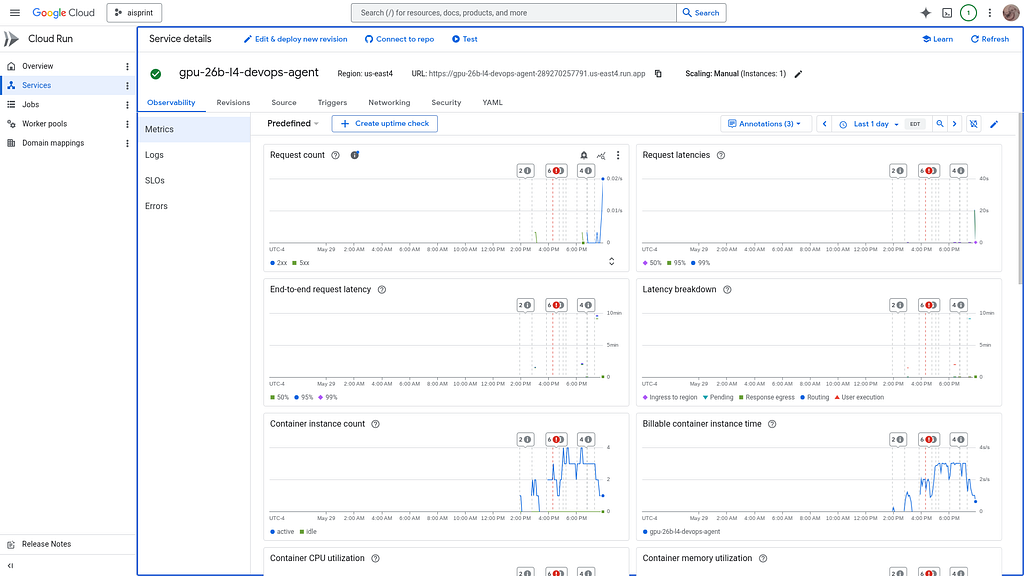
Once Deployed — the model is visible as a standard Cloud Run Service:
Review the Model
Check the model details:
> what are the model details?

● gpu-devops-agent/get_model_details(Get model details) (ctrl+o to expand)

  The details of the active model are:

  • Model ID: nvidia/gemma-4-26B-A4B-NVFP4 (Gemma 4 26B model quantized/optimized by NVIDIA)
  • Engine: vllm
  • Health Status: Healthy ✅
Once everything is online — you can send queries to the Model:
> query_gemma4_with_stats what is gemma

● gpu-devops-agent/query_gemma4_with_stats(Query Gemma 4 and get metrics) (ctrl+o to expand)

  Here is the response from Gemma 4 along with the streaming performance stats:

  ### 📊 Performance Statistics

  • Model: nvidia/gemma-4-26B-A4B-NVFP4
  • Time to First Token (TTFT): 0.142s
  • Total Generation Time: 17.671s
  • Throughput: 39.71 tokens/s
  • Total Tokens (approx.): 696
  ──────
  ### 💬 Model Response

  Gemma is a family of lightweight, state-of-the-art open-weights models developed by Google DeepMind.

  While Gemini is Google's massive, closed-source model served via APIs and web interfaces, Gemma is the developer-
  focused sibling designed to run locally on your own hardware (laptops, workstations, or private cloud servers).

  #### Key Highlights:

  1. Open Weights: You can download the model parameters, inspect them, fine-tune them for specific tasks, and run them
  completely offline.
  2. Gemini DNA: Built using the same research, datasets, and infrastructure as Gemini, enabling high performance in
  reasoning, coding, and math for its size.
  3. Lightweight & Efficient: Designed to run on consumer-grade hardware (GPUs/TPUs) without requiring data-center-
  scale infrastructure.
  4. Variants: Includes specialized flavors like CodeGemma (for programming) and PaliGemma (vision-language).
Benchmark the Local Model
The local model was benchmarked:
The benchmark sweep has completed successfully. Here are the compiled results across all combinations of context
  window sizes and concurrency levels:
The analysis is reviewed:
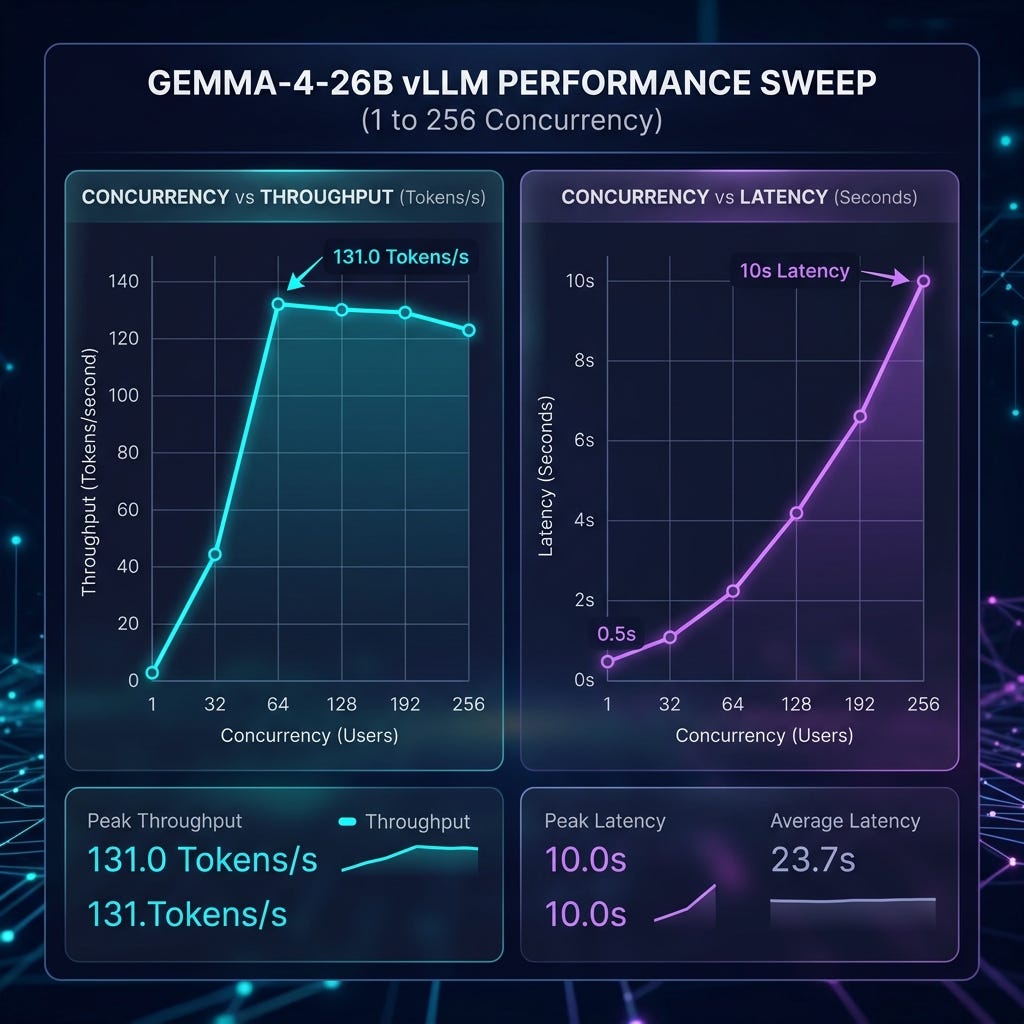
  ### 📊 GPU Benchmark Results

  Model: nvidia/gemma-4-26B-A4B-NVFP4

   Concurrency | Success Rate | Req/s | Tokens/s | Avg Latency | P95 Latency
  -------------------|-------------------|-------------------|-------------------|------------------|------------------
   1 | 100.0% | 0.50 | 39.02 | 1.99s | 3.29s
   2 | 100.0% | 0.58 | 67.20 | 3.43s | 5.54s
   4 | 100.0% | 1.23 | 126.08 | 3.23s | 4.08s
   8 | 100.0% | 1.28 | 115.32 | 4.83s | 8.01s
   16 | 100.0% | 1.69 | 131.11 | 5.95s | 11.62s
   32 | 100.0% | 1.05 | 114.58 | 9.56s | 19.04s
   64 | 100.0% | 1.24 | 119.82 | 8.77s | 16.11s
   128 | 100.0% | 1.06 | 115.47 | 10.40s | 18.89s
   256 | 100.0% | 1.26 | 121.30 | 7.62s | 15.90s

  Analyzing Benchmark Results
  I have created a comprehensive, deep-dive SRE analysis of the benchmark results and saved it as an artifact.

  You can read the full report here: benchmark_analysis.md

  ### 📈 Key Takeaways from the Analysis

  • Optimal Concurrency Sweet-Spot (16 Users): Peak throughput is achieved at 16 concurrent users yielding 131.11
  Tokens/s with an acceptable average latency of 5.95s.
  • Hardware Saturation Limit: The single NVIDIA L4 GPU saturates at approximately 120–130 Tokens/s for all concurrency
  levels $\ge 4$. Adding more concurrent load increases queuing latency rather than throughput.
  • Robust Stability: The deployment maintained a 100% success rate even at 256 concurrent users, demonstrating
  excellent queuing and request-scheduling stability under heavy load.
This is visualized:
Comparison with 6000 GPU
 Here is a comparison between the new benchmark results (from our latest sweep up to 256 concurrency) and the previous
  benchmark results documented in benchmark_report.md:

  ### 📊 Comparative Analysis Table

   Metric | Previous Benchmark Result… | New Benchmark Results (our… | Key Differences & SRE Obse…
  ----------------------------|----------------------------|-----------------------------|-----------------------------
   Peak Throughput | 80 to 90 tokens/second (at | 131.11 tokens/second (at 16 | ~45% increase in peak
                              | smaller context windows) | concurrency) | throughput. This suggests
                              | | | the vLLM engine is running
                              | | | with higher batch sizes or
                              | | | optimized FP8 KV cache
                              | | | utilization compared to the
                              | | | previous run.
   Average Latency (Low | Sub-second (< 1.0s) | 1.99s average (at 1 | Higher base latency in the
   Concurrency) | average | concurrency) | new run. The new test
                              | | | generated a fixed 128
                              | | | token output length,
                              | | | whereas the previous
                              | | | benchmark might have had a
                              | | | much smaller target output
                              | | | token length.
   Average Latency (High | Under 1.0s average at 128 | 10.40s average at 128 | Significantly higher high-
   Concurrency) | concurrency | concurrency | load latency. At 128
                              | | | concurrent requests
                              | | | generating 128 tokens each,
                              | | | the GPU queue fills up,
                              | | | increasing average response
                              | | | time to 10.4 seconds.
   Maximum Concurrency Tested | Up to 128 users | Up to 256 users | Successfully tested higher
                              | | | load. The engine handled
                              | | | 256 users without error
                              | | | (100% success rate),
                              | | | maintaining a throughput of
                              | | | 121.30 tokens/s.

  ### 🔍 SRE Takeaway

  The newer serving configuration on the NVIDIA L4 is tuned to maximize aggregate throughput (yielding up to 131.11
  tokens/s at high concurrency), but this comes at the cost of higher latency per request under concurrent load due to
  the increased execution and queue time for generating up to 128 tokens.
Cost per Token
The current Google Cloud pricing is used to evaluate the cost per token:
  Estimating Compute Costs
  To compare the cost efficiency (cost per million tokens) between the NVIDIA L4 and the NVIDIA RTX PRO 6000
  (Blackwell) on Google Cloud Run, we can construct an SRE cost model.

  GPU billing on Cloud Run is billed per second, but requires minimum allocations of vCPUs and memory.
  ──────
  ### 1. Hourly Resource Cost Estimates (On-Demand)

   Resource component | NVIDIA L4 Stack | NVIDIA RTX PRO 6000 Stack
  ---------------------------------|-----------------------------------------|-----------------------------------------
   GPU Rate | ~$0.55 / hour | ~$2.50 / hour
   Required vCPUs | 4 vCPU (Min) $\rightarrow$ ~$0.184 / hr | 20 vCPU (Min) $\rightarrow$ ~$0.92 / hr
   Required Memory | 16 GiB (Min) $\rightarrow$ ~$0.08 / hr | 80 GiB (Min) $\rightarrow$ ~$0.40 / hr
   Total Estimated Stack Cost | ~$0.81 / hour ($0.000226/sec) | ~$3.82 / hour ($0.001061/sec)
  ──────
  ### 2. Cost Per Token Comparison (At Peak Load)

  Assuming the L4 runs at the peak performance observed in our sweep (~131 Tokens/s) and estimating the RTX PRO 6000
  Blackwell to run at ~2.5x the throughput (~327 Tokens/s) due to its larger VRAM bandwidth and compute:

   Metric | NVIDIA L4 | NVIDIA RTX PRO 6000
  ---------------------------------------|--------------------------------------|--------------------------------------
   Peak Throughput | 131.11 Tokens/s | ~327.50 Tokens/s (Estimated)
   Hourly Stack Cost | $0.81 / hour | $3.82 / hour
   Cost per Second | $0.000226 | $0.001061
   Cost per Million Tokens | ~$1.72 | ~$3.24
  ──────
  ### 🔍 Cost Analysis & Recommendation

  1. The L4 is the Budget-Friendly Champion:
      • For standard batch sizes and latency tolerance, the NVIDIA L4 is roughly ~47% more cost-effective per token.
      This is because the RTX 6000 requires a mandatory minimum allocation of 20 vCPUs and 80 GB RAM, which
      significantly inflates the baseline stack cost.
  2. When to Choose the RTX PRO 6000:
      • Use the RTX PRO 6000 if you require its 96 GB VRAM capacity for running unquantized/larger model variants (like
      the full Gemma 4 31B/72B) or need extremely low latency/high throughput on very large sequence context tasks
      ($\ge 32k$ tokens).
Summary
The strategy for using MCP for Gemma 4 GPU deployment with Antigravity CLI was validated with a incremental step by step approach.
A minimal stdio transport MCP Server was started from Python source code and validated with Antigravity CLI running as a MCP client in the same local environment. This Python server provided all of the management tools to deploy and troubleshoot Cloud Run Model deployments.
Comments
More Blog
View allaiContext bankruptcy: The case for strategic forgetting for AI Agents
Most of us have seen a coding agent fail to complete a task we know it can do. We just don't...
J
James O'ReillygooglecloudParallel Compliance Engine: Drive-to-Sheets Multi-Agent Orchestration
When building Generative AI applications, developers often encounter a massive bottleneck: sequential...
A
Aryan IranidiscussIs It Ethical to Post and Ask About Circuits on Dev.to?
I’ve been thinking about sharing some electronic circuit posts on Dev.to — small circuits, DIY...
C
codebunny20agentsThe One-Click Exporter: AI Studio Antigravity, Probed to Its Limits
What nobody tells you about exporting your multi-agent prototype to a local workspace. Every...
L
leslysandraagenticarchitectGuarding the till while autonomous data agents do the digging
Autonomous agents are genuinely good at answering messy business questions. Give one an LLM and a set...
S
Sireesha PulipatiaiReturn on Attention: Why AI Code Reviews Are Wearing Us Out
PR volume went up, ticket quality didn't, and the gap got filled with LLMs on both sides of the review: bots reviewing, bots replying, bots occasionally arguing with bots about priorities that only existed in a teammate's head. Our CEO named the actual problem, and it's bigger than code review.
C
christineReady-made automations for this
Workflows from the Neura Market marketplace related to this Stable Diffusion resource
- Automated Webhook Processing with Docker Deploymentn8n · $14.71 · Related topic
- Automate Docker MinIO Deployment with Webhook Integrationn8n · $9.58 · Related topic
- Automate Docker Deployment with Webhook Integrationn8n · $5.37 · Related topic
- AI Website Generator with Gemini & Netlify Auto-Deploymentn8n · $24.99 · Related topic