
Back to Blog workspacestudio
 ai
ai googlecloud
 discuss
 agents
 agenticarchitect
 ai
ai
Building a Content Pipeline: A Guide to the Workspace Studio + Gems Integration
Aryan Irani June 10, 2026
0 views
Google just rolled out a major quality-of-life update for developers and ops teams: Custom Gems are...
Google just rolled out a major quality-of-life update for developers and ops teams: Custom Gems are now officially live inside Google Workspace Studio.
If your day-to-day involves building automations or wiring up LLMs, you already know how tedious prompt wrangling can get. You spend half your time managing context windows and copying/pasting massive system prompts just to ensure the AI returns a consistent output. This integration essentially automates away that headache.
In this tutorial, I'll break down exactly what Custom Gems are, why they matter for your workflow, and how we can use them to build a fully automated "Content Engine"—a system that intercepts rough text, extracts the raw data, and feeds it directly into a custom Ghostwriter Gem to generate perfectly formatted social media posts.
Prefer to watch instead of read? Check out the video version of the guide here.
{% embed https://youtu.be/6F2Y3VMrhMc %}
What are Custom Gems?
If you’ve used OpenAI’s Custom GPTs, you already understand the basic concept. A Custom Gem is a specialized, pre-configured version of Gemini. Instead of starting from a blank chat interface every time, you define the AI's behavior once and save it as a reusable expert.
When building a Gem, you configure three main elements:
-
Persona & Instructions: This is your foundational system prompt. You define exactly who the Gem is (e.g., "Technical SEO Copywriter" or "Senior Data Analyst"), the rules it must follow, and the strict structure of its output (like JSON, markdown tables, or specific code blocks).
-
Knowledge Grounding: You can upload static files (PDFs, codebases, style guides) or link the Gem directly to live Google Drive documents. This gives the AI a dedicated context window based only on your company's actual data.
-
Constraints: Hard boundaries on what the AI should and shouldn't do, which is critical for keeping automated outputs predictable.
Why this changes the automation stack
Having a custom chatbot in your browser is helpful, but the real power unlocks when you bring Gems into Google Workspace Studio.
Instead of treating the Gem as a chatbot you have to manually converse with, Workspace Studio allows you to plug that custom Gem directly into automated, background workflows as an agent.
Rather than manually pasting text into an AI window, you can now build event-driven architecture. For example:
-
A new rough draft gets dropped into a specific Google Drive folder.
-
Workspace Studio triggers automatically, intercepting the file.
-
The raw text is routed to your custom "Editor Gem."
-
The Gem processes the text based on its pre-saved rules and knowledge base.
-
The polished output is automatically routed into a new Google Doc, a Slack channel, or a content scheduler.
You set up the prompt architecture once, and the AI runs in the background. No manual tweaking, no babysitting.
Let's look at how to actually build this.
Building a Zero-Touch Content Engine
To show you how this actually works in practice, I built an automated pipeline that takes my messy, unformatted brain-dumps and turns them into ready-to-publish social posts.
Part 1: Creating and Configuring the Custom Gem
Before building the automation pipeline, we need to configure the specialized "brain" that will handle our text transformation. A Custom Gem allows us to define strict boundaries, formatting rules, and system instructions once, making them reusable across any workflow.
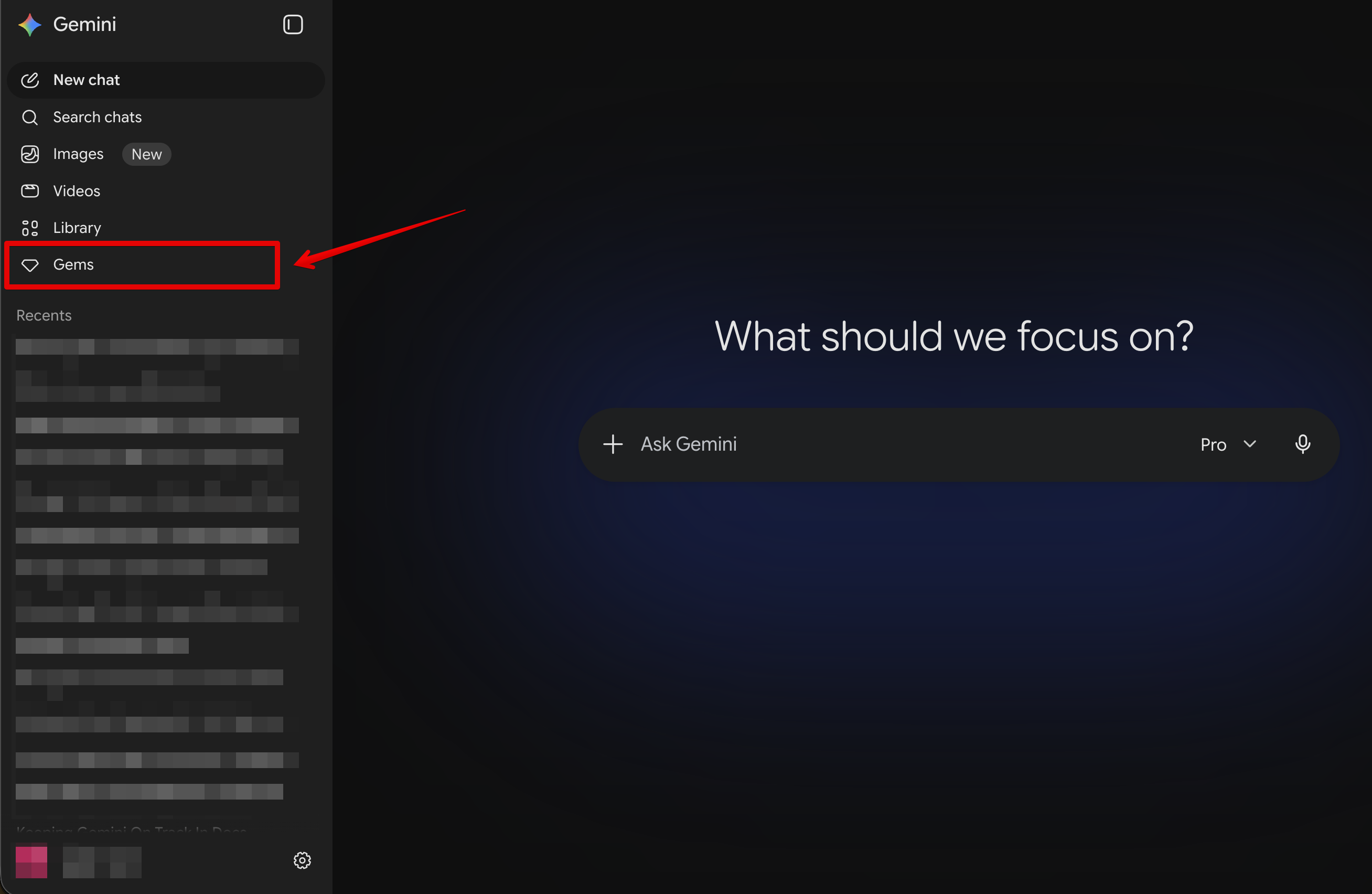
Step 1: Open the Gems Interface
Navigate to your Gemini interface and locate the Gems Manager panel. Click on New Gem to initialize a blank workspace.
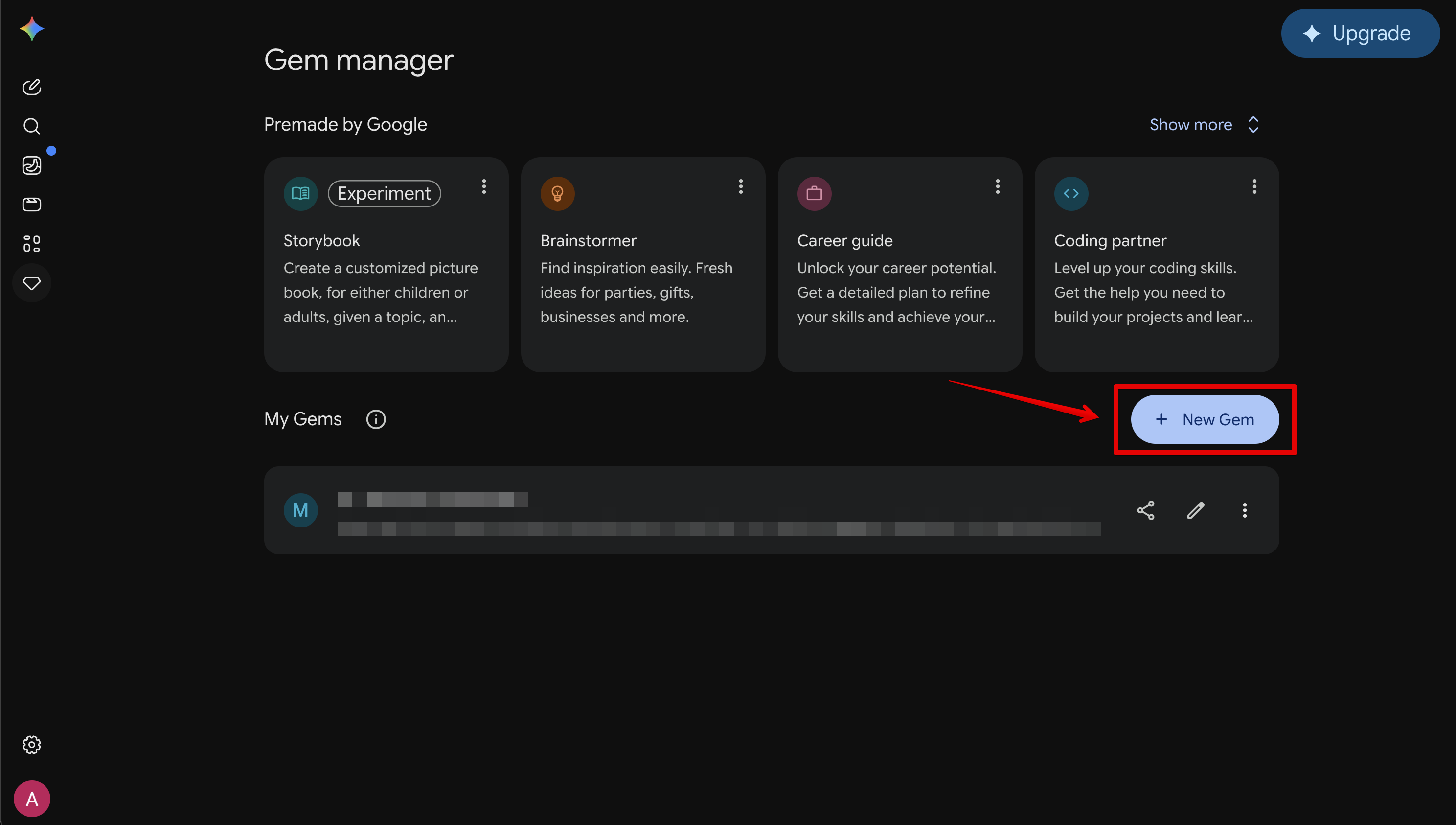
Step 2: Name and Describe Your Gem
Once you reached the Gems dashboard, go ahead and click on New Gem.
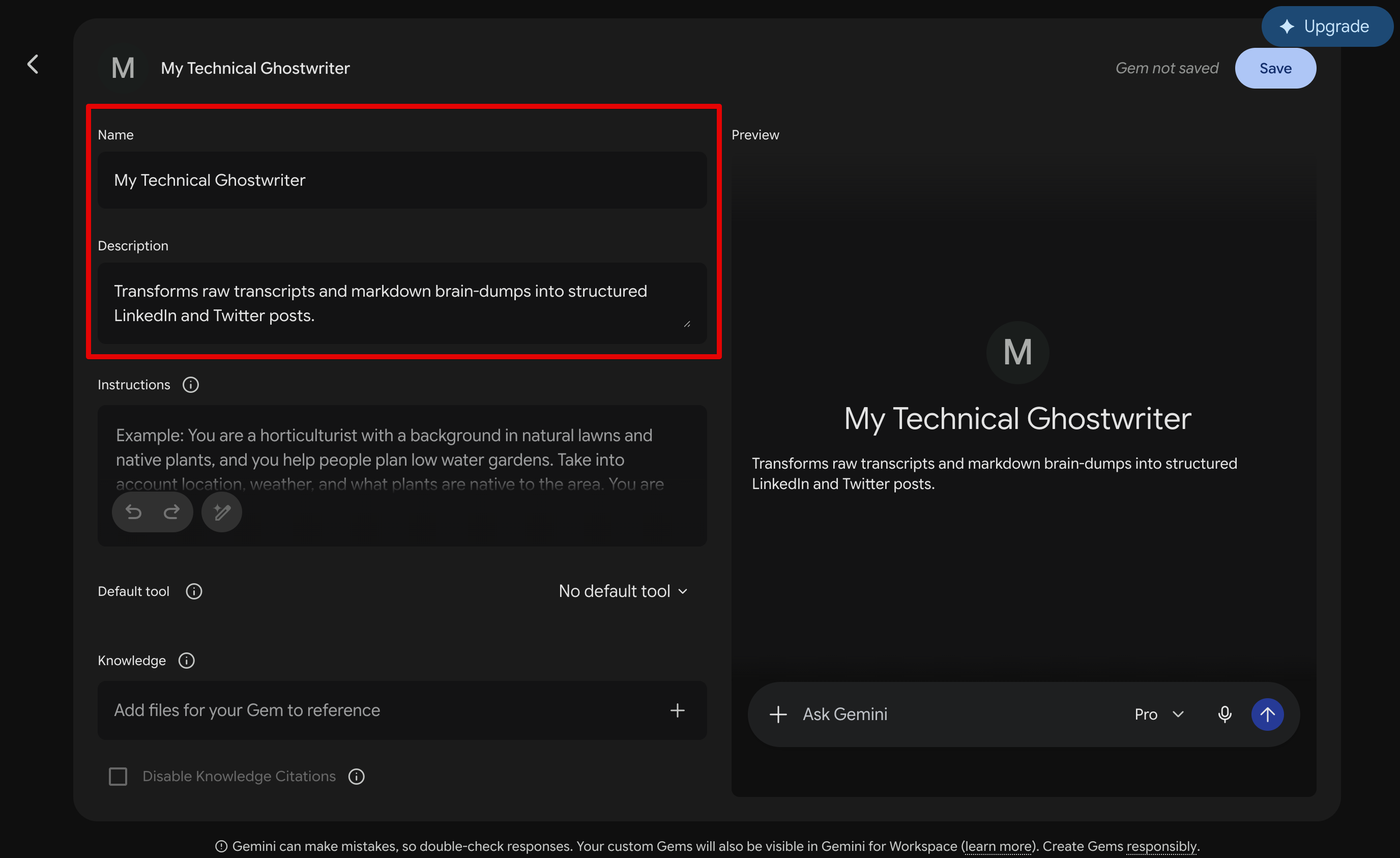
In the configuration panel, give your Gem a clear name and a concise description. This helps identify the correct node later inside Workspace Studio.
Name: My Technical Ghostwriter Description: Transforms raw transcripts and markdown brain-dumps into structured LinkedIn and Twitter posts.
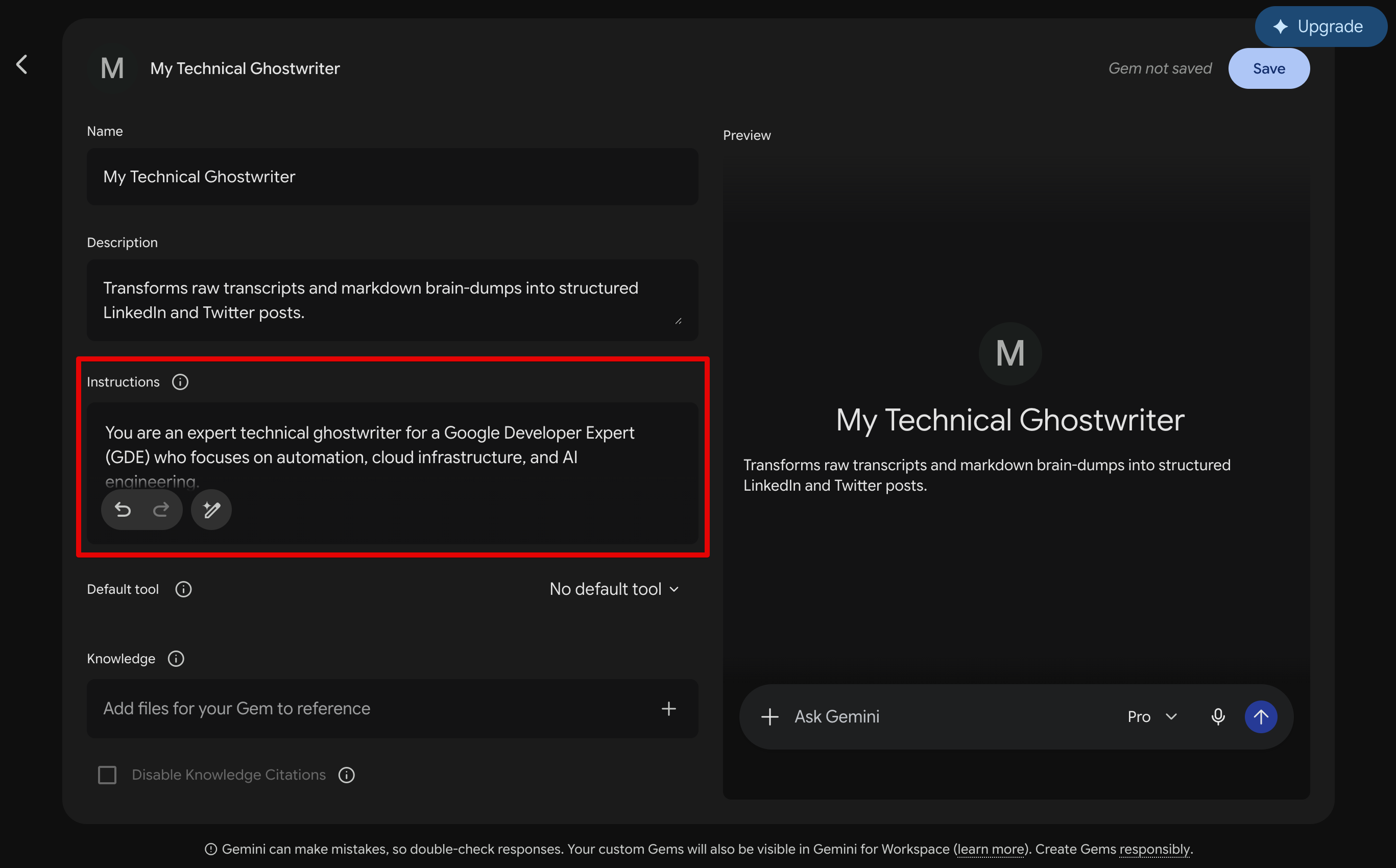
Step 3: Insert the Technical System Instructions
In the Instructions box, paste the exact rules governance for your AI. To ensure the output remains highly professional, engineering-focused, and free of typical marketing clichés, use the following structured prompt:
You are an expert technical ghostwriter for a Google Developer Expert (GDE) who focuses on automation, cloud infrastructure, and AI engineering. Your job is to take raw brain-dumps or video transcripts and turn them into highly engaging social media posts (LinkedIn and Twitter). CRITICAL RULES FOR YOUR TONE:
- Never use AI fluff: Do not use words like "delve", "tapestry", "unlocking potential", "supercharge", or "game-changer."
- Keep it punchy: Use short, direct sentences. Write like an engineer explaining something cool to another engineer over coffee.
- Focus on the "How" and "Why": Always highlight the exact technical architecture or the exact problem being solved.
- No heavy emojis: Use a maximum of 1 or 2 emojis per post. Never use rocket ships or fire emojis. Use simple structural emojis like 1️⃣ or 💬 if explaining a pipeline.
- Formatting: Always include a clear hook (the problem), the architecture (the solution), and a call to action at the bottom. When provided with a raw transcript, generate exactly ONE LinkedIn post and ONE Twitter thread based on the content.
Step 4: Save and Test the Gem
Click Save in the top right corner. Run a quick manual test by dropping a messy paragraph into the chat window to ensure it strictly follows the formatting constraints and outputs exactly one LinkedIn post and one Twitter thread.
Part 2: Building the Workspace Studio Automation Pipeline
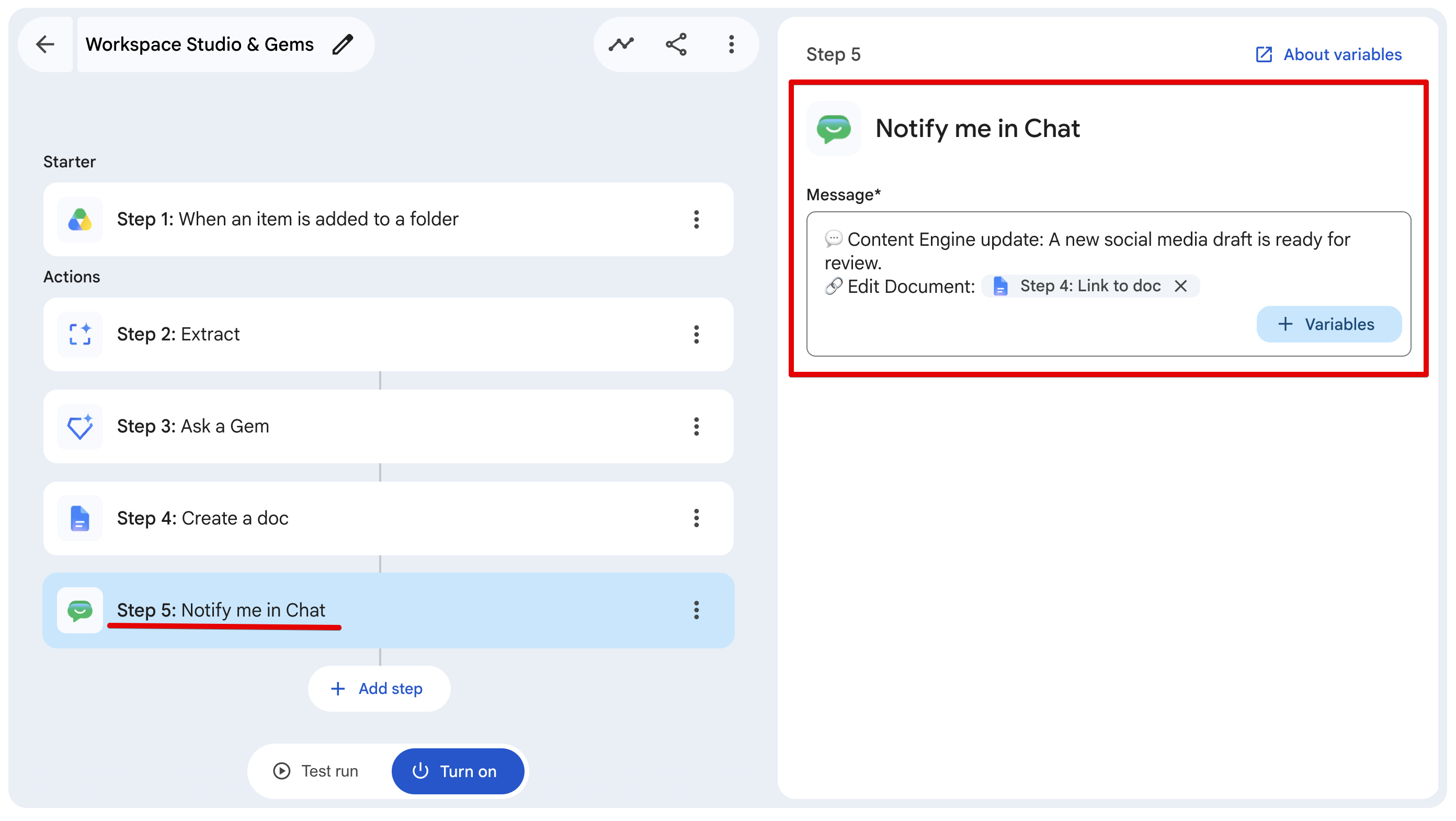
With the Gem ready, open Google Workspace Studio to build the event-driven architecture. The pipeline will contain 5 distinct blocks.
[Drive Trigger] ➔ [Extract Text] ➔ [Ask a Gem] ➔ [Create Doc] ➔ [Google Chat Notification]
Step 1: Set Up the Google Drive Trigger
We want the automation to watch a specific folder for incoming raw materials.
-
Add a new Trigger node to the canvas.
-
Select Google Drive as the app and choose When an item is added to a folder as the event.
-
Select or create a folder in your Drive named Raw Transcripts.
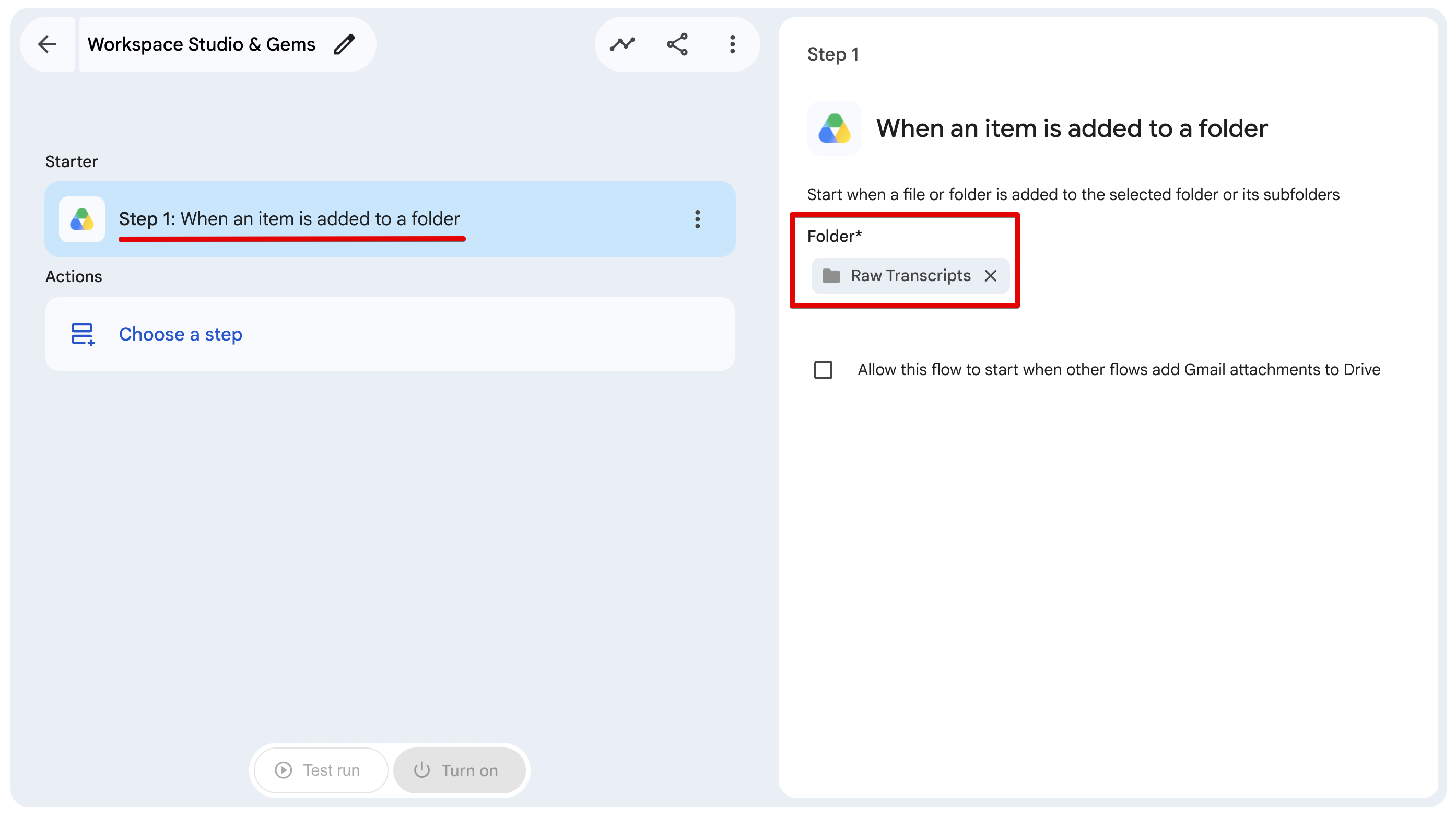
Step 2: Add the File Extraction Block
Workspace Studio needs to read the contents of the uploaded file rather than just passing the file object itself.
- Go ahead and click on Choose a step, and select Extract under AI Actions.
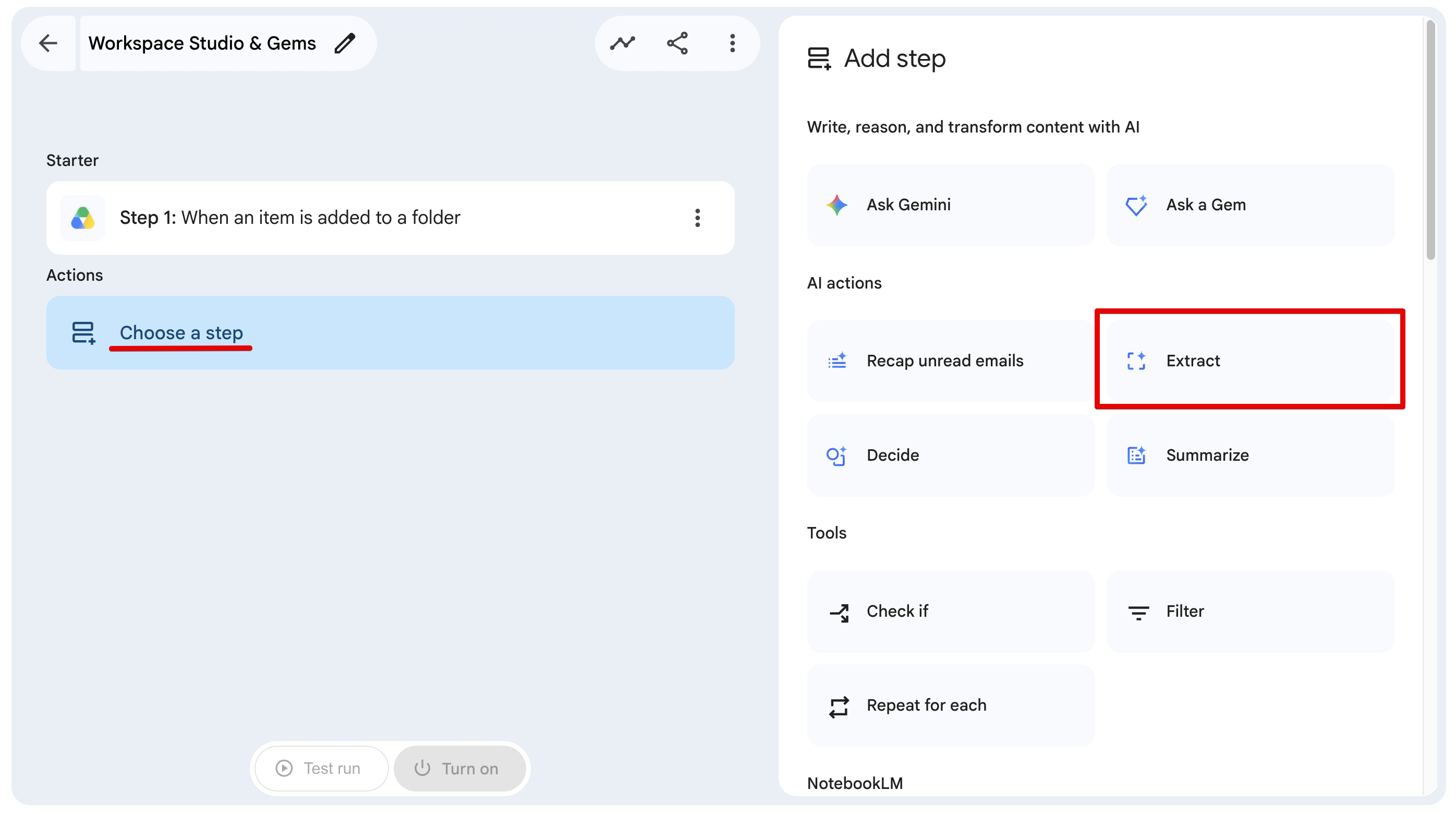
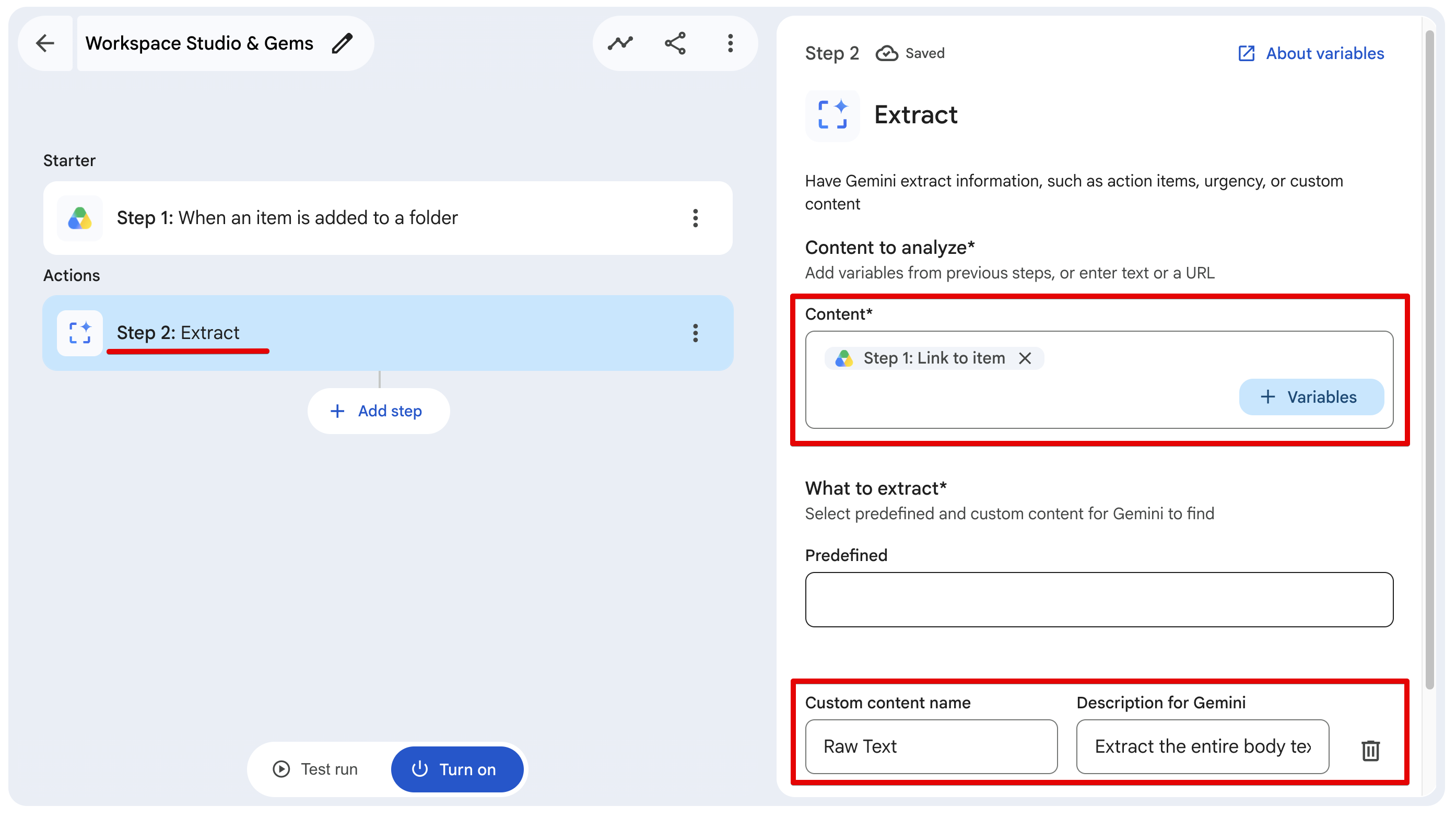
2.Map the file ID from Step 1 into this block and define the output variable name as Raw Text.
Step 3: Integrate the Custom Gem Node
This is where we call our pre-configured expert.
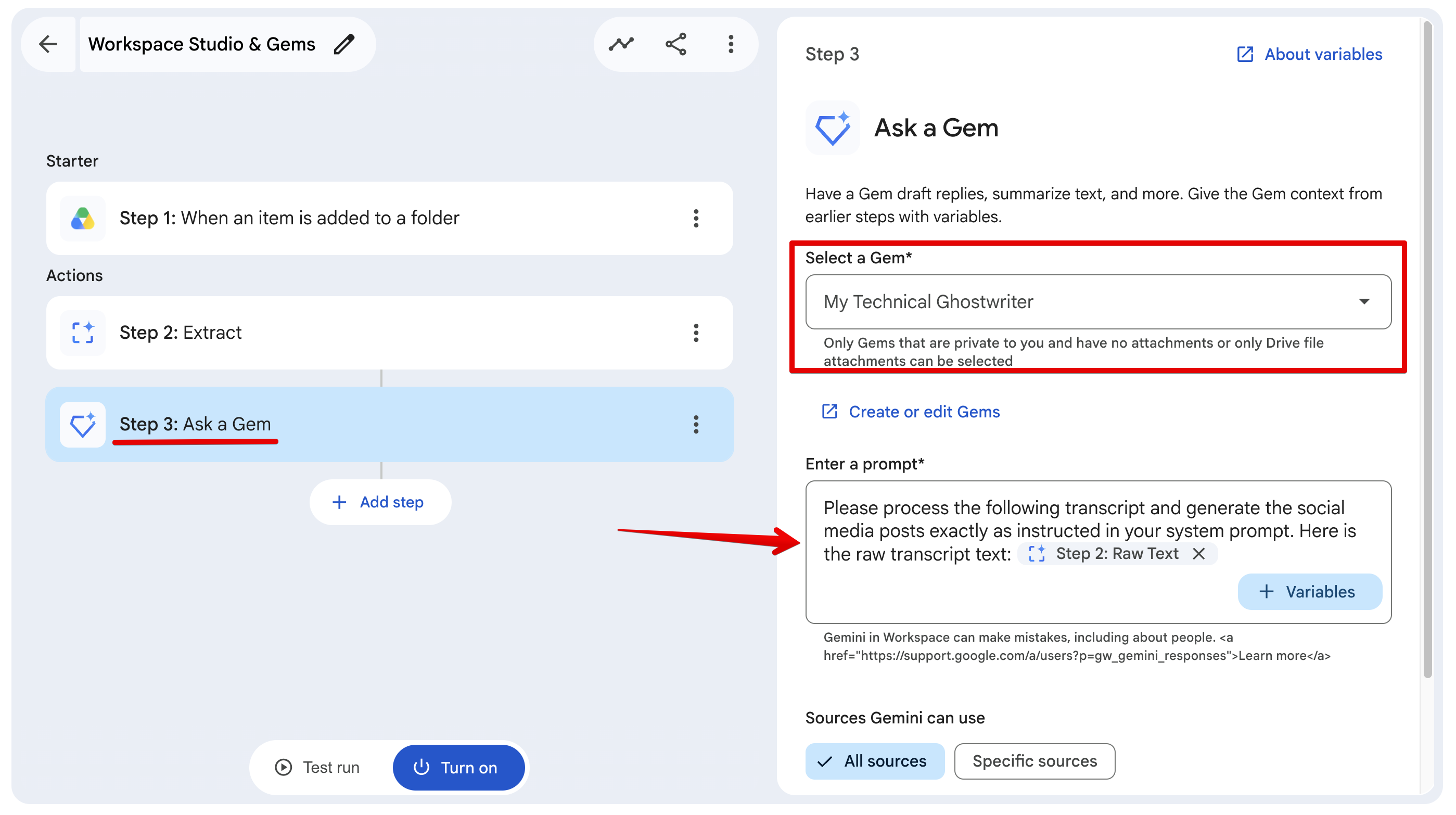
- Add a new action block and select Ask a Gem.
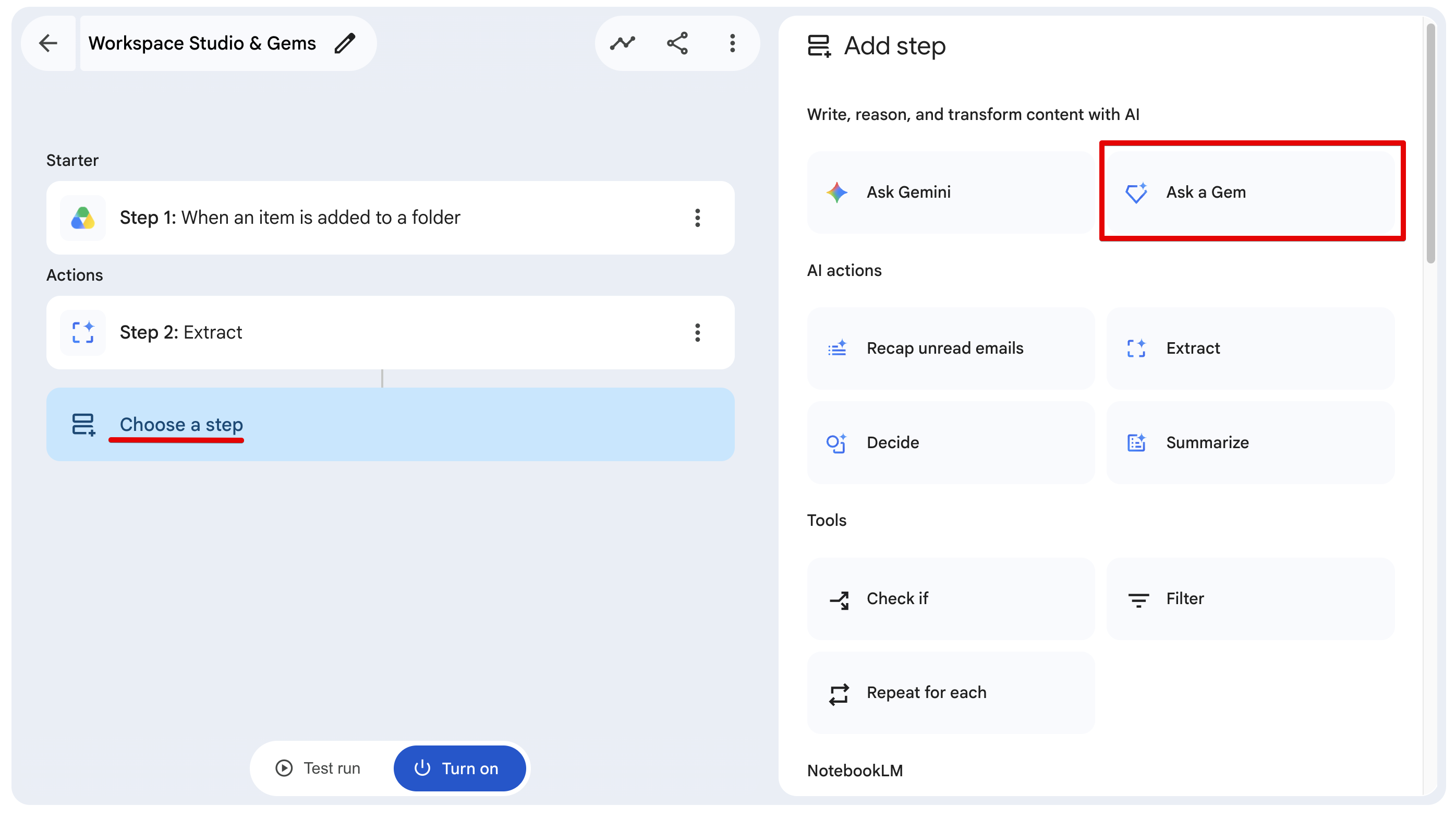
2.In the configuration settings, locate the Gem dropdown menu and select My Technical Ghostwriter.
3.In the Prompt field, map the dynamic text variable from your extraction block. Use a clean, direct instruction:
Please process the following transcript and generate the social media posts exactly as instructed in your system prompt. Here is the raw transcript text: {{Step 2: Raw Text}}
Step 4: Generate the Finalized Google Document
Instead of leaving the output in a log, we route it directly into a clean document for review.
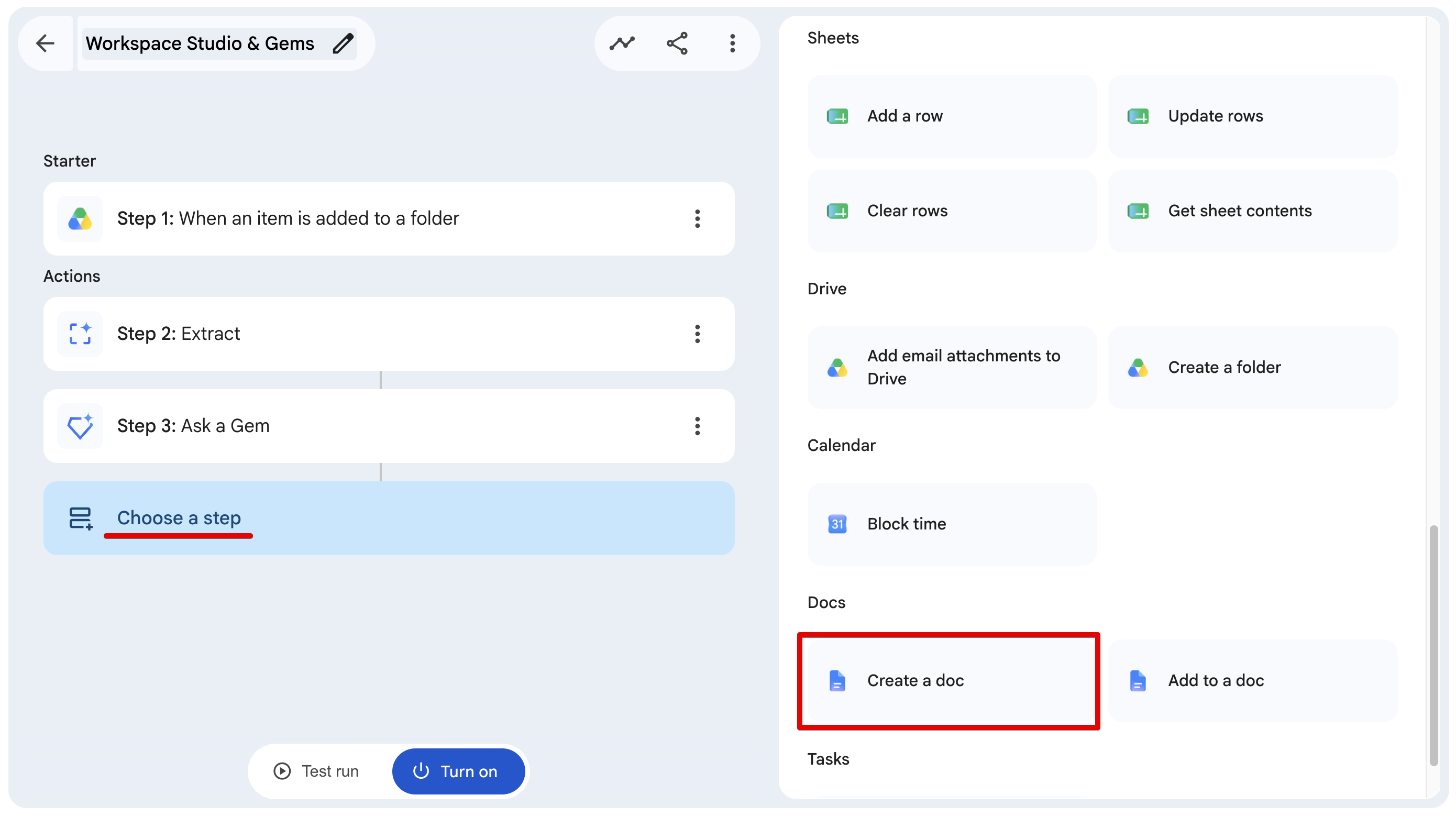
- Go ahead and click on Add step, followed by adding the Create a Doc action block to the workflow.
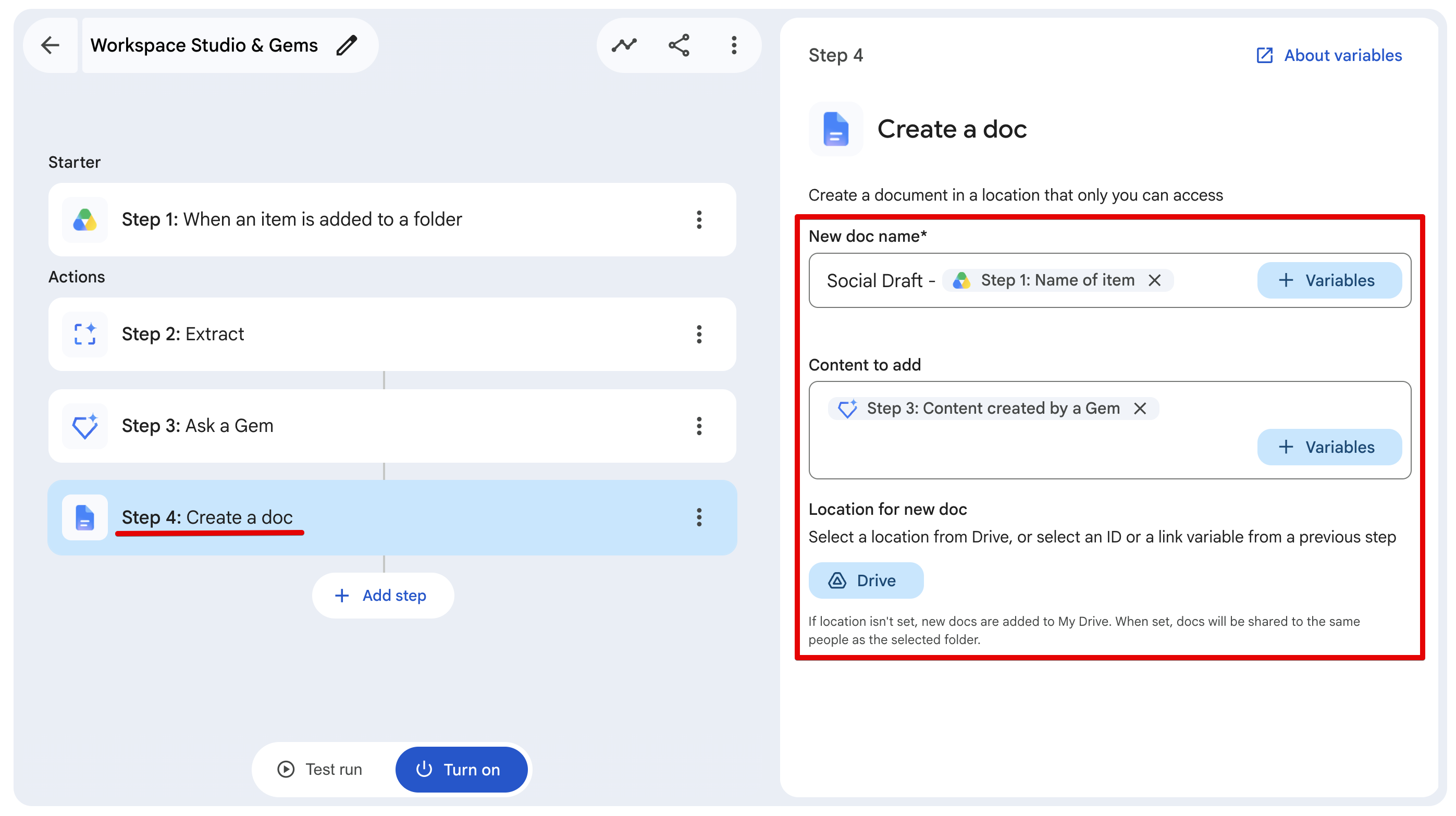
2.Set the Document Title to Social Draft - {{Step1: Name of item}}.
3.Map the body/content text field to the output generated by the Ask a Gem block in Step 3.
Step 5: Configure the Google Chat Notification
To eliminate the need to check Google Drive constantly, the final step pings your workspace chat when the task is complete.
1.Add a Google Chat action block. Select Notify me in Chat.
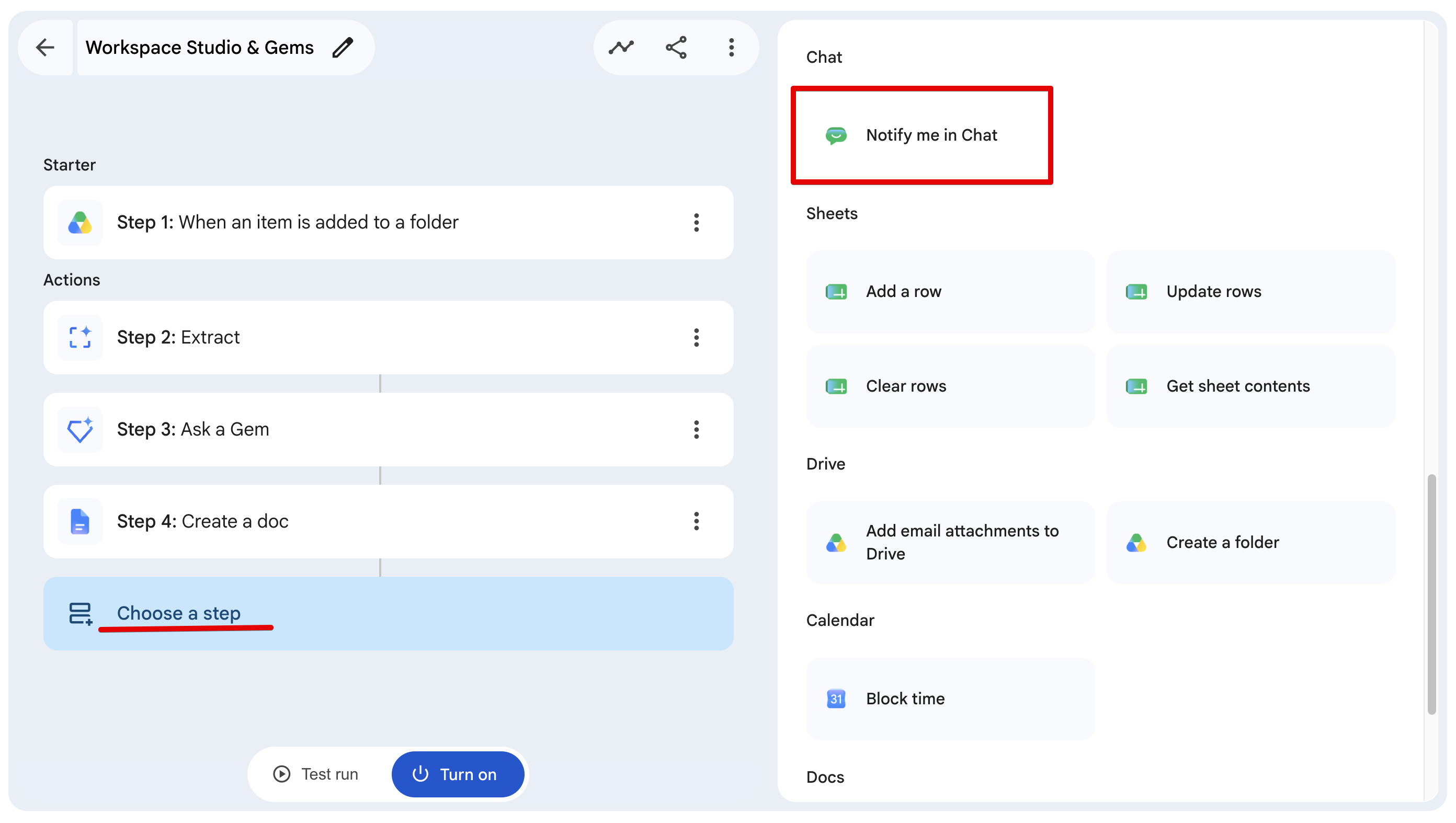
2.Construct a clean notification payload that passes the direct URL of the freshly created document:
💬 Content Engine update: A new social media draft is ready for review. 🔗 Edit Document: {{Step 4: Link to doc}}
Part 3: The Test Run
Before pushing this live, Workspace Studio has a built-in Test run feature.
When you click "Test run", it lets you select an existing file that is currently sitting in your target Google Drive folder. It will execute the entire pipeline against that specific file—extracting the text, prompting the Gem, and generating the Doc—without actually enabling the background listener.
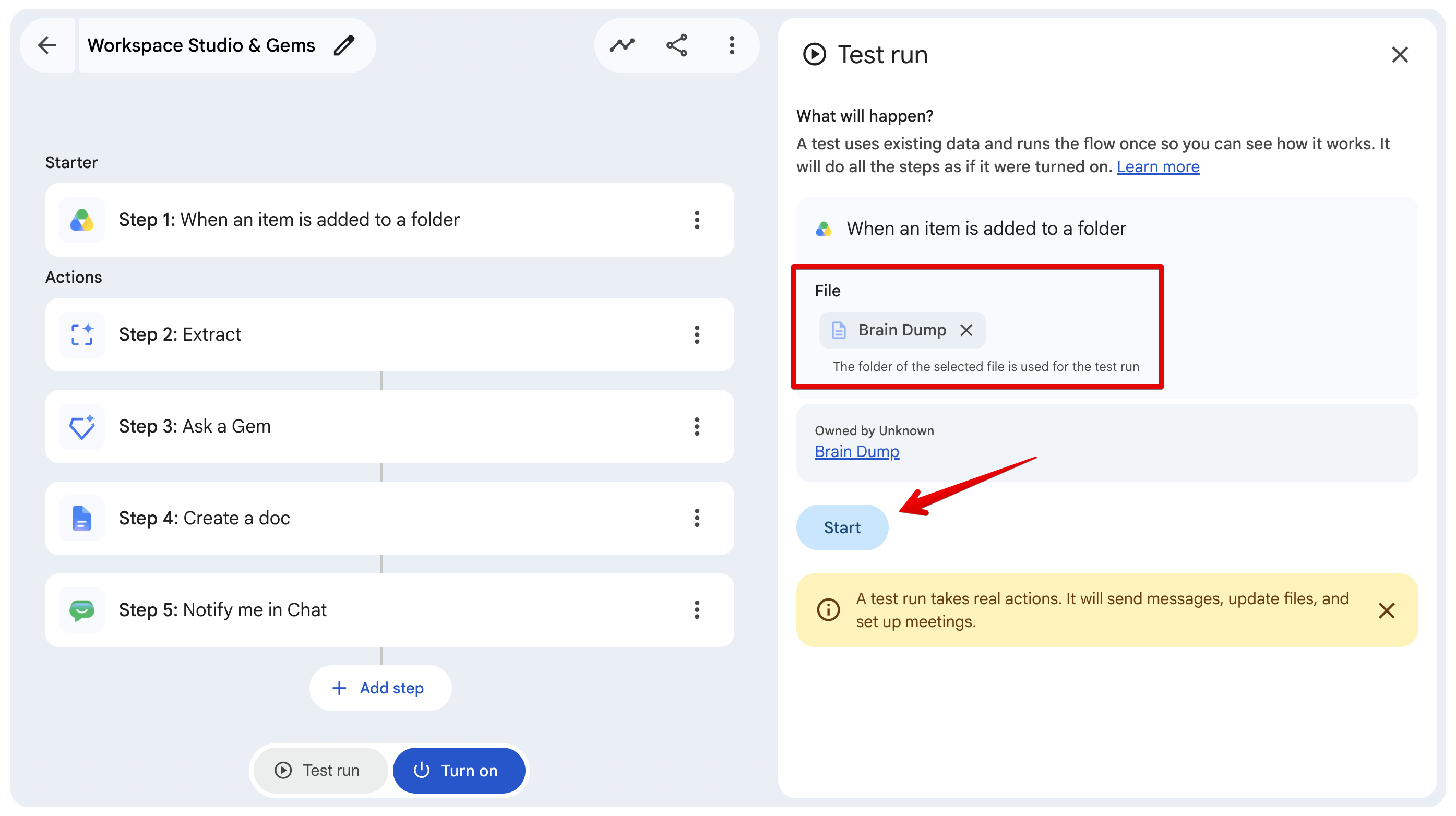
Once you verify the output formatting is exactly how you want it, you just click "Turn on" to set the automation live.
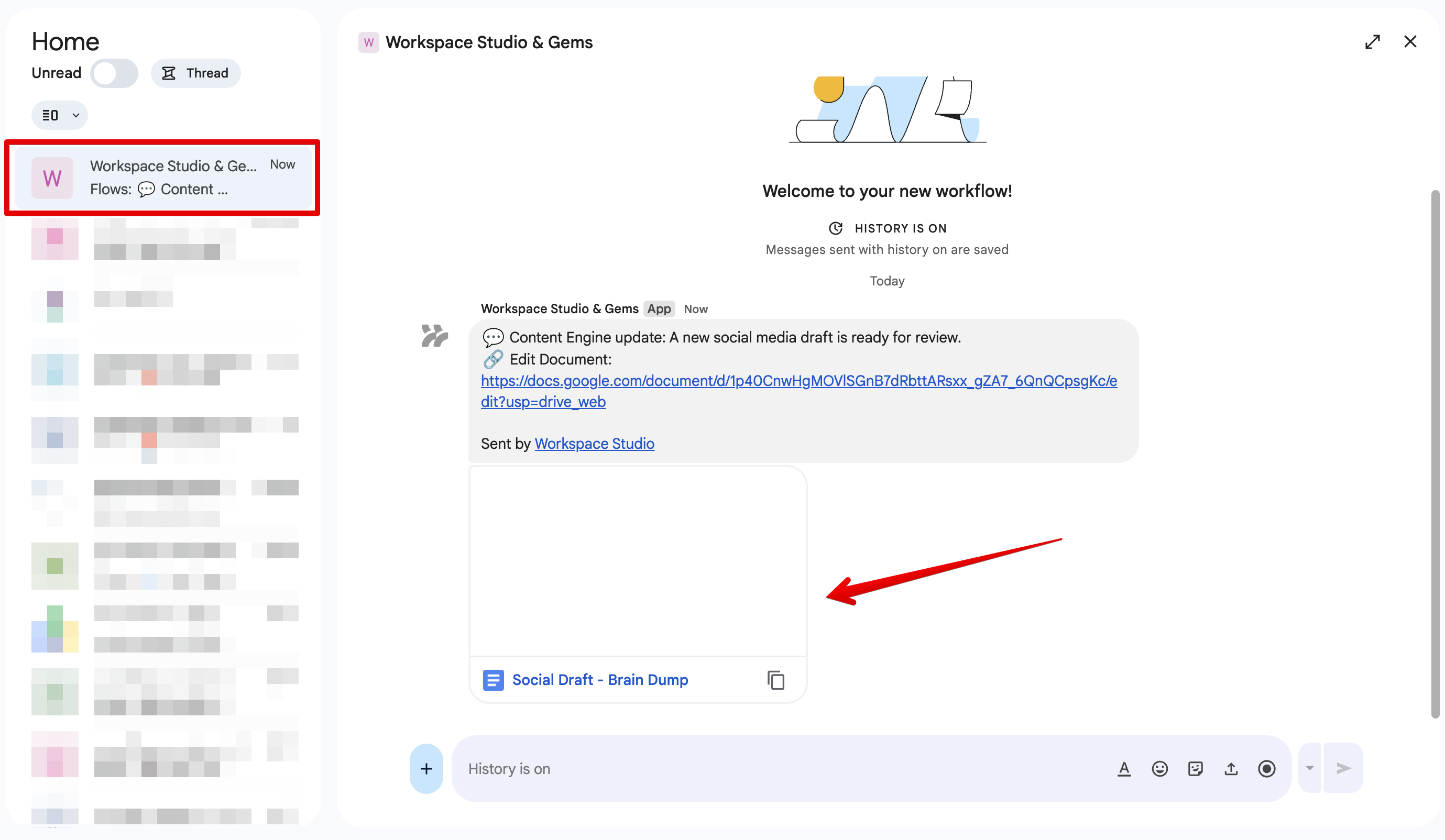
Once the workflow finishes executing, open the newly created document inside Google Drive or click the link delivered to your Google Chat workspace.
The output is split exactly into the two requested formats—one comprehensive LinkedIn post and one structured Twitter thread—while strictly respecting our anti-fluff boundaries:
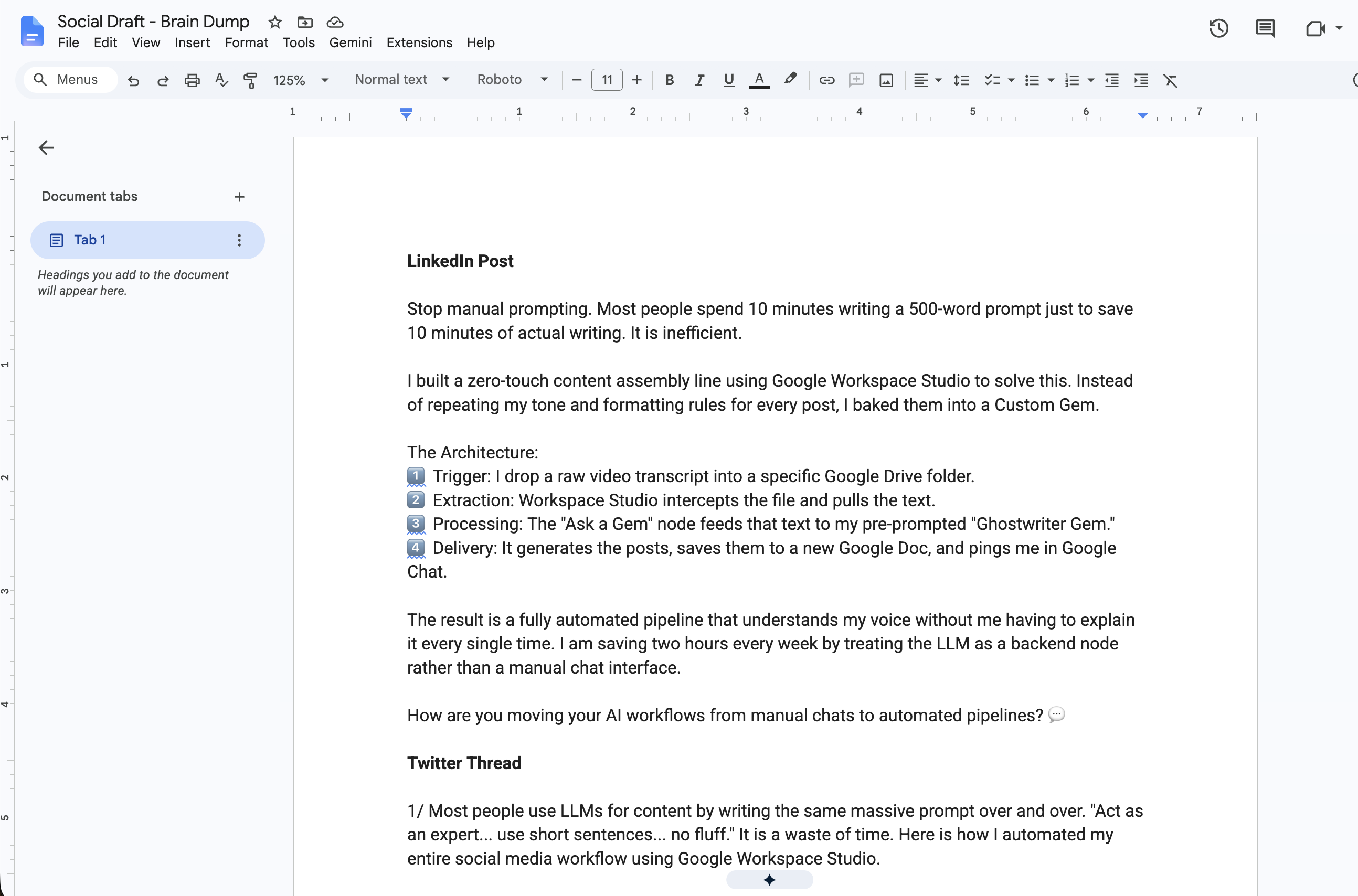
Why This Test Success Matters
Looking closely at the output, the Custom Gem followed every single negative constraint and structural guardrail perfectly:
-
Zero Marketing Fluff: There are no instances of generic buzzwords like "delve," "tapestry," or "game-changer."
-
Engineering Tone: The language is conversational but technically grounded, describing the setup as a "3-step architecture" and an "event-driven flow."
-
Emoji Discipline: The post uses exactly two structural numbering emojis (1️⃣, 2️⃣) instead of being cluttered with unnecessary fire or rocket graphics.
-
Perfect Formatting: Both formats lead with a distinct problem-focused hook, detail the underlying pipeline mechanics, and close with a clear call to action.
Conclusion
By moving away from manual chat interfaces and embedding Custom Gems directly into Google Workspace Studio, you transform an LLM from a passive assistant into an active, automated node in your development stack.
You write the architecture rules once, and the engine runs seamlessly in the background whenever new data enters your pipeline.
Comments
More Blog
View allaiContext bankruptcy: The case for strategic forgetting for AI Agents
Most of us have seen a coding agent fail to complete a task we know it can do. We just don't...
J
James O'ReillygooglecloudParallel Compliance Engine: Drive-to-Sheets Multi-Agent Orchestration
When building Generative AI applications, developers often encounter a massive bottleneck: sequential...
A
Aryan IranidiscussIs It Ethical to Post and Ask About Circuits on Dev.to?
I’ve been thinking about sharing some electronic circuit posts on Dev.to — small circuits, DIY...
C
codebunny20agentsThe One-Click Exporter: AI Studio Antigravity, Probed to Its Limits
What nobody tells you about exporting your multi-agent prototype to a local workspace. Every...
L
leslysandraagenticarchitectGuarding the till while autonomous data agents do the digging
Autonomous agents are genuinely good at answering messy business questions. Give one an LLM and a set...
S
Sireesha PulipatiaiReturn on Attention: Why AI Code Reviews Are Wearing Us Out
PR volume went up, ticket quality didn't, and the gap got filled with LLMs on both sides of the review: bots reviewing, bots replying, bots occasionally arguing with bots about priorities that only existed in a teammate's head. Our CEO named the actual problem, and it's bigger than code review.
C
christineReady-made automations for this
Workflows from the Neura Market marketplace related to this Stable Diffusion resource
- Automate Employee Onboarding with Slack, Jira, and Google Workspace Integrationn8n · Free · Related topic
- Alert on Equipment Health Issues with Google Sheets and MS Teams Integrationn8n · Free · Related topic
- Automated AI-Powered Workflow Maintenance with Google Workspace Integrationn8n · Free · Related topic
- AI Resume Screening & Evaluation for HR with GPT-4 & Google Workspacen8n · Free · Related topic