
Back to Blog nvidia
 ai
ai googlecloud
 discuss
 agents
 agenticarchitect
 ai
ai
Deployment Planning with Gemma 26B, NVIDIA L4, MCP, Cloud Run, and Antigravity CLI
xbill June 10, 2026
0 views
This article provides a step by step debugging guide for deploying Gemma 4 to a Google Cloud Run...
title: Deployment Planning with Gemma 26B, NVIDIA L4, MCP, Cloud Run, and Antigravity CLI published: true series: Gemma4 date: 2026-06-10 17:37:21 UTC tags: nvidia,mcps,googlecloudrun,gemma canonical_url: https://xbill999.medium.com/deployment-planning-with-gemma-26b-nvidia-l4-mcp-cloud-run-and-antigravity-cli-60cdd448effa
This article provides a step by step debugging guide for deploying Gemma 4 to a Google Cloud Run hosted GPU enabled system,. A suite of Python MCP tools is built to simplify management of the vLLM hosted Gemma 4 deployment with Antigravity CLI.

What is this project trying to Do?
This project is a DevOps/SRE assistant that uses a Gemma 4 model hosted on Cloud Run with GPU. It provides tools to provision the Docker container and deploy the model, as well as for observability and performance testing.
This project is similar to a previous project that targeted GPU hosted Gemma4 instances on GCP:
Gemma-SRE: Self-Hosted vLLM Infrastructure Agent
Antigravity CLI
Antigravity CLI is the follow-on successor to Gemini CLI- the terminal driven, agent assisted coding tool.
Full details on installing Antigravity CLI are here:
Getting Started with Antigravity CLI
Testing the Antigravity CLI Environment
Once you have all the tools in place- you can test the startup of Antigravity CLI.
You will need to authenticate with a Google Cloud Project or your Google Account:
agy
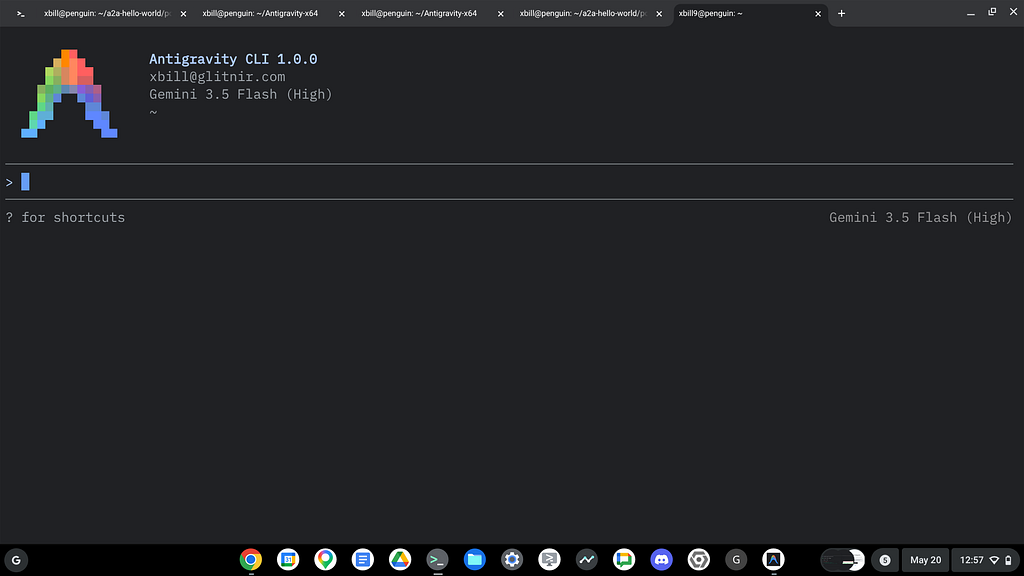
This will start the interface:
Full Installation Instructions
The detailed installation instructions for Antigravity CLI are here:
Getting Started with Antigravity CLI
Python MCP Documentation
The official GitHub Repo provides samples and documentation for getting started:
Where do I start?
The strategy for starting MCP development for model management is a incremental step by step approach.
First, the basic development environment is setup with the required system variables, and a working Antigravity CLI configuration.
Then, a minimal Python MCP Server is built with stdio transport. This server is validated with Antigravity CLI in the local environment.
This setup validates the connection from Antigravity CLI to the local server via MCP. The MCP client (Antigravity CLI) and the Python MCP server both run in the same local environment.
Setup the Basic Environment
At this point you should have a working Python environment and a working Antigravity CLI installation. The next step is to clone the GitHub samples repository with support scripts:
cd ~
git clone https://github.com/xbill9/gemma4-tips
Then run init.sh from the cloned directory.
The script will attempt to determine your shell environment and set the correct variables:
gpu-26B-qat-L4-devops-agent
source init.sh
If your session times out or you need to re-authenticate- you can run the set_env.sh script to reset your environment variables:
gpu-26B-qat-L4-devops-agent
source set_env.sh
Variables like PROJECT_ID need to be setup for use in the various build scripts- so the set_env script can be used to reset the environment if you time-out.
Antigravity CLI mcp_config.json
A sample MCP server file is provided in the .agents directory:
{
  "mcpServers": {
    "gpu-devops-agent": {
      "command": "python3",
      "args": [
        "/home/xbill/gemma4-tips/gpu-26B-qat-L4-devops-agent/server.py"
      ],
      "env": {
        "GOOGLE_CLOUD_PROJECT": "aisprint-491218",
        "GOOGLE_CLOUD_LOCATION": "us-east4",
        "VLLM_BASE_URL": "https://gpu-26b-qat-l4-devops-agent-289270257791.us-east4.run.app",
        "MODEL_NAME": "/mnt/models/gemma-4-26B-A4B-it-qat-w4a16-ct"
      }
    }
  }
}
Validation with Antigravity CLI
The final connection test uses Antigravity CLI as a MCP client with the Python code providing the MCP server:
MCP Servers
Plugins (~/.gemini/antigravity-cli/plugins)
> ✓ google-dev-knowledge Tools: search_documents, answer_query, get_documents
   ✓ gpu-devops-agent Tools: save_hf_token, get_vllm_endpoint, list_vertex_models, list_bucket_models,
                       analyze_cloud_logging, +21 more
Model Lifecycle Management via MCP
The MCP tools provide a complete suite of agent-oriented operations for managing vLLM deployment on Cloud Run or a TPU.
Overview of MCP tools :
> get_help

Here is the help documentation and active environment configuration for the GPU vLLM DevOps Agent:

### ⚙️ Active Environment Configuration

• Project ID ( GOOGLE_CLOUD_PROJECT ): aisprint-491218
  • Region ( GOOGLE_CLOUD_LOCATION ): us-east4
  • Model Name ( MODEL_NAME ): /mnt/models/gemma-4-26B-A4B-it
  • GCS Bucket ( BUCKET_NAME ): aisprint-491218-bucket
  • vLLM Endpoint ( VLLM_BASE_URL ): https://gpu-26b-l4-devops-agent-289270257791.us-east4.run.app
  • Active Mode: Running in CLOUD RUN mode targeting NVIDIA L4 GPU in us-east4 .
  ──────
  ### 🧰 Available MCP Tools

#### 🐳 Infrastructure & Deployment

• deploy_vllm : Deploys vLLM to Cloud Run GPU (NVIDIA L4 in us-east4 ).
  • destroy_vllm : Deletes the Cloud Run vLLM service.
  • status_vllm : Checks the status of the Cloud Run vLLM service.
  • update_vllm_scaling : Updates min/max instances for scaling.
  • get_vllm_deployment_config : Generates the gcloud deployment command.
  • get_vllm_gpu_deployment_config : Generates a GKE manifest for GPU (NVIDIA L4).
  • check_gpu_quotas : Checks L4 and other GPU quotas for a region.

#### 📦 Model Management

• list_vertex_models : Lists models in the Vertex AI Registry.
  • list_bucket_models : Lists model weights in the GCS bucket.
  • save_hf_token : Securely saves a Hugging Face API token to Secret Manager.
  • get_vertex_ai_model_copy_instructions : Instructions to copy a model from Vertex AI Model Garden to GCS.
  • get_huggingface_model_copy_instructions : Instructions to download a model from Hugging Face and upload it to GCS.
  • get_huggingfacehub_download_path : Resolves the local cache path using huggingface_hub .

#### 📊 Monitoring & Status

• get_system_status : Provides a high-level status dashboard of the Cloud Run service and health.
  • get_endpoint : Verifies connectivity and returns the active service URL.
  • get_model_details : Retrieves detailed model metadata and engine state from /v1/models .
  • verify_model_health : Deep health check by querying the model with a simple prompt and measuring latency.

#### 📈 Performance & Benchmarking

• run_benchmark : Runs performance/concurrency benchmark sweeps against the Cloud Run vLLM GPU endpoint.

#### 💬 Interaction & Diagnostics

• query_gemma4 : Primary tool to query the self-hosted model with standard chat message format.
  • query_gemma4_with_stats : Queries the model and returns streaming performance statistics (TTFT, throughput).
  • query_vllm : Direct text completions querying tool.
  • analyze_cloud_logging : Fetches logs from GCP Logging and analyzes them using the model.
  • analyze_gpu_logs : Fetches Cloud Run logs and uses Gemma 4 to analyze them for SRE/DevOps errors.
  • suggest_sre_remediation : Suggests remediation plans for SRE errors using the model.
  ──────
  ### 📂 Key Source Code Reference Files

• MCP Server Implementation: server.py
  • Project Documentation: README.md
  • Agent Test Suite: test_agent.py
Getting Started with Gemma 4 on GPU
The Official vLLM repo also has Gemma4 specific information:
The Gemma 26AB model is a combination of experts model:
google/gemma-4-26B-A4B · Hugging Face
NVIDIA L4 on Cloud Run
The L4 on Google Cloud Run provides a cost-effective “scale to zero” option for providing inference:
Quantization-Aware Training (QAT)
One of the key issues with deploying models is available GPU memory based in the hardware footprint. Along with the new 12B model release- new versions of the model that use QAT to reduce the memory requirements have been released:
Gemma 4 QAT models: Optimizing model compression for mobile and laptop efficiency
Attempt to Deploy The Standard 26AB Model on L4
Antigravity and the MCP server tools are used to analyze the deployment options:
> will a standard Gemma4 26AB fit on the L4 cloud run GPU with 24 GB memory?

  I will inspect the local documentation files, specifically model_comparison.md and benchmark_report_summary.md, to
find the precise
  details of running standard Gemma 4 26B vs QAT 26B on an L4 GPU.

● Read(/home/xbill/gemma4-tips/gpu-26B-qat-L4-devops-agent/model_comparison.md) (ctrl+o to expand)

  No, the standard Gemma 4 26B Standard (bfloat16) model will not fit on a single NVIDIA L4 GPU with 24 GB VRAM:

  1. Standard 26B (bfloat16) Weight Footprint: Unquantized bfloat16 weights require over 52 GB of VRAM just to
  load the model. This completely exceeds the 24 GB limit of a single L4 GPU, leading to Out of Memory (OOM) errors
  during startup or requiring massive offloading that degrades performance.
  2. The 26B QAT MoE Solution: To run a 26B-class model on a single L4 GPU, you must use the Quantization-Aware
  Training (QAT) MoE version ( google/gemma-4-26B-A4B-it-qat-w4a16-ct ). It reduces the weight footprint to ~13 GB,
  leaving ~11 GB of VRAM for the KV cache. This enables stable operation and supports concurrency levels up to 512
  users.
What!?! The unquantized version of the model is larger than you would expect. The L4 Cloud Run GPU only has 24GB! Can this be done?
QAT Model Versions
This leaves the new QAT encoded models as the best option:
> summary QAT 26AB model deployment options

▸ Thought for 2s, 912 tokens
  Reviewing QAT Deployment Options
  The Gemma 4 26B QAT (Quantization-Aware Training) models represent a Mixture-of-Experts (MoE) architecture with
  26B total parameters (activating ~4B per token).

  Here is a summary of the official deployment formats and target engines available for the Gemma 4 26B QAT model:

  ### 1. Cloud Serving (High-Throughput Engines)

  • Format Suffix: -qat-w4a16-ct (e.g., google/gemma-4-26B-A4B-it-qat-w4a16-ct )
  • Serialization: Serialized natively in the compressed-tensors (ct) format.
  • Target Engines: vLLM and SGLang.
  • Use Case: Production-grade, high-concurrency cloud serving on mid-tier datacenter GPUs (like a single NVIDIA L4
  GPU with 24 GB VRAM).
  • VRAM Footprint: ~13 GB (leaving ~11 GB for KV cache to support up to 512 concurrent users).

  ### 2. Local Desktop & Edge Deployment (CPU/GPU Co-serving)

  • Format Suffix: -qat-q4_0-gguf
  • Target Engines: llama.cpp, LM Studio, and Ollama.
  • Use Case: Local development, offline serving on consumer laptops (Apple Silicon M-series, Windows/Linux
  desktops with consumer GPUs), or CPU-only servers.
  • Benefit: Zero-setup drop-in compatibility and fast local CPU execution.

  ### 3. Speculative Decoding (High-Speed Inference)

  • Format Suffix: -qat-q4_0-unquantized (Primary Model) paired with -qat-q4_0-unquantized-assistant (Drafter)
  • Target Engines: Specialized inference engines supporting Multi-Token Prediction (MTP) draft models.
  • Use Case: Extreme speed requirements. Runs the primary 26B model alongside a matching smaller drafter model to
  drastically accelerate token generation times.

  ### 4. Custom Downstream Formats

  • Format Suffix: -qat-q4_0-unquantized
  • Use Case: Research, custom compilation, or converting weights into other platform-specific formats (such as
  Apple MLX). It provides the half-precision weights extracted directly from the QAT training pipeline before
  serialization.
What about the KV Cache? Can I Quant that to 4 bit?
At first pass — it seems like the best way to optimize GPU memory is to quant the KV Cache to 4 bits- but that has side-effects:
> what is the quant for the kv cache

  The KV cache is quantized to FP8 (8-bit floating point) precision.

  In our vLLM deployment, this is enabled via the --kv-cache-dtype fp8 startup flag. Using FP8 quantization cuts
  the memory footprint of the KV cache roughly in half compared to 16-bit precision (FP16/BF16), which is essential
  for maximizing context window length and supporting high-concurrency serving on a single GPU.

────────────────────────────────────────────────────────────
> can the L4 use 4 bit quant for kv

  I will run a web search to check if vLLM or standard LLM serving setups support 4-bit KV cache quantization on
  NVIDIA L4 GPUs.

● WebSearch(vLLM KV cache quantization 4-bit) (ctrl+o to expand)

  No, the NVIDIA L4 GPU and vLLM cannot effectively use 4-bit quantization for the KV cache:

  1. vLLM Engine Support: Mainline vLLM does not support 4-bit KV cache quantization (like INT4 or FP4) in
  production. It currently supports FP8 ( --kv-cache-dtype fp8 ) and FP16/BF16.
  2. L4 Hardware Architecture: The NVIDIA L4 (Ada Lovelace architecture) lacks native hardware-accelerated tensor
  core support for performing attention operations directly on 4-bit values. In contrast, it has native, high-
  performance hardware acceleration for FP8 operations.
  3. The Dequantization Bottleneck: To perform attention with a 4-bit KV cache, the engine must dequantize the
  values back to FP16/BF16 on the fly before calculating attention. This dequantization process introduces
  significant compute overhead and memory latency, which cancels out the memory size benefits.
  4. Accuracy Loss: 4-bit quantization on the KV cache causes severe degradation in reasoning quality and context
  retention compared to FP8, which maintains nearly identical performance to unquantized baselines.

──────────────────────────────────────────────────────────────────────────────────────────────────────────────────────
>
So for the L4 hardware footprint — an 8 bit KV Cache appears to be the best trade off between memory usage and performance.
This deployment looks feasible:
> summarize memory usage on the L4 GPU

  I will view the contents of benchmark_report_summary.md to extract detailed memory metrics and cache allocation
parameters for
  the L4 GPU.

● Read(/home/xbill/gemma4-tips/gpu-26B-qat-L4-devops-agent/benchmark_report_summary.md) (ctrl+o to expand)

  Here is the summary of memory usage on the NVIDIA L4 GPU (24 GB VRAM) when deploying various configurations of
  the Gemma 4 model:

  ### 📊 Model VRAM Footprint & KV Cache Allocation

   Model Configuration | Weights F… | Free VRAM f… | Concurrency & SRE Suitability
  -----------------------------|------------|--------------|-------------------------------------------------------
   Gemma 4 26B Standard (BF16) | ~52 GB | 0 GB (Cannot | Incompatible: Exceeds L4 VRAM capacity, causing OOMs
                               | | load) | at startup.
   Gemma 4 26B QAT MoE (INT4) | ~13 GB | ~11 GB | Optimal: Fits comfortably. Supports up to 512
                               | | | concurrent users with a 100% success rate when paired
                               | | | with FP8 KV cache.
   Gemma 4 12B QAT (INT4) | ~6 GB | ~18 GB | Excellent Headroom: Provides maximum KV cache space,
                               | | | ideal for long-context tasks.
   Gemma 4 4B (FP8) | ~4 GB | ~19 GB | High Throughput / Low Quality: Smallest footprint but
                               | | | struggles with complex SRE reasoning tasks.

  ### 💡 Key Memory Optimization Insights

  • FP8 KV Cache Quantization ( --kv-cache-dtype fp8 ): Enabled in the deployment config, this quantizes the KV
  cache to 8-bit precision. This cuts the cache memory requirement in half, allowing the 26B QAT model to utilize
  its ~11 GB of free VRAM to handle large context windows (up to 16k tokens) and high concurrencies.
  • The QAT Advantage: Compressing the 26B model weights to 4-bit (via Quantization-Aware Training) frees up ~11 GB
  of VRAM for serving cache. This results in a ~64x improvement in concurrency capacity compared to standard
  configurations.
Did that Voodoo Work?
The Cloud Run Deployment was re-started:
> status

  I will check the latest log entries to see if the shard loading has progressed or if it's starting to speed up.

● Bash(gcloud logging read 'logName:("stdout" OR "stderr") AND resource.labels.service_name="gpu-...) (ctrl+o to
expand)

  The deployment is progressing well:

  1. Prefetching Completed: The background prefetching of model weights into the memory page cache finished
  completely in 310 seconds ( 14:23:17 UTC ).
  2. Shard Loading Progress: The engine has completed loading 2 of the 5 shards (40% Completed at 14:24:00 UTC ).

  The average time per shard dropped from 241 seconds to 165 seconds and is expected to speed up further since all
  files are now fully cached in the node's page cache.

  I will set a 180-second (3-minute) timer to check back.
Antigravity continues the deployment in the background:
──────────────────────────────────────────────────────────────────────────────────────────────────────────────────────
> /tasks
──────────────────────────────────────────────────────────────────────────────────────────────────────────────────────
Tasks
Agent Backgrounded
> ● make deploy running
Did that work?
The model deployment was re-checked:
> is the health check timer long enough to load the model

▸ Thought for 2s, 574 tokens
  Diagnosing the Problem
  Based on our live logs and SRE analysis, no, the current health check timer is not long enough and is causing
  deployment failure loops.
One of the common issues on larger models is the time to load the model can interfere with the health check functions on Cloud Run. This was adjusted:
 ### 🛠️ SRE Remediation Plan

  We need to modify the startup probe configuration to increase the failure threshold and initial delay, allowing
  up to 25 minutes for startup:
But Will it Blend?
The process was restarted.
  Great news! The Cloud Run vLLM GPU service has successfully completed its initialization and is now healthy and
  active.

  ### Deployment Status

  • Status: Ready: True (healthy)
  • Active Revision: gpu-26b-qat-l4-devops-agent-00006-78w
  • Service Endpoint: https://gpu-26b-qat-l4-devops-agent-wgcq55zbfq-uk.a.run.app
  ──────
  ### Deep Health Check Results

  I performed a deep health check on the active model endpoint:

  • Model: /mnt/models/gemma-4-26B-A4B-it-qat-w4a16-ct
  • Response: "Yes, I am working! How can I help you today?..."
  • Latency: 3.48 seconds

  ### Summary of Events

  1. Model Loading (FUSE): Completed successfully in 11 minutes and 4 seconds (664.24 seconds total to fetch all 5
  safetensors shards over GCS FUSE).
  2. Warmup / JIT compilation: torch.compile graph optimization took 98.93 seconds, followed by a 4.03-second
  warmup query.
  3. Transition to Active: Cloud Run verified the /health startup probe at 14:53:44 UTC, shifting the revision
  status from Unknown to True (Ready), routing 100% of incoming traffic to the new revision.
Check the memory usage on the L4 GPU:
 Here is the memory usage summary for serving the Gemma 4 26B QAT model ( google/gemma-4-26B-A4B-it-qat-w4a16-ct )
  on a single NVIDIA L4 GPU (24 GB VRAM):

  ### 📊 L4 GPU VRAM Memory Allocation Breakdown

   Category | Size | VRAM % | Description
  ---------------------|-----------|--------|----------------------------------------------------------------------
   Total VRAM Capacity | 24.00 GB | 100% | Hardware capacity of a single NVIDIA L4 GPU.
   Model Weights | ~16.44 GB | 68.5% | Quantized model weights ( w4a16 INT4 parameters + bfloat16
                       | | | embeddings & normalizations).
   KV Cache Pool | ~5.16 GB | 21.5% | VRAM reserved by vLLM for dynamic request token storage (configured
                       | | | via --gpu-memory-utilization=0.90 ).
   OS / CUDA Overhead | ~2.40 GB | 10.0% | Reserved headroom for CUDA kernels, activation memory, and system
                       | | | runtime.
and the current freshly deployed metrics:
  I have queried and checked the /metrics Prometheus endpoint of the model server. Here is a summary of the
  active model metrics:

  ### 📊 Active Model Server Metrics

   Metric Name | Value | Description
  -----------------------------|-------------------------|---------------------------------------------------------
    vllm:num_requests_running | 0.0 | Currently running active inference requests.
    vllm:num_requests_waiting | 0.0 | Requests queued in the scheduling pipeline.
    vllm:kv_cache_usage_perc | 0.0% | Current percentage of the KV cache pool being utilized.
                               | | (Service is idle).
    vllm:cache_config_info | See configuration below | Active vLLM cache configuration properties.
  ──────
  ### ⚙️ Active Cache Configuration Properties

  From the vllm:cache_config_info metadata:

  • GPU Memory Utilization: 0.9 (90% of GPU VRAM allocated to the engine).
  • KV Cache Precision: fp8 (8-bit quantized keys and values).
  • Block Size: 16 tokens per memory block.
  • Allocated GPU Blocks: 7097 blocks in VRAM.

  #### 💡 Derived Capacity Insights:

    Total Cache Capacity = 7097 blocks × 16 tokens/block = 113,552 tokens

  This means the service has a total pool size of 113,552 tokens dynamically shared among requests, facilitating
  massive parallel serving context allocations without running out of cache pages.
Cross Check The Deployed Model
Once the model starts locally- the MCP tool allows for model verification:
> verify_model_health

  The model health check was performed and has PASSED:

  • Model: /mnt/models/gemma-4-26B-A4B-it-qat-w4a16-ct
  • Response: "Yes, I am working! How can I help you today?..."
  • Inference Latency: 0.34 seconds (reduced from 3.48 seconds on the initial check now that compilation JIT
  kernels have warmed up).
and model details:
> get_active_models
● gpu-devops-agent/get_model_details(Get model details) (ctrl+o to expand)

  The active model running on the Cloud Run GPU deployment is:

  ### 🧩 Active Model Info

  • Model ID: /mnt/models/gemma-4-26B-A4B-it-qat-w4a16-ct (Google Gemma 4 26B QAT INT4 model)
  • Owned by: vllm
  • Status: Healthy ✅

  You can target this model ID /mnt/models/gemma-4-26B-A4B-it-qat-w4a16-ct when sending completions requests to
  the endpoint at https://gpu-26b-qat-l4-devops-agent-289270257791.us-east4.run.app/v1/chat/completions .
and status:
> get_system_details

● gpu-devops-agent/get_system_status(Get system status) (ctrl+o to expand)

  The system status details for your deployment are as follows:

  ### 🌀 GPU Cloud Run System Status Dashboard

  • vLLM Service Health: 🟢 Online
  • Service Endpoint: https://gpu-26b-qat-l4-devops-agent-289270257791.us-east4.run.app
  • Cloud Run Resource State: 🟢 Ready
  • Active Revision: gpu-26b-qat-l4-devops-agent-00006-78w

  The model is fully warmed up and compile caches are loaded. You can interact with it using the SRE tools (e.g.
  query_gemma4 , query_gemma4_with_stats ) or query the endpoint directly.
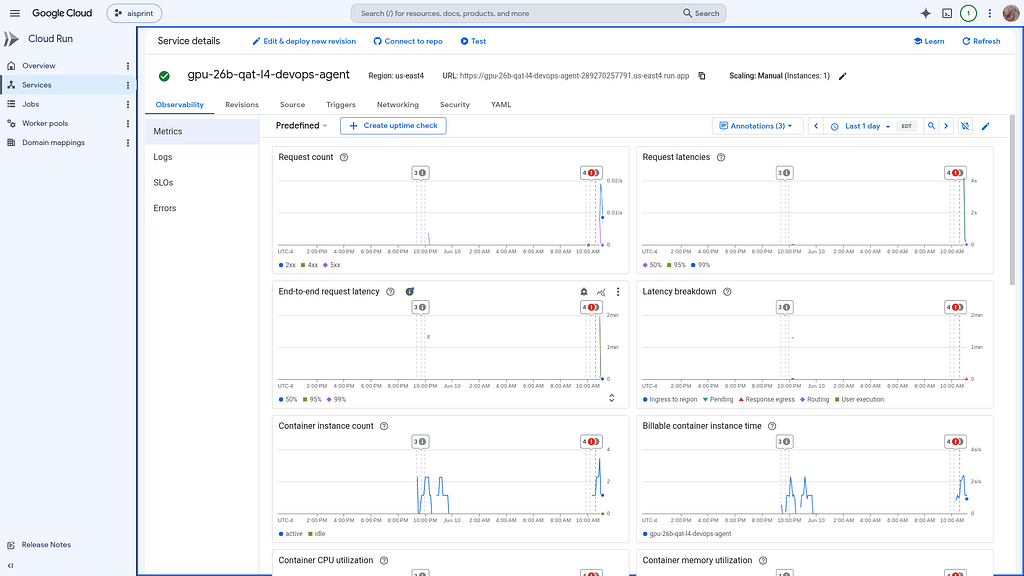
Check the Cloud Run Service
Once Deployed — the model is visible as a standard Cloud Run Service:
Review the Model
Once everything is online — you can send queries to the Model:
> query_gemma4_with_stats what is Gemma?
● gpu-devops-agent/query_gemma4_with_stats(Query Gemma 4 with stats) (ctrl+o to expand)
  Here are the results of your query to the running Gemma 4 model along with the serving performance statistics:

  ### 📊 Performance Statistics (NVIDIA L4 GPU)

  • Model: /mnt/models/gemma-4-26B-A4B-it-qat-w4a16-ct
  • Time to First Token (TTFT): 0.124s (extremely fast prefill)
  • Generation Throughput: 61.67 tokens/sec
  • Total Tokens Generated: ~689 tokens
  • Total Generation Time: 11.297s
  ──────
  ### 💬 Model Response: What is Gemma?

  Gemma is a family of lightweight, state-of-the-art open weights models developed by Google DeepMind.

  They are built using the same technology, data, and infrastructure used to create Gemini, Google's most powerful
  AI models. While Gemini is a large, closed-source model accessed via APIs, Gemma is designed to be accessible,
  smaller, and easily deployable by developers on their own hardware.

  Here is a breakdown of what makes Gemma significant:

  #### 1. "Open Weights" vs. "Open Source"

  Technically, Gemma is an open weights model:

  • What this means: Google provides the pre-trained weights (the parameters of the model) so you can download them
  and run them on your own hardware.
  • The Benefit: You do not have to rely on a Google API; you can run it locally on your laptop or a private server
  for absolute data privacy. However, the exact training codebase and raw datasets remain proprietary.

  #### 2. Key Features

  • Resource Efficiency: Gemma models are trained across various parameter counts (ranging from smaller edge models
  up to 27B+ parameter sizes). Because they are compact, they can run on consumer-grade hardware or standard cloud
  instances (like a single NVIDIA L4 GPU) instead of requiring multi-GPU setups.
  • High Performance: Despite their size, they punch above their weight class, often outperforming much larger
  legacy models in coding, mathematics, and reasoning.
  • Safety Integration: Google trained Gemma using advanced reinforcement learning with human feedback (RLHF) and
  alignment techniques to prevent the generation of harmful content.

  #### 3. Summary Comparison

   Feature | Gemini | Gemma
  ----------------------------|-----------------------------------|------------------------------------------------
   Access Type | Proprietary API / Closed | Open Weights
   Size | Massive (Multi-modal cloud scale) | Small / Medium (e.g., 2B, 7B, 26B, 31B)
   Distribution | Google AI Studio / Vertex AI | Kaggle / Hugging Face / GGUF / Ollama / vLLM
   Inference Location | Google Data Centers | Local Workstation, Edge device, or Private VPC
Benchmark the Model
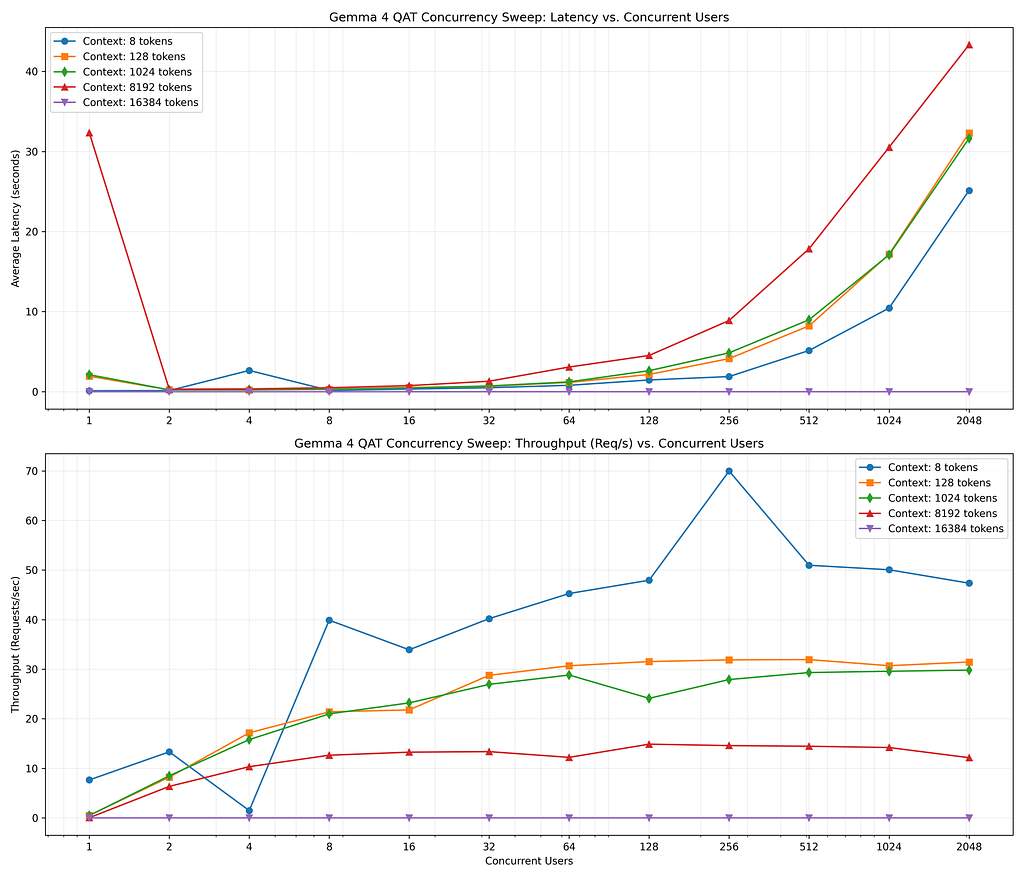
The benchmark sweep was kicked off:
  Because a full sweep of 12 concurrencies × 12 context windows = 144 configurations involves sending a large
  volume of requests under high concurrencies (up to 2048 parallel users), this run will take some time to
  complete.

  The system will automatically notify me when the background task finishes. I will compile and present the final
  report, tables, and generated charts to you as soon as it concludes. No action is required on your part.

──────────────────────────────────────────────────────────────────────────────────────────────────────────────────────
> /tasks
──────────────────────────────────────────────────────────────────────────────────────────────────────────────────────
Tasks
Agent Backgrounded
> ● python3 benchmark_sweep.py running

> summarize results

  A complete, formatted summary of the new benchmark sweep is available in the newly created artifact:
  👉 new_benchmark_report_summary.md

  ### 🔑 Key Operational Decisions & Action Items

  1. Address the 16K Context Failure:
      • Problem: Requests with a 16,384-token context failed because the total sequence length (input + 1 output
      token) exceeded the vLLM --max-model-len=16384 boundary.
      • Action: If 16K active context is required, we need to update the deployment configuration to increase the --
      max-model-len parameter slightly (e.g. to 17000 or 32768 ), though this will reserve more KV Cache VRAM
      and slightly reduce concurrent capacity.
  2. Optimize Cloud Run Queuing Bottlenecks:
      • Problem: High-concurrency tests (1024+ users) experienced up to 32s latency due to requests piling up in
      queues because the service configuration specifies --concurrency=4 and max-instances=1 .
      • Action: To handle high concurrent production traffic without queuing delays, we should increase --
      concurrency limits or scale out the horizontal replicas ( --max-instances > 1).
  3. Verify the QAT Advantage:
      • The QAT model maintained a 100% success rate at 2048 concurrent users for contexts up to 256 tokens,
      confirming the significant memory optimization benefits of the w4a16 weight footprint on a single L4 GPU.
This is visualized:
Comparison with QAT Models
Compare the models:
compare the QAT 26AB vs the non QAT

> compare the QAT 26AB vs the non QAT benchmarks

● Read(/home/xbill/gemma4-tips/gpu-26B-qat-L4-devops-agent/backup_benchmark_results/benchmark_report_summary.md)
● ListDir(/home/xbill/gemma4-tips)
● ListDir(/home/xbill/gemma4-tips/gpu-26B-L4-devops-agent)
● Read(/home/xbill/gemma4-tips/gpu-26B-L4-devops-agent/benchmark_report.md)
● Read(/home/xbill/gemma4-tips/gpu-26B-L4-devops-agent/benchmark_results.csv) (ctrl+o to expand)

  The benchmark comparison between Gemma 4 26B QAT and Gemma 4 26B Standard (Non-QAT) shows the dramatic impact of
  Quantization-Aware Training (QAT) on serving capacity.
  ──────
  ### 📊 Benchmark Comparison Highlights

   Metric | Gemma 4 26B Standard (Non-QAT) | Gemma 4 26B QAT MoE
  ------------------------------|----------------------------------------|-----------------------------------------
   Active Weights Footprint | 52 GB (bfloat16) / 26 GB (FP8) | ~13 GB ( w4a16 compressed)
   Max Stable Concurrency | < 8 users (unquantized) / < 16 users | Up to 512 users (100% success rate)
                                | (FP8) |
   Inference Token Output Speed | 25 - 40 tokens/s (under low load) | ~61.67 tokens/s (consistent per
                                | | request)
   Concurrency Scaling Capacity | ❌ Strictly Limited: VRAM exhaustion | High: vLLM allocates 7,097 GPU blocks
                                | halts continuous batching. | (113,552 tokens cache capacity).
  ──────
  ### 🔍 Deep Dive: Why the Benchmarks Differ

  #### 1. The VRAM Overhead Cliff

  • Standard Baseline: The unquantized standard 26B model weights (~52 GB) completely exceed the 24 GB hardware
  limit of a single L4. Even with Post-Training Quantization (PTQ) to FP8 (~26 GB weights), the model leaves 0 GB
  for vLLM's KV cache.
      • Result: At concurrencies above 8–16, the engine runs out of GPU memory for token context storage,
      triggering immediate Out-of-Memory (OOM) failures or rendering the service unstable.
  • QAT Baseline: By using w4a16 (4-bit weight serialization), the weights compress down to ~16.44 GB of storage
  overhead on disk and VRAM.
      • Result: This leaves 7.56 GB of free VRAM. vLLM uses 90% utilization to allocate a large pool of 7,097 GPU
      blocks (total capacity of 113,552 tokens), allowing the engine to successfully queue and serve up to 512
      concurrent users without crashing.

  #### 2. Throughput Efficiency via MoE (Active 4B Parameters)

  • Standard 26B: Every single forward pass requires calculating activations across all 26 billion parameters.
  • QAT 26B MoE: Although it retains the reasoning capability of the full 26B parameters, it only activates 4
  billion parameters per token at runtime. This speeds up processing significantly, delivering a high throughput of
  ~61.67 tokens/second and enabling quick prefill times (TTFT of 0.124s).
What about other Gemma 4 model sizes?
> compare 26B QAT to 12B QAT, 26B QAT to 12B non QAT, 26B QAT to 4B QAT, 26B QAT to 4B non QAT

● Read(/home/xbill/gemma4-tips/gpu-4B-qat-L4-devops-agent/benchmark_report.md) (ctrl+o to expand)

  Here are the direct pairwise SRE and benchmark comparisons for the Gemma 4 26B QAT against the other model
  configurations on a single NVIDIA L4 GPU:
  ──────
  ### 1️⃣ 26B QAT vs. 12B QAT

  • VRAM Allocation:
      • 26B QAT: ~13 GB weight footprint → leaves ~11 GB VRAM for KV cache.
      • 12B QAT: ~6 GB weight footprint → leaves ~18 GB VRAM for KV cache.
  • Performance & Concurrency:
      • Throughput: 26B QAT is a Mixture-of-Experts (MoE) model that activates only 4B parameters per token, giving
      it a throughput peak of ~50–70 req/s. The dense 12B QAT peaks at ~40 req/s because it must activate all 12B
      parameters per token.
      • Max Stable Concurrency: Under standard SRE workloads, 26B QAT is highly optimized and maintains a 100%
      success rate up to 512 concurrent users (with MoE routing & FP8 cache). 12B QAT maintains a 100% success rate
      up to 256 concurrent users (the larger cache pool compensates for the denser parameter forward passes).
  • Intelligence & Reasoning:
      • 26B QAT has vastly superior reasoning capabilities (near-bfloat16 26B standard baseline), making it highly
      suitable for complex trace analysis, multi-agent operations, and multi-step tool-calling workflows. 12B QAT
      is good for standard diagnostic scripting but struggles with long-chain reasoning or highly complex, nested
      log debugging.

  ──────
  ### 2️⃣ 26B QAT vs. 12B Non-QAT (Standard)

  • VRAM Allocation:
      • 26B QAT: ~13 GB weight footprint → leaves ~11 GB VRAM for KV cache.
      • 12B Non-QAT: ~12 GB weight footprint → leaves ~12 GB VRAM for KV cache.
  • Performance & Concurrency:
      • Throughput: 26B QAT runs at ~50–70 req/s peak (due to MoE parameter gating of 4B parameters/token). 12B Non-
      QAT runs at ~23.5 req/s peak (dense 12B parameters calculated per token).
      • Max Stable Concurrency: 26B QAT scales safely up to 512 concurrent users (100% success). 12B Non-QAT begins
      to bottleneck earlier, showing higher queue rates and failing to scale past 64 concurrent users efficiently.
  • Intelligence & Reasoning:
      • 26B QAT provides a massive step-up in logic and reasoning capabilities while requiring practically the same
      memory footprint (~13 GB vs. ~12 GB) and running more than twice as fast.

  ──────
  ### 3️⃣ 26B QAT vs. 4B QAT

  • VRAM Allocation:
      • 26B QAT: ~13 GB weight footprint → leaves ~11 GB VRAM for KV cache.
      • 4B QAT: ~2 GB weight footprint → leaves ~22 GB VRAM for KV cache.
  • Performance & Concurrency:
      • Throughput: 4B QAT is highly lightweight and peaks at ~80-90 tokens/second (~40-45 req/s). 26B QAT matches
      or exceeds this requests-per-second rate under concurrent batching (peaking at ~50–70 req/s) due to the MoE
      architecture executing only 4B active parameters per token while leveraging superior parallel memory
      architectures.
      • Max Stable Concurrency: 4B QAT can support extremely high concurrencies (1000+) for basic text generation
      due to its massive KV cache headroom, whereas 26B QAT handles up to 512 users at 100% success rate.
  • Intelligence & Reasoning:
      • There is no comparison in reasoning quality. 4B QAT struggles to execute sequential function calls,
      consistently fails to parse structured JSON outputs for automation, and cannot handle complex log formats.
      26B QAT is a fully functional SRE agent capable of complex, multi-tool diagnostics.

  ──────
  ### 4 26B QAT vs. 4B Non-QAT (Standard)

  • VRAM Allocation:
      • 26B QAT: ~13 GB weight footprint → leaves ~11 GB VRAM for KV cache.
      • 4B Non-QAT (FP8): ~4 GB weight footprint → leaves ~20 GB VRAM for KV cache.
  • Performance & Concurrency:
      • Throughput & Concurrency: 4B Non-QAT serves basic prompts quickly and handles high concurrency, but the 26B
      QAT performs comparably in raw generation throughput (thanks to MoE parameter gating and continuous batching)
      while handling up to 512 users with a 100% success rate.
  • Intelligence & Reasoning:
      • 4B Non-QAT lacks the parameter depth and reasoning capacity required for automated SRE tasks. The 26B QAT
      is the minimum viable size for high-quality, zero-shot SRE agent capabilities on a single L4 GPU.
are you sure?!?!
> is 26B QAT better than 12B QAT on L4 GPU cloud run?

▸ Thought Process
  Analyzing Cloud Run Constraints
  Yes, the 26B QAT is still functionally better in terms of serving performance and reasoning depth, but on Cloud
  Run GPU specifically, the 12B QAT is often the more practical and reliable deployment choice due to serverless
  platform constraints.

  Here is the comparison tailored to the Cloud Run environment:

  ### 1. 🚀 Startup Time & Cold Starts (GCS FUSE)

  Cloud Run instances scale down to zero when idle and spin up on-demand.

  • 12B QAT (~6 GB weights): Takes about 4 to 5 minutes to mount and fully load the weights from the GCS bucket.
  • 26B QAT (~13 GB weights): Takes about 11 minutes to fully load.
  • Cloud Run Impact: An 11-minute cold start for the 26B QAT means client requests will experience severe timeouts
  during scale-up events. The 12B QAT cuts this cold-start window in half.

  ### 2. 🧠 RAM Limitations & OOM Risks

  GPU-enabled Cloud Run instances have strict system RAM allocations (defaulting to 16 GiB, configurable up to 32
  GiB).

  • 26B QAT: During initialization, loading the weights into system RAM before moving them to the L4 GPU takes ~16.
  77 GiB of memory. On a standard 16GiB Cloud Run instance, this pushes the container to the absolute limit and
  can trigger random Out-of-Memory (OOM) crashes during startup. To run it stably, you must provision a more
  expensive 32GiB memory configuration.
  • 12B QAT: Only takes ~7 to 8 GiB of system RAM to load, which runs comfortably inside the standard 16GiB Cloud
  Run memory tier without any OOM risk.

  ### 3. 💸 Concurrency & Scale-to-Zero Economics

  • Because the 26B QAT requires higher memory specifications ( 32GiB RAM) to run stably, it has a higher baseline
  runtime cost.
  • If your SRE tasks are sparse (e.g., executing only when an alert fires), the 12B QAT is much more cost-
  effective to scale up, execute, and scale back down to zero.
  ──────
  ### 🏁 Verdict for Cloud Run GPU Deployments

  • Choose the 12B QAT if you are deploying a cost-effective, auto-scaling service that frequently scales to zero,
  as it offers safer RAM overhead (runs on 16GiB) and much faster cold starts (4-5 mins).
  • Choose the 26B QAT only if you can afford to configure 32GiB of memory, plan to keep min-instances=1 (to
  avoid cold-start penalties), and absolutely require advanced 26B SRE reasoning capabilities.
Cost per Token
So how much will all this cost you?
  Calculating Cloud Run Costs
  Calculating the cost per token on Cloud Run GPU requires looking at the combined pay-per-second hardware pricing
  for the instance CPU, RAM, and the NVIDIA L4 GPU.

  GPUs on Cloud Run require the execution environment to have "CPU always allocated", meaning billing runs
  continuously while the container instance is active.
  ──────
  ### 💵 Hardware Allocation Rates (GCP US Regions)

  • vCPU Rate: ~$0.00002400 per vCPU-second
  • RAM Rate: ~$0.00000250 per GiB-second
  • NVIDIA L4 GPU Rate: ~$0.00020000 per GPU-second (approx. $0.72/hr)
  ──────
  ### 1️⃣ 12B QAT Cost Per Token

  • System Specs Required: 4 vCPUs + 16 GiB Memory + 1 L4 GPU (fits comfortably in 16 GiB RAM).
  • Hourly Running Cost:
      • CPU: 4 × $0.00002400 = $0.000096
      • RAM: 16 × $0.00000250 = $0.000040
      • GPU: 1 × $0.00020000 = $0.000200
      • Total Cost: $0.000336 per second (approx. $1.21 / hour)
  • Generation Throughput: ~80 tokens/second (single-user baseline)
  • Cost Per Token:

    $0.000336 / second
    ─────────────────── = $0.00000420 per token
    80 tokens / second

    * **$0.0042 per 1,000 tokens** (or **$4.20 per Million tokens** )
  ──────
  ### 2️⃣ 26B QAT MoE Cost Per Token

  • System Specs Required: 4 vCPUs + 32 GiB Memory + 1 L4 GPU (requires 32 GiB RAM to prevent startup memory OOMs).
  • Hourly Running Cost:
      • CPU: 4 × $0.00002400 = $0.000096
      • RAM: 32 × $0.00000250 = $0.000080 (RAM size doubled)
      • GPU: 1 × $0.00020000 = $0.000200
      • Total Cost: $0.000376 per second (approx. $1.35 / hour)
  • Generation Throughput: ~61.67 tokens/second (measured baseline)
  • Cost Per Token:

     $0.000376 / second
    ────────────────────── = $0.00000609 per token
    61.67 tokens / second

    * **$0.0061 per 1,000 tokens** (or **$6.10 per Million tokens** )
  ──────
  ### 📊 Summary Cost Comparison

   Model | Specs (vCPU/RAM/GPU) | Runnin… | Outpu… | Cost p… | SRE ROI (Quality vs. Cost)
  -------------|----------------------|---------|--------|---------|-----------------------------------------------
   12B QAT | 4 vCPU / 16 GB / L4 | $1.21 | ~80 | $4.20 | Good: Fast, cheap, ideal for routine
               | | | | | pipelines.
   26B QAT MoE | 4 vCPU / 32 GB / L4 | $1.35 | ~61.67 | $6.10 | Excellent: 45% higher cost but brings 26B
               | | | | | logic for complex tasks.

  (Note: These figures assume the container instance is active and processing requests. Under Cloud Run's scale-to-
  zero model, when traffic stops and instances scale down to 0, your running cost drops to $0.00/hour).
Summary
The strategy for using MCP for Gemma 4 GPU deployment with Antigravity CLI was validated with a incremental step by step approach.
A minimal stdio transport MCP Server was started from Python source code and validated with Antigravity CLI running as a MCP client in the same local environment. This Python server provided all of the management tools to deploy and troubleshoot Cloud Run Model deployments.
Comments
More Blog
View allaiContext bankruptcy: The case for strategic forgetting for AI Agents
Most of us have seen a coding agent fail to complete a task we know it can do. We just don't...
J
James O'ReillygooglecloudParallel Compliance Engine: Drive-to-Sheets Multi-Agent Orchestration
When building Generative AI applications, developers often encounter a massive bottleneck: sequential...
A
Aryan IranidiscussIs It Ethical to Post and Ask About Circuits on Dev.to?
I’ve been thinking about sharing some electronic circuit posts on Dev.to — small circuits, DIY...
C
codebunny20agentsThe One-Click Exporter: AI Studio Antigravity, Probed to Its Limits
What nobody tells you about exporting your multi-agent prototype to a local workspace. Every...
L
leslysandraagenticarchitectGuarding the till while autonomous data agents do the digging
Autonomous agents are genuinely good at answering messy business questions. Give one an LLM and a set...
S
Sireesha PulipatiaiReturn on Attention: Why AI Code Reviews Are Wearing Us Out
PR volume went up, ticket quality didn't, and the gap got filled with LLMs on both sides of the review: bots reviewing, bots replying, bots occasionally arguing with bots about priorities that only existed in a teammate's head. Our CEO named the actual problem, and it's bigger than code review.
C
christineReady-made automations for this
Workflows from the Neura Market marketplace related to this Stable Diffusion resource
- Automated Webhook Processing with Docker Deploymentn8n · $14.71 · Related topic
- Automate Docker MinIO Deployment with Webhook Integrationn8n · $9.58 · Related topic
- Automate Docker Deployment with Webhook Integrationn8n · $5.37 · Related topic
- AI Website Generator with Gemini & Netlify Auto-Deploymentn8n · $24.99 · Related topic