
Back to Blog mcps
mcps
 ai
ai googlecloud
 discuss
 agents
 agenticarchitect
 ai
ai
12B Gemma 4 QAT Deployment with GCE, NVIDIA L4, MCP, and Antigravity CLI
xbill June 16, 2026
0 views
This article provides a step by step deployment guide for Gemma 4 to a Google Compute Engine hosted...
title: 12B Gemma 4 QAT Deployment with GCE, NVIDIA L4, MCP, and Antigravity CLI published: true series: agy date: 2026-06-16 13:17:24 UTC tags: mcps,qat,gemma4,nvidia canonical_url: https://xbill999.medium.com/12b-gemma-4-qat-deployment-with-gce-nvidia-l4-mcp-and-antigravity-cli-7b9f67f4db83
This article provides a step by step deployment guide for Gemma 4 to a Google Compute Engine hosted GPU enabled system. A suite of Python MCP tools is built to simplify management of the vLLM hosted Gemma 4 deployment with Antigravity CLI.

What is this project trying to Do?
This project is a DevOps/SRE assistant that uses a Gemma 4 model hosted on GCE with GPU. It provides tools to provision the Docker container and deploy the model, as well as for observability and performance testing.
This project is similar to a previous project that targeted GPU hosted Gemma4 instances on GCP:
Gemma-SRE: Self-Hosted vLLM Infrastructure Agent
Antigravity CLI
Antigravity CLI is the follow-on successor to Gemini CLI- the terminal driven, agent assisted coding tool.
Full details on installing Antigravity CLI are here:
Getting Started with Antigravity CLI
Testing the Antigravity CLI Environment
Once you have all the tools in place- you can test the startup of Antigravity CLI.
You will need to authenticate with a Google Cloud Project or your Google Account:
agy
This will start the interface:
Full Installation Instructions
The detailed installation instructions for Antigravity CLI are here:
Getting Started with Antigravity CLI
Python MCP Documentation
The official GitHub Repo provides samples and documentation for getting started:
Where do I start?
The strategy for starting MCP development for model management is a incremental step by step approach.
First, the basic development environment is setup with the required system variables, and a working Antigravity CLI configuration.
Then, a minimal Python MCP Server is built with stdio transport. This server is validated with Antigravity CLI in the local environment.
This setup validates the connection from Antigravity CLI to the local server via MCP. The MCP client (Antigravity CLI) and the Python MCP server both run in the same local environment.
Setup the Basic Environment
At this point you should have a working Python environment and a working Antigravity CLI installation. The next step is to clone the GitHub samples repository with support scripts:
cd ~
git clone https://github.com/xbill9/gemma4-tips
Then run init.sh from the cloned directory.
The script will attempt to determine your shell environment and set the correct variables:
g2-4-12B-qat-L4-devops-agent
source init.sh
If your session times out or you need to re-authenticate- you can run the set_env.sh script to reset your environment variables:
g2-4-12B-qat-L4-devops-agent
source set_env.sh
Variables like PROJECT_ID need to be setup for use in the various build scripts- so the set_env script can be used to reset the environment if you time-out.
Model Management Tool with MCP Stdio Transport
One of the key features that the standard MCP libraries provide is abstracting various transport methods.
The high level MCP tool implementation is the same no matter what low level transport channel/method that the MCP Client uses to connect to a MCP Server.
The simplest transport that the SDK supports is the stdio (stdio/stdout) transport — which connects a locally running process. Both the MCP client and MCP Server must be running in the same environment.
The connection over stdio will look similar to this:
# Initialize FastMCP server
mcp = FastMCP("Self-Hosted vLLM DevOps Agent")
Running the Python Code
First- switch the directory with the Python version of the MCP sample code:
~/gemma4-tips/g2-4-12B-qat-L4-devops-agent
Run the release version on the local system:
make install
Processing ./.
The project can also be linted:
xbill@penguin:~/gemma4-tips/g2-4-12B-qat-L4-devops-agent$ make lint
ruff check .
All checks passed!
ruff format --check .
7 files already formatted
mypy .
Success: no issues found in 7 source files
Success: no issues found in 6 source files
Getting Started with Gemma 4 on GPU
The Official vLLM repo also has Gemma4 specific information:
Gemma 12B
Gemma 12B is the latest model in the Gemma4 series. More details are available here:
Introducing Gemma 4 12B: a unified, encoder-free multimodal model
and here:
Gemma 4 12B: The Developer Guide
NVIDIA L4 on GCE
The NVIDIA L4 support on Google Cloud Compute Engine is documented here:
Introducing G2 VMs with NVIDIA L4 GPUs | Google Cloud Blog
Quantization-Aware Training (QAT)
One of the key issues with deploying models is available GPU memory based in the hardware footprint. Along with the new 12B model release- new versions of the model that use QAT to reduce the memory requirements have been released:
Gemma 4 QAT models: Optimizing model compression for mobile and laptop efficiency
QAT Model Versions
What are the differences between the versions on Hugging Face?
> what is the difference between google/gemma-4-12B-it-qat-q4_0-unquantized and https://huggingface.co/google/gemma-
  4-12B-it-qat-q4_0-gguf and google/gemma-4-12B-it-qat-w4a16-ct

▸ Thought for 1s, 602 tokens
  Analyzing Gemma QAT Variations

● Read(/home/xbill/gemma4-tips/gpu-12B-qat-L4-devops-agent/GEMINI.md) (ctrl+o to expand)

  Here is a comparison of the three Gemma 4 QAT (Quantization-Aware Training) model configurations:

  ### 1. google/gemma-4-12B-it-qat-q4_0-unquantized

  • Format: Unquantized, high-precision weights (usually float16 or bfloat16) extracted directly from the QAT
  training pipeline.
  • Target Engine: Standard deep learning/fine-tuning framework runtimes (e.g., PyTorch, Transformers, Jax).
  • Primary Use Case:
      • Serving as a high-precision reference baseline.
      • Custom downstream quantization, compilation, or MLX conversion.
      • Research, fine-tuning, or running Speculative Decoding (where this serves as the primary model alongside
      its matching MTP assistant/draft model).


  ### 2. google/gemma-4-12B-it-qat-q4_0-gguf

  • Format: GGUF (specifically quantized using the standard q4_0 4-bit method).
  • Target Engine: Local CPU, Apple Silicon, or consumer GPU engines (e.g., llama.cpp , Ollama, LM Studio).
  • Primary Use Case:
      • Zero-setup local execution with minimal memory requirements.
      • Running LLMs efficiently on consumer-grade hardware.


  ### 3. google/gemma-4-12B-it-qat-w4a16-ct

  • Format: Compressed Tensors format ( -w4a16-ct ), which stores 4-bit weights while performing computation using
  16-bit activations.
  • Target Engine: High-performance, high-throughput cloud inference engines (specifically vLLM or SGLang ).
  • Primary Use Case:
      • High-concurrency cloud deployments utilizing GPU accelerators (e.g., NVIDIA L4).
      • Optimizing GPU memory usage and improving inference speed while maintaining near-lossless model accuracy
      via QAT.

  ──────
  ### 📊 Summary Reference Table

   Checkpoint Configuration | Serialization Format | Target Platform | Primary Engine
  ---------------------------|---------------------------|----------------------------|----------------------------
    ...-qat-q4_0-unquantized | Unquantized ( BF16 / FP16 | Custom compilation / | Transformers / Speculative
                             | ) | research | Drafts
    ...-qat-q4_0-gguf | GGUF (4-bit weight) | Local Desktop/Server | llama.cpp / LM Studio /
                             | | (CPU/GPU) | Ollama
    ...-qat-w4a16-ct | compressed-tensors (4- | Cloud GPU Deployments | vLLM / SGLang
                             | bit/16-bit) | |

  For more details on QAT architecture and configuration, see GEMINI.md.
  ──────
  ### Summary of Work

  • Reviewed Context: Analyzed the workspace documentation GEMINI.md to compare the unquantized, GGUF, and
  compressed-tensors configurations.
More documentation is available here:
Gemma 4 model overview | Google AI for Developers
MCP stdio Transport
One of the key features that the MCP protocol provides is abstracting various transport methods.
The high level tool MCP implementation is the same no matter what low level transport channel/method that the MCP Client uses to connect to a MCP Server.
The simplest transport that the SDK supports is the stdio (stdio/stdout) transport — which connects a locally running process. Both the MCP client and MCP Server must be running in the same environment.
In this project Antigravity CLI is used as the MCP client to interact with the Python MCP server code.
Antigravity CLI mcp_config.json
A sample MCP server file is provided in the .agents directory:
{
  "mcpServers": {
    "gpu-devops-agent": {
      "command": "python3",
      "args": [
        "/home/xbill/gemma4-tips/gpu-12B-qat-L4-devops-agent/server.py"
      ],
      "env": {
        "GOOGLE_CLOUD_PROJECT": "aisprint-491218",
        "GOOGLE_CLOUD_LOCATION": "us-east4",
        "VLLM_BASE_URL": "https://gpu-12b-qat-l4-devops-agent-289270257791.us-east4.run.app",
        "MODEL_NAME": "/mnt/models/gemma-4-12B-it-qat-w4a16-ct"
      }
    }
  }
}
Validation with Antigravity CLI
The final connection test uses Antigravity CLI as a MCP client with the Python code providing the MCP server:
MCP Servers

Plugins (~/.gemini/antigravity-cli/plugins)
> ✓ google-dev-knowledge Tools: search_documents, answer_query, get_documents
   ✓ gpu-devops-agent Tools: save_hf_token, get_vllm_endpoint, list_vertex_models, list_bucket_models,
                       analyze_cloud_logging, +26 more
Model Lifecycle Management via MCP
The MCP tools provide a complete suite of agent-oriented operations for managing vLLM deployment on GCE, Cloud Run or a TPU.
Overview of MCP tools :
  Here is the output of the get_help tool:

  ### 🛠️ GCP Gemma 4 SRE Agent Help & Configuration

  You can configure this MCP server using the following environment variables:

  GCP Configuration:

  • GOOGLE_CLOUD_PROJECT : Your GCP Project ID.
      • Current Value: comglitn
  • GOOGLE_CLOUD_LOCATION : The GCP Region/Location.
      • Current Value: us-east4
  • GOOGLE_CLOUD_ZONE : The GCP Zone for GCE VM deployment.
      • Current Value: us-east4-a
  • BUCKET_NAME : GCS Bucket used to store model weights.
      • Current Value: comglitn-bucket

  General serving:

  • MODEL_NAME : Default Hugging Face repository or GCS path.
      • Current Value: google/gemma-4-12B-it-qat-w4a16-ct
  • VLLM_BASE_URL : The explicit URL of your vLLM GCE service. (If not set, it is auto-discovered via GCE VM
  external IP)
      • Current Value: Not set (auto-discovering)

  ### ℹ️ Active Mode Summary

  The server is running in GCP GCE VM mode targeting a g2-standard-4 host VM with NVIDIA L4 GPU.

  ### 🧰 Available MCP Tools

  Below is a summary of the tools exposed by this SRE/DevOps agent:

  #### 🐳 Infrastructure & Deployment

  • start_gce : Starts an existing GCE instance, or provisions a new one if none exists.
  • status_gce : Checks GCE instance status.
  • stop_gce : Stops GCE instance.
  • check_vllm : Checks the status of the vLLM container and engine running on the GCE instance.
  • deploy_vllm : Deploys vLLM to GCP GCE g2-standard-4 (NVIDIA L4) VM instance.
  • destroy_vllm : Deletes the GCP GCE vLLM VM instance.
  • status_vllm : Checks GCE instance status.
  • update_vllm_scaling : Scales GCE instance type vertically.
  • get_vllm_deployment_config : Generates the gcloud compute command and startup script.
  • get_vllm_gpu_deployment_config : Generates a GKE manifest for GPU (NVIDIA L4).
  • check_gpu_quotas : Checks GPU/Accelerator quotas for a region.
  • get_vllm_endpoint : Returns the current active vLLM endpoint URL.

  #### 📊 Model Management

  • list_vertex_models : Lists models in the Vertex AI Registry.
  • list_bucket_models : Lists model weights in GCS bucket.
  • save_hf_token : Securely saves a Hugging Face API token to Secret Manager.
  • get_vertex_ai_model_copy_instructions : Instructions to copy model from Vertex AI Model Garden to GCS.
  • get_huggingface_model_copy_instructions : Instructions to download model from Hugging Face and upload to GCS.
  • get_huggingfacehub_download_path : Resolves local cache path using huggingface_hub.

  #### 📊 Monitoring & Status

  • get_metrics : Fetches raw Prometheus metrics from the running vLLM service's /metrics endpoint.
  • get_system_status : Provides a high-level status dashboard of the service and health.
  • get_endpoint : Verifies connectivity and returns the active service URL.
  • get_model_details : Retrieves detailed model metadata and engine state from /v1/models .
  • verify_model_health : Deep health check by querying the model with a simple prompt and measuring latency.

  #### 📈 Performance & Benchmarking

  • run_benchmark : Runs performance/concurrency benchmark sweeps against the vLLM GPU endpoint.

  #### 💬 Interaction & Diagnostics

  • query_gemma4 : Primary tool to query the self-hosted model with standard chat message format.
  • query_gemma4_with_stats : Queries the model and returns streaming performance statistics (TTFT, throughput).
  • query_vllm : Direct text completions querying tool.
  • analyze_cloud_logging : Fetches logs from GCP Logging and analyzes them using the model.
  • analyze_gpu_logs : Fetches service logs and uses Gemma 4 to analyze them for SRE/DevOps errors.
  • suggest_sre_remediation : Suggests remediation plans for SRE errors using the model.
Deploy The Model
The MCP server tools are used to deploy the model to GCE with GPU:
deploy the model
Checking System status
The status can be checked with an MCP tool:
> get_system_status

  The system status has been successfully updated and is fully healthy:

  ### 🌀 GPU vLLM System Status

  • vLLM Health: 🟢 Online (http://34.82.63.29:8080)
  • Hosting Status: 🟢 Running ( gpu-12b-qat-l4-devops-agent )
  👉 Next Step: Use query_gemma4 to interact with the model.
Cross Check The Deployed Model
Once the model starts locally- the MCP tool allows for model verification:
> verify_model_health

  I will execute the verify_model_health tool function from server.py to run a model query benchmark and
  measure latency.

● Bash(python3 -c "import asyncio; from server import verify_model_health; print(asyncio.run(veri...) (ctrl+o to
expand)

  The model health check has successfully passed:

  • Model: google/gemma-4-12B-it-qat-w4a16-ct
  • Response: "Yes, I am working and ready to help! How can I assist you today?"
  • Latency: 0.84 seconds
  • Status: 🟢 PASSED
and model details:
> get_active_models

  I will call the get_model_details tool function from server.py to fetch details on the active served models.

● Bash(python3 -c "import asyncio; from server import get_model_details; print(asyncio.run(get_mo...) (ctrl+o to
expand)

  The active model currently served by vLLM is:

  ### 🧩 Active Model Details

  • Model ID: google/gemma-4-12B-it-qat-w4a16-ct
  • Object: model
  • Owner: vllm
  • Endpoint Status: Healthy ✅
and the endpoint:
> get_endpoint

  I will call the get_endpoint tool function in server.py to retrieve and verify the active API endpoint.

● Bash(python3 -c "import asyncio; from server import get_endpoint; print(asyncio.run(get_endpoin...) (ctrl+o to
expand)

  The active validated vLLM endpoint is:

    http://34.82.63.29:8080

  • Status: 🟢 Online (HTTP 200)
and status:
> get status

  I will fetch the current status of the GCE VM instance and the vLLM engine to provide a unified summary.

● Bash(make status ZONE=us-west1-a) (ctrl+o to expand)

  Here is the complete status of the serving stack:

  ### 🖥️ GCP GCE VM Instance Status

  • Instance Name: gpu-12b-qat-l4-devops-agent
  • Instance State: 🟢 RUNNING
  • Zone: us-west1-a
  • Machine Type: g2-standard-4 (1x NVIDIA L4 GPU, 24GB VRAM)
  • Public IP Address: 34.82.63.29

  ### 🌀 vLLM Serving Status

  • Endpoint: http://34.82.63.29:8080
  • Health Endpoint ( /health ): 🟢 Healthy (HTTP 200)
  • Active Model: google/gemma-4-12B-it-qat-w4a16-ct
  • Model State: Loaded and listening to requests.
Check the Cloud GCE VM
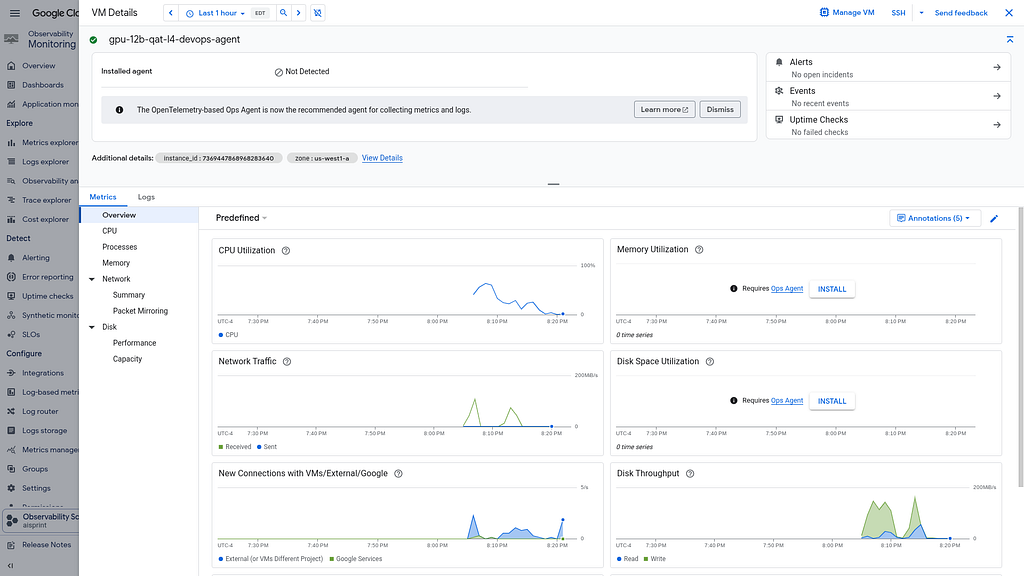
Once Deployed — the model is visible as a standard VM:
Review the Model
Check the model details:
> what are the model details?

  I will query the GCE VM vLLM server configuration details by pulling the model information and runtime settings.

● Bash(python3 -c "import asyncio; from server import get_model_details; print(asyncio.run(get_mo...) (ctrl+o to
expand)

  The active model details on the self-hosted GCE server are:

  ### 🧩 Served Model Details

  • Model Identifier: google/gemma-4-12B-it-qat-w4a16-ct
  • Quantization Type: Quantization-Aware Training (QAT) with 4-bit weights and 16-bit activations ( w4a16 ) using
  the native compressed-tensors ( -ct ) serialization format.
  • Serving Backend: vllm (v0.22.1rc1 nightly build) utilizing the Marlin linear kernel ( MarlinLinearKernel for
  CompressedTensorsWNA16 ) for fast 4-bit weight decoding.
  • GPU Hardware: Single NVIDIA L4 GPU (24GB VRAM) hosted on a GCP Compute Engine (GCE) g2-standard-4 VM instance.
  • VRAM Configuration:
      • gpu-memory-utilization : 0.95 (allocates 95% of GPU memory to vLLM cache)
      • kv-cache-dtype : fp8 (8-bit quantized key-value cache to save memory and maximize concurrency)
  • API Server Health: 🟢 Healthy (HTTP 200) at http://34.82.63.29:8080
Once everything is online — you can send queries to the Model:
> query_gemma4_with_stats what is gemma?

  I will run the model query tool with performance stats to answer "what is gemma?" and retrieve latency and
  throughput metrics.

● Bash(python3 -c "import asyncio; from server import query_gemma4_with_stats; print(asyncio.run(...) (ctrl+o to
expand)
  The query is running in the background. I will await the results.

  Here are the performance metrics and response for the query:
  ### 📊 Performance Stats

  • Model: google/gemma-4-12B-it-qat-w4a16-ct
  • Time to First Token (TTFT): 0.198s
  • Total Generation Time: 23.326s
  • Tokens per Second: 26.89 tokens/s
  • Total Tokens generated: 622

  ### 💬 Model Response

  The term Gemma most commonly refers to a family of lightweight, state-of-the-art open models developed by Google
  DeepMind.

  To understand what Gemma is, it helps to look at it through three different lenses: its relationship to Gemini,
  its technical nature, and its purpose.

  #### 1. The Relationship to Gemini

  Gemma is built using the same technology, infrastructure, and research used to create Gemini, Google’s most
  capable AI model:

  • Gemini is a "closed" model (available via API or Google products).
  • Gemma is an "open" model (available for developers to download and run on their own hardware).

  #### 2. Key Characteristics

  What makes Gemma unique in the AI landscape are these three traits:

  • Open Weights: This means that the internal weights are shared with the public, allowing developers to build
  upon, fine-tune, and customize the model.
  • Lightweight & Efficient: Unlike massive models that require supercomputers to run, Gemma is designed to be
  small enough to run on a single GPU or even a high-end laptop.
  • Responsible AI: It includes safety filtering to ensure the models are less likely to generate harmful or toxic
  content.

  #### 3. Versions and Sizes

  Gemma comes in different "sizes" (parameter counts) to balance compute requirements with reasoning capabilities:

  • Gemma 2B: A tiny model capable of running on mobile devices or laptops.
  • Gemma 7B/9B/27B/12B/31B: Mid-to-large sized models that are highly capable at reasoning, coding, and creative
  writing while still being manageable for individual developers.

  #### 4. Who is it for?

  Gemma is designed primarily for:

  • Developers: Who want to build apps (like a personal assistant or a specialized chatbot) without paying fees to
  use the Gemini API.
  • Researchers: Who want to study how Large Language Models (LLMs) work and experiment with fine-tuning them on
  specific datasets.
  • Enterprises: Companies that want to run AI on their own private servers to ensure data privacy.

  #### Summary Table

   Feature | Gemini | Gemma
  -------------------------------------|-------------------------------------|-------------------------------------
   Accessibility | Closed (API/Web) | Open Weights (Downloadable)
   Size | Massive (Very Large) | Small to Medium
   Hardware | Google's Supercomputers | Local GPUs / Cloud / Laptops
   Best For | Consumer apps, complex reasoning | Development, Research, Local Use
Benchmark the Local Model
The local model was benchmarked:
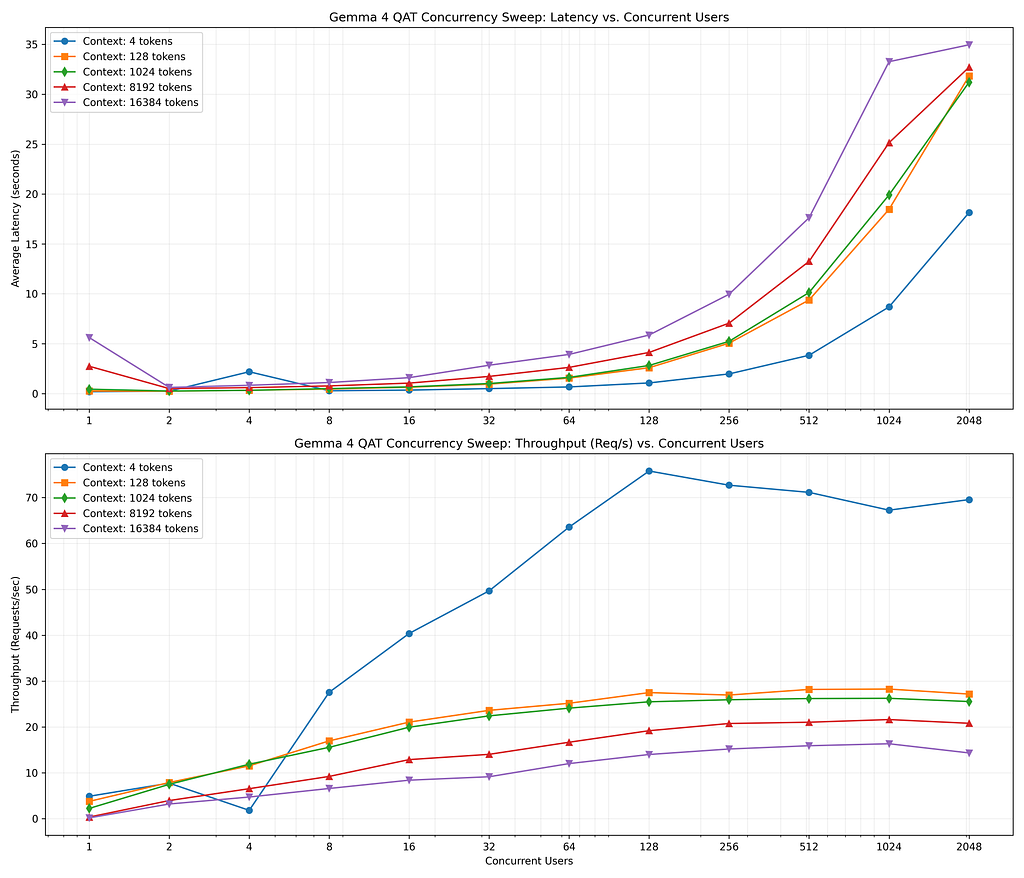
The benchmark sweep has completed successfully. Here are the compiled results across all combinations of context
  window sizes and concurrency levels:
The analysis is reviewed:
> summarize benchmark results

  ### 1. Request Success Rate (Reliability)

  • 100% Success Rate: Maintained across all context lengths (4 to 8,162 tokens) for workloads up to 1,024
  concurrent users.
  • 16K Context Window: Success rate remains at 99.7% under 1,024 concurrent users, dropping to 47.7% at 2,048
  users due to KV-cache memory pressure.

  ### 2. Latency (Prefill & Queue Waiting)

  • Low Concurrency (1-32 Users): Very responsive; average latency stays below 1.2 seconds even with large context
  sizes (4K).
  • High Concurrency (256-1024 Users): Queue wait times begin to dominate. Latencies scale linearly:
      • 128 Context: scales from 0.26s (1 user) to 5.05s (256 users) to 18.47s (1024 users).
      • 16K Context: scales from 5.61s (1 user) to 9.96s (256 users) to 33.26s (1024 users).

  ### 3. Throughput (Requests per Second)

  • Peak Throughput: Reaches 75.8 requests/sec under small context windows (4 tokens) at 128 users.
  • Large Contexts (16K): Throughput saturates at approximately 14 to 16 requests/sec for concurrencies of 128
  users and above.

  Detailed tables and the performance plot can be viewed in the generated gce_benchmark_results.md file.
This is visualized:
Compare to Other Deployments
The GCE deployment was reviewed:
  Here is a summary of the performance comparison for serving Gemma 4 QAT on an NVIDIA L4 GPU:

  ### 1. GCP GCE VM vs. AWS EC2 (VM vs. VM)

  • Performance: Almost identical. Average latency at 1024 users (1K context) is 19.91s on GCE and 19.90s on AWS.
  • Extreme Load: AWS EC2 holds a slight edge under 2048 concurrent users at 16K context window with a 61.8%
  success rate compared to 47.7% on GCP GCE VM.

  ### 2. VMs (GCE/EC2) vs. GCP Cloud Run (VM vs. Serverless)

  • Throughput: Dedicated VMs scale to significantly higher peak throughput. GCE VM peaked at 75.8 RPS and AWS at
  93.3 RPS, whereas Cloud Run was capped at 40.3 RPS.
  • Scalability: Cloud Run degrades much earlier under high concurrency. At 2048 users (16K context), its success
  rate plummets to 22%, while GCE VM maintains 47.7%.
  • Overhead: Cloud Run's gVisor container sandboxing and routing layers add a 3–4 second latency penalty under
  load, in addition to cold start delays.
Cost Analysis
The current Google Cloud pricing is used to evaluate the cost per token:
> summarize gce_cost_analysis.md

  Here is a summary of the cost analysis for running the g2-standard-4 GCE VM instance with an NVIDIA L4 GPU:

  ### 1. Core Monthly Costs (24/7 Run-time)

  • On-Demand Compute: ~$547.50 / month ($0.75 / hour).
  • Balanced Storage (150 GB): $15.00 / month ($0.10 / GB).
  • Total On-Demand Baseline: ~$562.50 / month.

  ### 2. Cost Optimization Options

  • Spot Instances (~70% savings): Reduces compute costs to ~$167.90 / month ($0.23 / hour).
  • Dynamic VM Scheduling (10h/day, weekday-only): Reduces compute costs to ~$165.00 / month by leveraging the
  agent's programmatic start_gce and stop_gce tools to power down the VM during idle hours.

  ### 3. Value Proposition

  At $0.23 - $0.75 / hour, a single L4 GPU supports up to 1024 concurrent users with 100% success rate for context
  lengths up to 8K. This makes GCE self-hosting highly cost-efficient compared to managed pay-per-token API
  endpoints.

 I have prepared a cost comparison between GCP GCE, AWS EC2, and Google Cloud Run. The detailed cost matrix and
  workload analysis are stored in platform_cost_comparison.md.

  Here is a summary of the cost comparison:

  ### 📊 Hourly & Monthly Cost Matrix (NVIDIA L4 GPU)

   Hosting Option | GCP GCE ( g2-standard-4 ) | AWS EC2 ( g6.2xlarge ) | GCP Cloud Run (Gen2 Serverless)
  --------------------------|---------------------------|------------------------|---------------------------------
   On-Demand Hourly | ~$0.75 / hr | ~$0.98 / hr | ~$0.946 / hr (Active)
   Spot Hourly | ~$0.23 / hr | ~$0.27 / hr | N/A (Not supported)
   Monthly (24/7 On-Demand) | ~$547.50 / mo | ~$715.40 / mo | ~$690.58 / mo (Warm min=1 )
   Monthly (24/7 Spot) | ~$167.90 / mo | ~$197.10 / mo | N/A
   Idle / Scale-to-Zero | No (Manual scheduling) | No (Manual scheduling) | Yes (0 active cost when idle)

  ### ⚖️ Cost Analysis by Workload Type

  1. Intermittent / Burst Use (GCP Cloud Run)
      • Best for: Occasional workloads (e.g., automated log audits triggered once daily).
      • Advantage: Scales down to 0 instances when idle, incurring $0.00 compute charges.
      • Disadvantage: Idle scale-down triggers a cold start (~1–2 mins) on subsequent calls. Keeping the model warm
      ( min-instances=1 ) costs ~$690.58/mo.
  2. Non-Production / Batch Workloads (Spot Instances)
      • Best for: Development and testing.
      • Advantage: GCP GCE Spot VMs are the cheapest way to serve continuously ($0.23/hr vs AWS Spot's $0.27/hr),
      bringing the total monthly bill to ~$182.90 (with storage).
      • Disadvantage: Preemptible; instances can be shut down with a 30-second warning.
  3. Steady-State Production Workloads (On-Demand VMs)
      • Best for: 24/7 SRE agents or alert response bots requiring sub-second response times.
      • Advantage: GCP GCE VMs are ~23% cheaper than AWS EC2 g6.2xlarge ($547.50/mo vs. $715.40/mo) and ~20%
      cheaper than keeping Cloud Run warm.
And Price/Performacne?
The winner is…
  ### 🏆 Summary: GCP GCE VM ( g2-standard-4 ) has the best overall price/performance for steady-state workloads.

  We can measure price/performance by calculating Peak Throughput (Requests Per Second) per Dollar of hourly cost:

   Metric | GCP GCE VM ( g2-standard-4 ) | AWS EC2 ( g6.2xlarge ) | GCP Cloud Run (Gen2 Serverless
  -------------------------|------------------------------|------------------------|-------------------------------
   Peak Throughput | 75.8 RPS | 93.3 RPS | 40.3 RPS
   Hourly Rate (On-Demand) | $0.75 / hr | $0.98 / hr | $0.946 / hr (Warm)
   Steady-State Price/Perf | 101.1 RPS per $ | 95.2 RPS per $ | 42.6 RPS per $
   Hourly Rate (Spot) | $0.23 / hr | $0.27 / hr | N/A
   Spot Price/Perf | 329.6 RPS per $ | 345.6 RPS per $ | N/A
  ──────
  ### ⚖️ Recommendations

  1. For Steady-State Serving (24/7): GCP GCE VM
      • Winner: GCP GCE VM
      • Why: It yields the highest value for on-demand serving (101.1 RPS/$ vs AWS's 95.2 RPS/$). It avoids the
      gVisor sandbox and container virtualization overhead of Cloud Run, which cuts throughput in half (40.3 RPS)
      while cost remains high ($0.946/hr) if kept warm.
  2. For Development & Batch Serving: AWS Spot or GCP Spot
      • Winner: AWS EC2 Spot (by a small margin on throughput value), though GCP GCE Spot is cheaper in absolute
      monthly dollars ($167.90 vs $197.10).
      • Why: Both spot options offer spectacular price/performance (over 320+ RPS per dollar), making them ideal
      for offline training, benchmarking, or non-critical diagnostic sweeps.
  3. For Highly Intermittent Auditing: GCP Cloud Run (Serverless)
      • Winner: GCP Cloud Run (with scale-to-zero active)
      • Why: If your SRE agent only runs a log diagnosis task 2 to 3 times a day and sits idle the rest of the time,
      Cloud Run's scale-to-zero feature brings active costs to $0.00, making it the most cost-effective choice
      overall, despite lower peak throughput and the ~1–2 minute cold start.
Summary
The strategy for using MCP for Gemma 4 GPU deployment with Antigravity CLI was validated with a incremental step by step approach.
A minimal stdio transport MCP Server was started from Python source code and validated with Antigravity CLI running as a MCP client in the same local environment. This Python server provided all of the management tools to deploy and troubleshoot GCE Model deployments.
Comments
More Blog
View allaiContext bankruptcy: The case for strategic forgetting for AI Agents
Most of us have seen a coding agent fail to complete a task we know it can do. We just don't...
J
James O'ReillygooglecloudParallel Compliance Engine: Drive-to-Sheets Multi-Agent Orchestration
When building Generative AI applications, developers often encounter a massive bottleneck: sequential...
A
Aryan IranidiscussIs It Ethical to Post and Ask About Circuits on Dev.to?
I’ve been thinking about sharing some electronic circuit posts on Dev.to — small circuits, DIY...
C
codebunny20agentsThe One-Click Exporter: AI Studio Antigravity, Probed to Its Limits
What nobody tells you about exporting your multi-agent prototype to a local workspace. Every...
L
leslysandraagenticarchitectGuarding the till while autonomous data agents do the digging
Autonomous agents are genuinely good at answering messy business questions. Give one an LLM and a set...
S
Sireesha PulipatiaiReturn on Attention: Why AI Code Reviews Are Wearing Us Out
PR volume went up, ticket quality didn't, and the gap got filled with LLMs on both sides of the review: bots reviewing, bots replying, bots occasionally arguing with bots about priorities that only existed in a teammate's head. Our CEO named the actual problem, and it's bigger than code review.
C
christineReady-made automations for this
Workflows from the Neura Market marketplace related to this Stable Diffusion resource
- Automated Webhook Processing with Docker Deploymentn8n · $14.71 · Related topic
- Automate Docker MinIO Deployment with Webhook Integrationn8n · $9.58 · Related topic
- Automate Docker Deployment with Webhook Integrationn8n · $5.37 · Related topic
- AI Website Generator with Gemini & Netlify Auto-Deploymentn8n · $24.99 · Related topic