Topic to LinkedIn, X & Instagram Posts in Google Sheets | Gemini AI Social Media Generator
Creating content for every social network takes time, and each platform has its own rules. This Make scenario does the work for you: add a topic to your Google Sheet, set the status to "To generate", and get three ready-to-publish posts in seconds, each adapted to its platform. For every topic, you get: - A LinkedIn post (150-250 words) with a strong hook, short paragraphs and 3-5 hashtags - An X post (280 characters max) that is punchy, with up to 2 hashtags - An Instagram caption (80-150 words) with a hook, a few emojis and 8-12 hashtags You can set a brand tone and a call to action for each topic. If you add a call to action, it is included naturally in every post. If you leave it blank, each post ends with an engaging question to boost comments. Note: this scenario generates the posts in your Google Sheet so you can review them before publishing. It does not publish automatically to social networks. HOW IT WORKS 1. Add a topic, language and target audience to your Google Sheet. Brand tone and call to action are optional. 2. Set the status to "To generate". 3. The scenario sends your brief to Google Gemini, which writes the three posts. 4. Your sheet is updated with the LinkedIn post, X post, Instagram caption, status and date. If something goes wrong, the row is marked "Error" and the scenario moves on to the next one, so one failed row never blocks the rest. WHAT'S INCLUDED - The Make blueprint (JSON), ready to import REQUIREMENTS - A Make account (the free plan works for testing) - A Google account (Google Sheets) - A Google Gemini API key (free tier available at Google AI Studio) GOOGLE SHEET STRUCTURE Create a Google Sheet with these headers in row 1, in this exact order. The scenario reads and writes by column position, so the order matters more than the names. - Column A: Topic (filled by you) - Column B: Language (filled by you) - Column C: Target audience (filled by you) - Column D: Brand tone (optional) (filled by you) - Column E: Call to action (optional) (filled by you) - Column F: Status (you enter "To generate", the scenario sets "Generated" or "Error") - Column G: LinkedIn post (filled by the scenario) - Column H: X post (filled by the scenario) - Column I: Instagram caption (filled by the scenario) - Column J: Generated at (filled by the scenario) SETUP (ABOUT 5 MINUTES) 1. Create your Google Sheet with the headers above. 2. Import the blueprint into Make (Create a new scenario > ... > Import Blueprint). 3. Connect your Google account in the Google Sheets modules, then select your sheet. 4. Open the "Generate posts with Gemini" module and replace PASTE_YOUR_GEMINI_API_KEY_HERE with your API key. 5. Add a test row, set its status to "To generate", and run the scenario once. Then schedule it. GOOD TO KNOW - Posts can be written in any language: just enter it in the Language column. - Processes up to 10 rows per run (adjustable in the first module). - The status must be exactly "To generate" (case-sensitive). Adding a dropdown in column F helps avoid typos. - For easier reading, enable text wrapping on columns G to I (Format > Wrapping > Wrap). - Avoid double quotes (") in your sheet cells, as they can break the request sent to Gemini.

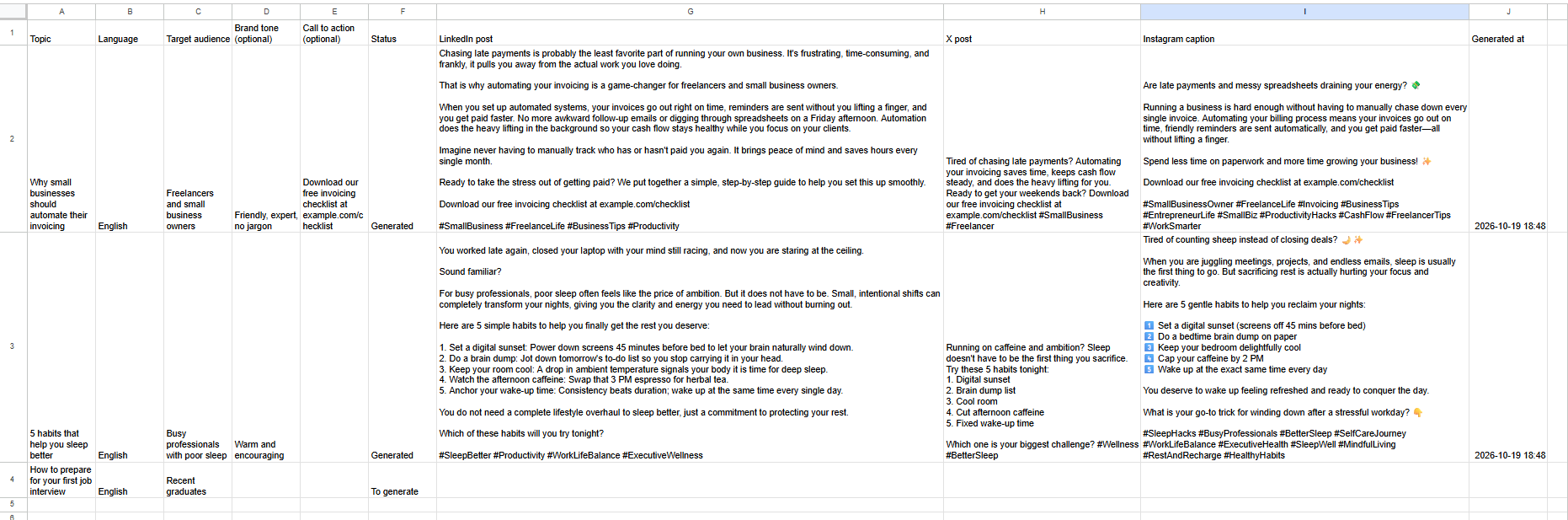
Creating content for every social network takes time, and each platform has its own rules. This Make scenario does the work for you: add a topic to your Google Sheet, set the status to "To generate", and get three ready-to-publish posts in seconds, each adapted to its platform.
For every topic, you get:
- A LinkedIn post (150-250 words) with a strong hook, short paragraphs and 3-5 hashtags
- An X post (280 characters max) that is punchy, with up to 2 hashtags
- An Instagram caption (80-150 words) with a hook, a few emojis and 8-12 hashtags
You can set a brand tone and a call to action for each topic. If you add a call to action, it is included naturally in every post. If you leave it blank, each post ends with an engaging question to boost comments.
Note: this scenario generates the posts in your Google Sheet so you can review them before publishing. It does not publish automatically to social networks.
HOW IT WORKS
- Add a topic, language and target audience to your Google Sheet. Brand tone and call to action are optional.
- Set the status to "To generate".
- The scenario sends your brief to Google Gemini, which writes the three posts.
- Your sheet is updated with the LinkedIn post, X post, Instagram caption, status and date.
If something goes wrong, the row is marked "Error" and the scenario moves on to the next one, so one failed row never blocks the rest.
WHAT'S INCLUDED
- The Make blueprint (JSON), ready to import
REQUIREMENTS
- A Make account (the free plan works for testing)
- A Google account (Google Sheets)
- A Google Gemini API key (free tier available at Google AI Studio)
GOOGLE SHEET STRUCTURE
Create a Google Sheet with these headers in row 1, in this exact order. The scenario reads and writes by column position, so the order matters more than the names.
- Column A: Topic (filled by you)
- Column B: Language (filled by you)
- Column C: Target audience (filled by you)
- Column D: Brand tone (optional) (filled by you)
- Column E: Call to action (optional) (filled by you)
- Column F: Status (you enter "To generate", the scenario sets "Generated" or "Error")
- Column G: LinkedIn post (filled by the scenario)
- Column H: X post (filled by the scenario)
- Column I: Instagram caption (filled by the scenario)
- Column J: Generated at (filled by the scenario)
SETUP (ABOUT 5 MINUTES)
- Create your Google Sheet with the headers above.
- Import the blueprint into Make (Create a new scenario > ... > Import Blueprint).
- Connect your Google account in the Google Sheets modules, then select your sheet.
- Open the "Generate posts with Gemini" module and replace PASTE_YOUR_GEMINI_API_KEY_HERE with your API key.
- Add a test row, set its status to "To generate", and run the scenario once. Then schedule it.
GOOD TO KNOW
- Posts can be written in any language: just enter it in the Language column.
- Processes up to 10 rows per run (adjustable in the first module).
- The status must be exactly "To generate" (case-sensitive). Adding a dropdown in column F helps avoid typos.
- For easier reading, enable text wrapping on columns G to I (Format > Wrapping > Wrap).
- Avoid double quotes (") in your sheet cells, as they can break the request sent to Gemini.
Secure checkout powered by Stripe
Tags
Support
How to import this workflow into Make
- 1Purchase or download the workflow to get the Make blueprint JSON file.
- 2In Make, create a new scenario, click the three-dots menu, and choose "Import Blueprint".
- 3Reconnect each module to your own app connections when prompted.
- 4Run the scenario once to verify it, then set your schedule and turn it on.
Related workflows
- Automate SEO Keyword Generation with ChatGPT from Google Sheets$3.99
- Streamlined Employee Onboarding with Automated Meeting Setup$19.98
- Add webhook data to a Google Sheet$2.99
- Automate WhatsApp Responses with a Basic Chatbot$2.99
- Automate Facebook Lead Ads to Google Sheets IntegrationFree
- Automate Gmail Emails from New Google Sheets Rows$2.99
More from Community
Need this deployed? We'll set it up for you.
Our automation experts deploy this workflow in your stack, connect your accounts, and verify it works — or build a custom solution from scratch.