Topic to SEO Brief: Keywords, Questions, Titles & Meta in Google Sheets (Gemini)
Stop spending hours brainstorming keywords. Write a topic in a Google Sheet, and this Make scenario turns it into a ready-to-use SEO content brief. WHAT YOU GET FOR EACH TOPIC - 10 secondary keywords - 10 long-tail keyword phrases - 5 questions people actually ask about the topic - Search intent (informational, commercial, transactional or navigational) with a short explanation - 3 blog post title ideas - A meta description (150 characters max) HOW IT WORKS 1. Add your topics to Google Sheets, with a language and a target audience 2. Set the status to "To process" 3. The scenario sends each topic to Google Gemini and writes the full brief back into your sheet 4. Processed rows are marked "Done" with a timestamp WHY YOU'LL LIKE IT - Bulk processing: handles up to 10 topics per run - Works in any language: just write it in the Language column - Built-in error handling: if something fails, the row is marked "Error" and the scenario keeps going - Rate-limit friendly: a short pause between rows keeps you within Gemini's free tier limits - No connection to configure for the AI: just paste your Gemini API key PERFECT FOR Bloggers, content marketers, SEO freelancers, agencies and e-commerce store owners who need to plan content fast. WHAT YOU NEED - A Make account - A Google account (Google Sheets) - A Google Gemini API key (Google offers a free tier, subject to usage limits) IMPORTANT NOTE This scenario generates keyword ideas with AI. It does not provide search volumes or keyword difficulty scores. Use it to plan and brainstorm content, and pair it with a tool like Google Keyword Planner if you need volume data. Setup takes about 5 minutes. A step-by-step guide is included.

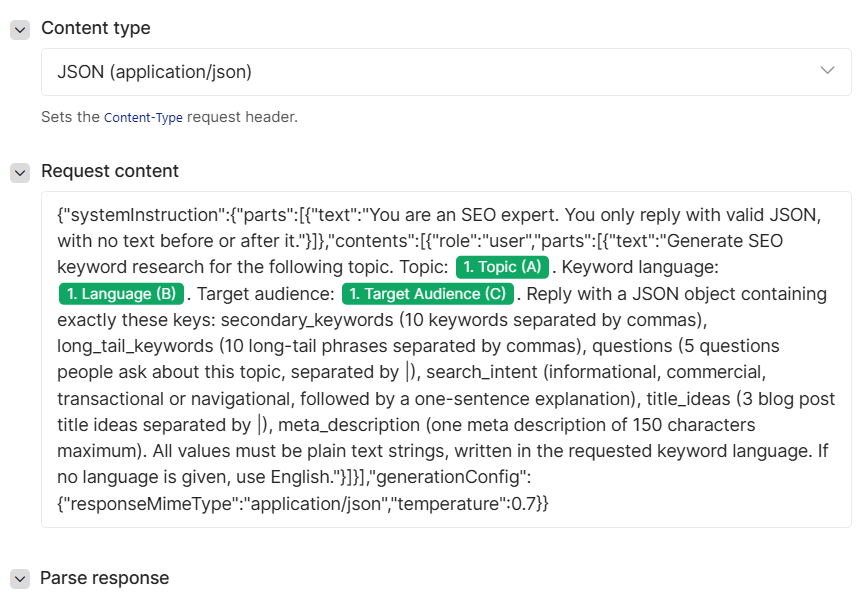
Stop spending hours brainstorming keywords. Write a topic in a Google Sheet, and this Make scenario turns it into a ready-to-use SEO content brief.
WHAT YOU GET FOR EACH TOPIC
- 10 secondary keywords
- 10 long-tail keyword phrases
- 5 questions people actually ask about the topic
- Search intent (informational, commercial, transactional or navigational) with a short explanation
- 3 blog post title ideas
- A meta description (150 characters max)
HOW IT WORKS
- Add your topics to Google Sheets, with a language and a target audience
- Set the status to "To process"
- The scenario sends each topic to Google Gemini and writes the full brief back into your sheet
- Processed rows are marked "Done" with a timestamp
WHY YOU'LL LIKE IT
- Bulk processing: handles up to 10 topics per run
- Works in any language: just write it in the Language column
- Built-in error handling: if something fails, the row is marked "Error" and the scenario keeps going
- Rate-limit friendly: a short pause between rows keeps you within Gemini's free tier limits
- No connection to configure for the AI: just paste your Gemini API key
PERFECT FOR Bloggers, content marketers, SEO freelancers, agencies and e-commerce store owners who need to plan content fast.
WHAT YOU NEED
- A Make account
- A Google account (Google Sheets)
- A Google Gemini API key (Google offers a free tier, subject to usage limits)
IMPORTANT NOTE This scenario generates keyword ideas with AI. It does not provide search volumes or keyword difficulty scores. Use it to plan and brainstorm content, and pair it with a tool like Google Keyword Planner if you need volume data.
Setup takes about 5 minutes. A step-by-step guide is included.
Secure checkout powered by Stripe
Support
How to import this workflow into Make
- 1Purchase or download the workflow to get the Make blueprint JSON file.
- 2In Make, create a new scenario, click the three-dots menu, and choose "Import Blueprint".
- 3Reconnect each module to your own app connections when prompted.
- 4Run the scenario once to verify it, then set your schedule and turn it on.
Related workflows
- Automate SEO Keyword Generation with ChatGPT from Google Sheets$3.99
- Streamlined Employee Onboarding with Automated Meeting Setup$19.98
- Add webhook data to a Google Sheet$2.99
- Automate WhatsApp Responses with a Basic Chatbot$2.99
- Automate Facebook Lead Ads to Google Sheets IntegrationFree
- Automate Gmail Emails from New Google Sheets Rows$2.99
More from Community
Need this deployed? We'll set it up for you.
Our automation experts deploy this workflow in your stack, connect your accounts, and verify it works — or build a custom solution from scratch.