
Hermes Android: Running Hermes Agent on Android Devices
Connects Hermes AI agent to Android devices for remote control via WebSocket.
- Author
- raulvidis
- Stars
- 422
- Language
- Python
- Upstream updated
- 2026-07-25

Hermes Android connects the Hermes AI agent runtime to Android devices, enabling the agent to remotely control a phone or Android Automotive OS head unit. Once wired up, the agent can tap, swipe, type, read the screen, send SMS, make calls, access GPS location, manage notifications, and use 38 specialized tools to interact with the mobile interface as if the agent had hands.
What It Does
Hermes Android gives an AI agent remote control over an Android device through a bridge app on the phone and a Python toolset on the server. The concrete capabilities, as documented in the sources, are:
- Remote device control via WebSocket using a 6-character pairing code
- 38 specialized tools for mobile automation and interaction
- Support for Android Automotive OS car head units
- Works behind NAT without port forwarding, VPN, or USB
- AccessibilityService reads the UI tree and performs taps, types, and swipes
- Screenshot capture via AccessibilityService API
- Clipboard read and write between server and phone
- Notification listener for real-time reading of incoming notifications
- Direct SMS sending and phone calling without navigating the UI
- Location sharing for contextual tasks
- Screen recording for a duration
- Text-to-speech output
- Real-time accessibility event streaming
- Screen hash and diff for change detection
- Media playback control (play, pause, next, previous)
- Intent and broadcast sending
- Home screen widget reading
- App launching by package name
- Installed app listing
- Foreground app info retrieval
- Element finding by text, class, or clickable state
- Node description and detailed info
- Drag, pinch zoom, long press, and scroll gestures
- Key press (back, home, recents, etc.)
- Wait for element to appear
According to the official documentation, the phone connects out to the Hermes server, which means it works behind any NAT. The server runs a WebSocket and HTTP relay on port 8766. The Python tools register into hermes-agent's tool registry. The Android app uses a Kotlin-based bridge that communicates via WebSocket to a Python-based server toolset. This architecture allows for automation behind NAT without requiring port forwarding or USB connections.
Setup
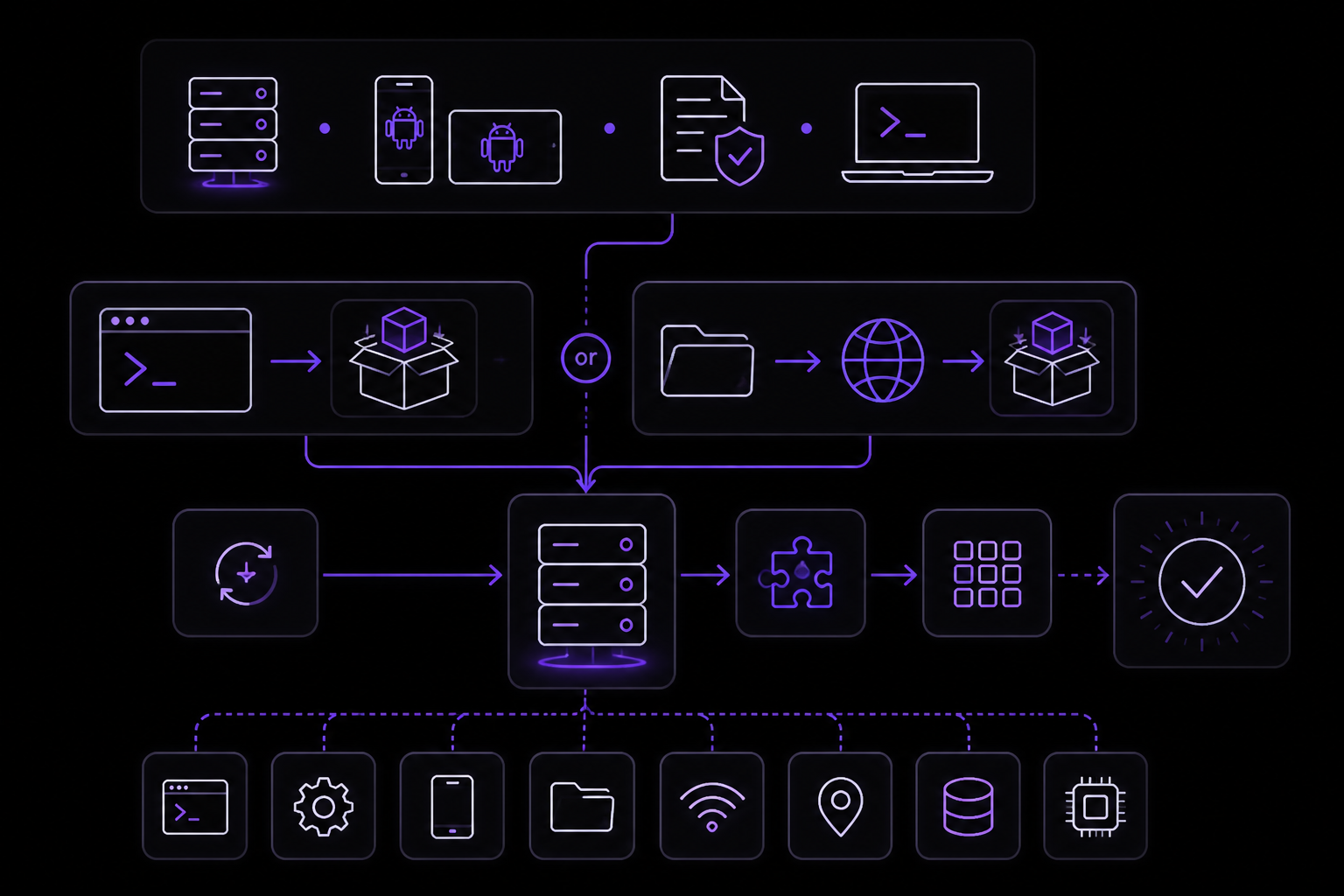
Prerequisites
Before starting, you need:
- A Hermes server running (hermes-agent v0.3.0 or later)
- An Android device (phone or Android Automotive OS head unit)
- For the phone: ability to install APKs (enable "Install unknown apps" for your browser or file manager)
- For development: ADB installed on your computer
Install as Hermes Agent Plugin (v0.3.0+)
The plugin installs the Python toolset on your Hermes server. Run this command:
curl -sSL https://raw.githubusercontent.com/raulvidis/hermes-android/main/install.sh | bash
Or install manually:
mkdir -p ~/.hermes/plugins
cp -r hermes-android-plugin ~/.hermes/plugins/hermes-android
After installation, restart hermes. Run /plugins to verify. It should show: ✓ hermes-android v0.3.0 (38 tools)
Install the Bridge App on Your Phone
Option A, Download the prebuilt APK (easiest). Every push to main automatically publishes a fresh debug APK to the Latest Build release. Download the hermes-android-<version>.apk asset from there and install it. You can either open the file on the device (enable "Install unknown apps" for your browser/file manager when prompted) or use ADB:
adb install hermes-android-*.apk
Option B, Build from source:
cd hermes-android-bridge
./gradlew assembleDebug
adb install app/build/outputs/apk/debug/hermes-android-*.apk
The APK is an unsigned debug build. Android/Play Protect may warn on install because it is not yet published on the Play Store or F-Droid.
Grant Permissions on the Phone
Open the Hermes Bridge app and follow these steps in order:
- Tap Enable Accessibility Service → find Hermes Bridge → toggle ON
- Tap Enable Status Overlay → grant permission
- Tap Grant Screen Recording → approve the system dialog (needed for
android_screen_record) - Grant additional runtime permissions in Settings > Apps > Hermes Bridge > Permissions:
- Location, for
android_location - Contacts, for
android_search_contacts - SMS, for
android_send_sms - Phone, for
android_call(direct dialing)
- Location, for
- Enable Notification Listener in Settings > Apps > Special app access > Notification access → enable Hermes Bridge (for
android_notifications/android_events)
Connect to Your Hermes Server
Tell hermes (via Telegram, Discord, or any supported channel):
Connect to my phone, code is <CODE>
Where <CODE> is the 6-character pairing code shown in the app. Hermes will reply with the server address. Enter it in the app and tap Connect.
Verify Connection
The agent can now control your phone. Try commands like: "open Instagram", "take a screenshot", "what apps do I have?"
Android Automotive OS (Car Head Units) Setup
The bridge app can run on Android Automotive OS (AAOS) car head units. Phone-specific features (SMS, calls, contacts) gracefully return errors when the hardware is unavailable.
Installation:
- Get the APK: download
hermes-android-<version>.apkfrom the Latest Build release, or build it withcd hermes-android-bridge && ./gradlew assembleDebug - Sideload via ADB:
adb install hermes-android-*.apk- USB: connect directly to the head unit's USB port
- WiFi:
adb connect <head-unit-ip>:5555then install
- Grant Accessibility Service: Settings > Accessibility > Hermes Bridge > Enable
- Grant overlay permission: Settings > Apps > Special access > Draw over apps > Hermes Bridge
- Skip phone-specific permissions (SMS, calls, contacts), not applicable
Connection:
The car head unit needs network access to reach the relay server:
- USB tethering (recommended):
adb forward tcp:8766 tcp:8766, then enterhttp://localhost:8766in the app - WiFi: enter the relay server's
http://<ip>:8766in the app (both devices on same network)
Configuration Reference
The following table documents every option, flag, and field from the sources. Defaults are stated when provided.
| Option / Field | Description | Default / Notes |
|---|---|---|
include_system_ui | When set to true on android_read_screen, includes System UI in the accessibility tree | false (System UI excluded by default) |
| Pairing code | 6-character code shown in the app for authentication | Generated by the app |
| Server address | Entered in the app after Hermes provides it | Provided by Hermes server |
| Port 8766 | WebSocket + HTTP relay port on the server | Fixed port |
| Rate limiting | 5 authentication attempts per 60 seconds, then 5-minute block | Server-side |
ws:// | Current transport protocol (unencrypted) | Use TLS proxy for production |
How It Works
Architecture
The system has two components: an Android app written in Kotlin and a Python toolset running on the Hermes server.
Android app (Kotlin):
- AccessibilityService reads the UI tree and performs taps, types, and swipes
- WebSocket client (OkHttp) connects out to the Hermes server
- Ktor HTTP server for local/USB development
- Pairing code authentication
- Screenshot capture via AccessibilityService API
- Terminal-themed UI
Server (Python):
- WebSocket + HTTP relay (aiohttp) on port 8766
- Tools register into hermes-agent's tool registry
- Rate-limited authentication (5 attempts / 60s, then 5min block)
- Auto-detects server public IP for setup instructions
Data Flow
The phone connects out to the Hermes server via WebSocket. The server relays commands from the AI agent to the phone and returns results. The connection works behind any NAT because the phone initiates the outbound connection. No port forwarding, VPN, or USB is required. The agent communicates with the server over HTTP, and the server communicates with the phone over WebSocket.
Phone (home WiFi)  ──WebSocket──>  Hermes Server (cloud)  <──HTTP──  AI Agent
                                   relay on port 8766
Authentication
When the app starts, it displays a 6-character pairing code. The user tells Hermes (via Telegram, Discord, etc.) to connect using that code. Hermes responds with the server address, which the user enters in the app. The server enforces rate limiting: 5 attempts per 60 seconds, then a 5-minute block.
Security
Key security points from the sources:
- Pairing code authentication with rate limiting
- Phone connects out (never directly exposed)
- Currently unencrypted (
ws://), use TLS proxy for production - Full device access once paired, only connect to trusted servers
The roadmap includes TLS/WSS support for encrypted phone-server communication as a planned v0.2 feature.
Requirements and Limitations
Prerequisites
- Hermes agent v0.3.0 or later
- Android device running Android (version not specified in sources)
- For AAOS: Android Automotive OS head unit
- Network access for the device to reach the Hermes server
Known Limitations
Android Automotive OS:
| Tool | Status on AAOS |
|---|---|
android_send_sms | Not available, returns error |
android_call | Not available, returns error |
android_search_contacts | Not available, returns error |
android_location | Depends on car unit GPS configuration |
android_screen_record | May behave differently (restricted MediaProjection on some OEMs) |
All other tools (tap, swipe, type, screenshot, read screen, open apps, etc.) work normally on AAOS.
General:
- The APK is an unsigned debug build, not published on Play Store or F-Droid
- Play Protect may warn on install
- Communication is currently unencrypted (
ws://), use a TLS proxy for production - Full device access is granted once paired, only connect to trusted servers
- The Python code in this repo is for standalone development and testing; the production copy lives in the hermes-agent repo
- The Android app does not use or depend on the Python files
Roadmap Status
The project is described as a working prototype. The following features are planned but not yet implemented:
- v0.2: TLS/WSS support, persistent relay service (systemd unit), server-side call counter, better error reporting, auto-reconnect relay
- v0.3: File transfer (not yet implemented)
- v0.4: Multiple phones, scheduled automations, event triggers, macro recording
- v0.5: Phone call capability, voice assistant mode, call handling
- v0.6: Local model execution, offline fallback, hybrid routing, on-device app adapters
- Future: iOS support, web dashboard, cross-app workflows, dedicated "Hermes Phone"
Troubleshooting
Play Protect Warning on Install
Problem: Android/Play Protect warns that the APK is unsafe.
Fix: This is expected because the APK is an unsigned debug build. It is not yet published on the Play Store or F-Droid. You can proceed with installation by tapping "Install anyway" or disabling Play Protect temporarily for this installation.
Plugin Not Showing After Install
Problem: Running /plugins does not show ✓ hermes-android v0.3.0 (38 tools).
Fix: Ensure you placed the plugin in the correct directory. The manual install command is:
mkdir -p ~/.hermes/plugins
cp -r hermes-android-plugin ~/.hermes/plugins/hermes-android
Then restart hermes completely.
Connection Fails
Problem: The app cannot connect to the Hermes server.
Fix: Verify that:
- The 6-character pairing code is entered correctly
- The server address provided by Hermes is entered correctly in the app
- The device has network access to reach the server (check WiFi or mobile data)
- For AAOS with USB tethering, the
adb forward tcp:8766 tcp:8766command was run - For AAOS with WiFi, both devices are on the same network and the IP address is correct
Phone-Specific Tools Return Errors on AAOS
Problem: android_send_sms, android_call, or android_search_contacts return errors on a car head unit.
Fix: This is expected behavior. These tools are not available on Android Automotive OS because the hardware (SMS, phone, contacts) is not present. The tools gracefully return errors. Skip granting those permissions during setup.
Screen Recording Not Working on AAOS
Problem: android_screen_record behaves differently or fails on some car head units.
Fix: This is a known limitation. MediaProjection may be restricted by some OEMs on Android Automotive OS. There is no workaround documented in the sources.
Rate Limiting Blocking Authentication
Problem: After several failed pairing attempts, the app cannot connect.
Fix: The server enforces rate limiting: 5 attempts per 60 seconds, then a 5-minute block. Wait 5 minutes before trying again. Ensure the pairing code is entered correctly to avoid triggering the block.
Python Tests Fail
Problem: Running python -m pytest tests/ fails.
Fix: Ensure you installed the dev dependencies:
pip install -e ".[dev]"
Then run the tests again. The Python code in this repo is for standalone development and testing; the production copy is in the hermes-agent repo.
Sources & References
This page was researched from 2 independent sources, combined and verified for completeness.
- 1.raulvidis/hermes-androidBlog · primary source
- 2.raulvidis/hermes-android READMEOfficial documentation
The #1 AI Newsletter
The most important ai updates, guides, and fixes — one weekly email.
No spam, unsubscribe anytime. Privacy policy