
SocialClaw: Social Media Automation for Hermes Agent and AI Runtimes
SocialClaw connects AI agents to 13 social platforms for scheduling, publishing, and analytics.
- Author
- ndesv21
- Stars
- 70
- Language
- JavaScript
- License
- MIT
- Upstream updated
- 2026-07-24
SocialClaw is a social media scheduling CLI and OpenClaw skill bundle that connects AI agents, including Hermes Agent, to a hosted dashboard for posting across X, LinkedIn, Instagram, Facebook Pages, TikTok, Discord, Telegram, YouTube, Reddit, WordPress, and Pinterest. Once wired up, an agent can validate and schedule posts, upload media, inspect delivery, and pull analytics through a single API-driven workflow.
What It Does
SocialClaw gives AI agents a unified publishing surface for 13 social platforms. The concrete capabilities, as documented in the official README and the Hermes Atlas project page, include:
- Schedule posts for X, LinkedIn, Instagram, TikTok, and Reddit.
- Upload and delete hosted assets (images, videos).
- Validate schedules before publishing.
- Preview, apply, inspect, clone, and publish drafts for campaigns.
- Inspect posts, runs, attempts, jobs, usage, and workspace health.
- Delete published posts on supported providers.
- Pull analytics per post.
- Connect accounts via browser OAuth or manual tokens (Discord webhook, Telegram bot token).
- List connected accounts and their capabilities per provider.
These capabilities are exposed through three main interfaces: a CLI, a Model Context Protocol (MCP) server, and a Claude Code plugin. The CLI works against a deployed SocialClaw workspace via API key authentication. The MCP server provides 17 validation-first publishing tools to any MCP client, including Claude Code, Claude Desktop, and Cursor. The Claude Code plugin auto-invokes SocialClaw when a user asks to connect accounts, upload media, schedule posts, inspect delivery, or check analytics.
Setup
Prerequisites
- Node.js and npm installed on the system where the agent or CLI runs.
- A SocialClaw workspace with an active trial or paid plan. An API key alone is not sufficient; the workspace must have an active subscription.
- Social accounts connected inside the hosted dashboard at https://getsocialclaw.com.
Install the CLI
Install the socialclaw npm package globally:
npm install -g socialclaw
Authenticate
Run the login command. Without an API key, it opens the hosted dashboard in a browser so you can sign in with Google, connect social accounts, create or copy a workspace API key, and activate a trial or paid plan.
socialclaw login
To log in with an existing API key and specify the base URL:
socialclaw login --api-key <workspace-key> --base-url https://getsocialclaw.com
After login, verify your connected accounts:
socialclaw accounts list --json
Install as an AI Agent Skill
For Claude Code, Cursor, Cline, Codex, and other runtimes that support npx skills add:
npx skills add ndesv21/socialclaw
MCP Server Setup
The package ships a Model Context Protocol server. Any MCP client can use it.
For Claude Code:
claude mcp add socialclaw \
  --env SOCIALCLAW_API_KEY=sc_live_your_key \
  -- npx -y socialclaw mcp
For Claude Desktop, Cursor, and other JSON-configured clients, add this to your MCP configuration:
{
  "mcpServers": {
    "socialclaw": {
      "command": "npx",
      "args": ["-y", "socialclaw", "mcp"],
      "env": {
        "SOCIALCLAW_API_KEY": "sc_live_your_key"
      }
    }
  }
}
If you have already run socialclaw login --api-key <key>, the server reuses the saved credentials and the env block is unnecessary.
Claude Code Plugin
Install the packaged Claude Code plugin from inside Claude Code:
/plugin marketplace add ndesv21/socialclaw
/plugin install socialclaw@socialclaw
This installs the marketplace plugin from skills/socialclaw/ with metadata from .claude-plugin/. It is the cleanest option if you want Claude to auto-invoke SocialClaw.
Claude Slash Command
If you prefer the explicit /socialclaw command instead of the full plugin flow:
socialclaw install --claude
That installs the bundled command file from skill/claude/socialclaw.md into ~/.claude/commands/socialclaw.md. Use this path when you want a lightweight Claude Code setup that exposes one clear SocialClaw command, keeps the workspace API key flow explicit, and still lets Claude use the same hosted SocialClaw API and CLI workflow.
OpenClaw and ClawHub
The OpenClaw-compatible skill bundle lives in skill/. It is designed for OpenClaw and other compatible agent runtimes that can load a SKILL.md, work from a workspace API key, and call either the SocialClaw HTTP API directly or the socialclaw CLI as a client for the hosted service. This is the bundle to publish to ClawHub for OpenClaw discovery.
Other Agents
The repo also includes an agent manifest in skill/agents/openai.yaml, and the CLI works well for any runtime that can execute shell commands or make HTTP requests. This makes SocialClaw a good fit for Codex and terminal-native agent workflows, Claude Code via plugin or command file, OpenClaw and ClawHub skills, and custom internal agents that need one stable publishing surface for social channels.
Configuration Reference
The following table lists every configuration option, environment variable, and CLI flag documented in the sources.
| Option / Flag | Description | Default | Required |
|---|---|---|---|
--api-key | Workspace API key for authentication. Passed as --api-key <key> or set as SOCIALCLAW_API_KEY environment variable. | None | Yes for headless/agent use |
--base-url | Base URL of the SocialClaw hosted service. | https://getsocialclaw.com | No |
SOCIALCLAW_API_KEY | Environment variable for MCP server and headless authentication. | None | Yes for MCP without prior login |
--file | Path to a file for asset upload or schedule file for validation/apply. Used with assets upload, validate, apply, campaigns preview. | None | Yes for those commands |
--post-id | ID of a published post for retrieval, deletion, or analytics. | None | Yes for posts get, posts delete, analytics post |
--run-id | ID of a run for status inspection. | None | Yes for status |
--provider | Provider name for account capabilities or connect (e.g., pinterest, discord, telegram). | None | Yes for accounts capabilities and accounts connect |
--open | Flag to open browser for OAuth-based account connection. Used with accounts connect. | false | No |
--webhook-url | Discord webhook URL for manual account connection. | None | Yes for Discord connect |
--bot-token | Telegram bot token for manual account connection. | None | Yes for Telegram connect |
--chat-id | Telegram chat ID for manual account connection. | None | Yes for Telegram connect |
--json | Output results in JSON format. | false | No |
-f | Shorthand for --file when used with validate, apply, campaigns preview. | None | Yes for those commands |
How It Works
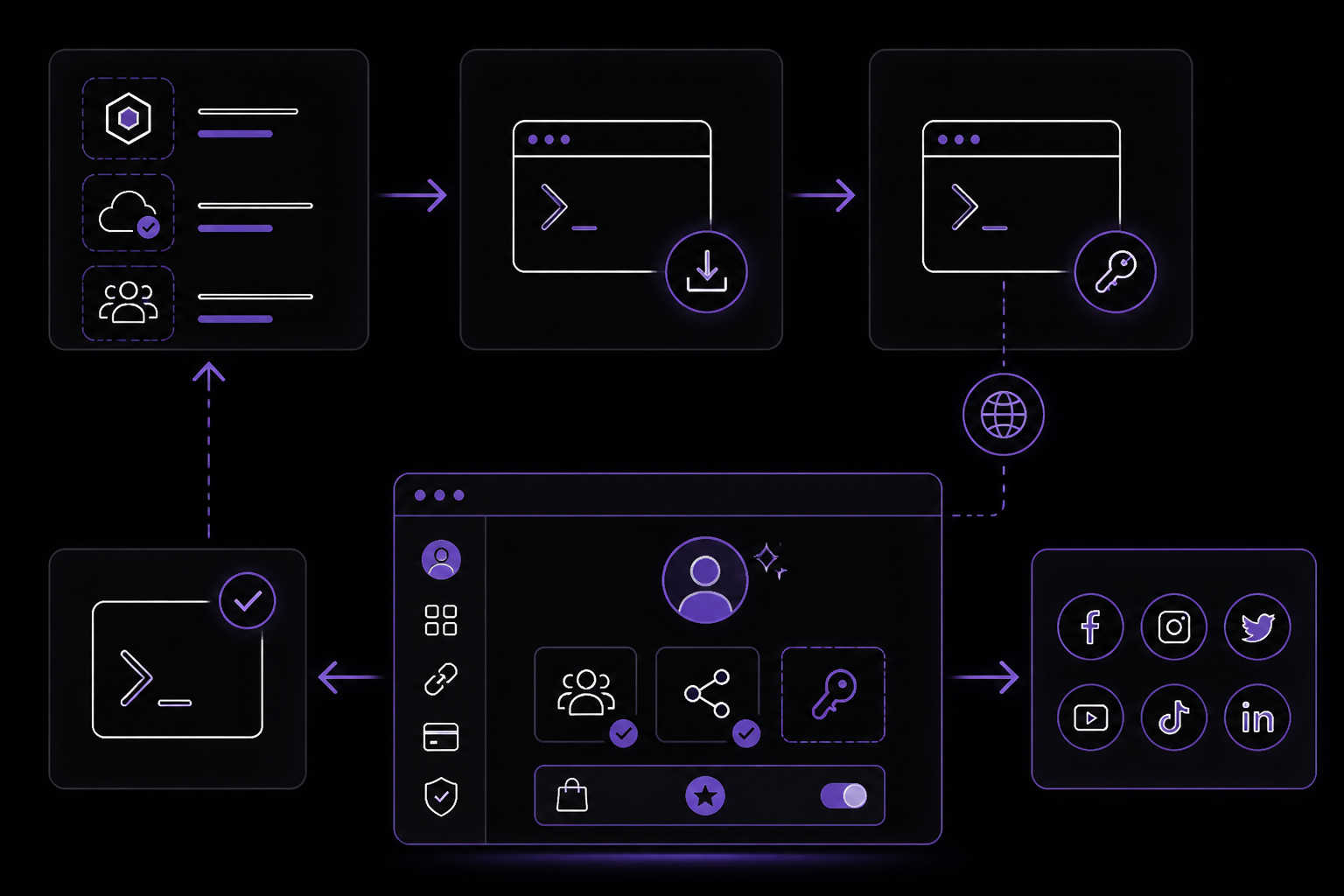
SocialClaw operates on a client-server model. The hosted dashboard and API live at https://getsocialclaw.com. Users connect their social accounts inside the dashboard. The CLI, MCP server, and agent skills all authenticate against the same workspace using an API key.
The workflow is consistent across all interfaces:
- Connect accounts: Users connect social accounts inside the hosted SocialClaw dashboard. For Discord and Telegram, connection is done manually via webhook URL or bot token and chat ID. For other providers, browser OAuth is used.
- Create an API key: Inside the dashboard, users create or copy a workspace API key. The workspace must have an active trial or paid plan for CLI and API access.
- Upload media: Assets (images, videos) are uploaded to the hosted service using
socialclaw assets upload --file ./image.png --json. - Validate and preview: A schedule file (JSON or YAML) is validated and previewed before publishing using
socialclaw validate -f schedule.json --jsonandsocialclaw campaigns preview -f schedule.json --json. - Apply the schedule: The validated schedule is applied using
socialclaw apply -f schedule.json --json. This queues the posts for publishing. - Inspect and analyze: After publishing, posts, runs, attempts, jobs, usage, and analytics can be inspected. Provider-side deletion is supported for some providers.
The MCP server exposes 17 validation-first publishing tools that mirror these CLI commands. Any MCP client gets tools to list accounts and capabilities, upload media, validate and preview schedules, apply with idempotency keys, publish drafts, and inspect posts, attempts, runs, analytics, usage, and health.
Requirements and Limitations
Prerequisites
- Node.js and npm must be installed.
- A SocialClaw workspace with an active trial or paid plan. The official documentation states: "an API key alone is not enough for agent execution; the workspace must also have an active trial or paid plan."
- Social accounts must be connected inside the hosted dashboard.
Supported Providers
The following providers are supported according to the official README:
- X
- Facebook Pages
- Instagram Business
- Instagram standalone professional accounts
- LinkedIn profile
- LinkedIn page
- TikTok
- Discord
- Telegram
- YouTube
- WordPress
Provider-Specific Limitations
Pinterest: Exposed as the pinterest provider in the public CLI and skill bundle. Its main publish target is board-centric, with support for standard pins, video pins, multi-image pins, board creation and section or catalog discovery, plus pin and account analytics. Product, collection, and idea surfaces should be treated as capability-gated or beta rather than assumed for every workspace.
TikTok: Supports one video or one photo gallery per post. Photo galleries can include up to 35 images and expose autoAddMusic plus photoCoverIndex. Selecting a specific TikTok song or sound is not available through TikTok's Content Posting API. For photo galleries, normalize images before upload, preferably to 1080x1920 JPEGs for vertical slides or another standard TikTok-compatible aspect/size. Oversized or unusual image dimensions may pass SocialClaw validation and initial TikTok acceptance, then fail later with picture_size_check_failed. The documentation advises to reconcile photo posts after publish to confirm TikTok reports PUBLISH_COMPLETE.
Known Gaps
- Provider-side deletion is only supported for some providers. The CLI includes
socialclaw posts delete --post-id <id> --json, but not all platforms allow deletion via API. - The MCP server is designed for validation-first workflows. It is not a real-time streaming or webhook receiver.
- The Claude Code plugin is the "cleanest option" according to the documentation, but the slash command approach is lighter and more explicit.
Troubleshooting
plan_required or subscription_* errors
If a command returns plan_required or subscription_*, the workspace does not have an active trial or paid plan. The official documentation directs users to go to https://getsocialclaw.com/pricing or https://getsocialclaw.com/dashboard to activate a plan.
TikTok picture_size_check_failed
Oversized or unusual image dimensions may pass SocialClaw validation and initial TikTok acceptance, then fail later with picture_size_check_failed. The fix is to normalize images before upload, preferably to 1080x1920 JPEGs for vertical slides or another standard TikTok-compatible aspect/size. After publishing, reconcile photo posts to confirm TikTok reports PUBLISH_COMPLETE.
MCP server not finding credentials
If the MCP server does not find saved credentials, ensure you have run socialclaw login --api-key <key> before starting the server. Alternatively, set the SOCIALCLAW_API_KEY environment variable in the MCP configuration.
CLI commands not working after install
Ensure the npm package is installed globally. Run npm install -g socialclaw and verify with socialclaw --help. If the help surface does not appear, check that Node.js and npm are up to date.
Account connection failures
For OAuth-based providers, ensure the browser can open during socialclaw accounts connect --provider <provider> --open. For Discord and Telegram, verify the webhook URL, bot token, and chat ID are correct. The commands are:
socialclaw accounts connect --provider discord --webhook-url <webhook-url> --json
socialclaw accounts connect --provider telegram --bot-token <bot-token> --chat-id @yourchannel --json
Sources & References
This page was researched from 2 independent sources, combined and verified for completeness.
- 1.ndesv21/socialclawBlog · primary source
- 2.ndesv21/socialclaw READMEOfficial documentation
The #1 AI Newsletter
The most important ai updates, guides, and fixes — one weekly email.
No spam, unsubscribe anytime. Privacy policy