
Awesome OpenClaw Tips: The Complete Collection
This guide is a practical playbook for turning OpenClaw from a fun chatbot into a reliable operating system for recurring work. It covers messaging, Telegram integration, memory management, reliability, cost optimization, operations, automation, and architecture, drawing from hands-on use, official documentation, community setups, and deep dives into the OpenClaw codebase. By the end, you will have a set of actionable tips to make your agent more capable, cheaper to run, and less prone to failure.
What You Need
Before applying these tips, you need a working OpenClaw installation. The tips assume you have:
- OpenClaw installed and running. The exact version is not specified, but the tips target a recent build with support for Telegram, agents, subagents, cron, and tool loops.
- An OpenClaw configuration file. The default location is
~/.openclaw/openclaw.json, but your setup may vary. Many tips require editing this file. - A Telegram bot token (for Telegram-specific tips). You will need a bot created via BotFather and the token configured in OpenClaw.
- Node.js (for SQLite memory search). The SQLite memory search scripts in MEM-03 require Node.js to run.
- Git (for workspace version control). OPS-02 recommends putting your workspace under git, and TEL-04 uses git for config management.
- Basic familiarity with JSON5 syntax. The OpenClaw config uses JSON5, which allows comments and trailing commas.
Messages
MES-01: Enable ack reactions by setting messages.ackReactionScope
Ack reactions are the small checkmark or other emoji reactions that appear on messages to confirm the agent has seen or processed them. By default, OpenClaw controls when these appear based on the messages.ackReactionScope setting. If you want acknowledgements to appear more broadly, set the scope explicitly instead of relying on the default.
Use all when you want broad ack reactions across chats instead of narrower behavior like direct messages only or group mentions only.
Set it like this in your config:
{
  messages: {
    ackReactionScope: "all"
  }
}
Valid values are:
group-mentions: Only reacts when the bot is mentioned in a group.group-all: Reacts to all messages in groups.direct: Only reacts in direct messages.all: Reacts in all contexts (direct messages and groups).off: Disables ack reactions entirely.none: Same asoff.
When to use each:
allis the most responsive option, but it can be noisy in busy groups. Use it when you want immediate feedback that the agent has seen every message.group-mentionsis a good middle ground for shared channels where the bot should only react when explicitly called upon.directis useful if you only care about one-on-one conversations.offornonesaves a tiny bit of API overhead and reduces visual clutter.
Community note: Some users report that setting this to all in very large groups can cause the bot to hit rate limits on the Telegram API. If you notice reactions not appearing, consider narrowing the scope.
Telegram
TEL-01: Use Telegram inline buttons for recurring actions
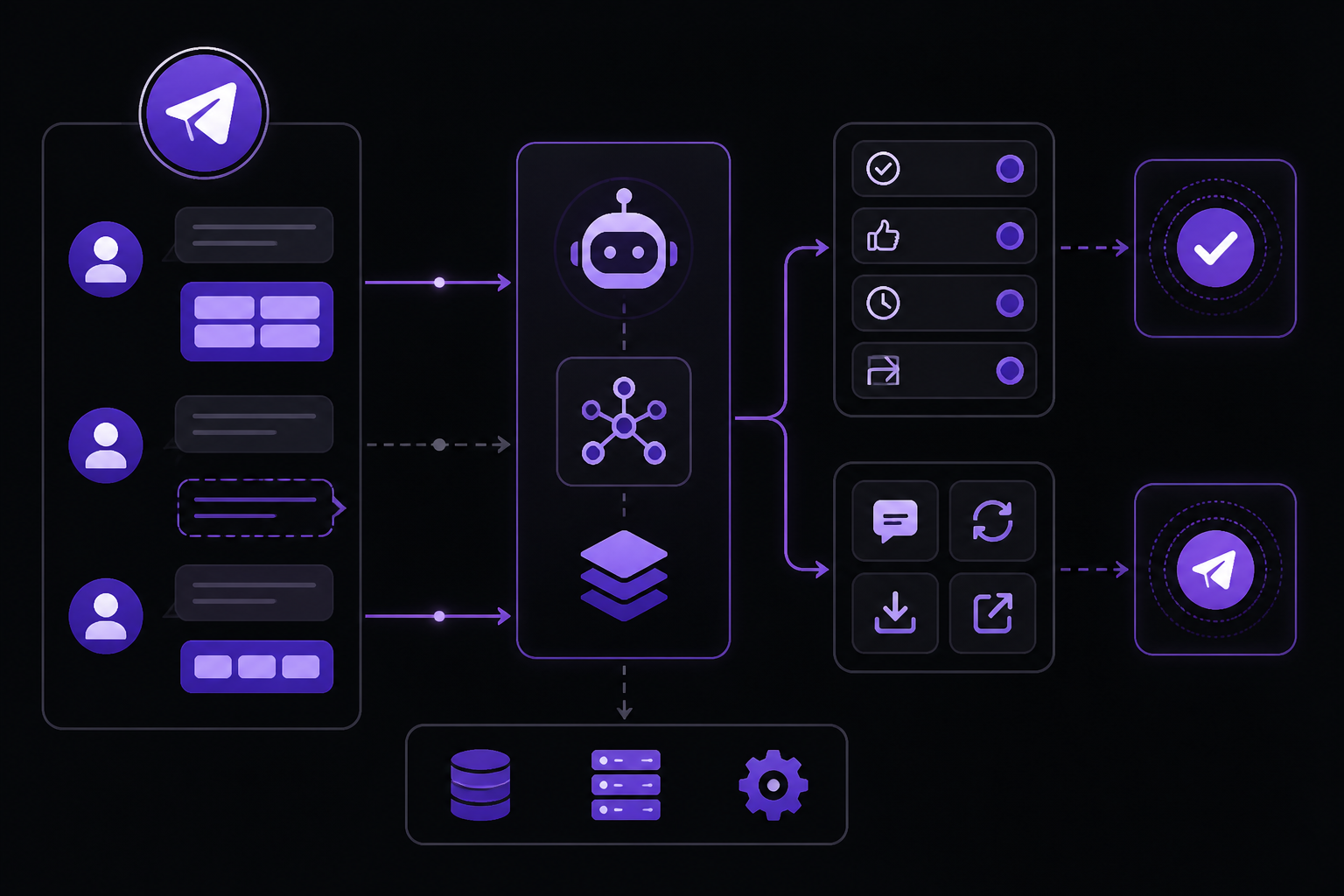
If Telegram users have to keep typing the same replies, approvals, or short commands, the workflow gets slower than it needs to be. OpenClaw supports Telegram inline buttons, so recurring actions can be one tap instead of another typed message.
The important distinction is that plain text option lists are not inline buttons. For real clickable Telegram buttons, the message must include a real inline-keyboard payload.
This is a good fit for approvals and review flows. It also works well for quick replies and common follow-up actions. Use it anywhere repeated choices are clearer as taps than typed messages.
Turn on inline buttons with Telegram capability scope in your config:
{
  channels: {
    telegram: {
      capabilities: {
        inlineButtons: "all"
      }
    }
  }
}
The supported scopes are:
off: Disables inline buttons.dm: Only in direct messages.group: Only in groups.all: In all contexts.allowlist: Only for specific chats defined elsewhere.
How to send a message with inline buttons:
Use the OpenClaw CLI in this form:
openclaw message send --channel telegram --account <accountId> --target <chatId> --message "<text>" --buttons '<json>'
Ensure the --buttons payload is:
- Valid JSON.
- A top-level array of rows.
- Each row an array of button objects.
- Each callback button includes
textandcallback_data.
Example payload:
[
  [
    {"text": "Approve", "callback_data": "approve_order_123"},
    {"text": "Reject", "callback_data": "reject_order_123"}
  ]
]
Community note: If a style field is supported by your tooling, treat it only as a hint. Do not rely on Telegram per-button colors, as Telegram does not officially support colored buttons in inline keyboards.
TEL-02: Split conversations into threads so context stops bleeding across topics
One long OpenClaw conversation turns into a junk drawer. Coding, research, admin, and random questions all get mixed together, and every new turn drags that baggage forward. OpenClaw already has session boundaries you can use:
- Group chats isolate state by group.
- Telegram forum topics get their own
:topic:<threadId>session keys. - Slack and Discord threads are treated as thread sessions.
- Discord channels also get their own isolated sessions.
That means the practical fix is simple: split work by topic or channel. Keep one thread for coding, another for research, another for admin, another for personal operations. Focused threads give the agent focused context instead of one huge mixed transcript. This is one of the easiest memory fixes because it does not require a new memory system. It just uses OpenClaw's existing session isolation properly.
For Telegram specifically, BotFather has a setting for this now. Open BotFather, choose your bot from My bots, go to Bot Settings, and turn on Threaded Mode.
Once it is enabled, Telegram gives the bot separate tabs/topics in the chat UI. That is exactly what this tip needs: coding in one topic, research in another, admin in another, instead of one mixed transcript where everything contaminates everything else.
TEL-03: Set a system prompt per Telegram topic so /new resets noise without losing purpose
Telegram topics already isolate session history. Add a topic-specific systemPrompt and each thread can keep its own durable purpose too. This works well when one topic is for coding, another is for project operations, and another is for a specific client or team. Users can run /new inside the topic to clear the session, but the topic-specific prompt still loads again so the thread does not forget what it is for.
Use a topic-level override under the Telegram chat entry in your config:
{
  channels: {
    telegram: {
      groups: {
        "-1001234567890": {
          topics: {
            "1399171": {
              systemPrompt: "This topic is for showcasing awesome-openclaw-tips example how to set contexts per Telegram thread via system prompts"
            }
          }
        }
      }
    }
  }
}
Topic entries can also override keys like agentId, skills, and requireMention. Keep the thread-specific purpose in systemPrompt and keep broader defaults at the chat or group level.
If your Telegram setup is nested per account, apply the same topic override at that account's Telegram chat entry instead of the shared default path.
Community note: When testing, ask the agent for the current topic ID first (it can usually report it), then run /new, and then ask what the topic is for. If the configured topic prompt is still reflected after the reset, the setup is working.
TEL-04: Give OpenClaw its own Telegram topic for fast admin work
If OpenClaw config changes, repo checks, cron issues, and bot maintenance all happen in the same general chat, operational work gets mixed into everything else. A dedicated Telegram topic with its own systemPrompt gives OpenClaw a standing admin lane for config review, source inspection, and safe git follow-up.
This works well for things like checking repo status, reviewing changed files, suggesting .gitignore updates, or preparing commits for your OpenClaw config workspace without dragging product or client chatter into the same thread.
Use a topic-specific prompt under the exact Telegram account and chat path you already use. For account-nested Telegram config, it can look like this:
{
  channels: {
    telegram: {
      max: {
        enabled: true,
        direct: {
          "*": {
            topics: {
              "1398645": {
                systemPrompt: "This is the OpenClaw admin topic. In this topic, manage my OpenClaw config, inspect OpenClaw source when needed, review repo status, suggest what should be committed or ignored, and ask before making git commits. OpenClaw source code is in ~/.openclaw/ and my global config is in ~/.openclaw/openclaw.json. I do clean, git management of openclaw directory, trying to ingore not for source code useful stuff, and include everything for reproducable re-setup. Usually after making changes, I commit my config dir, for this you can report to me changed files, what's good to commit and what's to ignore, if igoring should we add in .gitinore too and if I approve, you can commit"
              }
            }
          }
        }
      }
    }
  }
}
Keep the prompt narrow and operational. Tell the topic what it is for, where the OpenClaw repo lives, where the active config lives, and what commit behavior you want. If you want approval before commits or .gitignore changes, say that directly in the topic prompt.
This is different from a generic project topic. The point is to have one permanent thread that OpenClaw treats as its own maintenance console.
Memory
MEM-01: Make your agent learn from its mistakes
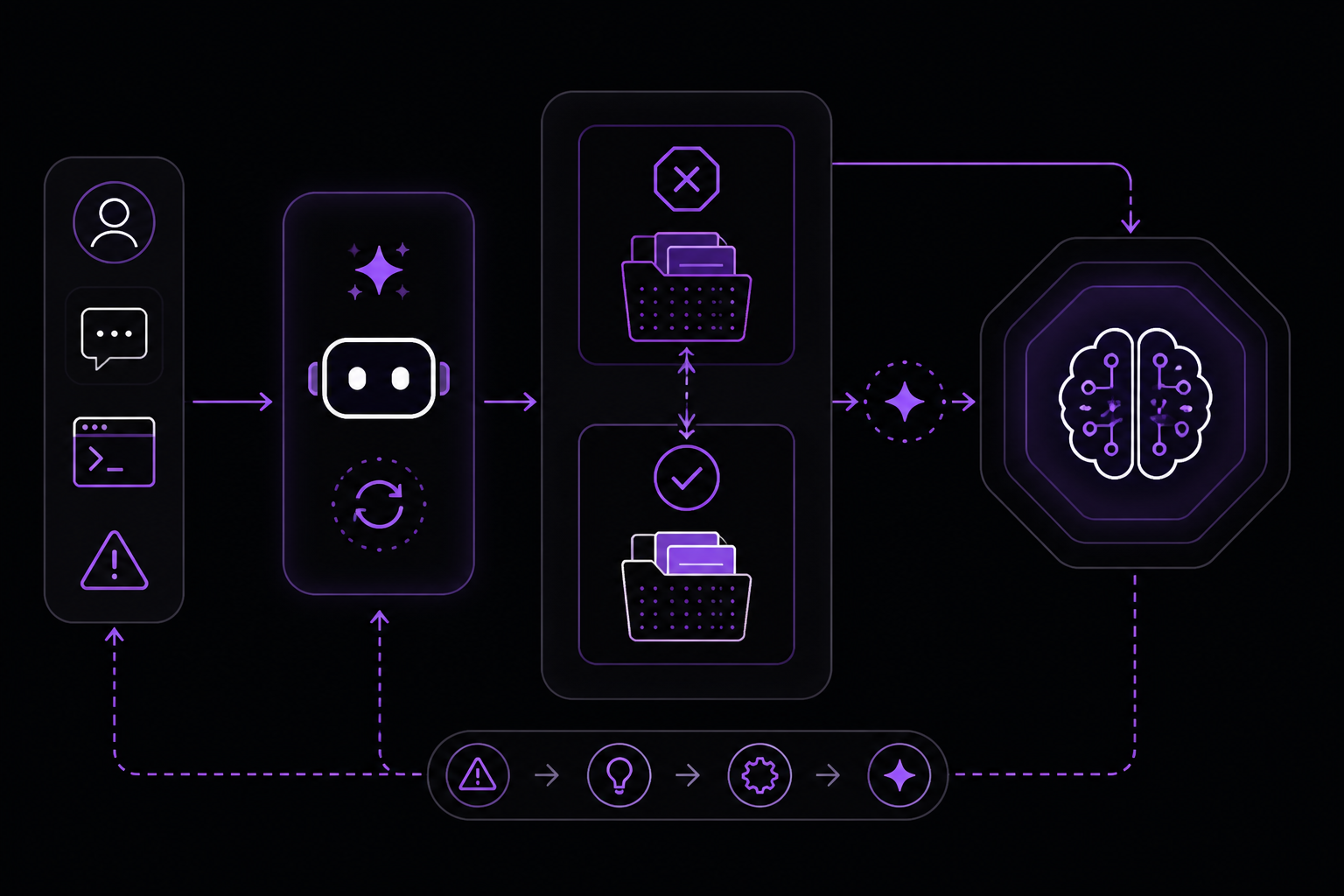
By default, every session starts clean. Your agent has no memory of the last time it tried something and failed, or the last time you corrected it. Two weeks later, it is still repeating day-three mistakes.
The minimum fix is a .learnings/ folder in your workspace with two files:
.learnings/ERRORS.md- command failures, breakages, exceptions.learnings/LEARNINGS.md- corrections, knowledge gaps, workflow discoveries
Add this to SOUL.md:
Before starting any task, check .learnings/ for relevant past errors.
When you fail at something or I correct you, log it to .learnings/ immediately.
Over time, repeated lessons can be promoted into SOUL.md itself so they apply automatically in future sessions.
Community note: For a fuller version with automatic hooks, structured entries, and a promotion workflow, install the self-improving-agent skill.
MEM-02: Flush important state before compaction eats it
Long OpenClaw sessions do not grow forever. Once context gets full, OpenClaw auto-compacts the session. That usually means a summary survives, plus recent turns. Anything important that only lives in chat is now at risk.
Treat compaction as a deadline. Important state should already be on disk before it happens. Turn on the built-in pre-compaction memory flush:
"agents": {
  "defaults": {
    "compaction": {
      "memoryFlush": {
        "enabled": true,
        "softThresholdTokens": 4000
      }
    }
  }
}
This watches context usage, triggers a silent flush before hard compaction, and writes durable state to the workspace. It runs once per compaction cycle and uses NO_REPLY, so it does not spam the user.
This pairs naturally with MEM-01. Chat is working memory. Files are memory.
Community note: The softThresholdTokens value of 4000 is a starting point. If your agent works with very long contexts, you may need to increase it. If compaction happens too often, decrease it.
MEM-03: Use SQLite memory search before you pay for embeddings
Most personal OpenClaw setups do not need a vector database just to find old notes. A local SQLite index with FTS5 is often enough.
This tip ships with supporting files that you can fetch from the awesome-openclaw-tips repository:
tips/mem-03/rebuild-db.jstips/mem-03/relevant-memory.js
If needed, fetch them directly from:
https://raw.githubusercontent.com/alvinunreal/awesome-openclaw-tips/main/tips/mem-03/rebuild-db.jshttps://raw.githubusercontent.com/alvinunreal/awesome-openclaw-tips/main/tips/mem-03/relevant-memory.js
Build the database:
node tips/mem-03/rebuild-db.js
Search it:
node tips/mem-03/relevant-memory.js "query about previous work"
The scripts scan markdown files, build a SQLite database, and use full-text search to surface likely matches quickly. No API costs, no embedding pipeline, no external service.
Community note: The scripts assume your workspace contains markdown files. If your notes are in other formats (like plain text or JSON), you may need to modify the scripts. Also, the database path is hardcoded in the scripts; you may want to change it to a location that persists across sessions.
MEM-04: Treat chat history as cache, not the source of truth
This tip is a conceptual one. Chat history is ephemeral. It gets compacted, summarized, and eventually lost. If you need to remember something permanently, write it to a file in your workspace. The .learnings/ folder from MEM-01 is a good place. So is a MEMORY.md file at the root of your workspace.
Community note: Some users create a state/ directory with JSON files for structured data (like order statuses or project milestones) and instruct the agent to read and write to those files instead of relying on chat context.
MEM-05: Periodically self-clean memory instead of letting it rot forever
Memory files grow over time. Old errors become irrelevant. Outdated learnings become noise. Set up a recurring task (using cron, see AUTO-01) that asks the agent to review its .learnings/ files and archive or delete entries that are no longer relevant. This keeps the signal-to-noise ratio high.
Community note: A simple approach is to add a cron job that runs once a week with a prompt like "Review .learnings/ERRORS.md and .learnings/LEARNINGS.md. Archive entries older than 30 days to .learnings/ARCHIVE.md, unless they are marked as permanent."
Reliability
REL-01: Don't put all your fallbacks on the same provider
If your primary model is OpenAI and your fallback is also OpenAI (just a different model), a single outage takes down both. Spread fallbacks across providers. For example, primary on OpenAI, fallback on Anthropic or a local model. This is configured in the models section of your OpenClaw config.
Community note: Some users report that mixing providers can cause subtle differences in behavior. Test your fallback path regularly to ensure it handles your core tasks adequately.
REL-02: Your agent says "done" when it isn't
Agents sometimes report success without actually completing the work. This is a known failure mode. Mitigate it by:
- Adding explicit verification steps to your prompts. For example, "After you finish, verify the result by reading the file back."
- Using tool-loop detection (see REL-04) to catch runaway attempts.
- Having a separate monitoring agent that checks the output of critical tasks.
REL-03: Use heartbeat to rotate recurring checks, not just repeat one generic check
OpenClaw's heartbeat feature can run periodic checks. Instead of running the same generic check every time, rotate through a list of specific checks. For example, Monday check disk space, Tuesday check for failed cron jobs, Wednesday check git status. This gives broader coverage without increasing the total number of heartbeat calls.
Community note: You can implement this by having the heartbeat prompt include a random selection from a list of checks, or by using a state file that tracks which check was last run.
REL-04: Turn on tool-loop detection before a bad run burns hours
A tool loop is when the agent calls a tool, gets a result, calls the same tool again with a slightly different parameter, and repeats indefinitely. This can burn through your API budget in minutes. OpenClaw has built-in tool-loop detection. Enable it in your config:
"agents": {
  "defaults": {
    "toolLoopDetection": {
      "enabled": true,
      "maxIterations": 10
    }
  }
}
The maxIterations value is the number of consecutive tool calls allowed before the agent is forced to respond with text. Adjust it based on your typical workflows. A value of 10 is a safe starting point.
Community note: If your agent legitimately needs many tool calls in sequence (e.g., processing a list of files), you may need to increase maxIterations or disable the check for that specific agent.
Cost
COST-01: Your heartbeat model is costing you more than you think
Heartbeat checks use a model call every time they run. If you use a powerful (and expensive) model like GPT-4 for heartbeats, the cost adds up quickly. Use a cheaper, faster model for heartbeat tasks. Configure it in the heartbeat definition:
"cron": {
  "heartbeat": {
    "model": "gpt-3.5-turbo",
    "schedule": "*/30 * * * *",
    "prompt": "Check system health."
  }
}
Community note: Some users report that even GPT-3.5 is overkill for simple health checks. Consider using a local model like Llama 3 8B for heartbeats if you have the hardware.
COST-02: Use cache-ttl pruning or idle sessions will re-cache junk history
OpenClaw caches session history to avoid re-processing the same context. But if a session goes idle, the cache can become stale or accumulate junk. Set a cacheTTL to automatically prune old cache entries:
"cache": {
  "ttl": 3600
}
This sets the cache time-to-live to one hour (in seconds). Adjust based on your session patterns.
COST-03: Local models are often a false economy
Running a local model requires GPU hardware, electricity, and maintenance. For many users, the total cost of ownership is higher than using a paid API, especially when you factor in the time spent tuning and troubleshooting the local setup.
Community note: This tip is controversial. Some users report that local models are cheaper at scale, especially for high-volume, low-complexity tasks. The key is to benchmark your actual usage patterns.
COST-04: Use local models only for repetitive mechanical work
If you do use local models, reserve them for tasks that are repetitive, mechanical, and do not require high reasoning ability. Examples: formatting text, extracting data from structured inputs, running simple classification. Save the expensive API calls for complex reasoning, creative writing, and multi-step planning.
Operations
OPS-01: Set explicit concurrency limits for agents and subagents
By default, OpenClaw may run multiple agents or subagents concurrently. This can lead to resource contention and unexpected behavior. Set explicit limits in your config:
"agents": {
  "defaults": {
    "maxConcurrency": 3
  }
}
This limits the number of tasks the agent can handle simultaneously. Adjust based on your hardware and the complexity of your tasks.
Community note: For subagents, you can set a separate limit. If your orchestrator spawns many subagents, a limit of 5-10 is usually safe. Higher values risk rate limiting from API providers.
OPS-02: Make the workspace folder the source of truth and put it under git
Your OpenClaw workspace should contain everything needed to reproduce your setup: config files, prompts, scripts, memory files. Put it under git so you can track changes, roll back mistakes, and sync across machines.
Community note: Be careful not to commit sensitive information like API keys. Use a .gitignore file to exclude files like .env or secrets.json. The TEL-04 admin topic can help manage this.
OPS-03: Learn the slash commands that actually save bad sessions
OpenClaw has several slash commands that can rescue a bad session:
/new- Starts a new session in the current chat, clearing history./reset- Resets the agent's state without clearing the entire session./undo- Reverts the last action (if supported by your setup)./cancel- Cancels the current operation.
Community note: The exact set of available commands depends on your OpenClaw version and configuration. Run /help in any chat to see the full list.
OPS-04: Delete the old session on /new so resets do not leave junk behind
When a user runs /new, OpenClaw starts a new session but may keep the old session data on disk. Over time, this accumulates. Configure OpenClaw to delete the old session when /new is used:
"messages": {
  "deleteSessionOnNew": true
}
Community note: This is a safety vs. convenience tradeoff. If you frequently need to refer back to old sessions, keep them. If disk space is a concern, enable deletion.
OPS-05: Add optional plugin tools with tools.alsoAllow
OpenClaw's tools.alsoAllow setting lets you add optional tools that the agent can use but is not required to. This is useful for tools that are powerful but potentially dangerous, or for tools that are only relevant in specific contexts.
"agents": {
  "defaults": {
    "tools": {
      "alsoAllow": [
        "execute_shell_command",
        "write_file"
      ]
    }
  }
}
Community note: Use this sparingly. Each allowed tool increases the attack surface and the chance of unintended behavior. Only allow tools that your agent actually needs.
Automation
AUTO-01: Standing orders define what, cron defines when
Standing orders are persistent instructions that tell the agent what to do. Cron jobs define when to do it. Separate the two. For example, a standing order might be "Check for software updates weekly." The cron job triggers the check, but the standing order defines the exact steps.
Community note: Store standing orders in a file like STANDING_ORDERS.md in your workspace and reference it from your cron job prompts.
AUTO-02: Use isolated cron jobs for noisy chores
If a cron job produces a lot of output (like a full system scan), it can flood your chat. Isolate noisy cron jobs by having them write results to a file instead of sending a message. Then have a separate, less frequent cron job that summarizes the results.
Community note: You can also direct noisy cron job output to a dedicated Telegram topic (see TEL-04) so it does not clutter your main chat.
AUTO-03: Back up your workspace continuously, not just once
Set up a cron job that periodically backs up your workspace to a remote location (e.g., a git push, a cloud storage sync, or a simple tar archive). The frequency depends on how often your workspace changes. For active setups, every hour is reasonable.
Community note: Use OpenClaw's own cron system for this, not an external scheduler, so the backup is managed within the same ecosystem.
Architecture
ARCH-01: Stop using one generic agent for everything
A single agent that handles coding, research, admin, and personal tasks will be mediocre at all of them. Create specialized agents with focused prompts and tool sets. For example:
- A "coder" agent with access to git, code analysis tools, and a coding-focused system prompt.
- A "researcher" agent with web search and summarization tools.
- An "admin" agent with file management and system monitoring tools.
Community note: You can switch between agents in a single chat using the /agent command, or assign different agents to different Telegram topics.
ARCH-02: Keep your orchestrator as a manager, not the doer
If you use a multi-agent setup, the orchestrator agent should delegate tasks to subagents, not do the work itself. This keeps the orchestrator's context clean and focused on coordination. Subagents handle the actual execution.
Community note: A common pattern is to have the orchestrator write a task description to a file, then spawn a subagent that reads the file and executes the task. The subagent writes the result back to a file, and the orchestrator reads it.
ARCH-03: Give different models different prompt files
Different models have different strengths and weaknesses. A prompt that works well with GPT-4 may produce poor results with a local model. Maintain separate prompt files for each model and reference them in the agent configuration.
Community note: You can use the prompt field in the agent config to point to a file: "prompt": "prompts/gpt4_coder.md".
ARCH-04: Predefine subagent workspaces or they lose shared context
When you spawn a subagent, it gets its own workspace. If you do not define it explicitly, the subagent may not have access to the files it needs. Predefine the workspace path in the subagent configuration:
"subagents": {
  "my-subagent": {
    "workspace": "/path/to/shared/workspace"
  }
}
Community note: If subagents need to share context, point them to the same workspace directory. Be careful about file conflicts if multiple subagents write to the same file simultaneously.
Troubleshooting
Agent is not responding to inline buttons
- Verify that
channels.telegram.capabilities.inlineButtonsis set to a scope that includes the current chat (e.g.,all). - Check that the
--buttonspayload is valid JSON and follows the correct structure (array of arrays of objects withtextandcallback_data). - Ensure the Telegram bot has not been rate-limited. If reactions are missing, try narrowing the scope.
/new does not reset the topic prompt
- Confirm that the topic-specific
systemPromptis configured under the correct chat ID and topic ID in your config. - Verify that the config file is being read by the running OpenClaw instance. Restart OpenClaw after config changes.
- Test by asking the agent for the current topic ID, running
/new, and then asking what the topic is for.
Memory flush is not working
- Check that
agents.defaults.compaction.memoryFlush.enabledis set totrue. - Verify that
softThresholdTokensis set to a value lower than your model's context limit. - Ensure the agent has permission to write to the workspace directory.
Tool-loop detection is triggering too often
- Increase
maxIterationsin thetoolLoopDetectionconfig. - Review your agent's prompts to see if they encourage excessive tool use.
- Consider disabling tool-loop detection for specific agents that legitimately need many tool calls.
SQLite memory search returns no results
- Run
node tips/mem-03/rebuild-db.jsto rebuild the index. - Ensure the script is scanning the correct directory. You may need to modify the script to point to your workspace.
- Check that your notes are in markdown format. The scripts only scan
.mdfiles by default.
Going Further
This guide covers the core tips from the awesome-openclaw-tips repository. To go deeper:
- Install the self-improving-agent skill for a more automated version of MEM-01.
- Explore the OpenClaw documentation for advanced configuration options like custom tools, model routing, and multi-agent orchestration.
- Join the Telegram channel and the Subreddit for community support and new tips.
- Review the boringdystopia.ai blog for deeper dives into OpenClaw architecture and use cases.
- Experiment with the SQLite memory search scripts (MEM-03) and adapt them to your own note-taking workflow.
The #1 AI Newsletter
The most important ai updates, guides, and fixes — one weekly email.
No spam, unsubscribe anytime. Privacy policy