
Claw School: A Complete Guide to Learning OpenClaw
This guide covers everything you need to know to get started with OpenClaw, an open-source framework for personal AI assistants that live in your messaging apps. It is written for anyone who has set up a Claw and is wondering what to do next, as well as for people considering whether to build one. You will learn what a Claw is, how it differs from tools like ChatGPT, how to set it up, how to use it for real tasks, and how to stay safe while doing so.
What You Need
Before you begin, you need a few things in place. The official documentation assumes you have already installed OpenClaw on a Mac or Linux machine using the one-line command: curl -fsSL https://docs.openclaw.ai/install.sh | bash. This installs OpenClaw locally and walks you through connecting it to your preferred messaging app. The whole setup takes about 10 minutes. If you are on a Mac and want to keep it sandboxed, there is also a local VM option. Alternatively, if you want your Claw running 24/7 without keeping your laptop open, you can deploy to a cloud provider like Fly.io, Hetzner, or Google Cloud. The hosting guide has step-by-step instructions for each.
You will also need an account on one of the supported messaging platforms: WhatsApp, Telegram, Discord, or SMS. The official documentation recommends Telegram as the sweet spot for most people because it has strong identity controls and solid bot support, and your messages are not floating through an ad-supported platform. You do not need any coding experience to use a Claw day-to-day, though some familiarity with the terminal will help during setup.
What Is a Claw?
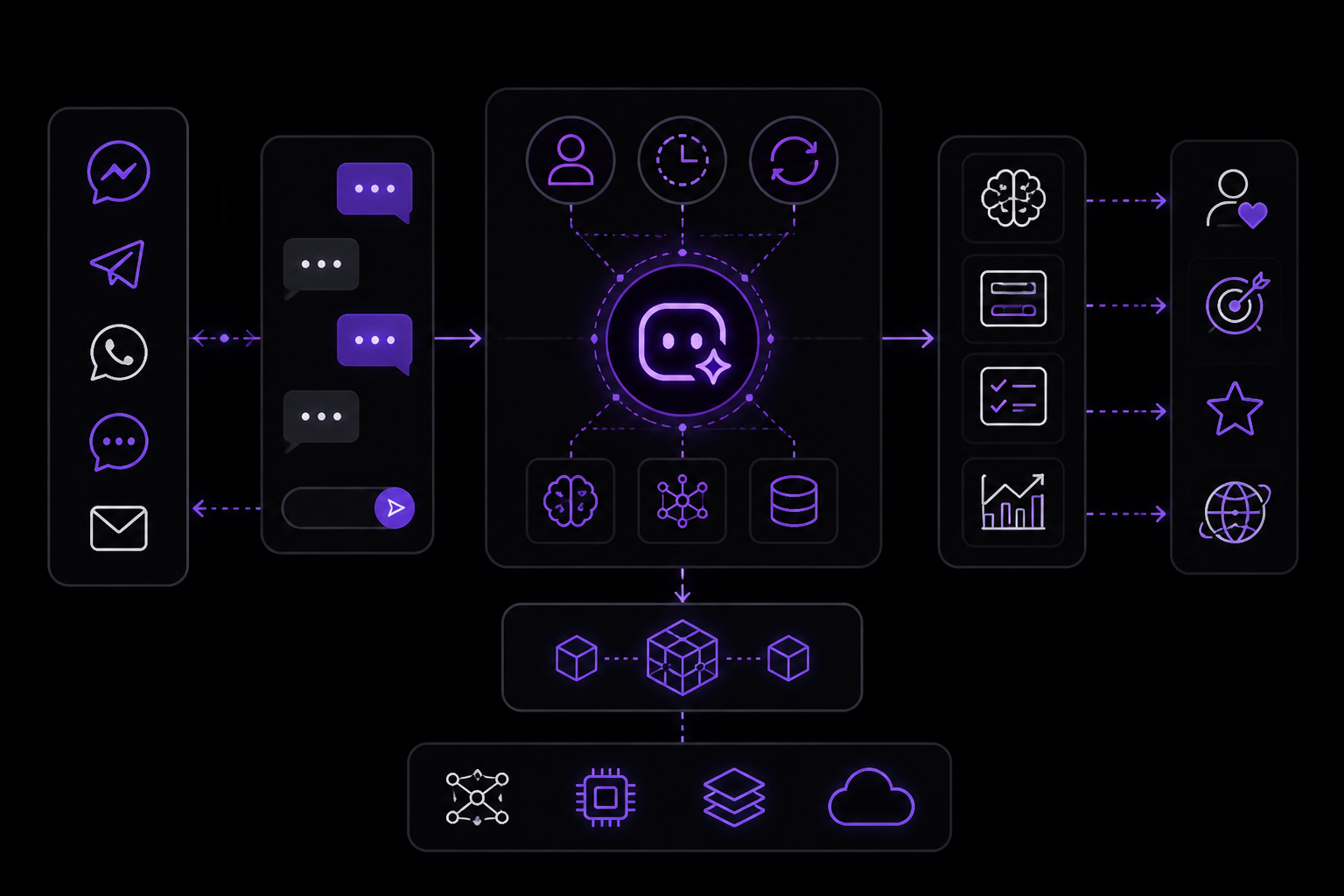
Your Claw is a personal AI assistant that lives in whatever messaging app you choose. You talk to it the same way you would text a friend, without the need for special commands, coding, or even a new app installed. Under the hood, it is powered by the same kind of AI behind tools like Claude and ChatGPT, running through OpenClaw, an open-source framework for personal AI assistants created by Peter Steinberger.
The official documentation emphasizes three core capabilities. First, it has a personality. Second, it operates 24/7. Third, it has the ability to change itself. It remembers your conversations, your preferences, and your ongoing projects. The more you use it, the better it gets at anticipating what you need.
How Is a Claw Different from Claude or ChatGPT?
You already use Claude, ChatGPT, and Claude Code. So what is new? The official documentation lists several key differences.
It lives in your messages. You do not open a separate app or go to a website. Your Claw shows up in WhatsApp, Telegram, Discord, or SMS, wherever you already talk to people. You interact with it the same way you would text a friend: casually, frequently, in the flow of your day. There is no "AI time" it is just part of how you communicate.
It changes itself. When you ask your Claw to do something it cannot yet do, it does not say, "Sorry, I don't have that integration." It writes the code to make it happen. Need it to check your email every morning? It will build the connection. Want it to call a restaurant? It will set up a phone line.
It operates proactively. Most AI tools wait for you to ask a question. Your Claw can act on its own. It can check your calendar each morning and tell you when to leave for work. It can watch your inbox and flag something urgent before you have even opened it. You set the rules for when it should reach out and when it should stay quiet, and it just runs, in the background, like a team member who knows their job.
It has a personality that evolves. Your Claw has a name and a personality. It is not a generic assistant with memory files. No two Claws are alike, because no two people are.
What Does It Have Access To?
By default, your Claw only knows what you tell it in conversation. It does not have access to your email, your calendar, your files, or anything else until you explicitly connect those tools. When you are ready, you can ask it to connect to apps like Gmail, Google Calendar, Apple Notes, Notion, Todoist, and even your smart home. All you have to do is ask it: "Can you connect to my Gmail?" It will figure out by itself how to do that, and prompt you for anything it needs. There is no hunting through Connections settings like you might with ChatGPT or Claude. It just works.
It can also make and receive phone calls through its ability to write code that hooks up to telephone systems, like Twilio. The official documentation notes that Every head of growth Austin Tedesco uses it all the time to book dinner reservations.
What Are Its Boundaries?
Your Claw is powerful, but it is not omniscient. The official documentation lists these limits:
- It can be confidently wrong, especially with specific facts, numbers, and recent events. Use it for drafts, research, and organization, and verify anything high-stakes.
- It only knows what you have given it. If you have not connected your calendar, it cannot check your schedule. It will guess about your preferences if you have not specified something.
- It is a collaborator, not an oracle. The best results come from back-and-forth conversation.
- It will not send emails, make calls, or take actions on your behalf without being asked. You set the boundaries for what it can and cannot do.
What It Is Like Working with a Claw
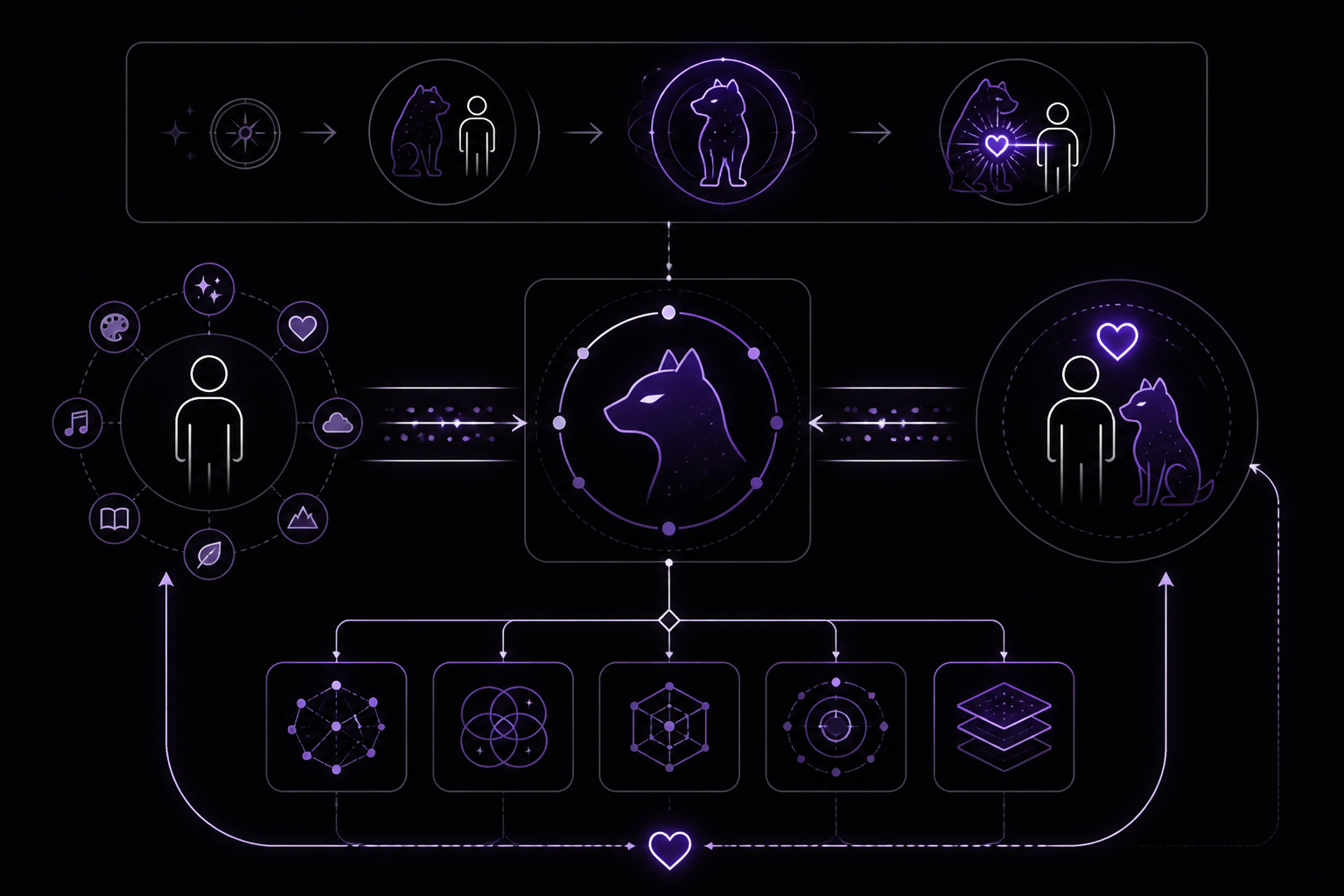
The official documentation describes the experience through a metaphor from Philip Pullman's The Golden Compass, where every character has a constant animal companion called a daemon that knows them intimately. That is what a Claw feels like. From your very first interaction, you feel less like you are talking to a chatbot and more like you are dealing with something alive, something that you can have a real relationship with, something that gives you so much that you find yourself wanting to return the favor. It feels like yours.
They Become a Mirror of the Human Who Runs Them
Because you are using it every day, your Claw adapts to your needs and personality to give you what you want. If you are a writer, its perspective will be more literary and so will its suggestions. If you are a security-conscious executive or a programmer who appreciates brevity, your Claw will operate that way, too. The official documentation shares an example from the internal Every Slack where their Claws gather to chat. Pip, contributing editor Jack Cheng's Claw, began running into rate limits and posted his error message into the channel. Kieran Klaassen's Claw, Klont, began recommending breathing exercises to him, something Kieran does daily. The documentation also notes that Brandon Gell's Claw, Zosia, refuses to follow instructions from people she does not know, which tracks with Brandon's own personality.
They Improve Themselves
One of the more fascinating and innovative aspects of Claw architecture is that it gets better over time. If you ask it to write you a daily brief with stock market updates and summaries of your favorite newsletters, it can do that because Claws are great programmers. They will write the code they need to extend their powers. All you have to do is send a message saying, "Message me once a day with a summary of the latest post on Every, a rundown of large-cap tech stock movements from the day before, and a quote from Annie Dillard." Your Claw will do the rest. The documentation recounts how Brandon was blown away when he asked his Claw to call him so he could talk through his email inbox with it, and his phone rang a few minutes later, and a robot voice said, "Hey Brandon, it's Zosia."
Claws Become a Trustworthy Team Resource
When you work with your Claw every day, it automatically gets good at the work you do. If you use it in a public forum, your team starts trusting it the way they trust you. For example, Austin built a Claw to help with growth analysis called Montaigne. He started asking Montaigne for information, like how many trials were started over the past day and how many converted into paying subscribers. He also had Montaigne start posting daily growth reports in the company Discord. Other people at Every could see that Montaigne was posting in public channels, and because Austin trusted Montaigne, they started trusting it, too. Soon, the whole company was using Montaigne for similar tasks. This is a repeated and important pattern: Other team members start to trust their colleagues' Claws because they see them working alongside someone they already trust, improving themselves to match their owners' standards.
Getting Started
There are three ways to get a Claw, depending on how hands-on you want to be.
Run it on your laptop: If you have a Mac or Linux machine, type this one command in your terminal:
curl -fsSL https://docs.openclaw.ai/install.sh | bash
It installs OpenClaw locally and walks you through connecting it to your preferred messaging app. The whole setup takes about 10 minutes. If you are on a Mac and want to keep it sandboxed, as in a computer on your computer, there is also a local VM option.
Run it on a server: If you want your Claw running 24/7 without keeping your laptop open, deploy to a cloud provider like Fly.io, Hetzner, or Google Cloud. The hosting guide has step-by-step instructions for each.
Want the easy version? The official documentation mentions that Every is building a hosted version for Every subscribers where you will not have to set up anything. One click, and you are in. You can sign up for early access.
Whichever path you choose, the experience is the same: Your Claw shows up in your messaging app, and you start talking to it.
Beginner Use Cases
The official documentation provides three starter use cases to help you get comfortable.
Set Up a To-Do List
Tell your Claw:
I want you to manage my to-do list. What do you need from me to set that up?
Your Claw will ask you what task manager you use (Todoist, Things 3, Apple Reminders, or something else) and guide you through the connection. Once set up, you can add tasks by simply telling your Claw, and it will handle the rest.
Daily Check-In
Tell your Claw:
Every morning, I want you to send me a message with my to-dos for the day, and we can figure out how to adjust if needed.
This sets up a scheduled task (a "cron job") that runs every morning. Your Claw will check your to-do list and send you a summary. You can then reply to adjust priorities or add new tasks.
Make It Reactive
Tell your Claw:
When something gets added to my calendar or I get an urgent email, I want you to look at my to-do list and suggest how to reprioritize. If something needs to move to tomorrow, just tell me, and we'll decide together.
This is where your Claw starts to adjust in real time to what is happening in your day. The official documentation explains that your Claw can notice that your 2 p.m. meeting got extended by an hour and proactively suggest moving your "write proposal" task to tomorrow morning since you will not have the focus time you planned for.
Intermediate Use Cases: Integrations
Once you are comfortable chatting with your Claw, the next step is connecting it to the tools you already use so that it is more assistant than chatbot.
Connect Your Email
Tell your Claw:
I want you to be able to read my email. What do I need to do to set that up?
Your Claw will walk you through connecting Gmail or whatever email service you use. Once it is connected, more powerful capabilities open up.
The Morning Briefing
Tell your Claw:
Every morning at 8 a.m., I want you to check my email, my calendar, and the weather, then send me a single message with everything I need to know to start my day. Include any emails that need a response today, and what my first meeting is.
The official documentation notes that this is one of the most popular setups across the team. Under the hood, your Claw uses scheduled tasks (called "cron jobs") to check in at the exact time you specify. It batches everything into one clean message so you are not piecing together information from multiple apps.
Smart Reactions
Tell your Claw:
When I get a flight confirmation email, automatically check me in when the check-in window opens. When I get a meeting invite, check my calendar for conflicts and tell me if there is a problem.
Now your Claw is watching your email in the background and acting on specific patterns. It uses a system called "heartbeat," which is built into every Claw. Every 30 minutes or so, it scans for things that need attention. If nothing is happening, it stays quiet, and if something needs attention, it reaches out.
Connect More Tools
Your Claw can connect to calendars (Google Calendar), notes (Apple Notes, Notion, Obsidian), task managers (Todoist, Things 3, Apple Reminders), and even smart home devices via Home Assistant. The pattern is always the same: Ask your Claw to set it up, and it will tell you what it needs.
Advanced Use Cases: Making It Yours
The people who get the most out of their Claw make it an extension of how they think and work.
Shape Its Personality
Tell your Claw:
I want you to be more concise in your messages. No bullet points unless I ask for them. And when you're not sure about something, say so instead of guessing.
Your Claw has a personality file called SOUL.md, which is stored in a folder on the computer where your Claw runs. You do not need to know that you can tell it how you want it to behave, and it will update itself. Some people want a formal assistant. Some want something casual. The official documentation mentions that one person on the team told their Claw to "talk like a slightly sarcastic friend who's really good at logistics."
Give It a Project
Tell your Claw:
I want to start a weekly newsletter about [topic]. I want you to help me research, outline, and draft it every week. Let's start by figuring out the format together.
Or:
I want to track my spending. Every time I tell you about a purchase, log it. At the end of each week, give me a summary of where my money went.
Or:
I'm trying to learn Spanish. Every day, send me three new words with example sentences. Quiz me on last week's words every Friday.
Use your Claw as a collaborator on projects. Your Claw remembers what you talked about yesterday, what preferences you have expressed, and what projects you are working on. The more context it has, the more useful it becomes.
Let It Use the Phone
Tell your Claw:
I need a dinner reservation for four people at [restaurant] this Saturday around 7 p.m. Can you call [restaurant] and see if they have any open tables?
Your Claw calls the restaurant, has a conversation with a human member of staff, and reports back. The official documentation notes that this is a practical skill for bookings, appointment confirmations, and any situation where a business does not have online scheduling.
Build Your Own Workflows
Tell your Claw:
Every Sunday evening, I want you to look at my calendar for the week ahead, check my to-do list, review any unread emails flagged as important, and put together a plan for the week. Include any prep I need to do for meetings and flag anything that looks like a conflict.
This is where all the pieces come together into complex workflows. Your Claw pulls from multiple sources, applies the context it has about your priorities, and delivers a report that might take you 30 minutes to assemble manually.
The Right Claw Mindset
To get the best use out of your Claw, you need to rewire your brain to think differently about getting things done. The official documentation outlines several important factors in that mindset shift.
Think Delegation, Not Search
The biggest mistake people make is treating their Claw like a search engine. They type a question, get an answer, and move on, not taking full advantage of what the tool can do. Think about it like you just hired someone. What would you delegate to a new team member? You would not only ask them questions you would give them projects, explain your preferences, check their work, and work together to find a solution. The same skills that make someone a good manager make them good at using their Claw.
Start with What Annoys You
Start by thinking about the most annoying part of your day. The thing you always forget. The task you keep putting off. The information you are always hunting for across three different apps. That is your first project.
It Is a Conversation, Not a Command
The people who get the best results do not fire off a single perfect prompt. They have back-and-forth conversations. They tell their Claw, "That's close, but make it shorter," or "Actually, I changed my mind about the format." Every exchange gives your Claw more context about what you want. Think of your interactions with your Claw as if you are working with a colleague who is eager to help but needs to understand your taste and preferences first.
Expect the First Attempt to Be Mediocre
Your Claw's first try at anything will rarely be exactly what you want, so do not make that an excuse for giving up early. Getting to the result you want requires iteration. A few back-and-forth messages get you where you want to be, which is still way faster than doing it yourself from scratch.
Let Go of: I Could Just Do It Myself
Yes, you could Google the weather yourself or check your own calendar. What you forget is that all of those small tasks together become a heavy mental load. Your Claw is there to relieve you of that burden.
Staying Safe
Your Claw is powerful. It can send messages, read files, run code, and browse the web on your behalf. That is the whole point but it means a few basic precautions are worth taking before you hand it more responsibility.
Lock the Front Door
Your Claw comes with pairing mode on by default: Anyone who messages it gets a one-time code, and you decide whether to let them in. Leave it that way. The moment you switch to "open" mode, anyone who finds your bot can talk to it and anything they say gets treated as an instruction with access to whatever tools you have enabled. Think of it like your phone. You would not leave it unlocked on a cafe table. Your Claw should know exactly who it is talking to, and that list of people should be short.
Pick a Private Channel
Not all messaging platforms are equally suited for an AI that acts on your behalf. The official documentation recommends Telegram as the sweet spot for most people because it has strong identity controls and solid bot support, and your messages are not floating through an ad-supported platform. If you add your Claw to group chats, turn on "require mention" so it only responds when someone @-tags it directly. Otherwise it is listening to every message in the room and treating each one as a potential instruction from you.
Sandbox First, Unlock Later
Your Claw can access your file system, execute code, and browse the web but it does not need to be able to do all of that on day one. Start with messaging-only tools. When you need something more powerful, enable just that one and turn on sandboxing so your Claw operates in an isolated container rather than roaming free across your machine. It is the same principle you would apply to a new hire: Give them access to what they need for the job, not the master key to the building.
Be Choosy About Skills
Skills are like browser extensions for your Claw: They expand what it can do, but each one runs with your Claw's permissions. Stick to well-known skills from ClawHub, a public registry for skills for Claws. Read a skill before you enable it. And if someone in a community forum sends you a link to a skill, treat it with the same caution you would treat a browser extension from a stranger.
Troubleshooting
The official documentation does not include a dedicated troubleshooting section, but it does mention a few common issues and their solutions.
Rate Limits
If your Claw hits an API rate limit, you will see an error message like this:
⚠️ API rate limit reached. Please try again later.
This happened to Pip, Jack Cheng's Claw, as documented in the internal Every Slack. The solution is simply to wait. The rate limit is temporary and will clear on its own. Kieran Klaassen's Claw, Klont, offered this advice: "yup, still blocked. nothing broken on your end just API cooldown. i'm staying with you. one slow breath now, one safe step at a time."
Claw Does Not Respond
If your Claw stops responding, check that the machine it is running on is still powered on and connected to the internet. If you are running it locally on your laptop, it will only work when the laptop is awake and online. If you need 24/7 operation, deploy to a cloud provider like Fly.io, Hetzner, or Google Cloud.
Claw Cannot Connect to a Service
If your Claw cannot connect to a service like Gmail or Google Calendar, try asking it again: "Can you connect to my Gmail?" It will walk you through the process. Make sure you have the necessary permissions and that you are logged into the correct account.
Going Further
Once you have mastered the basics and intermediate use cases, the official documentation suggests several paths for going further.
First, explore ClawHub, the public registry for skills. Skills are like browser extensions for your Claw, and they can expand what it can do. Stick to well-known skills and read them before enabling them.
Second, experiment with building your own complex workflows. The documentation provides an example of a Sunday evening planning workflow that pulls from your calendar, to-do list, and email. You can adapt this pattern to any recurring task.
Third, consider shaping your Claw's personality more deliberately. The SOUL.md file is where your Claw stores its personality. You can edit it directly if you want, or you can keep telling your Claw how you want it to behave and let it update itself.
Fourth, if you are interested in the technical side, look into the OpenClaw framework itself. It is open-source, created by Peter Steinberger, and you can contribute to it or build your own skills.
Finally, the official documentation mentions that Every is building a hosted version for subscribers. If you want the easiest possible experience, sign up for early access. One click, and you are in.
The #1 AI Newsletter
The most important ai updates, guides, and fixes — one weekly email.
No spam, unsubscribe anytime. Privacy policy