
Back to Blog design
 ai
ai googlecloud
 discuss
 agents
 agenticarchitect
 ai
ai
Leafer Editor — A Free, Open-Source Vector Design Tool for the Browser
fayismahmood May 13, 2026
0 views
No installs. No accounts. No cost. A full-featured vector design editor built with Leafer UI and React.
title: "Leafer Editor — A Free, Open-Source Vector Design Tool for the Browser" published: true description: "No installs. No accounts. No cost. A full-featured vector design editor built with Leafer UI and React." tags: design, opensource, webdev, react canonical_url: https://github.com/fayismahmood/leafer-editor
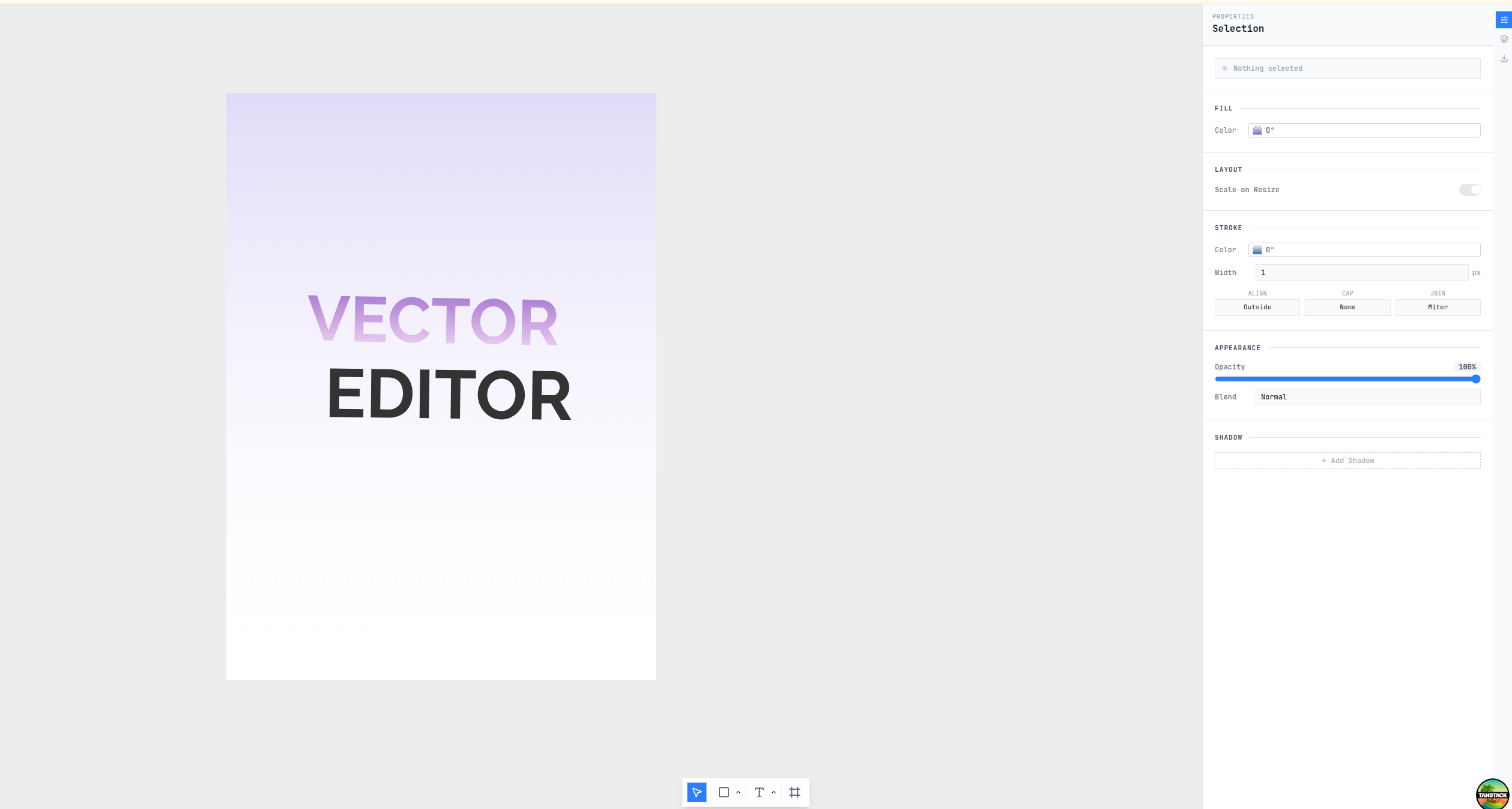
No installs. No accounts. No cost. Just open the browser and start designing.
If you've ever needed to quickly sketch a UI, create a diagram, or put together a simple graphic — and didn't want to open a heavy desktop app or sign up for yet another SaaS tool — Leafer Editor was built for exactly that moment.
It runs entirely in your browser. Everything you create stays on your machine. And it comes with a surprisingly complete set of design tools that cover the most common tasks you'd normally reach for Figma or Illustrator to handle.
Let me walk you through every feature. But first — jump in and try it yourself:
🖥 Live demo → leafer-editor.vercel.app — no sign-up, just start designing. ⭐ GitHub → fayismahmood/leafer-editor
The Canvas
When you first open Leafer Editor you're greeted with a clean infinite canvas — a grey workspace with a single white Frame sitting in the centre. That frame is your artboard, the area you design inside.
Pan around by holding Space and dragging. Zoom with the scroll wheel. The canvas is infinite — place as many frames side by side as you need without running out of room.
Frames — Your Artboards
A Frame is the container that holds all your design elements. Think artboard in Illustrator, frame in Figma.
- Every shape, image, and text block lives inside a frame
- Frames have a configurable width and height
- Elements that overflow the frame boundary are clipped
- Name frames whatever you like — names show in the Layers panel
- Create as many frames as you need — handy for designing multiple screens side by side
- Presets for paper sizes (A4, Letter, etc.), screen dimensions (1080p, 1440p, 4K), and social media formats (Instagram, Twitter, etc.)
Press F or click the Frame tool, then pick a preset or draw a custom size.
The Toolbar — 9 Tools, 9 Shortcuts
At the bottom of the screen sits the toolbar:
| Tool | Key | What it does |
|---|---|---|
| Select | V | Click, drag-select, move, resize, rotate |
| Rectangle | R | Draw rectangles — buttons, cards, containers |
| Ellipse | O | Circles, ellipses, arcs, pie slices |
| Line | L | Straight lines with configurable stroke |
| Star | S | 3–20 point stars and polygons |
| Pen | P | Custom paths and bezier curves |
| Text | T | Inline text editing on the canvas |
| Image | I | Import images from your machine |
| Frame | F | Create a new frame with presets |
Every tool has a keyboard shortcut. Switch tools without touching the mouse.
Drawing Shapes
Rectangle
Press R, drag inside a frame. Resize with corner handles, rotate by hovering just outside a corner, round corners with the slider, and apply fills, strokes, shadows, and blend modes.
Ellipse
Press O, drag. Hold Shift for a perfect circle. Supports arcs and pie slices — great for charts and progress indicators.
Line
Press L, drag. Adjust stroke width, cap style (flat/round/square), and dash patterns for dotted or dashed lines.
Star
Press S, drag. Not just five-point stars — anywhere from 3 to 20 points. Adjust the inner radius ratio to morph from a sharp star to a flower shape.
Pen
Press P. Click to place anchor points, drag to create curves. Build custom paths and bezier shapes.
The Text Tool
Press T, click inside a frame, and start typing. Leafer Editor uses an inline text editor on the canvas — no modal, no separate input box. Type directly on the canvas, Figma-style.
The Properties panel gives you full typography control:
- Font family — ~40 popular Google Fonts, each previewed in its own typeface in the dropdown
- Font weight — Normal, Bold, 600, or 800
- Italic
- Alignment — Left, Centre, Right, Justify
- Line height and letter spacing
Fonts are lazy-loaded — only the ones you use are downloaded.
The Image Tool
Press I to open a file picker. Select any image (PNG, JPG, WebP, GIF) and it appears on the canvas at a sensible size. Drag to reposition, resize with handles, and apply opacity and blend modes like any other element.
Everything stays local. Images are never uploaded anywhere.
The Select Tool
Press V to work with elements you've already created:
- Click an element to select it and see its properties
- Drag a selection box to select multiple elements at once
- Drag to move selected elements
- Corner handles to resize
- Hover just outside a corner to rotate
- Click empty space to deselect
When multiple elements are selected, property changes apply to all of them simultaneously.
The Properties Panel — Deep Styling
The right-side panel is context-aware — different controls depending on what's selected.
Fill
Solid colors via hue-saturation picker with hex/RGB inputs. Switch to gradient mode for linear or radial gradients with a multi-stop gradient bar — click to add stops, drag to reposition, double-click to remove.
Stroke
Border color, width, and alignment — inside, centre, or outside the shape boundary. Cap and join styles for lines.
Opacity
Slider from 0% (invisible) to 100% (fully opaque) for the entire element.
Blend Modes — 16 Modes
Multiply, Screen, Overlay, Darken, Lighten, Color Dodge, Color Burn, Hard Light, Soft Light, Difference, Exclusion, Hue, Saturation, Color, Luminosity — plus Normal.
A black rectangle set to Multiply lets the texture of the layer below show through. These unlock a lot of creative effects.
Shadows
Drop Shadow — offset X/Y, blur, spread, and color. Inner Shadow — same controls, pressed-in or embossed look. Both update in real time as you tweak sliders.
Action Bar
A context bar at the top of the canvas for common operations:
- Group — combine selected elements into a group
- Mask — apply clipping masks for advanced shape workflows
- Bring to Front / Send to Back — control z-order with one click
- Lock / Unlock — prevent accidental edits
- Delete — remove selected elements
Smart Snap Guides
Drag any element and dashed alignment lines appear automatically — showing when you're aligned with another element's edge or centre, or with the canvas grid. The element snaps into place when you're close.
No more manual positioning or mental math about coordinates.
The Layers Panel
Switch to the Layers tab to see your canvas as a tree — every frame with all its children in z-order.
- Click any layer row to select it on the canvas — great for elements hidden behind others
- Drag and drop to reorder — canvas updates instantly
- Double-click a name to rename — keeps large designs navigable
- Lock and visibility toggles — hide elements while you work, lock the ones you're done with
- Type icons beside every row — rectangle, circle, text, image, frame
Export Panel
When your design is ready, export it in any format:
| Format | Details |
|---|---|
| PNG | Configurable resolution, transparent background |
| JPG | Configurable quality |
| WebP | Modern format, smaller files |
| BMP | Uncompressed bitmap |
| JSON | Full Leafer scene data for programmatic use |
| Canvas | Raw pixel data |
Export individual elements or entire frames. Pick the resolution — 1x, 2x, 3x, or custom.
Keyboard Shortcuts Summary
| Shortcut | Action |
|---|---|
V | Select |
R | Rectangle |
O | Ellipse |
L | Line |
S | Star |
P | Pen |
T | Text |
I | Image |
F | Frame |
Space + drag | Pan canvas |
Scroll | Zoom |
Delete | Remove selected |
Ctrl/Cmd + G | Group |
Ctrl/Cmd + ] | Bring to front |
Ctrl/Cmd + [ | Send to back |
The Tech Stack (for developers)
| Layer | Technology |
|---|---|
| Canvas engine | Leafer UI + editor plugins |
| UI framework | React 19 |
| Routing | TanStack Router (file-based) |
| State | TanStack React Store |
| Styling | Tailwind CSS v4 |
| Build | Vite 8 |
| Language | TypeScript (strict) |
| Lint/Format | Biome |
| Testing | Vitest + Testing Library |
The entire editor is ~50 source files. The canvas layer (editorCanvas.ts) creates a Leafer App with an embedded Editor instance. Drawing tools are registered as custom tool classes. State flows through a single TanStack Store, keeping the React UI and canvas engine in sync.
What's Next
Leafer Editor is in active development. On the roadmap:
- Undo / Redo — full history stack
- SVG export — vector format support
- Multi-page support — organise multi-screen designs in one file
- Collaborative editing — real-time multi-user canvas
- Desktop app — wrapped with Tauri for offline use
Why I Built This
I wanted a design tool that gets out of the way. No accounts. No Electron bloat. No feature creep. Just a canvas, some shapes, and the ability to export something useful. The idea was to prove that a production-quality canvas experience can fit in a ~50-file TypeScript codebase running entirely client-side.
If that resonates — designer looking for a lightweight tool, or developer curious how a canvas editor is built from scratch — Leafer Editor is worth a look.
Star the repo, try it out, and let me know what you think in the comments.
Leafer Editor is MIT licensed. Built with Leafer UI and React.
Comments
More Blog
View allaiContext bankruptcy: The case for strategic forgetting for AI Agents
Most of us have seen a coding agent fail to complete a task we know it can do. We just don't...
J
James O'ReillygooglecloudParallel Compliance Engine: Drive-to-Sheets Multi-Agent Orchestration
When building Generative AI applications, developers often encounter a massive bottleneck: sequential...
A
Aryan IranidiscussIs It Ethical to Post and Ask About Circuits on Dev.to?
I’ve been thinking about sharing some electronic circuit posts on Dev.to — small circuits, DIY...
C
codebunny20agentsThe One-Click Exporter: AI Studio Antigravity, Probed to Its Limits
What nobody tells you about exporting your multi-agent prototype to a local workspace. Every...
L
leslysandraagenticarchitectGuarding the till while autonomous data agents do the digging
Autonomous agents are genuinely good at answering messy business questions. Give one an LLM and a set...
S
Sireesha PulipatiaiReturn on Attention: Why AI Code Reviews Are Wearing Us Out
PR volume went up, ticket quality didn't, and the gap got filled with LLMs on both sides of the review: bots reviewing, bots replying, bots occasionally arguing with bots about priorities that only existed in a teammate's head. Our CEO named the actual problem, and it's bigger than code review.
C
christineReady-made automations for this
Workflows from the Neura Market marketplace related to this Stable Diffusion resource
- Enrich Pipedrive Accounts with Datagma APIn8n · $24.99 · Related topic
- Auto-Enrich Salesforce Accounts with Web, LinkedIn & GPTn8n · $24.99 · Related topic
- Auto-Publish PR News to WordPress with Featured Images from RSSn8n · $14.99 · Related topic
- Automate WordPress Posts with Featured Images from Airtablen8n · $12.99 · Related topic