
Build Your First Agent Skill: A Quickstart Guide for VS Code and GitHub Copilot
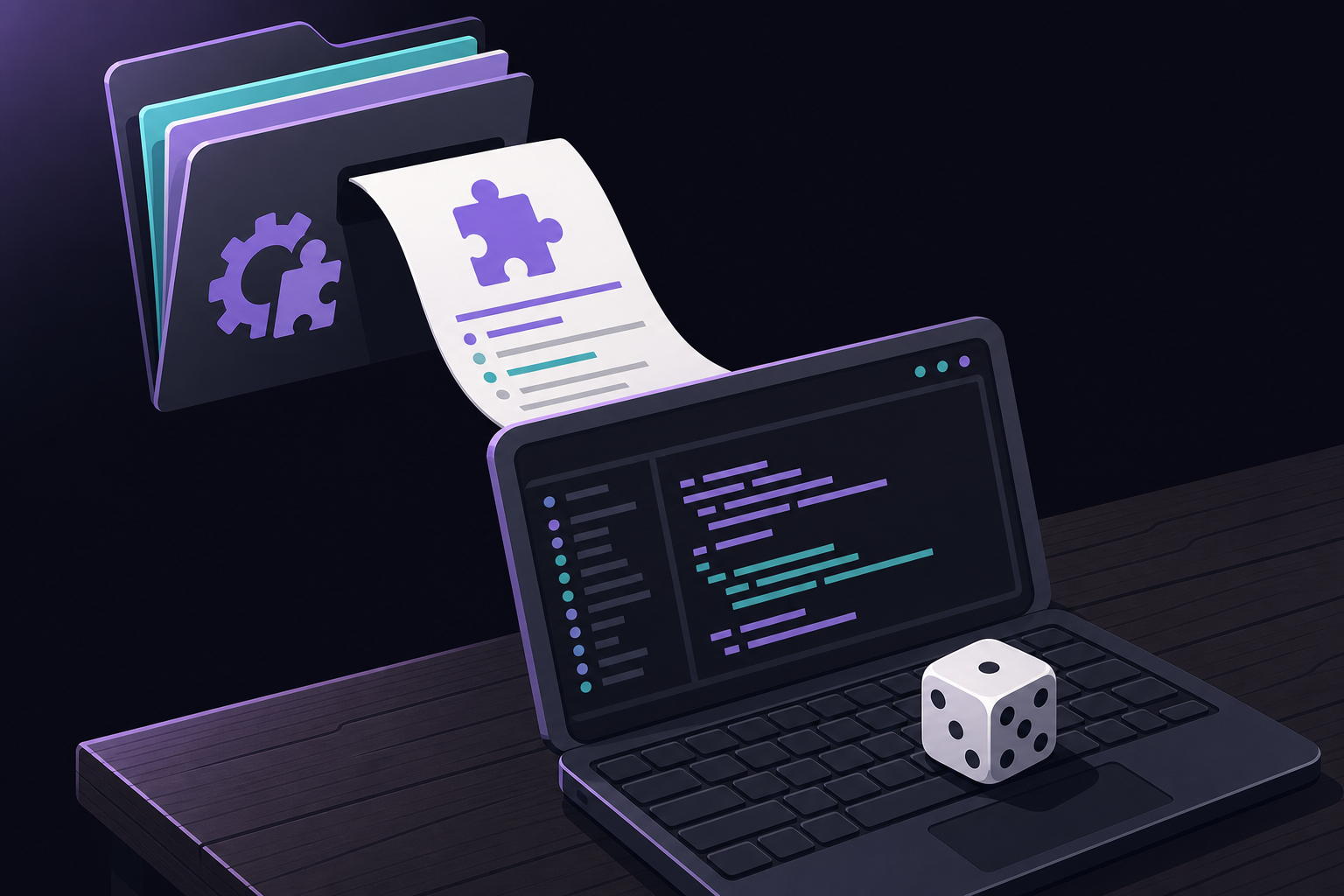
This guide walks you through creating a portable Agent Skill that gives an AI assistant the ability to roll dice using a random number generator. You will write a single SKILL.md file, place it in the right folder, and test it in VS Code with GitHub Copilot. The same skill works in any compatible agent, including Claude Code and OpenAI Codex.
What it does
An Agent Skill is a lightweight, open-format instruction file that teaches an AI agent a new capability. When you ask the agent to perform a task that matches the skill's description, the agent loads the skill's instructions and executes them. In this tutorial, you create a skill that lets the agent roll a die (d6, d20, etc.) by running a terminal command. The agent discovers the skill automatically, activates it when relevant, and follows the steps you provide.
Before you start
You need:
-
VS Code with the GitHub Copilot extension installed.
This tutorial uses VS Code, but the skill format is open. The same
SKILL.mdfile works in any agent that supports the Agent Skills specification, such as Claude Code or OpenAI Codex.
No other dependencies, accounts, or permissions are required beyond a working VS Code installation with Copilot enabled.
Create the skill
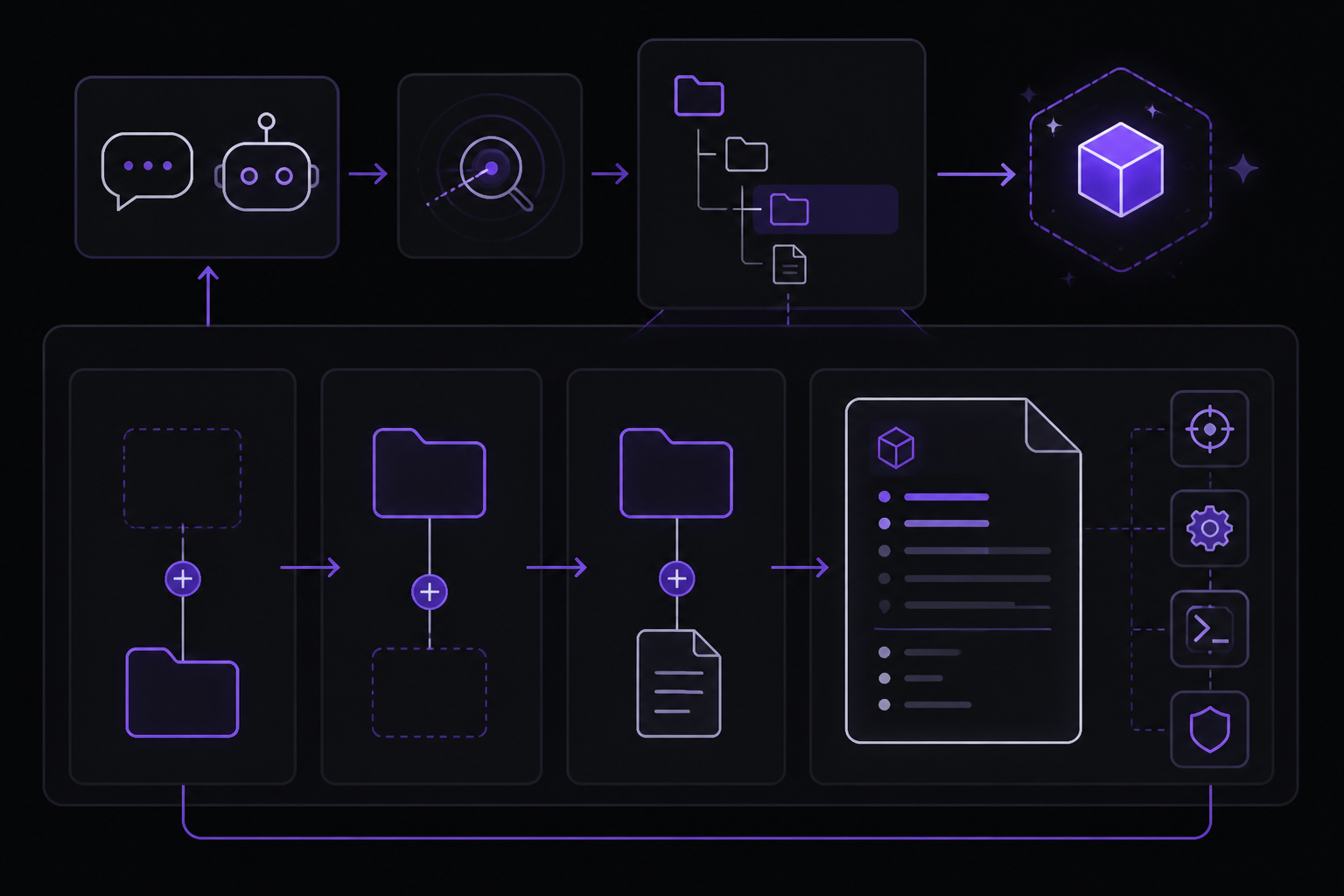
A skill is a folder containing a SKILL.md file. VS Code looks for skills in .agents/skills/ by default. Create the folder and file at .agents/skills/roll-dice/SKILL.md in your project:
---
name: roll-dice
description: Roll dice using a random number generator. Use when asked to roll a die (d6, d20, etc.), roll dice, or generate a random dice roll.
---

To roll a die, use the following command that generates a random number from 1
to the given number of sides:

```bash
echo $((RANDOM % <sides> + 1))
```

```powershell
Get-Random -Minimum 1 -Maximum (<sides> + 1)
```

Replace `<sides>` with the number of sides on the die (e.g., 6 for a standard
die, 20 for a d20).
That is the entire skill: one file, under 20 lines. Here is what each part does:
name, A short identifier for the skill. It must match the folder name (roll-dice).description, Tells the agent when to use this skill. The agent matches your question against this description to decide whether to activate the skill.- The body, Instructions the agent follows when the skill activates. Here, the agent is told to generate a random number using a terminal command, substituting the number of sides from the user's request. Both Bash and PowerShell versions are provided so the skill works on Linux, macOS, and Windows.
Try it out
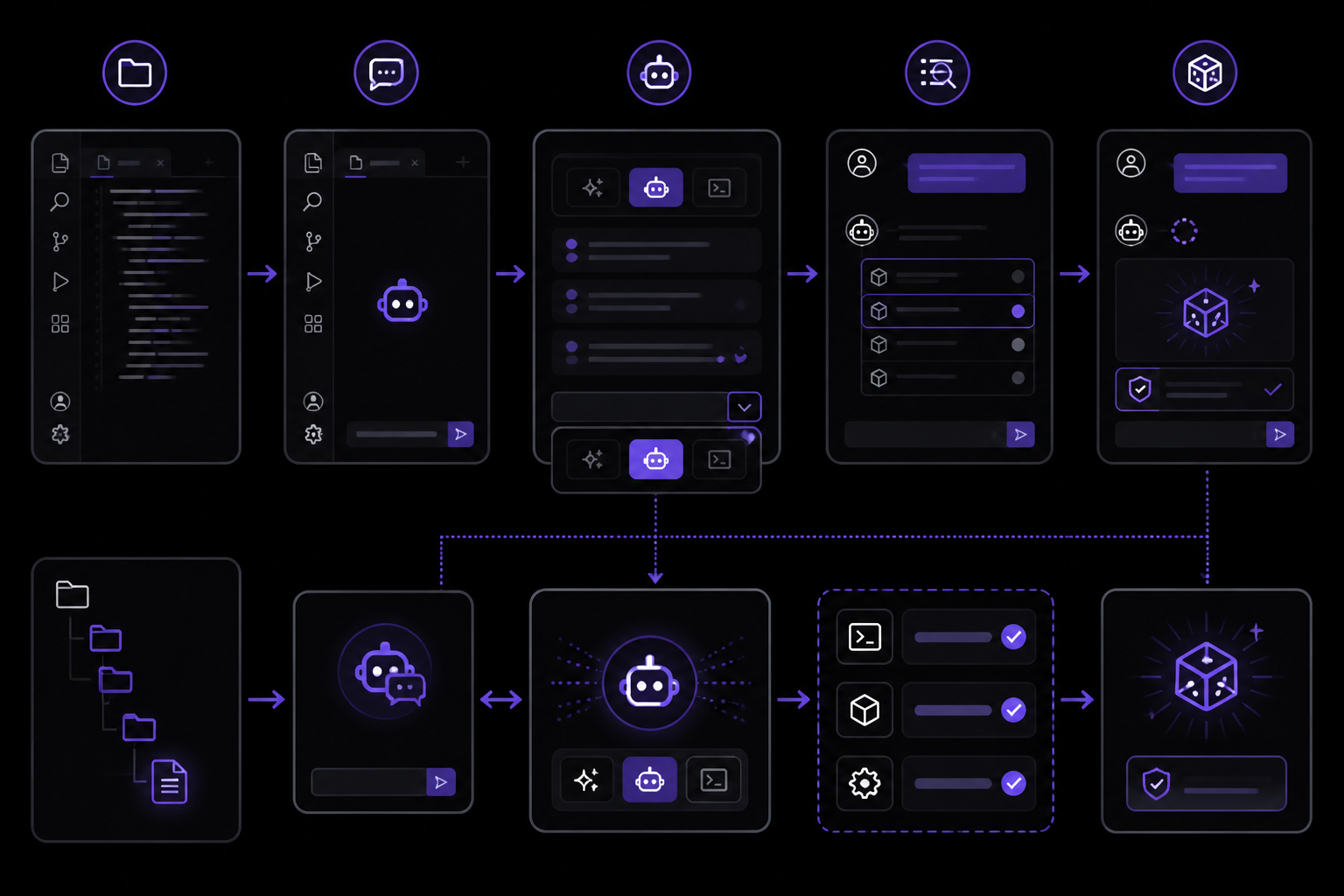
- Open your project in VS Code.
- Open the Copilot Chat panel.
- Select Agent mode from the mode dropdown at the bottom of the chat panel.
- Type
/skillsto confirm thatroll-diceappears in the list. If it does not, check that the file is at.agents/skills/roll-dice/SKILL.mdrelative to your project root. - Ask: "Roll a d20"
The agent should activate the roll-dice skill. It may ask for permission to run a terminal command, allow it. It will run the command and return a random number between 1 and 20.
Tool-use reliability varies across models, some follow skill instructions and run commands consistently, while others may attempt to answer on their own. If the agent responds without running a terminal command, try selecting a different model from the model dropdown.
How it works
Here is what happened behind the scenes:
-
Discovery, When the chat session started, the agent scanned default skill directories and found your skill. It read only the
nameanddescription, just enough to know when the skill might be relevant. -
Activation, When you asked about rolling dice, the agent matched your question to the skill's description and loaded the full
SKILL.mdbody into context. -
Execution, The agent followed the instructions in the body, adapting the terminal command to the number of sides in your request.
This process uses progressive disclosure to let the agent access many skills without loading all their instructions up front.
When not to use it
This skill is a minimal example. For production use, you would want to write skills that are well-scoped and effective. The source documentation points to best practices for that purpose.
Limits and gotchas
- The agent may not always run the terminal command. Tool-use reliability varies across models. If the agent answers without executing the command, try a different model.
- The skill only works if the agent is in Agent mode, not in plain chat mode.
- The folder name must match the
namefield in the YAML front matter exactly.
Next steps
You have created a working Agent Skill. From here:
- Best practices, How to write skills that are well-scoped and effective.
- Optimizing skill descriptions, Test and improve your skill's description so it activates on the right prompts.
- Specification, The complete format reference for
SKILL.mdfiles. - Example skills, Browse real-world skills on GitHub.
The #1 AI Newsletter
The most important ai updates, guides, and fixes — one weekly email.
No spam, unsubscribe anytime. Privacy policy