
The Complete Suno Guide: AI Music Generation with V5.5
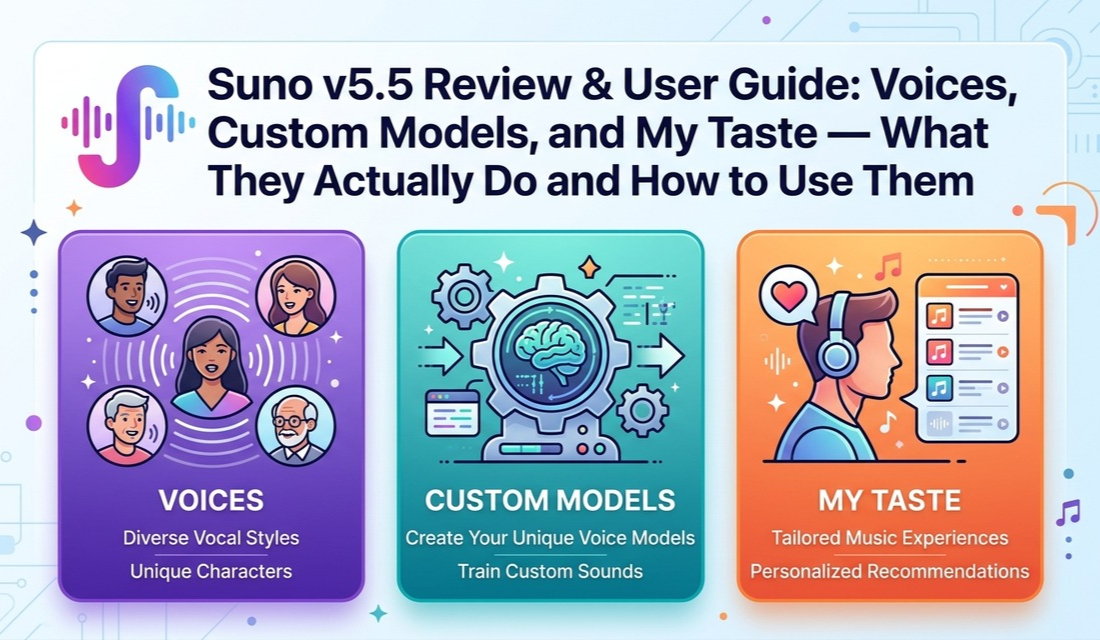
This guide covers everything you need to know to use Suno for AI music generation, from basic setup to advanced metatag patterns and production workflows. It is written for beginners who want consistent results and for experienced users who need a technical reference for V5.5.
What You Need
Before you start, make sure you have the following:
- A Suno account at suno.com. The free tier gives you 50 credits per day (approximately 10 songs, usually five two-song Create batches).
- A web browser. The web interface is the primary way to use Suno.
- For serious work, a Pro subscription ($10/month, or $8/month annual billing). This unlocks V5.5, Voices, Custom Models, and commercial rights. Credits do not roll over. Top-up credits do not expire while your subscription is active.
- Basic familiarity with music genres and descriptive vocabulary. You do not need to play an instrument or read sheet music.
What is Suno?
Suno is a generative AI platform that creates complete songs from text descriptions. Unlike DAWs, sample libraries, or loop-based tools, Suno generates every element of a track simultaneously: melody, harmony, rhythm, instrumentation, vocals (with lyrics), arrangement, and mix. You describe what you want; Suno produces a finished song.
How does Suno compare to traditional music production?
| Aspect | Suno | Traditional Production |
|---|---|---|
| Input | Text prompt + optional lyrics | Notes, MIDI, audio recordings |
| Output | Complete mixed song | Individual tracks needing mixing |
| Time to first output | ~30 seconds | Hours to days |
| Musical knowledge required | Descriptive vocabulary | Instrument proficiency, theory, mixing |
| Iteration method | Re-prompt, edit sections, adjust sliders | Re-record, re-arrange, re-mix |
| Maximum length | 8 minutes per generation (extendable; Duration slider on web sets target length) | Unlimited |
What you can create:
- Full songs with vocals: Any genre, any language, original lyrics or AI-generated.
- Instrumentals: Background music, scores, ambient tracks.
- Genre experiments: Cross-genre fusions that would require multiple specialist musicians.
- Variations: Generate dozens of takes on the same concept, pick the best.
- Production elements: Stems for use in traditional DAW workflows.
What Suno is not:
- Not a DAW: You do not mix, master, or arrange manually (though Studio adds some of this).
- Not deterministic: The same prompt produces different results each time.
- Not a sample library: You cannot isolate and reuse individual sounds precisely.
- Not unlimited: Generation costs credits, and quality varies between attempts.
Getting Started
Quick start (5 minutes)
- Create an account at suno.com. Free tier gives 50 credits per day (approximately 10 songs, usually five two-song Create batches).
- Try Simple Mode first. Type a short description like "upbeat indie rock song about a road trip" and click Create. Suno generates lyrics, melody, arrangement, and vocals automatically.
- Switch to Custom Mode for control. Custom Mode separates the prompt into distinct fields:
- Style of Music: Genre, mood, instrumentation descriptors.
- Lyrics: Your lyrics with metatags for structure.
- Title: Song title.
- Listen to both outputs. Suno generates two variations per creation. Pick the one closer to your intent, then refine.
- Set a target length (web). Drag the Duration slider in the Create form to pick your song's length before generating. Available on web with the V5.5 model (added July 20, 2026). Before the slider, length was model-determined and only adjustable after generation.
- Use Extend to continue a song beyond its initial generation, or Song Editor to replace specific sections.
Interface overview
Suno's web interface has two primary creation modes:
- Simple Mode: One text box. Describe the song in natural language. Suno infers genre, writes lyrics, and generates everything. Good for exploration, bad for precision.
- Custom Mode: Three separate fields (Style, Lyrics, Title) plus Creative Sliders. Custom Mode is where serious work happens. The Style field accepts genre and production descriptors. The Lyrics field accepts text with metatags. The sliders control generation personality.
Start with Custom Mode. Simple Mode is convenient but strips away the controls that make Suno useful for production work. Every technique in this guide assumes Custom Mode.
Models and Versions
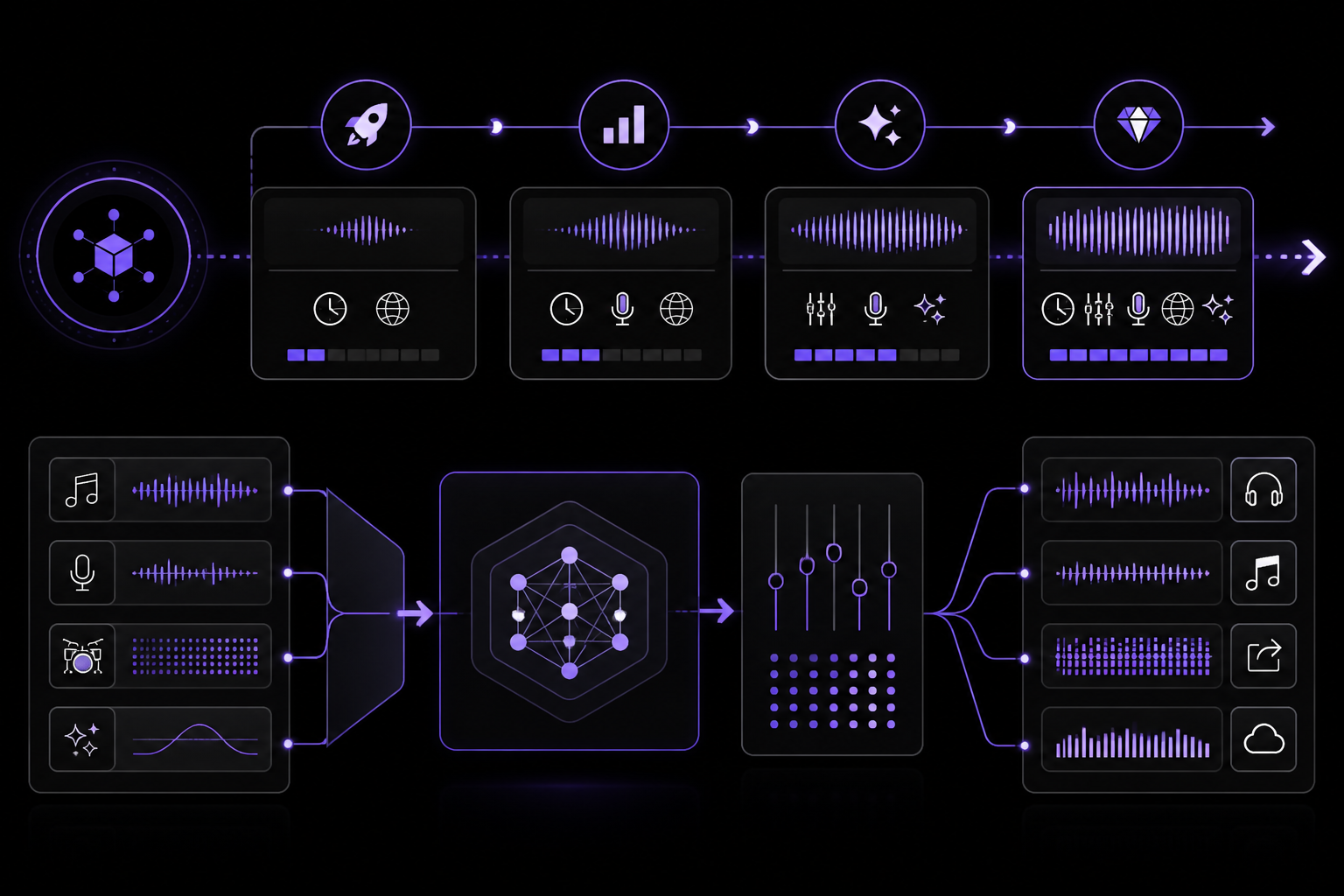
Suno has iterated rapidly since launch. Each version brings meaningful quality improvements, but access varies by subscription tier.
Version timeline
| Version | Release | Key Improvements |
|---|---|---|
| V2 | Fall 2023 | First public model. Short clips (~30s), limited genre range, obvious AI artifacts. |
| V3 | March 2024 | Extended to 2 minutes. Improved vocal clarity. Expanded genre coverage. |
| V3.5 | Summer 2024 | Better mixing, reduced artifacts, improved vocal naturalness. |
| V4 | November 19, 2024 | Major quality jump. 4-minute generations, multilingual vocals, Covers feature, 2-stem separation. |
| V4.5 | May 1, 2025 | 8-minute single generation (up from 4 min), Creative Sliders (Weirdness, Style Influence), Prompt Enhancement Helper, expanded genre accuracy, enhanced vocals. |
| V4.5-All | Late 2025 | Free tier model. Combines V4.5 improvements with broader access. |
| V5 | September 2025 | Studio-grade audio, higher mastered quality, Suno Studio DAW, 12-stem separation, Persona Voices. Internal name: chirp-crow. |
| V5.5 | March 26, 2026 | Current flagship. Voices with verification (Pro/Premier), Custom Models (up to 3 per Pro/Premier subscriber), My Taste adaptive preference system (all users). |
Current model access
| Tier | Model Access | Quality Notes |
|---|---|---|
| Free | V4.5-All | Good quality, noticeably below V5.5 in vocal naturalness and mix clarity. No Voice Cloning or Custom Models. My Taste available. |
| Pro ($10/mo) | V5.5 | Studio-grade quality. Voices, up to 3 Custom Models, My Taste. |
| Premier ($30/mo) | V5.5 + Studio | Same generation quality as Pro, plus Suno Studio DAW. Voices, up to 3 Custom Models, My Taste. |
V5 is a meaningful upgrade over V4.5. The difference is most audible in vocal naturalness (less "AI singer" quality), low-frequency clarity (bass and kick separation), and stereo imaging. If you are evaluating Suno for production use, evaluate on V5, not the free tier.
What V5 changed
V5 (internally called "chirp-crow") represents Suno's largest single-version improvement:
- Studio-grade audio fidelity: V5 ships at a higher mastered quality than V4.5; official docs describe the improvement in production terms rather than naming a specific sample rate. A third-party Suno product hub lists 44.1 kHz for V5; if the exact rate matters for your pipeline, inspect an exported WAV.
- Vocal naturalness: Reduced the "uncanny valley" quality that marked previous versions. Vibrato, breath sounds, and consonant articulation are more convincing.
- Instrument separation: Individual instruments in the mix are more distinct. Less "wall of sound" blending.
- Dynamic range: Better handling of quiet-to-loud transitions. Previous versions tended to compress everything.
- Genre accuracy: Better adherence to genre conventions. A "jazz" prompt sounds more authentically jazz, not "pop with jazz chords."
- Suno Studio: In-browser DAW for post-generation editing. Mix adjustment, stem isolation, and arrangement changes without re-generating.
What V5.5 changed
V5.5 (March 26, 2026) builds on V5's audio quality foundation with three personalization features:
- Voices: Clone or reuse your own voice for use in generations. Suno requires verification by comparing a spoken phrase against the uploaded or live-captured vocal sample. Pro/Premier only, v5.5 model required, and availability is restricted by age and location. In the Create menu, the Voices button has replaced the Personas button, though Style Personas remain accessible within the Voices menu.
- Custom Models: Train up to 3 personalized versions of V5.5 based on songs from your catalog or tracks made outside Suno. Suno's current v5.5 announcement says Custom Models need at least six songs; use stylistically consistent tracks rather than mixing random genres, because the model is learning your sound, not a grab bag of unrelated references.
- My Taste: An adaptive preference system available to all users. Learns from your favorite genres, moods, and creation/listening habits to bias future generations toward your preferred styles, production aesthetics, and vocal qualities. The magic wand icon at the top right of the Styles box generates a personalized style description when Style Augmentation is enabled. My Taste is enabled by default and can be edited or disabled from the avatar menu.
Pricing and Credits
Verified as of May 2026. Suno pricing changes without notice. Check suno.com/pricing for current rates.
Plan comparison
| Feature | Free | Pro ($10/mo) | Premier ($30/mo) |
|---|---|---|---|
| Annual billing | N/A | $8/mo ($96/yr) | $24/mo ($288/yr) |
| Credits | 50/day | 2,500/month | 10,000/month |
| Model | V4.5-All | V5.5 | V5.5 |
| Songs included | 10/day | Up to 500/month | Up to 2,000/month |
| Concurrent songs | 4 in shared queue | 10 in priority queue | 10 in priority queue |
| Audio upload limit | Up to 8 min | Up to 30 min | Up to 30 min |
| Song Editor | Limited | Full | Full |
| Covers/Remixes | No | Yes | Yes |
| Persona Voices | No | Yes | Yes |
| Voice Cloning | No | Yes | Yes |
| Custom Models | No | Up to 3 | Up to 3 |
| My Taste | Yes | Yes | Yes |
| Suno Studio | No | No | Yes |
| Stem Separation | Split from Mix (2) | Split from Mix + Auto Split (12) | Split from Mix + Auto Split + Advanced Split (~100) |
| Commercial use | No | Yes | Yes |
| Priority generation | No | Yes | Yes |
| Credit rollover | N/A | No | No |
| Top-up credits | No | Yes | Yes |
Credit economics
Each song costs approximately 5 credits. A typical Create action returns two song variations, so budget about 10 credits per two-song batch. A Pro subscription's 2,500 monthly credits yields up to 500 songs.
Credit-efficient practices:
- Use Custom Mode with specific prompts to reduce throw-away generations.
- Extend promising tracks rather than re-generating from scratch.
- Use the Song Editor to fix sections rather than regenerating entire songs.
- Save credits by refining your Style prompt before generating.
Monthly credits do not roll over. Unused credits at the end of a billing cycle are lost. Plan your generation sessions accordingly.
Bonus daily credits when monthly allocation is exhausted. Once your monthly credits run out, paid subscribers receive 50 bonus credits per day until the next billing cycle, the same daily allocation as the free tier. This prevents a complete generation blackout at the end of the month, though it is a significant reduction from the monthly rate (50/day vs ~83/day for Pro, ~333/day for Premier).
Top-up credits do not expire while your subscription remains active. Purchased credit top-ups require an active subscription to use. If you cancel your subscription, top-up credits become unusable until you resubscribe. The persistence makes top-ups useful for stockpiling before intensive production sessions.
The Prompt Architecture
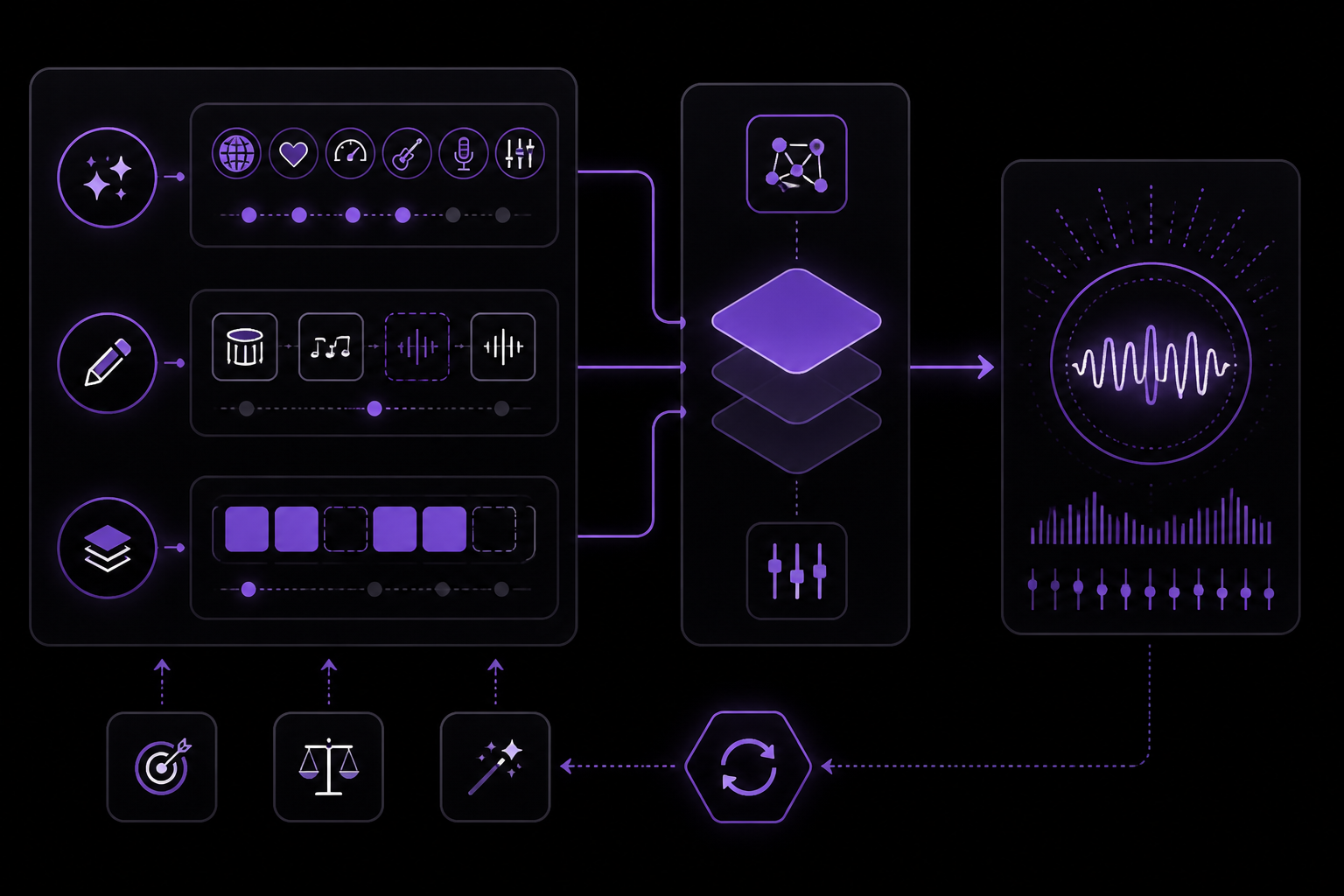
Suno's Custom Mode splits your creative input into three fields, each serving a distinct purpose. Understanding what goes where (and what does not) is the difference between hit-or-miss results and consistent output.
The Style field
The Style field defines the musical character of your generation. It accepts natural language descriptors for genre, mood, tempo, instrumentation, vocal quality, and production style.
The optimal formula:
[ Genre ] [ Subgenre ], [ Tempo / Energy ], [ Key instruments ], [ Vocal style ], [ Production quality ], [ Mood ]
Example:
Indie folk rock, mid-tempo, acoustic guitar and mandolin, warm female vocals, lo-fi production, nostalgic and wistful
Descriptor sweet spot: 4-7 descriptors. Fewer than 4 gives Suno too much latitude. More than 7 and descriptors start competing with each other, producing muddy results where no single quality comes through clearly.
Before and after: prompt precision matters
The same creative intent produces vastly different results depending on Style field precision:
Vague prompt (2 descriptors):
rock, energetic
Result: Generic pop-rock with standard drums, distorted guitar, and a male vocal defaulting to radio-friendly tone. Suno fills every unspecified parameter with its most popular default. Across 10 generations, no two sound related.
Precise prompt (6 descriptors):
Garage rock, raw and aggressive, distorted bass, room mic drums, shouted male vocals, lo-fi production
Result: Consistent garage rock with identifiable lo-fi character. Drums sound room-mic'd, bass is dominant, vocals are raw. Across 10 generations, all share a recognizable sonic identity. The differences are in melody and arrangement, not fundamental character.
Why the difference: Each descriptor constrains one dimension of the output. "Rock" alone leaves tempo, vocal style, production quality, instrument balance, and mood entirely up to Suno. Adding "garage" constrains subgenre conventions, "lo-fi production" constrains sonic texture, "shouted male vocals" constrains vocal delivery. The model has less room to default to generic choices.
Over-specified prompt (10+ descriptors):
Garage rock, raw and aggressive, distorted bass, room mic drums, shouted male vocals, lo-fi production, 145 BPM, minor key, reverb-heavy, vintage tube amp warmth, 1960s Detroit influence
Result: Muddy compromise. Suno cannot honor all constraints simultaneously, so it partially satisfies each one. The "1960s Detroit influence" may conflict with "145 BPM," and "reverb-heavy" fights "lo-fi production." The output sounds confused rather than specific.
What works in the Style field
| Descriptor Type | Examples | Effect |
|---|---|---|
| Genre | rock, jazz, hip-hop, EDM, classical, country | Primary musical framework |
| Subgenre | shoegaze, bossa nova, trap, dubstep, baroque | Narrows genre conventions |
| Tempo | slow, mid-tempo, upbeat, fast, 120 BPM | Controls speed (BPM values are approximate, not exact) |
| Instruments | acoustic guitar, synth pad, brass section, strings | Suggests instrumentation (not guaranteed) |
| Vocal quality | raspy male vocals, ethereal female vocals, choir | Shapes vocal character |
| Production | lo-fi, polished, raw, overdriven, clean | Overall sonic texture |
| Mood | melancholic, euphoric, aggressive, dreamy, dark | Emotional tone |
| Era | 80s, 90s grunge, 2000s pop, vintage, modern | Period-specific conventions |
What does not work in the Style field
- Specific artist names: "Sounds like Adele" is unreliable and may be filtered. Use descriptive equivalents: "powerful female vocal, piano-driven pop ballad."
- Technical mixing terms: "Sidechain compression on the kick" is ignored. Suno does not interpret mixing parameters.
- Exact BPM control: "127 BPM" is treated as approximate guidance, not a metronome lock.
- Negative instructions: "No drums" in the Style field is unreliable. Use the official Exclude field under Advanced Options for unwanted instruments and elements, the Instrumental toggle for full-track structure, or metatags for section-level control.
The Lyrics field
The Lyrics field accepts your song text with optional metatags for structural control. Without metatags, Suno infers structure from line breaks and content patterns.
Basic lyrics (no metatags):
Walking down the empty road
Headlights fading in the rain
Every mile feels like a year
But I keep driving through the pain
Lyrics with metatags (recommended):
[Verse 1]
Walking down the empty road
Headlights fading in the rain

[Chorus]
Keep driving, keep driving
Through the storm and through the night

[Verse 2]
Every mile feels like a year
But the horizon's getting bright

[Chorus]
Keep driving, keep driving
Through the storm and through the night

[Outro]
And the sun comes up again
Always use metatags. Without them, Suno makes structural decisions that may not match your intent. A [Chorus] tag ensures repetition and melodic emphasis. A [Bridge] tag signals a harmonic departure. These structural cues dramatically improve output consistency.
The web Lyrics Editor (July 2026)
In July 2026 Suno redesigned lyric writing on the web around a dedicated Lyrics Editor. Five additions matter for the workflow in this guide:
- Lyricist: a profile that saves and locks in your writing style, so successive lyric sessions keep a consistent voice instead of resetting to Suno's default register each time.
- Natural-language editing: type an instruction like "make this line funnier" and the editor applies the change in place, no manual rewrite-and-paste loop.
- Rhyme and alternate-phrasing suggestions: highlight a word or line to get rhyme options and alternate phrasings for it.
- Song structure labels: tag sections as Verse, Chorus, or Outro to tell the model how the track should flow. These labels are the editor's point-and-click surface for the same job the bracket metatags above do in a plain-text lyric sheet.
- Distraction-free full-screen editor with autosave: a full-screen writing mode that saves as you type.
The editor changes how you produce a lyric sheet, not what the model accepts: a fully tagged plain-text sheet like the examples above still pastes straight into the Lyrics field and works exactly as before.
The Title field
The Title field names your generation. It has minimal effect on the musical output but appears in metadata and Suno's library. Keep it descriptive for your own organization.
Prompt Enhancement Helper
Introduced in V4.5, the Prompt Enhancement Helper is an AI-powered feature that rewrites your Style field prompt before generation. When enabled, Suno expands your descriptors into a more detailed prompt that the model can interpret more precisely.
How it works
- You write a Style prompt:
indie rock, energetic - The Helper expands it to something like:
Energetic indie rock, driving electric guitars, punchy drums, dynamic bass, bright and raw production, anthemic and youthful - Suno generates from the expanded prompt, not your original.
When to use it
| Scenario | Use Helper? | Why |
|---|---|---|
| Short, vague prompts | Yes | The Helper adds specificity you did not provide |
| Exploring a new genre | Yes | The Helper fills in genre conventions you may not know |
| Precise, well-tuned prompts | No | The Helper may override your intentional choices |
| Production-critical output | No | You want direct control, not AI-mediated interpretation |
Suno Tags and Meta Tags
Metatags are the highest-impact skill in Suno. A [Verse]/[Chorus]/[Bridge] structure with parameterized modifiers gives you per-section control that approaches DAW-level arrangement through text alone.
Structural tags
These tags define the song's arrangement:
[Intro]- Opening section, typically instrumental or with minimal vocals.[Verse]- Main narrative section. Melody repeats with different lyrics.[Pre-Chorus]- Build-up section leading into the chorus. Increases tension.[Chorus]- The main hook. Repeated section with the song's central message.[Post-Chorus]- Extension of the chorus energy, often with vocal ad-libs.[Bridge]- Contrast section. Different chord progression, often more emotional or stripped down.[Outro]- Closing section. Fades out or resolves the song.[Solo]- Instrumental solo section. Guitar, synth, or other lead instrument.[Break]- Section with reduced instrumentation, often just rhythm section or ambient sounds.[Interlude]- Short transitional section between major sections.[Build]- Section that builds energy toward a drop or climax.[Drop]- The peak energy moment, common in electronic music.[End]- Abrupt ending, no fade.
Instrumental and vocal tags
[No Vocals]- Removes vocals for the entire track. Place at the very beginning of the Lyrics field.[Instrumental]- Similar to No Vocals but may allow occasional vocal snippets or ad-libs.[No Instruments]- Removes all instruments, leaving only vocals. Rarely used.[Spoken Word]- Vocals delivered as speech rather than sung.[Rap]- Vocals delivered in a rhythmic, spoken style.[Screamed]- Aggressive, distorted vocal delivery.[Whispered]- Quiet, breathy vocal delivery.[Choir]- Multiple vocal parts, choral arrangement.[Harmony]- Vocal harmonies layered over the main melody.
Advanced Metatag Patterns
You can combine tags with parameterized modifiers for precise section control:
[Verse: whispered vocals, acoustic guitar only]
The secrets that the forest keeps
Are written in the ancient leaves

[Chorus: full band, soaring vocals]
And the wind will carry us
Through the valleys of the dawn
This tells Suno to use a sparse, intimate arrangement for the verse and a full, powerful arrangement for the chorus. The model interprets these as production directives, not just structural labels.
Section parameterization
You can add production notes inside the tag brackets after a colon:
[Verse: stripped down, piano and voice][Chorus: big reverb, layered harmonies][Bridge: minor key shift, tension][Outro: fade out, ambient]
These parameters are not guaranteed to be followed exactly, but they significantly increase the likelihood of the desired production treatment.
Tag placement rules
- Tags must be on their own line, enclosed in square brackets.
- Tags are case-insensitive but conventionally capitalized.
- Multiple tags on the same line are not supported. Each tag gets its own line.
- Tags can be nested conceptually but not syntactically. Use separate lines for each structural element.
- The
[No Vocals]tag must be the very first line in the Lyrics field to work reliably.
Creative Sliders
Introduced in V4.5, Creative Sliders give you fine-grained control over the generation's personality. They are available in Custom Mode.
Weirdness slider
Controls how unusual or experimental the output is. Range: 0 to 100.
- Low values (0-30): Safe, conventional output. Sticks closely to genre conventions.
- Medium values (30-70): Balanced creativity. Some unexpected elements but still recognizable.
- High values (70-100): Highly experimental. Unusual chord progressions, unexpected instrument combinations, unconventional structures.
Use case: Set Weirdness low for production-critical work where you need predictable results. Set it high for inspiration or when you want to discover new ideas.
Style Influence slider
Controls how strongly Suno adheres to the Style field prompt. Range: 0 to 100.
- Low values (0-30): Suno largely ignores your Style prompt and generates based on its own defaults.
- Medium values (30-70): Balanced influence. Your prompt guides the generation but Suno adds its own interpretation.
- High values (70-100): Strong adherence to your prompt. The output closely matches your descriptors.
Use case: Set Style Influence high when you have a precise vision. Set it lower when you want Suno to surprise you within a broad genre.
Audio Influence slider
Available when using audio upload as a reference. Controls how strongly the generation mimics the uploaded audio's style. Range: 0 to 100.
- Low values (0-30): Minimal influence from the reference audio.
- Medium values (30-70): Balanced influence. The generation shares some characteristics with the reference.
- High values (70-100): Strong influence. The generation closely matches the reference audio's style, mood, and production.
Song Editor
The Song Editor allows you to replace specific sections of a generated track without regenerating the entire song. This is a credit-efficient way to fix problematic sections.
How to use it
- Generate a track.
- Click the Song Editor button (available on Pro and Premier tiers).
- Select the section you want to replace (e.g., the second chorus).
- Optionally adjust the Style prompt or lyrics for that section.
- Click Generate. Suno replaces only the selected section.
- Listen and repeat as needed.
When to use it
- Fix a weak chorus without losing a strong verse.
- Replace a section where the vocals sound unnatural.
- Experiment with different arrangements of the same song.
- Shorten or lengthen specific sections.
Covers and Remixes
Available on Pro and Premier tiers. Covers and Remixes let you reimagine existing songs.
Covers
A Cover generates a new version of an existing song in a different style. You upload a reference track or select one from your library, then describe the new style.
Example: Take a folk song and generate a metal cover of it.
Remixes
A Remix generates variations of a specific track while keeping its core identity. You can adjust the Style prompt and Creative Sliders to explore different treatments of the same material.
Voices
Introduced in V5.5, Voices let you clone or reuse your own voice for generations. Pro and Premier only.
How to create a Voice
- Go to the Voices section in the Create menu.
- Click Add Voice.
- Upload a vocal sample or record one live. Suno requires verification by comparing a spoken phrase against the uploaded or live-captured vocal sample.
- Suno processes the sample and creates a Voice model.
- Use the Voice in new generations by selecting it from the Voices menu.
Voice usage notes
- Availability is restricted by age and location. Check Suno's terms for your region.
- The Voices button has replaced the Personas button in the Create menu, though Style Personas remain accessible within the Voices menu.
- Voice cloning quality depends on the quality and length of the sample. Use clean, isolated vocal recordings for best results.
Custom Models
Introduced in V5.5, Custom Models let you train up to 3 personalized versions of V5.5 based on songs from your catalog or tracks made outside Suno. Pro and Premier only.
How to create a Custom Model
- Go to the Custom Models section in your account settings.
- Upload at least six songs that represent the style you want the model to learn.
- Use stylistically consistent tracks. The model learns your sound, not a grab bag of unrelated references.
- Suno processes the songs and creates a Custom Model.
- Select the Custom Model in the Create menu to generate new tracks in that style.
My Taste
Introduced in V5.5, My Taste is an adaptive preference system available to all users. It learns from your favorite genres, moods, and creation/listening habits to bias future generations toward your preferred styles, production aesthetics, and vocal qualities.
How to use it
- My Taste is enabled by default.
- The magic wand icon at the top right of the Styles box generates a personalized style description when Style Augmentation is enabled.
- You can edit or disable My Taste from the avatar menu.
The Generation Loop
The generation loop is the iterative process of creating a polished track. It typically costs 50-100 credits per polished track. Budget for iteration, not single-shot perfection.
Steps
- Ideate: Define your creative intent. Genre, mood, structure, lyrics.
- Select: Generate initial variations. Pick the one closest to your intent.
- Refine: Use the Song Editor to fix weak sections. Adjust Creative Sliders.
- Extend: Add length to the track if needed.
- Edit: Make final adjustments in Suno Studio (Premier) or your DAW.
- Export: Download stems or the full mix for distribution.
Suno Studio DAW
Available on Premier tier. Suno Studio is an in-browser DAW for post-generation editing. It allows mix adjustment, stem isolation, and arrangement changes without re-generating.
Features
- Mix adjustment: Change volume levels of individual stems.
- Stem isolation: Separate vocals, drums, bass, and other instruments.
- Arrangement changes: Reorder sections, remove or duplicate parts.
- Export: Download stems for use in external DAWs.
Stem Separation and Export
Stem separation quality varies by tier:
| Tier | Stem Separation |
|---|---|
| Free | Split from Mix (2 stems: vocals and everything else) |
| Pro | Split from Mix + Auto Split (12 stems) |
| Premier | Split from Mix + Auto Split + Advanced Split (~100 stems) |
Export formats
- WAV: Uncompressed, highest quality. Use for production work.
- MP3: Compressed, smaller file size. Use for previews and sharing.
- Stems: Individual track files for use in DAWs.
DAW Integration
You can integrate Suno into your existing DAW workflow by exporting stems and importing them into your DAW of choice (Ableton Live, Logic Pro, FL Studio, etc.).
Workflow
- Generate a track in Suno.
- Export stems (WAV format recommended).
- Import stems into your DAW.
- Arrange, mix, and add effects as needed.
- Export the final mix from your DAW.
This approach gives you the creative speed of Suno with the precision of traditional production.
Troubleshooting
Generation sounds generic
- Cause: Style prompt is too vague (fewer than 4 descriptors).
- Fix: Add more specific descriptors. Use the optimal formula: genre, subgenre, tempo, instruments, vocal style, production, mood.
- Community tip: Some users report that including a specific era (e.g., "90s grunge") helps narrow the output significantly.
Vocals sound unnatural
- Cause: Using an older model version (V4.5 or earlier).
- Fix: Upgrade to Pro tier for V5.5 access. V5.5 has significantly improved vocal naturalness.
- Community tip: If you cannot upgrade, try adding "natural vocals" or "breathy vocals" to your Style prompt.
Song structure is wrong
- Cause: No metatags in the Lyrics field.
- Fix: Always use metatags:
[Verse],[Chorus],[Bridge], etc. - Community tip: Some users find that adding
[Intro]and[Outro]tags helps Suno create a more complete arrangement.
Instrumental mode not working
- Cause:
[No Vocals]tag is not on the first line of the Lyrics field. - Fix: Place
[No Vocals]as the very first line, with nothing before it. - Community tip: If you still get vocals, try adding "instrumental" to the Style field as well.
Credits running out too fast
- Cause: Generating too many variations without refining.
- Fix: Use the Song Editor to fix sections instead of regenerating entire songs. Refine your Style prompt before generating to reduce throw-away outputs.
- Community tip: Some users report that generating at lower quality settings (if available) uses fewer credits per song.
My Taste is biasing generations in unwanted ways
- Cause: My Taste has learned preferences from your listening history that do not match your current creative intent.
- Fix: Disable My Taste from the avatar menu, or edit your preferences to remove unwanted biases.
Voice cloning fails
- Cause: The vocal sample is too short, too noisy, or does not pass verification.
- Fix: Use a clean, isolated vocal recording of at least 30 seconds. Speak clearly and at a consistent volume.
- Community tip: Some users report that singing samples work better than spoken samples for voice cloning.
Going Further
Once you have mastered the basics, explore these advanced topics:
- Genre Blending: Combine multiple genres in a single track by using different Style prompts for different sections via metatags.
- Multi-Section Composition: Use advanced metatag patterns to create complex arrangements with multiple distinct sections.
- Prompt Chaining: Generate a track, then use its output as the input for a new generation to create evolving compositions.
- Commercial Licensing: If you are producing music for release, review Suno's commercial licensing terms on their website.
- API and Integration: Suno offers an API for programmatic generation. Check the documentation for integration possibilities.
- Competitors and Alternatives: Evaluate Suno against other AI music tools like Udio, MusicLM, and Jukebox to find the best fit for your workflow.
- Copyright and Legal Landscape: Understand the copyright implications of AI-generated music, especially for commercial use.
This guide covers the core systems of Suno V5.5. The difference between "interesting AI music" and "music I would actually release" comes down to mastering prompt text, metatags, and Creative Sliders. Iterate, do not pray. Budget for refinement. And always use Custom Mode.
The #1 AI Newsletter
The most important ai updates, guides, and fixes — one weekly email.
No spam, unsubscribe anytime. Privacy policy