Generate & Auto-Post AI Videos to Social Media with Veo3 and Blotato
 # Automate video creation with Veo3 and auto-post to Instagram, TikTok via Blotato ### Who is this for? This template is ideal for content creators, social media managers, YouTubers, and digital marketers who want to generate high-quality videos daily using AI and distribute them effortlessly across multiple platforms. It's perfect for anyone who wants to scale short-form content creation without video editing tools. ### What problem is this workflow solving? Creating and distributing consistent video content requires: - Generating ideas - Writing scripts and prompts - Rendering videos - Manually posting to platforms This workflow automates all of that. It transforms one prompt into a professional AI-generated video and publishes it automatically - saving time and increasing reach. ### What this workflow does 1. **Triggers daily** to generate a new idea with OpenAI (or your custom prompt). 2. **Creates a video prompt** formatted specifically for Google Veo3. 3. **Generates a cinematic video** using the Veo3 API. 4. **Logs the video data** into a Google Sheet. 5. **Retrieves the final video URL** once Veo3 finishes rendering. 6. **Uploads the video to Blotato** for publishing. 7. **Auto-posts** the video to Instagram, TikTok, YouTube, Facebook, LinkedIn, Threads, Twitter (X), Pinterest, and Bluesky. ### Setup 1. Add your **OpenAI API key** to the GPT-4.1 nodes. 2. Connect your **Veo3 API credentials** in the video generation node. 3. Link your **Google Sheets account** and use a sheet with columns: `Prompt`, `Video URL`, `Status`. 4. Connect your **Blotato API key** and set your platform IDs in the `Assign Social Media IDs` node. 5. Adjust the **Schedule Trigger** to your desired posting frequency. ### How to customize this workflow to your needs - **Edit the AI prompt** to align with your niche (fitness, finance, education, etc.). - **Add your own branding overlays** using JSON2Video or similar tools. - **Change platform selection** by enabling/disabling specific HTTP Request nodes. - **Add a Telegram step** to preview the video before auto-posting. - **Track performance** by adding metrics columns in Google Sheets. ➡️ **Documentation**: [Notion Guide](https://automatisation.notion.site/Automate-video-creation-with-Veo3-and-auto-post-to-Instagram-TikTok-via-Blotato-2163d6550fd980768996f05afb2794ea) --- ### Need help customizing? Contact me for consulting and support: [LinkedIn](https://www.linkedin.com/in/dr-firas/) / [YouTube](https://www.youtube.com/@DRFIRASS)

Automate video creation with Veo3 and auto-post to Instagram, TikTok via Blotato
Who is this for?
This template is ideal for content creators, social media managers, YouTubers, and digital marketers who want to generate high-quality videos daily using AI and distribute them effortlessly across multiple platforms.
It's perfect for anyone who wants to scale short-form content creation without video editing tools.
What problem is this workflow solving?
Creating and distributing consistent video content requires:
- Generating ideas
- Writing scripts and prompts
- Rendering videos
- Manually posting to platforms
This workflow automates all of that. It transforms one prompt into a professional AI-generated video and publishes it automatically - saving time and increasing reach.
What this workflow does
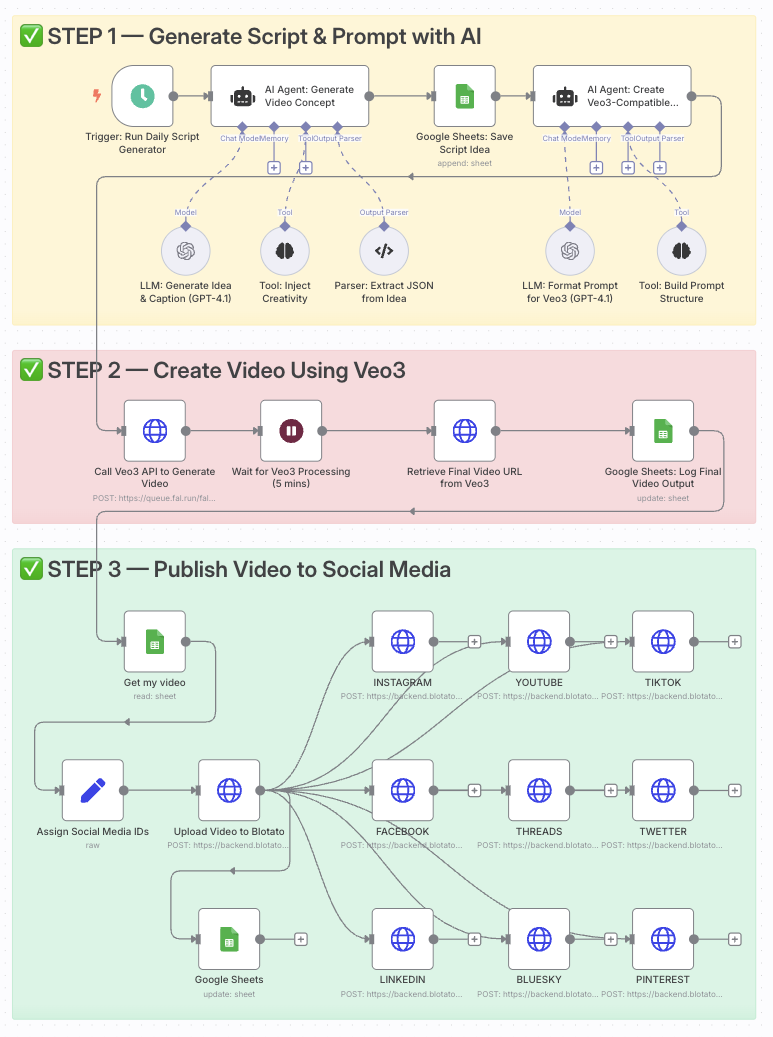
- Triggers daily to generate a new idea with OpenAI (or your custom prompt).
- Creates a video prompt formatted specifically for Google Veo3.
- Generates a cinematic video using the Veo3 API.
- Logs the video data into a Google Sheet.
- Retrieves the final video URL once Veo3 finishes rendering.
- Uploads the video to Blotato for publishing.
- Auto-posts the video to Instagram, TikTok, YouTube, Facebook, LinkedIn, Threads, Twitter (X), Pinterest, and Bluesky.
Setup
- Add your OpenAI API key to the GPT-4.1 nodes.
- Connect your Veo3 API credentials in the video generation node.
- Link your Google Sheets account and use a sheet with columns:
Prompt,Video URL,Status. - Connect your Blotato API key and set your platform IDs in the
Assign Social Media IDsnode. - Adjust the Schedule Trigger to your desired posting frequency.
How to customize this workflow to your needs
- Edit the AI prompt to align with your niche (fitness, finance, education, etc.).
- Add your own branding overlays using JSON2Video or similar tools.
- Change platform selection by enabling/disabling specific HTTP Request nodes.
- Add a Telegram step to preview the video before auto-posting.
- Track performance by adding metrics columns in Google Sheets.
➡️ Documentation: Notion Guide
Need help customizing?
New buyers can create an account from the cart to unlock a controlled $10 first-purchase credit on eligible orders of $25+.
Part of a bundle
AI Video Production Line
This workflow is one of 7 in the bundle — $69.00 for all of them.
That is $9.86 each, vs $14.99 for this one alone.
View bundleSecure checkout powered by Stripe
Tags
Support
How to import this workflow into n8n
- 1Purchase or download the workflow to get the n8n workflow JSON file.
- 2In your n8n instance, open Workflows and choose "Import from File" (or paste the JSON with Ctrl+V on the canvas).
- 3Open each node marked with a credential warning and connect your own accounts and API keys.
- 4Run the workflow once manually to verify the data flow, then toggle it to Active.
Related Social Media workflows
- Automate AI-Driven Social Media Content Creation and Publishing$24.99
- Automate Viral TikTok Cloning and Multi-Platform Posting with AI$19.99
- Automate LinkedIn Content Creation and Publishing via Email with AI$24.99
- Automate Social Media Posts Using Google Trends and AI$14.99
- Automate Video Captioning and Posting to Instagram and TikTok$14.99
- Automate TikTok Video Creation with AI and Cloud Services$19.99
More from Dr. Firas
Need this deployed? We'll set it up for you.
Our automation experts deploy this workflow in your stack, connect your accounts, and verify it works — or build a custom solution from scratch.