
Hermes Agent + DingTalk Integration: Enterprise Chat Gateway Setup Guide
What This Guide Covers
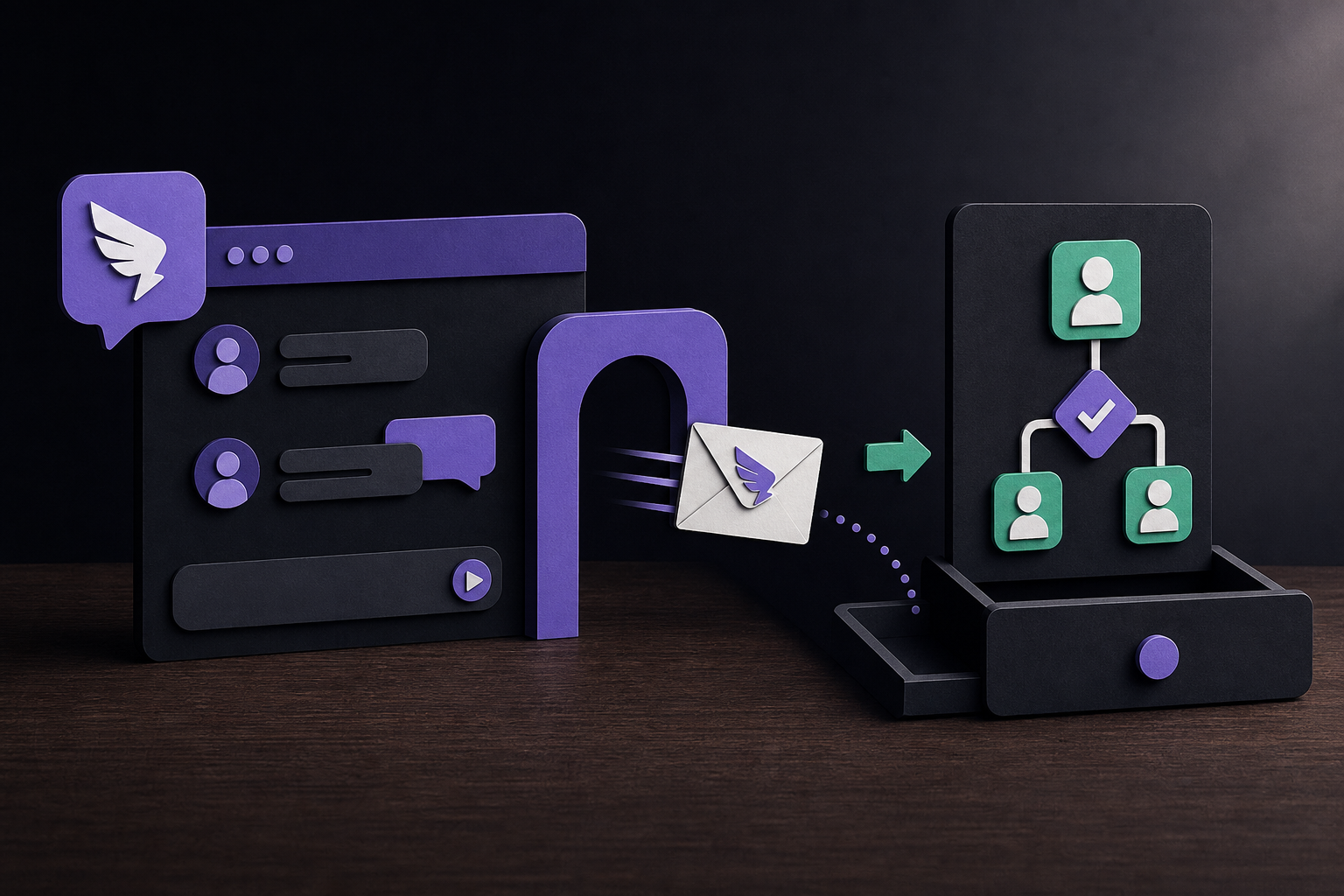
This guide explains how to connect Hermes Agent to DingTalk, Alibaba's enterprise communication platform, turning DingTalk into a human-facing gateway for AI agent interactions. It is written for DevOps engineers, platform operators, and team leads who already have Hermes Agent installed and want to enable chat-based requests, operational alerts, approval workflows, and status reports without requiring terminal access. You will learn the full setup path, safe rollout patterns, common workflows, and how to troubleshoot the most frequent issues.
What You Need
Before starting, ensure you have the following:
- Hermes Agent installed and configured. The gateway feature requires a working Hermes profile with tools, skills, or MCP servers already enabled. If you have not set up Hermes yet, complete the base installation first.
- A DingTalk bot or application account. You need to create or configure a DingTalk bot that Hermes will use to send and receive messages. The exact steps for creating this bot depend on your DingTalk organization's settings; consult DingTalk's own documentation for creating a custom bot or app.
- Credentials for the DingTalk bot. These credentials (typically a token or webhook URL) must be stored securely in the active Hermes profile environment, never in source control or a shared note.
- Gateway server running. Hermes gateway must be running on a server that can reach the DingTalk API. For production use, consider managed cloud hosting to avoid maintaining your own gateway server.
- Allowlisted test user or room. Before any broad rollout, you need a private DingTalk user or test room that is allowlisted for initial smoke testing.
Understanding the DingTalk Gateway
DingTalk is an enterprise chat platform widely used in China and other markets. When integrated with Hermes Agent, it becomes a chat-based control surface. The official documentation emphasizes a key design principle: "keep chat as the human handoff layer while Hermes uses tools, skills, MCP servers, and cron jobs behind the scenes." This means DingTalk is not meant to replace Hermes' core automation capabilities. Instead, it provides a convenient interface for humans to trigger those capabilities and receive results.
What DingTalk Is Good For
The integration excels in several scenarios:
- Operational alerts and status reports. Receive cron-driven reports, deployment notes, incident summaries, or approval prompts directly in a DingTalk channel your team already monitors.
- Incident triage. From a chat message, Hermes can summarize an alert, inspect logs or dashboards, and post recommended next actions back to the same chat.
- Project updates. Ask Hermes what changed in GitHub, Linear, or Notion and receive a concise report without opening a terminal.
- Approval workflows. Let Hermes draft an action (e.g., a deployment or configuration change) and ask for human confirmation in DingTalk before executing.
- Knowledge capture. Turn a chat thread into a task, document, issue, or reusable skill.
What DingTalk Is Not Good For
The documentation cautions against treating DingTalk as the whole automation system. The chat message starts the request, but Hermes can still use files, terminal tools, MCP servers, web search, cron history, GitHub, Linear, Notion, and project-specific skills to do the real work. Do not expect DingTalk to replace the CLI for complex multi-step operations; it is a gateway, not a full terminal emulator.
Setup Path: Step by Step
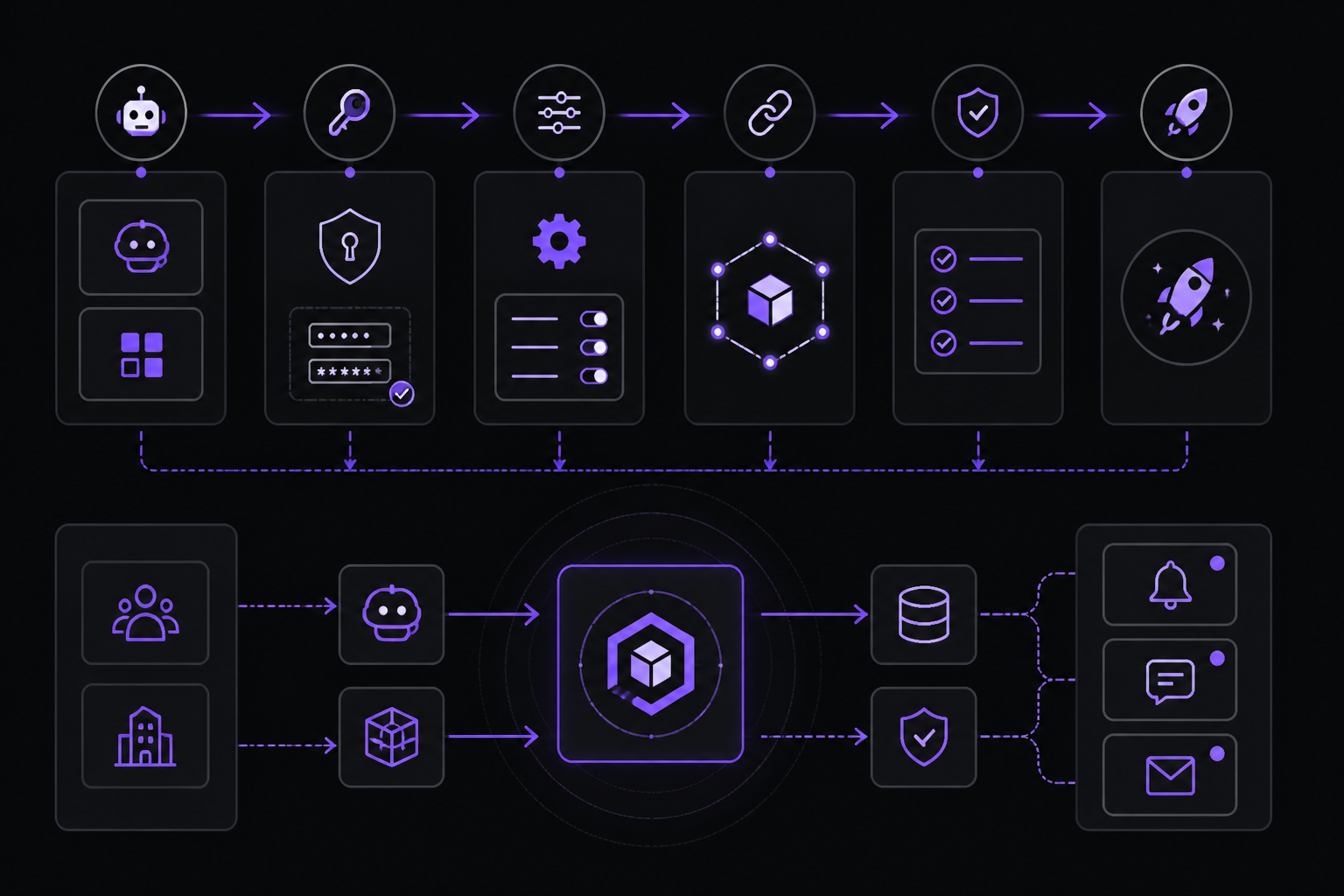
The official documentation provides a six-step setup path. Follow these steps in order for a safe and reliable integration.
Step 1: Create or Configure the DingTalk Bot
You need a DingTalk bot or application account that Hermes will use. The exact method depends on your DingTalk organization. Common approaches include:
- Creating a custom bot in a DingTalk group (which provides a webhook URL).
- Registering an application in the DingTalk Open Platform to get an AppKey and AppSecret for more advanced API access.
Store the resulting credentials (token, webhook URL, or AppKey/AppSecret) in the active Hermes profile environment. The documentation explicitly warns: "Store the token or credentials in the active Hermes profile, not in source control or a shared note." This is critical for security.
Step 2: Run hermes gateway setup
With the credentials stored, run the following command in your Hermes environment:
hermes gateway setup
This command will present a list of available platform adapters. Enable only the DingTalk platform adapter during initial setup. The documentation recommends enabling only the platform you are testing to avoid confusion.
Step 3: Restrict Access Before the First Test
Before sending any messages, restrict who can interact with the bot. The documentation says: "Restrict allowed users, rooms, groups, or contacts before the first test." This is done through Hermes' allowlist configuration. You should:
- Allowlist one private user (yourself) or a single test room.
- Do not enable group-wide access or free-response behavior yet.
Step 4: Restart the Gateway
After making configuration changes, restart the gateway service:
# Exact command depends on your deployment; common options:
systemctl restart hermes-gateway
# or
hermes gateway restart
Step 5: Send a Harmless Private Test Message
Send a single private message to the DingTalk bot. The documentation recommends this exact prompt: "reply with the active profile and enabled platform name." This confirms:
- The gateway is running.
- The DingTalk platform adapter is enabled.
- The bot can receive messages from your allowlisted user.
- The correct Hermes profile is active.
Step 6: After the Smoke Test, Expand Access
Only after the smoke test succeeds should you connect project skills, cron reports, MCP tools, or team rooms. The documentation emphasizes: "The safest rollout is always private first, group later." Decide whether the channel can use tools, cron reports, file access, or project-specific skills based on your trust model.
Safe Setup Pattern: Private First, Group Later
The official documentation repeatedly stresses a cautious rollout strategy. The safe setup pattern is:
- Configure credentials and store them in the active Hermes profile environment.
- Run
hermes gateway setupand enable only the platform you are testing. - Allowlist one private user or test room before adding team-wide rooms.
- Send a harmless prompt such as "reply with the active profile and enabled platform name."
- After the smoke test, decide whether the channel can use tools, cron reports, file access, or project-specific skills.
This pattern prevents accidental exposure of sensitive tools or actions to a broad audience before behavior is verified.
Features of the DingTalk Integration
The integration provides several key features, all of which must be understood for proper configuration:
- DingTalk gateway access for chat-based Hermes requests. This is the core feature: users can send prompts to the DingTalk bot and receive responses.
- Allowlisted users, rooms, groups, or contacts before broader rollout. You can restrict the bot to respond only to specific individuals or channels.
- Tool-backed answers using the same Hermes skills and MCP servers available from the CLI. The chat gateway uses the same tool set as the CLI, but scope access carefully because chat channels often have different trust levels than your terminal.
- Delivery target for cron reports, incident summaries, approval prompts, and project updates. DingTalk can be a destination for automated messages generated by Hermes' cron jobs or other triggers.
- Profile and credential boundaries so each channel can be scoped to the right trust level. Different DingTalk channels can use different Hermes profiles, each with its own set of allowed tools and credentials.
- Private smoke-test flow before enabling production rooms or free-response behavior. The built-in test flow ensures the integration works before exposing it to a wider audience.
Common Workflows
Once the gateway is stable, DingTalk becomes a convenient control surface for Hermes workflows. The documentation identifies four common workflow categories:
Incident Triage
From a DingTalk message, Hermes can:
- Summarize an incoming alert.
- Inspect logs or dashboards using MCP servers or tools.
- Post recommended next actions back to the chat.
This keeps the incident response loop entirely within the chat platform your team already monitors.
Project Updates
Users can ask Hermes what changed in GitHub, Linear, or Notion and receive a concise report. For example:
User: What issues were closed in the frontend repo this week?
Hermes: [Summarizes closed issues with links and assignees]
Approvals
Let Hermes draft an action and ask for confirmation before executing. For example:
- User requests a deployment.
- Hermes drafts the deployment plan and posts it to DingTalk.
- Hermes asks: "Approve this deployment? Reply 'yes' to proceed."
- User replies "yes."
- Hermes executes the deployment.
This pattern keeps a human in the loop for sensitive operations.
Knowledge Capture
Turn a chat thread into a task, document, issue, or reusable skill. For example, after solving a problem in chat, a user can ask Hermes to create a knowledge base article or a Jira ticket documenting the solution.
Common Setup Issues and Troubleshooting
The documentation lists several common issues and their likely causes:
No Response in DingTalk
If the bot does not respond to messages, check the following:
- Confirm the gateway is running. Use
systemctl status hermes-gatewayor equivalent. - Confirm the DingTalk platform adapter is enabled. Run
hermes gateway setupand verify the platform is listed as active. - Confirm the chat or contact is allowlisted. If you are not on the allowlist, the bot will silently ignore your messages.
Bot Replies in DM but Not in a Group
If the bot works in private messages but not in a group chat, check:
- Group permissions: Ensure the bot has been added to the group and has permission to read and send messages.
- Mention/free-response settings: Some groups require the bot to be @mentioned before it responds. Check your Hermes configuration for group response behavior.
- Whether the gateway received the group update: After adding the bot to a group, the gateway may need a restart to recognize the new channel.
Wrong Profile or Tools Are Active
If the bot responds but uses the wrong tools or profile, verify:
- The Hermes profile running the gateway is the one you intend to use.
- Project-specific secrets are stored in the correct profile, not a shared or default profile.
Messages Are Too Long or Poorly Formatted
DingTalk has message length limits. If responses are truncated or poorly formatted:
- Use concise prompts.
- Route long reports to email, docs, or a file instead of the chat message.
Advanced Configuration Details
Profile and Credential Boundaries
Each DingTalk channel can be scoped to a different Hermes profile. This allows you to have, for example:
- A "production" profile that has read-only access to logs and dashboards, used in a team-wide operations channel.
- A "admin" profile that has write access to deploy and configure systems, used only in a private chat with the platform operator.
To set this up, configure the DingTalk bot to use a specific Hermes profile by setting the HERMES_PROFILE environment variable or using the profile selection mechanism in your gateway configuration.
Using DingTalk as a Delivery Target for Cron Reports
Hermes' cron jobs can send reports directly to DingTalk. To set this up:
- Configure a cron job in Hermes that generates a report (e.g., daily deployment summary).
- Set the delivery target to the DingTalk channel (using the channel ID or webhook URL).
- Ensure the DingTalk gateway is running and the channel is allowlisted for incoming messages.
Webhooks: Triggering Agent Runs from External Systems
Beyond human chat messages, DingTalk can receive webhooks from external systems. This allows, for example, a monitoring system to send an alert to DingTalk, which then triggers a Hermes agent run to investigate. The documentation mentions webhooks as a related feature: "Trigger agent runs from external systems instead of a human chat message."
Frequently Asked Questions
Can Hermes run from DingTalk?
Yes. DingTalk can be used as a Hermes messaging gateway when the platform adapter is configured and the gateway is running.
Should I enable this in a group immediately?
No. Start with a private or allowlisted test, verify behavior, then add group access only when permissions and response rules are clear.
Can the chat gateway use the same tools as the CLI?
It can use enabled Hermes tools, skills, and MCP servers for that profile. Scope tool access carefully because chat channels often have different trust levels than your terminal.
What is the safest first test?
Ask for a harmless status reply that confirms the active profile and platform. Do not start with file edits, deploys, purchases, or external sends.
Going Further
After successfully setting up the DingTalk gateway, explore these related areas from the official documentation:
- Messaging setup overview: Set up Hermes gateway platforms and verify message delivery safely.
- Pricing and managed cloud: Use managed hosting when uptime and mobile access matter more than maintaining a gateway server.
- Webhooks: Trigger agent runs from external systems instead of a human chat message.
- Other integrations: The documentation lists related setup guides for WeCom, Feishu, Slack, Telegram, Discord, WhatsApp, and Signal. Each platform has its own adapter and configuration steps.
The #1 AI Newsletter
The most important ai updates, guides, and fixes — one weekly email.
No spam, unsubscribe anytime. Privacy policy