
Hermes Agent SMS Integration: Twilio Text Message Gateway Setup Guide
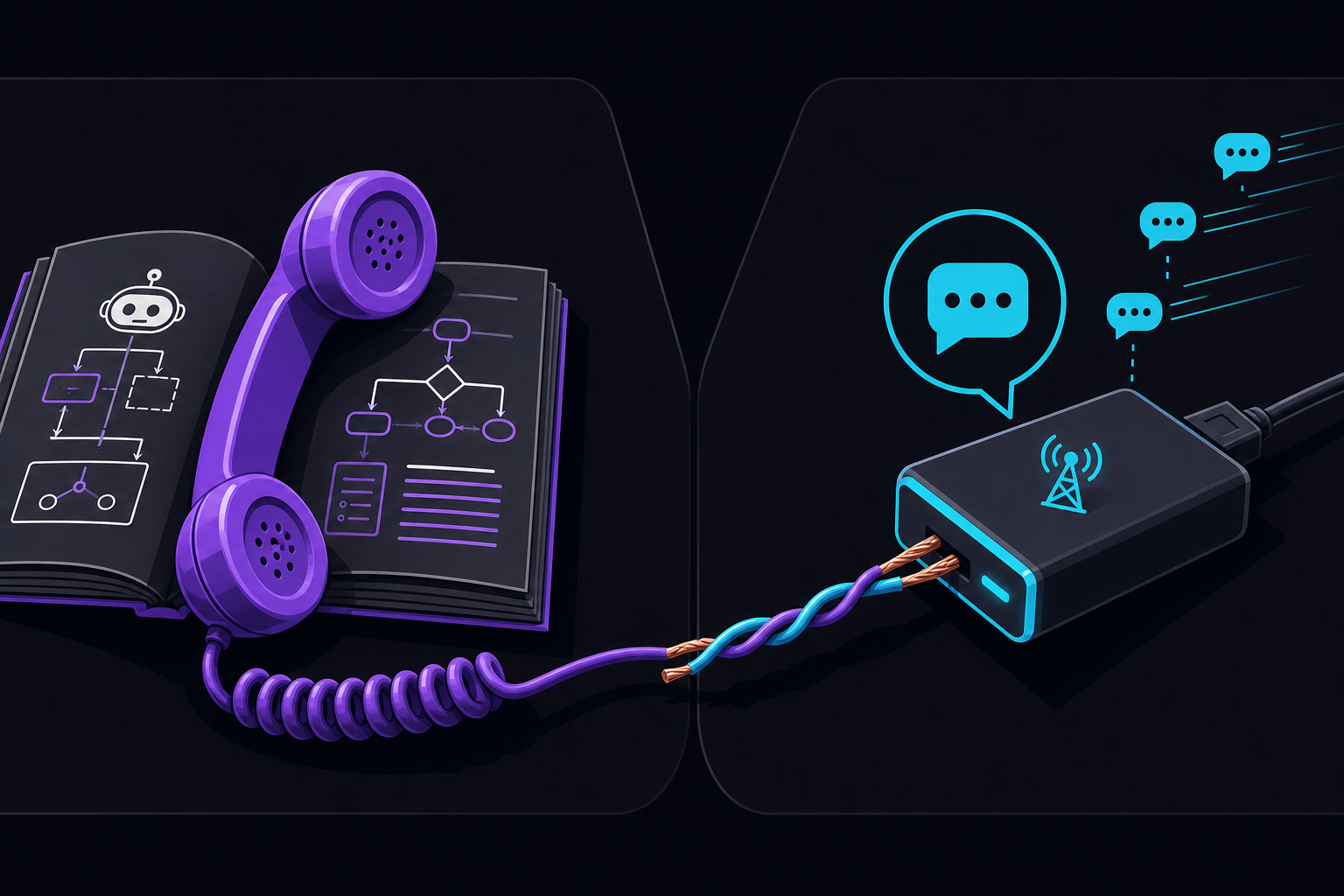
This guide covers how to connect Hermes Agent to SMS using Twilio, turning any trusted phone number into a gateway for short requests, alerts, and fallback workflows. It is written for Hermes users who want to send commands or receive notifications via SMS without opening a terminal, and who need a secure, step-by-step rollout pattern.
What You Need
Before you begin, you must have the following:
- A Twilio account with an active phone number capable of sending and receiving SMS messages. If you do not have one, sign up at twilio.com and purchase a number with SMS capability. The official documentation assumes you already have this configured.
- Hermes Agent installed and running on a server or local machine. The gateway requires a running Hermes process to handle incoming SMS messages and route them to the correct profile and skills.
- The Hermes CLI available in your terminal. You will run
hermes gateway setupand other commands to enable the SMS platform adapter. - An active Hermes profile with credentials stored securely. The official documentation stresses that tokens or credentials must be stored in the active Hermes profile environment, never in source control or a shared note.
- A test phone number that is allowlisted before any production use. This can be your own mobile number.
If you prefer to skip self-hosting, the official documentation mentions a managed cloud option: "Deploy in 60 seconds" with API costs included and no gateway maintenance. That path is separate from this guide, which focuses on the self-hosted setup.
What SMS Is Good For (And What It Is Not)
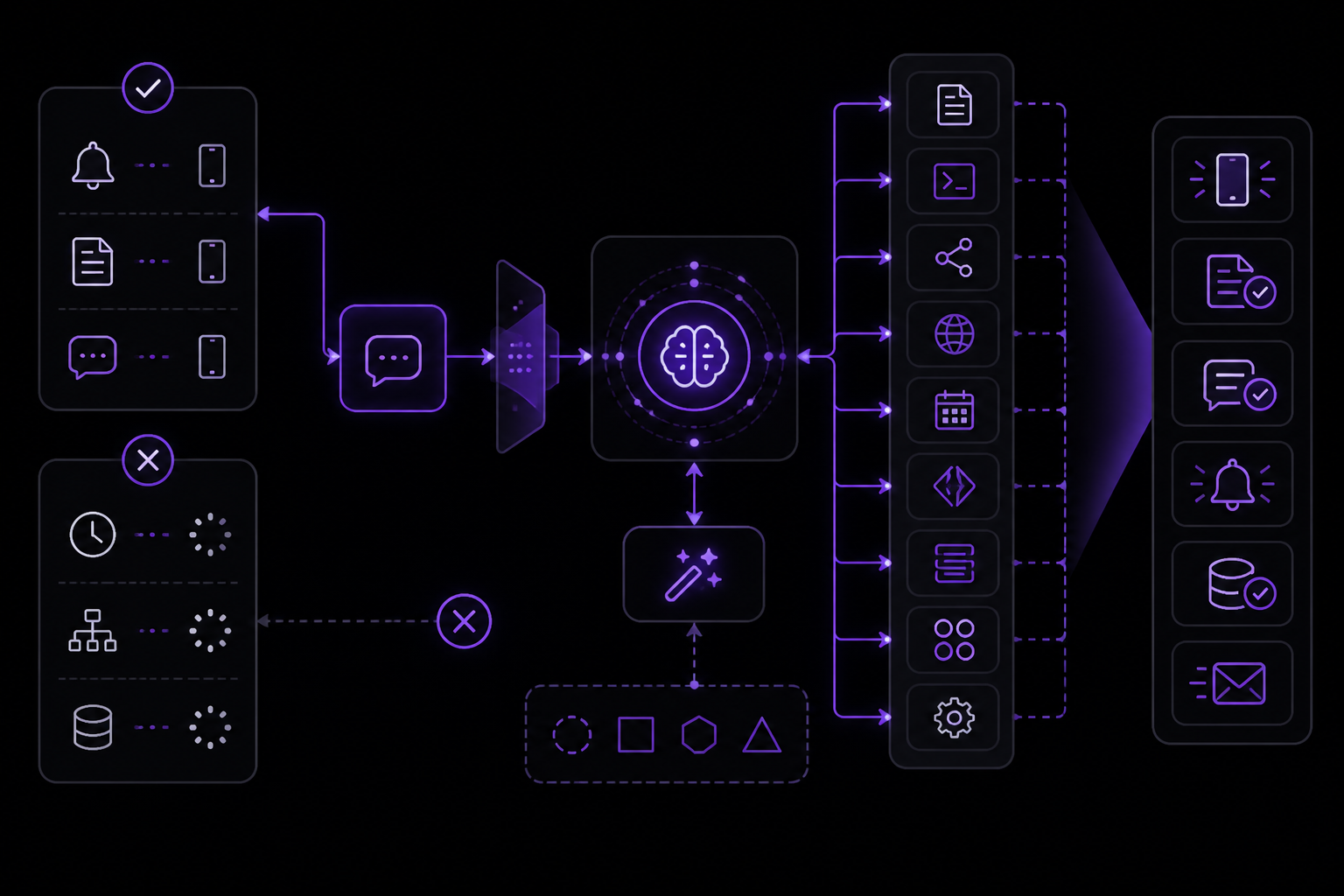
SMS is a human-facing gateway, not a full automation system. According to the official documentation, SMS is best for short, urgent, low-context workflows where the message starts the request, but Hermes can still use files, terminal tools, MCP servers, web search, cron history, GitHub, Linear, Notion, and project-specific skills to do the real work.
Good Use Cases
- Operational alerts and status reports that should reach people without opening a terminal. For example, a cron job can send a daily summary of server health to your phone.
- Approval workflows where Hermes drafts the action but a human confirms it in chat. The documentation lists approvals as a common workflow: "let Hermes draft the action and ask for confirmation before sending, deploying, or editing anything sensitive."
- Incident triage: summarize the alert, inspect logs or dashboards, and post next actions back to chat.
- Project updates: ask Hermes what changed in GitHub, Linear, or Notion and receive a concise report.
- Knowledge capture: turn a chat thread into a task, document, issue, or reusable skill.
- Fallback commands when other channels (Slack, Discord, Telegram) are unavailable.
Limitations to Keep in Mind
The official documentation warns that SMS has weaker identity and formatting compared to chat apps. You should use stricter limits than you would with a platform like Slack or Discord. Specifically:
- Messages can be too long or poorly formatted. The documentation advises: "use concise prompts and route long reports to email, docs, or a file when the platform has tight message limits."
- Identity is weaker. SMS does not provide the same level of authentication as OAuth-based chat platforms. This is why allowlisting is critical.
- No rich formatting. You cannot send code blocks, images, or file attachments via SMS. Keep prompts and responses plain text.
Setup Path: Step-by-Step
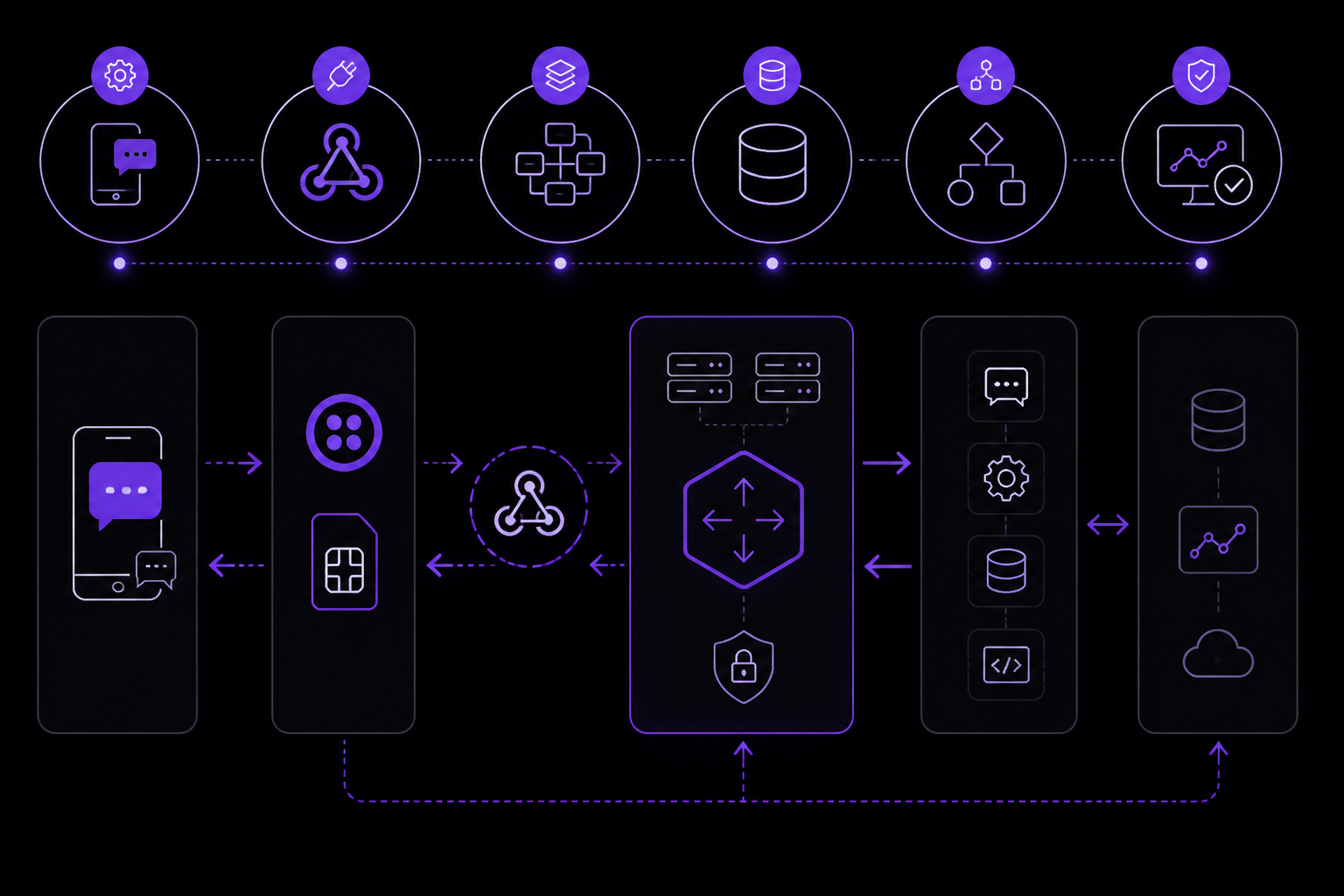
The official documentation provides a six-step setup path. Each step is explained below with additional context.
Step 1: Create or Configure the SMS Bot/App/Account
You need a Twilio phone number that can send and receive SMS. If you already have one, ensure it is configured to handle incoming messages via a webhook URL. The Hermes gateway will expose an endpoint that Twilio will call when an SMS arrives.
In the Twilio console, go to Phone Numbers > Manage > Active Numbers, select your number, and under "Messaging", set the webhook URL to point to your Hermes gateway endpoint. The exact URL will depend on your gateway configuration and network setup. The official documentation does not specify the exact URL path, but typically it will be something like https://your-server:port/sms or a path defined by the gateway adapter.
Step 2: Store the Token or Credentials in the Active Hermes Profile
Do not hardcode credentials in configuration files or scripts. The official documentation states: "Store the token or credentials in the active Hermes profile, not in source control or a shared note."
To do this, use the Hermes profile environment. For example, you might set environment variables in your shell profile or use Hermes's built-in secret management. The exact command depends on your Hermes setup, but the principle is that the profile running the gateway must have access to the Twilio account SID, auth token, and phone number.
Step 3: Run hermes gateway setup and Enable the Platform Adapter
In your terminal, run:
hermes gateway setup
This command will guide you through enabling platform adapters. When prompted, enable the SMS/Twilio adapter. The official documentation says to "enable only the platform you are testing" during initial setup. This prevents accidental cross-platform interference.
Step 4: Restrict Allowed Users, Rooms, Groups, or Contacts Before the First Test
Before you send any message, configure the allowlist. The official documentation repeatedly emphasizes this: "Allowlisted users, rooms, groups, or contacts before broader rollout."
In the Hermes gateway configuration, specify which phone numbers are allowed to interact with the bot. Start with one private number (your own). The documentation says: "Allowlist one private user or test room before adding team-wide rooms."
Step 5: Restart the Gateway and Send One Harmless Private Test Message
After configuring the allowlist, restart the gateway to pick up the changes. Then send a harmless test message from your allowlisted phone number. The official documentation recommends: "Send a harmless prompt such as 'reply with the active profile and enabled platform name.'"
This smoke test confirms that:
- The gateway is running.
- The platform adapter is enabled.
- Your phone number is allowlisted.
- Hermes can receive and respond to SMS.
Step 6: Only After the Smoke Test, Connect Project Skills, Cron Reports, MCP Tools, or Team Rooms
Once the smoke test passes, you can gradually expand the bot's capabilities. The official documentation says: "Only after the smoke test, connect project skills, cron reports, MCP tools, or team rooms."
Add one feature at a time. For example, first enable a simple status check skill, then add a cron report, then add team-wide access. This incremental approach makes it easier to isolate issues.
Safe Setup Pattern: Private First, Group Later
The official documentation defines a clear safe rollout pattern: "The safest rollout is always private first, group later." Here is the exact sequence from the documentation:
- Create or configure the SMS bot/app account and store credentials in the active Hermes profile environment.
- Run
hermes gateway setupand enable only the platform you are testing. - Allowlist one private user or test room before adding team-wide rooms.
- Send a harmless prompt such as "reply with the active profile and enabled platform name."
- After the smoke test, decide whether the channel can use tools, cron reports, file access, or project-specific skills.
This pattern is designed to prevent accidental exposure of sensitive tools. The documentation warns: "Scope tool access carefully because chat channels often have different trust levels than your terminal."
Common Workflows
Once the gateway is stable, SMS becomes a convenient control surface for Hermes workflows that would otherwise require terminal access. The official documentation lists four common workflows:
Incident Triage
When an alert fires, you can SMS the bot to summarize the alert, inspect logs or dashboards, and post next actions back to chat. For example:
User: check server status for web-01
Hermes: Web-01 is online. CPU 23%, memory 45%, disk 80%. No recent errors.
Project Updates
Ask Hermes what changed in GitHub, Linear, or Notion and receive a concise report. This is useful for standups or quick check-ins:
User: what changed in the frontend repo today
Hermes: 3 commits: fix login button alignment, update API endpoint, add unit tests.
Approvals
Let Hermes draft the action and ask for confirmation before sending, deploying, or editing anything sensitive. This is a two-step workflow:
User: deploy latest build to staging
Hermes: I will deploy commit abc123 to staging. Reply CONFIRM to proceed.
User: CONFIRM
Hermes: Deployment started. Monitor at https://staging.example.com
Knowledge Capture
Turn a chat thread into a task, document, issue, or reusable skill. For example:
User: save this conversation as a bug report in Linear
Hermes: Created issue BUG-456 with summary and link to this conversation.
Common Setup Issues
The official documentation identifies four common issues and their solutions:
No Response in SMS
If you send a message and get no reply, check three things:
- Confirm the gateway is running. Use
hermes gateway statusor check the process list. - Confirm the platform is enabled. Run
hermes gateway setupagain and verify the SMS adapter is listed as active. - Confirm the chat/contact is allowlisted. Double-check the phone number in the allowlist configuration.
The Bot Replies in DM but Not in a Group
If the bot responds to direct messages but not to group SMS (if you have a group SMS setup), check:
- Group permissions in the Hermes gateway configuration.
- Mention/free-response settings. Some platforms require the bot to be mentioned or a specific keyword to trigger.
- Whether the gateway received the group update. The gateway may need to be restarted after adding a group.
The Wrong Profile or Tools Are Active
If the bot responds but uses the wrong skills or credentials, verify which Hermes profile is running the gateway. The official documentation says: "verify the Hermes profile running the gateway and keep project-specific secrets in the correct profile."
Messages Are Too Long or Poorly Formatted
SMS has strict length limits (typically 160 characters per segment, though modern phones support concatenation). The official documentation advises: "use concise prompts and route long reports to email, docs, or a file when the platform has tight message limits."
Frequently Asked Questions
The official documentation includes an FAQ section that addresses common concerns:
Can Hermes run from SMS?
Yes. SMS can be used as a Hermes messaging gateway when the platform adapter is configured and the gateway is running.
Should I enable this in a group immediately?
No. Start with a private or allowlisted test, verify behavior, then add group access only when permissions and response rules are clear.
Can the chat gateway use the same tools as the CLI?
It can use enabled Hermes tools, skills, and MCP servers for that profile. However, scope tool access carefully because chat channels often have different trust levels than your terminal.
What is the safest first test?
Ask for a harmless status reply that confirms the active profile and platform. Do not start with file edits, deploys, purchases, or external sends.
Going Further
After you have SMS working, the official documentation suggests exploring these related areas:
- Messaging setup overview: Set up Hermes gateway platforms and verify message delivery safely. This is the broader context for all chat integrations.
- Pricing and managed cloud: Use managed hosting when uptime and mobile access matter more than maintaining a gateway server. This is the "Deploy in 60 seconds" option mentioned at the top of the documentation.
- Webhooks: Trigger agent runs from external systems instead of a human chat message. This is useful for automated workflows that do not require human input.
- Other integrations: The documentation lists Telegram, Discord, Slack, WhatsApp, Signal, and email as other platforms you can connect. Each has its own setup guide.
For a complete list of related setup guides, the documentation references: whatsapp pricing telegram email and lists telegram discord slack whatsapp signal under "Other Integrations."
The #1 AI Newsletter
The most important ai updates, guides, and fixes — one weekly email.
No spam, unsubscribe anytime. Privacy policy