
Hermes Agent + Mattermost: Self-Hosted Team Chat Gateway Setup Guide
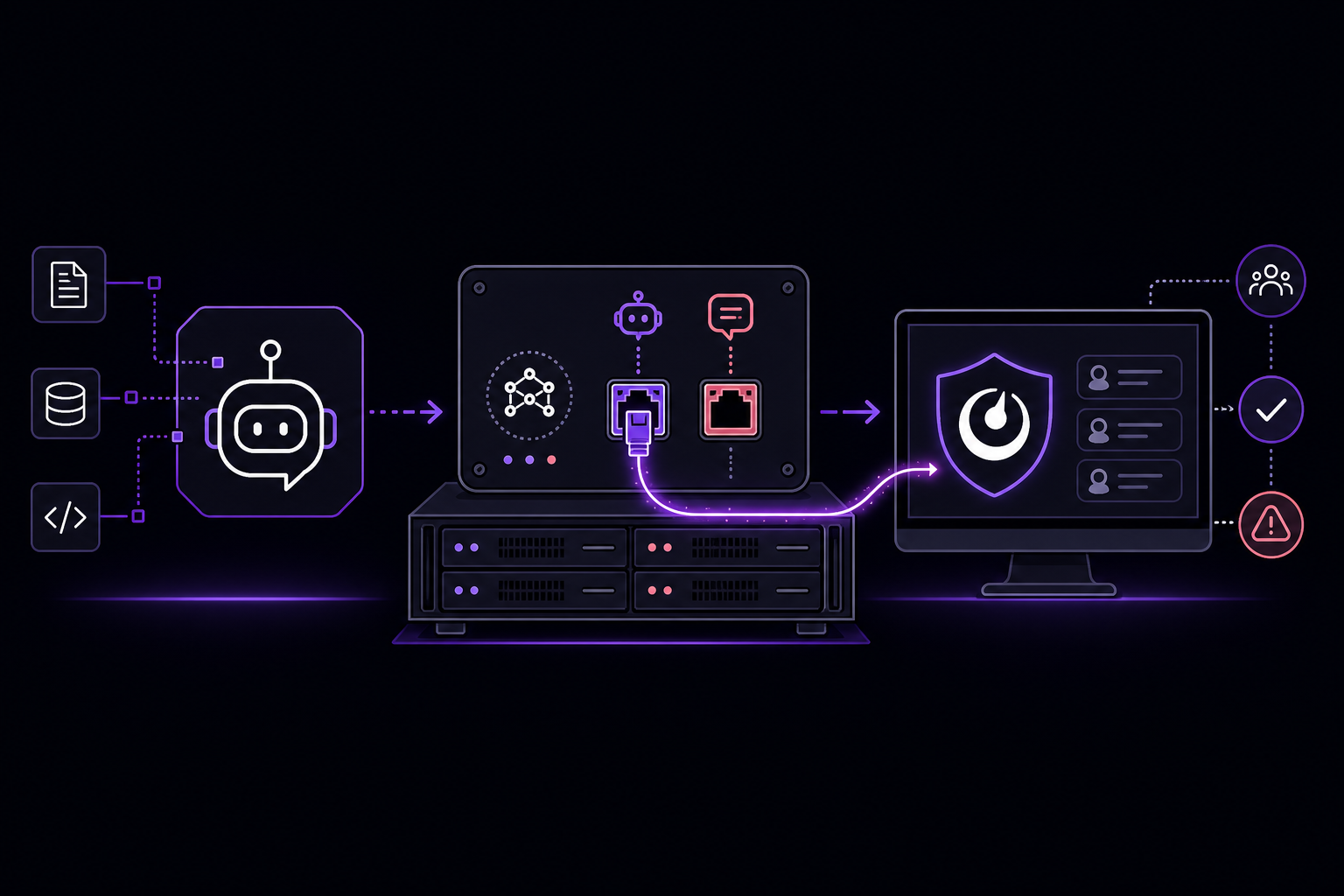
This guide covers how to connect Hermes Agent to Mattermost, turning your self-hosted chat platform into a gateway for code queries, ops tasks, research, and incident support. It is written for self-hosted teams that already run Mattermost and want to give team members access to Hermes tools, skills, and MCP servers without requiring terminal access.
What You Need
Before starting, ensure the following prerequisites are in place:
- A running Mattermost instance (self-hosted, any version supported by your deployment).
- Administrator access to Mattermost to create or configure a bot account.
- Hermes Agent installed and configured with at least one active profile. The profile must contain the credentials that the gateway will use to authenticate with Mattermost.
- The
hermesCLI available on the machine that will run the gateway. The gateway is a long-running process that must stay active to receive and respond to messages. - A test user or private channel for the initial smoke test. Do not start with a production or team-wide room.
Understanding the Hermes Mattermost Integration
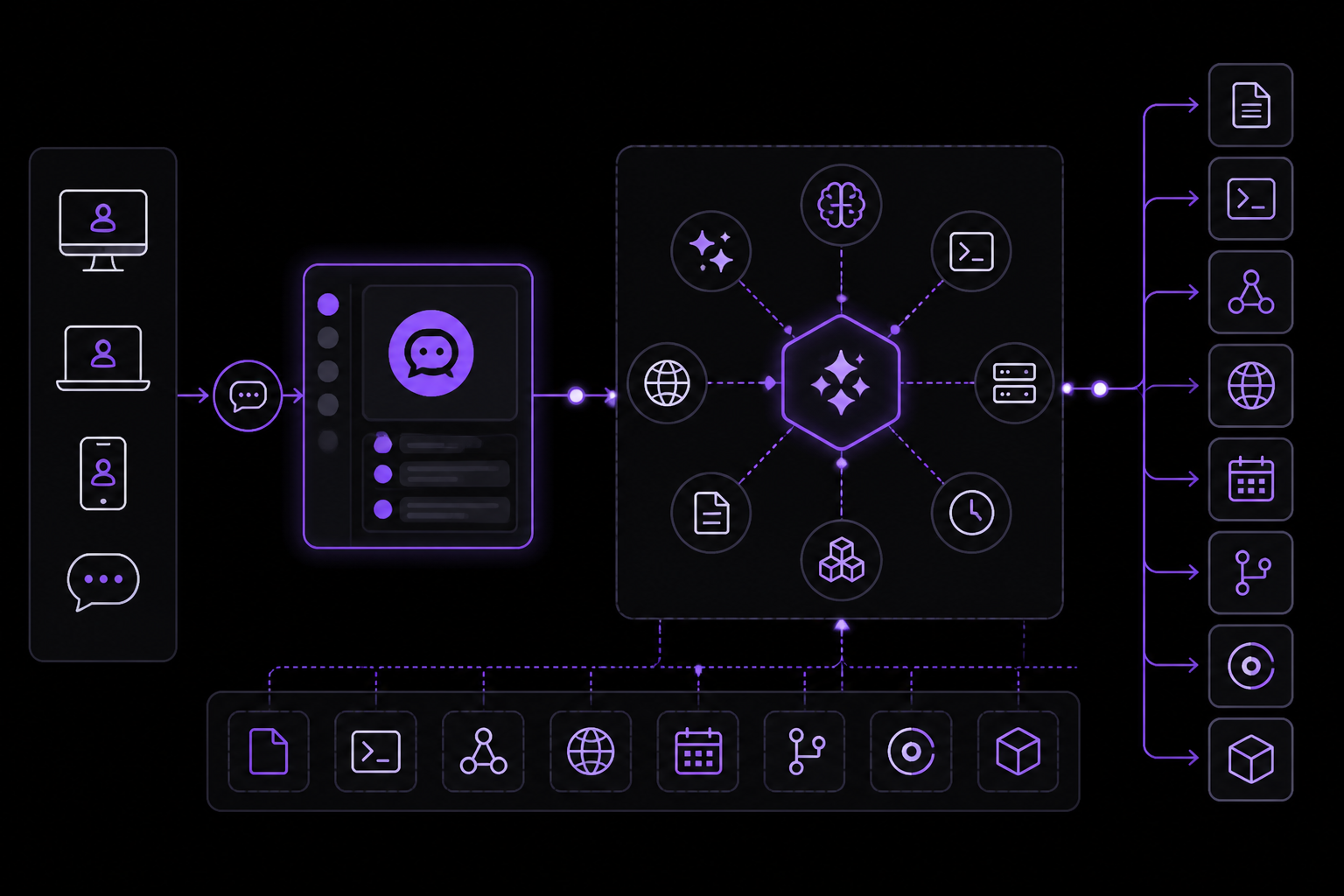
Mattermost is a good match for self-hosted teams that want Hermes in the same private chat environment as engineering and operations conversations. According to the official documentation, Mattermost should be treated as a human-facing gateway, not the whole automation system. The chat message starts the request, but Hermes can still use files, terminal tools, MCP servers, web search, cron history, GitHub, Linear, Notion, and project-specific skills to do the real work.
What Mattermost Is Good For
The integration is designed for specific use cases where chat is the most natural interface:
- Operational alerts and status reports: Reach people without opening a terminal. A team member can ask for a status summary directly in the channel.
- Approval workflows: Hermes drafts the action, but a human confirms it in chat before anything is sent, deployed, or edited.
- Project-specific agents: Narrow channel boundaries allow different agents for different projects, rather than one global bot everywhere.
- Incident, support, or operations requests: Send a request from the chat app your team already uses.
- Cron reports, deployment notes, research summaries, or approval prompts: Receive these in a familiar channel without checking email or a separate dashboard.
Key Features
The official documentation lists these features for the Mattermost gateway:
- Mattermost gateway access for chat-based Hermes requests.
- Allowlisted users, rooms, groups, or contacts before broader rollout.
- Tool-backed answers using the same Hermes skills and MCP servers available from the CLI.
- Delivery target for cron reports, incident summaries, approval prompts, and project updates.
- Profile and credential boundaries so each channel can be scoped to the right trust level.
- Private smoke-test flow before enabling production rooms or free-response behavior.
Setup Path
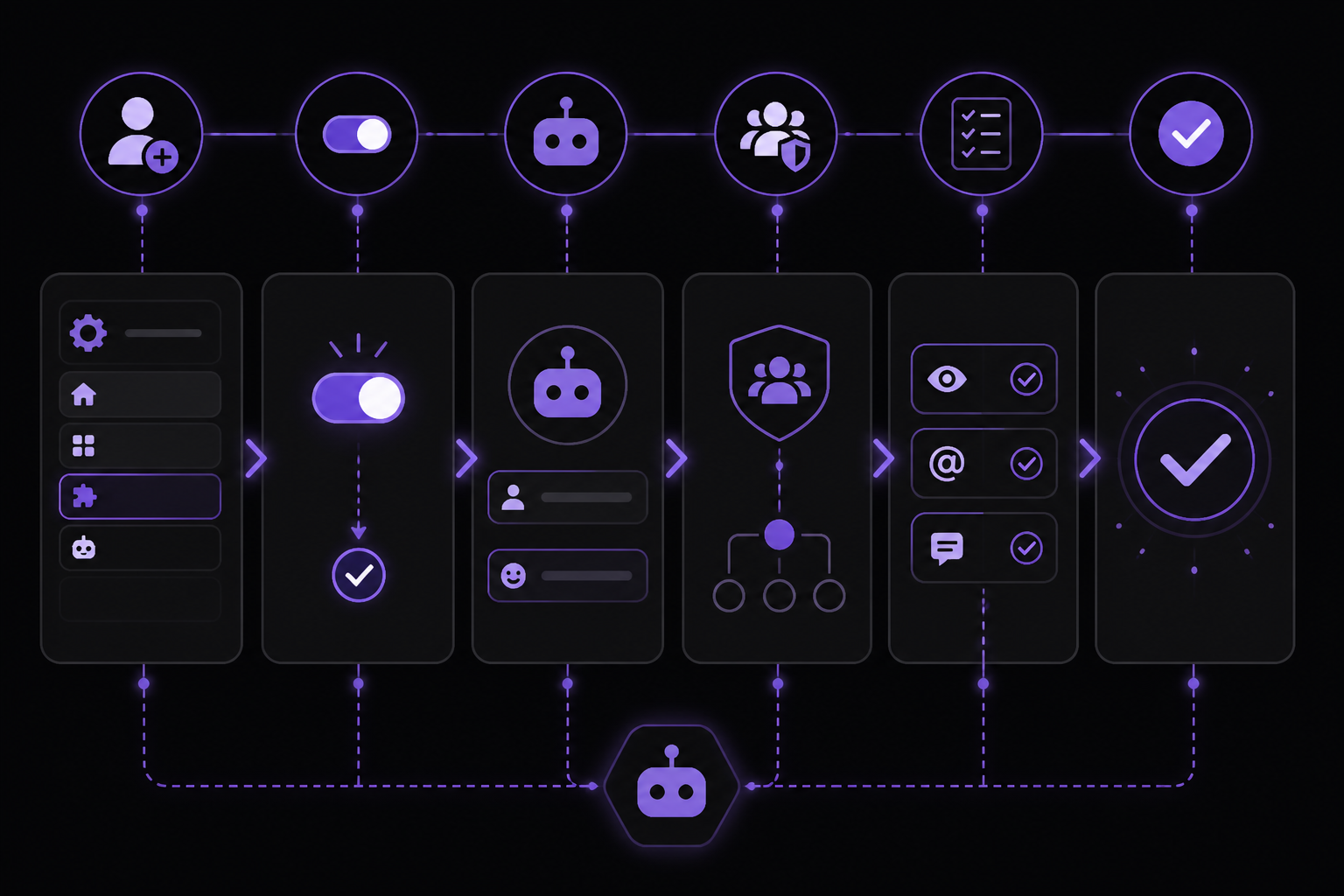
The official documentation provides a six-step setup path. Each step is explained in detail below.
Step 1: Create or Configure the Mattermost Bot Account
You need a bot account in Mattermost that Hermes will use to post messages and read mentions. The exact steps depend on your Mattermost version, but the general process is:
- Go to System Console > Integrations > Bot Accounts.
- Enable bot account creation if it is not already enabled.
- Create a new bot account with a username and display name. The username will be used to mention the bot in channels.
- Assign the bot to a role with the minimum permissions needed. The official documentation does not specify exact permissions, but the bot needs to read messages that mention it and post messages in channels it is a member of.
- Generate an access token for the bot. Save this token securely; you will need it in the next step.
Step 2: Store the Token or Credentials in the Active Hermes Profile
Do not store the Mattermost bot token in source control, a shared note, or any location that is not the active Hermes profile. The official documentation is explicit: credentials must be stored in the active Hermes profile environment.
To store the token, set it as an environment variable in your Hermes profile configuration. The exact variable name is not specified in the source, but typical Hermes gateway adapters use a variable like MATTERMOST_BOT_TOKEN or similar. Check your Hermes profile documentation or the output of hermes gateway setup for the required variable name.
For example, if your profile uses a .env file, add:
MATTERMOST_BOT_TOKEN=your_bot_token_here
If you are using a YAML or JSON profile configuration, add the token under a credentials or environment section. The key point is that the token must be accessible to the gateway process at runtime.
Step 3: Run hermes gateway setup and Enable the Platform Adapter
Run the following command:
hermes gateway setup
This command will guide you through the gateway configuration. When prompted, select Mattermost as the platform adapter to enable. The official documentation says to enable only the platform you are testing. If you have other adapters (Slack, Discord, etc.), disable them for now to avoid confusion during the smoke test.
The setup command will likely ask for the Mattermost server URL, the bot token, and possibly a webhook URL or other connection details. Provide the information from Step 1 and Step 2.
Step 4: Restrict Allowed Users, Rooms, Groups, or Contacts Before the First Test
Before starting the gateway, configure allowlisting. The official documentation recommends restricting who can talk to the bot before the first test. This is a critical safety measure.
During hermes gateway setup or in the gateway configuration file, specify:
- Allowed users: A list of Mattermost user IDs or usernames that are permitted to interact with the bot.
- Allowed rooms: A list of channel IDs or names where the bot is allowed to respond.
- Allowed groups: A list of group IDs if you want to allow entire teams.
- Allowed contacts: A list of direct message contacts.
Start with one private user or test room. The official documentation says: "Allowlist one private user or test room before adding team-wide rooms."
Step 5: Restart the Gateway and Send One Harmless Private Test Message
After configuration, restart the gateway:
hermes gateway restart
Or if you are running it as a service, restart the service. Then send a harmless prompt to the bot in a private message. The official documentation suggests this exact prompt:
reply with the active profile and enabled platform name.
This test confirms that:
- The gateway is running and connected to Mattermost.
- The bot can receive and respond to messages.
- The correct Hermes profile is active.
- The Mattermost platform adapter is enabled.
If you get a response, the smoke test passes. If not, see the Troubleshooting section below.
Step 6: After the Smoke Test, Connect Project Skills, Cron Reports, MCP Tools, or Team Rooms
Only after the smoke test passes should you expand the bot's capabilities. The official documentation says: "Only after the smoke test, connect project skills, cron reports, MCP tools, or team rooms."
Decide whether the channel can use:
- Tools (file access, terminal commands, etc.)
- Cron reports (scheduled summaries)
- File access (reading and writing files)
- Project-specific skills (custom skills defined for a project)
Add team rooms one at a time, testing each after adding it. The official documentation warns: "Do not start with file edits, deploys, purchases, or external sends."
Safe Setup Pattern
The official documentation emphasizes a safe rollout pattern: private first, group later. The full pattern is:
- Create or configure the Mattermost bot/app account and store credentials in the active Hermes profile environment.
- Run
hermes gateway setupand enable only the platform you are testing. - Allowlist one private user or test room before adding team-wide rooms.
- Send a harmless prompt such as "reply with the active profile and enabled platform name."
- After the smoke test, decide whether the channel can use tools, cron reports, file access, or project-specific skills.
This pattern prevents accidental exposure of powerful tools to untrusted channels or users.
Common Workflows
Once the gateway is stable, Mattermost becomes a convenient control surface for Hermes workflows. The official documentation describes these common workflows:
Incident Triage
Summarize an alert, inspect logs or dashboards, and post next actions back to chat. For example, a user can ask: "What is the status of the production outage?" Hermes can run a skill that checks monitoring dashboards, gathers log snippets, and posts a concise summary.
Project Updates
Ask Hermes what changed in GitHub, Linear, or Notion and receive a concise report. For example: "What issues were closed in the last 24 hours?" Hermes queries the integrated tools and returns a formatted list.
Approvals
Let Hermes draft the action and ask for confirmation before sending, deploying, or editing anything sensitive. The official documentation says this is one of the best use cases. For example, Hermes might draft a deployment command and ask: "I will deploy version 2.1.0 to production. Reply 'confirm' to proceed."
Knowledge Capture
Turn a chat thread into a task, document, issue, or reusable skill. A user can ask: "Create a Linear ticket for this bug discussion." Hermes can parse the conversation and create the ticket.
Common Setup Issues
The official documentation lists four common issues and their solutions:
No Response in Mattermost
If the bot does not respond, confirm three things:
- The gateway is running. Check the process status or logs.
- The platform is enabled. Run
hermes gateway setupand verify Mattermost is listed as enabled. - The chat or contact is allowlisted. Check the allowlist configuration.
The Bot Replies in DM but Not in a Group
If direct messages work but group messages do not, check:
- Group permissions in Mattermost. The bot must be a member of the group channel.
- Mention/free-response settings. The bot may need to be mentioned explicitly (@botname) or free-response mode must be enabled.
- Whether the gateway received the group update. Restart the gateway after adding the bot to a new channel.
The Wrong Profile or Tools Are Active
If responses come from the wrong profile or use the wrong tools, verify:
- The Hermes profile running the gateway. Check the profile configuration.
- Keep project-specific secrets in the correct profile. Each profile should have its own credentials and tool access.
Messages Are Too Long or Poorly Formatted
Mattermost has message length limits. If responses are truncated or poorly formatted:
- Use concise prompts.
- Route long reports to email, docs, or a file. The official documentation says: "use concise prompts and route long reports to email, docs, or a file when the platform has tight message limits."
Troubleshooting
Beyond the common issues listed above, here are additional failure modes and their solutions based on the official documentation.
Gateway Fails to Start
If hermes gateway start or hermes gateway restart fails, check:
- The Mattermost server URL is correct and reachable from the gateway machine.
- The bot token is valid and has not expired.
- The gateway port is not already in use by another process.
Bot Connects but Does Not Respond
If the bot connects (shows as online) but does not respond to messages:
- Verify the allowlist includes the user or channel you are testing from.
- Check the gateway logs for errors. Run
hermes gateway logsor check the systemd journal if running as a service. - Ensure the Hermes profile has at least one skill or tool enabled. If no skills are available, the bot may have nothing to do.
Cron Reports Not Delivering
If scheduled cron reports are not appearing in Mattermost:
- Confirm the cron job is configured to use the Mattermost delivery target.
- Verify the bot is a member of the target channel.
- Check that the gateway is running at the scheduled time.
Going Further
Once the basic integration is working, the official documentation suggests these next steps:
- Messaging setup overview: Set up Hermes gateway platforms and verify message delivery safely. This is the foundation for adding more platforms.
- Pricing and managed cloud: Use managed hosting when uptime and mobile access matter more than maintaining a gateway server. The official documentation mentions a 60-second deploy option.
- Webhooks: Trigger agent runs from external systems instead of a human chat message. This allows automated workflows where an alert or event starts a Hermes action.
- Other integrations: The official documentation lists other platforms that can be integrated: Slack, Discord, Telegram, WhatsApp, Signal, and Matrix. Each has its own setup guide.
For teams that want to expand beyond Mattermost, the same gateway can be configured with multiple adapters, allowing Hermes to be accessed from several chat platforms simultaneously.
The #1 AI Newsletter
The most important ai updates, guides, and fixes — one weekly email.
No spam, unsubscribe anytime. Privacy policy