
Hermes Agent QQ Bot Integration: Chat-Based Agent Access Setup Guide
This guide covers how to connect Hermes Agent to QQ Bot, enabling users to send research, operations, and workflow requests directly from QQ chat. It is intended for team leads, DevOps engineers, and anyone who wants to give their team a chat-based interface to Hermes without exposing the full CLI. You will learn the safe setup pattern, configuration steps, common workflows, and how to troubleshoot typical issues.
What You Need
Before starting, ensure you have the following prerequisites in place, drawn from the official Hermes Agent documentation.
- A Hermes Agent instance that is already installed and running. This guide assumes you have a working Hermes profile with at least one active profile.
- A QQ Bot bot, app, or account. You must create or configure this on the QQ platform itself. The documentation does not detail the QQ-side creation process, so you should follow QQ's own bot creation instructions first.
- The credentials (token, app secret, or similar) from your QQ Bot account. These must be stored securely.
- Access to the command line on the machine running Hermes Agent. You will run
hermes gateway setupand other CLI commands. - A private test chat or contact (your own QQ account) to perform the initial smoke test. Do not start with a group chat.
- (Optional) A managed cloud Hermes deployment if you want to skip self-hosting the gateway. The official documentation offers a "Deploy in 60 seconds" option for managed cloud, which includes API costs and no gateway maintenance.
Understanding the QQ Bot Integration
QQ Bot acts as a chat gateway for Hermes. It is not a separate automation system; it is a human-facing interface that starts a request in chat. Hermes then uses its full suite of tools (files, terminal commands, MCP servers, web search, cron history, GitHub, Linear, Notion, and project-specific skills) to fulfill that request. The official documentation emphasizes that QQ Bot should be treated as a gateway, not the whole system.
Key Concepts
- Gateway: The Hermes component that listens for incoming messages from platforms like QQ Bot and routes them to the appropriate agent profile.
- Allowlist: A list of permitted users, rooms, groups, or contacts that are allowed to interact with the bot. Everything else is blocked by default.
- Profile: A Hermes configuration that defines which tools, skills, MCP servers, and credentials are active. Each QQ Bot channel can be scoped to a specific profile, providing trust boundaries.
- Smoke test: A minimal, harmless test message sent from a private chat to verify the gateway is working before exposing it to a team or production environment.
- Tool-backed answers: Responses that use Hermes skills and MCP servers, not just static replies. This means the bot can run real automations.
What QQ Bot Is Good For
The official documentation lists several ideal use cases:
- Asking for a status summary without opening a terminal.
- Sending an incident, support, or operations request from the chat app your team already uses.
- Receiving cron reports, deployment notes, research summaries, or approval prompts in a familiar channel.
- Keeping sensitive tools scoped to trusted chats and profiles instead of exposing every capability everywhere.
Setup Path: Step by Step
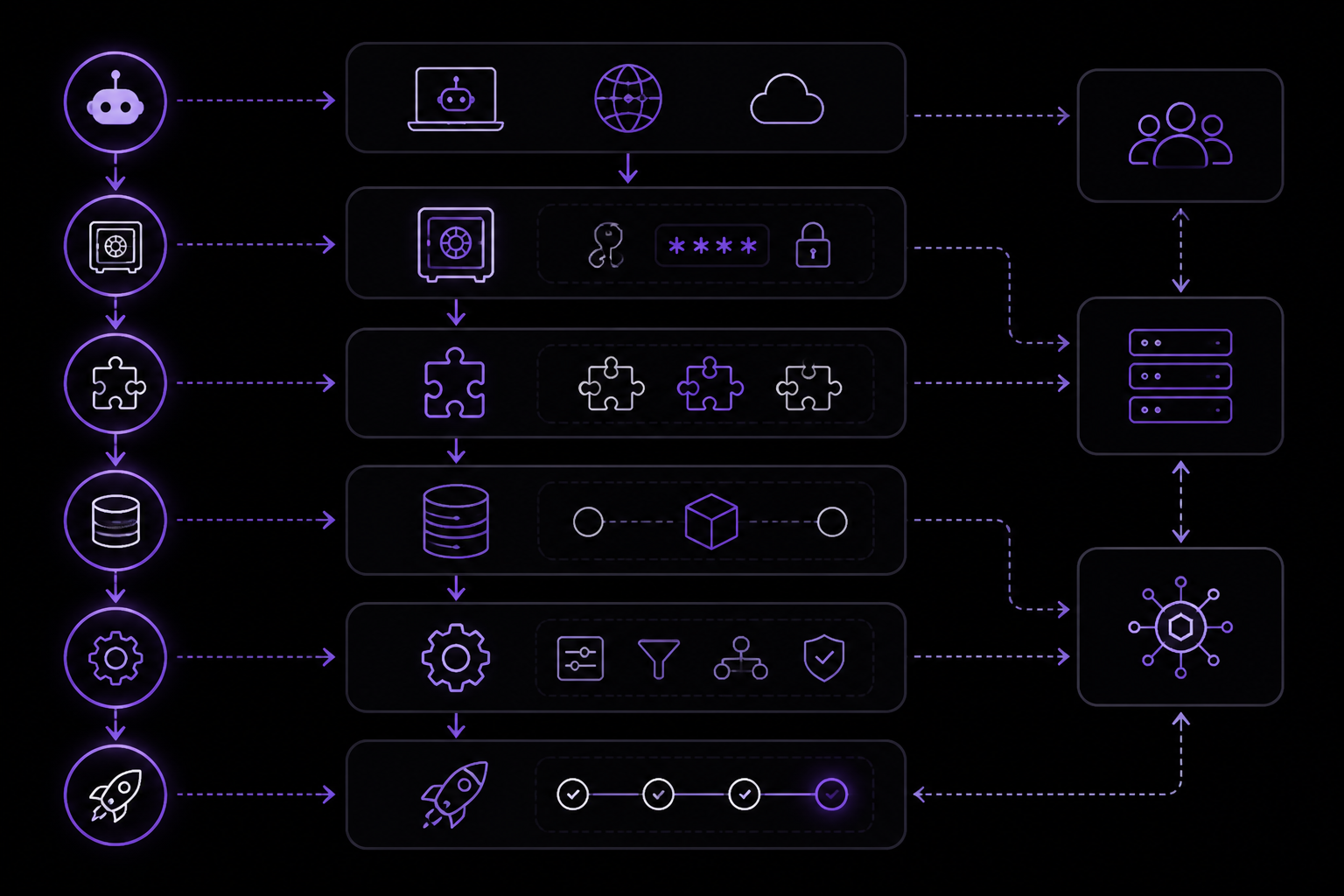
The official documentation provides a six-step setup path. Each step is explained below with additional context.
Step 1: Create or Configure the QQ Bot Account
You need a QQ Bot bot, app, or account on the QQ platform. The Hermes documentation does not provide QQ-specific instructions for this step, as it is platform-dependent. You should follow QQ's official bot creation documentation. Once created, you will receive credentials (a token, app secret, or similar) that Hermes will use to authenticate.
Step 2: Store Credentials in the Active Hermes Profile
Do not store the credentials in source control, a shared note, or any location that is not the active Hermes profile. The official documentation explicitly warns against this. Use Hermes profile environment variables or the profile's secret store to keep the token secure. The exact command to set this depends on your Hermes setup, but typically it involves editing the profile configuration file or using a hermes profile set command.
Step 3: Run hermes gateway setup and Enable the Platform Adapter
From the command line, run:
hermes gateway setup
This command will start an interactive setup or present options to configure gateways. You must enable the QQ Bot platform adapter during this process. The documentation does not specify the exact flag or menu option, but you should look for a prompt that lists available platforms (e.g., "qqbot", "telegram", "discord") and select QQ Bot. If you are testing only one platform, enable only that one to reduce complexity.
Step 4: Restrict Allowed Users, Rooms, Groups, or Contacts
Before the first test, configure the allowlist. The official documentation says to "restrict allowed users, rooms, groups, or contacts before the first test." This is a critical safety step. You should allowlist only your own QQ account (or a single test room) initially. The exact method for setting the allowlist is not detailed in the documentation, but it is likely part of the profile configuration or the gateway setup. Look for settings like allowed_users, allowed_rooms, or allowed_contacts in your Hermes profile.
Step 5: Restart the Gateway and Send a Harmless Private Test Message
After configuring the allowlist, restart the gateway. The documentation does not specify the restart command, but a common approach is to stop the gateway process (e.g., Ctrl+C if running in the foreground) and start it again with hermes gateway start or similar. Then, from your QQ account, send a harmless prompt such as:
reply with the active profile and enabled platform name.
This tests that the gateway is running, the platform adapter is enabled, your account is allowlisted, and Hermes can respond. Do not start with file edits, deploys, purchases, or external sends.
Step 6: After the Smoke Test, Connect Project Skills, Cron Reports, MCP Tools, or Team Rooms
Only after you have received a successful reply from the smoke test should you expand the bot's capabilities. This means:
- Adding more users or rooms to the allowlist.
- Connecting project-specific skills (e.g., a skill that queries your database).
- Setting up cron reports that deliver to the chat.
- Enabling MCP tools that the bot can invoke.
- Adding team rooms (group chats).
The official documentation emphasizes: "The safest rollout is always private first, group later."
Safe Setup Pattern: Private First, Group Later
The official documentation dedicates a section to the safe setup pattern. It is worth repeating the steps in a more structured way:
- Create or configure the QQ Bot bot/app account and store credentials in the active Hermes profile environment.
- Run
hermes gateway setupand enable only the platform you are testing. - Allowlist one private user or test room before adding team-wide rooms.
- Send a harmless prompt such as "reply with the active profile and enabled platform name."
- After the smoke test, decide whether the channel can use tools, cron reports, file access, or project-specific skills.
This pattern is designed to prevent accidental exposure of powerful tools to untrusted users or groups.
Common Workflows
Once the gateway is stable, QQ Bot becomes a convenient control surface for Hermes workflows. The official documentation lists four common workflows, each with a clear output and permission boundary.
Incident Triage
Summarize an alert, inspect logs or dashboards, and post next actions back to chat. For example, you could send a message like "Check the error rate on production server X in the last hour and summarize." Hermes would use its tools to query monitoring systems and return a concise report.
Project Updates
Ask Hermes what changed in GitHub, Linear, or Notion and receive a concise report. This is useful for daily standups or quick status checks without opening each tool.
Approvals
Let Hermes draft the action and ask for confirmation before sending, deploying, or editing anything sensitive. For example, Hermes could draft a deployment plan and ask "Shall I deploy version 2.1.0 to production?" in the chat. The human replies "yes" or "no" to proceed.
Knowledge Capture
Turn a chat thread into a task, document, issue, or reusable skill. This allows teams to capture decisions or instructions directly from the conversation.
Advanced Details: Profile and Credential Boundaries
The official documentation mentions "profile and credential boundaries so each channel can be scoped to the right trust level." This is an advanced feature that allows you to have different Hermes profiles for different QQ Bot channels. For example:
- A profile for a private chat with an admin that has full tool access (file edits, deployments).
- A profile for a team room that only has read-only access (status checks, log viewing).
- A profile for a public group that only has access to a single skill (e.g., a knowledge base query).
To set this up, you would configure the gateway to map incoming messages from specific QQ Bot channels to specific Hermes profiles. The exact configuration is not detailed in the provided documentation, but it is a powerful way to enforce least privilege.
Troubleshooting
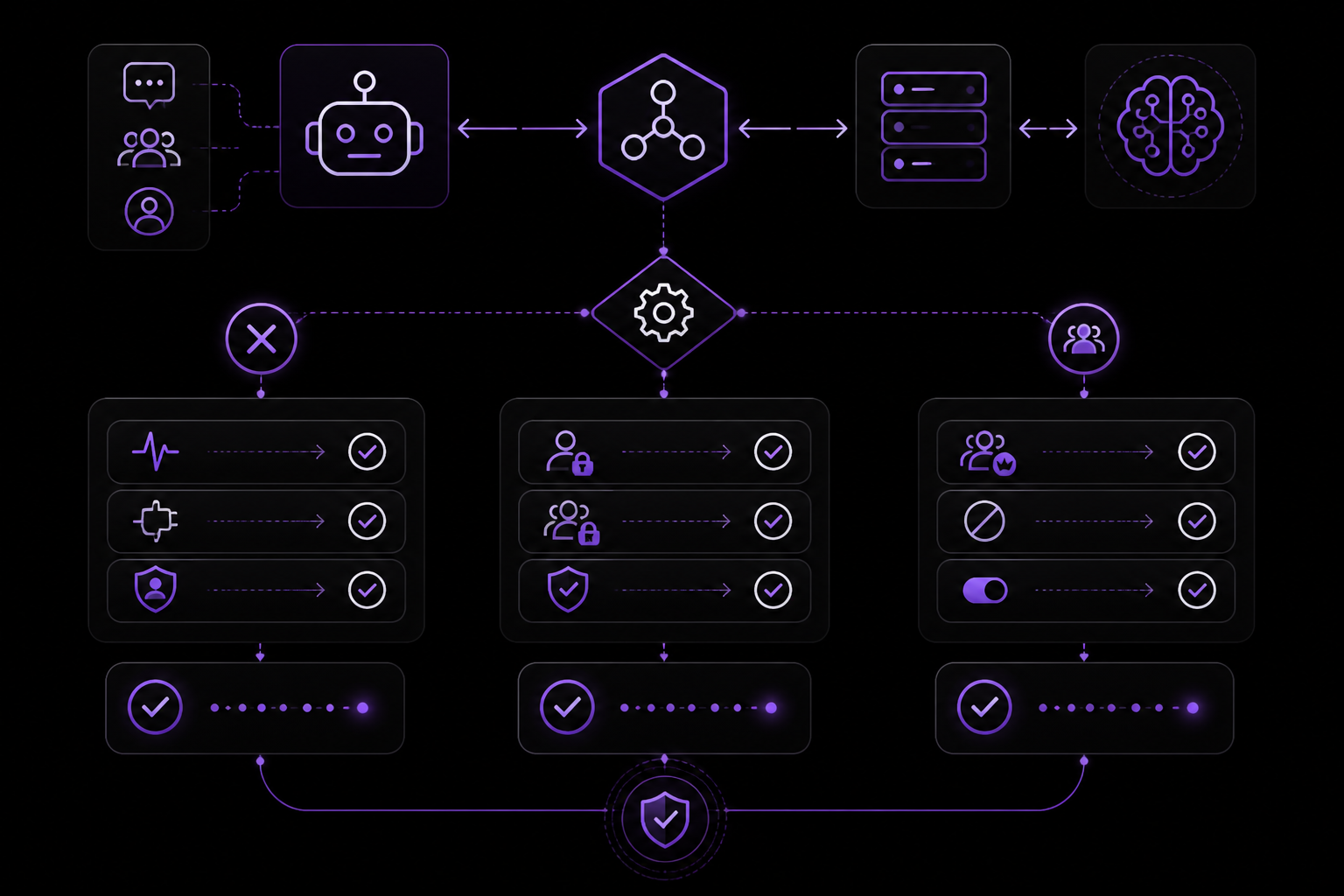
The official documentation lists four common setup issues. Each is addressed below with practical advice.
No Response in QQ Bot
If the bot does not reply, confirm three things:
- The gateway is running. Check the process or logs.
- The platform adapter is enabled. Run
hermes gateway setupagain to verify. - The chat or contact is allowlisted. Double-check your allowlist configuration.
The Bot Replies in DM but Not in a Group
This is a common issue when moving from private test to group chat. The official documentation suggests checking:
- Group permissions: Does the bot have permission to read and write messages in the group?
- Mention/free-response settings: Does the bot require being mentioned (e.g., @bot) to respond, or does it respond to any message? Configure this in the gateway or profile.
- Whether the gateway received the group update: After adding the bot to a group, the gateway may need to be restarted or the group may need to be explicitly added to the allowlist.
The Wrong Profile or Tools Are Active
If the bot uses the wrong tools or returns unexpected results, verify the Hermes profile running the gateway. The official documentation advises: "keep project-specific secrets in the correct profile." Ensure that the profile associated with the QQ Bot channel has the correct tools, skills, and credentials enabled.
Messages Are Too Long or Poorly Formatted
Chat platforms often have tight message length limits. The official documentation recommends:
- Use concise prompts.
- Route long reports to email, docs, or a file when the platform has tight message limits. For example, instead of returning a 500-line log in chat, Hermes could upload the log to a file and return a link.
FAQ
The official documentation includes an FAQ section that addresses common questions.
Can Hermes Run from QQ Bot?
Yes. QQ Bot can be used as a Hermes messaging gateway when the platform adapter is configured and the gateway is running.
Should I Enable This in a Group Immediately?
No. Start with a private or allowlisted test, verify behavior, then add group access only when permissions and response rules are clear.
Can the Chat Gateway Use the Same Tools as the CLI?
It can use enabled Hermes tools, skills, and MCP servers for that profile. Scope tool access carefully because chat channels often have different trust levels than your terminal.
What Is the Safest First Test?
Ask for a harmless status reply that confirms the active profile and platform. Do not start with file edits, deploys, purchases, or external sends.
Going Further
After you have the QQ Bot integration working, the official documentation suggests exploring these next steps:
- Messaging setup overview: Set up Hermes gateway platforms and verify message delivery safely. This is the broader context for all chat integrations.
- Pricing and managed cloud: Use managed hosting when uptime and mobile access matter more than maintaining a gateway server. This is especially relevant if you find self-hosting the gateway to be burdensome.
- Webhooks: Trigger agent runs from external systems instead of a human chat message. This allows you to automate responses to events (e.g., a new GitHub issue triggers a Hermes workflow that posts a summary to QQ).
- Other integrations: The documentation mentions related setup guides for WeChat, Telegram, Discord, Slack, WhatsApp, and Signal. If QQ Bot is not the right fit for your team, explore these alternatives.
By following this guide, you should be able to set up a safe, functional QQ Bot gateway for Hermes Agent, enabling your team to interact with powerful automations directly from their chat application.
The #1 AI Newsletter
The most important ai updates, guides, and fixes — one weekly email.
No spam, unsubscribe anytime. Privacy policy