
Hermes Agent Discord Bot: Setup, Permissions & Threads Guide
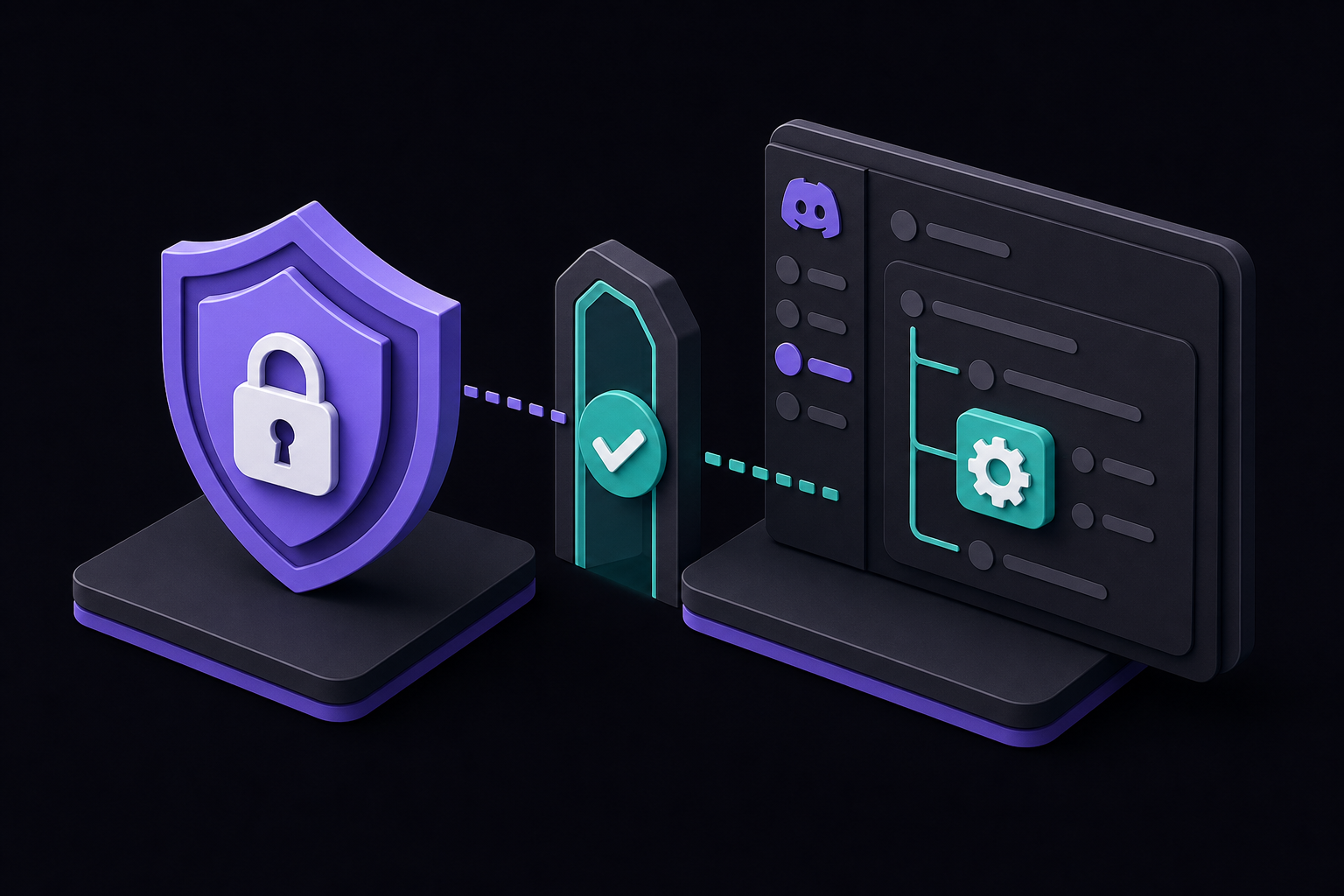
This guide covers how to connect Hermes Agent to Discord, from creating a bot in the Discord Developer Portal through configuring fail-closed access policies, testing threads and forum channels, and verifying end-to-end delivery. It is for developers and team leads who want a group-accessible AI agent in their server, whether self-hosted or managed through FlyHermes.
What You Need
Before you begin, confirm you have the following:
- A Discord account with permission to create applications in the Discord Developer Portal.
- A Hermes Agent instance running locally, on a VPS, or via Docker. The guide assumes you have a working Hermes gateway profile.
- The
hermesCLI installed and accessible from your terminal. - Access to the Hermes Web UI dashboard (typically at the address where your gateway is running).
- A test Discord server where you can invite the bot. Do not use a production server for initial setup.
- A provider key (e.g., OpenAI, Anthropic) configured in your Hermes profile so the agent can generate replies.
If you do not want to manage a VPS, Docker, provider keys, or gateway restarts, consider FlyHermes managed cloud channels. The official documentation states that FlyHermes includes API costs and no gateway maintenance, making it suitable for teams that want managed Discord or mobile access without operating the infrastructure.
Concepts: How Hermes Agent Connects to Discord
Hermes Agent uses a gateway process that listens for incoming Discord events and routes them to the agent profile. The gateway must run continuously for the bot to respond. The official documentation emphasizes that "the always-present part is the catch: the gateway must run continuously." Teams that do not want to babysit a server run the Discord gateway on a managed host so it stays online through restarts and updates.
Fail-Closed Access Policy
A critical concept is that Hermes uses a fail-closed authorization model. An online Discord bot can still deny every inbound message unless you explicitly configure at least one access policy. According to the official documentation, you must configure DISCORD_ALLOWED_USERS, DISCORD_ALLOWED_ROLES, or DISCORD_ALLOWED_CHANNELS before expecting the bot to accept inbound messages. There is also an explicit allow-all flag, but the documentation recommends starting with the smallest access policy.
Bot Intents
Discord requires two intents for the bot to function properly:
- Server Members Intent: Allows the bot to see server members and their roles. This is needed for role-based access policies.
- Message Content Intent: Allows the bot to read the text content of messages. The official documentation advises enabling this only when ordinary channel text is needed. If you use only slash commands or app mentions, you may not need it.
Thread and Forum Channel Support
Hermes Agent can operate in Discord threads and forum channels, but thread behavior depends on bot permissions and gateway configuration. The documentation recommends testing a normal channel first, then a private thread, before using the bot in a live community forum. Gateway configuration includes settings like group_sessions_per_user for per-user shared-channel isolation, thread_require_mention for multi-bot threads, and history_backfill for mention-gated context.
Setup Path: Step by Step
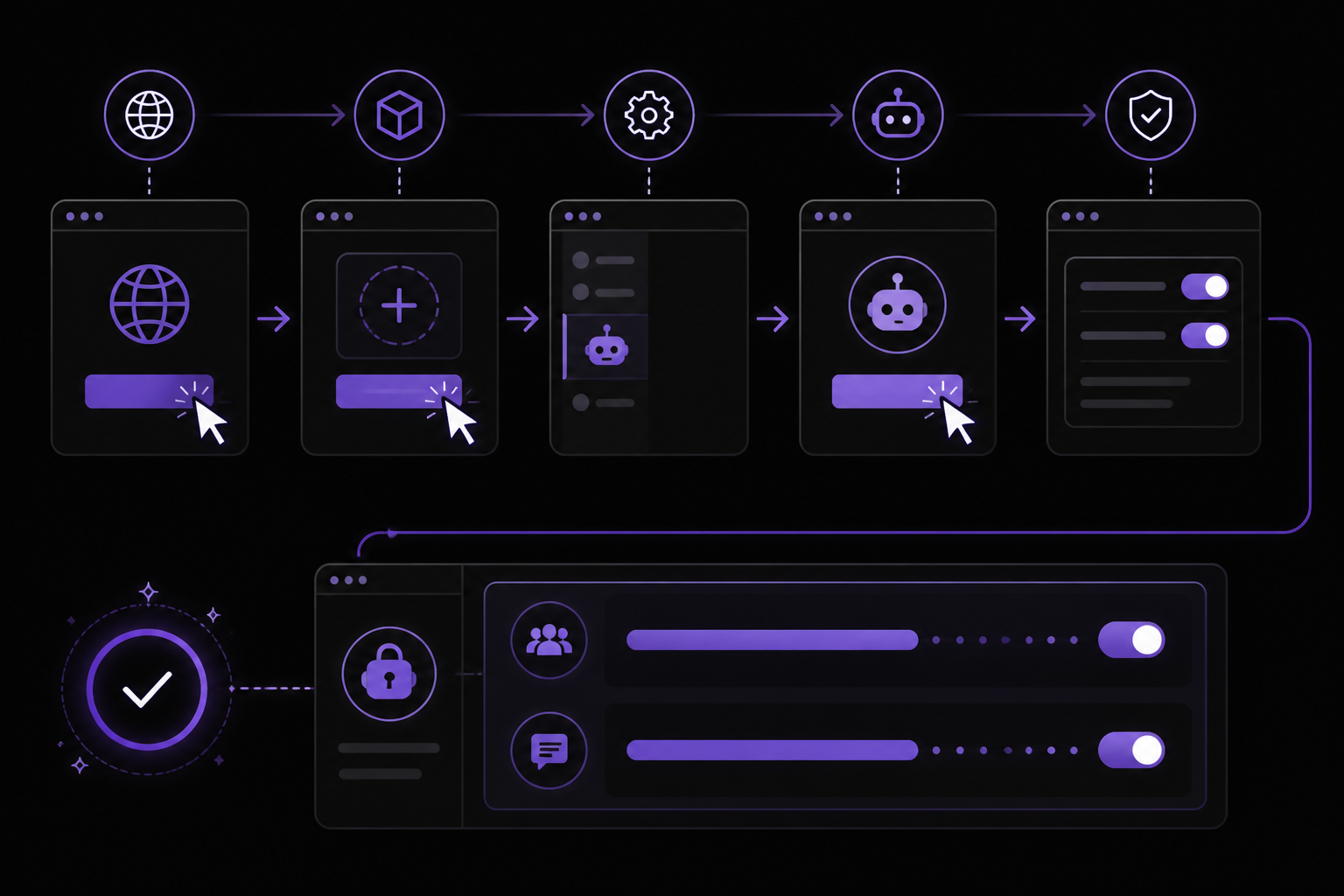
Step 1: Create a Discord Application and Bot
- Go to the Discord Developer Portal (https://discord.com/developers/applications).
- Click "New Application" and give it a name. This name will be visible to users.
- Navigate to the "Bot" section on the left sidebar.
- Click "Add Bot" and confirm.
- Under the "Privileged Gateway Intents" section, enable Server Members Intent and Message Content Intent. The official documentation says to enable Message Content Intent only when needed, but for most workflows you will need it eventually. Start with it enabled for testing, then disable it later if you rely only on slash commands.
- Copy the bot token. The documentation warns: "keep bot tokens in the active profile environment, not in committed compose files." Never commit the token into Docker Compose files or screenshots.
Step 2: Invite the Bot to a Test Server
- In the Discord Developer Portal, go to the "OAuth2" > "URL Generator" section.
- Under "Scopes", select
botandapplications.commands. Theapplications.commandsscope is required for slash commands to work. - Under "Bot Permissions", choose the smallest permission surface. The official documentation recommends starting with permissions that allow the bot to read messages, send messages, and use slash commands. For a test channel, you can select:
- Send Messages
- Read Message History
- Use Slash Commands
- (Add more only as needed)
- Copy the generated URL and open it in a browser. Select your test server and authorize the bot.
- Create a private text channel in that server for testing. The documentation says: "Do not start by dropping the bot into a live server. Build a private test channel, prove one mention or slash command, then expand."
Step 3: Configure the Bot Token in Hermes
-
Open your Hermes gateway profile configuration. The exact location depends on your setup (typically a
.envfile or profile directory). -
Add the bot token as an environment variable. The documentation does not specify the exact variable name, but based on the access policy names, it is likely
DISCORD_BOT_TOKENor similar. Check your Hermes profile documentation for the exact key. -
Configure at least one fail-closed access policy. You can set:
DISCORD_ALLOWED_USERS: A comma-separated list of Discord user IDs that are allowed to interact with the bot.DISCORD_ALLOWED_ROLES: A comma-separated list of role IDs that are allowed.DISCORD_ALLOWED_CHANNELS: A comma-separated list of channel IDs where the bot will respond.
The official documentation states: "Current Hermes requires DISCORD_ALLOWED_USERS, DISCORD_ALLOWED_ROLES, DISCORD_ALLOWED_CHANNELS, or an explicit allow-all flag." For initial testing, set
DISCORD_ALLOWED_CHANNELSto the ID of your private test channel. -
Save the configuration file.
Step 4: Run Gateway Setup and Restart
- Run the command
hermes gateway setupin your terminal. This command initializes or updates the gateway configuration for the Discord platform. - Restart the gateway process. The documentation emphasizes: "After a Hermes update, fully restart the gateway process instead of only resetting the chat session; stale gateway processes can keep old adapter code in memory." Use
hermes gateway restartor stop and start the Docker container.
Step 5: Verify End to End
The official documentation provides a verification checklist:
- Run
hermes gateway statusand confirm that Discord is listed as connected. - Open the Hermes Web UI dashboard and check the gateway and platform health indicators.
- Send one mention (e.g.,
@YourBot hello) or a slash command (e.g.,/ask) in the test channel and confirm you receive a reply. - If the bot does not reply, inspect recent agent and gateway logs. The documentation says: "Inspect recent agent/gateway logs if Discord receives the message but Hermes does not answer."
- If you are running on a VPS or Docker, confirm that the running process sees the same profile and environment file as the CLI smoke test. The documentation warns: "If it runs in Docker or on a VPS, confirm the service can read the same token and config as your local test."
Step 6: Expand to Threads, Forums, and Production
Only after the test channel works should you add support threads, cron alerts, GitHub or CI notifications, or community moderation workflows. The documentation says: "Keep the first proof tiny: one bot, one private channel, one active Hermes profile, one provider route, and one real mention or slash command. Only then add support forums, public channels, cron alerts, or team workflows."
Discord Setup Decisions That Affect Reliability
The official documentation notes that "Discord has more permission surfaces than Telegram: server roles, channel overrides, slash-command scopes, thread behavior, message-content intent, and gateway process state." Here are the key decisions to make:
Start with One Test Server and One Private Channel
Do not invite the bot to a large server initially. Use a private channel in a test server. This limits the number of variables if something goes wrong.
Prefer Slash Commands or App Mentions
If you do not need the bot to read free-form channel text, use slash commands or app mentions. This reduces the need for Message Content Intent and narrows the attack surface. The documentation says: "Prefer slash commands or app mentions when you do not need free-form message reading."
Use a Dedicated Hermes Profile
Create a separate Hermes profile for the Discord bot. The documentation explains: "Use a dedicated Hermes profile for community bots so memory, skills, env vars, and tool access are scoped." This prevents the Discord bot from accessing tools or memory intended for other use cases.
Keep Bot Tokens Secure
Never commit bot tokens into Docker Compose files or share them in screenshots. Store them in the active profile environment or use a secrets manager.
Copy-Paste Verification Checklist
Use this checklist after every configuration change:
- Run
hermes gateway statusand confirm Discord is connected. - Open the Hermes Web UI dashboard and check gateway and platform health.
- Send one mention or slash command in the test channel and confirm a reply.
- Inspect recent agent and gateway logs if Discord receives the message but Hermes does not answer.
- If a VPS or Docker service is involved, confirm the running process sees the same profile and env file as the CLI smoke test.
Discord Verification Matrix
The official documentation provides a layered verification approach:
Provider Layer
Run one CLI turn from the same profile. Fix credits, API keys, fallback routing, or rate limits first. The documentation says: "Provider-vs-Discord failure split so teams do not rotate bot tokens when credits or rate limits are the real blocker." If the provider is out of credits or hitting rate limits, the bot will appear online but not reply.
Gateway Layer
Run hermes gateway status, inspect the Web UI gateway and platform health, and restart after config changes. The Web UI dashboard is a checkpoint, but the documentation warns: "Dashboard health is not Discord proof. Use Web UI for logs/profile/provider/gateway state, then verify one real Discord DM, channel, thread, or forum-topic reply."
Discord Layer
Test app mention or slash command, Message Content Intent, channel allowlist, role permissions, and thread or forum permissions. Each of these can independently block replies.
Production Proof
Send one message in the exact channel, thread, or forum post that will receive real work. The documentation emphasizes: "A green process status is not the same as a working Discord agent. Verify each layer separately so setup work does not turn into random token rotation."
Common Setup Issues
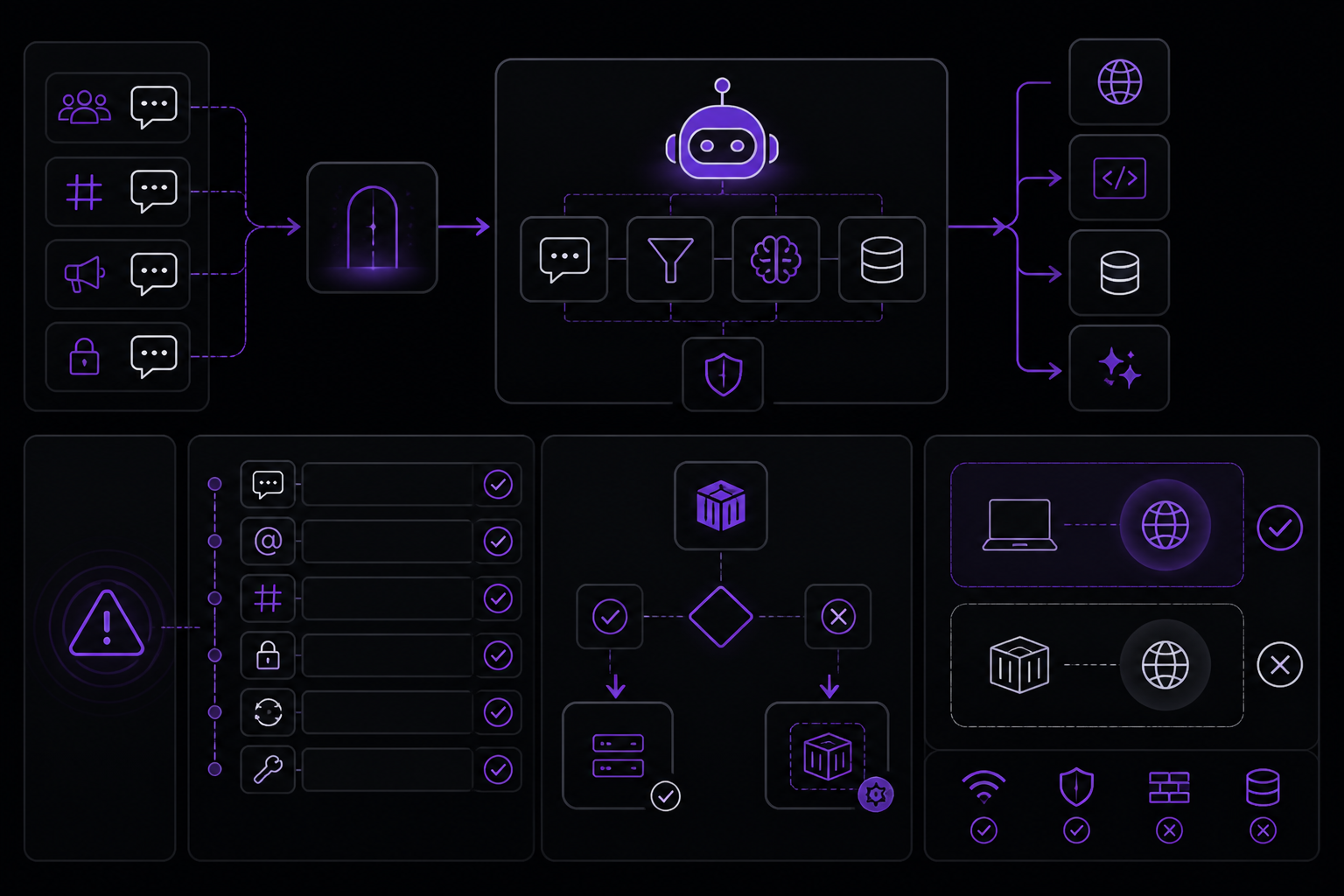
The official documentation lists several common issues and their solutions:
Bot Online but Not Responding
Check these items in order:
- Message Content Intent is enabled (if you need to read channel text).
- App mention policy allows the bot to be mentioned.
- Channel allowlists include the channel you are testing in.
- Server and channel permissions allow the bot to read messages and send messages.
- The gateway was restarted after config changes.
- The active Hermes profile has the correct token and provider key.
Works Locally but Fails in Docker or VPS
Verify that the container or service has the same Discord token, profile path, .env values, and working directory as your local smoke test. The documentation says: "If it runs in Docker or on a VPS, confirm the service can read the same token and config as your local test."
Thread or Forum Replies Fail
Test one normal channel first, then one private thread, then inspect gateway logs for message_thread_id or thread permission errors. The documentation notes that thread behavior depends on bot permissions and gateway configuration.
Unauthorized Users Trigger Reactions or Threads
Narrow role and channel permissions, and split the Discord bot into a dedicated Hermes profile with fewer tools. The documentation says: "Narrow role/channel permissions and split the Discord bot into a dedicated Hermes profile with fewer tools."
After a Hermes Update
Fully restart the gateway process instead of only resetting the chat session. Stale gateway processes can keep old adapter code in memory.
Dashboard Says Connected but Discord Is Silent
This is the most common pitfall. The Web UI only proves one checkpoint. The documentation provides this checklist:
- Send a real message in the exact Discord channel or thread.
- Check Message Content Intent.
- Check app mention policy.
- Check channel allowlists.
- Check profile path.
- Check provider credits.
- Check stale gateway process state.
- Do not regenerate the bot token until you have checked all of the above.
Thread and Forum Channel Configuration
Hermes Agent supports threads and forum channels, but they require additional configuration. The documentation mentions these gateway settings:
group_sessions_per_user: Controls per-user shared-channel isolation. When enabled, each user in a shared channel gets their own session, preventing context leakage between users.thread_require_mention: For multi-bot threads, this setting requires the bot to be mentioned before it responds. This prevents the bot from replying to every message in a thread.history_backfill: For mention-gated context, this setting controls how much message history is provided to the agent when it is mentioned.
To test threads:
- Ensure the bot has permission to read and send messages in threads. In Discord, this is a separate permission under "Channel Permissions".
- Create a private thread in your test channel.
- Mention the bot or use a slash command inside the thread.
- If the bot does not respond, check gateway logs for thread-related errors.
The documentation says: "Test a normal channel first, then a private thread, before using the bot in a live community forum."
Managed Discord Agent Path: Self-Hosted vs. FlyHermes
The official documentation provides a decision framework:
Self-Hosted Hermes
Choose self-hosting when:
- You want full control over profiles, tools, secrets, gateway logs, Docker, and VPS uptime.
- You need local tool access and runtime control.
- You are comfortable with gateway restarts and maintenance.
FlyHermes Managed Cloud
Choose FlyHermes when:
- The business outcome is a reliable Discord or mobile agent.
- You do not want to operate the gateway stack (VPS, Docker, provider keys, gateway restarts).
- Uptime, connected channels, browser or mobile access, and provider operations matter more than maintaining servers.
The documentation says: "Use the pricing page as the decision point after one local proof-of-concept works."
FAQ
How do I add Hermes Agent to Discord?
Create a Discord app and bot, choose narrow scopes, enable Message Content Intent only if you need normal channel text, invite the bot to one test channel, put the token in the active Hermes gateway profile, restart the gateway, then verify one mention or slash command.
Why is my Hermes Discord bot online but not responding?
Check Message Content Intent, channel permissions, app mention policy, channel allowlists, gateway restart state, and the active Hermes profile. If it runs in Docker or on a VPS, confirm the service can read the same token and config as your local test.
Does Hermes Agent need Discord administrator permissions?
Usually no. Start with the smallest permission set that allows the target workflow: app mentions, slash commands, reading selected channels, and posting replies. Expand only after the test channel works.
Can Hermes Agent run in Discord threads and forum channels?
Yes, but thread behavior depends on bot permissions and gateway configuration. Test a normal channel first, then a private thread, before using the bot in a live community forum.
Should I self-host the Discord bot or use FlyHermes?
Self-host when you want full control over profiles, tools, tokens, VPS, Docker, logs, and restarts. Use FlyHermes when the business need is managed Discord or mobile access without operating the gateway stack yourself.
How do I set up Hermes Agent Discord?
Create a Discord app and bot, invite it to a private test channel with narrow permissions, configure the token in Hermes, restart the gateway, then verify one mention or slash command before expanding access.
Why is Hermes Discord online but not replying?
Check Message Content Intent, channel permissions, app mention policy, allowlists, the active Hermes profile, and gateway logs. In Docker or VPS setups, also confirm the container can read the same config and token.
What should I test before inviting Hermes into a real Discord server?
Test one CLI turn from the same profile, restart the gateway, check Web UI and gateway status, then send one mention or slash command in a private Discord channel. After that works, test the exact thread or forum channel that will receive production traffic.
How does Discord fit a Claude Code alternative workflow?
Discord is the delivery layer when the agent work should reach a phone, team channel, support thread, or scheduled report instead of staying inside a terminal. Use Hermes Web UI to inspect gateway health, then verify a real Discord reply.
Troubleshooting
Bot Token Not Working
If the bot token is rejected, verify that:
- You copied the correct token from the Discord Developer Portal.
- The token is set in the active Hermes profile environment.
- The gateway was restarted after adding the token.
- The token has not been regenerated in the Developer Portal (regenerating invalidates the old token).
Slash Commands Not Appearing
Slash commands may take up to an hour to propagate after the bot joins a server. To force an update, you can remove and re-invite the bot with the applications.commands scope. The documentation says: "Choose the smallest permission surface: slash commands/app mentions first." Ensure the applications.commands scope was included in the invite URL.
Gateway Process Crashes
If the gateway process crashes after adding Discord configuration, check:
- The bot token is valid and not expired.
- The access policy variables are correctly formatted (e.g., comma-separated IDs without spaces).
- The Hermes version is up to date. The documentation references v0.16 for dashboard and admin checks.
Rate Limiting
Discord enforces rate limits on bot API calls. If the agent is responding slowly or not at all, check gateway logs for 429 (Too Many Requests) errors. The documentation says: "Provider-vs-Discord failure split so teams do not rotate bot tokens when credits or rate limits are the real blocker." Rate limits can come from Discord or from the AI provider.
Going Further
After your Discord bot is working in a test channel, the official documentation suggests these next steps:
- Add support threads and forum channels: Configure
group_sessions_per_user,thread_require_mention, andhistory_backfillfor thread-aware workflows. - Set up cron alerts, GitHub or CI notifications: Use Hermes cron and webhook features to deliver alerts to your Discord operations room.
- Explore the Hermes Web UI dashboard: Use it to inspect gateway logs, provider state, and profile configuration without touching the CLI.
- Compare self-hosted vs. FlyHermes pricing: After one local proof-of-concept works, use the pricing page to decide whether to migrate to managed cloud.
- Review the Hermes Docker Compose guide: If you choose self-hosting, use Docker Compose to run the gateway as a long-running service.
- Check the full Hermes Agent Discord setup guide: The official documentation references a complete setup guide for the Developer Portal, bot token, intents, gateway, and troubleshooting sequence.
- Connect Discord to Hermes checklist: A short setup checklist for the Discord gateway path is available.
The documentation also mentions that Discord is frequently described as the best way for a group to work with a Hermes agent, with multiple people in one channel, threads for separate tasks, and the agent always present. Teams that want this capability without server maintenance should evaluate FlyHermes.
The #1 AI Newsletter
The most important ai updates, guides, and fixes — one weekly email.
No spam, unsubscribe anytime. Privacy policy