
Hermes Agent Complete Documentation Guide: Setup, CLI, Features, and Integrations
What This Guide Covers and Who It Is For
This guide is a comprehensive walkthrough of Hermes Agent, the open-source AI agent from Nous Research that lives in your terminal. It covers everything from installation and provider setup to the full CLI interface, slash commands, session management, background tasks, the Tool Gateway, and integrations with messaging platforms, MCP servers, and external memory backends. It is written for developers, system administrators, and power users who want a single source of truth for getting Hermes working and keeping it that way.
What You Need
Before you begin, you need a machine running Linux, macOS, Windows (native or WSL2), or Android via Termux. The only manual prerequisite is Git. On Linux, also make sure curl and xz-utils are installed (sudo apt install curl xz-utils on Debian/Ubuntu). For the desktop app, additionally install build-essential (sudo apt install build-essential). The installer handles everything else: Python 3.11 (via uv), Node.js v22, ripgrep, and ffmpeg. You do not need to install these manually. A model with at least 64,000 tokens of context is required; most hosted models (Claude, GPT, Gemini, Qwen, DeepSeek) meet this easily. If you are running a local model, set its context size to at least 64K (e.g. --ctx-size 65536 for llama.cpp or -c 65536 for Ollama).
Installation
Quick Install (Recommended)
The fastest path is the Hermes Desktop installer for macOS or Windows, downloadable from the Hermes Agent website. For a command-line-only install, run one of these:
Linux / macOS / WSL2 / Android (Termux)
curl -fsSL https://hermes-agent.nousresearch.com/install.sh | bash
Windows (native)
iex (irm https://hermes-agent.nousresearch.com/install.ps1)
After the installer finishes, reload your shell:
source ~/.bashrc # or source ~/.zshrc
What the Installer Does
The installer clones the repository, sets up a Python virtual environment using uv, installs all dependencies, creates a hermes symlink in ~/.local/bin/hermes, and places data in ~/.hermes/. If run as root (via sudo curl ... | sudo bash), the code goes to /usr/local/lib/hermes-agent/ and the binary to /usr/local/bin/hermes, while per-user config still lives under each user's ~/.hermes/ or explicit HERMES_HOME.
Manual / Developer Installation
If you want to clone the repo and install from source for contributing or running from a specific branch, see the Development Setup section in the Contributing guide. Nix users have a dedicated setup path with a Nix flake and declarative NixOS module, though Nix is best-effort only.
Provider Setup
The single most important setup step is choosing an inference provider. Use hermes model to walk through the choice interactively:
hermes model
Fastest Path: Nous Portal
One subscription covers 300+ models plus the Tool Gateway (web search, image generation, TTS, cloud browser). On a fresh install:
hermes setup --portal
That logs you in, sets Nous as your provider, and turns on the Tool Gateway in one command.
Setup Modes
On a fresh install, hermes setup offers three modes:
- Quick Setup (Nous Portal) -- free OAuth login, no API keys; sets up a model plus the Tool Gateway tools.
- Full Setup -- walk through every provider, tool, and option yourself (bring your own keys).
- Blank Slate -- everything starts off except the bare minimum: provider & model, File Operations toolset, and Terminal toolset. No web, browser, code execution, vision, memory, delegation, cron, skills, plugins, or MCP servers. Compression, checkpoints, smart routing, and memory capture are all disabled. After the minimal baseline, you choose to finish with everything disabled or walk through all configurations. Blank Slate writes an explicit
platform_toolsets.clilist plusagent.disabled_toolsets, so nothing you did not choose ever loads, even afterhermes update.
Supported Providers (Partial List)
| Provider | Setup Method |
|---|---|
| Nous Portal | hermes model (OAuth, subscription-based) |
| OpenAI Codex | hermes model (ChatGPT OAuth) |
| GitHub Copilot | hermes model (OAuth device code flow) |
| Anthropic | hermes model (Claude Max + extra usage credits via OAuth; also supports API key) |
| OpenRouter | OPENROUTER_API_KEY in ~/.hermes/.env |
| Fireworks AI | FIREWORKS_API_KEY in ~/.hermes/.env |
| NovitaAI | NOVITA_API_KEY in ~/.hermes/.env |
| z.ai / GLM | GLM_API_KEY in ~/.hermes/.env |
| Kimi / Moonshot | KIMI_API_KEY in ~/.hermes/.env |
| DeepSeek | DEEPSEEK_API_KEY in ~/.hermes/.env |
| xAI (Grok) | XAI_API_KEY in ~/.hermes/.env |
| xAI Grok OAuth | hermes model (SuperGrok / Premium+ subscription) |
| Qwen Cloud (Alibaba DashScope) | DASHSCOPE_API_KEY in ~/.hermes/.env |
| AWS Bedrock | IAM role or aws configure |
| Google AI Studio | GOOGLE_API_KEY / GEMINI_API_KEY |
| Custom Endpoint | Set base URL + API key |
For the full provider catalog with env vars and setup steps, see the AI Providers page.
How Settings Are Stored
Hermes separates secrets from normal config:
- Secrets and tokens go to
~/.hermes/.env - Non-secret settings go to
~/.hermes/config.yaml
The easiest way to set values correctly is through the CLI:
hermes config set model anthropic/claude-opus-4.6
hermes config set terminal.backend docker
hermes config set OPENROUTER_API_KEY sk-or-...
The right value goes to the right file automatically.
Running Your First Chat
hermes          # classic CLI
hermes --tui    # modern TUI (recommended)
You will see a welcome banner with your model, available tools, and skills. Try a prompt that is specific and easy to verify:
Summarize this repo in 5 bullets and tell me what the main entrypoint is.
What success looks like:
- The banner shows your chosen model/provider
- Hermes replies without error
- It can use a tool if needed (terminal, file read, web search)
- The conversation continues normally for more than one turn
Verify Sessions Work
Before moving on, make sure resume works:
hermes --continue   # Resume the most recent session
hermes -c           # Short form
CLI Interface
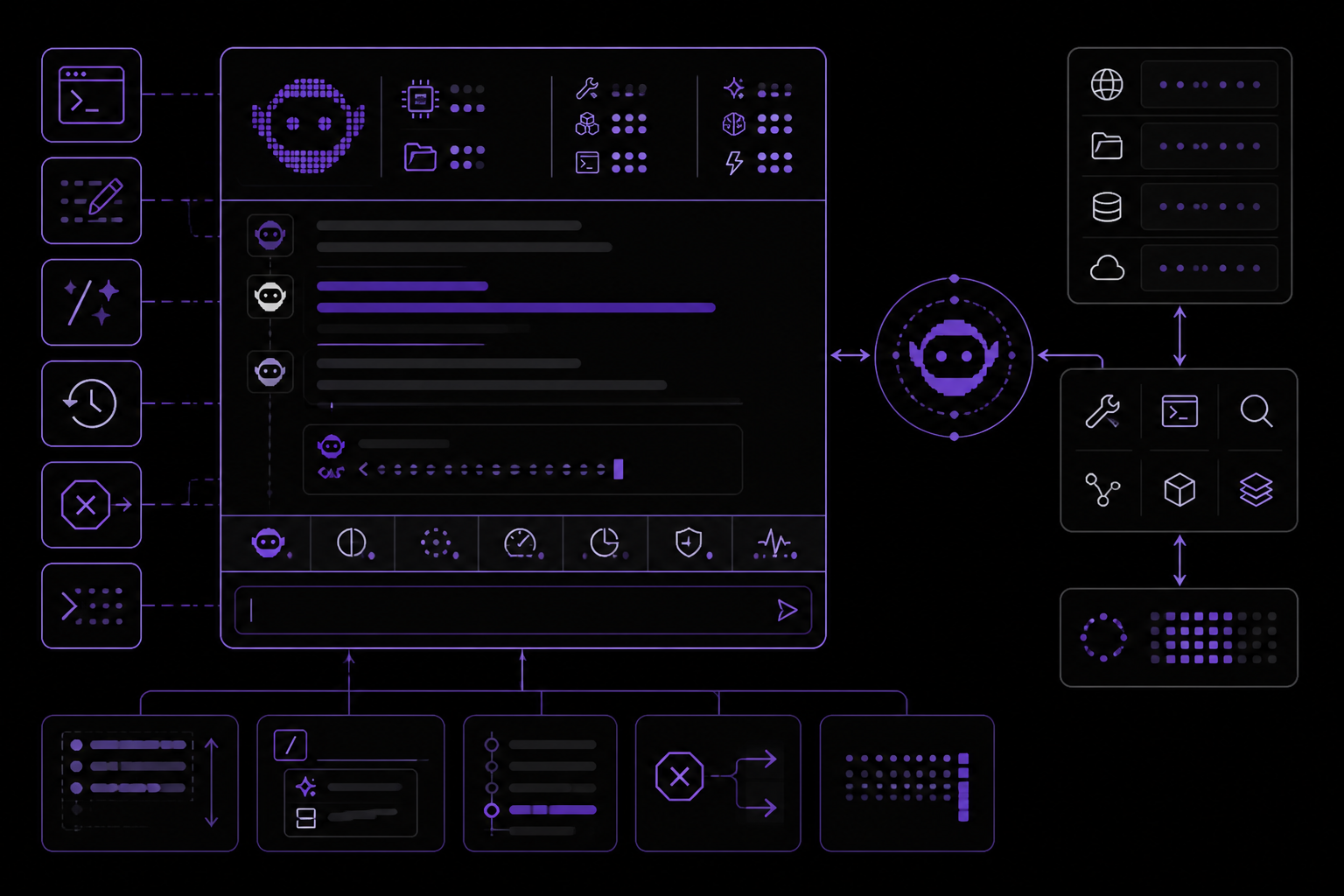
Hermes Agent's CLI is a full terminal user interface (TUI) -- not a web UI. It features multiline editing, slash-command autocomplete, conversation history, interrupt-and-redirect, and streaming tool output.
Running the CLI
# Start an interactive session (default)
hermes

# Single query mode (non-interactive)
hermes chat -q "Hello"

# With a specific model
hermes chat --model "anthropic/claude-sonnet-4"

# With a specific provider
hermes chat --provider nous

# Use Nous Portal
hermes chat --provider openrouter   # Force OpenRouter

# With specific toolsets
hermes chat --toolsets "web,terminal,skills"

# Start with one or more skills preloaded
hermes -s hermes-agent-dev,github-auth
hermes chat -s github-pr-workflow -q "open a draft PR"

# Resume previous sessions
hermes --continue                    # Resume the most recent CLI session (-c)
hermes --resume session_id           # Resume a specific session by ID (-r)

# Verbose mode (debug output)
hermes chat --verbose

# Isolated git worktree (for running multiple agents in parallel)
hermes -w                            # Interactive mode in worktree
hermes -w -z "Fix issue #123"        # Single query in worktree
Interface Layout
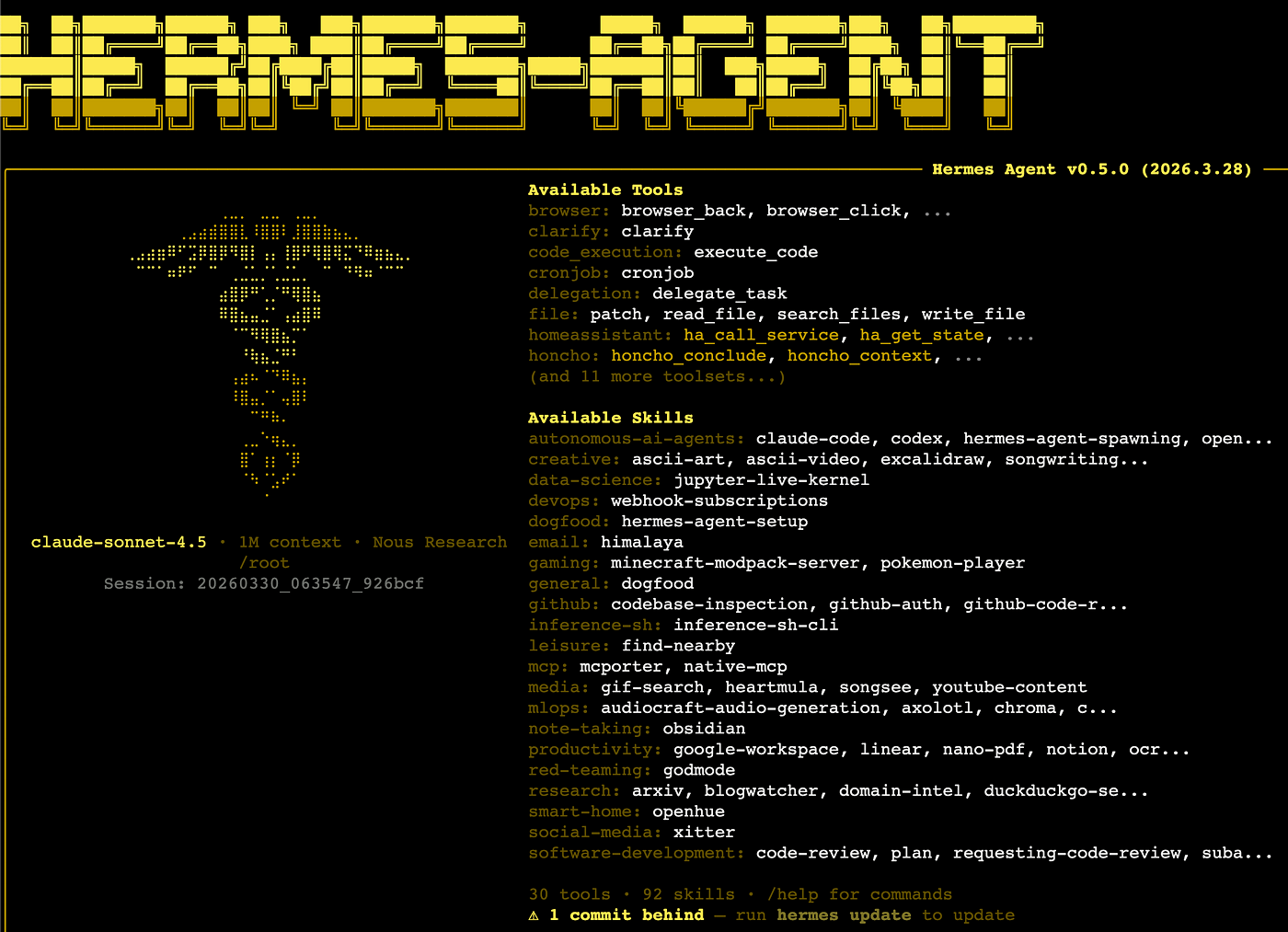
The Hermes CLI shows a welcome banner with your model, terminal backend, working directory, available tools, and installed skills at a glance.
Status Bar
A persistent status bar sits above the input area, updating in real time:
⚕ claude-sonnet-4-20250514 │ 12.4K/200K │ [██████░░░░] 6% │ $0.06 │ 15m
| Element | Description |
|---|---|
| Model name | Current model (truncated if longer than 26 chars) |
| Token count | Context tokens used / max context window |
| Context bar | Visual fill indicator with color-coded thresholds |
| Cost | Estimated session cost (or n/a for unknown/zero-priced models) |
| 🗜️ N | Context compression count -- how many times the running session has been auto-compressed. Appears once the first compression fires. |
| ▶ N | Active background tasks -- how many /background prompts are still running. Appears whenever at least one task is in flight. |
| Duration | Elapsed session time |
| ⚠ YOLO | YOLO mode warning -- shown whenever HERMES_YOLO_MODE is on. |
The bar adapts to terminal width: full layout at >= 76 columns, compact at 52-75, minimal (model + duration, plus YOLO badge when active) below 52.
Context color coding:
- Green (< 50%): Plenty of room
- Yellow (50-80%): Getting full
- Orange (80-95%): Approaching limit
- Red (>= 95%): Near overflow -- consider
/compress
Use /usage for a detailed breakdown including per-category costs (input vs output tokens). On the openai-codex provider, /usage also shows any banked usage-limit resets on your ChatGPT account ("You have N resets banked - use /usage reset to activate"). /usage reset redeems one banked reset, fully restoring your 5-hour and weekly limits. Hermes refuses to redeem while your limits are not exhausted (a banked reset restores the full allowance, so spending it early wastes it) -- pass /usage reset --force to redeem anyway.
Session Resume Display
When resuming a previous session (hermes -c or hermes --resume <id>), a "Previous Conversation" panel appears between the banner and the input prompt, showing a compact recap of the conversation history.
Keybindings
| Key | Action |
|---|---|
Enter | Send message |
Alt+Enter, Ctrl+J, or Shift+Enter | New line (multi-line input). Shift+Enter requires a terminal that distinguishes it from Enter. On Windows Terminal, Alt+Enter is captured by the terminal (fullscreen toggle); use Ctrl+Enter or Ctrl+J instead. |
Alt+V | Paste an image from the clipboard when supported by the terminal |
Ctrl+V | Paste text and opportunistically attach clipboard images |
Ctrl+B | Start/stop voice recording when voice mode is enabled (voice.record_key, default: ctrl+b) |
Ctrl+G | Open the current input buffer in $EDITOR (vim/nvim/nano/VS Code/etc.). Save and quit to send the edited text as the next prompt. |
Ctrl+X Ctrl+E | Emacs-style alternate binding for the external editor (same behavior as Ctrl+G). |
Ctrl+C | Interrupt agent (double-press within 2s to force exit) |
Ctrl+D | Exit |
Ctrl+Z | Suspend Hermes to background (Unix only). Run fg in the shell to resume. |
Tab | Accept auto-suggestion (ghost text) or autocomplete slash commands |
Multiline paste preview: When you paste a multi-line block, the CLI echoes a compact single-line preview ([pasted: 47 lines, 1,842 chars -- press Enter to send]) instead of dumping the whole payload into the scrollback. The full content is still what gets sent; this is just display polish.
Markdown stripping in final responses: The CLI strips the most verbose markdown fences and **bold** / *italic* wrappers from final agent replies so they render as readable terminal prose rather than raw source. Code blocks and lists are preserved. This does not affect gateway platforms or tool results -- they keep their markdown for native rendering.
Slash Commands
Type / to see the autocomplete dropdown. Hermes supports a large set of CLI slash commands, dynamic skill commands, and user-defined quick commands. Common examples:
| Command | Description |
|---|---|
/help | Show command help |
/model | Show or change the current model |
/tools | List currently available tools |
/skills browse | Browse the skills hub and official optional skills |
/background <prompt> | Run a prompt in a separate background session |
/skin | Show or switch the active CLI skin |
/voice on | Enable CLI voice mode (press Ctrl+B to record) |
/voice tts | Toggle spoken playback for Hermes replies |
/reasoning high | Increase reasoning effort |
/title My Session | Name the current session |
/status | Show session info -- model/profile/tokens/duration -- followed by a local Session recap block. Pure local compute; no LLM call. |
/sessions | Open an interactive session picker right inside the classic CLI. |
Commands are case-insensitive -- /HELP works the same as /help. Installed skills also become slash commands automatically.
Quick Commands
You can define custom commands that run shell commands instantly without invoking the LLM. These work in both the CLI and messaging platforms (Telegram, Discord, etc.).
# ~/.hermes/config.yaml
quick_commands:
  status:
    type: exec
    command: systemctl status hermes-agent
  gpu:
    type: exec
    command: nvidia-smi --query-gpu=utilization.gpu,memory.used --format=csv,noheader
  restart:
    type: alias
    target: /gateway restart
Then type /status, /gpu, or /restart in any chat.
Preloading Skills at Launch
If you already know which skills you want active for the session, pass them at launch time:
hermes -s hermes-agent-dev,github-auth
hermes chat -s github-pr-workflow -s github-auth
Hermes loads each named skill into the session prompt before the first turn. The same flag works in interactive mode and single-query mode.
Skill Slash Commands
Every installed skill in ~/.hermes/skills/ is automatically registered as a slash command. The skill name becomes the command:
/gif-search funny cats
/axolotl help me fine-tune Llama 3 on my dataset
/github-pr-workflow create a PR for the auth refactor
Just the skill name loads it and lets the agent ask what you need:
/excalidraw
Personalities
Set a predefined personality to change the agent's tone:
/personality pirate
/personality kawaii
/personality concise
Built-in personalities include: helpful, concise, technical, creative, teacher, kawaii, catgirl, pirate, shakespeare, surfer, noir, uwu, philosopher, hype. You can also define custom personalities in ~/.hermes/config.yaml:
personalities:
  helpful: "You are a helpful, friendly AI assistant."
  kawaii: "You are a kawaii assistant! Use cute expressions..."
  pirate: "Arrr! Ye be talkin' to Captain Hermes..."
  # Add your own!
Multi-line Input
There are two ways to enter multi-line messages:
Alt+Enter,Ctrl+J, orShift+Enter-- inserts a new line- Backslash continuation -- end a line with
\to continue:
❯ Write a function that:\
1. Takes a list of numbers\
2. Returns the sum
Pasting multi-line text is supported -- use any of the newline keys above, or simply paste content directly.
Shift+Enter compatibility: Most terminals send the same byte sequence for Enter and Shift+Enter by default, so applications cannot distinguish them. Hermes recognises Shift+Enter only when the terminal sends a distinct sequence via the Kitty keyboard protocol or xterm's modifyOtherKeys mode.
| Terminal | Status |
|---|---|
| Kitty, foot, WezTerm, Ghostty | Distinct Shift+Enter enabled by default |
| iTerm2 (recent), Alacritty, VS Code terminal, Warp | Supported once the Kitty protocol is enabled in settings |
| Windows Terminal Preview 1.25+ | Supported once the Kitty protocol is enabled in settings |
| macOS Terminal.app, stock Windows Terminal (stable) | Not supported -- Shift+Enter is indistinguishable from Enter |
Where the terminal cannot distinguish them, Alt+Enter and Ctrl+J continue to work everywhere. On Windows Terminal specifically, Alt+Enter is captured by the terminal (toggles fullscreen) and never reaches Hermes -- use Ctrl+Enter (delivered as Ctrl+J) or Ctrl+J directly for a newline.
Redirecting the Agent Mid-Turn
While the agent is working, you can send a correction without starting a new turn:
- Type a new message + Enter -- redirects the active turn using your correction
Ctrl+C-- interrupt the current operation (press twice within 2s to force exit)- Completed tool work and reasoning already shown stay in context
- A running tool reaches its safe boundary before the correction is applied
Busy Input Mode: The display.busy_input_mode config key controls what happens when you press Enter while the agent is working:
| Mode | Behavior |
|---|---|
"interrupt" (default) | Your message redirects the active turn. Model generation restarts with displayed reasoning and completed work preserved; running tools finish first |
"queue" | Your message is silently queued and sent as the next turn after the agent finishes |
"steer" | Your message is injected into the current run via /steer, arriving at the agent after the next tool call -- no interrupt, no new turn |
# ~/.hermes/config.yaml
display:
  busy_input_mode: "steer"   # or "queue" or "interrupt" (default)
"queue" mode prepares a separate follow-up turn. "steer" always waits for the next tool-result boundary. The default "interrupt" mode responds sooner during model generation while avoiding cancellation of a running tool. Use /stop when you want to cancel the turn and its foreground work. Unknown values fall back to "interrupt". "steer" has two automatic fallbacks: if the agent has not started yet, or if images are attached, the message falls back to "queue" behavior so nothing is lost.
You can also change it inside the CLI:
/busy queue
/busy steer
/busy interrupt
/busy status
First-touch hint: The first time you press Enter while Hermes is working, Hermes prints a one-line reminder explaining the /busy knob. It only fires once per install; onboarding.seen.busy_input_prompt in config.yaml records that it was shown. Delete that key to see the tip again.
Suspending to Background
On Unix systems, press Ctrl+Z to suspend Hermes to the background -- just like any terminal process. The shell prints a confirmation:
Hermes Agent has been suspended. Run `fg` to bring Hermes Agent back.
Type fg in your shell to resume the session exactly where you left off. This is not supported on Windows.
Tool Progress Display
The CLI shows animated feedback as the agent works:
Thinking animation (during API calls):
◜ (。•́︿•̀。) pondering... (1.2s)
◠ (⊙_⊙) contemplating... (2.4s)
✧٩(ˊᗜˋ*)و✧ got it! (3.1s)
Tool execution feed:
┊ 💻 terminal `ls -la` (0.3s)
┊ 🔍 web_search (1.2s)
┊ 📄 web_extract (2.1s)
Cycle through display modes with /verbose: off -> new -> all -> verbose. This command can also be enabled for messaging platforms.
Tool Preview Length: The display.tool_preview_length config key controls the maximum number of characters shown in tool call preview lines (e.g. file paths, terminal commands). The default is 0, which means no limit -- full paths and commands are shown.
# ~/.hermes/config.yaml
display:
  tool_preview_length: 80   # Truncate tool previews to 80 chars (0 = no limit)
This is useful on narrow terminals or when tool arguments contain very long file paths.
Session Management
Resuming Sessions
When you exit a CLI session, a resume command is printed:
Resume this session with: hermes --resume 20260225_143052_a1b2c3
Session: 20260225_143052_a1b2c3
Duration: 12m 34s
Messages: 28 (5 user, 18 tool calls)
Resume options:
hermes --continue                          # Resume the most recent CLI session
hermes -c                                  # Short form
hermes -c "my project"                     # Resume a named session (latest in lineage)
hermes --resume 20260225_143052_a1b2c3     # Resume a specific session by ID
hermes --resume "refactoring auth"         # Resume by title
hermes -r 20260225_143052_a1b2c3           # Short form
Resuming restores the full conversation history from SQLite. The agent sees all previous messages, tool calls, and responses -- just as if you never left. Use /title My Session Name inside a chat to name the current session, or hermes sessions rename <id> <name> from the command line. Use hermes sessions list to browse past sessions.
Session Storage
CLI sessions are stored in Hermes's SQLite state database under ~/.hermes/state.db. The database keeps:
- session metadata (ID, title, timestamps, token counters)
- message history
- lineage across compressed/resumed sessions
- full-text search indexes used by
session_search
Some messaging adapters also keep per-platform transcript files alongside the database, but the CLI itself resumes from the SQLite session store.
Context Compression
Long conversations are automatically summarized when approaching context limits:
# In ~/.hermes/config.yaml
compression:
  enabled: true
  threshold: 0.50   # Compress at 50% of context limit by default

# Summarization model configured under auxiliary:
auxiliary:
  compression:
    model: ""   # Leave empty to use the main chat model (default). Or pin a cheap fast model, e.g. "google/gemini-3-flash-preview".
When compression triggers, middle turns are summarized while the first 3 and last 20 turns are always preserved.
Background Sessions
Run a prompt in a separate background session while continuing to use the CLI for other work:
/background Analyze the logs in /var/log and summarize any errors from today
Hermes immediately confirms the task and gives you back the prompt:
🔄 Background task #1 started: "Analyze the logs in /var/log and summarize..."
Task ID: bg_143022_a1b2c3
How It Works
Each /background prompt spawns a completely separate agent session in a daemon thread:
- Isolated conversation -- the background agent has no knowledge of your current session's history. It receives only the prompt you provide.
- Same configuration -- the background agent inherits your model, provider, toolsets, reasoning settings, and fallback model from the current session.
- Non-blocking -- your foreground session stays fully interactive. You can chat, run commands, or even start more background tasks.
- Multiple tasks -- you can run several background tasks simultaneously. Each gets a numbered ID.
Results
When a background task finishes, the result appears as a panel in your terminal:
╭─ ⚕ Hermes (background #1) ──────────────────────────────────╮
│ Found 3 errors in syslog from today:                         │
│ 1. OOM killer invoked at 03:22 -- killed process nginx       │
│ 2. Disk I/O error on /dev/sda1 at 07:15                      │
│ 3. Failed SSH login attempts from 192.168.1.50 at 14:30      │
╰──────────────────────────────────────────────────────────────╯
If the task fails, you will see an error notification instead. If display.bell_on_complete is enabled in your config, the terminal bell rings when the task finishes.
Use Cases
- Long-running research -- "/background research the latest developments in quantum error correction" while you work on code
- File processing -- "/background analyze all Python files in this repo and list any security issues" while you continue a conversation
- Parallel investigations -- start multiple background tasks to explore different angles simultaneously
Background sessions do not appear in your main conversation history. They are standalone sessions with their own task ID (e.g., bg_143022_a1b2c3).
Quiet Mode
By default, the CLI runs in quiet mode which:
- Suppresses verbose logging from tools
- Enables kawaii-style animated feedback
- Keeps output clean and user-friendly
For debug output:
hermes chat --verbose
Global CLI Commands Reference
Hermes provides a rich set of terminal commands. The global entrypoint is:
hermes [global-options] <command> [subcommand/options]
Global Options
| Option | Description |
|---|---|
--version, -V | Show version and exit. |
--profile <name>, -p <name> | Select which Hermes profile to use for this invocation. |
--resume <id>, -r <id> | Resume a previous session by ID or title. |
--continue [name], -c [name] | Resume the most recent session, or the most recent session matching a title. |
--worktree, -w | Start in an isolated git worktree for parallel-agent workflows. |
--yolo | Bypass dangerous-command approval prompts. |
--pass-session-id | Include the session ID in the agent's system prompt. |
--ignore-user-config | Ignore ~/.hermes/config.yaml and fall back to built-in defaults. Credentials in .env are still loaded. |
--ignore-rules | Skip auto-injection of AGENTS.md, SOUL.md, .cursorrules, memory, and preloaded skills. |
--tui | Launch the TUI instead of the classic CLI. Equivalent to HERMES_TUI=1. Always wins over display.interface. |
--cli | Force the classic prompt_toolkit REPL. Use this to override display.interface: tui for a single invocation. |
--dev | With --tui: run the TypeScript sources directly via tsx instead of the prebuilt bundle (for TUI contributors). |
Top-Level Commands (Partial List)
| Command | Purpose |
|---|---|
hermes chat | Interactive or one-shot chat with the agent. |
hermes model | Interactively choose the default provider and model. |
hermes moa | Configure named Mixture of Agents presets. |
hermes fallback | Manage fallback providers tried when the primary model errors. |
hermes gateway | Run or manage the messaging gateway service. |
hermes proxy | Local OpenAI-compatible proxy that attaches OAuth provider credentials. |
hermes lsp | Manage Language Server Protocol integration. |
hermes setup | Interactive setup wizard for all or part of the configuration. |
hermes whatsapp | Configure and pair the WhatsApp bridge. |
hermes slack | Slack helpers (currently: generate the app manifest with every command as a native slash). |
hermes auth | Manage credentials -- add, list, remove, reset, status, logout. |
hermes send | Send a one-shot message to a configured messaging platform. |
hermes secrets | Manage external secret sources (currently Bitwarden Secrets Manager). |
hermes migrate | Diagnose and (optionally) rewrite config.yaml to replace references to retired models or deprecated settings. |
hermes status | Show agent, auth, and platform status. |
hermes cron | Inspect and tick the cron scheduler. |
hermes kanban | Multi-profile collaboration board (tasks, links, dispatcher). |
hermes project | Manage named, multi-folder workspaces (projects). |
hermes webhook | Manage dynamic webhook subscriptions for event-driven activation. |
hermes hooks | Inspect, approve, or remove shell-script hooks declared in config.yaml. |
hermes doctor | Diagnose config and dependency issues. |
hermes security audit | On-demand supply-chain audit (OSV.dev) for the venv, plugin requirements, and pinned MCP servers. |
hermes dump | Copy-pasteable setup summary for support/debugging. |
hermes prompt-size | Show a byte breakdown of the system prompt + tool schemas. |
hermes debug | Debug tools -- upload logs and system info for support. |
hermes backup | Back up Hermes home directory to a zip file. |
hermes checkpoints | Inspect / prune / clear ~/.hermes/checkpoints/. |
hermes import | Restore a Hermes backup from a zip file. |
hermes logs | View, tail, and filter agent/gateway/error log files. |
hermes config | Show, edit, migrate, and query configuration files. |
hermes pairing | Approve or revoke messaging pairing codes. |
hermes skills | Browse, install, publish, audit, and configure skills. |
hermes bundles | Group several skills under a single / slash command. |
hermes curator | Background skill maintenance -- status, run, pause, pin. |
hermes memory | Configure external memory provider. |
hermes acp | Run Hermes as an ACP server for editor integration. |
hermes mcp | Manage MCP server configurations and run Hermes as an MCP server. |
hermes plugins | Manage Hermes Agent plugins (install, enable, disable, remove). |
hermes portal | Nous Portal status, subscription link, and Tool Gateway routing. |
hermes tools | Configure enabled tools per platform. |
hermes computer-use | Install or check the cua-driver backend (macOS Computer Use). |
hermes pets | Browse, install, and select petdex animated pets. |
hermes sessions | Browse, export, prune, rename, and delete sessions. |
hermes insights | Show token/cost/activity analytics. |
hermes claw | OpenClaw migration helpers. |
hermes dashboard | Launch the web dashboard for managing config, API keys, and sessions. |
hermes desktop | Build and launch the native Electron desktop app. |
hermes profile | Manage profiles -- multiple isolated Hermes instances. |
hermes completion | Print shell completion scripts (bash/zsh/fish). |
hermes version | Show version information. |
hermes update | Pull latest code and reinstall dependencies. |
hermes uninstall | Remove Hermes from the system. |
hermes chat Options
hermes chat [options]
| Option | Description |
|---|---|
-q, --query "..." | One-shot, non-interactive prompt. |
-m, --model <model> | Override the model for this run. |
-t, --toolsets <toolsets> | Enable a comma-separated set of toolsets. |
--provider <provider> | Force a provider. |
-s, --skills <skills> | Preload one or more skills for the session (can be repeated or comma-separated). |
-v, --verbose | Verbose output. |
-Q, --quiet | Programmatic mode: suppress banner/spinner/tool previews. |
--image <path> | Attach a local image to a single query. |
--resume <id> / --continue [name] | Resume a session directly from chat. |
--worktree | Create an isolated git worktree for this run. |
--checkpoints | Enable filesystem checkpoints before destructive file changes. |
--yolo | Skip approval prompts. |
--pass-session-id | Pass the session ID into the system prompt. |
--ignore-user-config | Ignore ~/.hermes/config.yaml and use built-in defaults. |
--ignore-rules | Skip auto-injection of AGENTS.md, SOUL.md, .cursorrules, persistent memory, and preloaded skills. |
--safe-mode | Troubleshooting mode: disable ALL customizations -- user config, rules/memory injection, plugins, shell hooks, and MCP servers. |
--source <tag> | Session source tag for filtering (default: cli). |
--max-turns <n> | Maximum tool-calling iterations per conversation turn (default: 90, or agent.max_turns in config). |
hermes -z -- Scripted One-Shot
For programmatic callers (shell scripts, CI, cron, parent processes piping in a prompt), hermes -z is the purest one-shot entry point: single prompt in, final response text out, nothing else on stdout or stderr. No banner, no spinner, no tool previews, no Session: line -- just the agent's final reply as plain text.
hermes -z "What's the capital of France?"
# -> Paris.

# Parent scripts can cleanly capture the response:
answer=$(hermes -z "summarize this" /path/to/file.txt)
Per-run overrides (no mutation to ~/.hermes/config.yaml):
| Flag | Equivalent env var | Purpose |
|---|---|---|
-m / --model <model> | HERMES_INFERENCE_MODEL | Override the model for this run |
--provider <provider> | (none) | Override the provider for this run |
hermes -z "..." --provider openrouter --model openai/gpt-5.5
# or:
HERMES_INFERENCE_MODEL=anthropic/claude-sonnet-4.6 hermes -z "..."
Same agent, same tools, same skills -- just strips every interactive / cosmetic layer. If you need tool output in the transcript too, use hermes chat -q instead; -z is explicitly for "I only want the final answer".
hermes model vs /model
hermes model (run from your terminal, outside any Hermes session) is the full provider setup wizard. It can add new providers, run OAuth flows, prompt for API keys, and configure endpoints. /model (typed inside an active Hermes chat session) can only switch between providers and models you have already set up. It cannot add new providers, run OAuth, or prompt for API keys. If you need to add a new provider: Exit your Hermes session first (Ctrl+C or /quit), then run hermes model from your terminal prompt.
/model Slash Command (Mid-Session)
Switch between already-configured models without leaving a session:
/model                               # Show current model and available options
/model claude-sonnet-4               # Switch model (auto-detects provider)
/model zai:glm-5                     # Switch provider and model
/model custom:qwen-2.5               # Use model on your custom endpoint
/model custom                        # Auto-detect model from custom endpoint
/model custom:local:qwen-2.5         # Use a named custom provider
/model openrouter:anthropic/claude-sonnet-4  # Switch back to cloud
By default, /model changes apply to the current session only. Add --global to persist the change to config.yaml (or set model.persist_switch_by_default: true to make every switch persist):
/model claude-sonnet-4 --global # Switch and save as new default
On a --global switch, provider and base URL changes are persisted to config.yaml alongside the model. When switching away from a custom endpoint, the stale base URL is cleared to prevent it leaking into other providers.
hermes gateway
hermes gateway <subcommand>
| Subcommand | Description |
|---|---|
run | Run the gateway in the foreground. Recommended for WSL, Docker, and Termux. |
start | Start the installed systemd/launchd background service. |
stop | Stop the service (or foreground process). |
restart | Restart the service. |
status | Show service status. |
list | List all profiles and whether each profile's gateway is currently running (with PID where available). |
install | Install as a systemd (Linux) or launchd (macOS) background service. |
uninstall | Remove the installed service. |
setup | Interactive messaging-platform setup. |
migrate-legacy | Remove legacy hermes.service units left over from pre-rename installs. |
enroll | Experimental: enroll this gateway with a relay connector and save relay credentials for connector-backed platforms. |
WSL users: Use hermes gateway run instead of hermes gateway start -- WSL's systemd support is unreliable. Wrap it in tmux for persistence: tmux new -s hermes 'hermes gateway run'.
hermes send
Send a one-shot message to a configured messaging platform without spinning up an agent or gateway loop. Reuses the gateway's already-configured credentials so ops scripts, cron jobs, CI hooks, and monitoring daemons can post status updates without reimplementing each platform's REST client.
hermes send --to <target> "message text"
hermes send --to <target> --file <path>
echo "message" | hermes send --to <target>
hermes send --list [platform]
| Option | Description |
|---|---|
-t, --to <target> | Delivery target. Formats: platform, platform:chat_id, platform:chat_id:thread_id, or platform:#channel-name. |
-f, --file <PATH> | Read the message body from PATH (text files only). Pass - to force reading from stdin. |
-s, --subject <subject> | Prepend a subject/header line before the message body. |
-l, --list [platform] | List configured targets across all platforms (or only the given platform). |
-q, --quiet | Suppress stdout on success -- useful in scripts (rely on exit code only). |
--json | Emit raw JSON result instead of human-readable output. |
To send an image or other binary file, use MEDIA: directive:
hermes send --to telegram "MEDIA:/tmp/screenshot.png"
hermes send --to telegram "Build chart for today MEDIA:/tmp/chart.png"
hermes send --to discord:#ops "MEDIA:/tmp/report.pdf"
By default, image files are sent as photos (platforms like Telegram recompress these). Add [[as_document]] to the message to deliver them as uncompressed file attachments instead:
hermes send --to telegram "[[as_document]] MEDIA:/tmp/screenshot.png"
Features Overview
Core Features
- Tools & Toolsets -- Tools are functions that extend the agent's capabilities. They are organized into logical toolsets that can be enabled or disabled per platform, covering web search, terminal execution, file editing, memory, delegation, and more.
- Skills System -- On-demand knowledge documents the agent can load when needed. Skills follow a progressive disclosure pattern to minimize token usage and are compatible with the agentskills.io open standard.
- Persistent Memory -- Bounded, curated memory that persists across sessions. Hermes remembers your preferences, projects, environment, and things it has learned via
MEMORY.mdandUSER.md. - Context Files -- Hermes automatically discovers and loads project context files (
.hermes.md,AGENTS.md,CLAUDE.md,SOUL.md,.cursorrules) that shape how it behaves in your project. - Context References -- Type
@followed by a reference to inject files, folders, git diffs, and URLs directly into your messages. Hermes expands the reference inline and appends the content automatically. - Checkpoints -- Hermes automatically snapshots your working directory before making file changes, giving you a safety net to roll back with
/rollbackif something goes wrong.
Automation Features
- Scheduled Tasks (Cron) -- Schedule tasks to run automatically with natural language or cron expressions. Jobs can attach skills, deliver results to any platform, and support pause/resume/edit operations.
- Subagent Delegation -- The
delegate_tasktool spawns child agent instances with isolated context, restricted toolsets, and their own terminal sessions. Run 3 concurrent subagents by default (configurable) for parallel workstreams. - Code Execution -- The
execute_codetool lets the agent write Python scripts that call Hermes tools programmatically, collapsing multi-step workflows into a single LLM turn via sandboxed RPC execution. - Event Hooks -- Run custom code at key lifecycle points. Gateway hooks handle logging, alerts, and webhooks; plugin hooks handle tool interception, metrics, and guardrails.
- Batch Processing -- Run the Hermes agent across hundreds or thousands of prompts in parallel, generating structured ShareGPT-format trajectory data for training data generation or evaluation.
Media & Web Features
- Voice Mode -- Full voice interaction across CLI and messaging platforms. Talk to the agent using your microphone, hear spoken replies, and have live voice conversations in Discord voice channels.
- Browser Automation -- Full browser automation with multiple backends: Browserbase cloud, Browser Use cloud, local Chrome/Brave/Chromium/Edge via CDP, or local Chromium. Navigate websites, fill forms, and extract information.
- Vision & Image Paste -- Multimodal vision support. Paste images from your clipboard into the CLI and ask the agent to analyze, describe, or work with them using any vision-capable model.
- Image Generation -- Generate images from text prompts using FAL.ai. Eleven models are supported.
Integrations
AI Providers & Routing
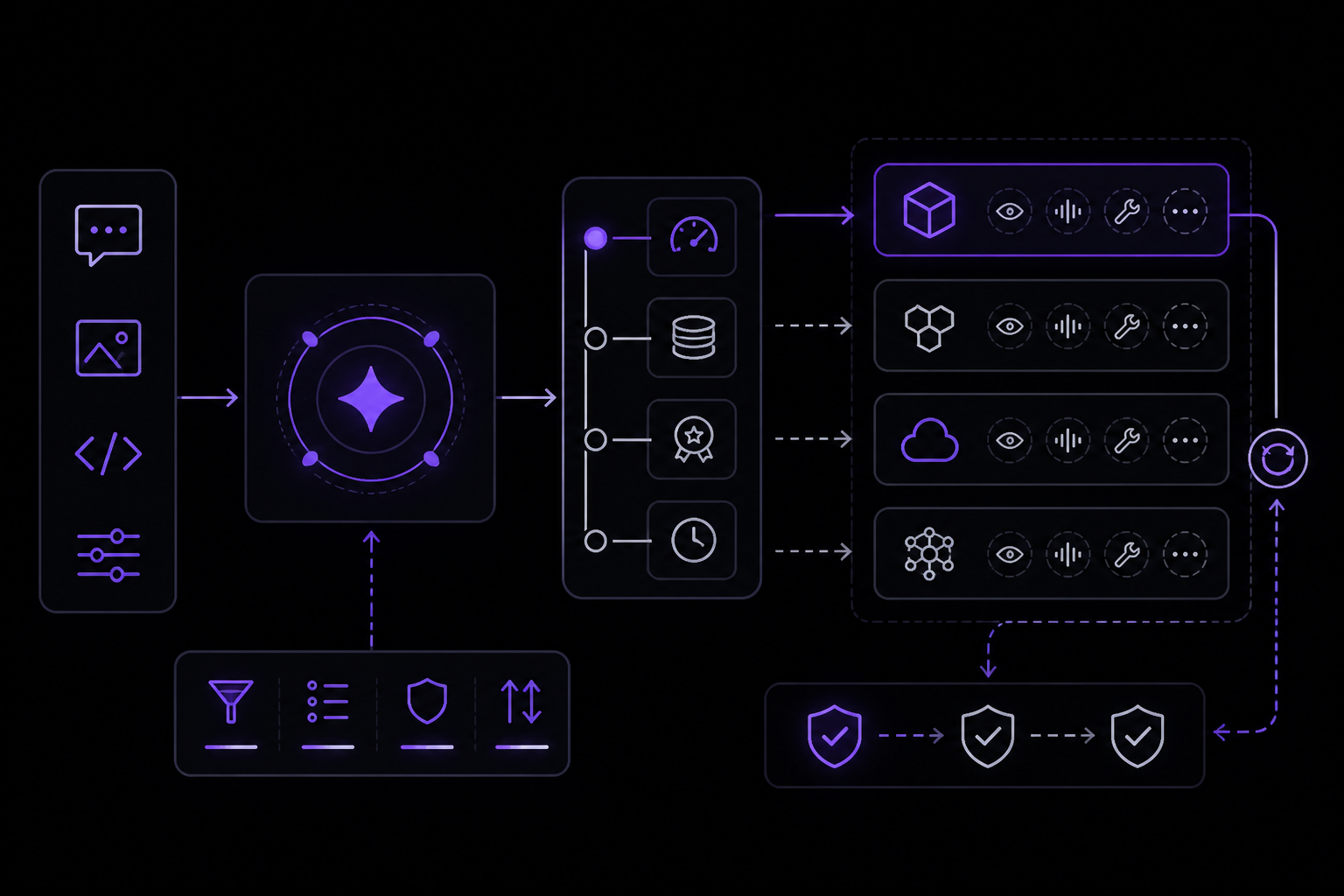
Hermes supports multiple AI inference providers out of the box. Use hermes model to configure interactively, or set them in config.yaml. Hermes auto-detects capabilities like vision, streaming, and tool use per provider.
- Provider Routing -- Fine-grained control over which underlying providers handle your OpenRouter requests. Optimize for cost, speed, or quality with sorting, whitelists, blacklists, and explicit priority ordering.
- Fallback Providers -- Automatic failover to backup LLM providers when your primary model encounters errors. Includes primary model fallback and independent auxiliary task fallback for vision, compression, and web extraction.
Tool Servers (MCP)
Connect Hermes to external tool servers via Model Context Protocol. Access tools from GitHub, databases, file systems, browser stacks, internal APIs, and more without writing native Hermes tools. Supports both stdio and SSE transports, per-server tool filtering, and capability-aware resource/prompt registration.
Web Search Backends
The web_search and web_extract tools support eight backend providers:
| Backend | Env Var | Search | Extract | Crawl |
|---|---|---|---|---|
| Firecrawl (default) | FIRECRAWL_API_KEY | Yes | Yes | Yes |
| SearXNG | SEARXNG_URL | Yes | -- | -- |
| Brave (free tier) | BRAVE_SEARCH_API_KEY | Yes | -- | -- |
| DuckDuckGo (ddgs) | (none) | Yes | -- | -- |
| Tavily | TAVILY_API_KEY | Yes | Yes | Yes |
| Exa | EXA_API_KEY | Yes | Yes | -- |
| Parallel | PARALLEL_API_KEY | Yes | Yes | -- |
| xAI | XAI_API_KEY | Yes | -- | -- |
Quick setup example:
web:
  backend: firecrawl   # firecrawl | searxng | brave-free | ddgs | tavily | exa | parallel | xai
If web.backend is not set, the backend is auto-detected from whichever API key is available. Self-hosted Firecrawl is also supported via FIRECRAWL_API_URL.
Browser Automation
Hermes includes full browser automation with multiple backend options:
- Browserbase -- Managed cloud browsers with anti-bot tooling, CAPTCHA solving, and residential proxies
- Browser Use -- Alternative cloud browser provider
- Local Chromium-family CDP -- Connect to your running Chrome, Brave, Chromium, or Edge browser using
/browser connect - Local Chromium -- Headless local browser via the
agent-browserCLI
Voice & TTS Providers
Text-to-speech and speech-to-text across all messaging platforms:
| Provider | Quality | Cost | API Key |
|---|---|---|---|
| Edge TTS (default) | Good | Free | None needed |
| ElevenLabs | Excellent | Paid | ELEVENLABS_API_KEY |
| OpenAI TTS | Good | Paid | VOICE_TOOLS_OPENAI_KEY |
| MiniMax | Good | Paid | MINIMAX_API_KEY |
| xAI TTS | Good | Paid | XAI_API_KEY |
| NeuTTS | Good | Free | None needed |
Speech-to-text supports six providers: local faster-whisper (free, runs on-device), a local command wrapper, Groq, OpenAI Whisper API, Mistral, and xAI. Voice message transcription works across Telegram, Discord, WhatsApp, and other messaging platforms.
IDE & Editor Integration (ACP)
Use Hermes Agent inside ACP-compatible editors such as VS Code, Zed, and JetBrains. Hermes runs as an ACP server, rendering chat messages, tool activity, file diffs, and terminal commands inside your editor.
Programmatic Access (API Server)
Expose Hermes as an OpenAI-compatible HTTP endpoint. Any frontend that speaks the OpenAI format -- Open WebUI, LobeChat, LibreChat, NextChat, ChatBox -- can connect and use Hermes as a backend with its full toolset.
Memory & Personalization
- Built-in Memory -- Persistent, curated memory via
MEMORY.mdandUSER.mdfiles. The agent maintains bounded stores of personal notes and user profile data that survive across sessions. - Memory Providers -- Plug in external memory backends for deeper personalization. Eight providers are supported: Honcho (dialectic reasoning), OpenViking (tiered retrieval), Mem0 (cloud extraction), Hindsight (knowledge graphs), Holographic (local SQLite), RetainDB (hybrid search), ByteRover (CLI-based), and Supermemory.
Messaging Platforms
Hermes runs as a gateway bot on 27+ messaging platforms, all configured through the same gateway subsystem: Telegram, Discord, Slack, WhatsApp, Signal, Matrix, Mattermost, Email, SMS, DingTalk, Feishu/Lark, WeCom, WeCom Callback, Weixin, BlueBubbles, QQ Bot, Yuanbao, Home Assistant, Microsoft Teams, Microsoft Teams Meetings, Microsoft Graph Webhook, Google Chat, LINE, ntfy, SimpleX, Open WebUI, and Webhooks.
Home Automation (Home Assistant)
Control smart home devices via four dedicated tools (ha_list_entities, ha_get_state, ha_list_services, ha_call_service). The Home Assistant toolset activates automatically when HASS_TOKEN is configured.
Plugins
Extend Hermes with custom tools, lifecycle hooks, and CLI commands without modifying core code. Plugins are discovered from ~/.hermes/plugins/, project-local .hermes/plugins/, and pip-installed entry points.
Training & Evaluation
Run the agent across hundreds of prompts in parallel, generating structured ShareGPT-format trajectory data for training data generation or evaluation.
Nous Portal Deep Dive
Nous Portal is Nous Research's unified subscription gateway and the recommended way to run Hermes Agent. One OAuth login replaces the juggling act of separate accounts, API keys, and billing relationships across every model lab, search API, image generator, and browser provider.
The fastest path:
hermes setup --portal
What is in the Subscription
300+ frontier models, one bill: The Portal proxies a curated catalog of agentic models from across the ecosystem -- billed against your Nous subscription instead of one credit balance per lab. Families include Anthropic (Claude Opus 4.7, Sonnet 4.6, Haiku 4.5), OpenAI (GPT-5.5, GPT-5.5 Pro, GPT-5.4 Mini, GPT-5.4 Nano, GPT-5.3 Codex), Google (Gemini 3 Pro Preview, Gemini 3 Flash Preview, Gemini 3.1 Pro Preview, Gemini 3.1 Flash Lite Preview), DeepSeek (DeepSeek V4 Pro), Qwen (Qwen3.7-Max, Qwen3.6-35B-A3B), Kimi/Moonshot (Kimi K2.6), GLM/Zhipu (GLM-5.1), MiniMax (MiniMax M2.7), xAI (Grok 4.3), NVIDIA (Nemotron-3 Super 120B-A12B), Tencent (Hunyuan 3 Preview), Xiaomi (MiMo V2.5 Pro), StepFun (Step 3.5 Flash), and Hermes (Hermes-4-70B, Hermes-4-405B). Routing happens through OpenRouter under the hood, so model availability and failover behavior matches what you would get with an OpenRouter key -- just billed against your Nous subscription instead.
The Nous Tool Gateway: The same subscription unlocks the Tool Gateway, which routes Hermes Agent's tool calls through Nous-managed infrastructure. Five backends, one login:
- Web search & extract: Firecrawl
- Image generation: FAL (nine models)
- Text-to-speech: OpenAI TTS
- Cloud browser automation: Browser Use
- Cloud terminal sandbox: Modal (optional add-on)
No credentials in your dotfiles: Because everything routes through one OAuth-authenticated Portal session, you do not accumulate a .env file with a dozen long-lived API keys. The refresh token at ~/.hermes/auth.json is the only credential on disk, and Hermes mints short-lived JWTs from it per request.
Cross-platform parity: Native Windows makes per-tool API key setup its rough edge. A Portal subscription smooths that out: one OAuth covers the model and every gateway tool, so Windows users get the same experience as macOS/Linux without manually configuring four backends.
A Note on Hermes 4
Nous Research's own Hermes 4 family (Hermes-4-70B, Hermes-4-405B) is available through the Portal at heavily discounted rates. These are frontier hybrid-reasoning chat models -- strong at math, science, instruction following, schema adherence, roleplay, and long-form writing. They are not recommended for use inside Hermes Agent, however. Hermes 4 is tuned for chat and reasoning, not the rapid-fire tool-calling loop the agent relies on. Use them for research workflows or via the subscription proxy from other tooling -- but for agent work, pick a frontier agentic model from the catalog instead:
/model anthropic/claude-sonnet-4.6      # best general-purpose agentic model
/model openai/gpt-5.5-pro               # strong reasoning + tool calling
/model google/gemini-3-pro-preview      # huge context window
/model deepseek/deepseek-v4-pro         # cost-effective coder
Token Handling
Hermes mints a short-lived JWT from your stored Portal refresh token on each inference call rather than reusing a long-lived API key. The token lifecycle is fully automatic -- refresh, mint, retry on transient 401 -- and you never see it. If the Portal invalidates the refresh token (password change, manual revoke, session expiry), the invalid refresh token is quarantined locally so Hermes stops replaying it and you do not see a stream of identical 401s. The next call surfaces a clear "re-authentication required" message. Run hermes auth add nous to log in again; the quarantine clears on the next successful login.
Troubleshooting
Common Failure Modes
| Symptom | Likely cause | Fix |
|---|---|---|
| Hermes opens but gives empty or broken replies | Provider auth or model selection is wrong | Run hermes model again and confirm provider, model, and auth |
| Custom endpoint "works" but returns garbage | Wrong base URL, model name, or not actually OpenAI-compatible | Verify the endpoint in a separate client first |
| Gateway starts but nobody can message it | Bot token, allowlist, or platform setup is incomplete | Re-run hermes gateway setup and check hermes gateway status |
hermes --continue cannot find old session | Switched profiles or session never saved | Check hermes sessions list and confirm you are in the right profile |
| Model unavailable or odd fallback behavior | Provider routing or fallback settings are too aggressive | Keep routing off until the base provider is stable |
hermes doctor flags config problems | Config values are missing or stale | Fix the config, retest a plain chat before adding features |
Recovery Toolkit
When something feels off, use this order:
hermes doctorhermes modelhermes setuphermes sessions listhermes --continuehermes gateway status
That sequence gets you from "broken vibes" back to a known state fast.
Portal-Specific Issues
hermes portal info shows "not logged in": You have not completed the OAuth flow, or your refresh token was wiped. Run hermes portal or use hermes model and re-select Nous Portal.
Got a "re-authentication required" message mid-session: Your Portal refresh token was invalidated (password change, manual revoke, or session expiry). Run hermes auth add nous and your next request will use the new credentials. Any quarantine on the old token clears automatically on successful re-login.
Want to use a specific provider model that the Portal does not expose: The Portal proxies through OpenRouter, so any model that OpenRouter supports is generally available. If a specific model is not appearing in /model, try the OpenRouter-style slug directly: /model anthropic/claude-opus-4.6. If a model is genuinely missing, open an issue.
Bills not appearing on my Portal account: Check hermes portal info first -- if it shows you are using a different provider (Model: currently openrouter instead of using Nous as inference provider), your local config has drifted. Run hermes model, pick Nous Portal, and the next request will route through your subscription.
Going Further
Once the base chat works, layer on more features in this order:
- Bot or shared assistant:
hermes gateway setupto connect Telegram, Discord, Slack, WhatsApp, Signal, Email, or Home Assistant. - Automation and tools:
hermes toolsto tune tool access per platform,hermes skillsto browse and install reusable workflows, then cron for scheduled tasks. - Sandboxed terminal: For safety, run the agent in a Docker container or on a remote server:
hermes config set terminal.backend dockerorhermes config set terminal.backend ssh. - Voice mode: Install voice extras (
uv pip install -e ".[voice]"from the Hermes install directory), then/voice onin the CLI. - Skills: Browse and install from the hub with
hermes skills browse,hermes skills search kubernetes,hermes skills install openai/skills/k8s. Every installed skill becomes a slash command automatically. - MCP servers: Add external tool servers via
mcp_serversinconfig.yaml. - Editor integration (ACP): Run
hermes acpto use Hermes inside VS Code, Zed, or JetBrains.
For the full picture, explore the official documentation sections on the CLI Guide, Configuration, Messaging Gateway, Tools & Toolsets, AI Providers, Skills System, and Tips & Best Practices.
The #1 AI Newsletter
The most important ai updates, guides, and fixes — one weekly email.
No spam, unsubscribe anytime. Privacy policy