
Hermes Agent Email Integration: IMAP/SMTP Setup and Safe Agent Inbox

This guide covers how to set up Hermes Agent as an email-based assistant using the Email gateway, IMAP, and SMTP. It is for operators, teams, and self-hosted users who want a practical agent workflow that can receive and reply to email from a dedicated inbox, with allowed-sender controls and reply-in-thread behavior.
What You Need
Before you start, you need the following, all drawn from the official documentation:
- A running Hermes Agent instance. The guide assumes you have already installed Hermes and can run commands like
hermes gateway setup. If you are using the managed cloud version, the setup is faster, but the credential and configuration steps still apply. - A dedicated email account for Hermes. Do not use your personal inbox. The documentation explicitly warns: "Use a dedicated account so allowed senders, app passwords, logs, and automated replies are isolated from your private inbox." This keeps your personal email safe and makes it easier to manage permissions.
- An email provider that supports IMAP and SMTP. The documentation lists Gmail, Outlook, Fastmail, Yahoo, or any IMAP/SMTP provider. If your provider uses two-factor authentication (2FA), you must create an app password. For Gmail, this means generating an app-specific password from your Google Account settings.
- The IMAP and SMTP server hostnames, ports, your email username (usually the full email address), and the app password (or regular password if 2FA is not enabled).
- A list of allowed senders. The documentation stresses: "Restrict allowed senders first, then expand only when you know the agent behavior is safe." You will configure this before turning on automatic replies.
- A test email account that is on the allowed senders list. You will send one test email to confirm the setup works.
Understanding the Email Gateway vs. Mailbox Management
The official documentation makes a clear distinction between two paths: the Email gateway and mailbox management. This is important to understand before you start configuring anything.
The Email gateway is for receiving messages sent to the agent and replying through SMTP. It is a public-facing inbox that people can email, and the agent replies automatically. The documentation describes this as the "gateway path": people email Hermes and get replies. This is what this guide covers.
The other path is mailbox management, where Hermes uses a configured mail CLI (like Himalaya) to inspect, search, move, or compose messages from a mailbox. This is not the same as the gateway. The documentation warns: "Keep the two paths separate so the public-facing agent inbox does not accidentally inherit personal-mail permissions." If you want Hermes to manage your personal mailbox, use a dedicated email skill and command-line mail client setup, not the gateway.
The Email gateway is for receiving and replying. The mailbox management path is for organizing. Do not confuse them.
Setup Path: Step by Step
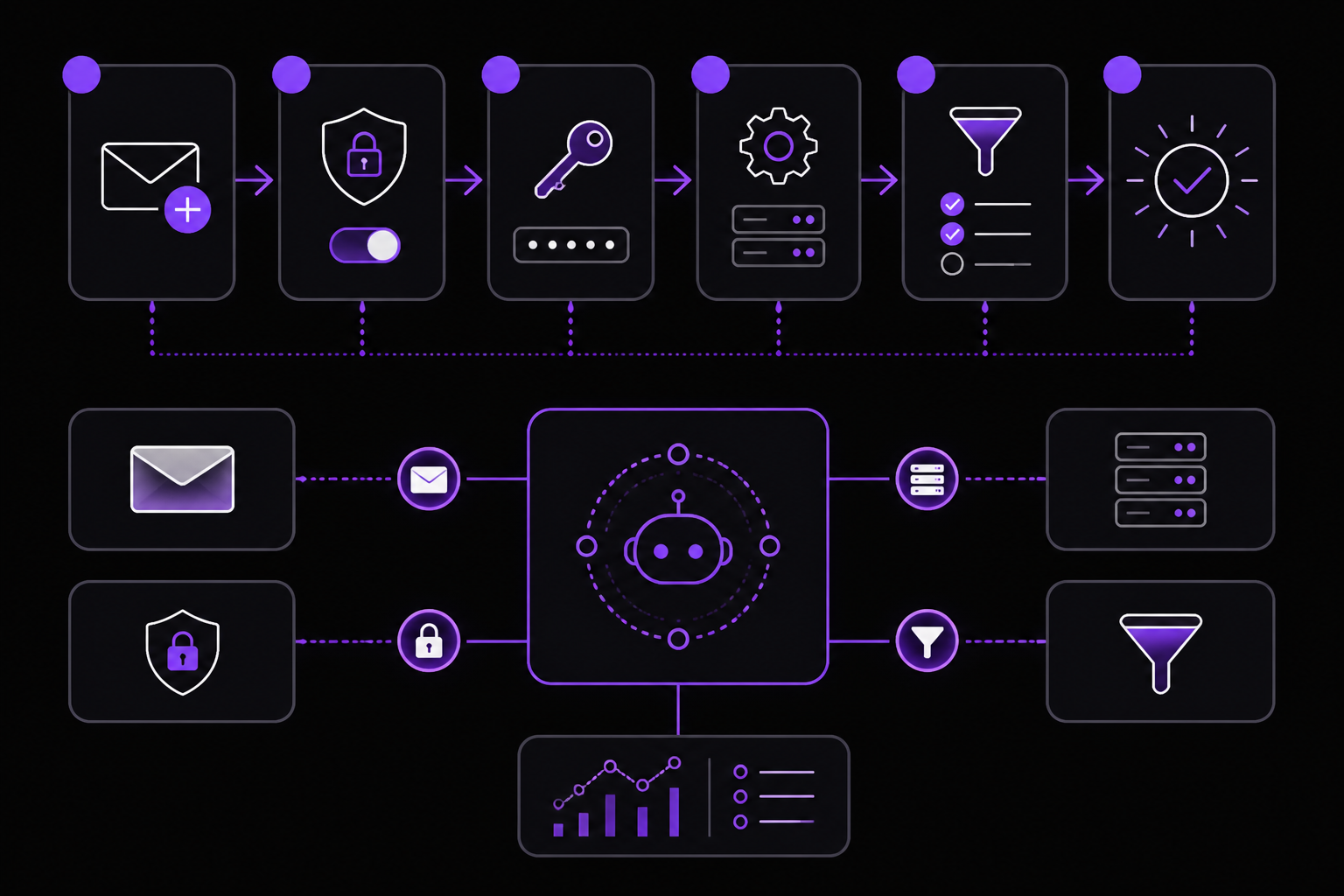
The official documentation provides a six-step setup path. Each step is explained below with additional context.
Step 1: Create a Dedicated Email Account
Create a new email account specifically for Hermes. This can be a free Gmail account, an Outlook account, or any provider that supports IMAP and SMTP. The documentation says: "Create a dedicated email account for Hermes instead of using a personal inbox." This isolates the agent's activity from your personal email, prevents accidental replies to personal contacts, and makes it easier to manage app passwords and logs.
Step 2: Enable IMAP and Create an App Password
Log in to your email provider's settings and enable IMAP access. For Gmail, this is in Settings > See all settings > Forwarding and POP/IMAP > Enable IMAP. For Outlook, it is in Settings > View all Outlook settings > Mail > Sync email > Manage POP and IMAP. For Fastmail, IMAP is enabled by default. For Yahoo, it is in Settings > Mailboxes > IMAP.
If your provider uses 2FA, you must create an app password. This is a separate password that bypasses 2FA for specific applications. For Gmail, go to your Google Account > Security > 2-Step Verification > App passwords. For Outlook, go to your Microsoft Account > Security > Advanced security > App passwords. For Fastmail, you can create an app password in Settings > Password & Security > App passwords. The documentation says: "Enable IMAP and create an app password if your provider uses 2FA."
Step 3: Run the Gateway Setup Command or Set Environment Variables
You have two options: use the interactive setup command or set environment variables directly.
Option A: Interactive Setup
Run the following command in your terminal:
hermes gateway setup
Then choose "Email" from the list of gateway types. The command will prompt you for the IMAP and SMTP credentials. Enter the host, port, username, and app password for each. The documentation says: "Run hermes gateway setup and choose Email."
Option B: Environment Variables
You can also add the IMAP/SMTP values directly to the Hermes environment. The documentation says: "or add the IMAP/SMTP values to the Hermes environment." The exact environment variable names are not listed in the source, but typical Hermes configuration uses variables like HERMES_EMAIL_IMAP_HOST, HERMES_EMAIL_IMAP_PORT, HERMES_EMAIL_IMAP_USERNAME, HERMES_EMAIL_IMAP_PASSWORD, HERMES_EMAIL_SMTP_HOST, HERMES_EMAIL_SMTP_PORT, HERMES_EMAIL_SMTP_USERNAME, and HERMES_EMAIL_SMTP_PASSWORD. Check your Hermes documentation for the exact names.
Step 4: Configure Allowed Senders
Before you turn on automatic replies, you must configure allowed senders. This is a list of email addresses or domains that are allowed to trigger the agent. The documentation says: "Configure allowed senders before turning on automatic replies." This prevents random inbound email from triggering the agent and potentially sending replies to strangers.
The exact configuration method is not detailed in the source, but it is likely done through a Hermes configuration file or a command like hermes gateway allow <email>. The documentation says: "Allowed-sender controls so random inbound email does not trigger the agent." Start with a single test email address that you control.
Step 5: Send a Test Email and Confirm Reply
Send one test email from an allowed account to the dedicated Hermes inbox. The documentation says: "Send one test email from an allowed account and confirm Hermes replies in the same thread." The agent should reply to the same email thread, not start a new one. This is the "reply-in-thread" behavior. If you do not see a reply, check the troubleshooting section below.
Step 6: Connect to Other Workflows (Optional)
Only after the smoke test passes should you connect email summaries to other tools. The documentation says: "Only after the smoke test, connect email summaries to Linear, GitHub, Notion, or Telegram workflows." This means you can set up Hermes to automatically create tickets, issues, or notifications based on incoming email. The documentation lists these integrations: "Workflows that should connect Hermes to other tools such as GitHub, Linear, Notion, Telegram, Slack, or email."
Good Email Workflows
The official documentation suggests three types of workflows that work well with email:
-
Turn customer bug reports into Linear or GitHub issues with reproduction steps. When a customer emails a bug report, Hermes can parse the email, extract reproduction steps, and create a ticket in Linear or an issue in GitHub. This turns inbound email into structured action.
-
Send daily or weekly reports from cron jobs to an email alias. You can set up a cron job that sends a report to the Hermes inbox, and Hermes can process it and take action, such as posting a summary to Slack or creating a Notion page.
-
Use email for vendors, clients, or partners who need a normal inbox rather than a bot UI. Email is slower than chat but useful for long-form handoffs and external users who will not join your Telegram, Discord, or Slack. The documentation says: "The best workflows turn inbound email into structured action, not endless back-and-forth."
Common Setup Issues
The official documentation lists three common setup issues and their solutions:
-
The integration appears enabled but nothing happens. The documentation says: "Restart the Hermes gateway or start a fresh Hermes session after config changes." This is a common issue: the gateway process may cache old configuration. Restarting the gateway or starting a new Hermes session forces it to reload the configuration.
-
Credentials work in one shell but not in the gateway. The documentation says: "Check the active Hermes profile and where the gateway process reads its environment." This happens when you set environment variables in one shell but the gateway process runs in a different context. Make sure the gateway process has access to the same environment variables or profile.
-
The workflow is too broad. The documentation says: "Split it into smaller routes, skills, or prompts with one expected outcome each." If the agent is not responding correctly, the workflow may be too complex. Break it down into smaller, focused pieces.
Troubleshooting
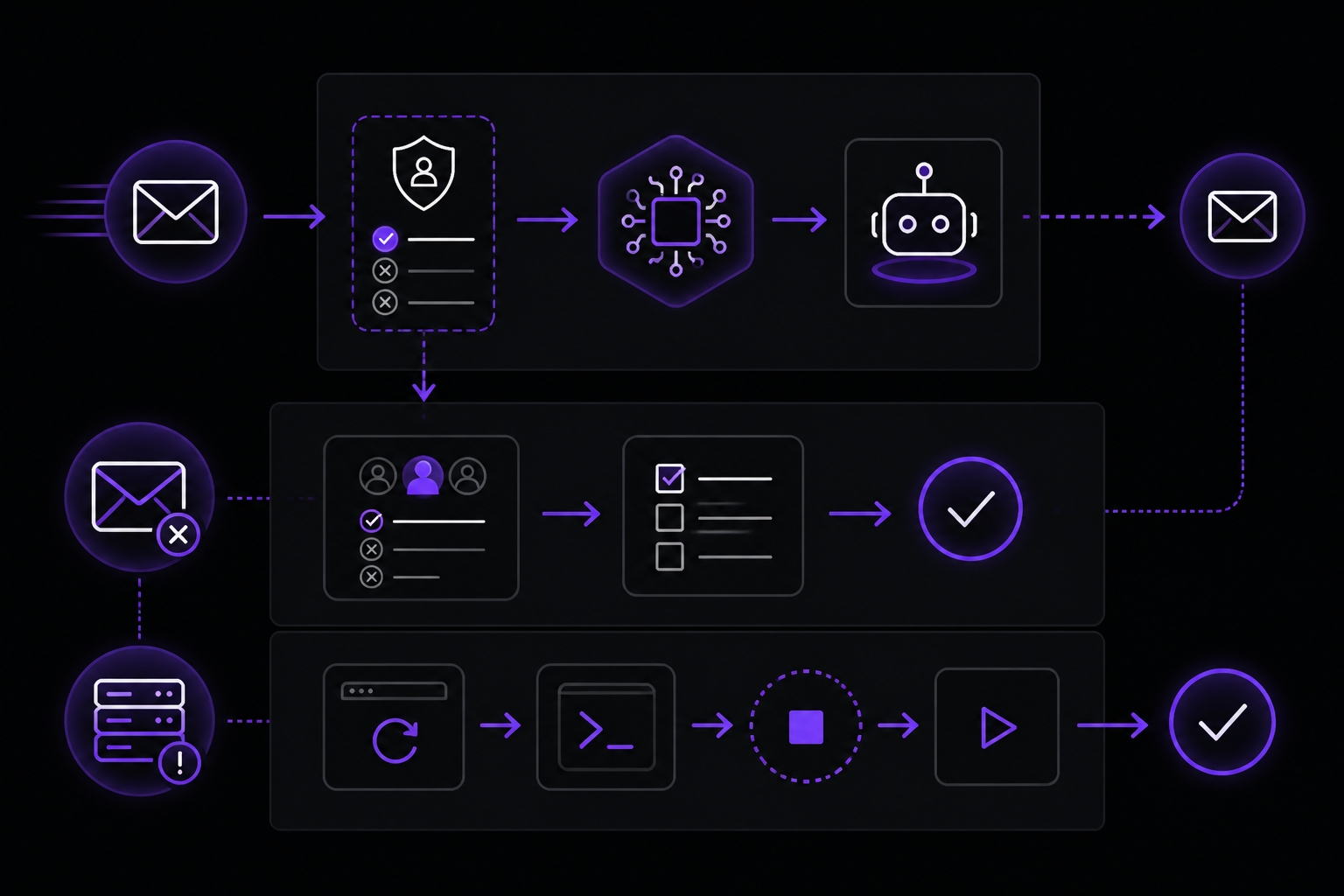
Based on the common setup issues and additional context from the documentation, here are troubleshooting steps for common problems:
No Reply After Sending a Test Email
- Check that the sender's email address is on the allowed senders list. The documentation says: "Configure allowed senders before turning on automatic replies." If the sender is not allowed, the agent will ignore the email.
- Restart the Hermes gateway. The documentation says: "Restart the Hermes gateway or start a fresh Hermes session after config changes." Run
hermes gateway restartor kill the gateway process and start it again. - Verify the IMAP and SMTP credentials. The documentation says: "Credentials work in one shell but not in the gateway." Make sure the gateway process is reading the correct environment variables or profile.
- Check the Hermes logs for error messages. The exact log location depends on your setup, but typical locations are
~/.hermes/logsor the system journal.
Credentials Not Working
- Confirm that you are using an app password, not your regular password, if your provider uses 2FA. The documentation says: "Enable IMAP and create an app password if your provider uses 2FA."
- Verify the IMAP and SMTP server hostnames and ports. Common values: Gmail IMAP is
imap.gmail.comon port 993 (SSL), SMTP issmtp.gmail.comon port 587 (STARTTLS) or 465 (SSL). Outlook IMAP isoutlook.office365.comon port 993, SMTP issmtp.office365.comon port 587. Fastmail IMAP isimap.fastmail.comon port 993, SMTP issmtp.fastmail.comon port 587. Yahoo IMAP isimap.mail.yahoo.comon port 993, SMTP issmtp.mail.yahoo.comon port 465. - Check that the email account is not locked or blocked due to suspicious activity. Some providers may block access if they detect a new device or application.
Agent Replies to Everyone
- You did not configure allowed senders. The documentation says: "Restrict allowed senders first, then expand only when you know the agent behavior is safe." Configure allowed senders immediately.
- The allowed senders list is too broad. If you used a domain wildcard (e.g.,
@example.com), anyone from that domain can trigger the agent. Use specific email addresses for testing.
Going Further
Once the Email gateway is working, the official documentation suggests three next steps:
-
Add tools to Hermes. The documentation says: "Understand how tools and MCP servers become available to the agent." This expands what the agent can do with incoming email, such as creating tickets, searching databases, or calling APIs.
-
Connect to GitHub integration. The documentation says: "Connect automation outcomes to code, pull requests, and repository reports." This is useful for teams that want to turn email into code-related actions.
-
Compare pricing and FlyHermes. The documentation says: "Compare self-hosting with managed cloud when uptime matters." If you are self-hosting and need higher uptime, consider the managed cloud option.
The documentation also mentions related setup guides for connecting Hermes to email, pricing, Telegram, and scheduling tasks with Hermes. These are listed under "Related setup guides" and "Other Integrations" (Telegram, Discord, Slack, WhatsApp, Signal).
The #1 AI Newsletter
The most important ai updates, guides, and fixes — one weekly email.
No spam, unsubscribe anytime. Privacy policy