
Hermes Agent GitHub: Setup Issues, PRs, Actions & Automation
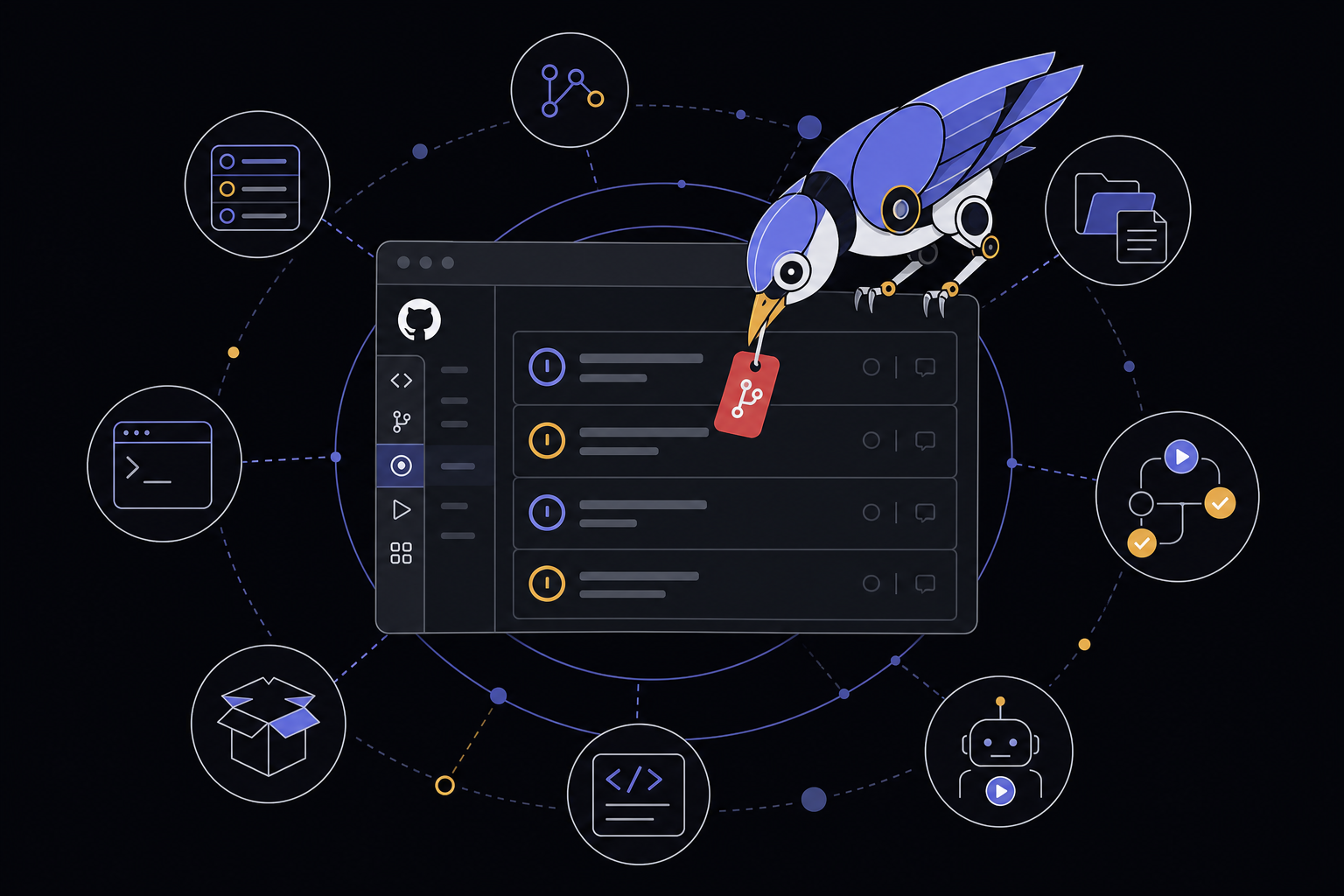
This guide covers two distinct but related tasks: finding the official Hermes Agent source repository and connecting a running Hermes Agent instance to GitHub as an AI agent for issues, pull requests, Actions logs, code search, release notes, and scheduled repository reports. It is written for developers, maintainers, and team leads who want to use Hermes Agent to automate GitHub workflows with scoped, verified access.
What You Need
Before you begin, you need the following:
- Hermes Agent installed and working. Run
hermes doctorandhermes chat -q "reply ok"to confirm the base agent works before adding GitHub automation. Debug the base agent first, not GitHub access. - A GitHub account with access to the target repositories (public or private).
- GitHub CLI (
gh) installed for local authentication. On macOS or Linux, install via your package manager (e.g.,brew install gh,apt install gh). On Windows, usewinget install --id GitHub.cli. - A fine-grained Personal Access Token (PAT) or a GitHub App credential for Docker, VPS, gateway, or cron workflows. GitHub no longer accepts passwords for terminal/API operations.
- Node.js installed if you plan to use the MCP (Model Context Protocol) integration. Verify with
node -vandnpx -v. - A repository workdir and project instructions file so Hermes knows the repository conventions, test commands, branch policy, and review style.
Official Repository vs. GitHub Automation
There are two common GitHub jobs. The first is finding the official Hermes Agent source repository. The second is connecting a running Hermes agent to your own repositories so it can inspect issues, pull requests, Actions logs, files, and release notes. Keep those paths separate: verify the source repo before installing, then use scoped GitHub access for automation.
- Official source:
github.com/NousResearch/hermes-agent. Use this for source code, releases, install scripts, issues, and contribution history. Avoid third-party mirror links for install commands. - Read-only smoke test: Summarize one issue, one pull request, or one failed Actions job before enabling writes.
- Automation path: PR reviews, issue triage, Actions summaries, release notes, cron reports, and webhook-triggered runs.
Setup Path
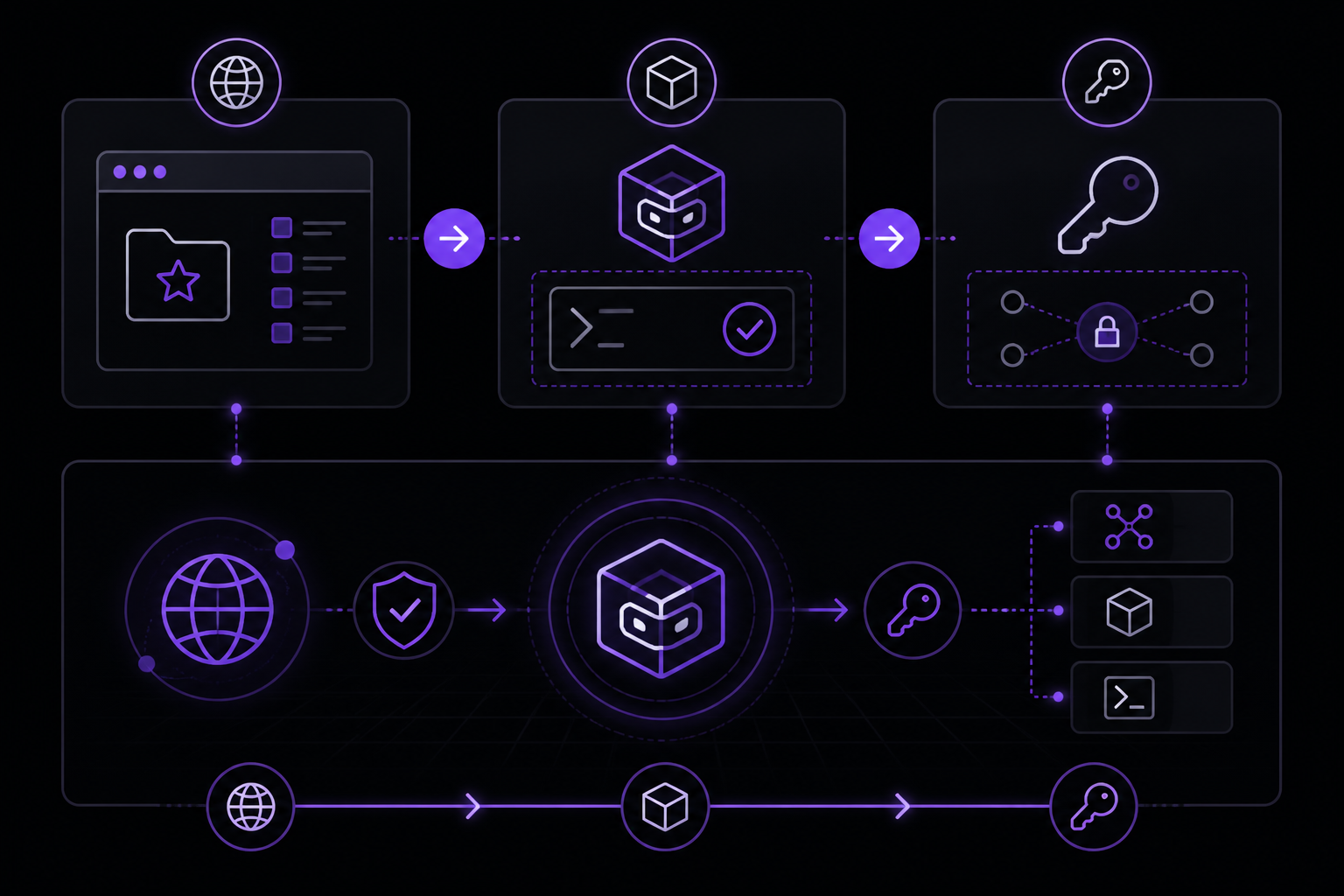
Step 1: Open the Official Repository
Navigate to github.com/NousResearch/hermes-agent when you need the official Hermes Agent source, releases, installer, issues, or contribution history. This is the only trusted source for install commands and scripts.
Step 2: Install Hermes and Verify the Base Agent
Install Hermes Agent according to the official instructions. Then run:
hermes doctor
hermes chat -q "reply ok"
If the base agent does not respond, debug the Hermes installation before proceeding. Adding GitHub automation on top of a broken agent will only multiply the troubleshooting surface.
Step 3: Authenticate with GitHub
For local work, install GitHub CLI and authenticate:
gh auth login
Follow the prompts to authenticate with the account that can access the target repositories. For Docker, VPS, gateway, or cron workflows, use a fine-grained GITHUB_TOKEN or GitHub App credential scoped only to the repositories and permissions Hermes needs.
Step 4: Create a Fine-Grained Personal Access Token (PAT)
GitHub removed password authentication for terminal/API operations. You must create a fine-grained PAT or use GitHub CLI authentication. To create a PAT:
- Go to GitHub Settings > Developer settings > Personal access tokens > Fine-grained tokens.
- Click "Generate new token".
- Give the token a descriptive name (e.g., "Hermes Agent Token").
- Set the expiration as appropriate for your workflow.
- Under "Repository access", choose "Only select repositories" and select the repositories Hermes should access.
- Under "Permissions", set the following scopes:
- Contents: Read and write (if you need to create branches, commits, or push code). Start with read-only.
- Issues: Read and write (if you need to create or comment on issues). Start with read-only.
- Pull requests: Read and write (if you need to review, comment, or merge PRs). Start with read-only.
- Metadata: Read (required for most operations).
- Click "Generate token" and copy the token immediately. You will not be able to see it again.
Store the token in a secure location. In Hermes config or environment files, never in prompts or committed files.
Step 5: Configure Hermes for GitHub
Edit your hermes config.yaml file to add the GitHub MCP block. The exact location of this file depends on your Hermes installation. A typical configuration looks like this:
mcp_servers:
  github:
    command: npx
    args:
      - -y
      - @modelcontextprotocol/server-github
    env:
      GITHUB_TOKEN: "your_fine_grained_pat_here"
Line-by-line explanation:
mcp_servers:: This is the top-level key that defines all MCP servers Hermes can use.github:: The name of this MCP server. You will reference this name when testing the connection.command: npx: The command to run the MCP server.npxis a Node.js package runner.args:: Arguments passed to the command.-y: Automatically answer "yes" to prompts when installing the package.@modelcontextprotocol/server-github: The official GitHub MCP server package.
env:: Environment variables passed to the MCP server process.GITHUB_TOKEN: Your fine-grained PAT. This is the credential the MCP server uses to authenticate with the GitHub API.
Important: Replace "your_fine_grained_pat_here" with your actual token. Keep this file secure and never commit it to a repository.
Step 6: Test the MCP Connection
Run the following command to test the GitHub MCP connection:
hermes mcp test github
If successful, you will see a green checkmark and a confirmation message. If the test fails, see the Troubleshooting section below.
Step 7: Load Repository Context
Load a GitHub/repo skill or project instructions file so Hermes knows the repository conventions, test commands, branch policy, and review style. This can be a markdown file in the repository (e.g., CONTRIBUTING.md, PROJECT_INSTRUCTIONS.md) or a custom skill file in your Hermes profile.
Step 8: Start Read-Only
Before allowing any write operations, ask Hermes to perform one read-only task:
- Summarize an issue: "Summarize issue #42 in the repository."
- Summarize a pull request: "Summarize PR #101 in the repository."
- Inspect a failed Actions job: "Summarize the failed Actions run for the latest commit on main."
Only after the read-only smoke test works should you enable write permissions.
Step 9: Enable Write Operations (Optional)
After the read-only smoke test passes, you can enable write operations. This includes:
- Issue creation and comments
- PR comments and reviews
- Branch creation and commits
- PR merging
- Webhook-triggered workflows
- Scheduled CI summaries
- Release-note automation
Keep write actions behind explicit prompts, reviewed cron jobs, or GitHub PR review.
Step 10: Choose Self-Hosted vs. FlyHermes
- Self-hosted Hermes: Choose this when you want full control over tokens, workdirs, Docker/VPS runtime, custom skills, and local repo access. You are responsible for infrastructure, uptime, and maintenance.
- FlyHermes: Choose this when the priority is managed uptime, browser/mobile access, connected channels, and less VPS/Docker maintenance. FlyHermes handles gateways, dashboards, and server processes.
Compare pricing before wiring unattended repo automation.
Concrete GitHub Workflows
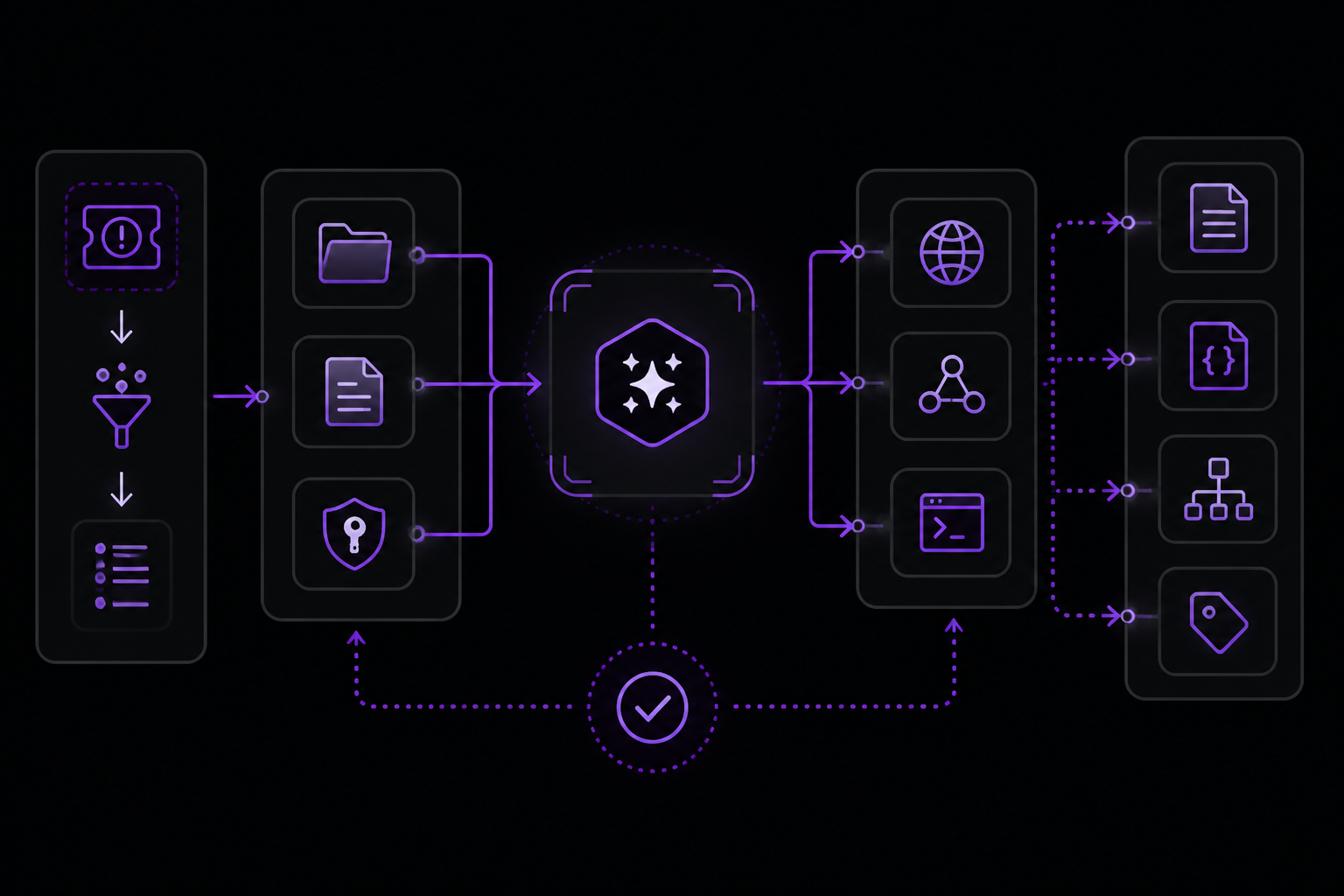
Hermes is useful when GitHub work needs context, tool use, and judgment instead of a static bot rule. Give the agent the repo workdir, project instructions, and scoped credentials, then ask for one bounded outcome with verification evidence.
Workflow 1: Issue Triage
Turn a noisy issue into reproduction steps, likely files, and a suggested owner. Example prompt:
"Look at issue #42 in the repository. Summarize the problem, extract reproduction steps, identify the likely files involved, and suggest a label."
Hermes will use the MCP list-issues tool, ping the GitHub API with the secure token, and report back entirely from the command line.
Workflow 2: Pull Request Review
Review a pull request against the project test commands and style conventions. Example prompt:
"Review PR #101. Summarize the changes, check if they follow the project conventions, run the test commands, and draft review comments."
With scoped GitHub access and the repo workdir/instructions available, Hermes can summarize diffs, inspect tests, explain Actions failures, and draft review comments.
Workflow 3: Actions Failure Analysis
Summarize a failed Actions job, identify the likely failing command, and draft a fix plan. Example prompt:
"Look at the latest failed Actions run on the main branch. Summarize the failure, identify the failing command, and propose a fix."
Workflow 4: Multi-Tool Chaining
Hermes can chain multiple tools to accomplish complex tasks. For example, it can search code, fall back to reading file contents when the search index is delayed, and create a detailed GitHub issue. This is demonstrated in the optional demo video by Kris Torrington.
Workflow 5: Autonomous PR Workflow
From a single five-step prompt, Hermes can create a branch, write Python code, commit, push, open a pull request with detailed documentation, and merge it. This requires write permissions for Contents and Pull Requests.
Workflow 6: Scheduled Repository Reports
Use Hermes cron for judgment-heavy scheduled repo work and set a concrete delivery target. Example cron job:
"Every Monday at 9 AM, create a weekly repo-health report from open issues, stale PRs, failing workflows, and changelog-worthy commits. Deliver the report to the #repo-health Slack channel."
Verify the report arrives in Telegram, Discord, Slack, email, or the intended output file.
Safe GitHub Permissions and Guard Rails
- Start with read-only access to the target repository. Add comments, labels, branch, or workflow permissions only after the read-only workflow is visible and logged.
- Use repo-specific scopes instead of broad account tokens. A fine-grained PAT scoped to specific repositories limits the blast radius if the token is compromised.
- Keep write actions behind explicit prompts, reviewed cron jobs, or GitHub PR review. Never allow unattended write access without logging and monitoring.
- Store credentials in Hermes config or environment files, never in prompts or committed files. Use environment variables or a
.envfile that is excluded from version control. - For team usage, prefer a GitHub App or fine-grained token scoped to the repos Hermes actually needs.
Troubleshooting
hermes mcp test github Fails with Authentication Error
Your token may have expired or been generated with insufficient permissions. Verify the token is not expired, check that Contents, Issues, and Pull Requests are scoped correctly, and regenerate if needed.
hermes mcp test github Fails with 'command not found' for npx
Node.js is not installed or not on PATH. Install Node.js, then verify with:
node -v
npx -v
If Node.js is installed but npx is not found, ensure the Node.js bin directory is in your PATH. On macOS/Linux, this is typically /usr/local/bin or the output of npm bin -g.
Hermes Cannot Find gh in a Gateway/Cron Context
Check PATH in the service environment and use absolute paths on macOS or VPS launch contexts. For example, instead of gh, use /usr/local/bin/gh or the output of which gh.
Docker Workflow Works Locally but Fails in Cron
Confirm the container sees the same mounted repo, ~/.hermes profile, .env, and GITHUB_TOKEN. In cron, environment variables may not be loaded automatically. Set them explicitly in the cron job or use a wrapper script that sources the environment.
PR Comments or Issue Writes Fail
Check token scopes before changing the model provider. Read-only summaries often work with fewer permissions than writes. Ensure the token has the necessary write scopes (Issues, Pull requests) for the target repository.
Scheduled GitHub Report Finishes but Never Arrives
Debug the cron delivery and gateway layer with the Telegram/Discord troubleshooting guide. Verify that the delivery target (Telegram, Discord, Slack, email) is correctly configured and that the gateway is running.
PR Review Works in Terminal but Fails from Cron or a Gateway
Compare gh auth status, PATH, working directory, mounted repo path, active Hermes profile, and token scope in that exact runtime. Cron and gateway environments often have different PATH and environment variables.
Code Search Returns Zero Results on a New Repository
GitHub search indexing can be delayed for newly created repositories. Ask Hermes to fall back to reading the file tree or direct file contents instead of stopping at search. Example prompt: "Search for 'config' in the repo. If search returns no results, read the file tree and look for config files directly."
Going Further
- Use Hermes with GitHub: Step-by-step GitHub workflow setup for issues, PRs, Actions, and repo automation.
- Hermes Agent pricing: Compare managed FlyHermes access with self-hosted infrastructure and provider costs.
- Self-hosting Hermes Agent: Decide whether GitHub automation should run locally, on a VPS, in Docker, or in a managed setup.
- Hermes Web UI: Monitor gateway, cron, and integration health from the dashboard.
- Install Hermes Agent first: Prove the CLI works before connecting repository automation.
- Other Integrations: Telegram, Discord, Slack, WhatsApp, Signal.
If the goal is reliable GitHub-aware assistant work without self-hosting, compare pricing and FlyHermes before exposing a local dashboard or token-heavy VPS stack.
The #1 AI Newsletter
The most important ai updates, guides, and fixes — one weekly email.
No spam, unsubscribe anytime. Privacy policy