
Hermes Agent Google Calendar Integration: Setup, Workflows, and Best Practices
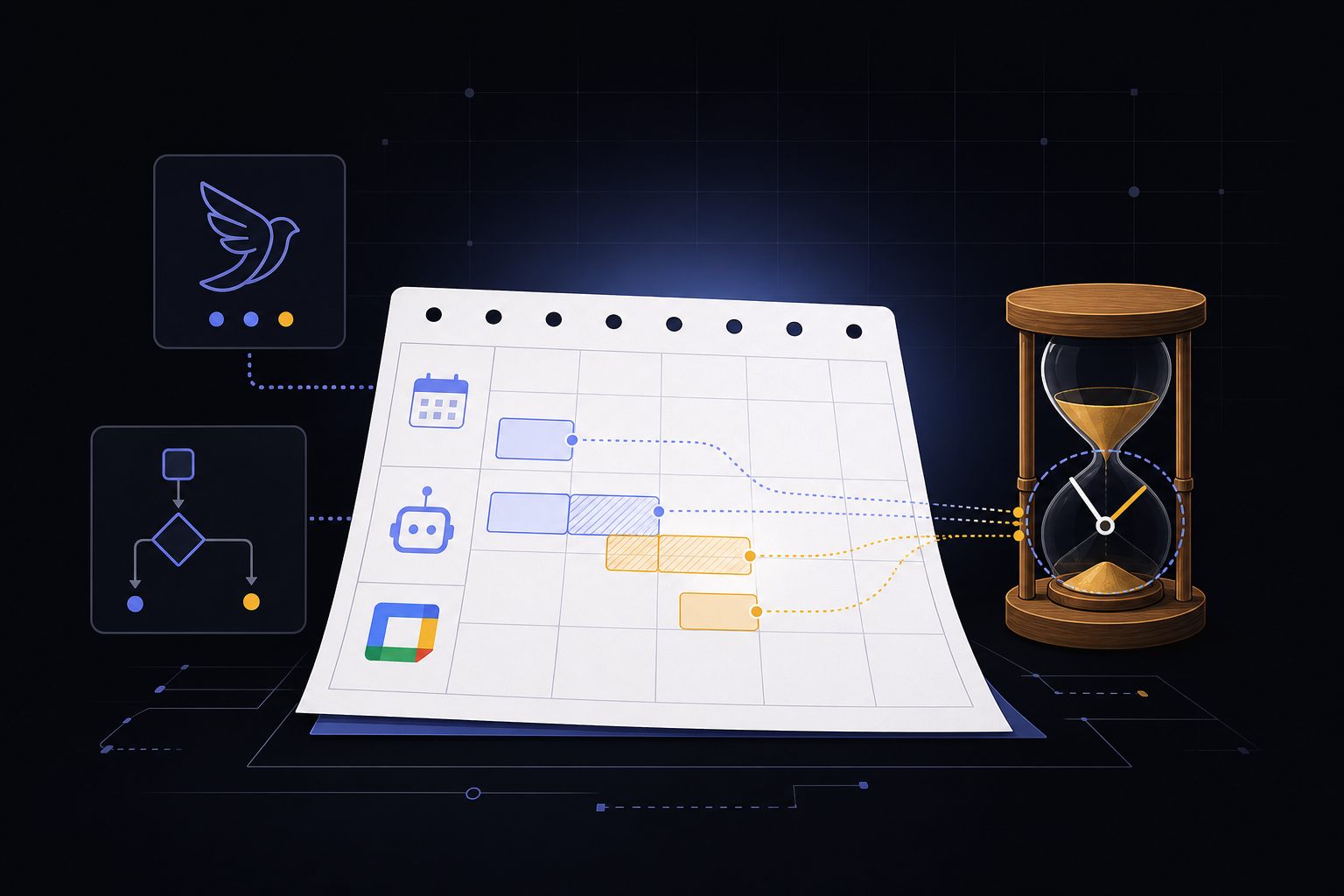
This guide covers how to connect Hermes Agent to Google Calendar for AI-powered scheduling, meeting management, and reminders. It is written for users who already have Hermes Agent installed and want to extend its capabilities with calendar awareness. You will learn the setup path, how to distinguish calendar events from autonomous cron jobs, and which workflows benefit most from this integration.
What You Need
Before you begin, confirm you have the following prerequisites in place:
- Hermes Agent installed: The integration assumes you have already installed and configured Hermes Agent on your system. If you have not done this yet, follow the official Hermes Agent installation guide first.
- A Google Cloud project: You need a Google Cloud project with the Calendar API enabled. If you do not have one, create a new project in the Google Cloud Console.
- OAuth 2.0 credentials: Download the OAuth client ID and client secret JSON file from the Google Cloud Console. This file is required for the authentication step.
- Calendar access: You must have permission to read and write events on the Google Calendar you intend to use. This is typically your primary calendar or a shared calendar you manage.
- Basic familiarity with the command line: The setup involves running a terminal command to authenticate.
Understanding the Two Types of Scheduling
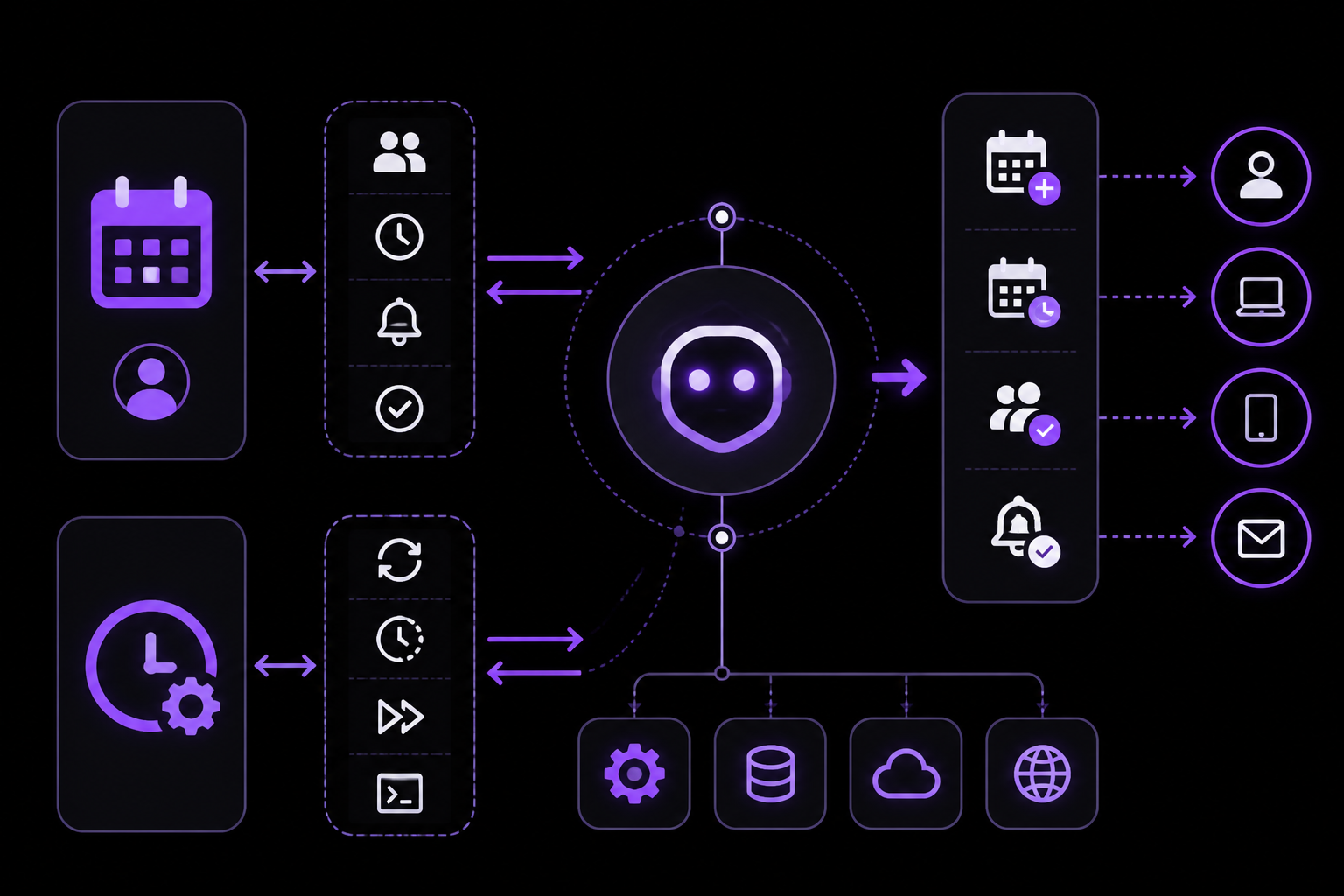
One of the most important concepts in this integration is the distinction between Google Calendar events and Hermes cron jobs. The official documentation is explicit: "Keep calendar setup separate from cron jobs: Calendar is for human events; Hermes cron is for autonomous recurring work."
Google Calendar: Human Time
Google Calendar is designed for human time: meetings, deadlines, reminders, and availability. When you connect Hermes to Google Calendar, the agent can read your schedule, create new events, check for conflicts, and send reminders. All of these actions revolve around human activities and coordination.
Hermes Cron: Agent Time
Hermes cron is a separate mechanism for scheduling autonomous agent work. This includes recurring reports, monitoring jobs, and scheduled tool use. Cron jobs run on a timer and do not involve human availability or calendar conflicts. They are purely for the agent to execute tasks at set intervals.
When to Connect Both
The documentation notes that you should "Connect both when a meeting should produce a pre-brief, follow-up note, or task list." For example, you might have a recurring team meeting on Google Calendar, and you want Hermes to automatically generate a pre-brief document 15 minutes before the meeting starts. In this scenario, the calendar event triggers the need for a cron job, but the two systems remain separate.
Features of the Integration
The official documentation lists six key features:
- Event creation: Hermes can create new calendar events based on natural language instructions. For example, you can say "Schedule a 30-minute meeting with Alice tomorrow at 2 PM" and Hermes will create the event.
- Schedule queries: You can ask Hermes about your schedule, such as "What meetings do I have today?" or "When is my next appointment?"
- Meeting reminders: Hermes can send reminders before events, either through the same chat interface or through other integrated channels like Slack or Discord.
- Conflict detection: Before creating an event, Hermes can check your calendar for existing events and alert you if there is a conflict. This is one of the most practical reasons to connect Calendar instead of only asking the agent to remember dates in text.
- Multi-calendar support: If you have access to multiple Google Calendars (e.g., work, personal, shared team calendars), Hermes can interact with all of them. You grant access during the authentication step.
- Natural language scheduling: You can use everyday language to manage your calendar. Hermes interprets your intent and translates it into calendar actions.
Setup Path
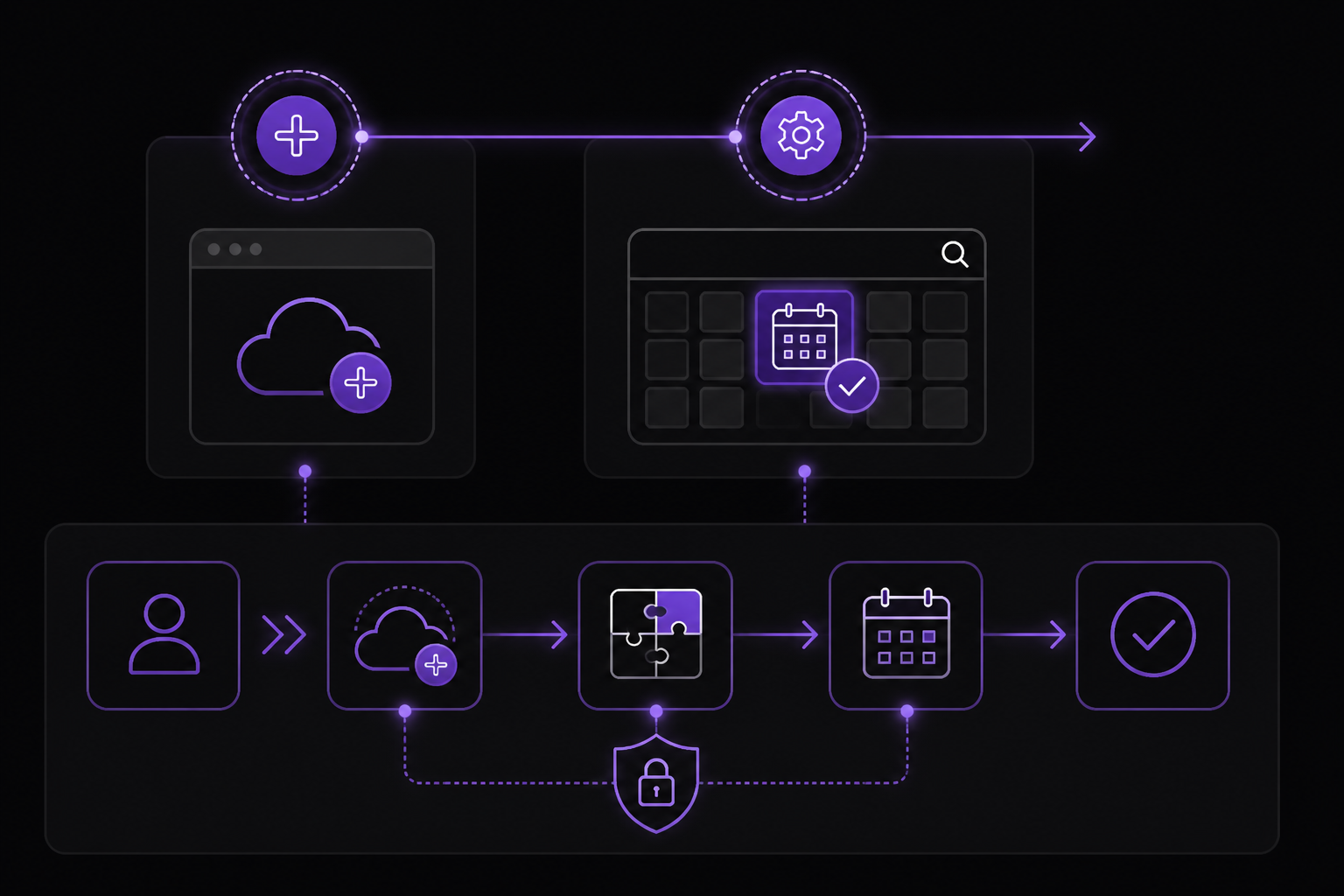
The official documentation provides a five-step setup path. Each step is explained below with practical context.
Step 1: Create a Google Cloud Project
If you do not already have a Google Cloud project, go to the Google Cloud Console and create a new project. Give it a descriptive name like "Hermes Calendar Integration." You do not need to enable billing for the Calendar API, as it is free to use within generous quotas.
Step 2: Enable the Calendar API
Inside your Google Cloud project, navigate to the API Library and search for "Google Calendar API." Click Enable. This activates the API for your project, allowing Hermes to make requests on your behalf.
Step 3: Download OAuth Credentials
Go to the Credentials page in the Google Cloud Console. Click Create Credentials and select OAuth client ID. Choose Desktop app as the application type (since Hermes runs on your local machine). Give it a name and click Create. A dialog will appear with your client ID and client secret. Click Download JSON to save the credentials file. Keep this file secure; it is sensitive.
Step 4: Authenticate via hermes auth google
Open your terminal and run the following command:
hermes auth google
This command will prompt you to provide the path to the OAuth credentials JSON file you downloaded. After you provide it, a browser window will open asking you to log into your Google account and grant permissions to Hermes. The exact permissions requested will include read and write access to your Google Calendar. Once you grant access, Hermes stores the resulting refresh token locally so you do not need to re-authenticate every time.
Step 5: Grant Calendar Access
During the OAuth flow, you will be asked which calendars Hermes can access. You can choose to grant access to all your calendars or select specific ones. The official documentation says "Grant calendar access" as a separate step, but in practice it is part of the OAuth consent screen. Make sure you select the calendars you want Hermes to manage.
Calendar Workflows That Fit Hermes
The official documentation describes three workflows where the integration is strongest:
Finding Openings Before Proposing Meeting Times
Instead of manually checking your calendar, you can ask Hermes to find available slots. For example: "Find a one-hour opening next Tuesday afternoon for a meeting with the design team." Hermes will query your calendar, identify free periods, and suggest times. This is more reliable than asking the agent to remember dates in text, because the agent has direct access to your actual calendar data.
Creating Follow-Up Events After Calls or Reviews
After a support conversation, project review, or sales call, you can ask Hermes to create a follow-up event. For example: "Create a 15-minute follow-up meeting for next Monday at 10 AM to review the action items from today's call." Hermes will create the event and can even include a summary or agenda in the event description.
Checking Conflicts Before Committing to a Deadline or Reminder
Before you agree to a deadline or set a reminder, ask Hermes to check your calendar. For example: "I need to finish the quarterly report by Friday. Do I have any conflicts that afternoon?" Hermes will check your schedule and report back. This prevents overcommitment.
FAQ: Common Questions Answered
The official documentation includes an FAQ section that addresses three common questions.
Does Hermes Agent Use Google Calendar OAuth?
Yes. The setup requires a Google Cloud project, Calendar API access, OAuth credentials, and a local authentication step. The OAuth flow is standard for Google APIs and ensures that Hermes can only act on the calendars you explicitly grant.
Is Google Calendar Integration the Same as Hermes Cron Scheduling?
No. This is a critical distinction. Google Calendar manages human events and reminders. Hermes cron schedules autonomous agent jobs such as daily reports, monitoring checks, or recurring research tasks. They serve different purposes and should be configured separately.
Can Hermes Check Calendar Conflicts Before Scheduling?
Yes. Conflict detection is one of the practical reasons to connect Calendar instead of only asking the agent to remember dates in text. When you ask Hermes to create an event, it can first check your calendar for existing events and warn you if there is a conflict. This feature is built into the integration.
Advanced Usage: Combining Calendar and Cron
While the official documentation keeps calendar and cron separate, it also suggests connecting both when a meeting should produce a pre-brief, follow-up note, or task list. Here is how you might implement this:
- Set up a cron job that runs 15 minutes before a recurring meeting. The cron job triggers Hermes to generate a pre-brief document based on recent project updates.
- Use the calendar event as the source of truth for the meeting time. The cron job can be configured to run at a fixed time that matches the recurring event.
- After the meeting, you can ask Hermes to create a follow-up event with action items. This keeps the human schedule and agent tasks aligned.
This pattern is powerful because it combines the human-centric calendar with autonomous agent work, but it requires careful coordination. The official documentation advises keeping the setup separate, meaning you configure the calendar integration and the cron job independently, then connect them logically in your workflow.
Troubleshooting
While the official documentation does not include a dedicated troubleshooting section, common issues can be inferred from the setup steps:
- OAuth credentials not found: If you run
hermes auth googleand get an error about missing credentials, make sure you have downloaded the JSON file from the Google Cloud Console and that the path you provide is correct. - Calendar API not enabled: If authentication succeeds but Hermes cannot read or write events, double-check that the Calendar API is enabled in your Google Cloud project. You can verify this in the API Library.
- Permission denied: If you grant access to a shared calendar but Hermes still cannot access it, ensure that the calendar's sharing settings allow your Google account to modify events. Some shared calendars are read-only.
- Token expiration: OAuth refresh tokens can expire if not used for an extended period. If Hermes stops working with Calendar, run
hermes auth googleagain to refresh the token. - Multiple calendars not showing: During the OAuth consent screen, you must explicitly select which calendars to grant access to. If you only selected one, you will need to re-authenticate to add more.
Going Further
Once you have the Google Calendar integration working, the official documentation suggests exploring related setup guides. These include:
- Schedule tasks with Hermes cron: Learn how to set up recurring agent jobs for daily summaries, monitoring, and research.
- Pricing: Understand the cost implications of using Hermes Agent at scale.
- Other integrations: Hermes also connects with Telegram, Discord, Slack, WhatsApp, and Signal. Combining calendar with a messaging platform allows you to receive reminders and schedule events directly from your preferred chat app.
- Email and Notion: These integrations extend Hermes's ability to manage information across different tools.
For a complete list of integrations and setup guides, refer to the official Hermes Agent documentation at hermes-agent.ai.
The #1 AI Newsletter
The most important ai updates, guides, and fixes — one weekly email.
No spam, unsubscribe anytime. Privacy policy