
Hermes Agent Home Assistant Integration: Setup, Tools, and Safety
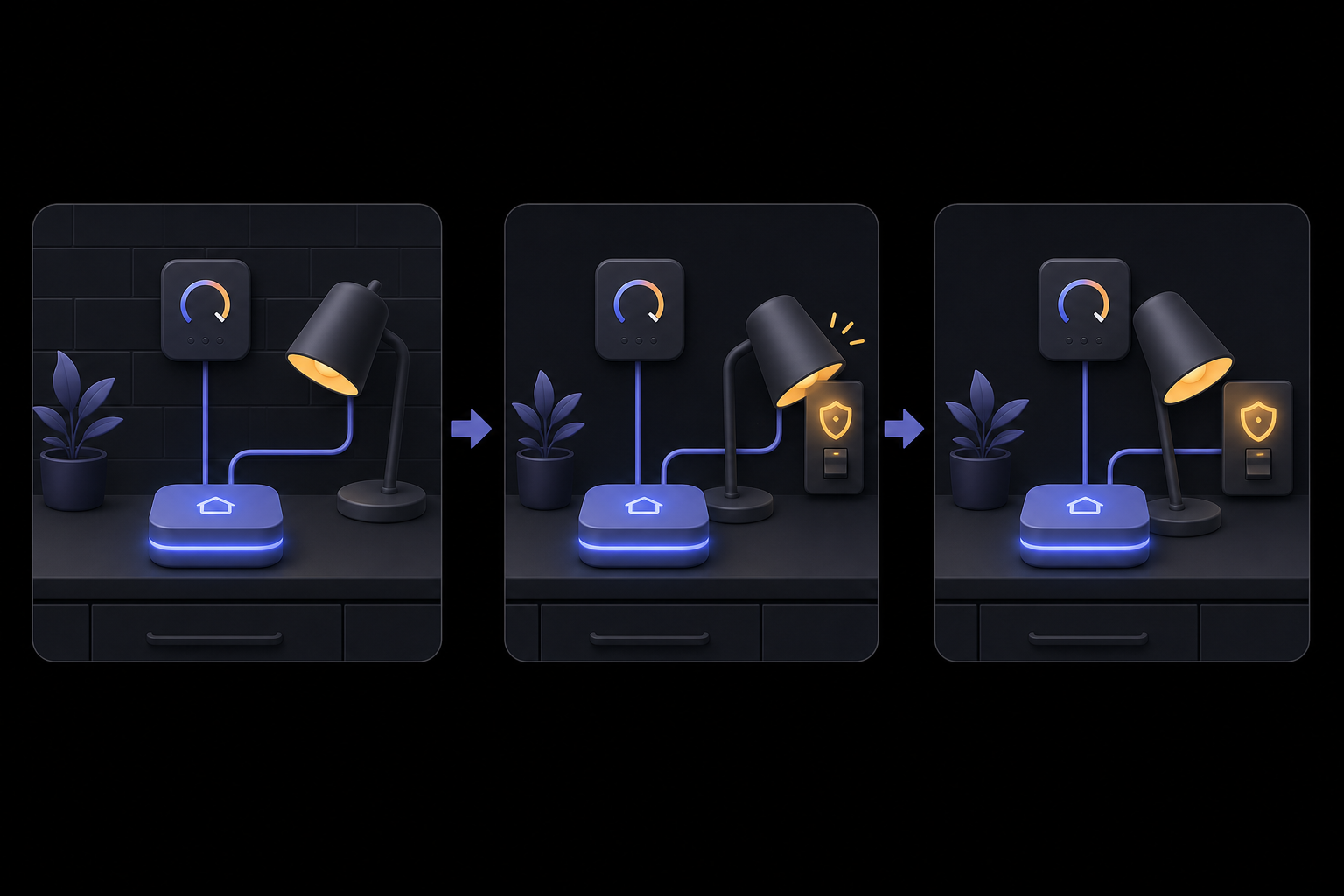
This guide covers how to connect Hermes Agent to Home Assistant using a long-lived access token, enabling the agent to query entity states, list available services, and control devices safely. It is written for operators who want a practical agent workflow beyond a chat demo, teams that need a clear setup path with permission boundaries, and self-hosted users who need to understand what runs locally and what credentials are required.
What You Need
Before starting, you must have the following:
- A running Home Assistant instance (local or remote).
- Hermes Agent installed and configured. The setup assumes you have access to the Hermes environment file at
~/.hermes/.env. - A Home Assistant long-lived access token. This is created from your Home Assistant profile page under "Long-Lived Access Tokens."
- Basic familiarity with environment variables and restarting services.
Understanding the Integration
Hermes Agent integrates with Home Assistant through a long-lived access token. This token allows the agent to interact with your smart home in two distinct modes: tool mode and event mode. Tool mode is for direct questions and commands (e.g., "What is the thermostat set to?" or "Turn off kitchen lights"). Event mode is for responding to state changes, such as when a door opens, a sensor crosses a threshold, or an automation fires. The official documentation emphasizes that you should keep destructive or security-sensitive actions behind confirmation until you trust the setup.
Features of the Integration
According to the official documentation, the integration provides the following capabilities:
- Long-lived access token setup with
HASS_TOKEN. - Optional
HASS_URLfor local or remote Home Assistant instances. - Entity discovery by domain or room, such as lights, sensors, climate, switches, and media players.
- Detailed state inspection before taking action.
- Service listing so Hermes can see what actions each device supports.
- Controlled service calls for device automation and smart-home routines.
Setup Path
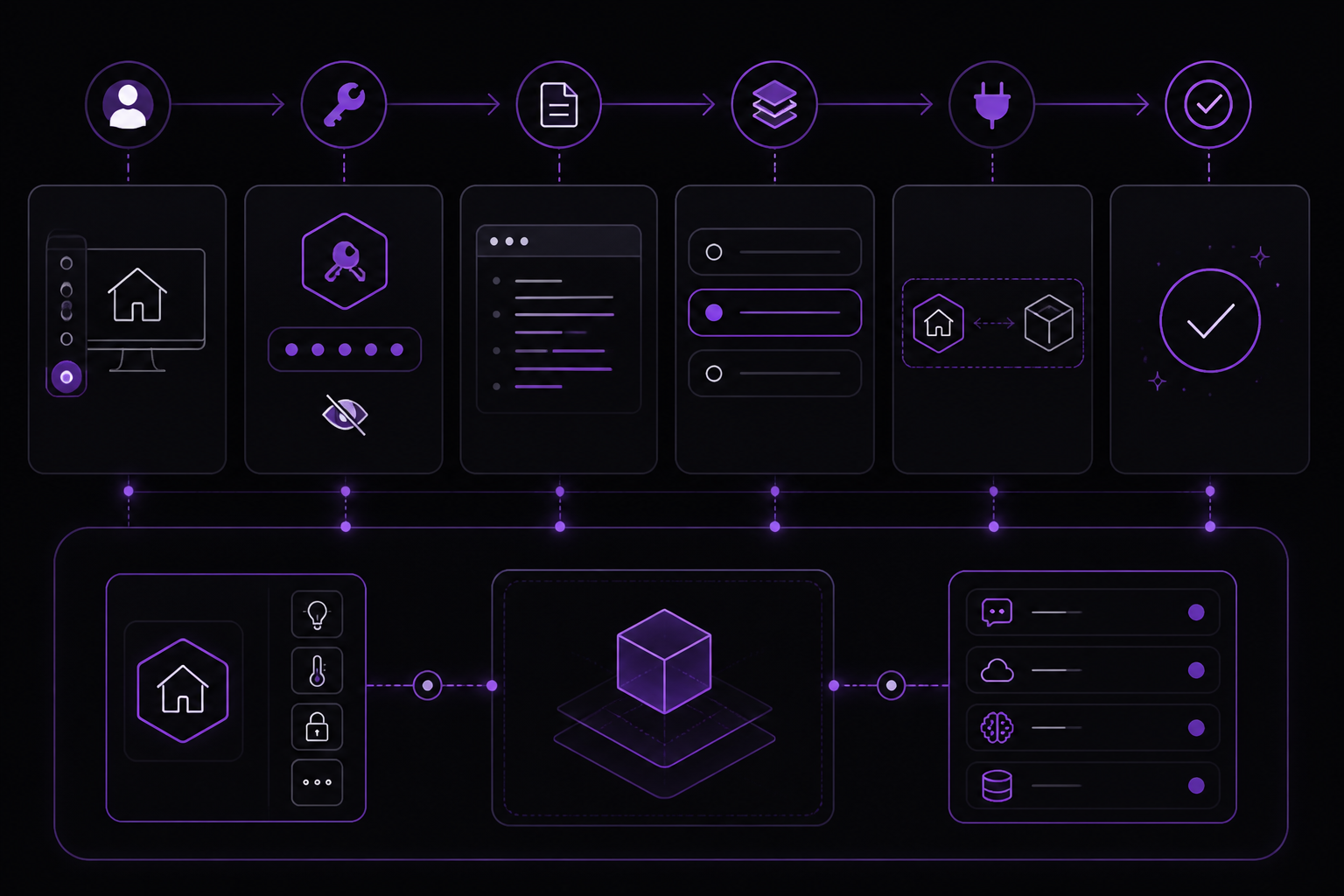
The official documentation outlines a clear six-step setup path. Follow these steps in order to avoid common pitfalls.
Step 1: Create a Home Assistant Long-Lived Access Token
Log into your Home Assistant instance. Navigate to your profile (click your avatar in the bottom-left corner). Scroll down to the "Long-Lived Access Tokens" section. Click "Create Token." Give it a descriptive name, such as "Hermes Agent." Copy the token immediately. Home Assistant will not show it again.
Step 2: Add Credentials to Hermes Environment
Open the Hermes environment file at ~/.hermes/.env in a text editor. Add the following lines:
HASS_TOKEN=your_long_lived_access_token_here
HASS_URL=http://homeassistant.local:8123
Replace your_long_lived_access_token_here with the token you copied. The HASS_URL is optional. If your Home Assistant instance is at the default URL (typically http://homeassistant.local:8123 on the same network), you can omit HASS_URL. If you use a custom URL or a remote instance, set it explicitly. The official documentation notes that if Hermes runs on the same network, you should use the local Home Assistant URL. If remote access is needed, secure it carefully.
Step 3: Restart Hermes or the Gateway
After saving the environment file, you must restart Hermes or the gateway for the changes to take effect. The exact command depends on how you run Hermes. If you run it as a service, use your system's service manager (e.g., systemctl restart hermes). If you run it from the command line, exit and start a new session. The official documentation states: "Restart Hermes or the gateway so the Home Assistant toolset becomes available."
Step 4: Ask Hermes to List Entities
Before allowing any control commands, start with a read-only prompt. Ask Hermes to list entities. For example: "List all lights in the living room." This confirms the integration is working and lets you see what devices Hermes can discover. The official documentation recommends this as a safety step.
Step 5: Run One Harmless Test
Perform one harmless test, such as reading a sensor state or listing lights in one room. For example: "What is the temperature in the kitchen?" or "List all switches in the garage." This verifies that state inspection works correctly.
Step 6: Allow Actions Only After Testing
Only after you have confirmed read-only access should you allow actions like turning on lights, changing climate settings, or running automations. Start with low-risk actions. The official documentation advises: "Keep destructive or security-sensitive actions behind confirmation until you trust the setup."
Two Integration Modes
Home Assistant can be used as a tool surface and as an event source. Understanding these modes is critical for designing your workflows.
Tool Mode
Tool mode is what you use for direct questions and commands. When you ask "What is the thermostat set to?" or "Turn off kitchen lights," Hermes uses the Home Assistant toolset to query state or call a service. This mode is synchronous: you ask, and Hermes responds with the result.
Event Mode
Event mode is for reactive workflows. When a device state changes (e.g., a door opens, a sensor crosses a threshold, or an automation fires), Hermes can trigger an agent workflow. This is useful for notifications, logging, or automated responses. The official documentation describes this as: "respond when a door opens, a sensor crosses a threshold, or an automation fires." Setting up event mode requires additional configuration on the Home Assistant side (e.g., webhooks or automations that send events to Hermes), which is beyond the scope of this guide but mentioned as a capability.
Safety Rules for Smart-Home Agents
Smart-home control is physical-world automation. The official documentation provides specific safety rules that you should follow:
- Start with read-only prompts. Before allowing any write actions, test read-only queries extensively.
- Use room/domain filters to reduce accidental device matches. When you ask Hermes to act, be specific. Instead of "turn off all lights," say "turn off the kitchen lights." This prevents unintended actions in other rooms.
- Require approval for locks, alarms, garage doors, heating, and anything safety-critical. The official documentation explicitly lists these as requiring approval. Implement a confirmation step in your workflow before Hermes can call services on these devices.
- Avoid broad commands like "turn everything off" unless you explicitly want that behavior. Broad commands can have unintended consequences, especially if you have devices that should not be turned off (e.g., a refrigerator or a medical device).
Common Setup Issues
The official documentation identifies three common setup issues and their solutions:
Integration Appears Enabled but Nothing Happens
If the integration appears enabled but Hermes does not respond to Home Assistant queries, restart the Hermes gateway or start a fresh Hermes session after config changes. The environment file is read at startup, so changes to HASS_TOKEN or HASS_URL require a restart.
Credentials Work in One Shell but Not in the Gateway
If credentials work when you test from a shell but not when the gateway runs, check the active Hermes profile and where the gateway process reads its environment. The gateway may be running under a different user or service that does not have access to ~/.hermes/.env. Ensure the environment file is readable by the user running the gateway.
The Workflow Is Too Broad
If Hermes is matching too many devices or taking unintended actions, split your workflow into smaller routes, skills, or prompts with one expected outcome each. For example, create separate prompts for lights, climate, and sensors rather than one generic smart-home prompt.
Advanced Configuration Details
Environment Variables
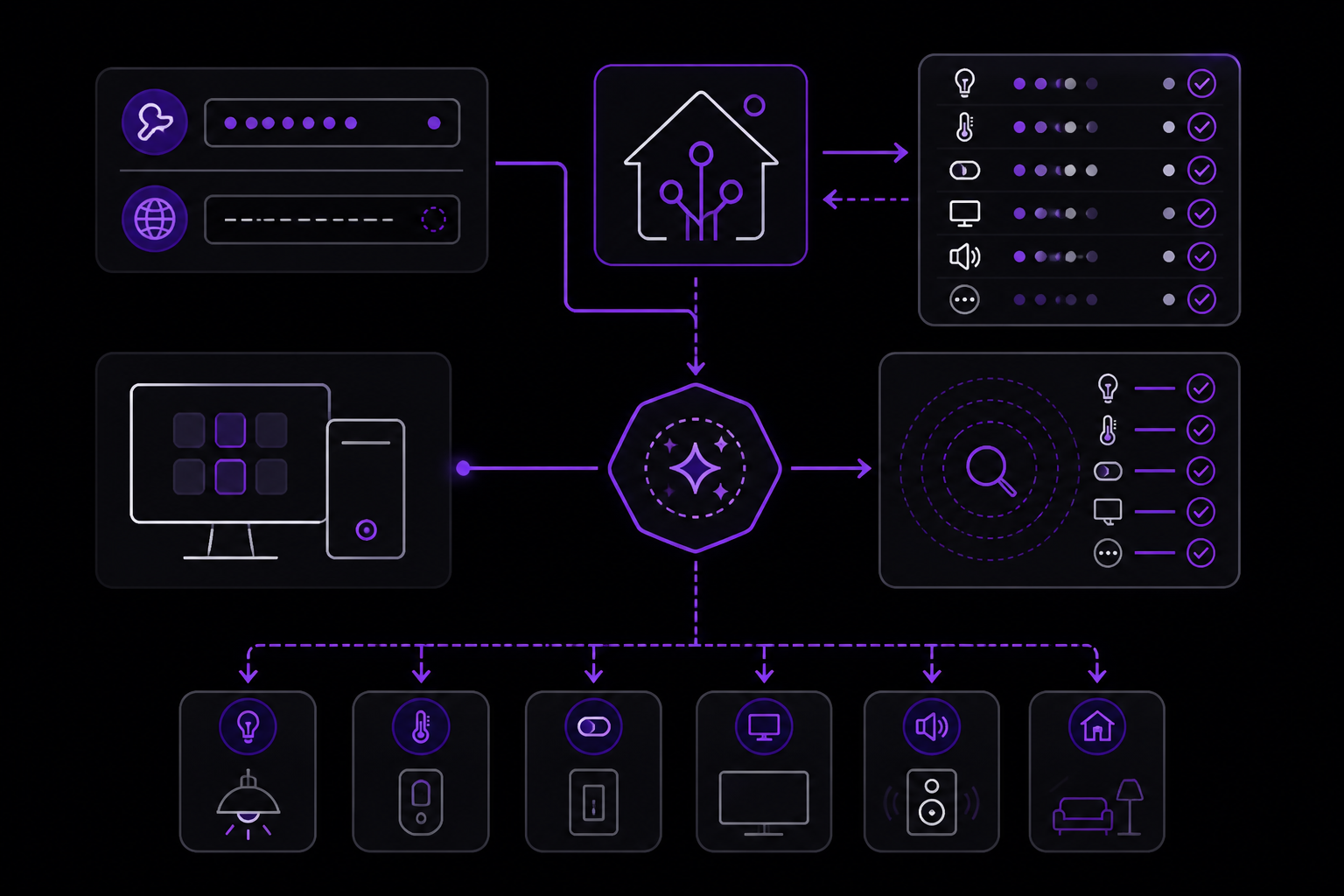
The integration uses two environment variables:
HASS_TOKEN: Required. The long-lived access token from Home Assistant.HASS_URL: Optional. The URL of your Home Assistant instance. If omitted, Hermes uses a default URL (likelyhttp://homeassistant.local:8123). Set this if you use a custom port, a different hostname, or a remote instance.
Entity Discovery
Hermes can discover entities by domain (e.g., light, sensor, climate, switch, media_player) or by room/area. This discovery happens automatically when the integration is active. You do not need to manually list entities. However, the official documentation recommends asking Hermes to list entities before allowing control commands, as a safety check.
Service Calls
Hermes can call any service that Home Assistant exposes. This includes turning devices on/off, setting climate temperatures, running scripts, and triggering automations. The official documentation lists these capabilities: "list entities, read state, list services, and call services through Home Assistant." The agent sees the available services after the token is configured.
Network Security
The official documentation addresses network security directly: "Should I expose Home Assistant to the internet for Hermes? Not by default. If Hermes runs on the same network, use the local Home Assistant URL. If remote access is needed, secure it carefully." This means you should keep Home Assistant on your local network if possible. If you must access it remotely, use a VPN, a reverse proxy with authentication, or Home Assistant's own remote access features (e.g., Nabu Casa).
Troubleshooting
Token Not Working
If you receive authentication errors, verify that the token is correctly copied into ~/.hermes/.env with no extra spaces or quotes. The token should be a long alphanumeric string. If you suspect the token is invalid, generate a new one in Home Assistant and update the environment file.
Hermes Cannot Find Home Assistant
If Hermes cannot connect to Home Assistant, check the HASS_URL. Ensure the URL is reachable from the machine running Hermes. Test with curl or ping. If Home Assistant uses HTTPS with a self-signed certificate, you may need to configure Hermes to accept it (this is not covered in the official documentation but is a common community workaround).
No Entities Found
If Hermes reports no entities, ensure Home Assistant has devices configured and that the token has the correct permissions. The token must have at least read access to entities. If you created the token with limited scopes, it may not see all entities.
Slow Responses
If Hermes is slow to respond to Home Assistant queries, check network latency. If Home Assistant is on a remote server, response times may be higher. Consider moving Hermes to the same network as Home Assistant.
Going Further
Once the basic integration is working, you can expand your workflow in several directions:
- Add tools to Hermes: Understand how tools and MCP servers become available to the agent. This allows you to combine Home Assistant with other integrations.
- GitHub integration: Connect automation outcomes to code, pull requests, and repository reports. For example, when a sensor detects a leak, Hermes could create a GitHub issue.
- Other integrations: The official documentation lists Telegram, Discord, Slack, WhatsApp, and Signal as other integrations. You can combine these with Home Assistant for notifications or remote control.
- Pricing and FlyHermes: Compare self-hosting with managed cloud when uptime matters. The official documentation provides a link to pricing and FlyHermes for those who want a managed solution.
- Voice control: The official documentation mentions "use hermes voice" as a related setup guide. This suggests you can add voice control to your Home Assistant setup through Hermes.
By following this guide, you have connected Hermes Agent to Home Assistant, enabling smart-home control and state checks. Start with read-only queries, test thoroughly, and gradually expand to controlled actions. Always keep safety in mind, especially for locks, alarms, and heating.
The #1 AI Newsletter
The most important ai updates, guides, and fixes — one weekly email.
No spam, unsubscribe anytime. Privacy policy