
Hermes Agent + Jira: Ticket, Sprint & Kanban Automation Guide
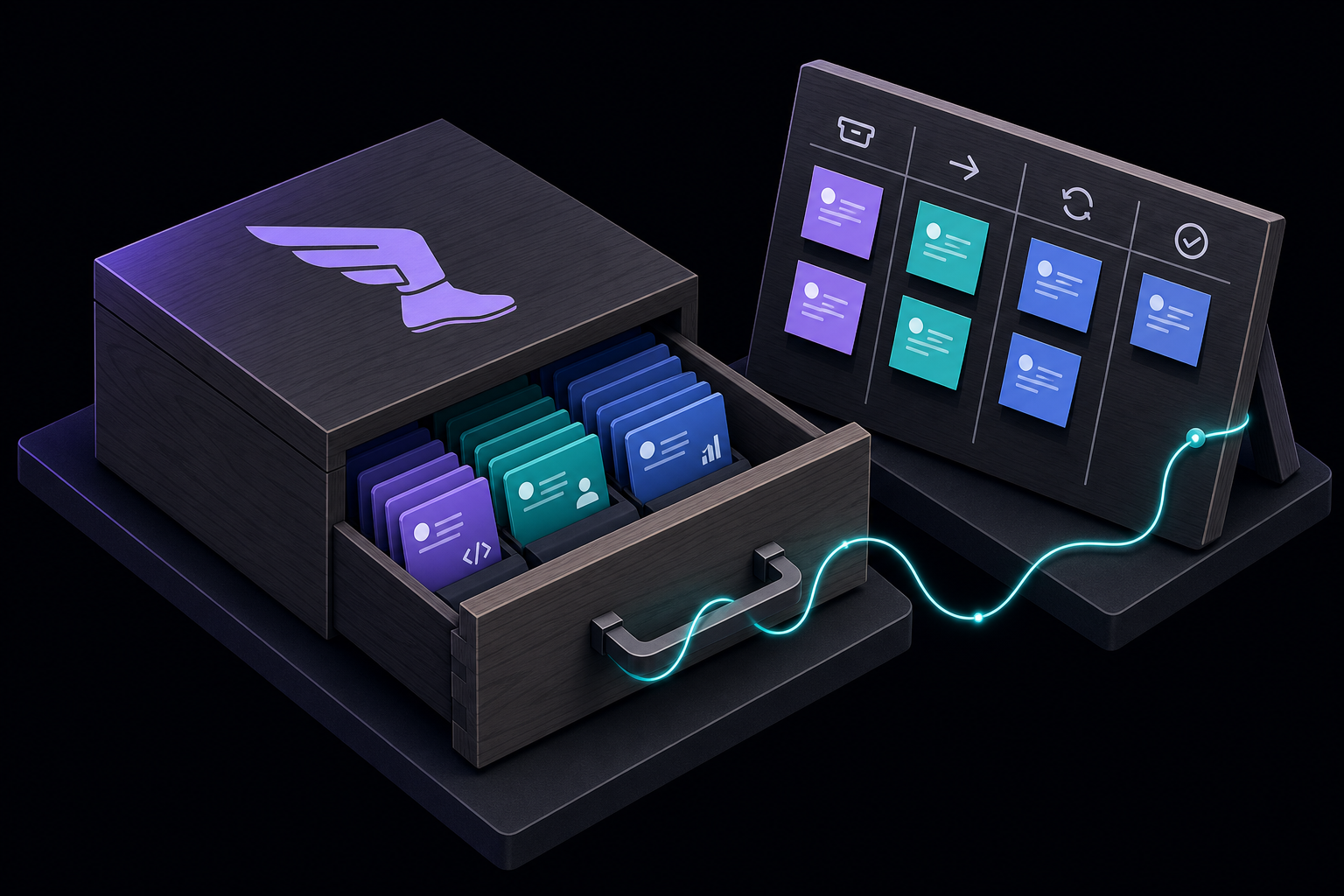
This guide covers how to integrate Hermes Agent with Jira for AI-powered ticket management, sprint planning, and team workflows. It is intended for developers, project managers, and automation engineers who want to use Hermes to create tickets, run JQL queries, manage sprints, and coordinate multi-step tasks using the Kanban board. You will learn the complete setup process, every configuration option, and practical workflows drawn from the official documentation and community demonstrations.
What You Need
Before you begin, ensure you have the following prerequisites in place:
- Hermes Agent installed and running. The official documentation states that Hermes Agent must be installed first. If you have not done this, follow the Hermes Agent installation guide before proceeding.
- A Jira account with administrative access. You need the ability to generate an API token and configure project settings.
- Jira site URL and account email. These are required to authenticate Hermes with your Jira instance.
- An Atlassian API token. Generate this from id.atlassian.com. The token is used for all API calls from Hermes to Jira.
- Default project and board settings. You will configure these in Hermes so that created tickets land in the correct project and board.
- The Kanban plugin (optional but recommended for multi-step workflows). The community video by Nemanja Mirkovic shows how to install the Kanban plugin via the
/updatecommand and initialize it with/kanban.
How Hermes Agent Connects to Jira
Hermes Agent integrates with Jira as a system of record for structured enterprise work. According to the official documentation, Jira is typically used for projects, boards, sprint scope, issue transitions, comments, and reporting. Hermes adds value by turning Jira context into action across code, docs, tests, or messaging channels. The integration supports the following features:
- Ticket creation and updates
- JQL queries
- Sprint management
- Status transitions
- Comment threads
- Assignee management
Where Jira Fits in a Hermes Workflow
The official documentation provides clear guidance on how to think about the relationship between Jira and Hermes:
- Use Jira for the official ticket and sprint record.
- Use Hermes to inspect issue context, summarize blockers, draft comments, or coordinate follow-up work.
- Pair Jira with GitHub when tickets should lead to pull requests or Actions-failure fixes.
This means Jira remains the source of truth for team-visible work, while Hermes acts as an intelligent agent that can read, write, and update Jira data autonomously.
Setup Path: Step by Step
Follow these steps exactly as documented in the official setup path:
Step 1: Generate a Jira API Token
- Log in to https://id.atlassian.com.
- Navigate to API tokens (under Security).
- Click "Create API token."
- Give it a label (e.g., "Hermes Agent") and copy the generated token. Store it securely; you will not be able to see it again.
Step 2: Configure Jira URL and Credentials in Hermes
In the Hermes Agent configuration interface, provide the following:
- Jira site URL: Your full Jira instance URL (e.g., https://your-domain.atlassian.net).
- Account email: The email address associated with your Atlassian account.
- API token: The token you generated in step 1.
Step 3: Set Default Project and Board
Specify the default project key and board ID so that created tickets land correctly. The official documentation notes that this is necessary for ticket creation to work without manual overrides. If you omit this, you may need to specify the project in every request.
Step 4: Restart Hermes
Run hermes restart to apply the configuration. The official documentation lists this as the final step in the setup path.
Using the Kanban Board as a Project Management Layer
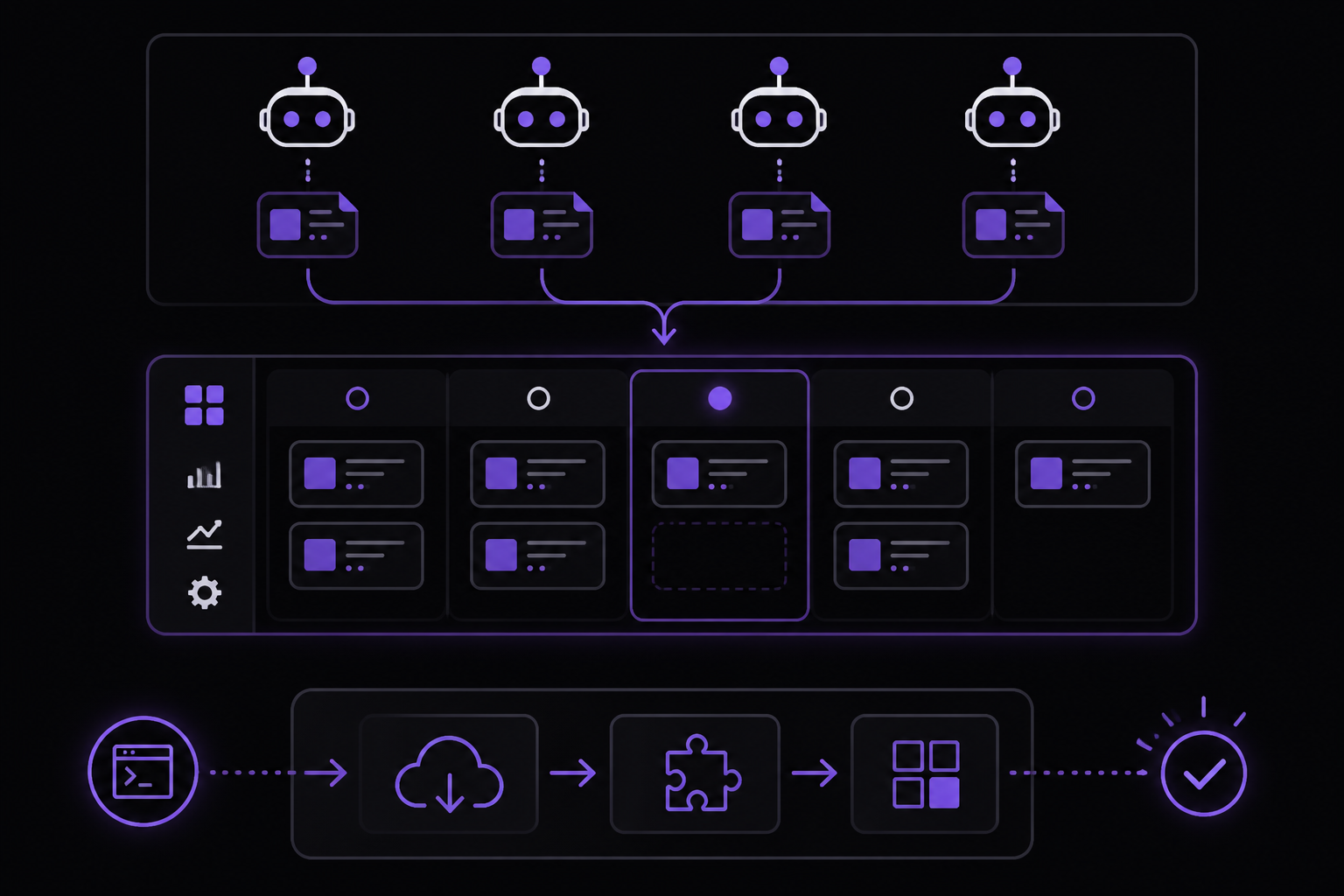
A major feature demonstrated in the community video by Nemanja Mirkovic is using the Hermes Kanban board as a project manager for multi-step tasks. The Kanban board is agent-native: cards are created and claimed by AI agents rather than humans. This is a key distinction from Jira, which is designed for human-driven workflows.
Installing the Kanban Plugin
If the Kanban tab is not appearing in the Hermes dashboard, the community video shows the fix:
- Run
/updatein the Hermes chat to pull the latest version of the agent. - Run
/kanbanto initialize the plugin. - Open the dashboard; you should now see the Kanban tab.
How the Kanban Board Works
The orchestrator breaks a natural-language request into cards, assigns each to the appropriate profile (e.g., writer, designer, researcher), and the dispatcher loop claims and executes cards in order. Cards that can run in parallel do so automatically. This is described in the community video as treating the Kanban board exactly like a lightweight Jira or Trello: a place to define work, assign it, track status, and leave feedback.
Profiles Enable Cost-Optimal Agent Routing
A key insight from the community video is that profiles let you use different models for different tasks. You do not need to run an expensive model for every step. An image-generation profile can point at a cheaper image API while a reasoning-heavy analyst profile uses a more capable model. The official documentation frames this as the same optimization as routing Jira ticket categories to the right team: the board makes it automatic.
Card Comments as Mid-Task Steering
The Kanban card interface includes a comment field. If the output from an agent is not right, you can leave a comment on the card. The community video demonstrates this: tell it to change the tone, redo the image, or adjust the copy, and the agent picks that up on its next iteration. This is a lighter-weight feedback loop than restarting the whole task.
Kanban vs Jira for Different Use Cases
The official FAQ directly addresses how the Hermes Kanban board compares to Jira:
- The Hermes Kanban board is agent-native: cards are created and claimed by AI agents rather than humans.
- Jira is better for large team workflows, compliance, and long-lived ticket history.
- Hermes Kanban is better for autonomous AI pipelines where tasks are created and resolved in minutes.
A common pattern is to use both: Jira as the source of truth for team-visible work, and the internal Kanban for agent-to-agent coordination. Hermes agents can pick up Jira tickets, do the work, and update ticket status using the Jira API integration alongside the internal Kanban.
Best Jira Workflows with Hermes
The official documentation recommends these specific workflows:
- Create tickets from incidents, customer requests, or QA findings. Hermes can automatically generate Jira tickets when certain conditions are met, such as a failed CI build or a customer support ticket.
- Use JQL to summarize sprint scope and blocked issues. Hermes can run JQL queries and return summaries, which is useful for daily standups or sprint reviews.
- Post comments or status updates after a code or product review. After Hermes completes a code review or generates a report, it can update the relevant Jira issue with a comment or transition its status.
JQL Queries: What You Can Do
Yes, Hermes can run JQL queries. The official documentation states that JQL queries are useful for:
- Sprint summaries
- Blocked-ticket checks
- Project reports
- Finding issues that need follow-up
You can ask Hermes in natural language to run a query, and it will return the results in a readable format.
Advanced Configuration: Profiles and Multi-Agent Workflows
The community video demonstrates a multi-step task where a research brief is turned into an X post and an image. The workflow proceeds as follows:
- A natural-language request is given to Hermes.
- The Kanban board populates with cards: a writer card and a designer card.
- The writer agent completes its work first (writing the X post copy).
- The designer agent then starts image generation.
- The final deliverable includes both the image and the copy.
Profiles Explained
Each agent in the workflow is assigned a profile. The community video explains that profiles let you use different models for different tasks. For example:
- A writer profile might use a text-optimized model.
- A designer profile might use an image generation API.
- An analyst profile might use a more capable reasoning model.
This is a cost-optimization strategy: you do not need to run an expensive model for every step.
Manual Card Creation and Parent/Child Dependencies
The community video also shows manual card creation and parent/child dependencies. This allows you to define complex workflows where one card depends on another. For example, a research card must complete before a writing card begins.
Common Setup Issues and Troubleshooting
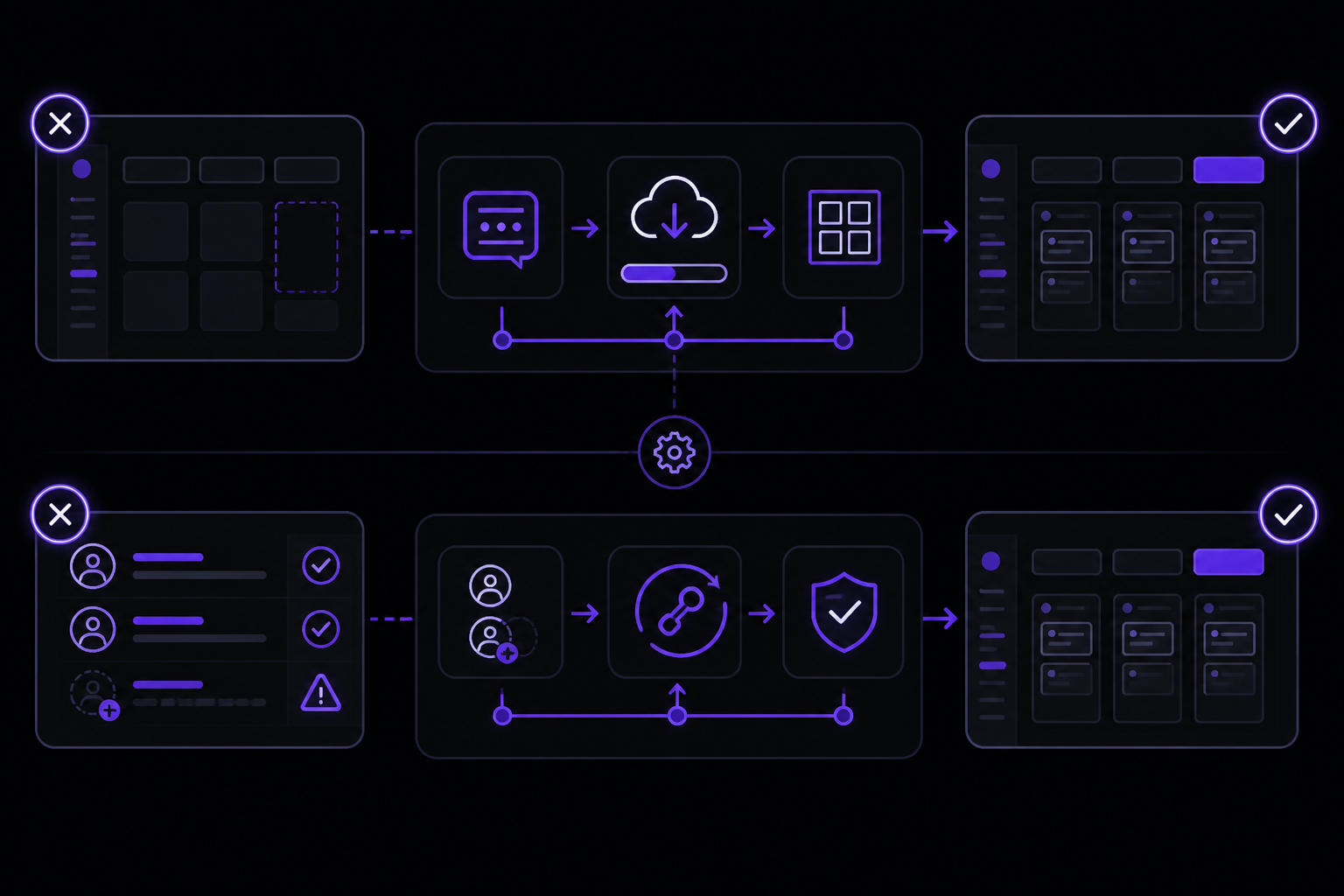
The official documentation and community video identify several failure modes and their solutions:
Kanban Tab Not Appearing
Problem: The Kanban tab is not visible in the Hermes dashboard after installation.
Solution: Run /update in the Hermes chat to pull the latest version, then run /kanban to initialize the plugin. After that, open the dashboard and you will see the Kanban tab.
Authentication Token Error After Adding Multiple Profiles
Problem: After adding new profiles, the Kanban stops working. Solution: The community video shows this exact issue mid-recording. Open each profile in settings and re-paste the API token. The token must be copied to all profiles for them to authenticate correctly.
Image Generation Agent Takes Too Long
Problem: Image generation with GPT image tools takes 7-10 minutes, blocking the entire workflow. Solution: Consider running the writing task first, then kick off image generation as a parallel card so the overall workflow is not blocked waiting. The community video notes that image generation is slow by nature, so parallel execution is the recommended workaround.
Agent Finishes but Card Stays in Progress
Problem: The agent completes its work, but the card remains in "in progress" status. Solution: Manually move the card to "ready" or "done" from the Kanban UI. The community video explains that the agent may have completed its work but failed to update the card state if it hit a token limit or connectivity issue.
FAQ: Common Questions Answered
What credentials does Hermes need for Jira?
Hermes typically needs your Jira site URL, account email, an Atlassian API token, and default project or board settings so created tickets land correctly.
Can Hermes run JQL queries?
Yes. JQL queries are useful for sprint summaries, blocked-ticket checks, project reports, and finding issues that need follow-up.
Should Jira users also connect GitHub?
Usually yes for engineering teams. Jira tracks work, while GitHub gives Hermes access to pull requests, CI status, repository context, and code-review follow-ups.
Can Hermes Agent act as a project manager for multi-step workflows?
Yes. The Kanban board lets Hermes break a task into cards, assign each to a specialist agent profile, run them in parallel or sequence, and deliver a combined output, behaving like a project manager routing work to the right team members.
How does the Hermes Kanban board compare to Jira?
The Hermes Kanban board is agent-native: cards are created and claimed by AI agents rather than humans. Jira is better for large team workflows, compliance, and long-lived ticket history. Hermes Kanban is better for autonomous AI pipelines where tasks are created and resolved in minutes.
Can I use Hermes with both Jira and the Kanban board?
Yes. A common pattern is to use Jira as the source of truth for team-visible work and have Hermes agents pick up Jira tickets, do the work, and update ticket status using the Jira API integration alongside the internal Kanban for agent-to-agent coordination.
How do I give feedback to an agent mid-task on the Kanban?
Open the card in the Kanban dashboard and use the comment field. Write your feedback (change direction, adjust scope, redo a specific step) and the agent will pick it up on its next loop iteration.
Going Further
After mastering the Jira integration, the official documentation suggests exploring these related areas:
- GitHub integration: Pair Jira with GitHub when tickets should lead to pull requests or Actions-failure fixes. The official documentation has a dedicated setup guide for GitHub.
- Linear integration: Compare the Jira setup with Linear for teams that prefer a lighter-weight issue tracker.
- Slack integration: Connect Hermes to Slack for notifications and conversational task management.
- Other integrations: The official documentation lists Telegram, Discord, WhatsApp, and Signal as additional integration options.
- Pricing: Review the Hermes Agent pricing page to understand cost implications of different profiles and model usage.
The community video also previews a future comparison of Kanban vs GitHub Issues as an orchestration layer. For teams already in Jira or Linear, connecting those issue trackers to Hermes profiles via webhooks or the MCP layer follows the same pattern.
The #1 AI Newsletter
The most important ai updates, guides, and fixes — one weekly email.
No spam, unsubscribe anytime. Privacy policy