
Hermes Agent + Linear: AI Issue Triage and Sprint Execution Guide
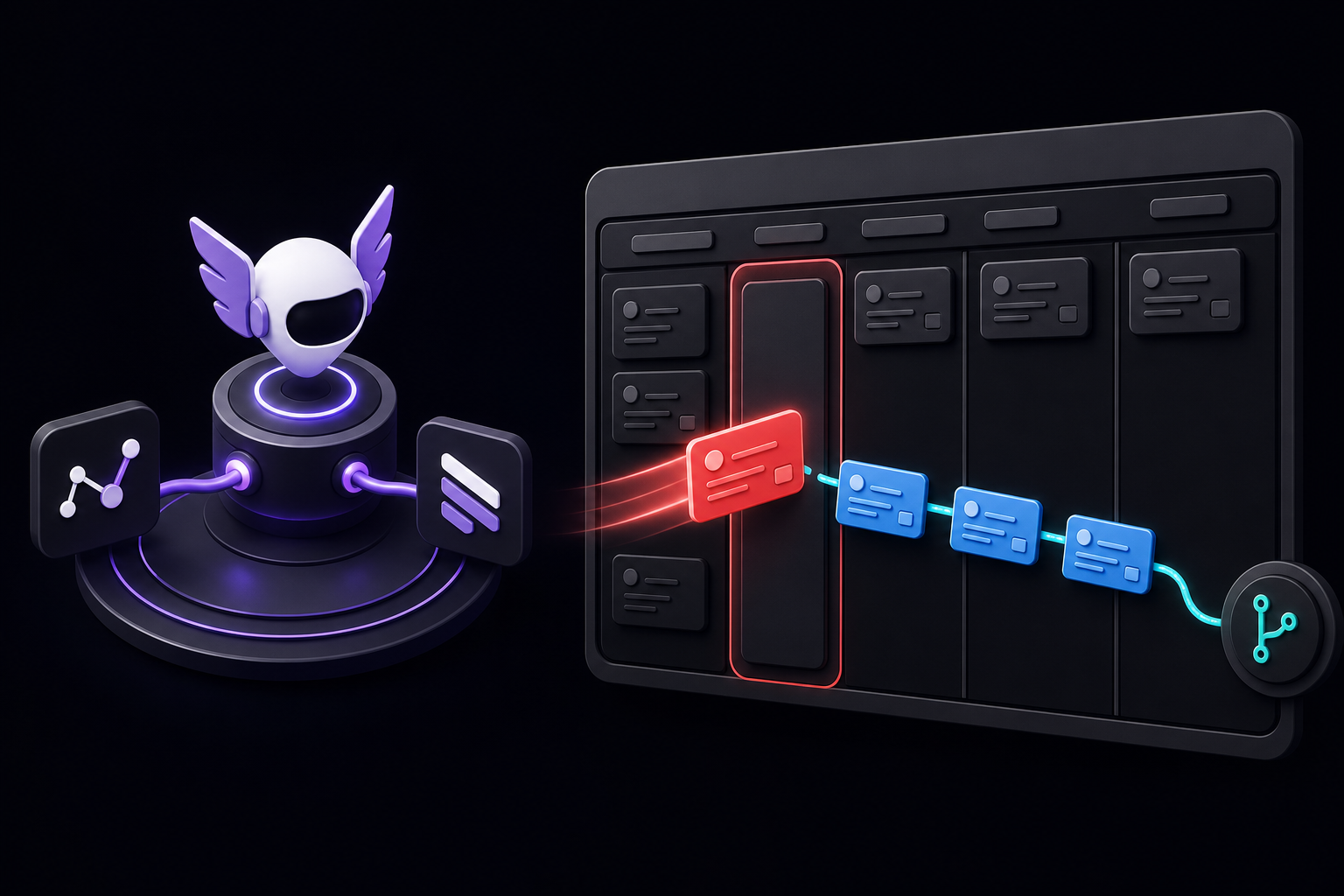
This guide explains how to connect Hermes Agent to Linear using the MCP catalog, enabling an AI agent to read issues, create follow-ups, triage sprint risk, and link issues to GitHub work. It is written for product and engineering teams that already use Linear and want an agent to turn issue context into actual shipped work, as well as founders who collect bugs in messaging channels and need clean Linear issues with acceptance criteria.
What You Need
Before starting, you need the following, all drawn from the official Hermes Agent documentation:
- Hermes Agent installed and running. The integration uses the Hermes MCP catalog, so you must have a working Hermes installation first. The documentation assumes you have already installed Hermes Agent before attempting the Linear connection.
- A Linear account with OAuth access. The integration uses OAuth-based authorization. You need a Linear account that can complete a browser-based OAuth flow. There is no mention of API keys or personal tokens in the official setup path.
- GitHub integration (optional but recommended). The most powerful workflows pair Linear with GitHub so Hermes can read issues, inspect code, create branches or pull requests, and report PR links back to Linear. You should connect GitHub separately if you want this capability.
- A fresh Hermes session. After installing the Linear MCP catalog entry, you must restart or open a fresh Hermes session so the MCP tools are discovered. Running
hermes mcp listafter a restart confirms the tools are available.
How the Linear Integration Works
Hermes connects to Linear through the MCP catalog, which makes Linear another tool surface inside an agent run rather than a separate chat bot. According to the official documentation, after the Linear MCP is installed and authorized, Hermes can search issues, open issue details, create new work items, and use that tracker context while it writes code, reviews GitHub changes, or posts a status summary back to your team.
The key architectural point is that Linear becomes context for a larger agent run, not just a destination for created tickets. The agent can inspect the issue, look at the repository, check recent pull requests, decide what information is missing, and then produce either a code change, a QA note, a documentation patch, or a clearer follow-up issue. This is what distinguishes the Hermes approach from simpler "AI writes a ticket" demos.
Linear as the Source of Truth, Hermes as the Execution Layer
The official documentation recommends using Linear as the team-visible source of truth and Hermes as the execution layer that can read the issue, gather repo context, perform work, and report the result. This separation of concerns means your team continues to plan, prioritize, and assign work in Linear, while Hermes handles the execution steps that follow from those issues.
Setup Path
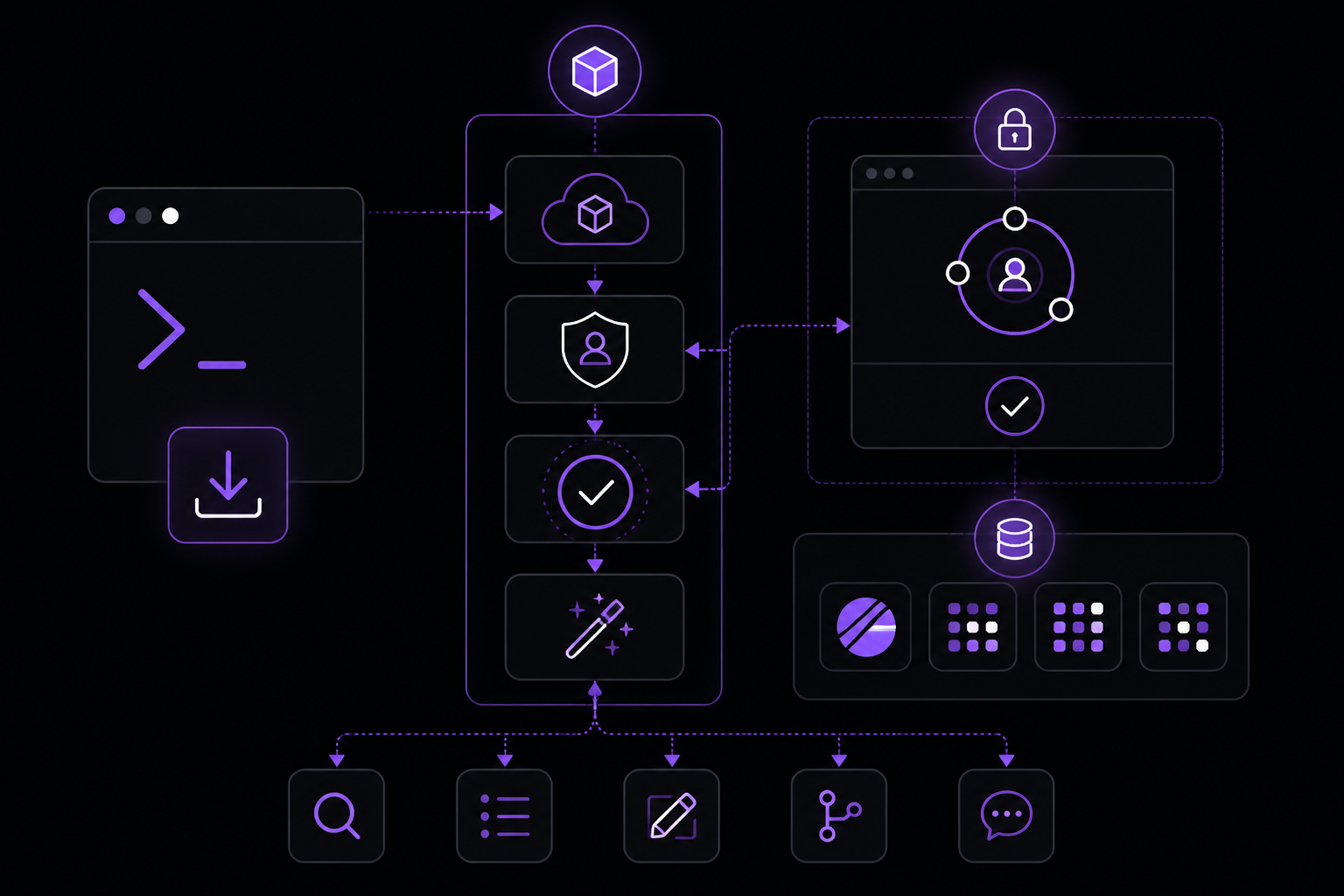
The official documentation provides a five-step setup path. Each step is explained below with practical context.
Step 1: Install the Linear MCP Catalog Entry
Run the following command in your Hermes terminal:
hermes mcp install linear
This command installs the Nous-reviewed Linear MCP catalog entry. The documentation specifies that this is the recommended path and that MCP makes Linear tools available to Hermes without writing a custom native tool first. There is no mention of a native Linear adapter; the MCP catalog entry is the intended method.
Step 2: Complete the OAuth Flow
After running the install command, Hermes will open a browser window or prompt you to complete the OAuth flow. The documentation says to "complete the OAuth flow or credential prompt opened by Hermes, then restart or open a fresh Hermes session so the MCP tools are discovered."
If the OAuth flow opens but the agent still cannot read issues, the documentation advises finishing the browser authorization flow and then running hermes mcp test linear or reopening Hermes so the client reconnects. This is listed as a common setup issue, so expect to verify connectivity after authorization.
Step 3: Configure Which Tools Are Enabled
Run the following command to configure which Linear tools Hermes may use:
hermes mcp configure linear
This command lets you keep only the Linear tools your team wants the agent to use at first. The documentation recommends starting with read/search tools only and leaving destructive or rarely needed tools disabled. This is a critical safety step because Linear contains production project data.
Step 4: Run a Read-Only Smoke Test
Before enabling any write tools, run a read-only smoke test. The documentation suggests this prompt:
"summarize my highest-priority Linear issues for this project."
If the smoke test returns correct results, you can proceed to enable write tools. If it does not, check that the MCP tools are properly installed and that the OAuth flow completed successfully. You can run hermes mcp list to confirm the Linear catalog entry is installed and enabled.
Step 5: Enable Write Tools and Define Conventions
If the smoke test is correct, enable issue creation and update tools. The documentation says to define default labels, project, team, and status conventions in a skill. This step ensures Hermes creates issues in the right place rather than in the wrong project or team. The documentation explicitly warns that if Hermes creates issues in the wrong place, you should define the default Linear team, project, labels, and priority mapping in a skill or prompt template before enabling write-heavy workflows.
What the Linear Integration Actually Does
Once the Linear MCP is installed and authorized, Hermes gains the following capabilities according to the official documentation:
- Read Linear issues, projects, teams, labels, and priorities inside an agent run. The agent can search issues, open issue details, and use that information as context for further actions.
- Create follow-up issues from meetings, support threads, code review findings, or release notes. Once write tools are enabled, Hermes can turn meeting notes, support threads, QA findings, or code-review comments into issues with titles, descriptions, priorities, and labels.
- Summarize sprint risk, stale blockers, missing owners, and ambiguous acceptance criteria. This is useful for engineering managers who want sprint-risk summaries without manually reading every open issue.
- Connect Linear issues to GitHub branches, pull requests, Actions failures, and review comments. This requires pairing Linear with the GitHub integration, but it enables the full issue-to-outcome loop.
- Use Hermes Kanban for agent execution while Linear remains the team-visible tracker. The agent can decompose work into parent and child tasks on the Kanban board while Linear tracks the official deliverable.
- Tool selection controls so you can start read-only before allowing write actions. The
hermes mcp configure linearcommand gives you granular control over which tools are available.
A Practical Linear Workflow: The Issue-to-Outcome Loop
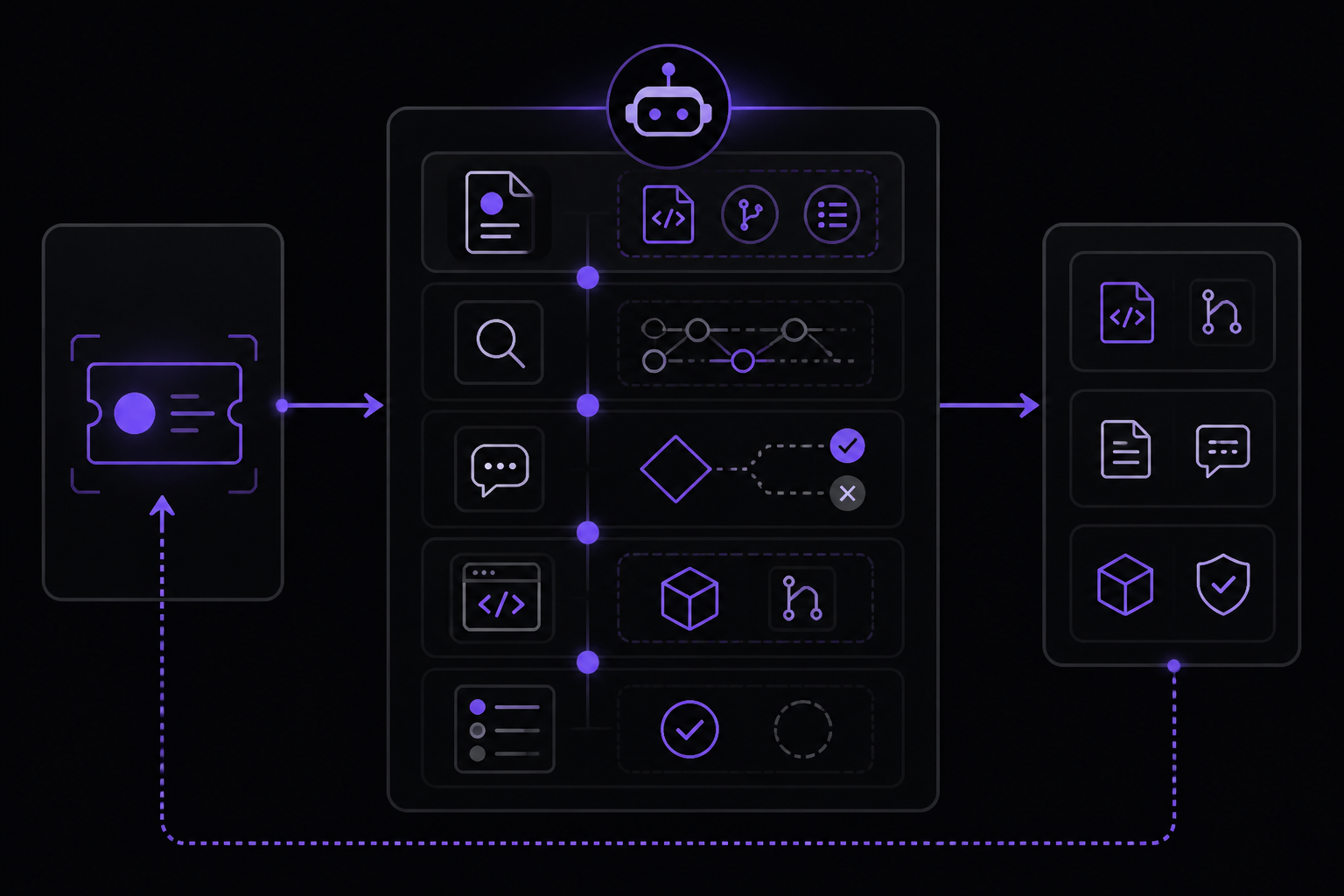
The official documentation describes the useful pattern as an issue-to-outcome loop: Hermes reads a Linear issue, checks related files or pull requests, asks for missing details only when needed, implements or drafts the next step, and then updates the issue with exactly what changed and what still needs human review.
Bug Triage
For bug triage, Hermes can summarize the report, find the likely code path, reproduce if possible, and add a clear fix plan or pull request link. This requires the GitHub integration to be active so the agent can inspect the repository and create branches or pull requests.
Sprint Planning
For sprint planning, Hermes can group issues by risk, dependency, owner, and missing context before the planning meeting. The agent can read all open issues for a project, identify stale blockers, find issues with missing owners, and flag ambiguous acceptance criteria. This gives engineering managers a sprint-risk summary without manually reading every open issue.
Support Handoff
For support handoff, Hermes can turn a Telegram, Discord, email, or Slack thread into a Linear issue with reproduction steps and acceptance criteria. The documentation notes that founders who collect bugs in these channels can use Hermes to create clean Linear issues. This requires the relevant messaging channel integration to be connected separately.
Release Cleanup
For release cleanup, Hermes can scan open issues, find stale blockers, and draft the final "what shipped / what slipped" update. The agent can read all issues for a cycle or project, identify which ones are still open, check for blockers, and produce a summary report.
When to Use Linear Versus the Hermes Kanban Board
The official documentation provides clear guidance on when to use each system:
- Use Linear when humans need to own, prioritize, or discuss the issue later. Linear is best for team planning, product visibility, assignment, labels, priorities, projects, cycles, and reporting.
- Use Hermes Kanban for the agent's internal execution plan when a job needs multiple steps, subagents, dependencies, or progress comments. The Kanban board handles parent tasks, child tasks, specialist profiles, parallel work, and progress comments while the agent is running.
- You can use both. Linear tracks the official deliverable; Kanban tracks how Hermes decomposes and executes the work. The documentation recommends storing the Linear issue ID in the Hermes task title or notes when you want a stable cross-reference.
Routing Issue Types to Specialist Agents
Different Linear work should not all go to the same generic prompt. The official documentation describes how to use Hermes profiles and skills to keep behaviors separate while Linear stays the shared work queue:
- Bugs can load a code-focused profile with GitHub access.
- Documentation issues can load a writing profile with the docs repo and Notion context.
- QA issues can load browser and terminal tools.
Hermes profiles and skills let you keep those behaviors separate while Linear remains the shared work queue. This is an advanced pattern that requires defining multiple profiles and routing rules.
Safe Rollout Checklist
The official documentation provides a safe rollout checklist that treats Linear as production project data:
- Install the catalog entry with
hermes mcp install linear, then complete the browser OAuth flow if prompted. - Use
hermes mcp configure linearto leave destructive or rarely needed tools disabled. - Run one read-only prompt such as "summarize my highest-priority Linear issues for this project."
- Add write access only after confirming team, project, labels, and priority mapping are correct.
- Pair with GitHub for pull-request work and Telegram/Slack/Discord for human-visible status reports.
The documentation emphasizes that Linear write access should be staged. Start by letting Hermes read and summarize. Then allow issue creation for low-risk workflows. Only later should it update statuses or post comments automatically, and even then the skill should define exactly when approval is required. This keeps the tracker trustworthy instead of turning it into an unreviewed bot log.
Human Approval Still Matters
The official documentation explicitly addresses the safety of letting an agent update Linear. It states that it can be safe if you stage permissions: read-only first, issue creation next, and status/comment updates only after your team defines clear conventions and approval points. The skill should define exactly when approval is required for each type of write action.
Common Setup Issues
The documentation lists several common setup issues and their solutions:
- No Linear tools show up. Run
hermes mcp listand confirm the Linear catalog entry is installed and enabled. Start a fresh Hermes session after changing MCP configuration. - OAuth opens but the agent still cannot read issues. Finish the browser authorization flow, then run
hermes mcp test linearor reopen Hermes so the client reconnects. - Hermes creates issues in the wrong place. Define the default Linear team, project, labels, and priority mapping in a skill or prompt template before enabling write-heavy workflows.
Troubleshooting
Based on the common setup issues documented in the official source, here is a troubleshooting guide:
Issue: No Linear tools appear after installation
Run hermes mcp list to confirm the Linear catalog entry is installed and enabled. If it is not listed, re-run hermes mcp install linear. If it is listed but still not working, start a fresh Hermes session. The documentation explicitly says to start a fresh session after changing MCP configuration.
Issue: OAuth flow completes but agent cannot read issues
Run hermes mcp test linear to verify the connection. If that does not work, reopen Hermes so the client reconnects. The documentation lists this as a separate step from the initial OAuth flow.
Issue: Issues created in the wrong project or team
Define the default Linear team, project, labels, and priority mapping in a skill or prompt template before enabling write-heavy workflows. The documentation warns that this is a common issue and that you should not enable write tools until these defaults are configured.
Issue: The optional demo video feels unrelated
The documentation includes a note that the video (Hermes Agent Just Became a Project Manager by Nemanja Mirkovic) is an optional Kanban/project-manager demo. The actual Linear setup uses the Linear MCP; the Kanban demo only explains how Hermes decomposes multi-step work. If you are only setting up Linear, you can skip the video.
Going Further
Once you have the basic Linear integration working, the official documentation suggests several next steps:
- Use Hermes with GitHub. Connect Linear issue work to branches, pull requests, reviews, and Actions failures. This is the most powerful extension of the Linear integration because it enables the full issue-to-outcome loop.
- Add tools to Hermes. Learn how MCP and tool selection expose external systems safely. The documentation links to a general guide on adding tools to Hermes.
- Consider Hermes pricing and managed cloud. Decide whether to self-host the integration or use managed FlyHermes uptime. The documentation links to a pricing page for this decision.
- Explore other integrations. The documentation mentions Telegram, Discord, Slack, WhatsApp, and Signal as additional integrations that can feed into the Linear workflow. Connecting these channels lets Hermes turn conversations into Linear issues.
- Review related setup guides. The documentation links to guides for GitHub, Jira, and Notion integrations, which can be combined with Linear for cross-platform workflows.
The #1 AI Newsletter
The most important ai updates, guides, and fixes — one weekly email.
No spam, unsubscribe anytime. Privacy policy