
Hermes Agent + Notion: Workspace Automation Setup Guide
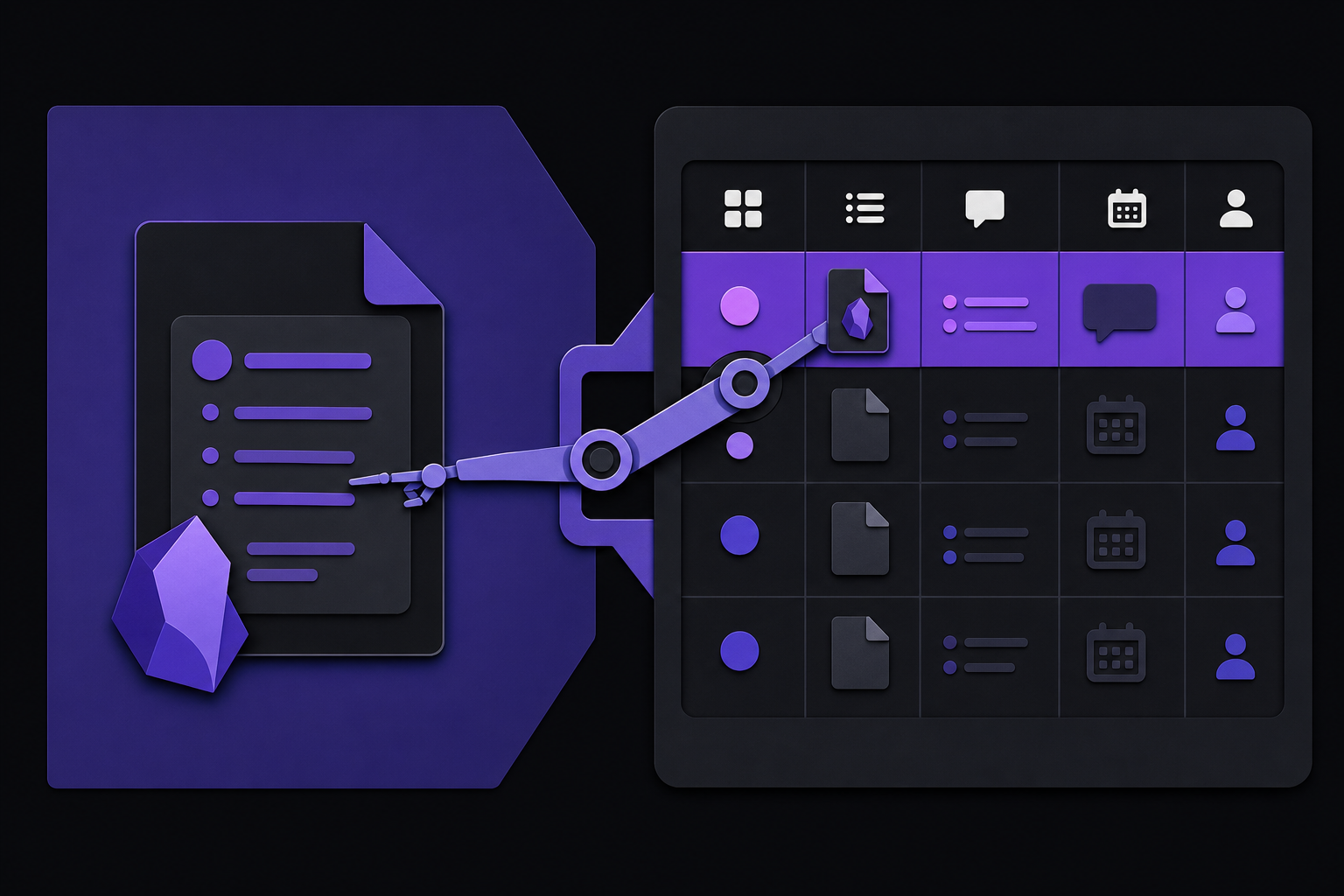
This guide covers connecting Hermes Agent to Notion for database queries, project briefs, meeting notes, task updates, and structured knowledge automation. It is for teams and individuals who already keep operational knowledge in Notion and want an AI agent to read, reason over, and write to that workspace without manual effort.
What You Need
Before starting, you need the following:
- A Notion account with at least one database or page you want Hermes to access.
- A Hermes Agent instance. You have two options:
- FlyHermes (managed cloud): The easier path. No VPS, Docker, reverse proxy, or local laptop uptime needed. Skill library, API costs included, and always-on automation without server maintenance.
- Self-hosted Hermes: The open-source route when you want to own the server. Requires a VPS or local machine with Docker, and you manage provider credentials, tools, skills, logs, and a dashboard.
- For self-hosted setups: A Notion API key (internal integration token starting with
secret_). - For FlyHermes: A FlyHermes account (the cloud service handles the API key configuration).
How Notion and Hermes Work Together
Notion stores the database, brief, task list, CRM, or knowledge base. Hermes reads that structure, reasons over it, writes updates, and remembers the conventions that should follow the work across sessions. The official documentation puts it simply: "Notion is the workspace; Hermes is the operator."
What Belongs Where
- In Notion: Project tables, briefs, meeting notes, content calendars, CRM-style databases, project trackers, and any structured data your team already uses.
- In Hermes memory: Stable preferences, project conventions, and durable agent context that should persist across sessions. These are complementary, not the same thing.
- In skills: Repeated Notion workflows turned into reliable operating procedures instead of one-off prompts.
Best Use Cases
According to the official documentation, this integration is best for:
- Content calendars, CRM-style databases, and project trackers.
- Meeting notes that should become tasks or briefs.
- Template-based project pages after agent research.
- Teams that already keep operational knowledge in Notion.
Setting Up the Notion Integration
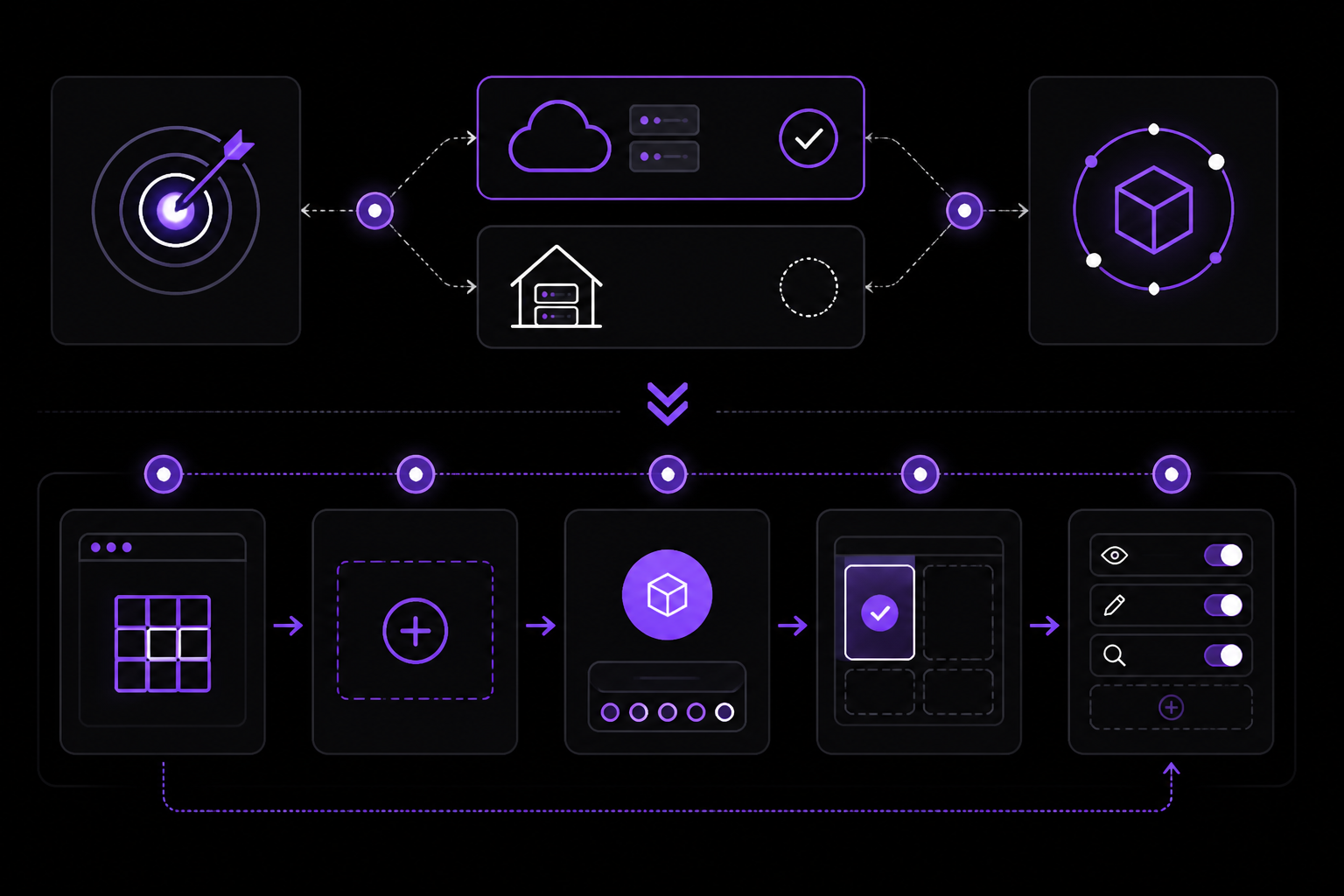
Step 1: Choose Your Deployment Path
Decide whether to use FlyHermes or self-host. The official documentation states: "Self-hosted setup works if you want control, but FlyHermes is the easier cloud path when you want Notion workflows, the skill library, memory, and always-on automation without server maintenance."
Step 2: Create a Notion Internal Integration
- Go to notion.so/my-integrations.
- Click "Create new integration."
- Give it a name (e.g., "Hermes Agent").
- Select the workspace where your target databases live.
- Under "Capabilities," ensure read and write permissions are enabled if you want Hermes to update pages. For initial testing, read-only is safer.
- Submit and copy the Internal Integration Secret (the API token). It will start with
secret_. This is critical: the official documentation warns that the token must come from an internal integration, not a public one.
Step 3: Share Databases with the Integration
This is the most common point of failure. The official documentation is explicit: "If Hermes cannot see a database, share that specific database with the Notion integration; workspace-level access is not enough." You must share each individual database or page with the integration.
To share a database:
- Open the database in Notion.
- Click the three-dot menu in the top-right corner.
- Scroll down to "Connections" (or "Add connections").
- Find and select your Hermes integration from the list.
- Confirm. The database now appears in the integration's accessible pages.
Repeat for every database you want Hermes to access. The official documentation advises: "Share only the pages and databases needed for the workflow, especially if your workspace contains private notes, credentials, or client data."
Step 4: Connect Hermes to Notion
For self-hosted Hermes:
- Start Hermes Agent on your machine.
- Ask it to connect to Notion. The exact command or prompt is not specified in the documentation, but the video by Whis Keeriyat shows the flow: you tell Hermes to connect to Notion, and it prompts you for the API token.
- Paste the
secret_token when prompted. - Verify the connection by asking Hermes: "What pages can you see in Notion?" It should list all shared databases: sprints, social media boards, goal trackers, CRMs, and more.
For FlyHermes:
The managed service handles the API key configuration through its dashboard. You still need to create the Notion integration and share databases, but you paste the token into the FlyHermes UI rather than a local CLI.
Step 5: Start with a Read-Only Query
Before allowing page updates or template filling, the official documentation recommends: "Use a Hermes Notion skill or scoped custom tool to query one database read-only first. Only then allow page updates, template filling, or unattended project-brief workflows." This minimizes risk of accidental writes while you validate the connection.
Pages vs Databases: What Hermes Works With
Understanding the difference between Notion pages and databases is essential for effective automation.
- Notion database: A structured collection with typed properties (task name, status, due date, assignee). Rows are individual entries with consistent fields.
- Notion page: A freeform document. It can exist inside a database (as a row) or outside (as a standalone page).
The official documentation states: "Hermes queries and updates databases most effectively. When thinking about a CRM or project management workflow, create distinct databases for each concern and share them individually with the integration rather than sharing the entire workspace."
For example, if you have a CRM, a content calendar, and a project tracker, create three separate databases. Share each one with the integration. This keeps data organized and reduces the chance of Hermes writing to the wrong place.
Combining Notion with Obsidian for Memory
The Whis Keeriyat video demonstrates an architecture that pairs Notion with Obsidian. Here is how it works:
- Notion: Holds structured team databases and project trackers (task lists, sprint boards, CRM data).
- Obsidian: Holds local Markdown notes, session summaries, and personal context. It acts as a long-term memory vault that Hermes can read and write.
- Hermes: Reads both, giving it structured records from Notion and narrative memory from Obsidian.
This separation keeps private notes local while team-visible data stays in Notion. The official documentation notes: "This separation keeps private notes local while team-visible data stays in Notion."
Switching Models for Faster Notion Responses
If Hermes responses feel slow when querying Notion databases, consider switching to a faster model on OpenRouter. The Whis Keeriyat video compares two models:
- NVIDIA model: 1.57 seconds latency.
- LFM model: 0.38 seconds latency.
For Notion query tasks that do not require deep reasoning, the faster model is often sufficient, saving both time and tokens. To switch models:
- CLI: Use
hermes model(exact command from the video). - Dashboard: Navigate to model settings and select an OpenRouter model.
The video demonstrates switching from the NVIDIA model to LFM on OpenRouter for significantly faster responses.
Building Workflows with Skills
Once the connection is working, you can turn repeatable Notion workflows into reusable skills. The official documentation lists these as related next steps:
- Create Hermes skills: Turn repeatable Notion workflows into reusable skills.
- Persistent memory: Understand what belongs in Hermes memory vs Notion pages.
- Hermes Web UI / dashboard: Give teammates browser visibility into managed or self-hosted Hermes workflows.
Skills are particularly valuable for:
- Template filling for repeatable operating workflows.
- Skill-library workflows for Notion, research, and project ops.
- Database queries and structured knowledge retrieval.
- Project brief and meeting-note summaries.
Why FlyHermes Is the Easier Alternative
The official documentation is direct: "The hard part of a useful Notion agent is rarely the Notion API itself. It is keeping the agent online, managing provider credentials, maintaining tools and skills, watching logs, and giving teammates a cloud UI. FlyHermes packages that operational layer."
Benefits of FlyHermes over self-hosting:
- No VPS, Docker, reverse proxy, or local laptop uptime needed.
- Skill library available for repeatable workspace automations.
- API costs included.
- Always-on automation without server maintenance.
- Teammates get browser visibility into workflows.
Troubleshooting
Hermes Cannot See a Database
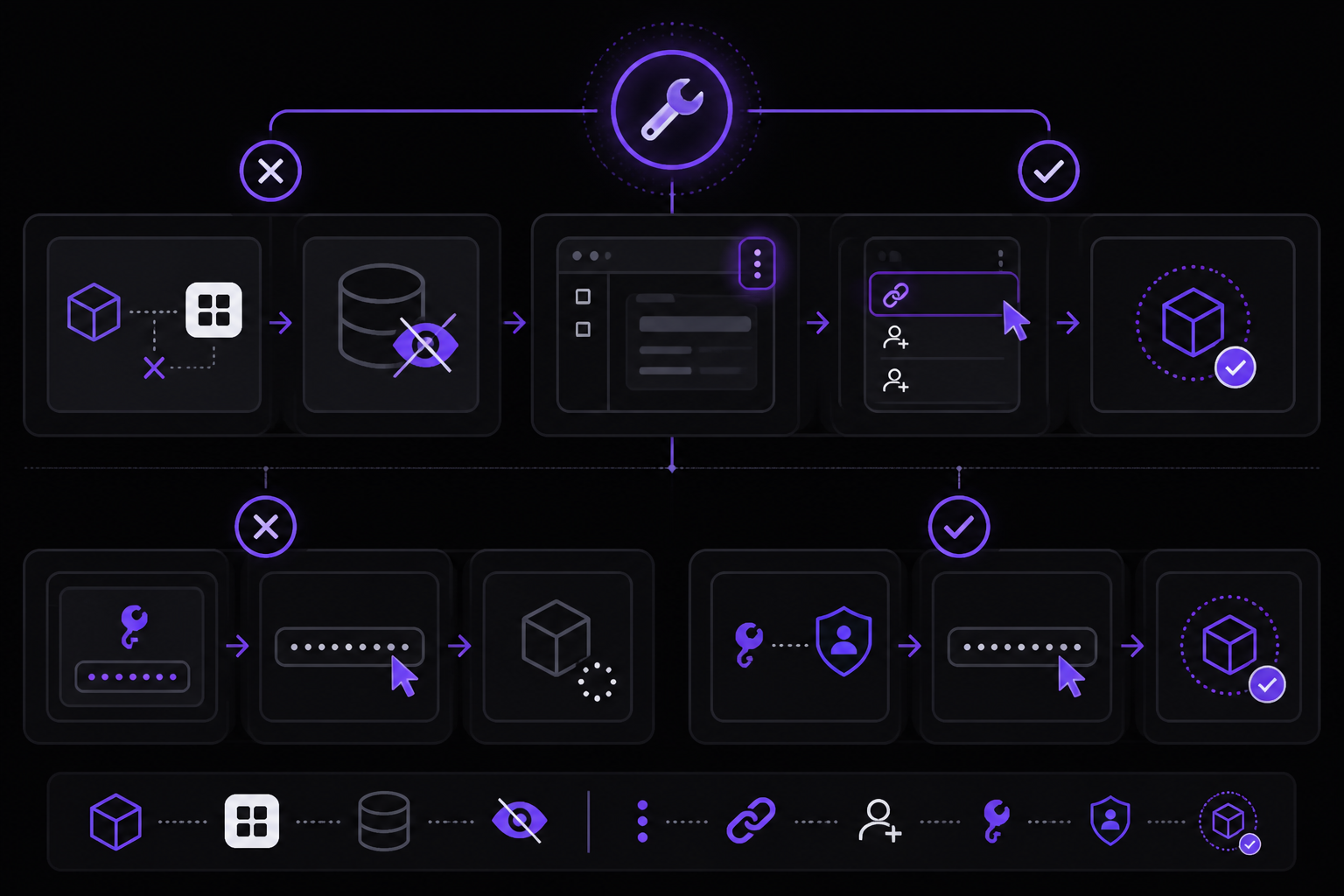
Problem: Hermes is connected to Notion but cannot see a specific database.
Solution: You must share each individual database with the Notion integration. Go into the database in Notion, click the three-dot menu, and add the integration under Connections. Workspace-level access is not enough. This is the most common setup issue according to the official documentation.
Notion API Key Prompt Appears but Nothing Works After Pasting
Problem: You paste the token, but Hermes does not connect.
Solution: Make sure you created an Internal Integration (not a public one). The internal integration token starts with secret_. After pasting the token in Hermes, ask it to list pages to verify the connection is active.
Page Update Fails
Problem: Hermes cannot update a Notion page.
Solution: Verify the integration has edit access in the Notion integration settings. Also check that database properties match the template Hermes is trying to fill. If the template expects a "Status" property but the database uses "Stage," the update will fail.
Notion Results Pollute Unrelated Tasks
Problem: Hermes mixes up data from different workflows.
Solution: Move Notion access into a dedicated profile or skill. This keeps Notion-related queries and updates isolated from other tasks.
Slow Responses
Problem: Hermes takes too long to respond when querying Notion.
Solution: Switch to a faster model on OpenRouter. The Whis Keeriyat video shows that switching from an NVIDIA model (1.57s latency) to LFM (0.38s latency) significantly speeds up responses for Notion tasks that do not require deep reasoning.
FAQ
Does Hermes Agent need a Notion API key?
Yes for self-hosted Notion workflows. Create a Notion integration, copy the API key, share only the target pages or databases with that integration, then configure Hermes or a Notion skill to use it.
Is FlyHermes easier than self-hosting Hermes for Notion?
Yes if your goal is a working cloud agent rather than infrastructure ownership. FlyHermes removes the VPS, Docker, provider-key, dashboard, and gateway maintenance while keeping the Hermes workflow model.
Is Notion the same as Hermes persistent memory?
No. Notion is an external workspace and knowledge base. Hermes persistent memory stores durable agent context and preferences; the two are complementary.
Should Hermes get access to my whole Notion workspace?
No. Share only the pages and databases needed for the workflow, especially if your workspace contains private notes, credentials, or client data.
How do I create a Notion API key for Hermes?
Go to Notion Settings, navigate to Integrations, and create a new internal integration. Copy the secret API token. In Hermes, ask it to connect to Notion and paste the token when prompted. You must also share each database with the integration inside Notion itself.
What is the difference between Notion pages and databases in Hermes?
A Notion database is a structured collection with properties like task name, status, and due date. A page is a document inside or outside a database. Hermes works best with databases because it can query and update structured records. Create separate databases for different workflows and share each one with the integration.
Can Hermes list all the databases in my Notion workspace?
Once you share databases with the integration and provide the API key, you can ask Hermes "what pages can you see in Notion?" and it will list all shared databases: sprints, social media boards, goal trackers, CRMs, and more.
How does Obsidian complement Notion in a Hermes workflow?
Notion holds structured team databases and project trackers. Obsidian holds local Markdown notes and acts as a long-term memory vault that Hermes can read and write. Using both means Hermes has access to structured task data in Notion and contextual narrative memory in Obsidian.
Can I switch Hermes to a faster model for Notion tasks?
Yes. Use hermes model in the CLI or navigate to model settings in the dashboard and switch to an OpenRouter model. The Whis Keeriyat video demonstrates switching from an NVIDIA model (1.57s latency) to LFM (0.38s latency) on OpenRouter for significantly faster responses.
Going Further
Once the basic Notion connection is working, explore these next steps from the official documentation:
- FlyHermes pricing comparison: See when managed cloud beats maintaining your own Notion agent stack.
- Install Hermes Agent locally: Use this if you want the open-source self-hosted path first.
- Persistent memory: Understand what belongs in Hermes memory vs Notion pages.
- Create Hermes skills: Turn repeatable Notion workflows into reusable skills.
- Hermes Web UI / dashboard: Give teammates browser visibility into managed or self-hosted Hermes workflows.
- Other integrations: Telegram, Discord, Slack, WhatsApp, Signal.
The official documentation also links to related setup guides for Obsidian, pricing, the Hermes Obsidian plugin, and persistent memory setup. These are natural next steps for building a complete workspace automation stack.
The #1 AI Newsletter
The most important ai updates, guides, and fixes — one weekly email.
No spam, unsubscribe anytime. Privacy policy