
Hermes Agent Obsidian Integration: Local Notes, Memory, and Markdown Workflows
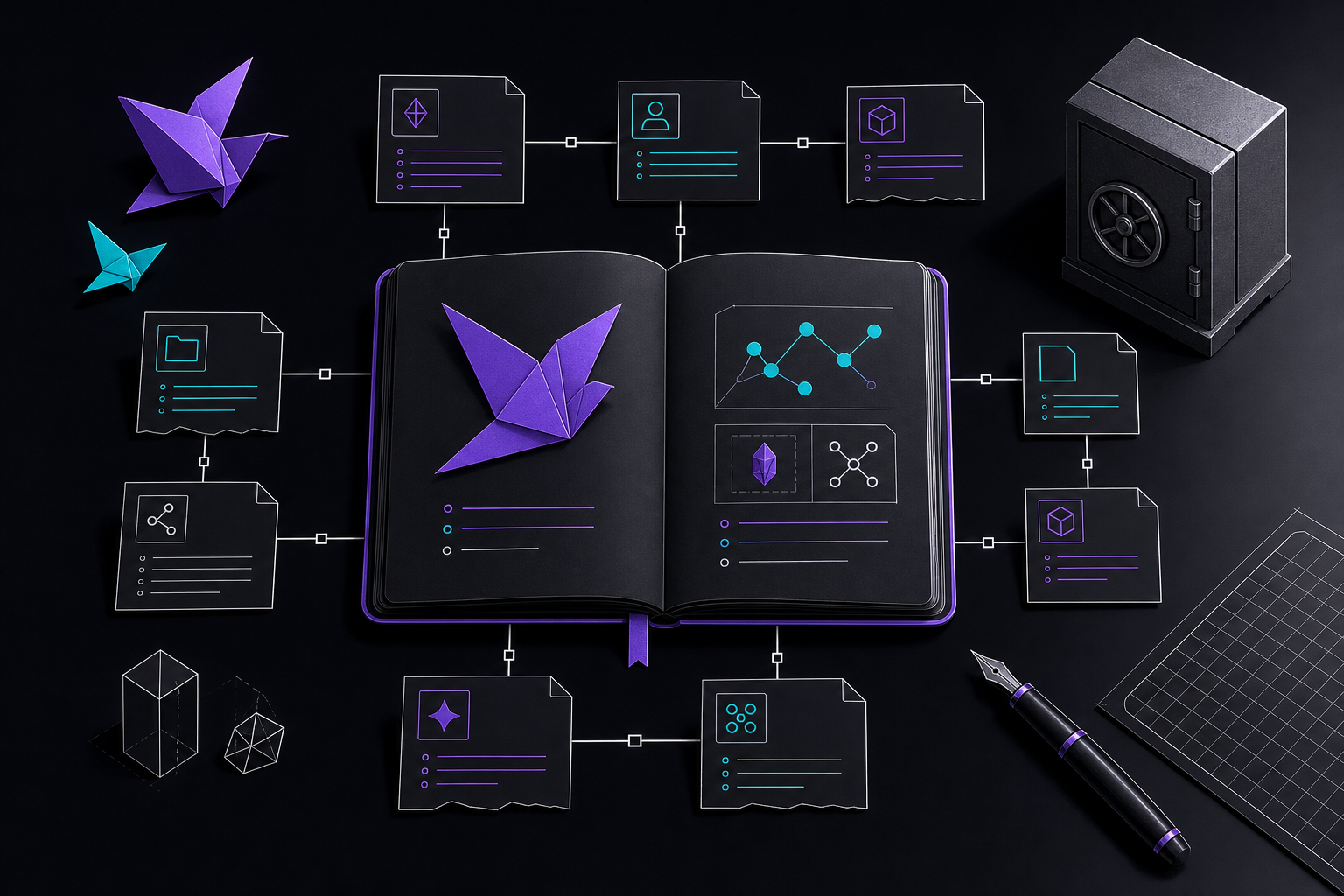
This guide covers how to integrate Hermes Agent with Obsidian as a local Markdown layer for project notes, memory review, daily summaries, and safe agent context. It is intended for users who want to audit, edit, and back up what their agent remembers using Obsidian's familiar vault workflow, without replacing Hermes' internal memory system. You will learn the recommended folder structure, setup steps, safe scoping practices, and how to avoid common pitfalls.
What You Need
Before you begin, ensure you have the following:
- Hermes Agent installed and running. The integration assumes you have a working Hermes process, either locally or through a gateway (Telegram, Discord, cron).
- Obsidian installed on your local machine. Any recent version should work.
- A dedicated Obsidian vault (or a folder within an existing vault) that you are willing to let Hermes read and write to. Do not use your entire personal vault on day one.
- File system permissions for the vault path. Hermes needs read and write access to the folder you designate.
- Basic familiarity with Markdown and Obsidian's linking syntax (wikilinks, backlinks).
Core Concepts: Obsidian as a Reviewable Memory Layer
According to the official Hermes documentation, Obsidian is strongest as a reviewable agent memory layer. Community projects around Recall, Hindsight, Memori-City, memory keep-alive, and Obsidian all point to the same demand: people want to see and correct what their agent remembers. Obsidian gives Hermes users a familiar Markdown layer for that review loop.
The integration is not meant to replace Hermes' internal memory system. The official documentation states: "Hermes + Obsidian works best when Obsidian is a scoped local Markdown review layer, not a replacement for Hermes memory." Keep durable facts in MEMORY.md, stable preferences in USER.md, transcripts in session history, and secrets outside the vault.
Key Principles
- Keep memory notes human-readable. Write in plain Markdown with clear headings and bullet points. Avoid dumping raw JSON or log output into memory files.
- Use backlinks for projects, people, repos, and skills. Obsidian's backlink graph becomes a navigable map of your agent's context. Link a memory note about a specific repository to the project note it belongs to.
- Back up the vault with your existing Git, iCloud, or local backup routine. Since the vault is just Markdown files, you can version control it with Git, sync it via iCloud, or include it in your regular backup schedule.
Setup Path
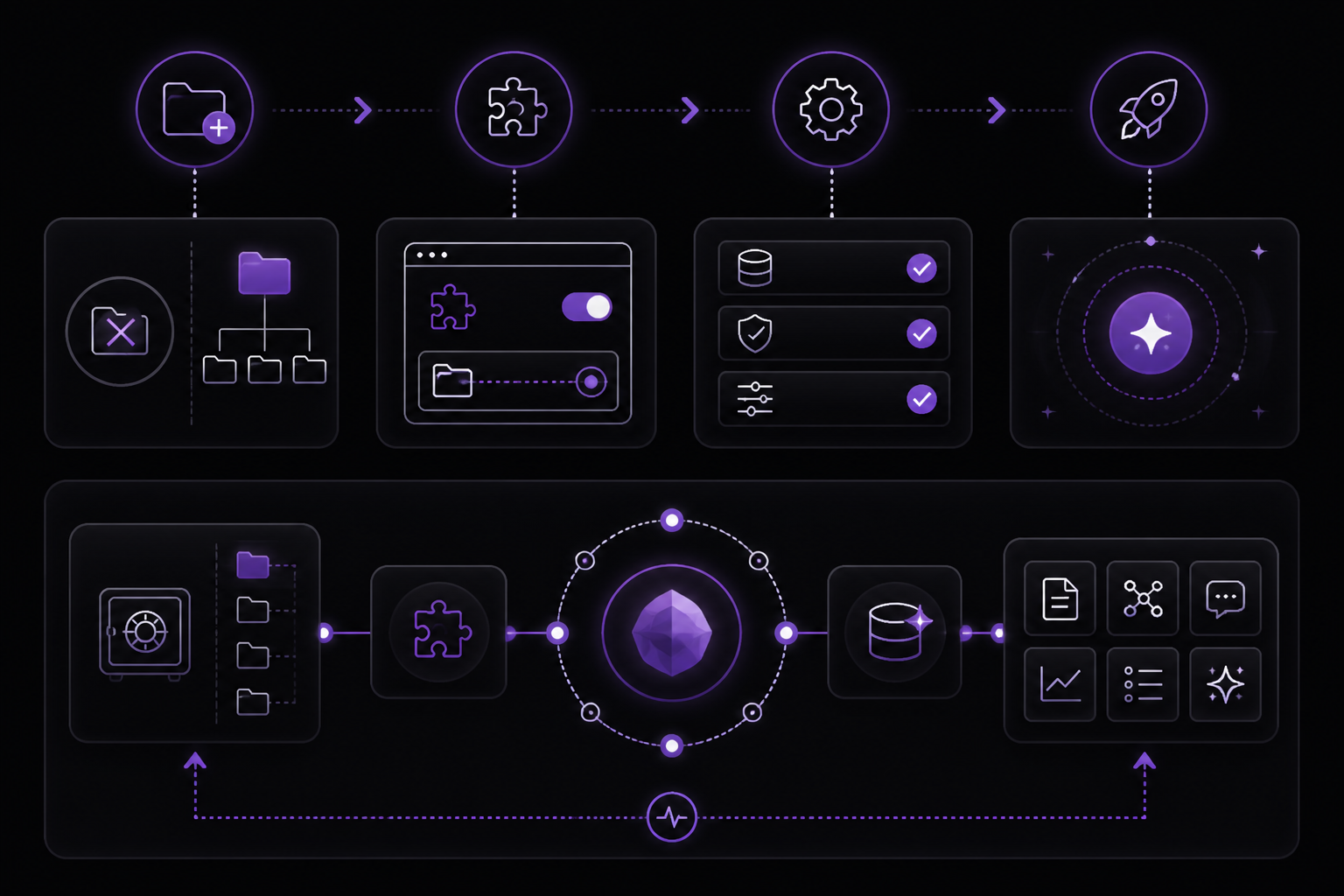
The official documentation outlines a four-step setup path. Follow these steps in order.
Step 1: Pick a Scoped Obsidian Vault Folder for Hermes Agent
Create a dedicated folder for agent memory and session summaries. The documentation recommends starting with a folder named /Agent Memory or /Hermes inside your vault. For example:
My Obsidian Vault/
├── Agent Memory/
│   ├── MEMORY.md
│   ├── USER.md
│   └── sessions/
├── Projects/
│   └── Project Alpha/
└── (your other notes)
Do not give Hermes access to your entire personal vault on day one. The documentation warns: "Start with /Agent Memory or /Hermes. Exclude private journals, passwords, and client notes unless explicitly needed."
Step 2: Configure the Hermes Obsidian Plugin/Integration Path
Configure Hermes to point to the vault folder you created. The exact configuration method depends on how you run Hermes (local process, Docker, gateway). The documentation does not provide a specific config file format, but the integration path must be set so that Hermes can read and write Markdown files in that folder.
If you are using a gateway (Telegram, Discord, cron), verify that the gateway profile and terminal backend can see the same scoped vault path. The documentation notes: "If Hermes writes Obsidian notes from Telegram, Discord, or a cron job, verify the gateway profile and terminal backend can see the same scoped vault path."
Step 3: Choose Folders for Memory, Sessions, Skills, and Projects
Within your scoped vault folder, create subfolders for different types of content. The documentation suggests:
- Memory: For durable facts (e.g., MEMORY.md, USER.md).
- Sessions: For session transcripts and summaries.
- Skills: For notes about specific skills or capabilities.
- Projects: For project-specific notes and decisions.
This structure keeps your agent's context organized and makes it easier for Hermes to find relevant information.
Step 4: Run a Smoke Test and Verify Markdown Notes in Obsidian
Ask Hermes to write one test summary and inspect the Markdown manually. The documentation advises: "Ask Hermes to write one test summary and inspect the Markdown manually." This step confirms that the integration path is correct, file permissions are set, and the content is what you expect.
To run a smoke test:
- Send a simple command to Hermes, such as "Write a summary of today's conversation to my Obsidian vault."
- Open Obsidian and navigate to the folder you configured.
- Verify that a new Markdown file appears with the expected content.
- Check that the file is readable and properly formatted.
If the note is not created, check the exact vault path and file permissions from the Hermes process, not only from your terminal. The documentation emphasizes this distinction: "If notes are not created, check the exact vault path and file permissions from the Hermes process, not only from your terminal."
Features
The Hermes Obsidian integration supports the following features, as listed in the official documentation:
- Vault search: Hermes can search your Obsidian vault for relevant notes.
- Note creation: Hermes can create new Markdown notes in the vault.
- Backlink-aware queries: When querying the vault, Hermes can follow backlinks to find related content.
- Daily notes sync: Hermes can sync daily summaries or notes to your vault.
- Template filling: Hermes can fill in predefined templates (e.g., meeting notes, project updates).
- Knowledge graph navigation: Hermes can navigate Obsidian's knowledge graph to find connected ideas.
- Hermes memory review: You can review what Hermes remembers by reading the memory notes in Obsidian.
- Skill and session notes: Hermes can write notes about specific skills or session transcripts.
Safe Vault Scoping
Safe vault scoping is critical to prevent Hermes from reading or writing sensitive information. The documentation provides clear guidelines:
- Start with /Agent Memory or /Hermes. Create a dedicated folder for agent memory and session summaries.
- Exclude private journals, passwords, and client notes unless explicitly needed. If you have a personal journal or a folder with client data, do not include it in the scoped path.
- Add specific project folders after the first sync is clean. Once you have verified that Hermes is writing and reading correctly, you can expand the scoped path to include project folders. The documentation says: "Start with /Agent Memory or /Hermes. Exclude private journals, passwords, and client notes unless explicitly needed. Ask Hermes to write one test summary and inspect the Markdown manually."
What Happens If You Scope Too Broadly
If too much private context appears in prompts, narrow the vault folder and split Obsidian into a dedicated profile. The documentation warns: "If too much private context appears in prompts, narrow the vault folder and split Obsidian into a dedicated profile." This means creating a separate Obsidian profile (a new vault) specifically for Hermes, rather than using a folder within your main vault.
When Obsidian Is Not the Fix
Obsidian is a readable review layer; it does not replace Hermes' internal memory pipeline. The documentation explicitly states: "If Hermes forgets context, compacts incorrectly, or resumes the wrong session, debug the Hermes memory pipeline first. Obsidian is a readable review layer; it does not replace profile selection, memory configuration, session search, or auxiliary model health."
If you encounter these issues, do the following before widening vault access:
- Check the active profile and vault path from the Hermes process. Ensure Hermes is using the correct profile and pointing to the right vault folder.
- Run the memory setup and troubleshooting guides before widening vault access. The Hermes memory system has its own configuration and debugging steps.
- Use FlyHermes if you want managed cloud operation instead of local vault and gateway maintenance. FlyHermes handles memory and context in the cloud, removing the need for local vault management.
Gateway and Cron Safety for Vault Workflows
If Hermes writes Obsidian notes from Telegram, Discord, or a cron job, follow these safety guidelines from the documentation:
- Use one scoped Hermes folder per profile or project. This prevents cross-contamination between different contexts.
- Verify the gateway can list the vault path before relying on Telegram or Discord updates. The gateway may run under a different profile, service account, working directory, or Docker mount. The documentation notes: "The gateway may run under a different profile, service account, working directory, or Docker mount. Check the active profile and filesystem path before changing the vault."
- For cron jobs, write append-only summaries and require a read-back check. Scheduled jobs should append dated summaries instead of silently rewriting old notes. The documentation says: "For cron jobs, write append-only summaries and require a read-back check." This means the cron job should add new content to a file (e.g., a daily log) rather than overwriting it, and it should read the file back to confirm the write succeeded.
Common Setup Issues
The documentation lists three common setup issues and their solutions:
-
Notes are not created. Check the exact vault path and file permissions from the Hermes process, not only from your terminal. The Hermes process may run under a different user or service account than your terminal session.
-
Too much private context appears in prompts. Narrow the vault folder and split Obsidian into a dedicated profile. If you are using a folder within your main vault, consider creating a separate vault exclusively for Hermes.
-
Memory feels stale. Review whether Hermes is reading the note folder or only writing summaries to it. The documentation asks: "If memory feels stale, review whether Hermes is reading the note folder or only writing summaries to it." If Hermes is only writing but not reading, your memory notes will not influence its responses.
FAQ
Is the Hermes Obsidian integration local-first?
Yes. The typical workflow stores notes as Markdown in your vault, so you can inspect, edit, back up, and link them with normal Obsidian workflows. The documentation confirms: "Yes. The typical workflow stores notes as Markdown in your vault, so you can inspect, edit, back up, and link them with normal Obsidian workflows."
Should Hermes read my whole vault?
No. Start with a scoped folder for agent memory or project summaries and expand only after you know what context Hermes is reading. The documentation advises: "No. Start with a scoped folder for agent memory or project summaries and expand only after you know what context Hermes is reading."
How is Obsidian different from Notion for Hermes?
Obsidian is better for local Markdown, backlinks, and personal knowledge graphs. Notion is better for structured team databases, templates, and shared workspace records. The documentation provides this comparison: "Obsidian is better for local Markdown, backlinks, and personal knowledge graphs. Notion is better for structured team databases, templates, and shared workspace records."
What community demand supports this page?
Recent community threads and projects focused on memory visualization, Recall/Hindsight, and Obsidian-style persistence because users want durable context they can audit. The documentation notes: "Recent community threads and projects focused on memory visualization, Recall/Hindsight, and Obsidian-style persistence because users want durable context they can audit."
Why does Hermes work with Obsidian locally but not from Telegram?
The gateway may run under a different profile, service account, working directory, or Docker mount. Check the active profile and filesystem path before changing the vault. The documentation explains: "The gateway may run under a different profile, service account, working directory, or Docker mount. Check the active profile and filesystem path before changing the vault."
Can Hermes cron jobs update Obsidian?
Yes, but make scheduled jobs append dated summaries, avoid secrets, and read back the changed files before reporting success. The documentation advises: "Yes, but make scheduled jobs append dated summaries, avoid secrets, and read back the changed files before reporting success."
Troubleshooting
Notes Not Appearing in Obsidian
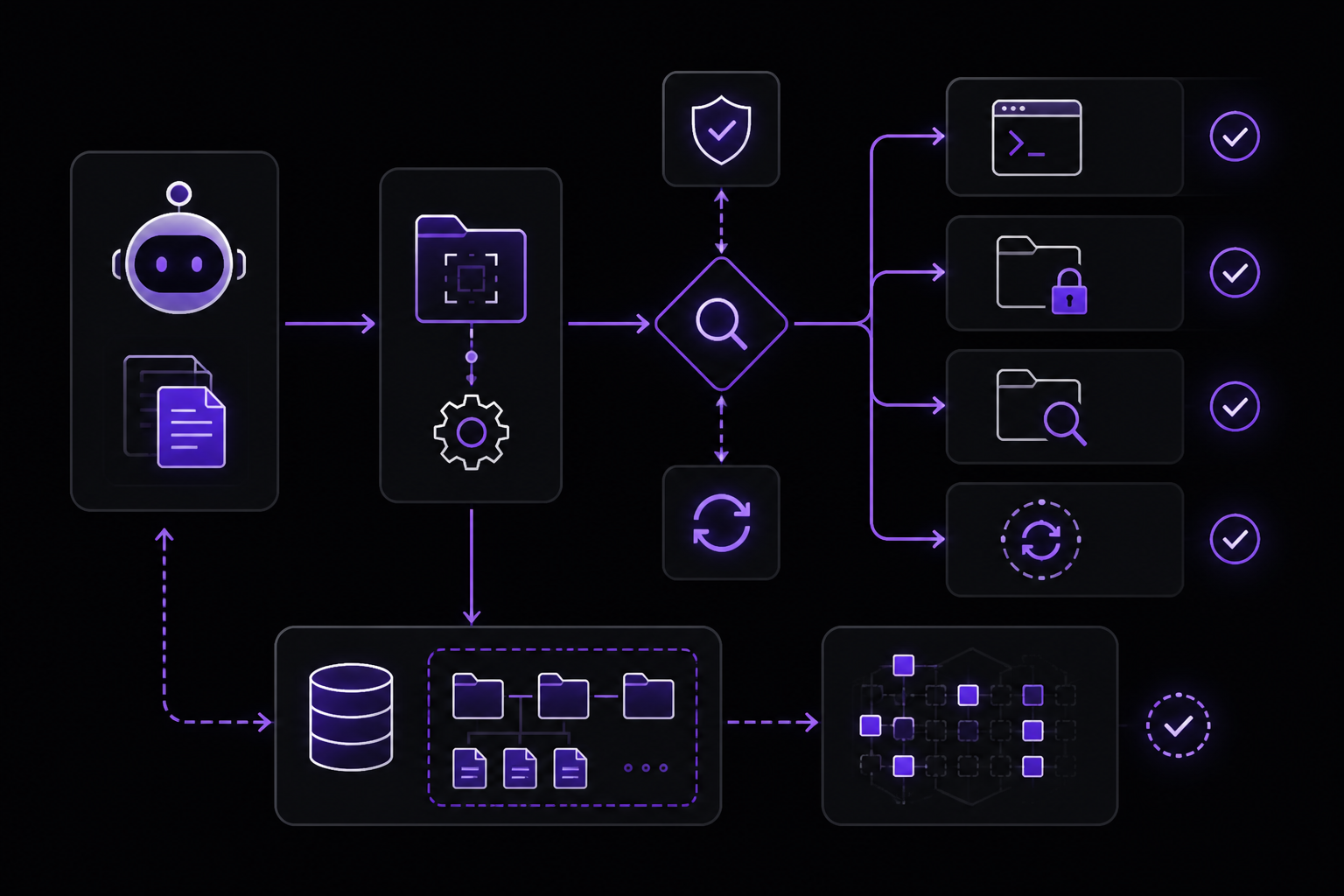
If Hermes says it wrote a note but you cannot see it in Obsidian:
- Verify the vault path from the Hermes process. Run a command that prints the current working directory and vault configuration.
- Check file permissions. Ensure the user running Hermes has write access to the vault folder.
- Look for the note in the filesystem directly (outside Obsidian). It may have been written to a different path than expected.
- Confirm that Obsidian's file index is up to date. Sometimes Obsidian needs a manual refresh (Ctrl+P > "Refresh file index").
Memory Feels Stale
If Hermes seems to ignore the notes in your vault:
- Check whether Hermes is configured to read the note folder, not just write to it. The documentation warns: "If memory feels stale, review whether Hermes is reading the note folder or only writing summaries to it."
- Ensure the notes are in a format Hermes can parse. Use clear headings and bullet points.
- Verify that the notes are within the scoped path. If you moved them to a different folder, Hermes may not find them.
Private Context Leaking into Prompts
If you see sensitive information in Hermes' responses:
- Narrow the vault folder immediately. Remove any folders containing private journals, passwords, or client notes.
- Consider creating a dedicated Obsidian profile (a separate vault) exclusively for Hermes.
- Review what Hermes has written to its memory. Delete any sensitive content that was accidentally ingested.
Going Further
After you have the basic integration working, explore these next steps drawn from the source material:
- Set up daily notes sync to automatically write daily summaries to your vault.
- Create templates for common note types (meeting notes, project updates, skill documentation) and configure Hermes to fill them.
- Explore the knowledge graph by adding backlinks between memory notes, project notes, and session summaries.
- Compare with Notion integration if you need structured team databases and shared workspace records.
- Consider FlyHermes if you want managed cloud operation instead of local vault and gateway maintenance.
- Review related setup guides for other integrations: Telegram, Discord, Slack, WhatsApp, and Signal.
The #1 AI Newsletter
The most important ai updates, guides, and fixes — one weekly email.
No spam, unsubscribe anytime. Privacy policy