
Hermes Agent Slack Integration: Setup, Socket Mode & Team Bot
This guide covers how to connect Hermes Agent to Slack using Socket Mode, generate and install a Slack app manifest, configure channel and user allowlists, and operate a team bot with threaded replies, scheduled reports, and per-channel prompts. It is written for developers and team leads who want a secure, self-hosted Slack gateway without exposing a public webhook URL.
What You Need
Before starting, you must have the following:
- Hermes Agent installed and configured. The
hermesCLI must be available on your system. This guide assumes you have a working Hermes profile. - A Slack workspace where you can install apps. You need permission to create and install a custom Slack app. If you are an admin, you can do this directly. If not, you may need to request approval.
- Two Slack tokens: a Bot User OAuth Token (starts with
xoxb-) and an App-Level Token (starts withxapp-). Both are generated during the Slack app installation process. - A running Hermes gateway. The gateway process must be active for the bot to receive and respond to messages. This can be on your local machine, a private server, or a managed host.
How Hermes Agent Connects to Slack
Hermes Agent uses the Slack Bolt SDK with Socket Mode. Instead of requiring a public webhook URL to receive events, Slack sends events and commands over a WebSocket connection. This WebSocket is authenticated by the app-level token (xapp-), while the bot token (xoxb-) is used to read messages and post replies. This setup removes the need for a public callback endpoint, but the Hermes gateway must remain online to maintain the WebSocket connection.
According to the official documentation, you should use the generated app manifest instead of manually copying every scope, event, and command. The manifest ensures all required permissions are included. Classic RTM (Real Time Messaging) Slack apps are deprecated; you must create or migrate to a current Socket Mode app.
Store both tokens in the active Hermes profile environment. Never put them in prompts, source control, or any location where they could be exposed.
Generating the Slack App Manifest
The first step is to generate a Slack app manifest using the Hermes CLI. This manifest is a JSON file that defines the app's OAuth scopes, event subscriptions, slash commands, and other settings.
Run the following command in your terminal:
hermes slack manifest --agent-view --write
--agent-view: This flag generates a manifest optimized for an agent-based bot, including the necessary events and scopes for channel and DM interactions.--write: This flag writes the manifest to a file (typicallyslack-manifest.jsonin the current directory) instead of printing it to stdout.
After running the command, you will have a JSON file. Open it in a text editor to review the scopes and events. The manifest will include:
- OAuth scopes for reading messages, posting messages, uploading files, and managing channels.
- Event subscriptions for
app_mention,message.channels,message.groups,message.im, andmessage.mpim. - Slash commands such as
/queue,/stop,/model,/approve, and/deny.
Creating the Slack App from the Manifest
- Go to the Slack API dashboard and click Create New App.
- Choose From an app manifest.
- Select your workspace and then paste the contents of the generated JSON file into the manifest editor. Alternatively, you can upload the file directly.
- Click Next and then Create.
- After the app is created, you will be taken to the app's settings page.
Installing the App and Getting Tokens
- In the left sidebar, click Install App.
- Click Install to Workspace. Review the permissions and click Allow.
- After installation, you will see a Bot User OAuth Token that starts with
xoxb-. Copy this token and store it securely. - Next, go to Basic Information in the left sidebar.
- Scroll down to App-Level Tokens and click Generate Token and Scopes.
- Give the token a name (e.g., "Hermes Socket Mode Token").
- Add the scope
connections:write. This scope is required for Socket Mode. - Click Generate and copy the token that starts with
xapp-. Store it securely.
Configuring the Hermes Gateway
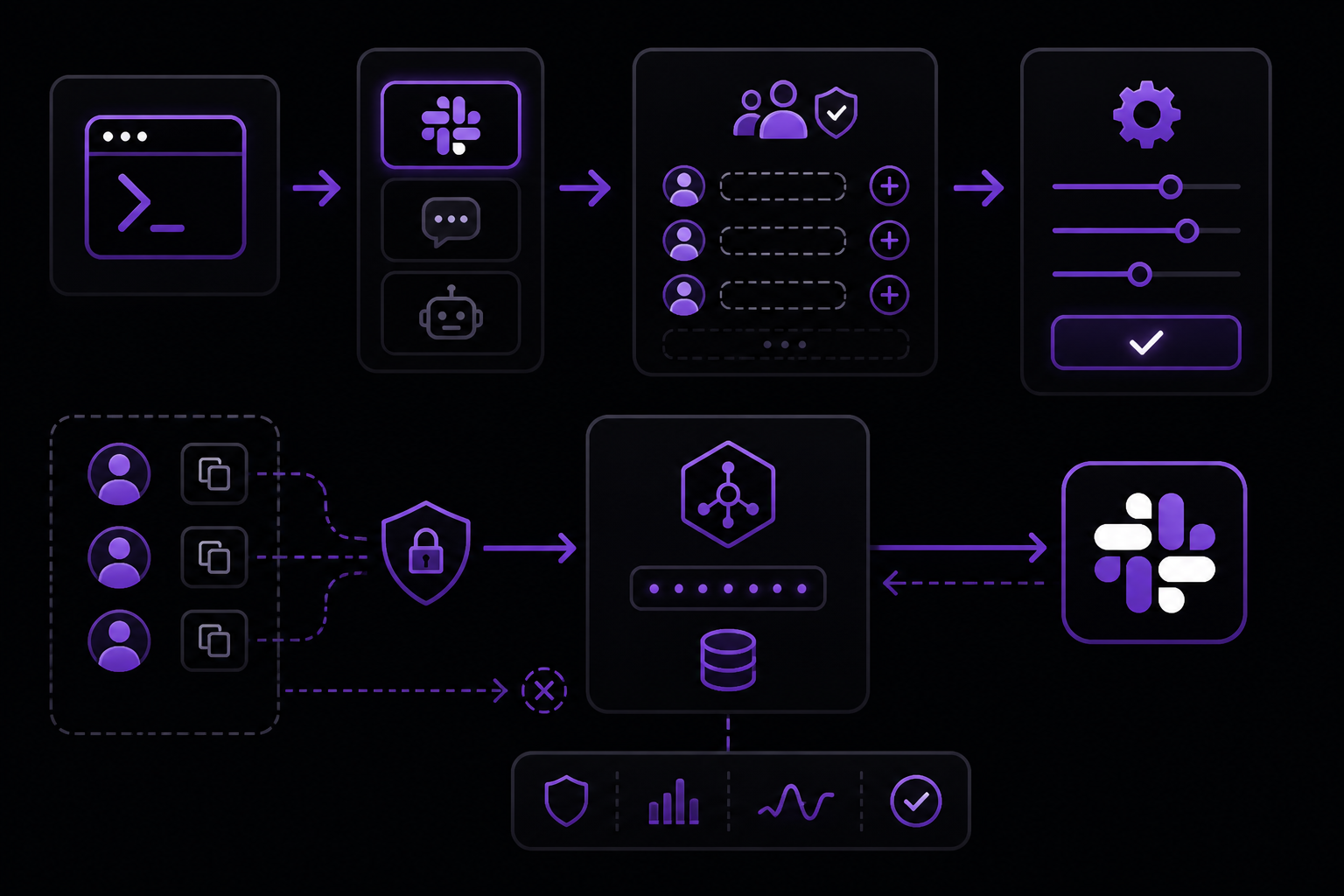
With the tokens in hand, you now configure the Hermes gateway to use Slack.
- Run the gateway setup command:
hermes gateway setup
-
When prompted, select Slack as the integration type.
-
You will be asked to enter the Slack Member IDs (user IDs) that are authorized to interact with the bot. Hermes denies messages by default if no authorized Member IDs are configured. This is a fail-closed security measure.
To find a user's Member ID in Slack:
- Click on their profile picture.
- Click More (three dots).
- Select Copy member ID.
You can add multiple IDs separated by commas.
-
You will also be asked to set the
SLACK_ALLOWED_USERSandSLACK_ALLOWED_CHANNELSenvironment variables. These can be set in your Hermes profile or in the shell environment before starting the gateway.SLACK_ALLOWED_USERS: A comma-separated list of Slack Member IDs that are allowed to send messages to the bot. Messages from users not on this list are silently ignored.SLACK_ALLOWED_CHANNELS: A comma-separated list of channel IDs that the bot will respond in. Messages from non-approved channels are ignored before mention logic even runs.
To find a channel ID:
- Right-click the channel name in the sidebar.
- Select Copy link. The link will contain the channel ID (e.g.,
C0123456789).
-
Set the environment variables for the tokens. The official documentation recommends storing them in the active profile environment, not in prompts or source control. For example, in your
.envfile or shell profile:
export SLACK_BOT_TOKEN=xoxb-your-bot-token
export SLACK_APP_TOKEN=xapp-your-app-token
- Start the gateway:
hermes gateway start
Inviting the Bot and Testing
- In Slack, create a test channel or use an existing one.
- Invite the bot to the channel using
/invite @Hermes Agent(replace with your bot's display name). - Send a message that @mentions the bot, such as
@Hermes Agent hello. - The bot should reply in a thread under your message.
- Also test a direct message (DM) to the bot. In a DM, the bot responds without needing an @mention.
- Prove one DM, one channel reply, and any scheduled delivery in the exact target workspace before widening channel access. The official documentation emphasizes this step: "call the integration healthy only after a real DM, channel/thread reply, or cron delivery lands in Slack."
Mentions, Threads, Commands, and Session Behavior
In 1:1 DMs, Hermes responds without a mention. In channels, an @mention starts the conversation, and Hermes replies in a thread. Later replies in that active thread can continue naturally without needing another @mention.
Slack blocks native slash commands inside thread replies. Because of this, Hermes also accepts the !command prefix in threads. For example, use !queue, !stop, !model, !approve, or !deny instead of the slash command form.
Session Configuration
The official documentation mentions two key session settings:
group_sessions_per_user: true: When enabled, each teammate has isolated context. This is the recommended setting for team bots so that one user's conversation does not interfere with another's.strict_mention: true: In busy channels, this setting prevents automatic thread re-engagement. Without it, if someone replies in a thread that the bot was previously active in, the bot might respond unexpectedly. Enable this when you want to avoid surprising users.
Use a shared channel session only when the team explicitly accepts shared context, token growth, and shared resets. Shared sessions mean all users in a channel share the same conversation history with the bot, which can lead to confusion.
Team-Safe Slack Access Controls
A Slack bot is a shared work surface, not a copy of your unrestricted personal CLI agent. The official documentation recommends pairing a dedicated Hermes profile with the following controls:
SLACK_ALLOWED_USERS: Denies messages by default when no authorized Member IDs are configured.SLACK_ALLOWED_CHANNELS: Silently ignores non-approved channels before mention logic runs.- Mention gating: Only respond when the bot is @mentioned in channels.
- Narrow tools: Limit the tools and skills available to the bot in Slack.
- Project-specific prompts or skill bindings: Use per-channel prompts for recurring tone, constraints, or domain rules.
Group DMs are shared surfaces and should follow channel-style allowlist and mention controls.
Slack Workflows Worth Operating
The strongest Slack workflows keep a decision or alert visible to the whole team. The official documentation lists these examples:
- Incident summaries
- GitHub and CI handoffs
- Scheduled operating reports
- Research threads
- Approval steps
Set a Slack home channel for proactive cron delivery, then test the actual destination instead of stopping at a healthy-process indicator.
Per-Channel Prompts and Skill Bindings
- Use per-channel prompts for recurring tone, constraints, or domain rules. For example, a support channel might have a prompt that says "You are a helpful support agent. Be concise and provide step-by-step instructions."
- Use per-channel skill bindings when a support, research, or operations channel should preload a known capability. For instance, a research channel might have a skill that allows the bot to search the web.
Rich Block Kit Replies
Enable rich Block Kit replies only after the plain-text workflow is stable. Block Kit allows for interactive elements like buttons and dropdowns, but it adds complexity. Start with plain text, verify the workflow, then add Block Kit.
Scheduled Reports
You can schedule Hermes to send reports to a specific Slack channel. To do this:
- Set an explicit Slack home channel or cron delivery target in your Hermes configuration.
- Invite the bot to that channel.
- Verify a real test delivery before relying on production reports.
Troubleshooting
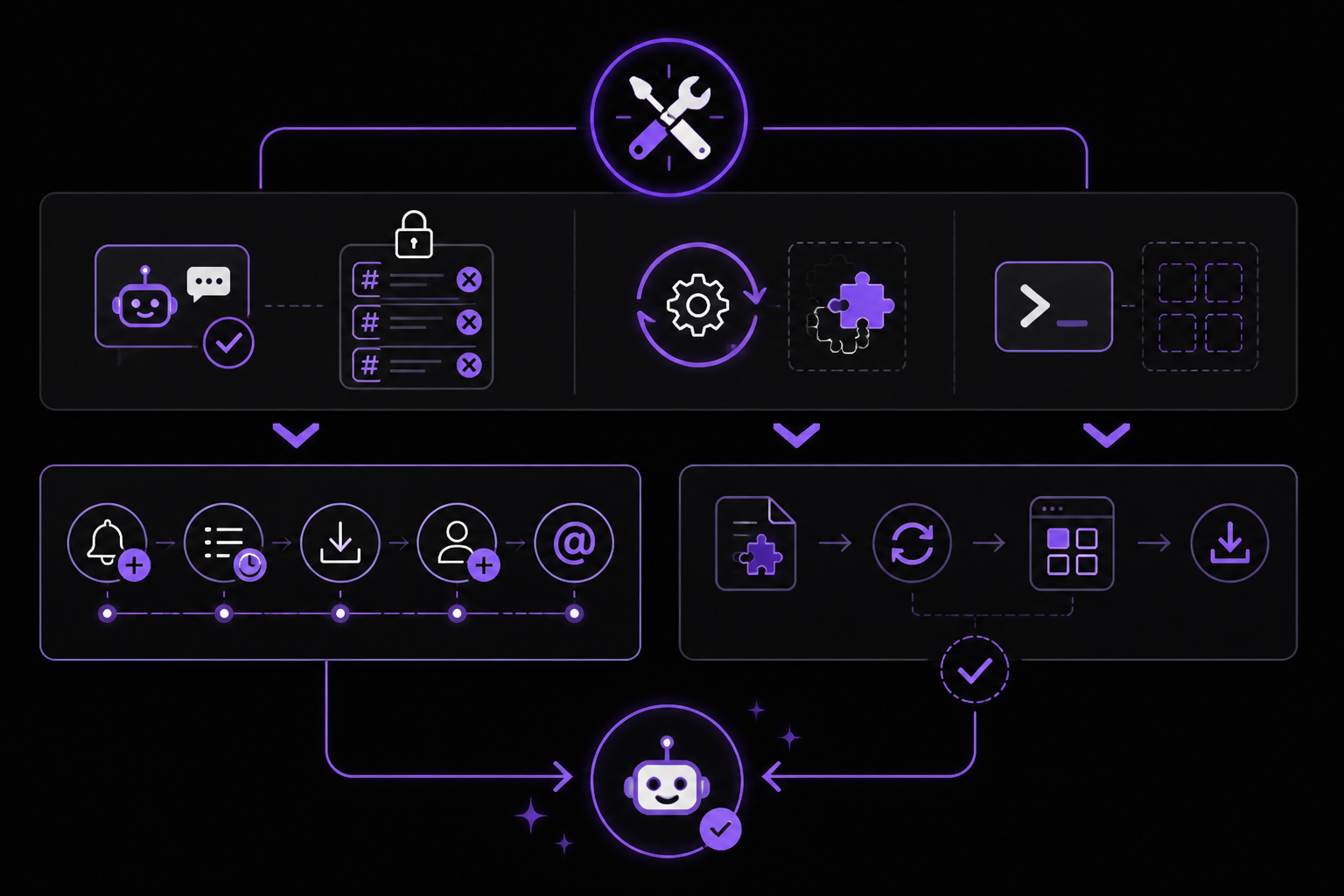
DMs work but channels do not
The usual cause is missing channel event subscriptions or history scopes. Follow these steps:
- Add the
message.channelsandmessage.groupsevents to your Slack app's event subscriptions. - Add the matching history scopes (e.g.,
channels:history,groups:history). - Reinstall the app.
- Invite the bot to the channel.
- @mention the bot.
Slack commands are missing after a Hermes update
Regenerate the manifest with hermes slack manifest --write, replace the App Manifest in your Slack app settings, save, and reinstall when Slack requests it.
Native slash commands do not work inside Slack threads
This is a Slack limitation. Slack never delivers native slash commands in thread replies. Use the matching exclamation form: !queue, !stop, !model, !approve, or !deny.
Uploaded files are invisible
Add the files:read OAuth scope to your app, reinstall the app, and retry with a harmless attachment.
Duplicate or delayed interactive-action messages
This often means two Socket Mode consumers are competing to acknowledge the same envelope. Keep one owner of the Socket Mode connection, or use an external bridge that acknowledges and deduplicates immediately.
General diagnostics
Use the Hermes dashboard for logs and gateway state. However, the official documentation warns: "call the integration healthy only after a real DM, channel/thread reply, or cron delivery lands in Slack." A healthy-looking process does not guarantee that messages are being delivered.
Going Further
Once your Slack integration is working, you can explore these related topics from the official documentation:
- Troubleshoot the Hermes gateway: Diagnose a healthy-looking service that still does not deliver channel replies.
- Schedule reliable Hermes reports: Target cron output to an explicit channel and verify delivery status.
- Isolate team bots with Hermes profiles: Separate Slack tools, memory, secrets, and gateway state from personal work.
- Compare self-hosted and managed Hermes: Price gateway uptime and maintenance, not only model tokens and VPS rent. Consider FlyHermes when browser/mobile access and connected-channel uptime matter but your team does not want to own the server, gateway restarts, provider keys, upgrades, and delivery monitoring.
- Connect to other platforms: Hermes also supports Discord, Telegram, WhatsApp, Signal, and email integrations. Each has its own setup guide.
The #1 AI Newsletter
The most important ai updates, guides, and fixes — one weekly email.
No spam, unsubscribe anytime. Privacy policy